Few things are as frustrating for WordPress developers and agencies as the sudden appearance of the infamous 502 Bad Gateway error. Imagine working on an urgent update or presenting a live preview to a client, only to be met with the dreaded HTTP error 502.
This error can halt site functionality, hinder productivity, and cause potential revenue losses if it affects live sites. For WordPress developers and agencies, understanding what a 502 error is, how it impacts a website, and, most importantly, how to fix it, is essential.
Table of Contents
What is a 502 Bad Gateway Error?
A WordPress 502 error occurs when a server acting as a gateway or proxy receives an invalid response from an inbound server, typically the origin server. This type of error means there’s a breakdown in communication between servers, preventing the requested webpage from loading.
Must Read: How to Handle WordPress Site Downtime and Performance Issues Efficiently
A real-world example of a 502 Bad Gateway error can be seen with Cloudflare, a popular content delivery network. When users attempt to access a website that is experiencing issues on Cloudflare’s end, they might encounter a page displaying the “502 Bad Gateway” message.
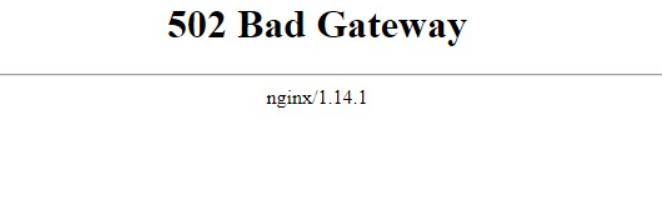
This Reddit user adds a new perspective to the 502 error.

Common Variations of the 502 Error Code
We often encounter the infamous 502 Bad Gateway error in various forms, but they all mean the same thing: your server couldn’t handle the request. Here are some of the most common ways this error might appear:
- “502 Bad Gateway”
- “HTTP Error 502 Bad Gateway”
- “502 Service Temporarily Overloaded”
- “Error 502”
- “502 Proxy Error”
- “HTTP 502”
- “502 Bad Gateway NGINX”
- “502 Server Error: The server encountered a temporary error and could not complete your request”
- “502. That’s an error. The server encountered a temporary error and could not complete your request. Please try again in 30 seconds. That’s all we know.”
No matter the wording, the frustration remains the same. Each variation is a cry from the server, signaling that something went wrong.
Struggling with other WordPress issues? Check out this WordPress troubleshooting guide to troubleshoot like a pro!
Why 502 Bad Gateway Error Takes Place in WordPress
Key culprits behind 502 errors include:
- Server Overload: Origin servers overwhelmed by traffic may fail to respond promptly.
- Faulty Firewall Configuration: Firewalls may block requests unintentionally.
- Browser Cache Issues: Cached files can sometimes interfere with requests and responses.
- DNS Changes: Recent DNS modifications might not yet be fully propagated.
- Bad Code or Plugins: A faulty plugin or theme update could be the root cause.
Knowing these causes of 502 errors WordPress provides a roadmap for effective diagnosis and resolution.
Why Agencies and Developers Should Learn to Fix 502 Errors
For WordPress developers and agencies, resolving the 502 Bad Gateway error quickly is crucial to maintaining client trust, user experience, and SEO rankings. Here’s why mastering 502 error resolution is essential:
- Client Trust: Swiftly fixing errors strengthens client relationships.
- User Experience: Each 502 error disrupts user experience, risking customer loyalty.
- SEO Impact: Frequent 502 errors may lead to search engine penalties, impacting rankings.
- Revenue Protection: For e-commerce sites, prolonged downtime can impact revenue.
- Site Uptime: Prompt handling of server errors is vital for site uptime, an essential factor for professional credibility.
How to Resolve the 502 Bad Gateway Error: A Step-by-Step Guide
Here’s a concise troubleshooting guide for developers and agencies to resolve the 502 error code on WordPress sites:
Here’s a thorough guide on how developers and agencies can troubleshoot and resolve the 502 error code on WordPress sites.
Solution 1: Refresh the Page and Clear Browser Cache
Sometimes, the 502 error code is due to temporary connectivity issues. Before diving into advanced solutions, try these steps:
- Refresh the webpage using Ctrl + F5 or Command + Shift + R.
- If the 502 bad gateway error persists, clear the browser cache to remove any old, potentially problematic files.
Solution 2: Test the Website on a Staging Site
Using a staging site to troubleshoot the 502 bad gateway error is ideal for developers, as it lets you apply and test changes without affecting the live site. Here’s how to proceed:
- Create a Staging Site: If you’re using a tool like InstaWP, quickly spin up a clone of your live site. This staging environment lets you safely test various troubleshooting steps.
- Replicate the Error: Try to reproduce the 502 error code on the staging site by navigating through various pages or performing actions like activating/deactivating plugins.
- Document Any Patterns: Note if specific actions cause the error to appear, as these will help pinpoint the root cause.
Solution 3: Check for Server Overload
A 502 bad gateway error often arises due to a server overload. Here’s how to investigate this issue:
- Monitor Server Logs: Check server logs through your hosting provider’s dashboard or by connecting via FTP. Look for any unusual spikes in traffic or errors indicating resource overload.
- Optimize Resource-Heavy Plugins: Temporarily deactivate resource-intensive plugins or scripts to see if this resolves the HTTP error 502.
- Consider Scaling Up Hosting Resources: If your server is repeatedly overwhelmed, it may be time to upgrade to a more robust managed hosting plan for small agencies to avoid getting 502 bad gateway errors frequently.
Solution 4: Investigate Recent DNS Changes
If you’ve recently switched hosts or made DNS changes, this may contribute to the 502 bad gateway error. Here’s how to check:
- Verify DNS Settings: Ensure that DNS records are correctly pointing to your server. Changes to DNS settings can take up to 24-48 hours to propagate fully.
- Use DNS Lookup Tools: Check propagation status using DNS lookup tools like WhatsMyDNS to verify that your DNS records have been updated worldwide.
Solution 5: Test for Plugin or Theme Conflicts
Outdated or incompatible plugins and themes are common culprits for 502 bad gateway errors. Testing for conflicts on a staging site can be very effective:
- Deactivate All Plugins: Temporarily disable all plugins and check if the 502 error is resolved. If the site loads correctly, re-enable plugins one by one to identify the problematic ones.
- Switch to a Default Theme: If deactivating plugins doesn’t work, try switching to a WordPress default theme, such as Twenty Twenty-One. If the error disappears, your custom theme may require an update or fix.
- Update or Replace the Problematic Plugin/Theme: Once identified, update the problematic plugin or theme. If the error persists, consider finding a replacement.
Solution 6: Clear the Server and Site Cache
Caching issues on the server or CDN level can also lead to the HTTP error 502. Here’s how to clear these caches:
- Clear CDN Cache: If your site uses a CDN like Cloudflare, go to the CDN dashboard and clear the cache. This step alone may resolve the 502 bad gateway error.
- Clear Server Cache: Access your hosting control panel or server tools to clear any server-side cache.
- Clear WordPress Cache: If using a caching plugin, clear the site cache within the plugin settings.
Here is a guide that will help you learn more about caching in WordPress.
Solution 7: Adjust Firewall and Security Settings
Sometimes, firewall configurations can mistakenly block legitimate requests, resulting in a 502 error code.
- Disable the Firewall Temporarily: Disable any firewall or security settings temporarily to see if the 502 error resolves.
- Whitelist IP Addresses: Whitelist any relevant IP addresses in your firewall settings to prevent future blockages.
- Consult with Your Host: If you use a third-party firewall, consult with your hosting provider to adjust settings as needed.
Solution 8: Review Server Configuration Files
In rare cases, misconfigurations in server files like .htaccess can lead to 502 bad gateway errors.
- Backup and Rename .htaccess File: Via FTP, locate the .htaccess file, make a backup, then rename it. Check if the 502 error code persists.
- Generate a New .htaccess File: Go to your WordPress dashboard, navigate to Settings > Permalinks, and save changes without modifying settings. This will generate a new .htaccess file with default settings.
Conclusion
A 502 bad gateway error can be frustrating, but with these targeted solutions, WordPress developers and agencies can troubleshoot and resolve it efficiently. By leveraging a staging site, monitoring server logs, and carefully testing plugins and themes, you can address the 502 error without disrupting the live site.
Resolving such errors reinforces your site’s stability, enhances user experience, and solidifies your reliability as a WordPress professional. Equip yourself with these techniques, and tackle any HTTP error 502 with confidence.
Frequently Asked Questions (FAQs)
1. What is a 502 error?
A 502 error is a server error indicating that a gateway or proxy server received an invalid response from an upstream server, preventing the site from loading.
2. What causes a 502 bad gateway error?
This error may be due to server overload, DNS issues, faulty plugins, or misconfigured firewall settings. Identifying the cause helps determine the most effective solution.
3. How does a 502 error impact a website?
A 502 bad gateway error disrupts user access, affects SEO rankings, and can lead to revenue loss if left unresolved, making it crucial to address quickly.
4. How can I fix the 502 error using a staging site?
Create a staging site, replicate the 502 error code, and apply troubleshooting steps such as deactivating plugins, testing themes, and clearing caches. This allows for safe testing without affecting the live site.
5. Can caching issues lead to a 502 bad gateway error?
Yes, outdated or conflicting cache files can cause this error. Clearing CDN, server, and WordPress caches often resolves caching-related 502 errors.
6. What is the importance of firewall settings in resolving a 502 error?
Misconfigured firewalls may block legitimate server requests, causing a 502 bad gateway error. Adjusting firewall settings or whitelisting specific IPs can prevent this issue.