WordPress revisions are saved copies of every change you make to a post or page, so you can compare older versions and restore previous content whenever you need it. This guide shows you how to view, restore, limit, disable, and delete WordPress revisions, and how to stop them from quietly slowing your site down.
It is written for WordPress developers, agencies, freelancers, and site owners who want full control over their content history without the database bloat. The safest way to manage revisions is to test changes on a staging copy first, and we will show you exactly how to do that.
Key Takeaways
- Revisions are automatic. WordPress saves a revision every time you save a draft, update, or publish a post or page, and it autosaves roughly every 60 seconds.
- They live in your database. Each revision is a row in the
wp_poststable, so unlimited revisions can bloat the database and slow queries over time. - You can view and restore in one click. Open the Revisions panel in the editor, use the slider to compare versions, and restore any earlier version instantly.
- You control the volume. Limit revisions with
WP_POST_REVISIONS, delete old ones with WP-CLI, SQL, or a plugin, or disable them entirely. - Test risky cleanup safely. Run database deletions on a WordPress staging site first, or take a snapshot before you touch production.
Table of Contents
What are WordPress revisions?
A WordPress revision is a snapshot of a post or page that WordPress stores automatically each time you save your work. Whenever you click Save Draft, Update, or Publish, WordPress records the current state of your content as a new revision. This means you build up a complete history of changes for every piece of content, and you can step back to any earlier version without losing anything.
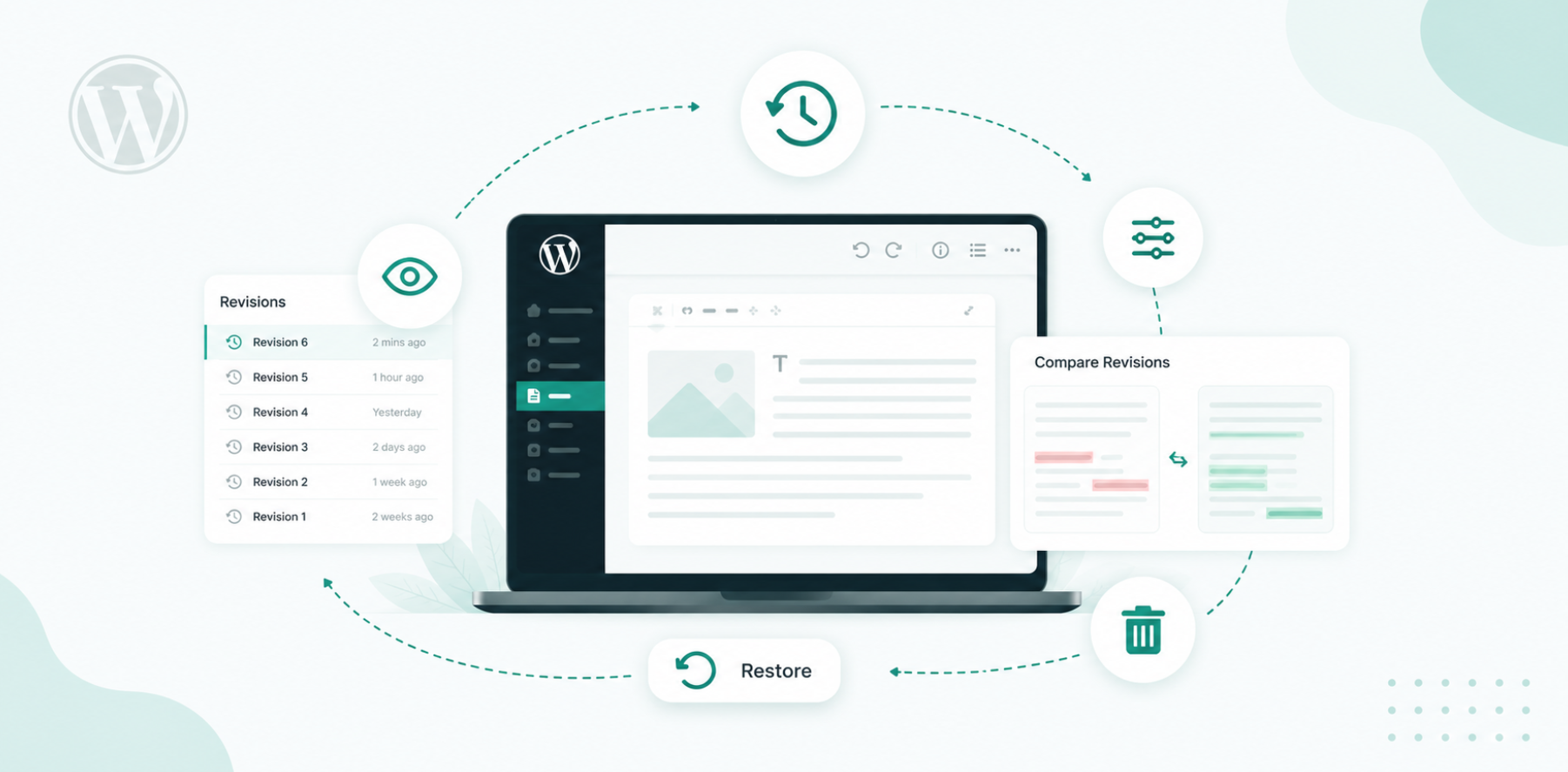
The feature has been part of WordPress core since version 2.6, and it works on posts, pages, and most custom post types that support it. By default, WordPress stores an unlimited number of revisions per item, which is great for safety and less great for your database. We will fix that later in this guide.
Revisions vs autosaves
People often confuse the two, so here is the difference. A revision is created when you actively save your content. An autosave is created automatically by WordPress roughly every 60 seconds while you are editing, even if you never click save.
WordPress keeps only one autosave per user per post, and it overwrites that single autosave as you keep working. Revisions, on the other hand, stack up one after another. When you open the revisions screen, an autosave appears in red text so you can tell it apart from a manually saved revision.
Did you know? WordPress stores unlimited revisions by default. A site with 200 posts and 100 edits each can carry 20,000 revision rows in the database before you ever notice. Capping revisions at a sensible number keeps the safety benefit without the bloat.
How to find and view WordPress revisions
Viewing your revision history takes only a few seconds inside the block editor. Here is the exact process.
Open the post or page you want to review in the WordPress editor. In the right sidebar, find the Post panel and look for the Revisions link, which shows the number of stored revisions next to it.
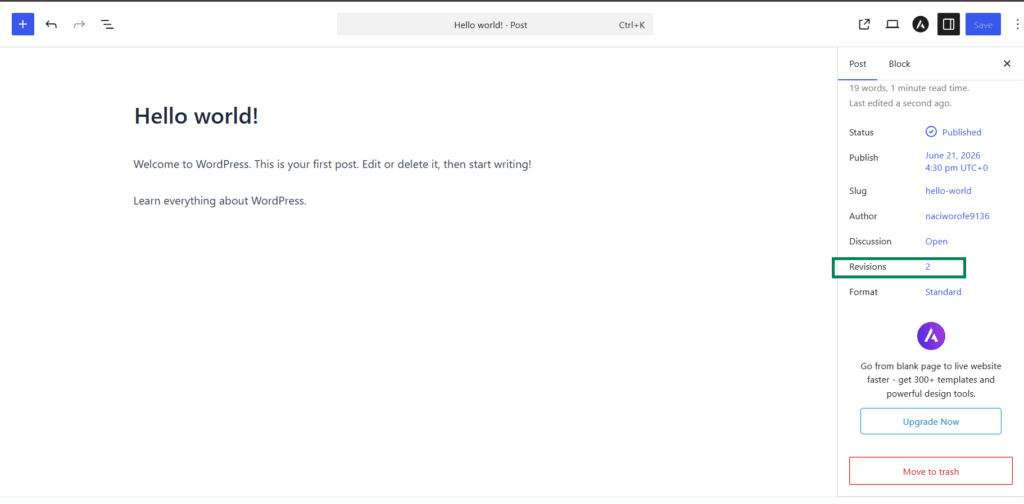
Click Revisions to open the comparison screen.
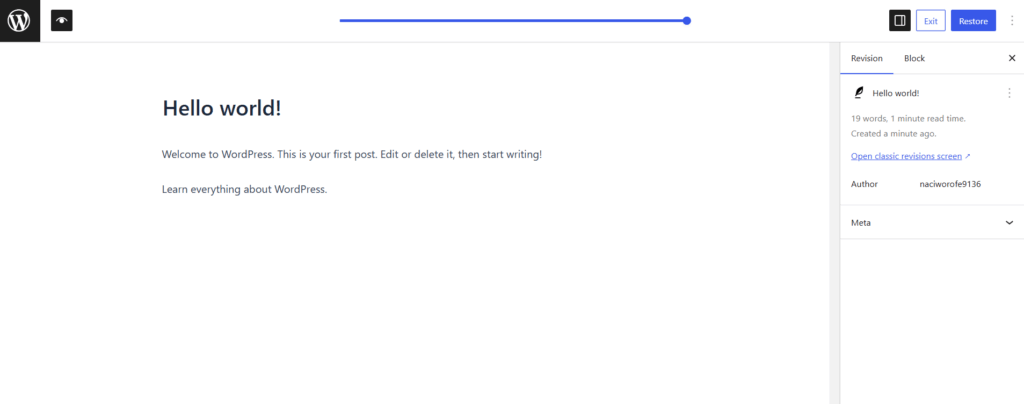
Use the slider at the top to move between versions. WordPress highlights additions in green and removals in red so you can see exactly what changed.
If you do not see the Revisions link, the post may not have any saved revisions yet, or revisions may be disabled (covered later in this guide).
If you are working in the Classic editor, the Revisions box sits under the Publish panel instead, but the comparison screen looks and works the same way. You can read the official reference on the WordPress.org revisions documentation for more detail on the underlying behavior.
How to restore a previous version in WordPress
Restoring a revision is the whole reason the feature exists. If you deleted a paragraph by accident, overwrote a section, or simply preferred an earlier draft, you can roll the content back in seconds.
Open the Revisions screen using the steps above. Drag the slider to the version you want to bring back. Read the highlighted changes to confirm it is the right one.
Click Restore This Revision (or Restore This Autosave if you selected an autosave).
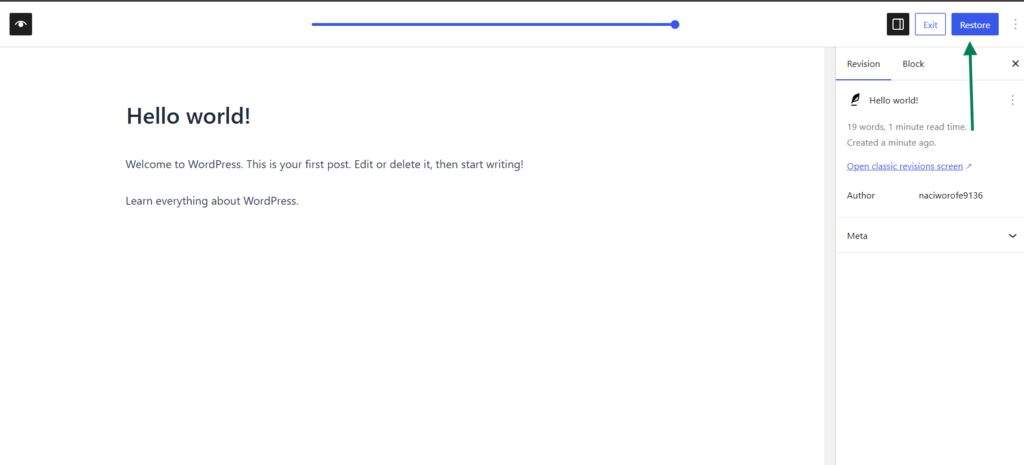
WordPress replaces the current content with the chosen version and returns you to the editor. Review it, then Update to save.
Two things are worth knowing. First, restoring is all or nothing: it replaces the entire content of the post, not just one paragraph. If you only want one small piece back, open the revision, copy the part you need, and paste it into the editor manually.
Second, restoring does not delete your other revisions. WordPress simply creates a brand new revision holding the restored content, so you can always step forward or backward again.
The hidden cost: how revisions affect site performance
Revisions are stored as rows in the wp_posts table, each with a post_type value of revision. On a small site this is harmless. On an older or content-heavy site, it adds up fast. Thousands of revision rows make the table larger, and every query that touches posts has more data to sift through. The result can be a slower admin dashboard, heavier backups, and longer database queries on busy sites.
Limiting and cleaning revisions helps, but on database-heavy sites such as WooCommerce stores, membership platforms, and busy blogs, the host matters just as much. This is one reason teams move database-intensive projects to managed WordPress cloud hosting with a persistent object cache built for exactly these workloads, so the database does less repeat work on every request.
Test revision cleanup the safe way
Spin up a one-click staging copy, clean up revisions there, then push only what works back to live. No risk to production.
Create your first site freeHow to manage WordPress revisions safely (the InstaWP method)
Every cleanup method below carries the same risk: editing wp-config.php, running SQL, or bulk-deleting rows can break a live site if something goes wrong. Deleting from the database is irreversible. So before we cover the manual methods, here is the safest workflow, and the one we recommend for any production site.
Step 1: Test on a staging copy first
Instead of experimenting on your live site, run the cleanup somewhere that visitors never see. With InstaWP you can create a staging site of your production site in one click, perform the revision cleanup there, confirm nothing broke, then push the change live with 2-Way Sync.
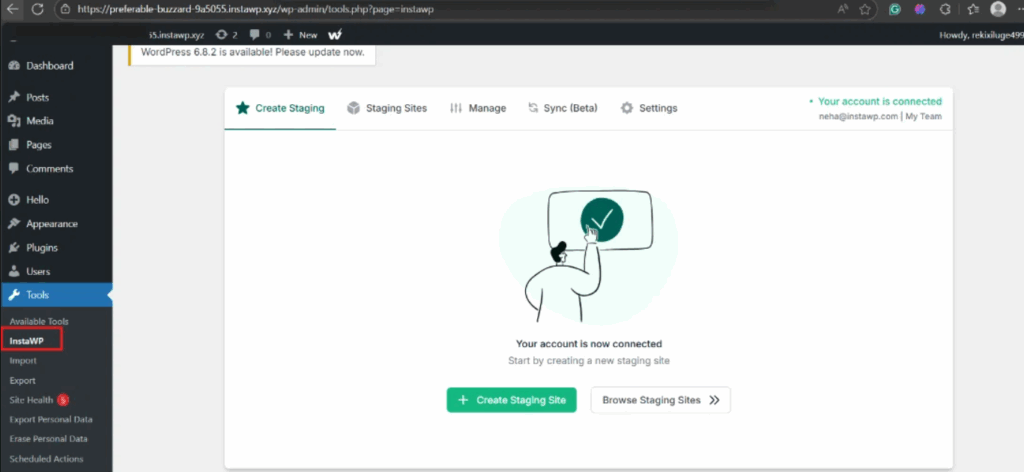
Your visitors never see a half-finished experiment, and you never gamble with real content or WooCommerce orders.
Step 2: Take a snapshot before risky changes
Before you run any command that deletes data, give yourself a way back. Take a one-click snapshot of the entire site first.
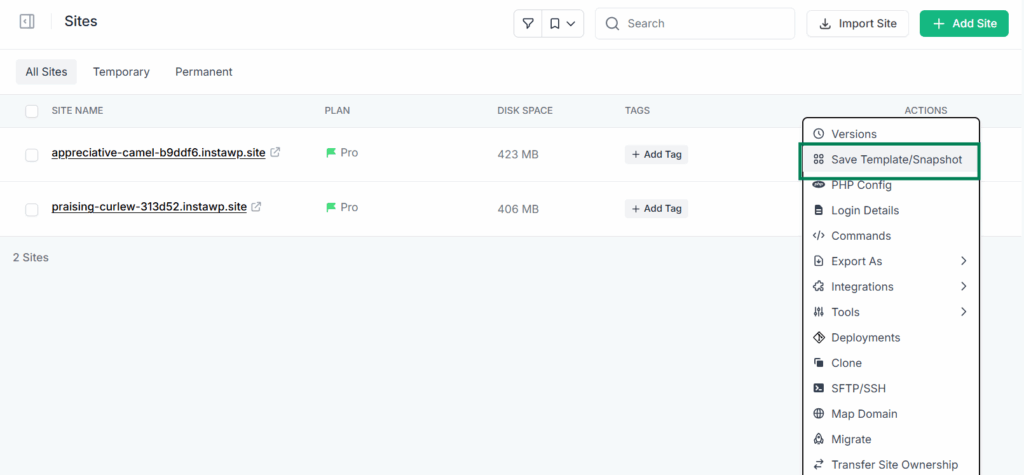
If the cleanup removes something you needed, you restore the whole site to its previous state in seconds, not just a single post. On hosting without that safety net, your only fallback is a full manual backup, so make one before you start.
Step 3: Manage revisions with AI (InstaWP MCP)
If you would rather not run queries by hand, every InstaWP site is MCP-ready with a single toggle. Through InstaWP MCP you can connect an AI client such as Claude or ChatGPT to your WordPress site and ask it to audit and clean up old revisions for you.
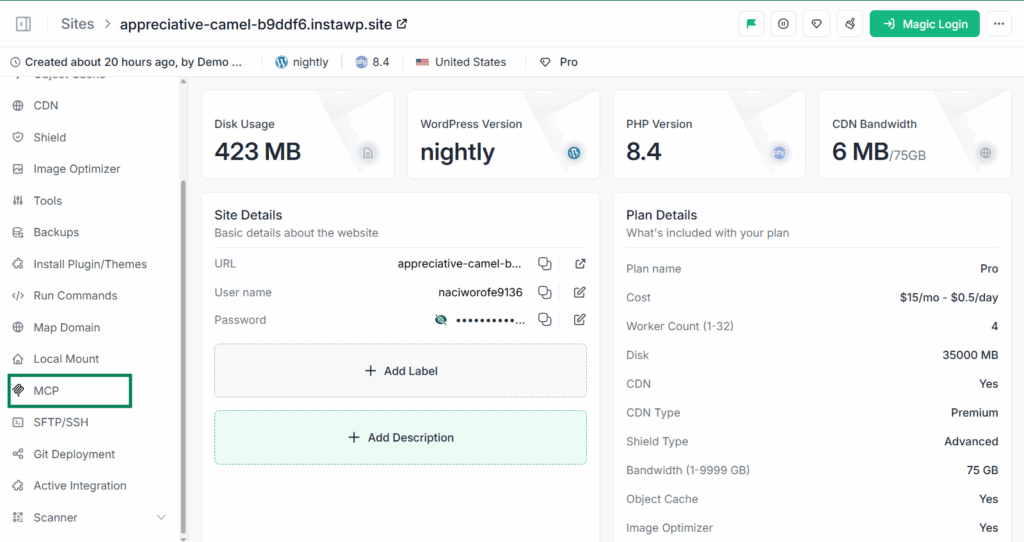
The optional execute_php tool lets the AI run the cleanup safely inside WordPress, and it stays off by default behind multiple security layers (admin opt-in, a scoped token, the manage_options capability, and a 30-second limit). It is the modern, hands-off way to keep revision bloat in check.
Did you know? Restoring a revision never deletes your other revisions. WordPress creates a new revision with the restored content, so your history stays intact. On InstaWP you can take this further and snapshot the entire site, not just one post, before making big changes.
How to limit WordPress revisions
Limiting revisions is the smartest default for most sites. You keep the safety net, but you cap how many copies WordPress stores per post. You do this with a single line in wp-config.php.
Method 1: Edit wp-config.php on InstaWP
If your site runs on InstaWP, you can edit configuration files and test the change on a staging copy without an SFTP client or cPanel. Open your site in the dashboard, use the built-in file editor to open wp-config.php, and add the line below above the comment that reads /* That's all, stop editing! Happy publishing. */.
define( 'WP_POST_REVISIONS', 5 );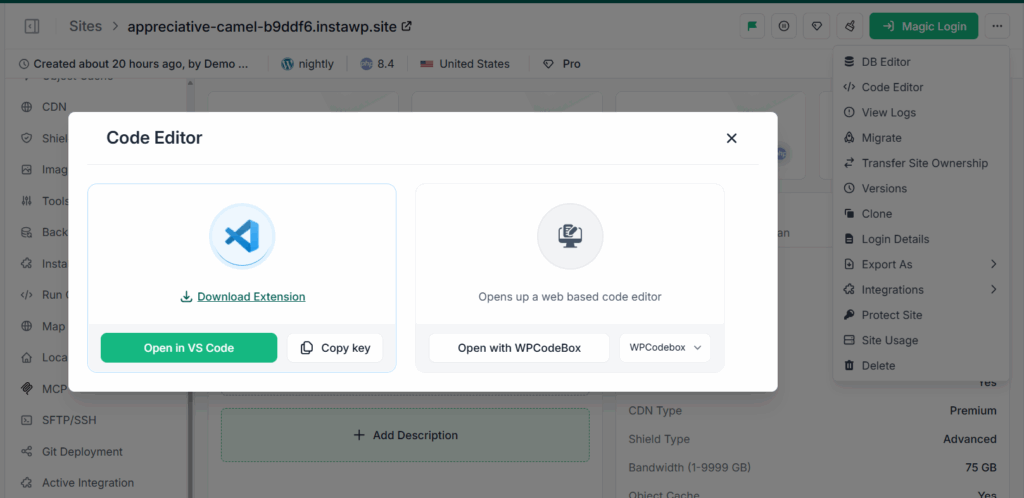
Here, 5 is the number of revisions WordPress will keep per post. Pick any number that suits your workflow. Three to ten is a sensible range for most blogs and business sites. Save the file, and from that point on WordPress keeps only the most recent revisions and discards older ones automatically.
Method 2: Edit wp-config.php on any host
On traditional hosting, connect to your server using an SFTP client or open your host’s File Manager. Navigate to your site’s root directory, open wp-config.php, add the same line above the “stop editing” comment, and save. Always download a copy of the original file first so you can revert if anything goes wrong.
How to delete WordPress revisions
Limiting revisions stops new bloat, but it does not remove the thousands of old revisions already sitting in your database. To clear those out, you have several methods. We will start with the safest and move toward the more technical options. Whichever you choose, snapshot or back up your site first.
Method 1: Clean up on InstaWP staging, then sync
This is the lowest-risk approach. Create a staging copy of your live site, run any of the deletion methods below on the staging site, confirm everything still works, then push the cleaned database to production. Because you tested first, there are no surprises on the live site.
This workflow is one reason agencies manage all their WordPress sites through a single dashboard, even when those sites are hosted elsewhere.
Method 2: Delete revisions with WP-CLI
If you are comfortable on the command line, WP-CLI is fast and precise. InstaWP gives you a built-in command runner and SSH access, so you can run these commands directly.
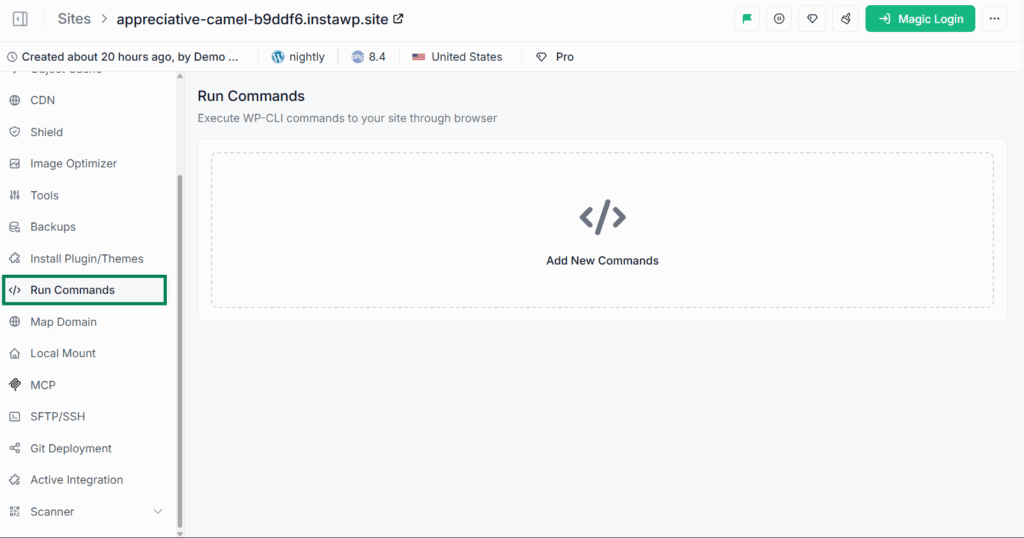
First, list how many revisions exist, then delete them.
# Count existing revisions
wp post list --post_type='revision' --format=count
# Delete all revisions
wp post delete $(wp post list --post_type='revision' --format=ids) --forceThe --force flag skips the trash and removes them permanently. On very large sites, you may want to delete in batches to avoid timeouts.
Method 3: Delete revisions with an SQL query
You can remove revisions directly in the database using a tool like phpMyAdmin or Adminer. InstaWP includes a database editor so you can run this without leaving the dashboard. The basic query is below. Remember to use your own table prefix if it is not the default wp_.
DELETE FROM wp_posts WHERE post_type = "revision";This deletes the revision rows, but related rows in wp_postmeta and wp_term_relationships can be left behind. A more thorough cleanup removes those orphaned rows too. This is exactly the kind of operation you should run on staging first, because a mistyped query here is irreversible.
Warning: Never run a database deletion on a live site without a backup or snapshot. SQL deletes cannot be undone. Test the query on a staging copy, confirm the result, then apply it to production.
Method 4: Delete revisions with a plugin
If you prefer a no-code route, several free plugins handle revision cleanup with one click. Popular options include WP-Sweep, WP-Optimize, and Advanced Database Cleaner.
Install your chosen plugin, open its cleanup screen, review the number of revisions it found, and run the sweep. These plugins also clean other clutter such as transients, spam comments, and trashed posts. Back up first, since the cleanup is permanent.
Never lose content to a bad cleanup again
Take a one-click snapshot before you touch the database, and roll the entire site back in seconds if anything breaks.
Get started free and get $25 in creditsHow to disable WordPress revisions
Disabling revisions entirely is an option, though we rarely recommend it because you lose the safety net. If you are sure you want it off, add this line to wp-config.php above the “stop editing” comment.
define( 'WP_POST_REVISIONS', false );Setting the value to false stops WordPress from creating new revisions. Note that this does not delete existing revisions, so combine it with one of the deletion methods above for a full cleanup. A better middle ground for most sites is to limit revisions to a small number rather than turning them off completely, so you keep at least one or two fallbacks.
How to enable revisions if they are missing
If revisions are not appearing, they may have been disabled by a previous setting or by your host. To turn them back on, open wp-config.php and either remove any line that sets WP_POST_REVISIONS to false, or set it to true for unlimited revisions, or to a number to enable a capped amount.
define( 'WP_POST_REVISIONS', true );Save the file, reopen any post in the editor, and the Revisions option should reappear once you make and save a new change.
WordPress revisions not showing? Troubleshooting
If the Revisions panel is missing or empty when you expect it to have content, work through these common causes in order.
- Revisions are disabled in wp-config.php. Check for a line setting
WP_POST_REVISIONStofalseor0and adjust it as shown above. - The post type does not support revisions. Some custom post types are registered without revision support. The post type needs
revisionsadded to itssupportsarray. - The post has no saved revisions yet. A brand new post only shows the Revisions link after you save at least one change beyond the first.
- A plugin or page builder conflict. Some optimization or builder plugins alter how revisions are stored or displayed. Spin up a clean WordPress sandbox and test with a default theme and no extra plugins to isolate the conflict.
- An over-aggressive cleanup plugin. If a database plugin is set to auto-delete revisions on a schedule, it may be wiping them before you see them. Check its settings.
WordPress revision methods compared
Here is a quick decision guide for the main ways to control revisions, so you can pick the right one for your situation.
| Goal | Method | Difficulty | Reversible? |
|---|---|---|---|
| Cap how many are stored | WP_POST_REVISIONS in wp-config | Easy | Yes |
| Remove existing bloat (no code) | Plugin (WP-Sweep, WP-Optimize) | Easy | No (back up first) |
| Remove bloat precisely | WP-CLI command | Medium | No (snapshot first) |
| Remove bloat in the database | SQL query | Advanced | No (snapshot first) |
| Stop new revisions | Set value to false | Easy | Yes |
Conclusion
WordPress revisions are one of the platform’s quietest but most useful features. They protect your work, let you compare and restore earlier versions, and give you a full history of every post and page.
The trade-off is database bloat, which you control by limiting how many revisions WordPress stores and clearing out old ones with WP-CLI, SQL, or a plugin. The golden rule through all of it is simple: never run a risky cleanup on a live site without a safety net.
That is where a proper workflow pays off. Test changes on a staging copy, snapshot the whole site before you delete anything, and keep your content history clean without ever putting production at risk.
Build, stage, snapshot, and host in one place
Stop worrying about losing your work or bloating your database. Manage your whole WordPress lifecycle on InstaWP’s managed WordPress cloud.
Create your first site now and get $25 free creditsFrequently asked questions
What are WordPress revisions?
WordPress revisions are saved copies of a post or page that WordPress creates automatically each time you save, update, or publish. They let you compare changes over time and restore an earlier version of your content whenever you need it.
Where are WordPress revisions stored?
Revisions are stored in your site’s database, specifically in the wp_posts table with a post_type value of revision. Each revision is a separate row, which is why a large number of them can increase database size and affect performance.
Do WordPress revisions slow down my site?
A few revisions have no real impact. Thousands of them across many posts can enlarge the database and make queries slower, especially in the admin area and during backups. Limiting revisions and cleaning out old ones keeps the database lean.
How do I limit the number of WordPress revisions?
Add define( 'WP_POST_REVISIONS', 5 ); to your wp-config.php file, replacing 5 with the number of revisions you want to keep per post. WordPress will then store only the most recent revisions and discard older ones automatically.
Is it safe to delete WordPress revisions?
Yes, as long as you back up first. Deleting revisions removes old content history but does not affect your current published content. Because database deletions cannot be undone, run them on a staging copy or take a snapshot before deleting on a live site.
Why are my WordPress revisions not showing?
The most common reasons are that revisions are disabled in wp-config.php, the post type does not support revisions, the post has no saved revisions yet, or a plugin or page builder is interfering. Testing on a clean sandbox helps you isolate the cause quickly.