If you sell WordPress plugins, themes, or hosting, a single WordPress demo site is not enough anymore. Buyers expect a smooth demo WordPress website where they can click, break things, and see real results in minutes, not after a sales call. Agencies and developers know this, but manual staging, test installs, and shared logins quickly turn into a mess.
What you really need is a repeatable WordPress demo system that spins up a fresh demo site for every visitor, keeps WordPress demo admin access safe, and connects directly to your sales funnel. That is exactly where InstaDemos fits.
Table of Contents
What is a WordPress Demo Site?
A WordPress demo site is a fully working WordPress install that exists only to let people try your product or service safely. It looks and behaves like a real site on the front end, and often gives limited access to the WordPress demo admin so users can tweak settings and see results in real time.
A normal demo website can be anything – static HTML, screenshots, or a locked front end. A proper demo WordPress website is interactive. Users can:
- Test your plugin or theme inside a real WordPress dashboard
- Click through example pages, carts, or funnels
- Try configuration changes without touching your live server
Think of it like this:
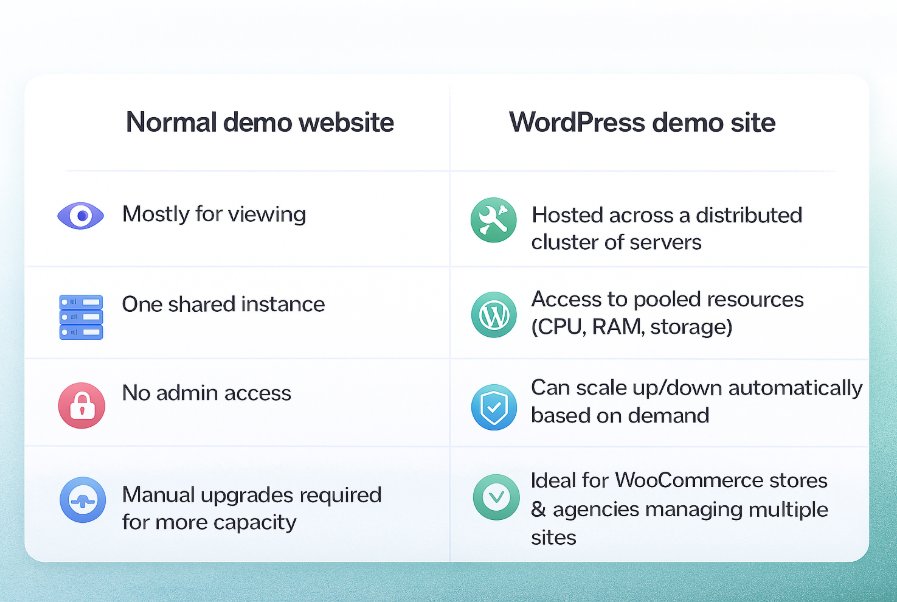
In this guide, when we say “WordPress demo site” or “demo WordPress website,” we are talking about that second kind – a safe, isolated environment you can create and recycle whenever you need.
If you want the full breakdown of what a demo WordPress website is and how to build one step by step, read our main guide on how to build a live WordPress demo website. In this article, we will go one level higher and focus on turning that single demo site into a repeatable demo system.
How a WordPress Demo Site System Works Behind the Scenes
A WordPress demo site system starts with one “master” demo WordPress website and then automates everything around it. You first create and polish a single WordPress demo site in InstaWP. That site becomes your blueprint.
InstaDemos then uses this blueprint to spin up a new demo WordPress site for every visitor:
- User clicks “Start demo” on your marketing page
- InstaDemos clones the master into a fresh WordPress demo website
- Magic Login drops the user directly into the right WordPress demo admin view
- A timer controls how long the demo site lives, then auto expires or resets
From your side, it feels like one system. From the user’s side, every demo site feels personal, fast, and safe.
What you Need in a Good WordPress Demo Site for Products
Not every WordPress demo site is worth sending to customers. If you want your demo site to actually sell your plugin, theme, or hosting offer, it has to feel like a real project, not a throwaway WordPress sandbox.
1. Performance that feels like production
Your demo WordPress website should load as fast as a real client project. If the demo site is slow, people assume your product is slow. Use a stack that mirrors real WordPress hosting (caching, PHP version, SSL, CDN), so your WordPress demo reflects what users will actually get.
2. Safe but useful WordPress demo admin
You want users inside the WordPress demo admin, but with guardrails. Create a dedicated demo user role, hide dangerous menus (users, plugins, tools), and keep essential settings visible. Tools like Magic Login in InstaWP + InstaDemos make it easy to drop users into the right admin screen without sharing passwords.
3. Realistic sample content and flows
A blank demo WordPress site is dead on arrival. Preload:
- Example products, orders, and coupons for WooCommerce
- Sample lessons and students for LMS plugins
- Posts, pages, menus, and widgets for themes
Your goal is to show real use cases, not just a default “Hello world” page.
4. Reset, expiry, and isolation
Every user should feel like the only one in the demo site. That means:
- Each visitor gets their own isolated WordPress demo site
- Demo sites auto-expire after a set time
- You can reset or recreate them from a clean snapshot
InstaDemos handles this lifecycle automatically so you are not constantly cleaning up broken demo sites.
5. Lead capture and analytics built in
A strong WordPress demo is tied to your funnel. Add simple CTAs like “Turn this demo into your real site” or “Get this setup as a project.” Track:
- Who starts a demo
- What they do inside the WordPress demo site
- How many convert to trials, installs, or paid plans
InstaDemos sits on top of InstaWP’s WordPress sandbox system so you can wire your WordPress demo website into forms, CRMs, and email sequences instead of treating demos as a black box.
How to Create Your Master WordPress Demo Website in InstaWP
Before InstaDemos can give everyone their own WordPress demo site, you need one perfect “master” demo. This is the site every future demo WordPress site will copy.
Step 1: Launch a fresh WordPress demo site in InstaWP
- Log in to your InstaWP account.
- Click Create Site to start a new sandbox.
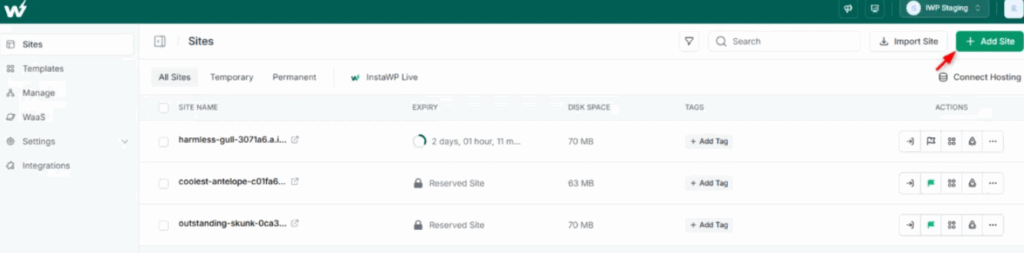
- Pick the WordPress version, PHP version, and basic stack that matches your real environment.
- Name it clearly, for example:
Plugin XYZ – Master DemoorAgency Hosting – Demo Site. - Click Create Site and use Magic Login to open the WordPress demo admin instantly
You now have a clean demo WordPress website that lives outside your live server.
For detailed steps to build a WordPress demo site, read this: What is InstaDemos and How to Create a WordPress Demo Site with It
Step 2: Set up the product demo experience
This is where you turn a plain install into a convincing WordPress demo site.
- Install your plugin or theme and any required dependencies.
- Set up a front end landing page that welcomes demo users and explains what they can try.
- Add realistic demo content: sample pages, products, posts, orders, bookings, or forms.
- Add a short dashboard message that tells users what to click first.
- Update Settings → General so the site title and tagline match your product or offer.
Treat this master demo WordPress site like a flagship client project. The better this is, the stronger your InstaDemos experience will feel.
Step 3: Save the site as a Shared Snapshot that InstaDemos can reuse
A Snapshot is the blueprint InstaDemos will clone every time someone starts a demo.
Must Read: Snapshots vs Templates: What’s New in InstaWP’s Template System
- From the InstaWP site card, click the Save Template/Snapshot icon.
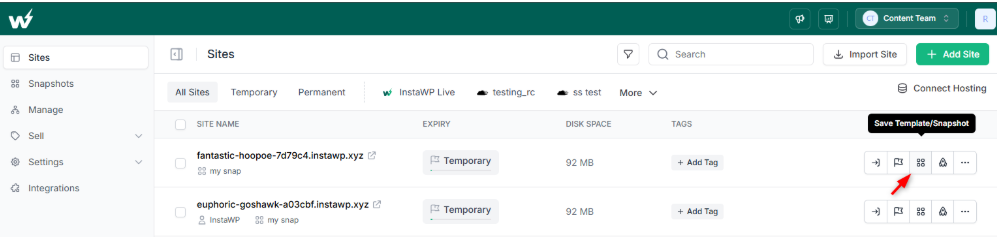
- Give the snapshot a clear name and description that users and search engines can understand.
- Mark it as Shared so it can be used publicly for demo flows.
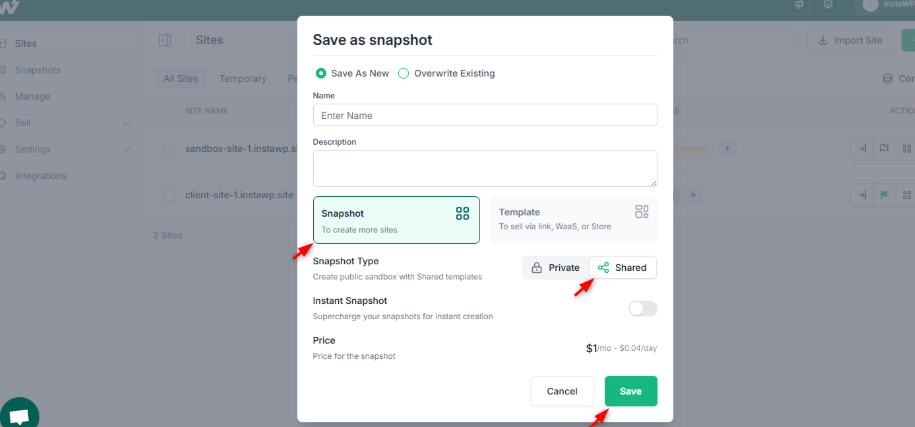
- Optionally mark it as an Instant Snapshot so InstaWP keeps it warm for super fast launches.
From this point, you are not just creating one WordPress demo website. You are defining the master image that powers every InstaDemos powered demo WordPress site in your funnel.
Step 4: Brand and control your demo snapshot
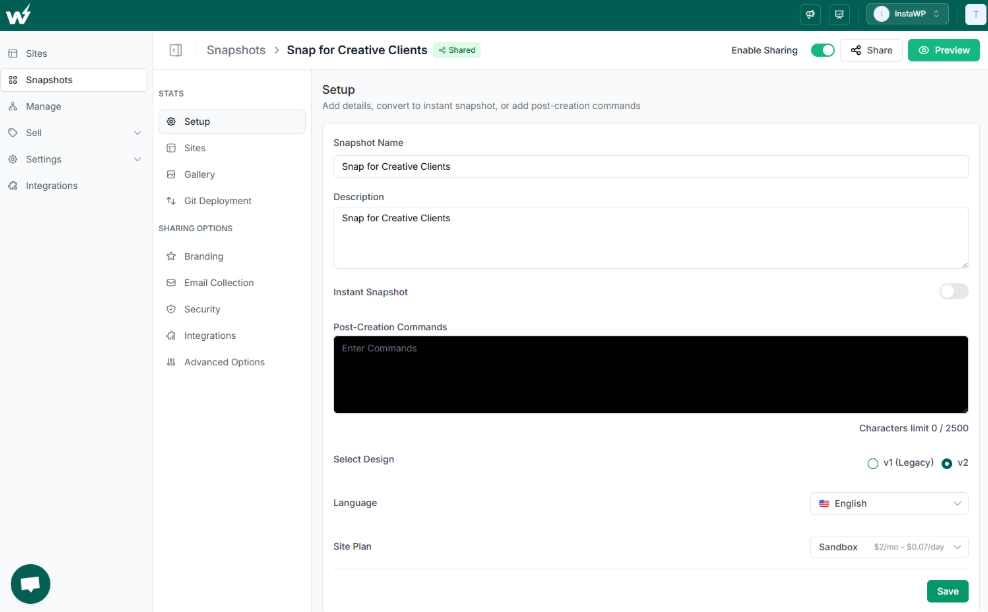
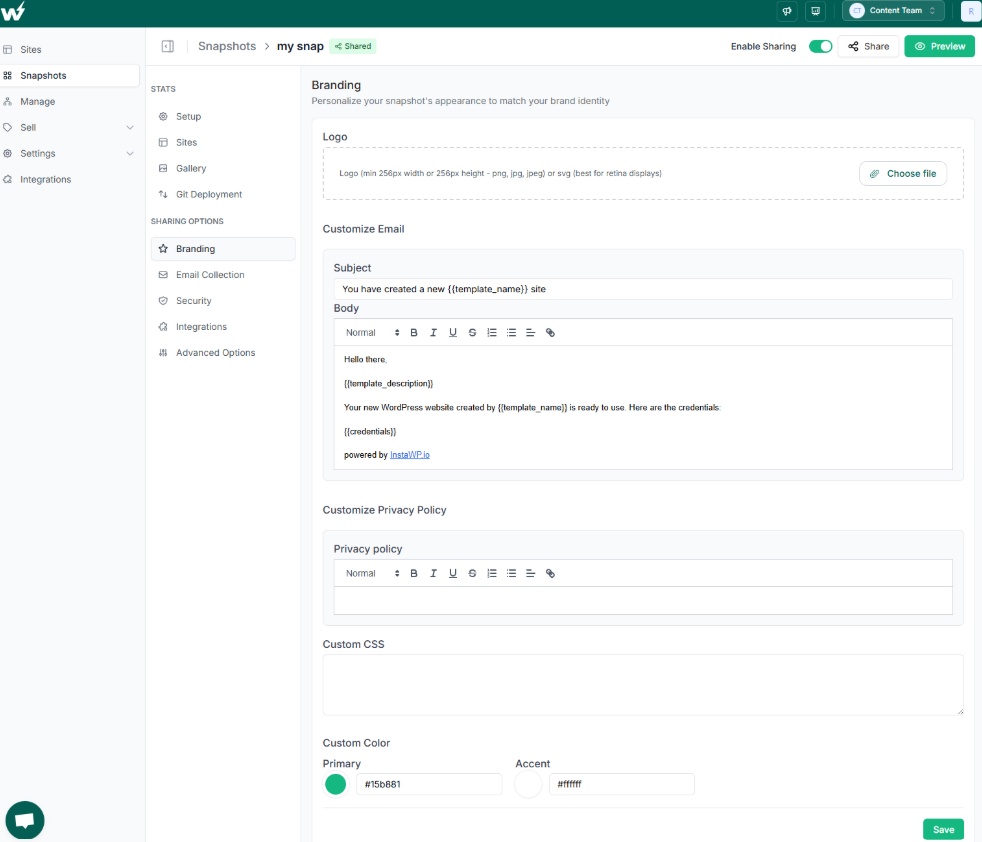
Now customize how the demo looks and behaves before InstaDemos starts cloning it. In the Snapshots area, edit your shared snapshot and adjust:
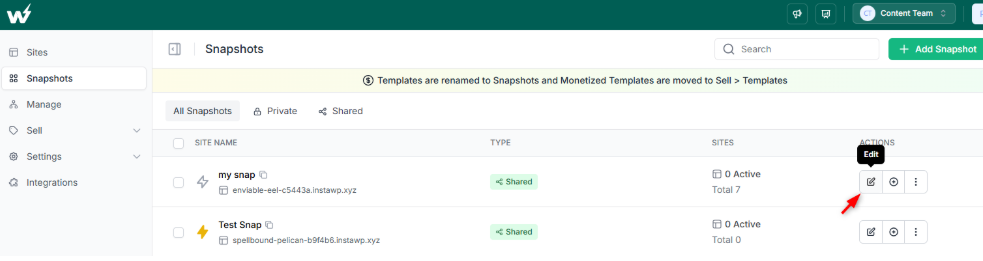
- Setup: Name and description shown on the demo landing page.
- Branding: Logo, brand colors, privacy policy link, and any custom CSS so the demo feels truly yours.
- Gallery: Screenshots of your product that appear on the demo landing page to set expectations.
- Advanced options
- Site Lifetime so demo sites auto delete after a chosen time.
- Extend Site Lifetime if you want guests to extend the demo via a special link.
- Enable Site Cloning if you want users or partners to clone the demo site.
- Auto login to wp admin so visitors go straight into the WordPress demo admin without seeing credentials.
- Redirect URL to send users to a specific page after login such as your plugin settings screen or a guided tour page.
These controls are a big part of why building a WordPress demo with InstaDemos is safer and more polished than hacking together your own demo scripts. You decide exactly how long demos live, what users see, and how they move through the experience.
Step 5: Fine tune where your demo opens using URL parameters
InstaWP lets you control where users land inside the demo WordPress site using URL parameters. That means you can: InstaWP Docs
- Send users directly to your plugin settings page inside
/wp-admin. - Open a specific WooCommerce order or custom post as part of the demo.
- Route users into any feature screen that best shows your “aha” moment.
Example pattern:
https://app.instawp.io/launch?t=your-snapshot&d=v2&redir=/wp-admin/pluginpage.php
You can plug this URL into InstaDemos so every new WordPress demo site opens on the exact screen that sells your product best.
Step 6: Hand this master demo over to InstaDemos
Once your Shared Snapshot is ready, branded, and configured, you are ready for InstaDemos to take over.
- The snapshot becomes the blueprint for your product demos.
- InstaDemos uses it to create a fresh WordPress demo site for every visitor, with auto login, expiry, and routing already baked in.
- You simply place your “Start demo” or “Try live WordPress demo” links on your marketing pages and let InstaDemos handle the rest.
The result is a reliable, branded WordPress demo system that feels custom built for your plugin, theme, or hosting offer without you maintaining custom demo infrastructure.
How to create theme demos with InstaDemos
For WordPress themes, InstaDemos turns one polished WordPress demo site into a full theme gallery that runs itself. You design a single master demo WordPress website in InstaWP with all your layouts, sample content, and navigation. That site is saved as a Shared Snapshot and connected to InstaDemos.
Instead of sending everyone to one crowded demo site, InstaDemos gives each visitor a fresh demo WordPress site they can safely customize. No shared logins, no broken layouts, no manual resets. You get branded, fast, isolated theme demos that feel like real projects, not test installs.
How to create plugin demos with InstaDemos
For plugins, InstaDemos focuses on getting users straight to the “aha” moment inside the WordPress demo admin. You configure one master WordPress demo website with your plugin installed, sample data prepared, and key screens ready to test. That master site becomes a Snapshot that InstaDemos can clone on demand.
From the user’s point of view, they click “Try live demo,” get instant access to their own WordPress demo site, and start using your plugin in a real dashboard. From your side, you are not maintaining demo servers, user accounts, or reset scripts. InstaDemos handles provisioning, expiry, and safe access so you can focus on improving the product.
How to create hosting demos with InstaDemos
For hosting and managed care offers, InstaDemos lets you showcase the full stack without touching production. You build one master hosting demo site in InstaWP that mirrors your real environment, with caching, SSL, and tools configured. InstaDemos then uses that as a blueprint to launch a new demo WordPress site for every prospect.
We have a detailed guide for further help: How Agencies Can Create Hosting Demo Sites That Convert
Clients experience real performance, real tools, and real workflows on a controlled WordPress demo website instead of a generic test box. Traditional methods rely on shared staging, multisite tricks, or manual test accounts. InstaDemos replaces that with a clean, automated WordPress demo system where every trial is isolated, on brand, and directly connected to your sales funnel.
See how real-world agency YourHosting nearly doubled its conversions with InstaDemos.
UX Patterns That Make Your WordPress Demo Site Convert Better
A strong WordPress demo site is not just technically correct. It is designed like a short product story. Agencies and developers who treat the demo site as a mini onboarding flow see far better conversions than those who just drop people into a random demo site and hope for the best.
Make your demo WordPress website feel guided, not empty
The fastest way to kill interest is to show a blank dashboard or “Hello world” page. Every demo WordPress website should:
- Open on a clear starting page or screen
- Tell users in one line what this demo proves
- Offer 2 to 4 obvious actions such as “Create X”, “Change Y”, “Preview Z”
Inside the WordPress demo admin, use a welcome note, checklist, or simple “Start here” widget so people do not have to guess what to do next.
Highlight one primary path before advanced options
When someone lands in a fresh demo WordPress site, they have limited attention. Your job is to guide that attention to the most important outcome.
Ask yourself:
“If a user only tries one thing in this WordPress demo, what should it be?”
Design around that. Put the primary path in the first menu item, first button, and first call to action. Advanced settings can still be accessible, but they should not distract from the main experience you want users to remember. InstaDemos helps here because every new demo site starts from the same, curated blueprint.
Reduce friction without losing useful signals
Traditional demos often add too much friction: account forms, approval emails, manual links. InstaDemos lets you replace that with one click access while still collecting useful data.
Good patterns:
- Ask for one simple field (name or email) before starting the WordPress demo
- Trigger the demo instantly after submission, no waiting
- Use tracking on the launch link instead of long forms
You get signals on who is using your demo WordPress site without making the experience feel like a chore.
Use in-demo CTAs that respect the user’s flow
The job of a WordPress demo website is to move people to the next meaningful step, not just impress them. Add subtle, context aware CTAs like:
- “Ready to keep this setup? Turn this demo into a real project”
- “Want this exact configuration on your own site? Start a plan”
- “Need your team to try this? Share this demo link”
Place these in the header, footer, or a small panel inside the WordPress demo admin, not as aggressive popups. Since InstaDemos controls expiry and lifecycle, you can also use time-based CTAs such as reminder emails or follow-ups right before a demo site is due to expire.
Designed this way, your WordPress demo system does more than show features. It quietly walks agencies and developers from curiosity to a real decision.
Maintaining and Scaling your WordPress Demo Site System Over Time
Once your WordPress demo site system starts working, the next job is to keep it accurate, fast, and ready for bigger campaigns. The good news is that most of this happens at the master level. Update one demo WordPress website, refresh the Snapshot, and InstaDemos takes care of the rest.
Keep your master WordPress demo site in sync with reality
Your product will change. Pricing, UI, features, even your tech stack. Schedule a regular review of your master WordPress demo site so it always reflects what customers actually get.
- Update plugins, themes, and settings
- Refresh screenshots and copy on the landing page
- Adjust the WordPress demo admin starting screen if your “aha” moment has moved
When you are happy, create a new Snapshot version and point InstaDemos to it.
Use versions instead of live edits
Never edit the live blueprint that powers your demo system.
A safer pattern is:
- Clone the current master demo WordPress site in InstaWP
- Make changes on the clone and test the full demo flow
- Create a new Snapshot, for example
Master Demo v2 - Switch InstaDemos to use the new Snapshot, while keeping
v1as a backup
If something goes wrong, you can always roll back to the previous Snapshot without breaking the whole WordPress demo system.
Prepare for traffic spikes and campaigns
A successful launch or promo can send a lot of people into your demo WordPress sites at once. Because InstaDemos sits on top of InstaWP’s cloud, you are not hand tuning a single server. You simply:
- Use Instant Snapshots for faster provisioning
- Choose server regions close to your main audiences
- Set sensible site lifetime so old demo sites clean themselves up
From the user side, every WordPress demo website still feels instant. From your side, you are not firefighting demo infrastructure.
Retire old demos without losing momentum
Over time you will try new demo angles, pricing narratives, or product bundles. Instead of patching the same demo site forever, rotate structured experiments:
- Create a new master WordPress demo site for a new positioning
- Attach it to a separate InstaDemos flow or landing page
- Compare engagement and conversion to the old demo flow
- Retire the losing Snapshot once you have clear results
This way your WordPress demo system becomes a live testing ground for how you sell plugins, themes, and hosting, not just a static proof that things work.
Common Mistakes with WordPress Demo Sites and How InstaDemos Avoids Them
A lot of teams start with good intentions and end up with a WordPress demo site that quietly hurts conversions. Here are the usual traps and how a proper InstaDemos setup side steps them.
1. One shared demo WordPress website for everyone
Everyone hits the same demo site with the same login. Settings change, content breaks, and every new visitor sees the mess from the previous one. InstaDemos always starts from a clean Snapshot and creates a new demo WordPress site per visitor or campaign. Each demo runs in isolation, so no one can see or break anyone else’s work.
2. Hosting demos on your main production server
You tuck a WordPress demo site onto the same server as paying clients. Extra traffic from demos slows everything down. A broken demo can even impact live sites.
InstaDemos runs on top of InstaWP’s cloud. Your demo WordPress website lives in its own environment with dedicated resources, tuned for quick launches and safe experiments, not glued to production hosting.
3. No expiry and no cleanup process
Demo sites never expire. Over time they fill with junk data, outdated settings, and test plugins. Performance tanks and security risks grow quietly in the background.
Each WordPress demo site created by InstaDemos has a clear lifetime. Sites auto-delete or reset after that period, so your demo system stays clean and light without manual cleanup
4. Dropping users into a confusing WordPress demo admin
You give full wp admin access and hope for the best. Menus everywhere, no guidance, and users miss the one feature that actually sells your product.
But with InstaDemos, you define a curated master WordPress demo site and Snapshot. InstaDemos uses that blueprint to drop users into the right screen inside the WordPress demo admin, with menus, roles, and landing pages already tuned for your story.
5. Custom demo scripts that break every few months
You build your own provisioning scripts or multisite hacks. They work for a while, then a WordPress update or server change breaks something. Your team spends hours babysitting the demo site infrastructure.
InstaDemos is built and maintained on top of InstaWP’s sandbox engine. Provisioning, cloning, expiry, and Magic Login are handled by a platform that already focuses on fast, disposable WordPress demo environments. You control the Snapshot and UX, not the plumbing.
6. Demos that are disconnected from your funnel
People use the demo WordPress site, like what they see, and then disappear. You have no idea who they were, what they tried, or whether they were a fit.
You can gate the WordPress demo site behind simple forms, add tracking to launch links, and route users to key signup or contact pages when the demo ends. The result is a WordPress demo system that feeds sales and support, not just a sandbox that lives on its own island.
Conclusion: Turn one demo into a complete WordPress demo system
A single WordPress demo site is a good start. A repeatable WordPress demo system is what actually moves revenue for agencies, plugin shops, theme developers, and hosting providers.
The pattern is simple. You create one high quality demo WordPress website in InstaWP, save it as a Shared Snapshot, and let InstaDemos turn that into a fresh demo WordPress site for every visitor. Each demo site runs in isolation, auto expires on schedule, and drops users into a curated WordPress demo admin that shows your best work first.
If you want the deep dive on how to create a demo website step by step, start with our main guide on building a live WordPress demo site. From there, you can plug in InstaDemos and use our focused guides for plugin, theme, and hosting demos to turn that single demo into a complete WordPress demo system.
FAQ: WordPress demo sites and InstaDemos
1. What is a WordPress demo site?
A WordPress demo site is a fully working WordPress install that exists only for testing and showcasing. Instead of touching production, you send people to a safe demo WordPress website where they can click around, change settings, and try features. A good wordpress demo site often gives limited WordPress demo admin access so users can experience your plugin, theme, or hosting stack in a realistic way without any risk to live sites.
2. How do I create a demo website in WordPress?
The simplest way to create a demo website is to use InstaWP rather than your main server. You sign in, spin up a fresh wordpress demo site from your browser, install your plugin or theme, add sample content, and shape the WordPress demo admin to highlight your key features. Once it looks right, you save it as a Shared Snapshot so InstaDemos can turn that single demo site into a repeatable system.
3. Can every visitor get their own demo WordPress site automatically?
Yes. That is exactly what InstaDemos is built for. Instead of one shared demo WordPress website and one shared login, InstaDemos starts from your master Snapshot and creates a new demo WordPress site for every visitor or campaign. Each wordpress demo site has its own database, its own lifetime, and its own WordPress demo admin access, so users can experiment freely without breaking someone else’s session.
4. How safe is it to give users WordPress demo admin access?
Giving people full admin access on a public demo site is risky if you host it yourself. With InstaDemos, you keep it safe by designing a curated master wordpress demo site, locking down roles and menus, and setting a clear site lifetime. Every demo site is isolated, created from a clean Snapshot, and auto-deleted later. Users get a realistic WordPress demo admin experience, while your production sites and servers stay untouched.
5. What is InstaDemos in InstaWP?
InstaDemos is a part of InstaWP that turns one master WordPress demo website into a scalable demo engine. You create a high-quality demo site in InstaWP, connect that Snapshot to InstaDemos, and then use a “Start demo” link or button on your marketing pages. Each click creates a new wordpress demo site with Magic Login, expiry rules, and routing into the right area of wp admin, so you do not have to maintain custom demo scripts or staging accounts.
6. Do I need my own hosting to run a WordPress demo website with InstaDemos?part of InstaWP and turns a single
No. InstaWP hosts the demo site for you. When you build a wordpress demo site in InstaWP and hand it to InstaDemos, everything runs on InstaWP’s cloud stack instead of your production hosting. You choose regions, WordPress versions, and settings, and InstaDemos provisions each demo site on that stack. This keeps your main servers free for paying clients while your demo site system stays fast and disposable.
7. How long should a WordPress demo site stay live?
Most teams keep a demo wordpress site active for a few hours or a few days, depending on the sales journey. Shorter lifetimes work well for quick plugin and theme trials. Longer lifetimes can work for hosting or agency offers that need more evaluation. With InstaDemos, you set the site lifetime in the Snapshot or flow, so every wordpress demo site expires on schedule instead of lingering forever as an unmaintained demo site.
8. What is the difference between this demo system and my existing “Book a demo” form?
A traditional “Book a demo” form leads to a call or screen share. A WordPress demo site system gives users instant, self-serve access to a live demo WordPress site that mirrors your real product. You can still offer calls, but with InstaDemos, you get a hybrid model: visitors play in a guided demo site first, then talk to sales if they are serious. That combination usually converts better than forms plus screenshots alone.