A “Too many failed login attempts” message in WordPress means a security plugin, not WordPress itself, has temporarily blocked your IP address or username after several wrong passwords. The quickest way back in is to wait for the lockout to expire (20 minutes by default in Limit Login Attempts Reloaded, 4 hours in Wordfence) or to clear it from the plugin’s settings, over FTP, or with one WP-CLI command.
Find your exact message in the table below to see which plugin blocked you and how to unlock it. If the site runs on InstaWP, the AI-native WordPress cloud with managed hosting, SFTP, SSH and WP-CLI come with every plan, so you can clear a lockout without going through the login form at all.
Table of Contents
- WordPress core never locks anyone out. The message comes from a security plugin, or sometimes a firewall in front of the site, and each plugin words it differently.
- Default lockouts are short: 5 minutes in All-In-One Security and Defender, 15 in Loginizer and Solid Security, 20 in Limit Login Attempts Reloaded, 60 in Login Lockdown and 4 hours in Wordfence. Waiting is a real fix.
- Repeat lockouts get longer. Limit Login Attempts Reloaded switches to 24 hours after 4 lockouts, and Loginizer after 5.
- Fully locked out? Rename the plugin’s folder over FTP, or run wp plugin deactivate with WP-CLI. Both keep the plugin’s settings.
- Clear the counter, not just the lockout. In our test, Limit Login Attempts Reloaded kept counting failures after we cleared the lockout and after a successful login. At 16 failures in 24 hours it locks you out for a full day.
- A bare 403 or 429 error page with no login form usually means a firewall or your host blocked you, so plugin fixes will not help.
- Allowlist your team’s static IP and add 2FA, so you can keep strict limits without locking out real users.
What Does “Too Many Login Attempts” Mean in WordPress?
“Too many login attempts” in WordPress means a login-security plugin has temporarily blocked your IP address, and sometimes your username, after a set number of wrong passwords in a short time. WordPress core has no login limit of its own; plugins such as (like Limit Login Attempts Reloaded, Wordfence, or iThemes Security) add it to stop brute-force attacks. While the lockout lasts, even the correct password is refused: when InstaWP triggered a lockout on a test site, the right password got the same error until the lockout was cleared.
So the fix is never to keep guessing. Either wait for the lockout to run out, or clear it from outside the login form, as shown below.
Why Does This Error Happen?
The “Too Many Login Attempts” error typically occurs when someone tries to log in to a WordPress site multiple times using incorrect credentials within a short time frame. But let’s break down the most frequent culprits behind this lockout:
1. Brute-Force Attacks by Bots
Automated scripts (bots) are constantly scanning the web for login pages. When they find yours, they might start rapidly guessing username-password combinations until they gain access. These brute-force attacks can generate hundreds or thousands of login attempts in minutes, triggering lockouts.
Neutralizing these automated guessing patterns involves utilizing a strong password generator to create complex, algorithmic credentials that resist systemic intrusion.
Example: A bot might try “admin” + common passwords like “123456” or “password” repeatedly, even though these don’t belong to your site.
2. Users Repeatedly Forgetting Their Passwords
Even legitimate users, like clients or junior team members, might enter the wrong password several times. After a few failed attempts, the security plugin locks them out, mistaking it for suspicious activity.
Real-world scenario: Your client logs in once a month. They forget their password, try 5 times in a row, and now they’re locked out, calling you to fix it.
3. Misconfigured Security Plugin Settings
Many security plugins let you configure how many failed login attempts are allowed. But if you (or a plugin update) set the threshold too low, say, 2 or 3 attempts, you’re more likely to see this error, even with regular user behavior.
4. IP Blacklisting from VPNs or Shared Networks
VPNs, coworking space networks, or shared office Wi-Fi might result in multiple people appearing to log in from the same IP. If someone on that network gets locked out, everyone using that IP may be affected.
This shared environment also means network congestion or individual device problems can cause instability, requiring users to know how to fix Wi-Fi issues on Mac or PC to stay connected.
5. Frequent Logins in Staging or Dev Environments
Agencies constantly test admin functions while building or maintaining client websites. If you’re cloning sites, switching environments, or logging in often, especially using default usernames or test accounts, you might hit the lockout threshold unintentionally.
✅ Solution: Use staging sites where login attempt limits can be adjusted or bypassed during development.
6. A Firewall or Your Host Is Blocking the Login Page
Sometimes no plugin is involved. A web application firewall (for example InstaWP Shield, Cloudflare or Sucuri), a CDN security rule or your host’s brute-force protection can block wp-login.php before WordPress loads. The error page gives it away: a plain 403 Forbidden, a 429 Too Many Requests or a challenge page instead of the WordPress login form with an error notice. Plugin settings and FTP fixes will not help here. Wait for the block to expire, try another network, or ask your host or CDN provider to lift the block for your IP.
Which Plugin Is Locking You Out? Lockout Messages and Defaults
Each security plugin words its lockout differently, so the message on your screen tells you which one blocked you. InstaWP read the current release of seven popular login-security plugins from WordPress.org on 27 October 2026, then triggered a real Limit Login Attempts Reloaded lockout on 5 November 2026 to confirm its row, and recorded each one’s default message, default limit and lockout length. Site owners can change these settings, and some plugins let them rewrite the message, so treat the numbers as defaults.
| Plugin (version checked) | Message you see | Locks out after | Default lockout | Fastest unlock |
|---|---|---|---|---|
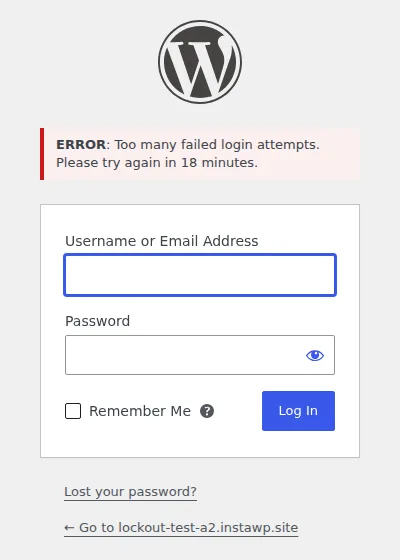
| Limit Login Attempts Reloaded 3.4.1 (tested on a live site) | “ERROR: Too many failed login attempts. Please try again in 20 minutes.” | 4 failed attempts | 20 minutes; 24 hours after 4 lockouts | Wait, or run wp option delete limit_login_lockouts limit_login_retries limit_login_retries_valid |
| Wordfence 9.0.2 | “You are temporarily locked out. Your access to this service has been temporarily limited. Please try again in a few minutes. (HTTP response code 503)” | 20 failed logins within 4 hours | 4 hours | Wait, or deactivate the plugin (Method 2 or 3) |
| Solid Security (formerly iThemes Security) 10.0.6 | “You have been locked out due to too many invalid login attempts.” Its logs record the reason as “Too many bad login attempts”. | 5 bad logins from one IP, or 10 for one username, within 5 minutes | 15 minutes; repeat offenders can be banned after 3 lockouts in 7 days | Wait, or deactivate the plugin |
| Loginizer 2.1.2 | “You have exceeded maximum login retries. Please try after 15 minute(s)” | 3 failed attempts | 15 minutes; 24 hours after 5 lockouts | Wait, or deactivate the plugin |
| All-In-One Security 5.5.0 | “ERROR: Access from your IP address has been blocked for security reasons. Please contact the administrator.” | 3 failed attempts within 5 minutes | 5 minutes, rising to a maximum of 60 | Request an unlock link by email from the lockout screen (on by default) |
| Login Lockdown 2.19 | “We’re sorry, but your IP has been blocked due to too many recent failed login attempts.” | 3 failed attempts within 5 minutes | 60 minutes | Wait, or deactivate the plugin |
| Defender 6.3.0 | “You have been locked out due to too many invalid login attempts.” | 5 failed attempts within 5 minutes | 5 minutes | Wait, or deactivate the plugin |
Two patterns stand out. Five of the seven plugins lift a lockout within 20 minutes, so waiting is often the quickest fix; Login Lockdown (60 minutes) and Wordfence (4 hours) are the exceptions, though Wordfence also allows the most attempts before it locks anyone out. And repeat lockouts escalate: Limit Login Attempts Reloaded and Loginizer both move to a 24-hour lockout after several lockouts in a row.
WPS Limit Login, a fork of the original Limit Login Attempts plugin, shows the same message as Limit Login Attempts Reloaded.
What Happened When We Triggered a Real Lockout?
A real lockout behaves exactly as the plugin table says, with one trap: clearing only the lockout leaves the failed-attempt counter behind, and that counter decides when the 24-hour lockout starts. InstaWP ran the test on 5 November 2026 on a fresh temporary site (WordPress 7.1.4, PHP 8.3, Twenty Twenty-Five) with Limit Login Attempts Reloaded 3.4.1 on its default settings. The wrong passwords were sent to wp-login.php from one IP address, and every unlock was run with the InstaWP CLI over SSH.
| Step | What we did | What happened |
|---|---|---|
| 1 | Three wrong passwords, about one second apart | “Incorrect username or password” each time. |
| 2 | A fourth wrong password | Locked out: “ERROR: Too many failed login attempts. Please try again in 20 minutes.” |
| 3 | The correct password, straight after | Refused with the same lockout message. |
| 4 | wp option delete limit_login_lockouts | Lockout lifted in 4.5 seconds (the whole WP-CLI round trip). The correct password logged in. |
| 5 | Checked the counter after one more wrong password, then logged in | limit_login_retries read 5: the counter had kept counting, and the successful login did not reset it. The next lockout came at 8 failures. |
| 6 | Renamed the plugin folder over SSH, then logged in | Rename took 4.6 seconds and the login worked at once. |
| 7 | Renamed the folder back without clearing anything | The plugin was active again and the lockout was still running: the correct password was refused. |
| 8 | wp option delete limit_login_lockouts limit_login_retries limit_login_retries_valid | Fully reset in 4.6 seconds: login worked and the counter started again from zero. |
Three things from the test change how you should unlock a site:
- Clear the counter as well as the lockout. In Limit Login Attempts Reloaded the lockout lives in
limit_login_lockouts, but the failure count lives inlimit_login_retriesand stays valid for 24 hours after the last failure. The plugin locks you out at every 4th failure and switches to a 24-hour lockout at 16 (4 lockouts), so a counter left at 4 or 12 brings that long lockout closer. Delete it, pluslimit_login_retries_valid, for a clean reset. - Renaming the folder back re-arms the lockout. WordPress still lists the plugin as active, so it comes straight back with its timer. Log in first, then rename the folder back, then clear the lockout in the plugin before you log out.
- The lockout is tied to your IP address. The plugin recorded the real visitor IP, so a phone on mobile data, a different network or a colleague elsewhere can usually still log in while you are blocked.
How to Fix the “Too Many Login Attempts” Error in WordPress
To fix the “Too Many Login Attempts” error in WordPress, wait for the lockout to expire or clear it from outside the login form. If you or another admin can still log in, clear it in the plugin’s settings. If you are fully locked out, rename the security plugin’s folder over FTP or SFTP, deactivate it with WP-CLI, or delete its lockout records in the database. On our test site the WP-CLI fix took under five seconds.
The fastest fix is often to wait. Every lockout in the table above expires on its own. If you cannot wait, or the lockout keeps coming back, use one of the methods below.
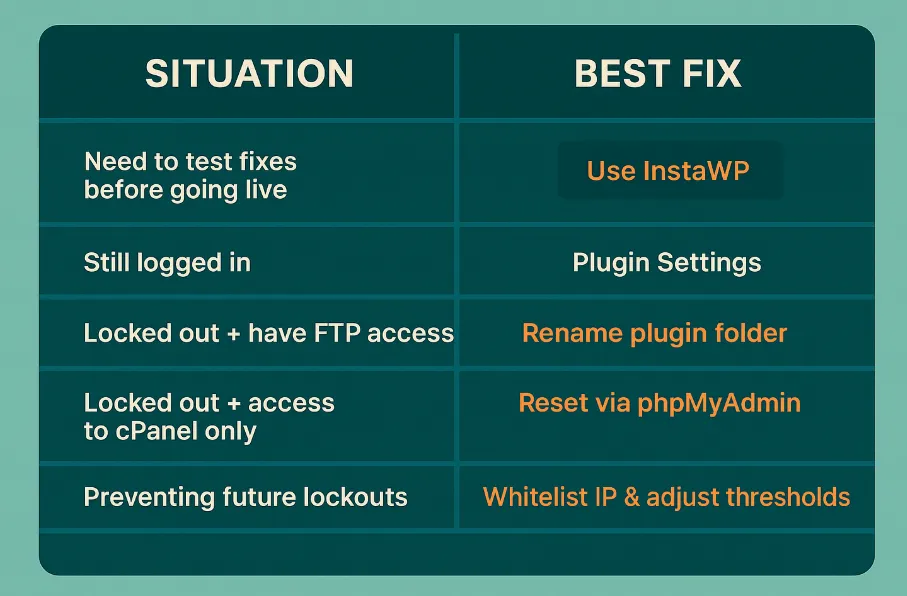
Below is a comparative overview to help you quickly assess which method fits your situation:
Comparative Table: Fixing Methods at a Glance
Now let’s break each method down with step-by-step instructions:
| Method | Access you need | Skill level | Best when |
|---|---|---|---|
| 1. Clear the lockout in the plugin settings | wp-admin (another admin’s account works too) | Beginner | You or a colleague can still log in |
| 2. Disable the plugin over FTP or File Manager | SFTP, FTP or your hosting file manager | Intermediate | You are fully locked out |
| 3. Deactivate it or clear the lockout with WP-CLI | SSH | Intermediate | You have shell access and want a one-line fix |
| 4. Clear the lockout in the database | phpMyAdmin or database access | Advanced | You have no file or SSH access |
| 5. Whitelist your IP | wp-admin | Beginner | Stopping the next lockout |
Method 1: Clear the Lockout in the Plugin Settings (If You Can Log In)
If you can still access the WordPress admin dashboard, this is the easiest and safest method.
- Log in to your WordPress dashboard.
- Navigate to the security plugin installed on the site.
- Locate the lockout log or failed login settings.
- Identify the blocked IP address or username.
- Click “Unblock” or “Clear Lockouts.”
- Adjust the login attempt limits for better flexibility (e.g. increase from 3 to 5).
✅ Pro Tip: Enable email alerts so you’re notified when someone gets locked out.
Method 2: Disable the Security Plugin via FTP or File Manager (If You Are Locked Out)
Use this method when you can’t access the admin area at all.
- Access your site via FTP (FileZilla or Cyberduck) or your hosting control panel’s File Manager.
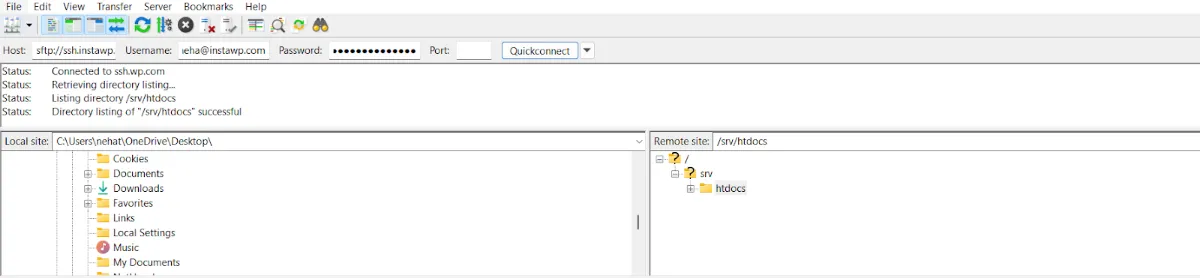
- Navigate to /wp-content/plugins/.
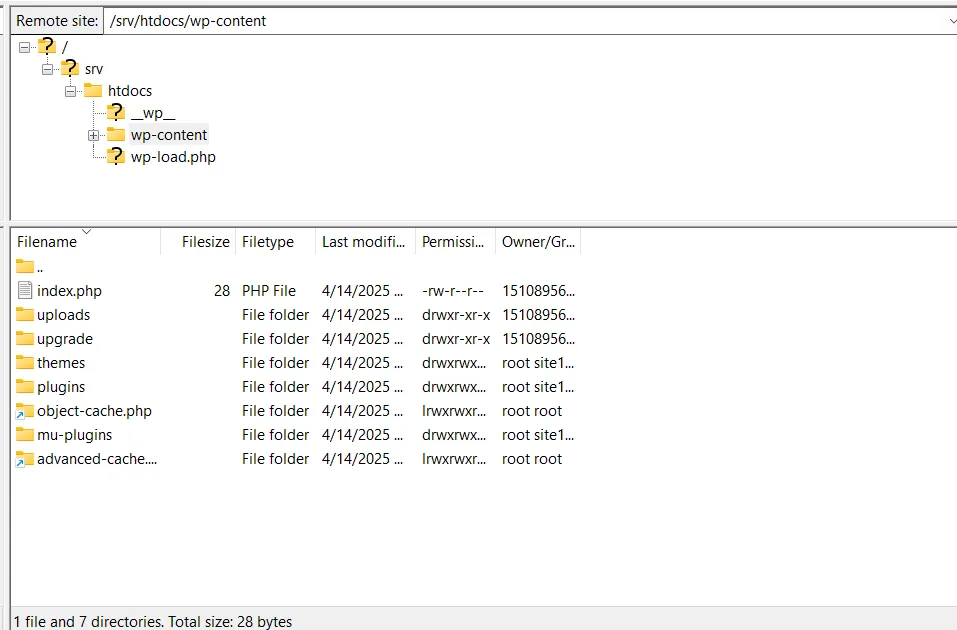
- Locate the folder for the security plugin
- Rename the folder: e.g. wordfence → wordfence_disabled.
- Try logging into your site again.
- Once logged in, rename the folder back and adjust plugin settings. Clear the lockout in the plugin before you log out: in our test, renaming the folder back while the lockout was still running blocked the correct password again.
⚠️ Warning: Don’t delete the plugin unless necessary, you’ll lose all configuration settings.
Method 3: Deactivate the Plugin or Clear the Lockout With WP-CLI
If you have SSH access, WP-CLI does the same job as Method 2 in one line, without the login form. Find the active security plugin, then deactivate it:
wp plugin list --status=active
wp plugin deactivate limit-login-attempts-reloaded
Swap in your plugin’s folder name: wordfence, better-wp-security (Solid Security), loginizer, all-in-one-wp-security-and-firewall, login-lockdown or defender-security. Deactivating keeps the plugin’s settings, so log in, fix the limits and turn it back on with wp plugin activate.
With Limit Login Attempts Reloaded you can clear the lockout and leave the plugin running. Delete the lockout list and the failure counter together; deleting only the lockout leaves the count of failures in place, and at 16 failures within 24 hours the plugin switches to a 24-hour lockout:
wp option delete limit_login_lockouts limit_login_retries limit_login_retries_validOn a single site these are plain options, and the command took 4.6 seconds on our test site. For more commands like this, see our guide to using WP-CLI.
If the plugin is network-activated on a multisite install, it may keep these as network options instead; use wp site option delete limit_login_lockouts limit_login_retries limit_login_retries_valid.
Method 4: Reset Login Lockout via phpMyAdmin (Advanced)
For developers comfortable with databases, this method offers full control.
- Log in to your web hosting account and access phpMyAdmin.
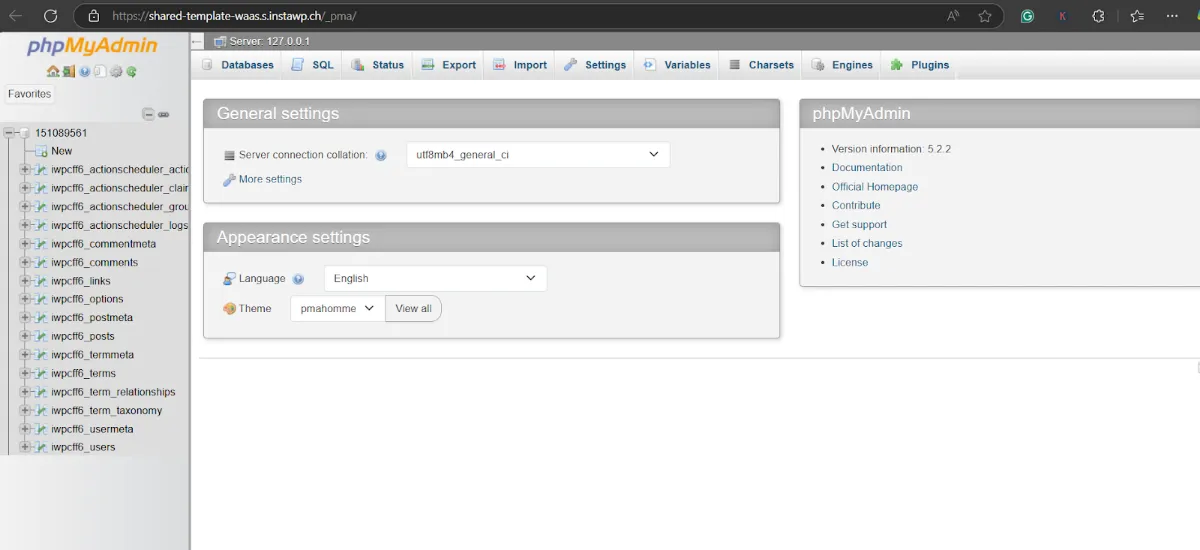
- Select your WordPress database from the left-hand sidebar.
- Find the table that holds the lockouts. For Limit Login Attempts Reloaded it is the
limit_login_lockoutsrow inwp_options; for Loginizer it is thewp_loginizer_logstable. Your table prefix may differ fromwp_. - For Limit Login Attempts Reloaded, find the
limit_login_lockouts,limit_login_retriesandlimit_login_retries_validrows (searchoption_nameforlimit_login). For other plugins, look for rows related to lockouts, failed_login_attempts, or transients. - Edit or delete those rows to reset login attempts.
- Save your changes and attempt to log in.
Always create a site backup before making database changes.
Method 5: Whitelist Your IP to Avoid Future Lockouts
Prevention tip, if your team frequently logs into sites from known IPs, whitelist them.
- Go to your WordPress dashboard.
- Navigate to Wordfence > All Options and open Firewall Options.
- Find “Allowlisted IP addresses that bypass all rules” (Wordfence 9.0.2 calls the old whitelist an allowlist).
- Enter your team’s IP address and save.
You can find your current IP at whatismyip.com.
After You Are Back In: Test Lockout Settings on a Staging Copy
Once you are back in, tune the lockout settings on a copy of the site rather than on the live one. A cloud WordPress platform like InstaWP lets you clone the site, reproduce the lockout and adjust the plugin without touching production.
- Go to InstaWP and log in.
- Use the “Create New Site” button.
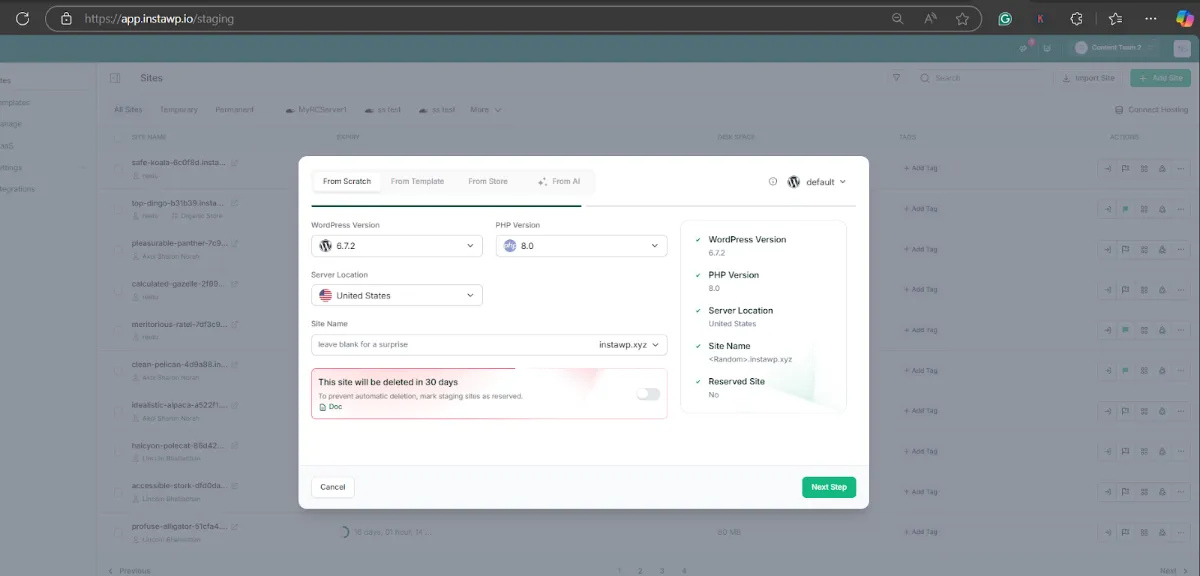
Here is a complete guide to creating a staging site using InstaWP.
- Import your client’s site.
- Try to replicate the login issue in the staging copy.
- Disable the security plugin or modify login settings as needed.
- Use InstaWP’s one-click deployment to push changes back to live.
✅ Best for testing fixes risk-free, especially if you’re dealing with mission-critical sites.
Bonus Tip: Combine Methods for Efficiency
For example, use InstaWP to clone and test fixes, then apply the working method (plugin, FTP, or database) to the live site. This reduces downtime and lets you test with confidence.
Summary: When to Use Each Method
Why “Too Many Login Attempts” is a Big Deal for Agencies & Developers
For agencies and developers, a login lockout costs more than a few minutes. One lockout on a shared office IP blocks the whole team, a Wordfence lockout lasts 4 hours by default, and clients who hit it tend to assume the site is broken or hacked. Across dozens of client sites, that adds up to lost billable time, support emails and delayed updates.
1. Lost Productivity & Billable Hours
Every minute spent dealing with login issues is a minute not spent building, optimizing, or delivering value to your clients. If you need to access the admin panel to deploy a feature or run updates, and you’re locked out, it stalls everything.
Multiply this across 10+ client sites, and you’re looking at hours of wasted time.
2. Panicked Emails from Clients
Clients see the login error, assume the site is broken, or think they’re hacked. You get flooded with messages like, “I can’t access my dashboard! What’s going on?”
Your calm workday turns into reactive support chaos.
3. Access Issues Across Staging & Live Sites
If you’re testing workflows across staging and live environments, and lockouts occur in both, especially with mirrored login security plugins, you risk breaking the dev pipeline. It becomes harder to sync or deploy changes when you can’t even log in.
4. Delays in Updates, Launches, and Troubleshooting
Login lockouts at the wrong time (like during a site launch or security patch deployment) can stall your entire operation. Some updates are time-sensitive, especially plugin security fixes. If you’re blocked, your site (or your client’s site) is exposed longer than necessary.
For mission-critical websites (eCommerce, course platforms, etc.), even a short delay can hurt revenue or reputation.
In short, resolving the “Too Many Login Attempts” error quickly and smartly isn’t just good dev hygiene; it’s a survival skill in the WordPress agency world, especially when automated bots leveraging a scraper API constantly test user authentication pages.
How to Prevent the “Too Many Login Attempts” Error From Happening Again
To stop the “Too Many Login Attempts” error coming back, allow 5 to 7 attempts with a short lockout, allowlist your team’s static IP, turn on two-factor authentication, and do frequent admin work on a staging copy instead of the live login page. If you clear a lockout by hand, clear the failure counter too, so a few more typos do not trigger a 24-hour lockout.
1. Adjust Lockout Settings in Your Security Plugin
Set reasonable thresholds:
- Allow 5–7 attempts before lockout
- Shorten lockout duration (e.g. 30 minutes vs. 24 hours)
- Enable email notifications for lockouts
This keeps bots at bay but avoids locking out real users.
2. Whitelist Trusted IPs
For agencies or dev teams, whitelist your office IP to avoid false positives.
In plugins like Wordfence:
- Go to All Options > Firewall Options > Allowlisted IP addresses
- Add known safe IPs used by your team
⚠️ Avoid whitelisting public IPs or VPNs.
3. Use Staging Sites for Frequent Logins
Agency developers log in a lot. Instead of repeatedly logging into a live site for testing, use InstaWP to:
- Clone your client’s site in one click
- Run all admin workflows on staging
- Sync to live only when needed
This reduces unnecessary logins and avoids accidental lockouts.
4. Implement Two-Factor Authentication (2FA)
2FA adds a secure layer, minimizing brute-force risks:
- Use plugins like WP 2FA or Google Authenticator
- Educate clients on secure login practices
Bonus: 2FA often reduces the need for strict login limits.
5. Use a Login Management Plugin
Tools like LoginPress, Shield Security, or MiniOrange allow:
- Custom login error messages
- Better UX when users are locked out
- Branded login pages (great for agencies)
Combine this with InstaWP to show clients staging login demos.
Final Thoughts: Fix It Fast, Prevent It Smarter
The “Too Many Login Attempts” error isn’t just a warning, it’s a sign your security plugin is doing its job. But without the right strategy, it can lock out the very people it’s meant to protect.
Whether you’re working with 5 or 50 WordPress sites, resolving login issues should never involve guesswork. Use tools like InstaWP to:
- Troubleshoot safely
- Test changes before going live
- Educate clients with login-ready staging demos
Because at the end of the day, nothing beats a secure, accessible, and friction-free WordPress experience.
FAQs
What does the “Too Many Login Attempts” error mean in WordPress?
It means a login-security plugin (or a firewall in front of the site) has temporarily blocked your IP address or username after too many wrong passwords. WordPress core has no login limit of its own. While the lockout lasts, even the correct password is refused.
Why am I seeing the error even though I entered the correct credentials?
Even if your last attempt was correct, multiple failed tries (including from bots or the wrong username) can trigger the lockout. Some security plugins track IP-based attempts, so the system may still block you temporarily.
How long does the lockout last after too many login attempts?
The lockout duration depends on your security plugin settings. Out of the box, All-In-One Security and Defender lock you out for 5 minutes, Loginizer and Solid Security for 15, Limit Login Attempts Reloaded for 20, Login Lockdown for 60 and Wordfence for 4 hours. Repeat lockouts can stretch to 24 hours. You can adjust this in the plugin’s settings or whitelist your IP to bypass the lock.
Which plugins cause the “Too Many Login Attempts” error in WordPress?
WordPress core never shows it. The common sources are Limit Login Attempts Reloaded, Wordfence, Solid Security (formerly iThemes Security), Loginizer, All-In-One Security, Login Lockdown and Defender, and each one words the message differently. A firewall or your host can also block wp-login.php, which usually shows a 403 or 429 page instead of the login form.
How can I fix the error and regain access to my site?
You can regain access by:
Waiting for the lockout to expire (5 minutes to 4 hours by default, depending on the plugin)
Renaming the security plugin’s folder over FTP or SFTP
Running wp plugin deactivate <plugin-folder> with WP-CLI
Deleting the plugin’s lockout rows in phpMyAdmin
Logging in from a different network/IP temporarily
Can I disable the login attempt limit altogether?
Yes, but it’s not recommended for live or public-facing websites. Instead, consider increasing the attempt limit or implementing reCAPTCHA, Two-Factor Authentication (2FA), or IP whitelisting for better balance between security and usability.
How can I prevent the “Too Many Login Attempts” error in the future?
You can:
Use a security plugin with customizable settings
Enable 2FA
Whitelist your IP
Limit access to /wp-login.php using .htaccess or firewall rules
Use a custom login URL to reduce bot attacks
Is the error caused by hackers trying to access my site?
Often, yes. The error may be the result of brute-force login attempts by bots or malicious actors. Monitoring tools like Wordfence or Sucuri Firewall can show login attempt logs and alert you in real-time.
Can I monitor login attempts to see who is trying to access my WordPress admin?
Yes. Security plugins like iThemes Security, Wordfence, or WP Activity Log allow you to monitor login attempts, track IP addresses, usernames used, and even block suspicious activity.
How can I test and fix login issues without breaking my live site?
Use a staging environment like InstaWP to test plugin settings, login customizations, and security rules safely before applying changes to your live site.
Does logging in successfully reset the failed-attempt count?
Not always. In our test with Limit Login Attempts Reloaded 3.4.1, a successful login did not reset the failure counter, and it stays valid for 24 hours after the last failure. Because 16 failures in that window trigger a 24-hour lockout, delete limit_login_lockouts, limit_login_retries and limit_login_retries_valid together for a clean reset.
How do I unlock WordPress with WP-CLI?
Over SSH, run wp plugin deactivate <plugin-folder> (for example limit-login-attempts-reloaded), log in, then reactivate it with wp plugin activate. With Limit Login Attempts Reloaded you can instead keep the plugin running and run wp option delete limit_login_lockouts limit_login_retries limit_login_retries_valid. On InstaWP, SSH and WP-CLI are included on every plan.