An Elementor MCP server lets an AI agent write Elementor’s own page data instead of dumping HTML into a post. InstaWP tested the most widely listed one on a live WordPress site on 11 September 2026: it produced a page that returns HTTP 200, renders completely blank, and reports success. A safe setup means deciding what the agent can reach before it writes, because none of these failures raises an error.
Every failure below was reproduced first-hand, twice, from a clean page each time. Each one is followed by the fix, because none of these tools is useless. Two things make this category harder than it looks. A broken page and a working page are identical from the agent’s side, so you end up checking things nobody tells you to check. And the credential most of these servers ask for is not an Elementor credential, so the blast radius of a mistake is wider than the tool you thought you installed.
 Key takeaways
elementor-mcp on npm writes _elementor_data perfectly and never writes
_elementor_edit_mode, so Elementor does not recognise the page as its own.
HTTP 200, zero Elementor nodes, tool reports success.
[object Object].
?ver= query string while the
browser is served the old compiled file. Checking that the version string changed is a false
positive. Read the stylesheet’s contents.
Table of Contents
What is Elementor MCP?
Elementor MCP is any Model Context Protocol server that exposes an Elementor site to an AI agent as callable tools. The agent connects once, then reads and writes pages the way a developer would through the database, rather than typing into the Elementor canvas.
There is no official server from Elementor. Everything in this category is built by a third party or a host on top of Elementor’s storage format, which is why they differ so much in what they get right. InstaWP audited five of them for this review and drove one of them end to end against a live site. For the protocol itself and how it applies to WordPress generally, see our explainer on WordPress MCP.
The four things an Elementor page needs, and the one everybody forgets
An Elementor page is not stored in post_content. It lives in post meta, and it takes more than one key. This is the whole basis of the review, so it is worth being precise about:
| Meta key | What it holds | What happens without it |
|---|---|---|
_elementor_data
|
A JSON string describing the tree of sections, columns and widgets. | Nothing to render. Empty page. |
_elementor_edit_mode
|
The literal string
builder.
|
Elementor ignores the page entirely.
The theme renders
post_content,
which is empty, so you get the title and nothing else.
|
_elementor_template_type
|
Usually
wp-page.
|
The document type is ambiguous, which matters most for templates, headers and footers. |
_elementor_version
|
The Elementor version that wrote the page. | Elementor cannot tell whether its data upgrade routines need to run. |
The second row is the one that costs people an afternoon. Writing a flawless Elementor tree and omitting a nine-character string leaves you with a page that is correct in the database and blank in a browser.
What are you actually giving an AI agent when you connect an Elementor MCP server?
In most cases, the whole WordPress REST API as whichever user issued the credential. A WordPress application password is not an Elementor credential and cannot be narrowed to one. It authenticates every REST route that user can reach, so a server advertising page building is holding something that can also publish, unpublish and delete content on the same site.
This is worth separating from the four failures below, because it is a different kind of problem. The failures are about whether the agent’s work renders. This is about what the agent could touch when it gets something wrong, and how much of that you chose. InstaWP raises it first because it is the decision that is easiest to get wrong quietly.
The MCP specification’s own security best practices make the same argument under the heading scope minimisation: a broad credential widens the blast radius of any single mistake, and it is far harder to revoke than a narrow one. Once a server holds an administrator’s application password, every later question about what it may do is answered by whatever that server chose to expose.
Whether an agent should connect to a client site at all is a separate question, answered in InstaWP’s guide is WordPress MCP safe?, which covers the controls to set first. This article stays on what goes wrong with Elementor pages.
Five questions settle it, and all five can be answered before you connect anything.
| What to check first | Why it decides the blast radius | What InstaWP found in this category |
|---|---|---|
| Which credential does the server use? | An application password is every REST route that user can reach, not Elementor. | An application password against an administrator account is the default instruction in most READMEs. |
| What else does it expose besides page building? | Delete tools ship next to write tools and share one credential. |
The server tested below exposes
delete_page
with a force option.
|
| Can a failed call still have written? | A tool that errors after writing leaves a broken page live. |
Failure 3 below: the error text is
[object Object],
and the page is already returning 500.
|
| Is there an undo? | An agent makes the same mistake across many pages in one run. | Snapshots or a change ledger in only two of the servers InstaWP audited, nothing in the rest. |
| Where does the credential sit while the agent runs? | An external process holds it on whatever machine started it. |
A local
.env
file, or a directory’s hosted runner you do not control.
|
Two constants you can set today, before you evaluate a single server.
DISALLOW_FILE_EDIT
and
DISALLOW_FILE_MODS
in
wp-config.php
switch off WordPress’s own plugin and theme file editors.
A well-built MCP server honours them, which means the two lines an agency
already ships to lock down wp-admin also stop an AI agent editing plugin
or theme code. InstaMCP’s
plugin_files
and
theme_files
tools state that they respect both constants.
Ask any server you are evaluating the same question.
How did InstaWP test this?
On a throwaway WordPress sandbox, so that a destroyed page cost nothing. Every number below came from this environment on 11 September 2026:
- WordPress 7.1, Elementor 4.2.4, PHP 8.2, a fresh install with no other plugins.
- The sandbox went from API call to responding over HTTPS in 105.1 seconds, including SSL. Installing and activating Elementor from the WordPress.org repository took 30.3 seconds.
- Servers were driven over a real WordPress MCP server on stdio, the same JSON-RPC an AI client speaks, not by calling their internal functions directly.
- Every claim about a page was checked against the live URL with a cache-busting parameter, the generated stylesheet fetched separately, and the meta read back out of the database.
One boundary, stated plainly: InstaWP ran the open-source servers, because their code can be read and their behaviour can be reproduced by anyone. The commercial options were assessed from their own public documentation and are described as such below, never as tested.
Failure 1: why does an agent-built Elementor page render blank?
Because the page is missing the _elementor_edit_mode meta key. Elementor only renders a page it recognises as its own, and that key is how it decides. Without it the theme falls back to post_content, which on a builder page is empty, so the URL returns HTTP 200 and shows the title and nothing else. InstaWP reproduced this exactly.
The server under test is elementor-mcp on npm, from the repository aguaitech/Elementor-MCP. It is the one Smithery, mcp.so and mcpservers.org all list, it owns the obvious package name, and its README tells you to run npx -y elementor-mcp. It is MIT licensed, and its last commit was 14 May 2025.
The agent was given a valid 688-byte Elementor tree: one section with a dark background and 100px vertical padding, a heading and a paragraph. It called create_page. The call took 1.16 seconds and returned a page ID, which in MCP terms is an unqualified success.
Then InstaWP looked at the page.
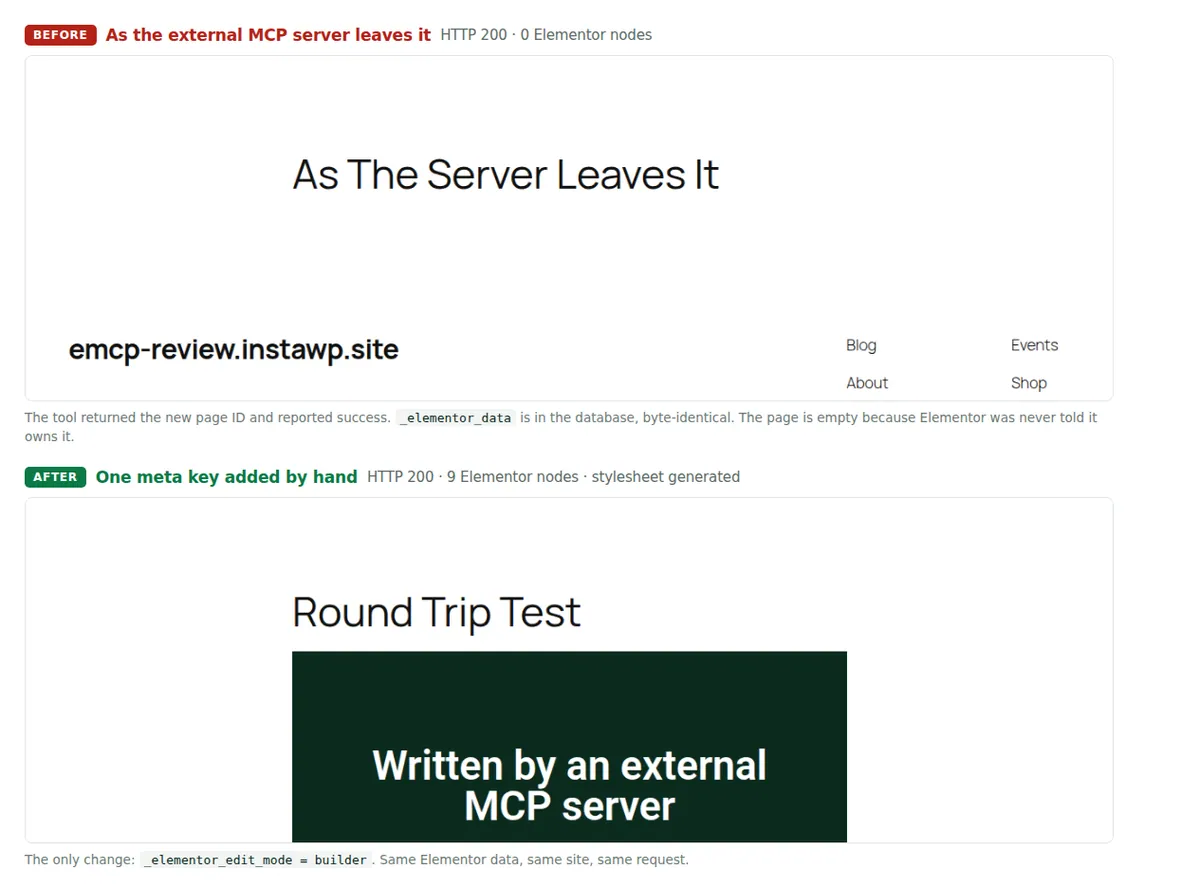
| Check | As the server left it |
After adding
_elementor_edit_mode
|
|---|---|---|
| Tool response | Page ID returned, no error | Unchanged |
_elementor_data
in the database
|
688 bytes, byte-identical | 688 bytes, byte-identical |
| Number of meta keys on the post | 1 | 2 |
is_built_with_elementor()
|
false | true |
| Live URL | HTTP 200, 68,238 bytes | HTTP 200, 75,978 bytes |
elementor-element
nodes in the HTML
|
0 | 9 |
| Generated page stylesheet | None | 1,561 bytes, correct padding and colour |
Read that table from the top and you can see why this is so easy to miss. The write was perfect. The Elementor data came back out of the database matching what went in, to the byte. Elementor simply never looked at it, because nothing had told Elementor the page belonged to it.
Once the key was there, everything else the agent had written turned out to be correct. Elementor generated a 1,561-byte stylesheet carrying padding:100px 20px 100px 20px and background-color:#0B2B1E, exactly the values in the tree. The editor loaded the document with 4 unique element IDs and no duplicates. The server’s only defect was an omission of nine characters.
_elementor_edit_mode to builder on every page it creates, through whatever other WordPress access you have. That single addition took a blank page to a fully rendered one in InstaWP’s test, with no other change.This is not inherent to running outside WordPress. worldpeaceworker/wp-elementor-mcp is also an external Node process talking to the REST API, and it writes _elementor_edit_mode: 'builder' in its page-creation payload. The knowledge is not hard to encode. It is just that somebody has to have encoded it.
Failure 2: why does the page not change after an AI agent edits it?
Elementor does not render your styling from the page tree on every request. It compiles a per-page stylesheet to a file and serves that. So an agent that changes a colour has changed the source of truth and not the thing the browser loads.
InstaWP took the now-working page and asked the same server to change the section background from dark green to dark red, and the vertical padding from 100px to 250px. A visually obvious change. update_page returned true.
| Where you look | What it says after the edit |
|---|---|
| Tool response |
true
|
_elementor_data
in the database
|
#7A1020,
padding top
250.
Correct.
|
| Stylesheet URL in the page HTML |
post-8.css?ver=1789121835,
a new version string.
|
| The stylesheet actually served |
1,561 bytes,
background-color:#0B2B1E,
padding:100px 20px 100px 20px.
The old values.
|
| The page in a browser | Identical to before the edit. |
The third and fourth rows are the cruel part. A developer checking whether the CSS refreshed would look at the version string, see that it changed, and move on. It changed because the page was modified. The file behind it was not rebuilt.
Clearing Elementor’s file cache fixed it immediately, and the newly generated stylesheet carried background-color:#7A1020 and padding:250px 20px 250px 20px. That is one line of PHP:
// without this, the browser keeps loading the stylesheet
// Elementor compiled before your agent touched the page
\Elementor\Plugin::$instance->files_manager->clear_cache();
Note where this bites and where it does not. On a brand new page there is no compiled stylesheet yet, so Elementor builds one on the first request and everything looks fine. The staleness only appears when an agent edits a page that has been viewed before, which is to say on every real client site rather than on the demo you built to try this out.
This is also the point in the category where security and convenience collide. Regenerating Elementor’s CSS means running code inside WordPress. A server that lives in WordPress can do it in-process. An external server cannot, unless the site hands it a way to execute PHP, which is the most sensitive permission in this whole subject. Either way it is a decision to make deliberately rather than one to inherit from a default.
Failure 3: what happens if you download an Elementor page and upload it back?
On the server InstaWP tested, the page breaks. Downloading writes the Elementor tree double-encoded, and uploading that file back without editing it stores a JSON string where Elementor expects an array. The live page goes from HTTP 200 to HTTP 500, and the tool reports an error only after it has already written.
The same server ships a pair of tools for working on a page offline: download_page_to_file writes the Elementor tree to disk, and update_page_from_file pushes a file back up. Download, edit in your editor, upload. It is the workflow the project’s own companion repository recommends.
InstaWP ran it on a page that the same server had created and that was rendering correctly, and skipped the editing step entirely. Download, then immediately upload the untouched file.
| Step | Result |
|---|---|
| Page before | HTTP 200, 9 Elementor nodes, renders correctly. |
download_page_to_file
|
Reports
true.
Writes 800 bytes for a 688-byte tree.
|
| The file on disk | Begins with a quote character. Contains 110 backslashes that were not in the original. |
update_page_from_file,
zero edits
|
Error. The message is the literal string
[object Object].
|
| The database afterwards | Already overwritten with the corrupted value. |
| The live page | HTTP 500 |
Reproduced twice, on two separate pages, each created clean by the server itself.
The cause is a double encoding. It is the classic json_decode trap: decoding a doubly encoded value returns a string rather than an array, and a string is a perfectly valid result. Elementor stores the tree as a JSON string, so what comes back from WordPress is already a string of JSON. The download tool runs that through a JSON serializer a second time, which wraps the whole thing in quotes and escapes every quote inside it. The upload tool then parses the file, gets the original string back, serializes it again, and sends a quoted string where an array should be. It passes the server’s own validity check, because a quoted string is perfectly valid JSON.
// what a healthy page holds: an array of sections
[{"id":"aa11bb1","elType":"section", ... }]

// what came back after a download and an unmodified upload
"[{\"id\":\"aa11bb1\",\"elType\":\"section\", ... }]"
// json_decode returns a string. Elementor expects an array.
// The page 500s.
Backslash accounting is a real hazard across this whole category, not just in one project. WordPress strips one level of backslashes on the way into post meta, so an agent that lets its JSON library emit unicode escapes will find them arriving as literal text. The fix is to never emit a backslash: write literal UTF-8 characters instead of escapes, and single-quote HTML attributes inside widget settings so no escaped double quotes are needed.
# bad: the escape survives your code and dies in WordPress
json.dumps(tree)                        # emits escapes WordPress will eat

# good: literal characters, nothing for WordPress to strip
json.dumps(tree, ensure_ascii=False)  # nothing to strip

# and inside widget HTML, single-quote every attribute
"editor": "<a href='/book/'>Book a visit</a>"
Authored that way, a 10,087-byte tree InstaWP wrote in a separate test contained zero backslashes and zero unicode escapes, and round-tripped byte-identical on the first attempt.
Failure 4: does a malformed Elementor setting break the page?
On Elementor 4.x it does not break the page. The bad value is dropped and everything else renders, so the page returns HTTP 200 and is quietly missing whatever you asked for. That is harder to catch than a crash, and it applies no matter which MCP server you use, because this behaviour belongs to Elementor rather than to any tool.
InstaWP deliberately wrote malformed settings, expecting the render to fatal, because that is what guidance written against Elementor 3.x warns about. On Elementor 4.x it did not happen in either case tested.
| What was written | What Elementor 3.x guidance says | What actually happened |
|---|---|---|
padding
as the string
"80px"
instead of a unit object
|
Fatal error on render | HTTP 200. Generated stylesheet came back at 224 bytes with no padding rule at all. The value was dropped. |
_elementor_page_settings
as a JSON string instead of an array
|
Type error, page 500s | HTTP 200. The editor still bootstrapped. The setting simply had no effect. |
A third case comes up constantly once an agent is writing pages unattended. Elementor ships Font Awesome as a fixed set of inline SVGs and enqueues no Font Awesome stylesheet. An icon name inside that set renders as an <svg>. A name outside it falls back to an <i> tag, which with no webfont loaded is an empty box.
<!-- in Elementor's icon set: renders -->
<svg class="e-font-icon-svg e-fas-calendar-check" ...>

<!-- a Font Awesome 6 name, not in the set: silently invisible -->
<i aria-hidden="true" class="fas fa-comment-sms"></i>
The page returned 200, the write tool reported success, and nothing appeared in any log. Cheapest check on a rendered page: count the e-fas- SVG classes against <i class="fas tags. Any fallback tag is an invisible icon.
Taken together, these four failures describe the actual state of agent-written Elementor in 2026. It is not that things crash. It is that they return 200, report success at every layer, and are quietly missing something you asked for. Verification is not a safety net bolted on top of the work. It is most of the work.
Can an AI agent build an Elementor page that actually works?
Yes, and InstaWP has the page to show for it. On 11 September 2026 an agent connected to InstaMCP built a four-section, seventeen-widget Elementor landing page from a written brief. It renders on the front end, it opens in the Elementor editor as editable sections rather than as a locked blob, and a follow-up edit changed two elements without disturbing the other twenty-five.
None of the screenshots below is a mockup. It is the same site on the same day, checked against the same four failures described above.

post_content.The numbers, because a screenshot on its own proves nothing about how it got there. The build took four tool calls and 5.74 seconds of tool time, including the call that clears Elementor’s CSS cache. The 10,087-byte page tree round-tripped byte-identical, so nothing was mangled on the way into the database.
Elementor then compiled a 13,419-byte stylesheet carrying real tablet and mobile breakpoints, generated from the responsive padding values the agent wrote rather than from a desktop-only guess. The editor bootstrapped the document with 27 unique element IDs and zero duplicates.
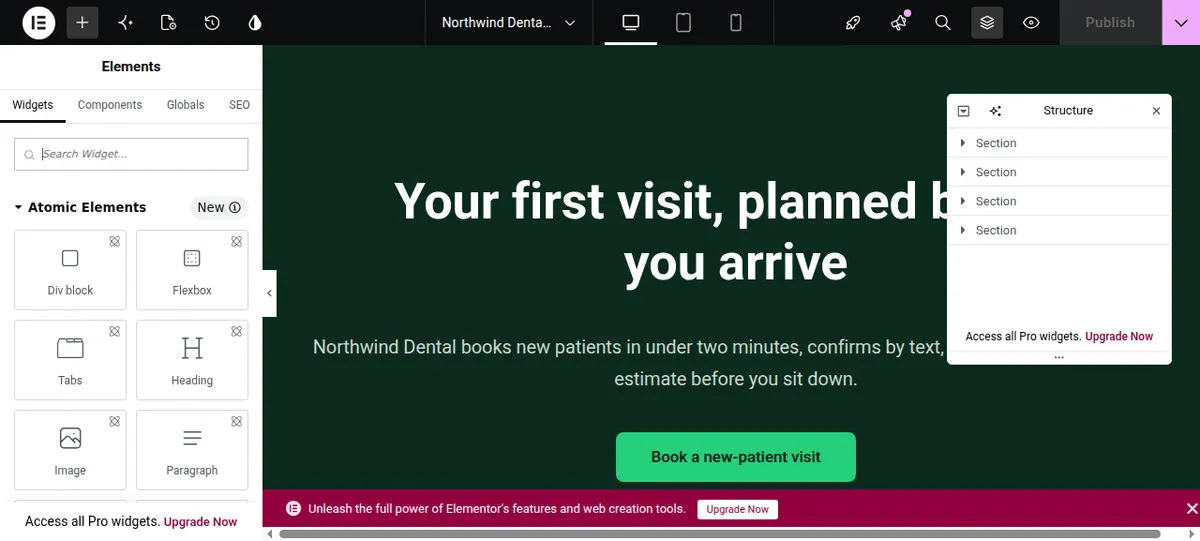
That second screenshot is the one an agency should care about most. A page an agent produced is only useful if a human can finish it, and the common failure in this category is a page that technically exists but does not present itself to the builder as editable.
Unique element IDs are what make that work: the follow-up edit took three calls and 2.99 seconds, touched two of the twenty-seven elements, and left the rest exactly as they were. That is a read, mutate and write-back cycle rather than regenerating the page from the agent’s own idea of it, which is the behaviour that quietly deletes a designer’s afternoon.
What made the difference on each of the four failures?
Each failure above has a specific cause, and each one is beaten by a specific step rather than by a better tool in general. This is the table to keep, whichever server you end up using.
| The failure | What causes it | What the InstaWP run did |
|---|---|---|
| Page renders blank at HTTP 200 | Elementor does not recognise the page as its own | Wrote the companion meta alongside the tree, then confirmed the rendered page contained Elementor nodes rather than assuming it |
| Edit appears not to apply | The compiled stylesheet on disk is stale while its version string looks fresh | Cleared Elementor’s file cache as part of the same run, then read the stylesheet’s contents and found the new breakpoints in it |
| Export and re-import breaks the page | An already-encoded tree serialised a second time | Never round-tripped through a file. The tree was read, changed in place and written back, and the byte count was compared before and after |
| A setting or an icon silently does nothing | Elementor drops a malformed value and falls back on an unknown icon name, both at HTTP 200 | Counted the rendered SVG icon classes against fallback tags, and checked the generated stylesheet for the rule that setting should produce |
Read that third column carefully. Every one of those steps is a check performed after the write, and the reason the run succeeded is that the checks were part of the job instead of something a human did later.
Two InstaMCP tools do that work directly: set_meta writes each field through the correct plugin API, reads every value back, and returns a per-field before and after diff with a verified flag, and validate_blocks tests markup before it is saved. The Elementor-specific knowledge itself lives in a bundled page-builder skill the agent loads rather than in the server. That distinction matters, and the section below says exactly where the boundary falls.
How do you get that setup on a site?
Three steps, and none of them installs a plugin or copies a credential onto a laptop. InstaMCP is a WordPress MCP server that ships with InstaWP sites, so the thing you connect is a scoped endpoint rather than an application password that unlocks the whole REST API. If your site is not on InstaWP, the best WordPress MCP plugins roundup covers the in-site alternatives.
- Open the site in the InstaWP dashboard and turn on the MCP toggle. There is no plugin to install and nothing to keep updated.
- Copy the connection URL into the AI client you already use. The same URL works across the clients InstaMCP supports, so the setup does not change when the tooling does.
- Leave the sensitive tools off until a run genuinely needs one, and turn it off again afterwards.
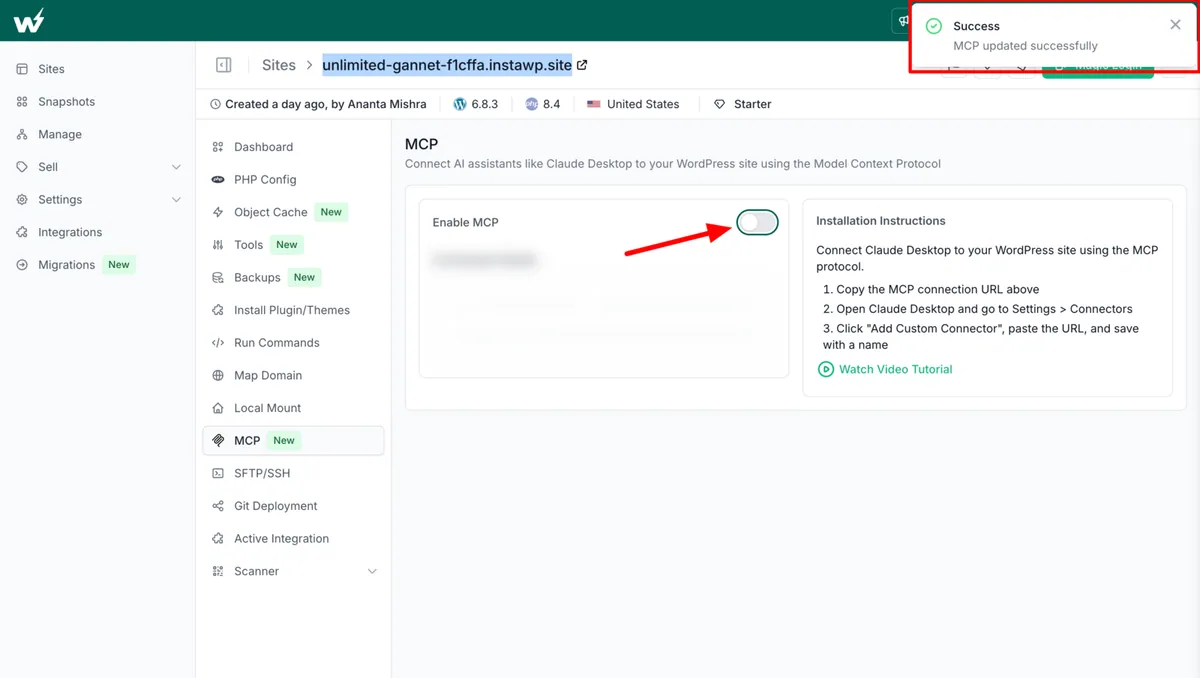
Step three is the one worth dwelling on, because it is the answer to the question this article opened with. The three tools that can do real damage to a site, running PHP, querying the database and writing configuration files, are off when a site is created. An administrator turns each on individually, for that site, and the state is visible rather than buried in a config file.
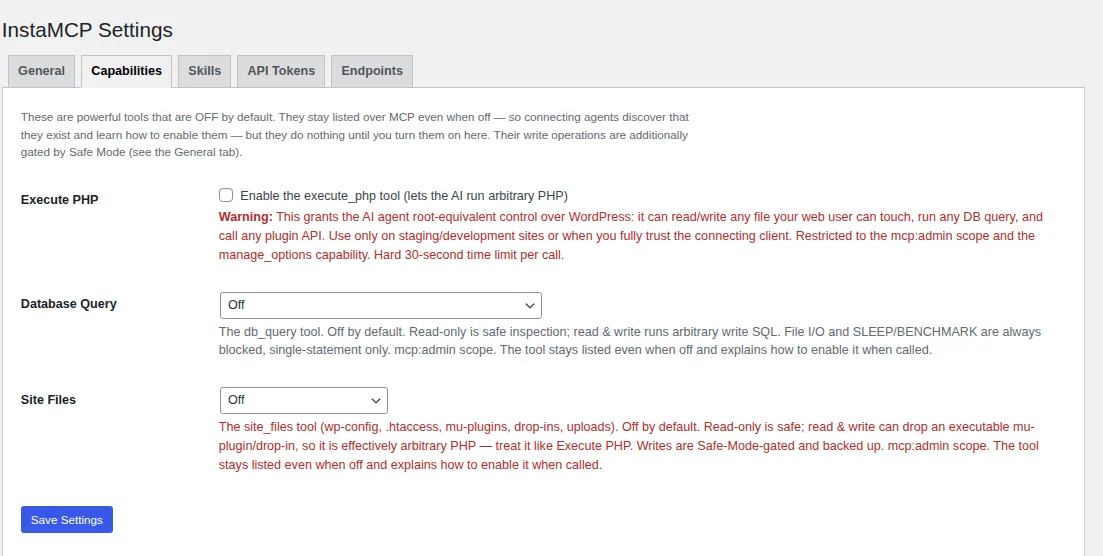
execute_php, db_query and site_files are off until someone with administrator rights turns them on for that site.If you are weighing servers more broadly rather than Elementor specifically, InstaWP maintains a wider comparison of the best WordPress MCP servers, and a primer on WordPress MCP as a protocol.
Should an Elementor MCP server run inside WordPress or outside it?
Inside WordPress is the safer default, but not for the reason people usually give. An in-site plugin can regenerate Elementor CSS in-process and does not need a credential that unlocks the whole REST API. What actually decides correctness is something else, and it cuts across both shapes.
It is tempting to conclude that plugins are good and external processes are bad. That is not what the evidence says. One of the external servers InstaWP audited writes the companion meta correctly and one does not, and they are both external. The same spread shows up across the wider category, which our roundup of the best WordPress MCP servers goes through server by server.
What actually separates a server that produces working pages from one that produces blank ones is whether anybody wrote down the handful of things Elementor needs beyond the page tree, and where they wrote them. There are only three places that knowledge can live:
- In the server’s own code. Several of the WordPress-plugin servers do this. The tool is called
create-pageand the meta is handled for you. You have the least to think about, and you inherit that tool’s opinions about how a page should be built. - In a skill or prompt the server ships alongside its tools. The tools stay general, and a document tells the agent how Elementor works. That is more flexible, and it only helps if the agent actually reads the document.
- Nowhere. The tools write whatever you hand them, and the four or five gotchas in this article are your problem. This is where the blank page comes from.
That framing also tells you what to ask a vendor, which is more useful than a feature list. These are the questions InstaWP would put to any server in this category, in the order they cost you money.
The shape of the server also decides where the credential lives while the agent runs, which is the first question in this article and the one the category answers worst. An in-site plugin authenticates against WordPress itself. An external process holds an application password on whatever machine started it, which may be a laptop, a CI runner or a directory’s hosted infrastructure you do not control. Neither shape narrows what that credential can reach once it exists.
Elementor MCP vs Novamira: which one should write your Elementor pages?
Pick by where the Elementor knowledge lives and what the credential can reach. A dedicated Elementor MCP server such as elementor-mcp gives the agent page tools and nothing else, but signs in with an application password that reaches the whole REST API. Novamira is a general WordPress MCP plugin that runs PHP and filesystem operations as an administrator, and its Pro tier covers Elementor as one of 53 builders and plugins (Novamira Pro, checked 12 October 2026). InstaMCP keeps its tools typed and scoped, and puts the Elementor rules in its bundled page-builder-pages skill.
InstaWP built the same Elementor 4.3.2 page through Novamira 1.12.5 and InstaMCP 1.11.3 on 25 September 2026, on one WordPress 7.1.2 test site. The two pages came out pixel-identical, so output quality was a draw. The difference was the write path: Novamira’s version only rendered correctly once the caller pre-slashed the page data, while InstaMCP’s set_meta handled the slashing itself. Novamira did win a separate landing-page design test, and the Novamira review covers that and the rest of the head-to-head.
If your Elementor sites already run on InstaWP, InstaMCP gets you the same page through a scoped token with checked writes, without putting a raw-shell plugin on a client’s production site.
How does InstaMCP answer this?
By replacing the application password with a scoped endpoint, and by making the permission surface countable. InstaMCP is a WordPress MCP server that ships with InstaWP sites and is turned on with one toggle, so there is no plugin to install or keep updated, no credential sitting in a .env file on somebody’s laptop, and nothing running on your own machine. The endpoint URL goes straight into the AI client, and the same endpoint works with 14 AI clients without a different setup for each one.
What can an agent connected to InstaMCP actually reach?
Exactly 43 tools, and InstaWP can say that precisely because it is a listable set rather than an API surface. Asking InstaMCP for its own tool list on 11 September 2026 returned 43 tools. Grouped by what they can do to a site, they land like this.
| What the tool can do | Count | Available by default |
|---|---|---|
| Read content, taxonomies, media, plugin and theme information, skills, memories, error logs | 20 | Yes |
| Create or change content, terms, meta, media, skills, memories | 12 | Yes |
| Delete content, terms, skills or memories | 4 | Yes |
| Install, activate, update or delete plugins and themes, and read or write their files | 4 | Yes |
| Run PHP, run SQL, read or write configuration and drop-in files | 3 | No An administrator opts in per tool. |
| Total tools | 43 |
Twenty of the 43 change or remove something, and on an administrator’s token they are live as soon as the connection works. That is what “an agent can manage your site” means, and it is the reason you connected one. The difference from an application password is that the list is fixed and published rather than being every route the credential happens to unlock, so you can decide the blast radius instead of assuming it. The three most sensitive tools are off until someone with the manage_options capability turns them on individually. If you are running this across a portfolio rather than one site, there is a companion piece on using MCP for WordPress in production.
The controls below come from the tools’ own live descriptions on 11 September 2026, not from marketing copy. The scope and Safe Mode rows were rechecked against the InstaMCP 1.11.4 source in October 2026.
| Control | What it does |
|---|---|
| Four token scopes | Every tool declares mcp:read, mcp:write, mcp:delete or mcp:admin, and a token takes its scopes from the WordPress role of the one user it is bound to. Eleven tools require mcp:admin. A token issued to an Editor reaches 32 tools and cannot install plugins or upload media, and a Contributor’s reaches only the 19 read tools. |
execute_php gating | Off by default, enabled per site at Settings then InstaMCP then Execute PHP, requires mcp:admin, and the user behind it needs manage_options. |
db_query three states | Off, read-only (SELECT, SHOW, DESCRIBE, EXPLAIN) or read-write. Stacked statements, file I/O and SLEEP or BENCHMARK are always rejected, and a LIMIT is applied to bare selects. |
site_files allowlist | Strictly limited to wp-config.php, .htaccess, mu-plugins, the drop-ins and the uploads directory. There is no arbitrary filesystem access. A write backs the file up first, and wp-config.php secrets are redacted on read unless you ask for them explicitly. |
| Safe Mode | A site-level switch that blocks 11 tools: every delete tool, plugin and theme changes, plugin, theme and configuration file writes, set_meta and media_upload. It does not stop an agent creating or editing content, and it does not gate execute_php or db_query, which have their own off-by-default switches. |
DISALLOW_FILE_EDIT and DISALLOW_FILE_MODS | Honoured by plugin_files and theme_files, alongside path traversal prevention, extension allowlisting and an automatic backup before every write. |
| Boot guard | If an execute_php call leaves an auto-included file (a theme functions.php, an active plugin, a mu-plugin, a drop-in or wp-config.php) holding a PHP syntax error, the change is rolled back automatically and reported. |
site_logs | Read-only. It never writes or clears a log, and it redacts secrets in stack traces. |
One claim InstaWP deliberately does not make: that execute_php has a fixed time limit. The tool asks PHP for one, and a host that pins max_execution_time as an immutable setting refuses it. So every call reports the limit actually in force rather than promising a number it cannot enforce. Treat any vendor that advertises a fixed execution ceiling with the same scepticism.
Does InstaMCP fix the silent-success problem?
Partly, and it is worth being exact about where. The failures earlier in this article all share one shape: the tool reported success and the result was not true.
InstaMCP attacks that in two places rather than claiming to have solved it. set_meta writes each field through the correct plugin API, reads every value back, and returns a per-field before and after diff with a verified flag, and it supports a dry run. validate_blocks checks markup before it is saved, flagging block names that are not registered on the site and round-trip mismatches. Both of those turn a claimed write into a checked one.
What InstaMCP does not do is stop an agent writing an Elementor page without _elementor_edit_mode. Its tools are general: set_meta writes meta, execute_php runs code.
The Elementor knowledge lives in a bundled page-builder skill the agent loads, which tells it to write the companion meta, author the tree slash-free, regenerate the CSS and verify the icons. The skill is what prevents failure 1, not the server. InstaWP would rather say that plainly than let a reader assume the server validates something it does not.
What is the honest trade-off in that workflow?
One that is worth stating before you copy the setup. The run shown earlier in this article, the four-section page an agent built and then edited, used execute_php for one of its four calls, and that tool runs arbitrary code on the site.
It is there because regenerating Elementor’s CSS has no dedicated tool yet. A purpose-built regenerate-css tool would be the better design and it is on the list.
What makes the current position defensible rather than a shrug is that the power is bounded and reversible: the tool is off until an administrator turns it on for that site, it needs the mcp:admin scope on top of manage_options, and the boot guard rolls back any call that leaves an auto-included file with a syntax error. Turn it on for the run that needs it, and turn it off afterwards.
_elementor_data first is what lets an agent and a designer share a page instead of overwriting each other.What about Bricks?
The same approach works with two differences. Bricks stores its page in _bricks_page_content_2 as a real array rather than a JSON string, so the backslash problem described above does not exist and em dashes, curly quotes and checkmarks survive the first write. And Bricks structures a page as a flat list of elements wired together by parent and child IDs rather than as a nested tree, so an agent has to keep both directions of that relationship consistent.
Bricks is also a commercial theme rather than a plugin, so it cannot be installed from the WordPress.org repository and has to come from a licensed download. InstaMCP’s page-builder skill covers both builders and has been validated against Elementor 4.1.5 and Bricks 2.3.7.
What about GripMCP for Elementor, WPBakery and Divi?

GripMCP is a general WordPress MCP plugin whose $149-a-year Operator plan adds page-builder tools for Elementor, WPBakery and Divi 4. It answers several of the questions in the table above. The agent reads a page as the builder stores it before editing, can move, duplicate, add and remove single elements, and can build whole pages in Elementor. Each builder’s own escaping is handled, sections the agent did not touch stay byte-for-byte the same, the cached CSS is rebuilt after an edit, and every edit saves a restore point.
It runs inside WordPress, so there is no application password on anyone’s laptop. Each call runs as the WordPress user who owns the token, and destructive actions wait for a person to approve them in wp-admin. Run the verification list below against its first few pages, as you would with any server.
How do you verify a page an AI agent built in Elementor?
Check the post meta first, then the rendered HTML, then the generated stylesheet, and only then the editor. That order catches the cheapest failures soonest. The list below is what InstaWP now runs after any agent write, and it works against any Elementor MCP server. Each step exists because something in this article got past the previous one. Run it on a staging site the first few times, so a failed check costs nothing.
- Check the meta keys, not the tool’s response. Confirm
_elementor_edit_modeisbuilder. This is failure 1 and it is the cheapest thing on the list. - Fetch the live permalink with a cache-busting parameter and confirm HTTP 200. Do not trust a tool’s own render check, which may answer about a cached copy.
- Count
elementor-elementnodes in the returned HTML. Zero means the page is blank regardless of what the database holds. - Grep the HTML for text you wrote. Every heading, every button label.
- Fetch the generated stylesheet itself, not its URL. If a colour, padding or breakpoint you set is missing from the file, either the setting was dropped or the CSS is stale. The version string in the page HTML will not tell you which.
- Count the icons. Inline SVG elements against fallback
<i>tags. Any fallback is an invisible icon. - Open the editor. A page that renders but will not open is worse than no page. Check for duplicate element IDs, the usual cause.
- Round-trip the server’s own export. Download a page, upload it back unchanged, and confirm the page is byte-identical afterwards. Do this once, on a throwaway site, before you trust the tool with a client’s page.
- Take a snapshot before any write to a page that matters. Failure 3 reported an error and had already written.
How do you run an AI agent on a client’s Elementor site safely?
Run it on a copy first, give it its own account, and turn the dangerous tools off until a specific job needs them. InstaWP does the same seven things before an agent touches a page anyone is paying for, and none of them takes longer than the first broken page would.
- Prove the workflow on a throwaway copy of the real site, not on a blank install. A blank install does not have the client’s theme, their Elementor version or their plugin conflicts. The sandbox used for this review was responding over HTTPS in 105.1 seconds, so the cost of doing this properly is under two minutes.
- Set
DISALLOW_FILE_EDITandDISALLOW_FILE_MODSinwp-config.php. A well-built server honours both, which locks an agent out of editing plugin and theme code without you configuring anything on the agent’s side. - Give the agent its own WordPress account with the narrowest role that still works. Never your own administrator login. If the server needs an application password, issue it against that dedicated account so it can be revoked without locking you out.
- Leave code execution, database access and config file writes switched off until a job genuinely needs one. On InstaMCP those are three separate opt-ins, so turning on the one you need does not turn on the other two.
- Snapshot the page, or the site, before any write that matters. Failure 3 in this article reported an error and had already written. An undo you set up afterwards is not an undo.
- Make the agent read the page before it edits it. An agent that regenerates the whole tree from its own idea of the page silently discards anything a human changed in the Elementor editor since the last run.
- Verify the output yourself, against the live URL. Every failure in this article returned HTTP 200 and a success message. The checklist below is the one InstaWP runs.
Steps 1 and 5 are the two that people skip and then regret. Both are one action on InstaWP: a sandbox is a WordPress sandbox created from an API call or a click, and a site snapshot is taken from the same dashboard. If the site is already on managed WordPress hosting with InstaWP, the copy, the snapshot and the MCP endpoint are all the same site’s tabs rather than three separate tools to wire together.
If the question you are really asking is the broader one, what an AI agent connected over MCP can do to a WordPress site of any kind, InstaWP covers that separately in its guide to making a WordPress site AI agent ready. This article stays on Elementor, where the failure modes are specific and measurable.
What Elementor MCP still cannot do
An honest list, from the same sessions. None of these is a dealbreaker, but each one changes how you would put Elementor MCP in front of a client, and none of them is fixed by picking a different server.
- It cannot judge whether the page looks good. An agent given exact spacing values writes well-spaced markup. Give it no spacing guidance and it produces something technically correct and visually flat.
- It cannot see the rendered page. Every check in this article was a script or a person looking at output the agent could not observe. That is exactly why the missing icon survived the agent’s own verification.
- Regenerating CSS needs code execution, one way or another, and that is the most sensitive permission in this subject.
- Pro widgets need Elementor Pro. An agent can write a settings object for a widget the site does not have, and that widget will not render. If the widget lock-in is the thing bothering you, that is a separate argument, and we have written up converting Elementor to Gutenberg without breaking the site.
- Your existing client sites are probably on an old build. Plugins do not update themselves, and several servers here gained their most important fixes in the last few releases. Elementor’s own plugin page lists the current version, which is the number to compare against.
The verdict
Elementor MCP works, and several implementations write a correct page. Two problems are left, and they are different problems. Every way of getting Elementor wrong produces HTTP 200 and a success message, so correctness has to be verified rather than trusted. And no server in the category publishes a permission model, so what the agent can reach is decided by a credential you cannot narrow. InstaWP’s answer to the first is verification built into the write path, with set_meta reading every value back and validate_blocks checking markup before it saves. Its answer to the second is a fixed list of 43 tools with the three most dangerous off until you turn them on. Prove your setup on a sandbox, keep the copy, and move the same workflow to the sites you host.
How do you test an Elementor MCP server yourself?
- Create a WordPress sandbox. The one used for this review was responding over HTTPS in 105.1 seconds, including SSL.
- Install Elementor. One command through InstaCLI took 30.3 seconds:
instawp wp <site> -- plugin install elementor --activate. - Connect the server you are evaluating and ask it for a simple page: one section, a coloured background, a heading. Elementor publishes developer documentation if you want to read along.
- Open the page. If you see the title and nothing else, you have found failure 1.
- Ask for a colour change, then fetch the generated stylesheet directly. If it still holds the old colour, you have found failure 2.
- Download the page and upload it back unchanged. If anything at all changed, do not point that tool at a client site.
On InstaWP, enabling the MCP endpoint is a toggle on the site’s MCP tab, and the connection URL goes straight into your AI client as a remote MCP server. If you are managing client sites rather than experimenting, the same endpoint exists on production sites running on managed WordPress hosting, and there is a separate account-level MCP for operations that span a whole fleet rather than one site.
Elementor MCP: frequently asked questions
What is Elementor MCP?
Elementor MCP is a Model Context Protocol server that lets an AI agent read and write the data behind Elementor pages on a WordPress site. Elementor stores a page as a JSON tree in a post meta field called _elementor_data rather than in post_content, so an MCP server has to write that field, plus several companion meta keys, for the agent’s work to appear. There is no official server from Elementor; every option is built by a third party or a host on top of that format.
Why does my Elementor page look blank after an AI agent built it?
Almost always because the companion meta key _elementor_edit_mode was never set to builder. Without it Elementor does not recognise the page as its own, so it renders post_content instead, which on a builder page is empty.
You get the page title and nothing else, and the page still returns HTTP 200. InstaWP reproduced exactly this on 11 September 2026 with the elementor-mcp npm package: the Elementor tree was in the database byte-identical, zero Elementor nodes appeared on the front end, and adding that one meta key took the same page to nine rendered nodes with a correctly generated stylesheet.
Why did my Elementor page not change after the AI agent edited it?
Elementor compiles a per-page stylesheet to a file and serves that file, so changing the page data does not change what a browser loads. InstaWP measured this: after an agent changed a section background and padding, the database held the new values, the page HTML referenced a new version string on the stylesheet URL, and the file served was still the old one with the old colour.
Clearing Elementor’s file cache regenerated it correctly. Check the stylesheet’s contents rather than its version string, because the version string changes when the page is modified whether or not the file was rebuilt.
Does a malformed Elementor setting break the page?
On Elementor 4.x it does not, which is harder to deal with than a crash. InstaWP deliberately wrote a padding value as a plain string instead of a unit object and the page still returned HTTP 200, with the generated stylesheet coming back at 224 bytes and containing no padding rule at all.
Writing _elementor_page_settings as a JSON string instead of an array also returned 200 with the setting simply ignored. Guidance written against Elementor 3.x warns that both fatal the render. On current Elementor the value is dropped silently.
Why did my Elementor icon disappear when an AI agent added it?
The icon name is probably not in the set Elementor ships. Elementor bundles Font Awesome as a fixed collection of inline SVGs and enqueues no Font Awesome stylesheet, so a name outside that collection falls back to an italic tag with a Font Awesome class, which renders as nothing.
InstaWP hit this with fas fa-comment-sms, a Font Awesome 6 name, while two Font Awesome 5 names on the same page rendered correctly. The page returned HTTP 200 and nothing was logged. Count inline SVG icon elements against fallback italic tags on the rendered page; any fallback tag is an invisible icon.
Does Elementor MCP work with Bricks?
The same approach works with two differences. Bricks stores its page in _bricks_page_content_2 as a real array rather than a JSON string, which removes the backslash escaping problem Elementor has, and it structures a page as a flat list of elements wired by parent and child IDs rather than as a nested tree.
Bricks is also a commercial theme rather than a plugin, so it cannot be installed from the WordPress.org repository. InstaMCP’s page-builder skill covers Elementor and Bricks and has been validated against Elementor 4.1.5 and Bricks 2.3.7.
Elementor MCP vs Novamira: which is better for building Elementor pages?
They produce the same page and differ in what the agent can reach. In InstaWP’s test on 25 September 2026 (Novamira 1.12.5, InstaMCP 1.11.3, Elementor 4.3.2) the Elementor page came out pixel-identical through both, but Novamira needed the caller to pre-slash the page data, and every Novamira ability runs as an administrator. A dedicated Elementor MCP server usually signs in with an application password that reaches the whole REST API. InstaMCP writes Elementor pages through its bundled page-builder-pages skill and set_meta, behind a token scoped to one WordPress user’s role, on InstaWP sites.
What can an AI agent actually do to my WordPress site over MCP?
It depends entirely on the server, and the honest answer for most of them is everything the credential can reach. A WordPress application password authenticates the whole REST API as that user, so a page-building server holds a credential that can also publish and delete content. A server with a published tool list is different because the surface is countable.
InstaWP measured InstaMCP on 11 September 2026 by asking it for its own tool list: 43 tools, of which 20 create, change or remove something and are available to an administrator’s token as soon as the connection works (a token issued to an Editor reaches 32 tools, a Contributor’s only the 19 read tools), four manage plugins and themes including their files, and three (running PHP, running SQL, and writing configuration or drop-in files) are off until a site administrator enables each one individually. Ask any server you are evaluating for the same list before you connect it.