v3.29.0 is a release about changing a live site without risking it. Every hosted site on a Pro, Turbo or Elite plan now gets its own free staging environment, with one-click pull and push between staging and production, and it never appears on your bill.
Around that sit a set of access and control upgrades: a Trusted IPs list for Shield, password-based SFTP/SSH users you can rotate yourself, Connect Domain for domains you already own, and a choice of parent site for templates and snapshots. This post also covers v3.29.1, the follow-up release that shipped two days later.
Here is everything in these two releases, in order of impact.
Key Takeaways
v3.29 gives hosted sites a safe place to test changes, and gives you more control over who and what can reach your sites.
Free staging environments: Pro, Turbo and Elite sites get one staging copy each, with Pull to staging and Push to production, at no extra cost.
Trusted IPs for Shield: Add up to 10 IPs or CIDR ranges that skip bot detection and the WAF.
Password-based SFTP/SSH: Choose SSH key or password when you add a user, and rotate the password yourself.
Connect Domain: Bring a domain you already own into InstaWP without transferring it.
Affiliate program in My Account: A payout-account warning, a website referral link, and decision emails for every applicant.
Cleaner dashboard, fewer surprises: A grouped site action menu, a parent-site picker for templates, and fixes across domains, SSL and team lists.
What’s New
#1: Free Staging Environments for Hosted Sites
Every site you host on InstaWP on a Pro, Turbo or Elite plan can now have its own staging environment: a private copy of the site where you can try an update, a redesign or a new plugin while the live site carries on as normal.
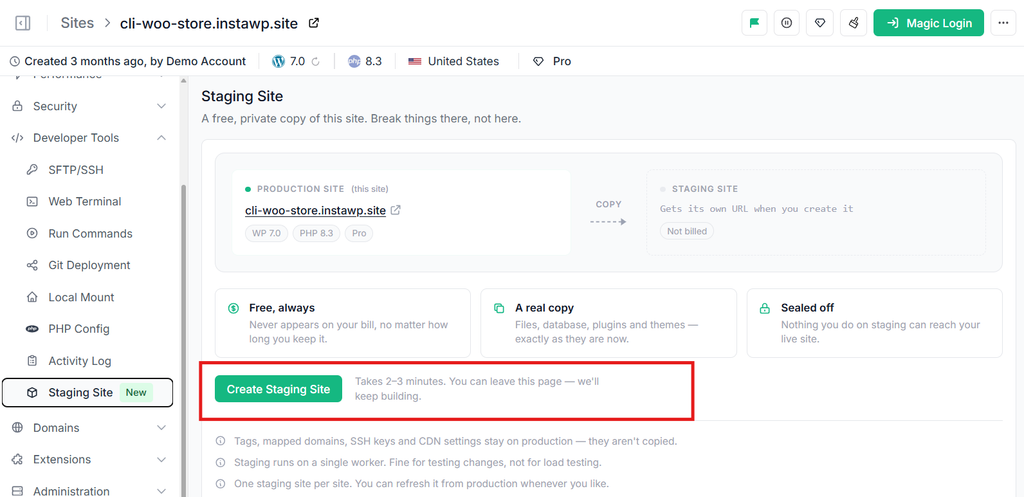
Open the site and go to Developer Tools > Staging Site, then click Create Staging Site. It takes 2 to 3 minutes, you can leave the page while it builds, and you get an email when it is ready. The staging site shows up nested under its production site in your Sites list.
The staging site has its own URL, its own WordPress admin and Magic Login, and the same developer tools as production: SFTP/SSH, Web Terminal, Run Commands, Git Deployment, Local Mount and PHP Config. It also gets its own MCP connection, so you can point an AI assistant at staging instead of your live site.
When you are ready, the staging card gives you two buttons:
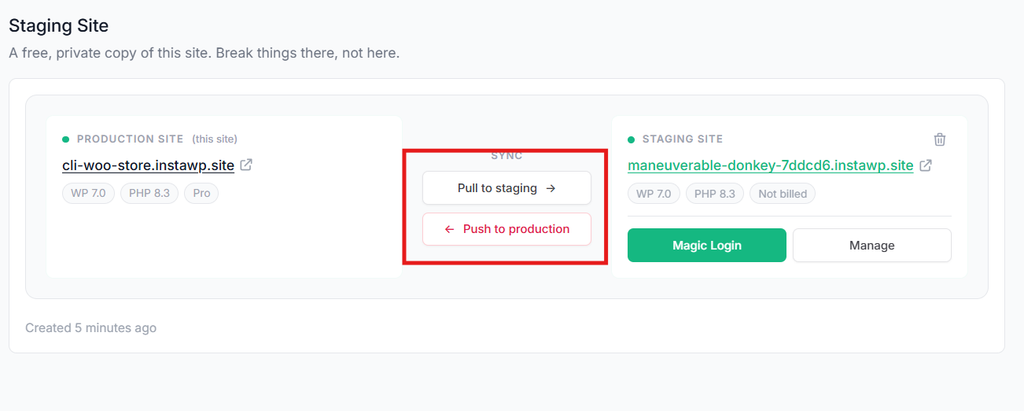
- Pull to staging replaces staging with a fresh copy of production. Use it when staging has drifted, or to reproduce a problem against real data.
- Push to production replaces your live site with the staging copy. There is no automatic backup before a push, so take a backup of production first.
A few things to know. You can have one staging site per production site, and it gets the same disk space as your production plan. Staging is not intended for load testing, and it has no CDN or custom domain of its own. If you move a site below Pro, its staging site is kept for 7 days and then removed, unless you upgrade again in that time.
This is separate from staging through the InstaWP Connect plugin, which creates a standalone, billed site for a WordPress install hosted elsewhere. For the full walkthrough, read our guide to the WordPress staging environment on InstaWP, or the docs on the staging environment for hosted sites and how to pull and push your staging site. Staging can also be managed through the InstaWP API.
#2: Trusted IPs for Shield
The Shield page has a new Trusted IPs card. Add up to 10 IP addresses or CIDR ranges, and traffic from them skips Shield’s bot detection and WAF.
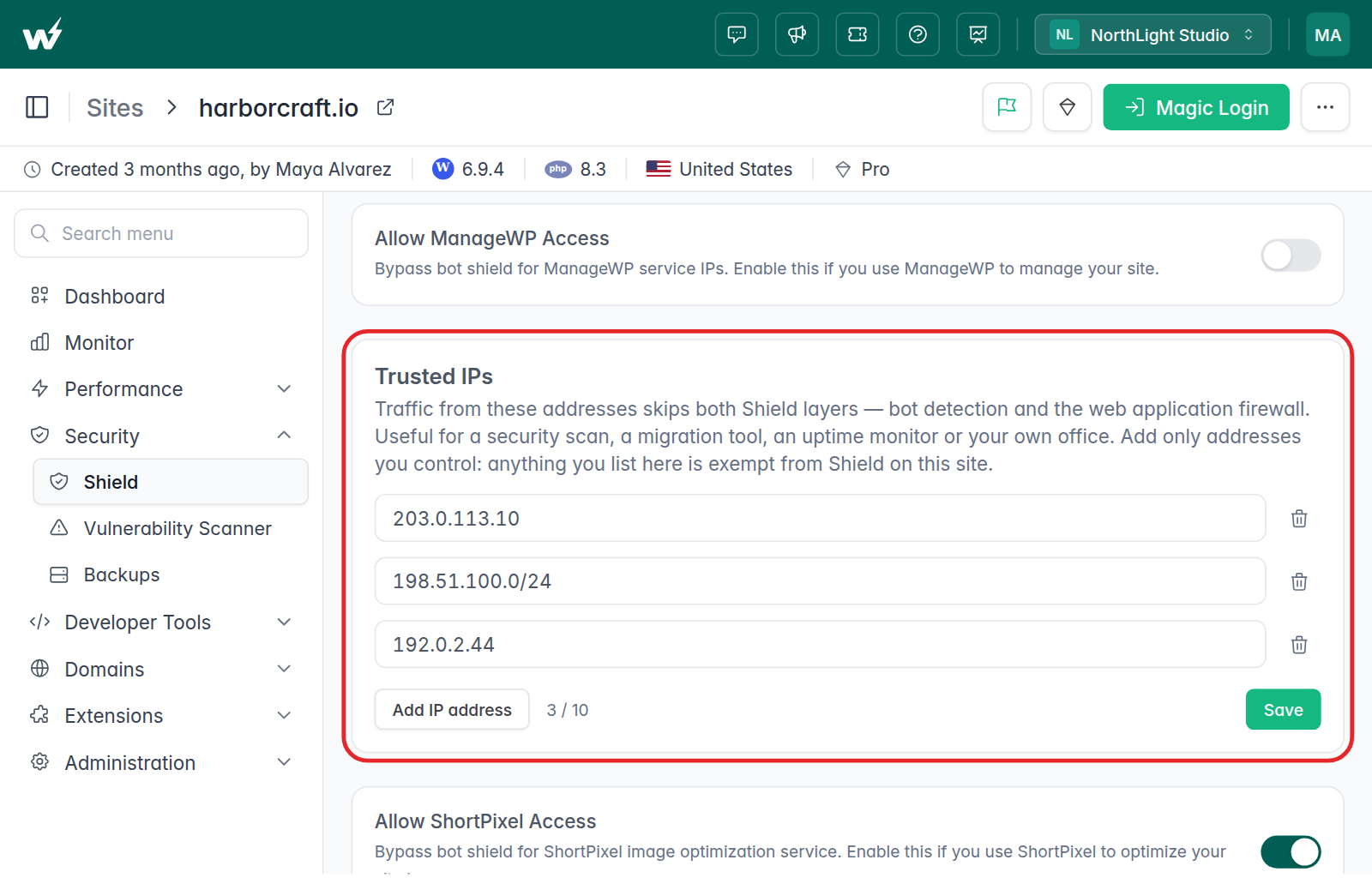
Shield is meant to challenge traffic it cannot vouch for, and sometimes that traffic is yours: your office network, an uptime monitor, a security scanner you have hired, or a migration service pulling the site. Until now, getting those addresses through meant a support ticket.
Now you add them yourself under Security > Shield, and remove them when the work is done. Only add addresses you control or trust, since they bypass the protection for the whole site. See how to configure Shield for the rest of the settings.
#3: Password-Based SFTP/SSH Users, With Self-Serve Rotation
Add SSH/SFTP User now opens an SSH/SFTP Access window that asks which authentication method you want: SSH Key or Password.
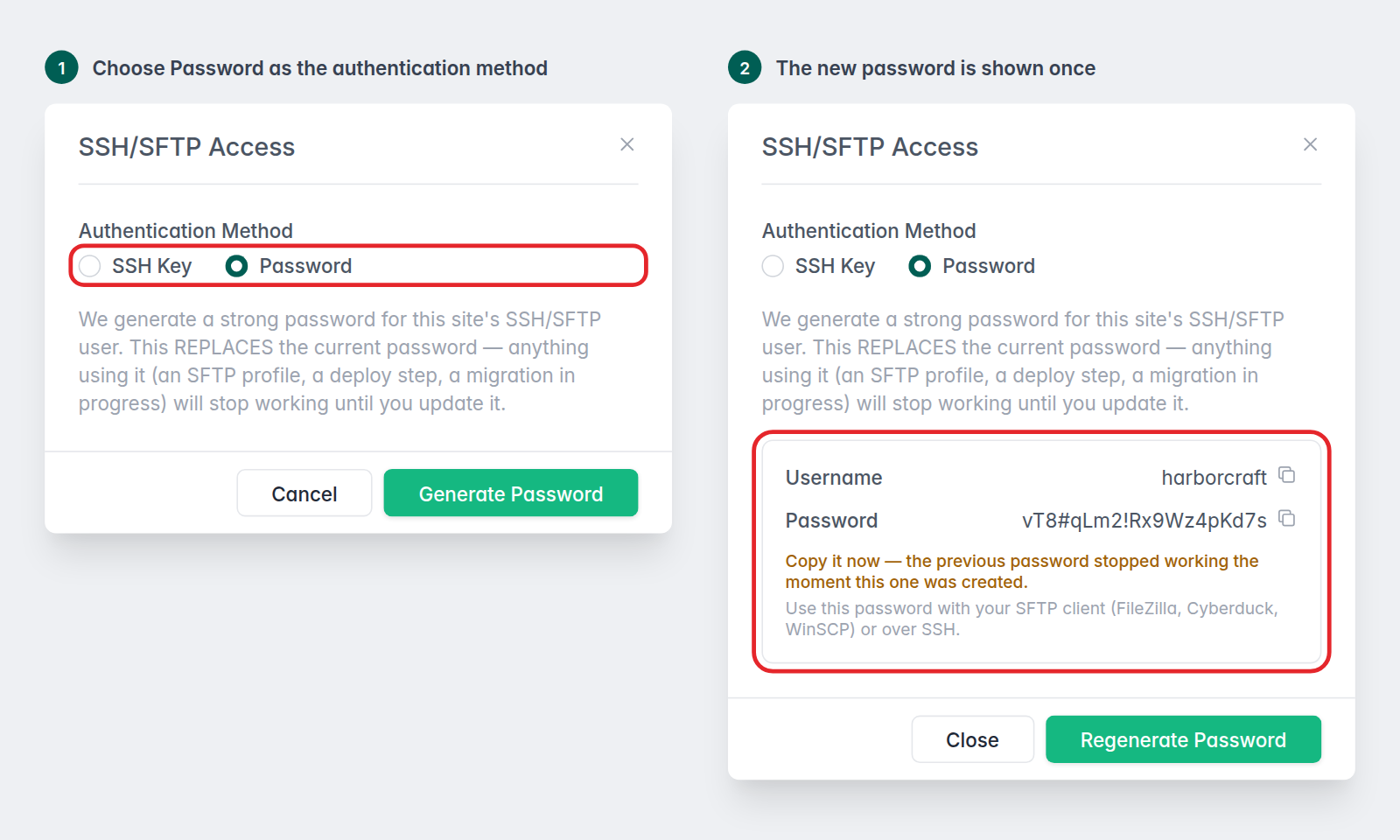
Until now, public keys were the only option, which is a wall for anyone whose FTP client (FileZilla, Cyberduck, WinSCP) is set up by someone who does not work with keys. Choose Password and InstaWP generates a strong one, applies it, and shows it to you once with a copy button.
Running it again rotates the password, and there is also a regenerate control next to the Password row in the connection details. If a rotation cannot go ahead, for example because the site is suspended, the dashboard now tells you why instead of showing a generic server error. More in the docs on how to enable SFTP and SSH.
#4: Connect a Domain You Already Own
The Add Domain menu on the Domains page now offers Connect Domain alongside Transfer to InstaWP.
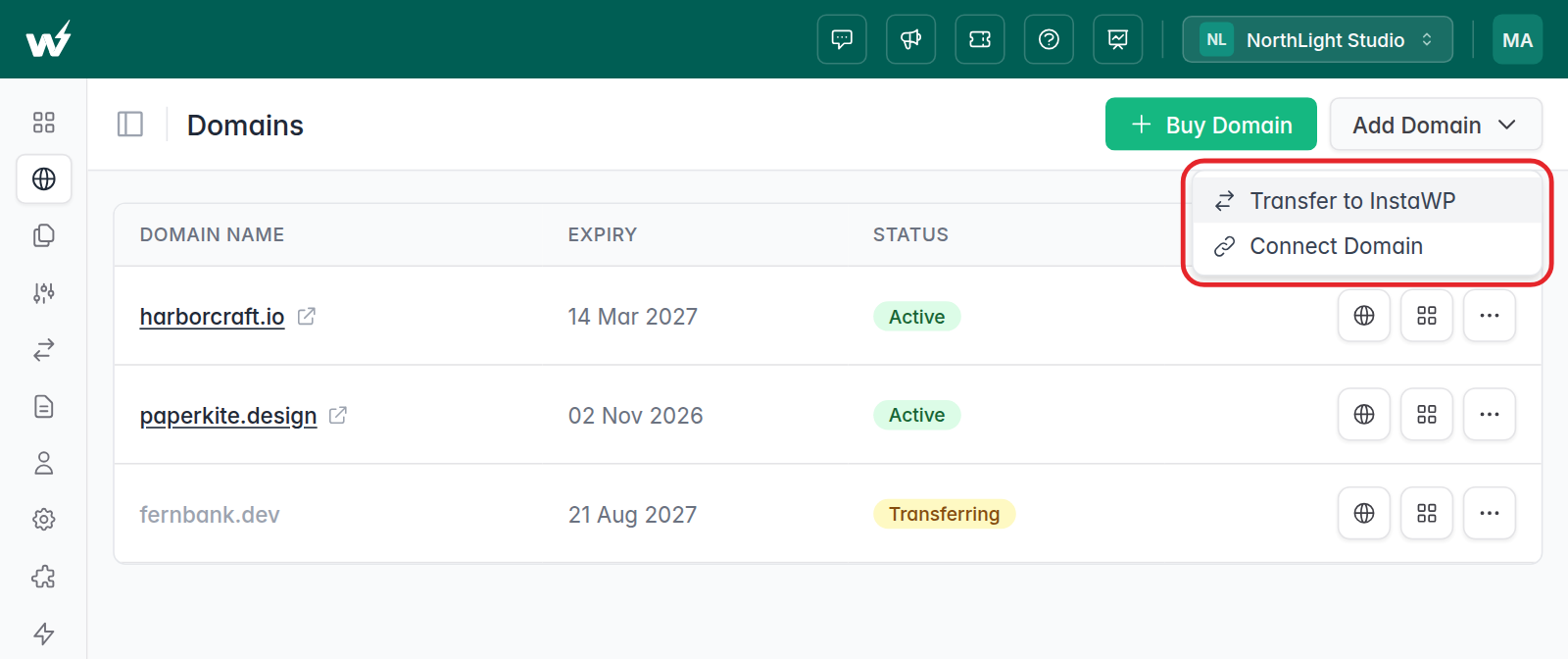
Connecting is free and involves no transfer wait.
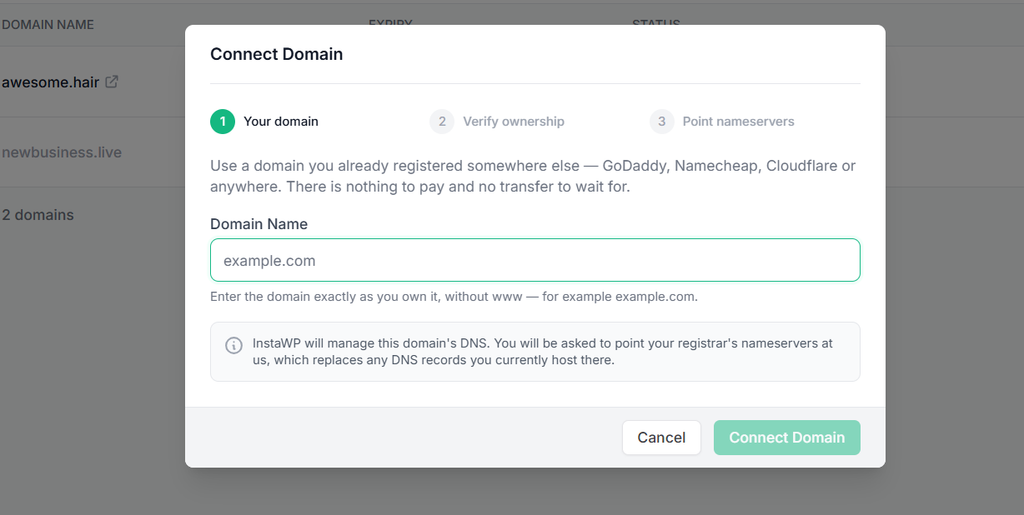
The domain stays registered where you bought it, and InstaWP takes over its DNS, so you can link it to sites and manage its records in the same dashboard. Transferring moves the registration itself. Pick whichever suits the domain; the docs cover how to connect a domain and how to transfer a domain to InstaWP.
#5: Choose the Parent Site of a Template or Snapshot
The Sync changes from parent site dialog on Templates and Snapshots now has a Parent Site dropdown.
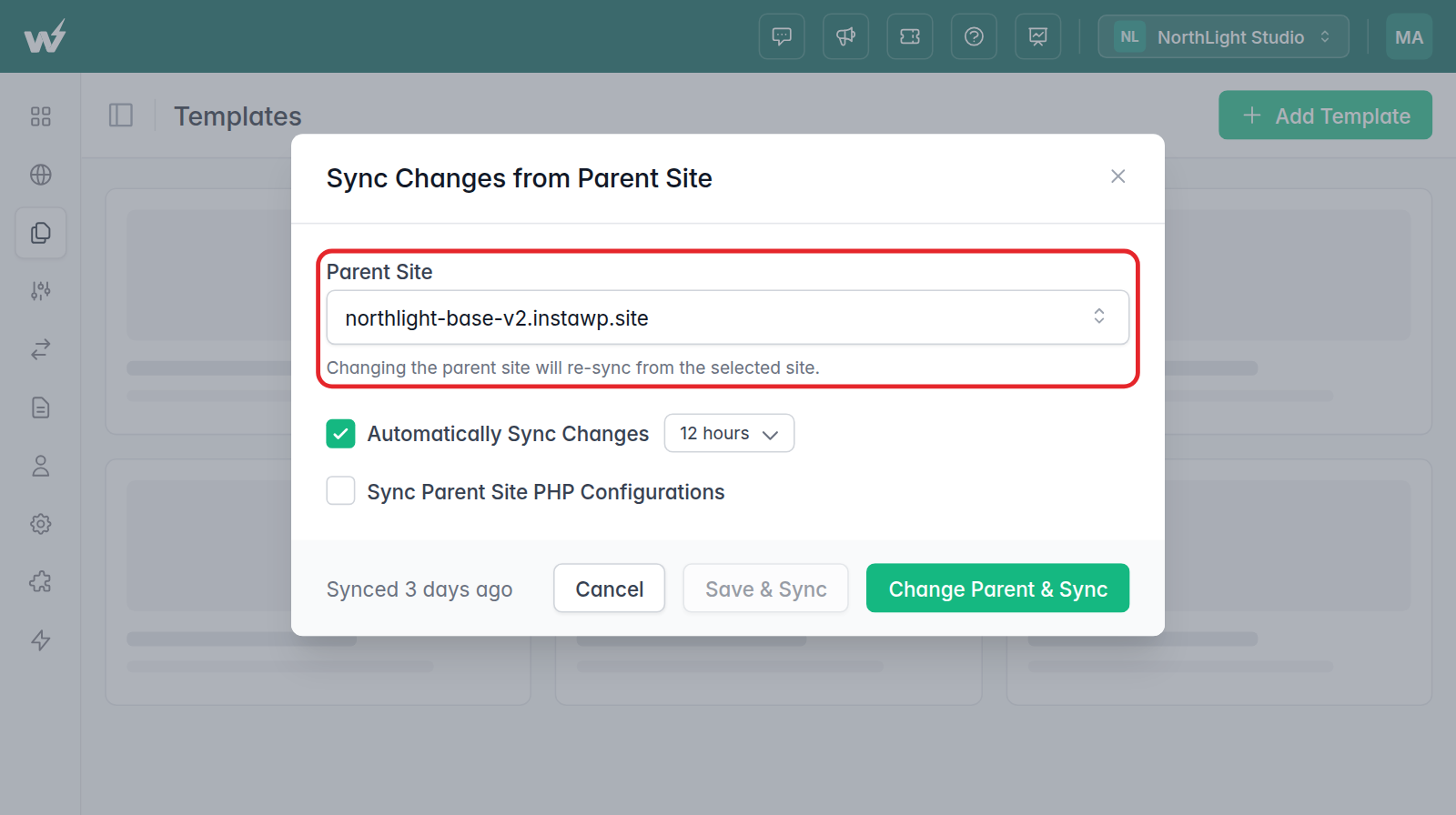
You can point a template at a different source site and sync from it with Change Parent & Sync. That matters most when the original parent site has been deleted or has expired, which used to leave the template with nothing to sync from.
The dropdown lists sites created from that template. If you have none yet, the dialog links you to create one, with the template already selected. See what to do when a template’s parent site is deleted.
#6: Auto-Upgrade When CDN Bandwidth Runs Out
A site’s CDN settings now include an opt-in switch that moves the site to the next plan up with more CDN bandwidth when it uses up its allowance.
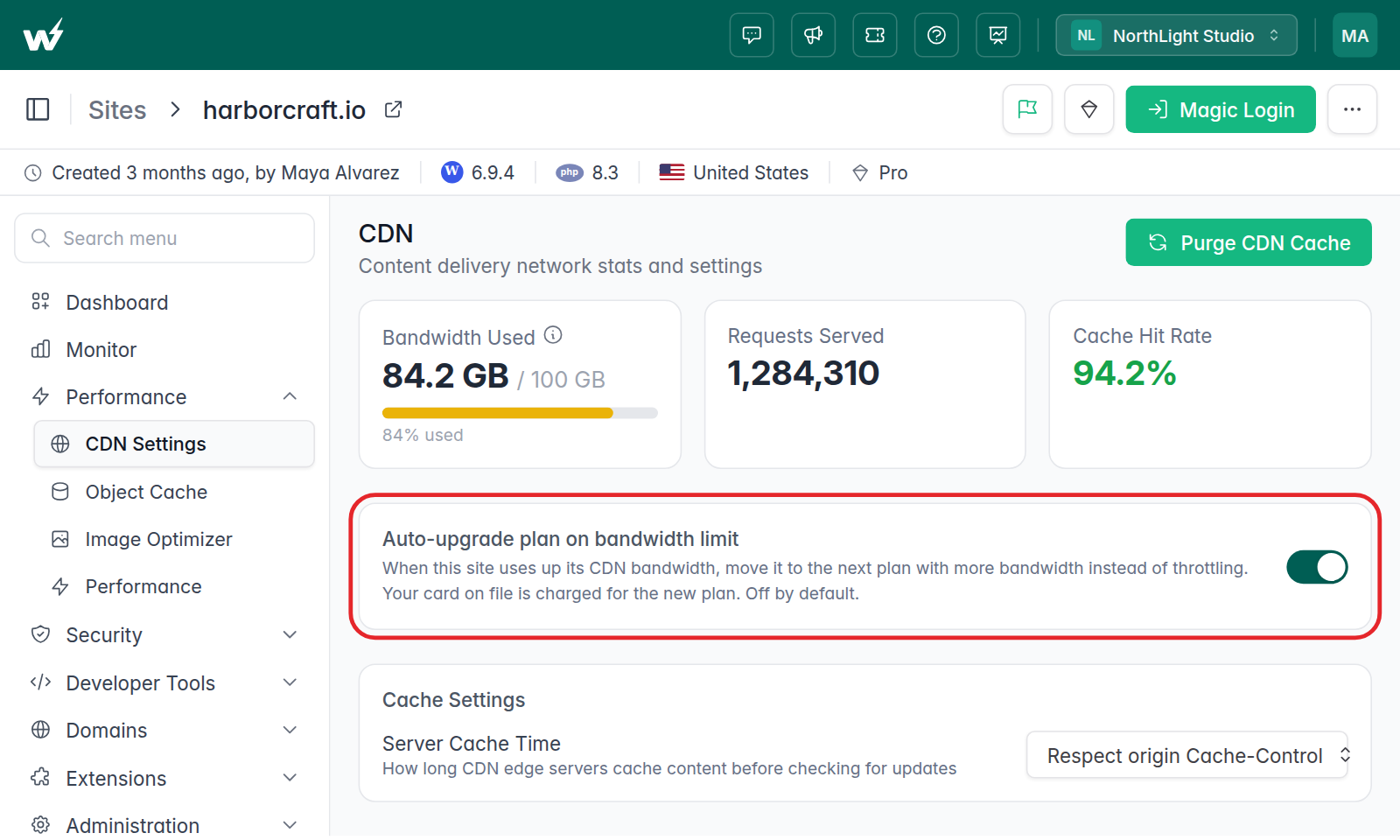
It is off by default. Left off, nothing changes: when a site runs out of CDN bandwidth, its limit is extended by 10% once and you get an email. Switch it on and a traffic spike upgrades the plan instead, so the site keeps serving from the CDN, and you get an email saying the plan changed. It moves at most one plan up in any 24 hours, and the new plan is billed at its normal rate. Read more on how to configure the CDN.
#7: The Affiliate Program Moves Into My Account
The affiliate dashboard now lives in My Account, next to Rewards and the Referral Program, and you can also open it from the profile dropdown. It used to sit under Sell, apart from the other two ways you earn from InstaWP.
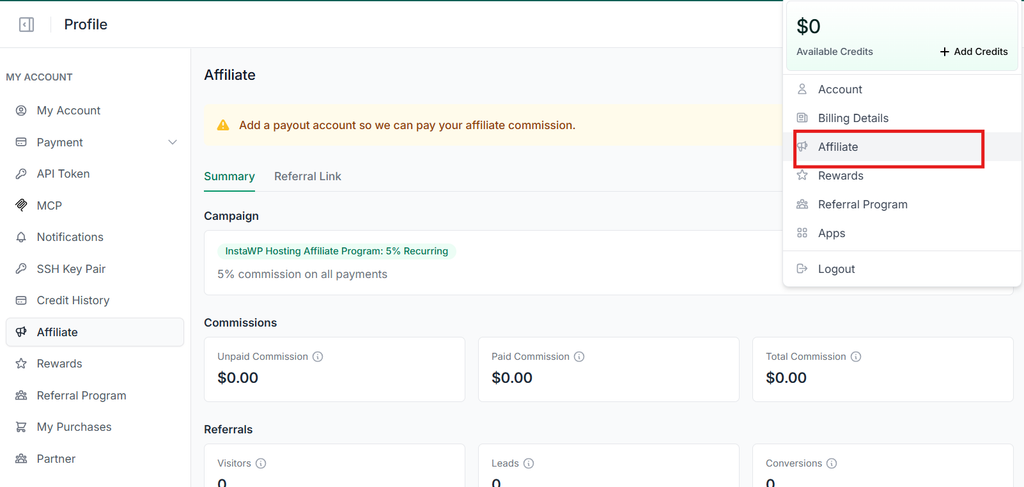
The page itself picked up a few changes that affect what you earn:
- A payout warning: commission is paid through your payout account. If you have not finished setting one up, a yellow banner now says so at the top of the page, with an Add Payout button. Starting the setup and leaving it halfway does not count as done.
- A website referral link: the Links & Promo codes tab now gives you the same code on instawp.com as well as the sign-up link, each with its own Copy button. Use the website link where a marketing page reads better than a sign-in screen. Visitor counts only include people who open the app link.
- More sign-ups credited: new accounts that arrive with your code are now credited to you when they register in the app, and when a partner integration creates the account for them.
- An answer either way: applicants now get an email whether their application is approved or declined. The approval email takes you straight to your Affiliate page, where your code, leads and conversions are.
Improved
A Grouped Site Action Menu
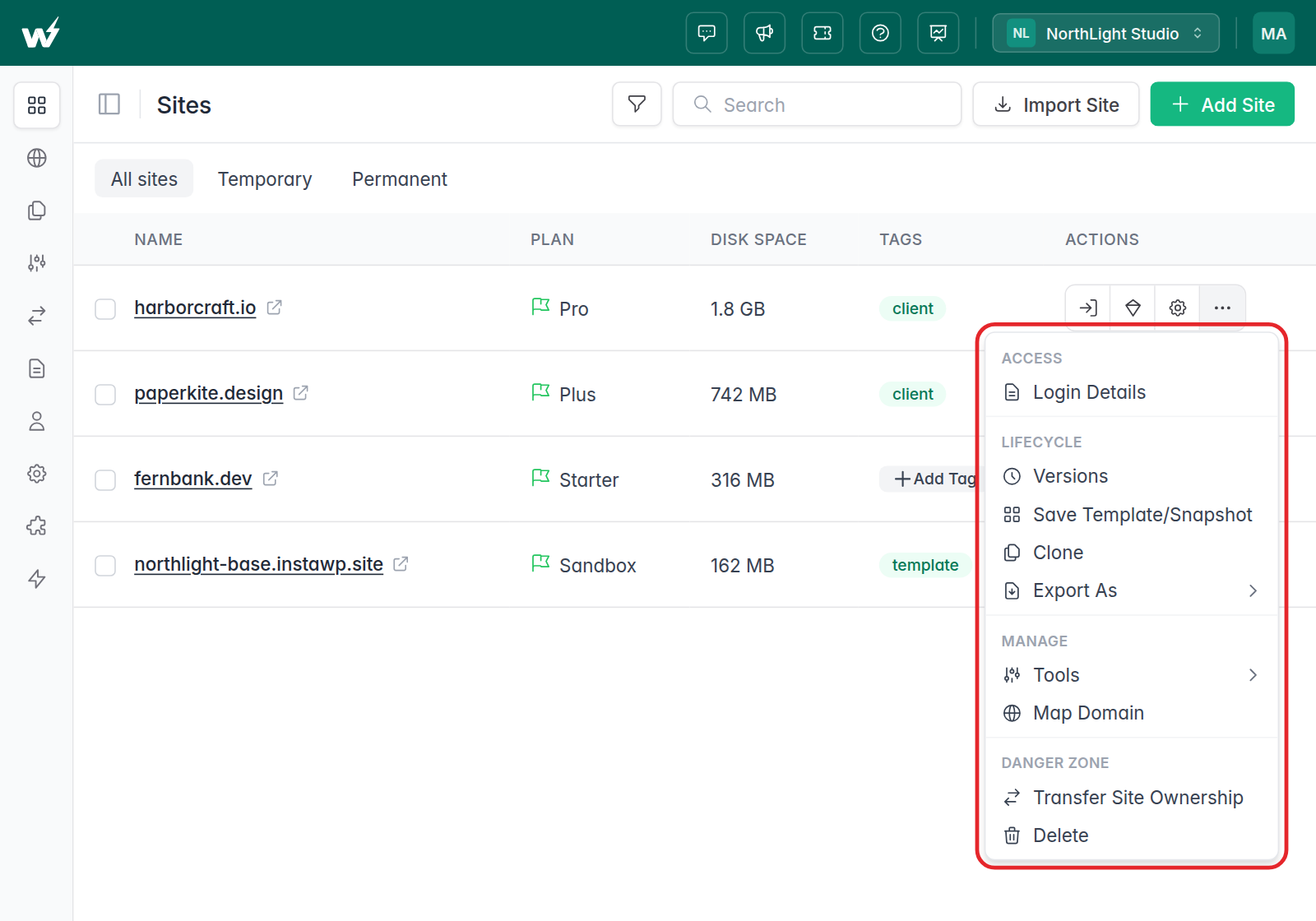
The “…” menu on each site is now grouped under four headings: Access, Lifecycle, Manage and Danger Zone. Nothing was added or removed, but Delete and Transfer Site Ownership now sit on their own, away from everyday actions like Clone and Login Details. This is the layout customers voted for. Suspend is also back in the site dashboard header, next to Unsuspend.
Clearer Domain Errors
When mapping a domain or adding a white-label suffix domain fails, the dashboard now shows the actual reason, usually a DNS record that does not point to InstaWP yet, instead of “please try again or contact support”. The white-label nameserver records in Team settings also have a copy button on each row, so you are not retyping them into your registrar.
Smarter Migrations
Starting a migration for a URL that is already being migrated now takes you to the migration in progress instead of starting a duplicate. For white-label teams, migration and tracking links now carry your own branded domain.
More Improvements
- Backups: nightly backups now retry temporary cloud-provider errors instead of skipping the night, and a failed backup job is retried with fresh snapshots.
- Account MCP:
list_sitesis faster on large accounts and returns results in pages. - Web Terminal: the prompt shows your path relative to the site, and resizing the window while a session is still opening no longer breaks it.
- Usage header: Current Usage now shows your usage minus any discount.
Fixed
Domains and SSL
- Registered domains are never refunded mid-setup: if a domain registered successfully but a later setup step hit an error, the purchase was marked failed, refunded, and dropped from your list. Setup now finishes and the domain stays yours.
- Domain search: checking several extensions at once could come back with no results. It now returns them all.
- SSL renewal: the daily check that renews wildcard SSL certificates for sites on InstaWP subdomains had stopped triggering. It runs again.
- Domains page: no longer flashes its toolbar before sending you to Buy Domain.
Sites and Teams
- Team lists: the Sites, Templates and Snapshots lists now show only the team you are viewing.
- Accounts without a team: no longer see an error on every page.
- Team members and Connect: a member can now open the InstaWP Connect screen for a site they created.
- Free-site page on paid sites: some paid sites on a custom domain could show the free-site splash page. They now serve normally.
- Deleted sites coming back: a delete that timed out could bring the site back and take up a slot on your plan. It no longer does.
- Restores: a restore that fails now tells you why, with one notification instead of several.
- Uptime monitoring: the Resume button returned a permission error. It works again.
Security
Site transfer requests carry a security warning when the account behind the request is less than 30 days old. Because of a date calculation bug, that warning was showing on every request, whatever the account’s age. It now appears only for accounts that really are under 30 days old.
Final Thoughts
The main change in v3.29 is that testing on staging first no longer costs extra or takes setup. On Pro and above, a staging copy is one click away, it is free, and pull and push handle the copying in both directions.
The rest of the release gives you more control over access (trusted IPs, rotatable SFTP passwords, connected domains) and fixes a set of domain, SSL and team-list problems. If you are on a lower plan and want staging, it comes with InstaWP’s Pro, Turbo and Elite hosting plans.
👉 Try the latest InstaWP updates now and build, host, manage and sell WordPress sites with less friction.