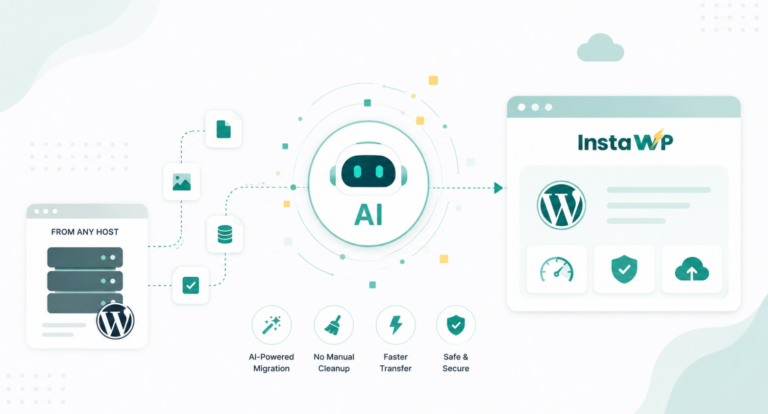
Looking to manually migrate your WordPress site to InstaWP hosting service? No worries, it’s simple!
Though you can use our WordPress Migration tool to make things quick, people sometimes wish to use a backup/migration for this process. So, we thought, why not explain how to do that using a different plugin (than InstaWP Connect)?
While there are plenty of migration plugins available, you can choose any that you are comfortable with. For this tutorial, we will be using the WPvivid plugin, a WordPress migration plugin. Let’s get started!
Table of Contents
Prerequisites of Performing a WordPress Migration
Before initiating the migration process, it’s essential to ensure that all prerequisites are met to facilitate a smooth transfer of your WordPress website to InstaWP. Below are the necessary steps and conditions that should be fulfilled before proceeding with the migration:
A Source URL: Provide details of the website you’re migrating from, including its current hosting platform and WordPress version.
A Destination URL: Specify the InstaWP setup where you intend to migrate your website, including any relevant details about the InstaWP configuration.
Your Backup/Migration Plugin Installed on Both Source and Destination Sites: Install and activate the plugin on both your source site (the website you’re migrating from) and your destination site (InstaWP setup). This plugin facilitates the migration process.
Access to WordPress Dashboards: Ensure that you have access to the WordPress Dashboards of both your source and destination sites, as you’ll need to perform various actions within these interfaces during the migration process.
Deactivation of Cache, Security, and CDN Plugins: Before initiating the migration, deactivate any caching, security, or CDN (Content Delivery Network) plugins installed on both your source and destination sites. This step helps prevent potential conflicts or issues during the migration process.
Migrating WordPress Site to InstaWP Using a Backup Plugin [From any Host]
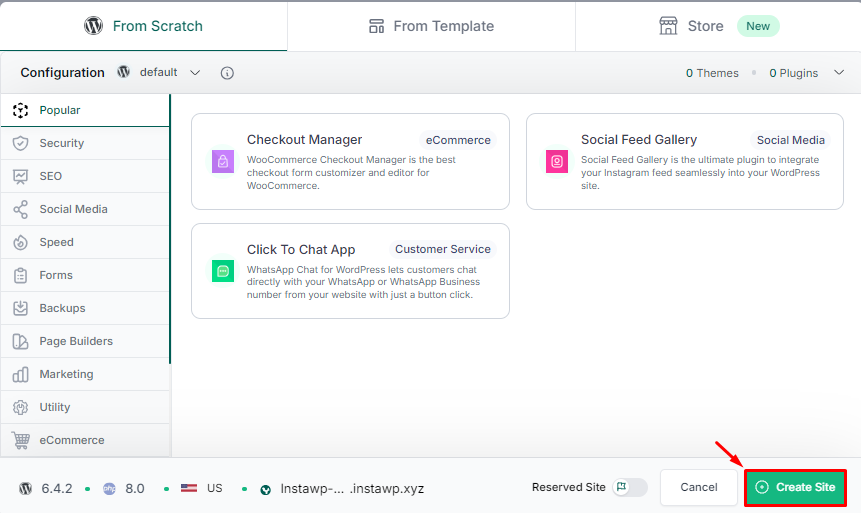
Step 1: Establish a New Destination Site on InstaWP
Begin by creating an InstaWP Site with just a few clicks. If you already have a site ready, you can skip this step and proceed to the next.
How to Create a Site with InstaWP →
Step 2: Install your Backup Plugin on Your Destination Site
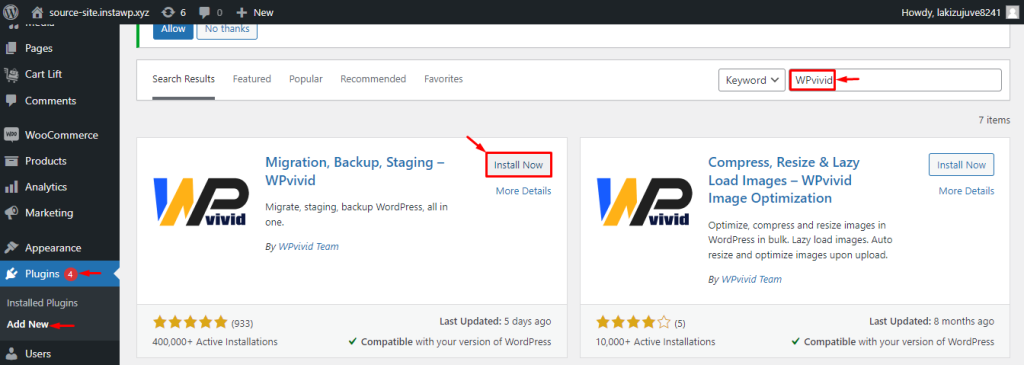
After logging in to your InstaWP site (the destination), proceed as follows:
- Navigate to the WordPress Dashboard
- Go to Plugins > Add New Plugin > search for WPvivid (or your preferred plugin).
- Once found, click on Install, then Activate the plugin.

Step 3: Add the Backup Plugin to your Source Site as well
Similarly, on your source site, where you aim to migrate to InstaWP:
- Navigate to the WordPress Dashboard
- Go to Plugins > Add New Plugin > search for WPvivid (or the plugin you installed on the destination site).
- Once found, click on Install, then Activate the plugin.
Step 4: Create a Key and Copy it
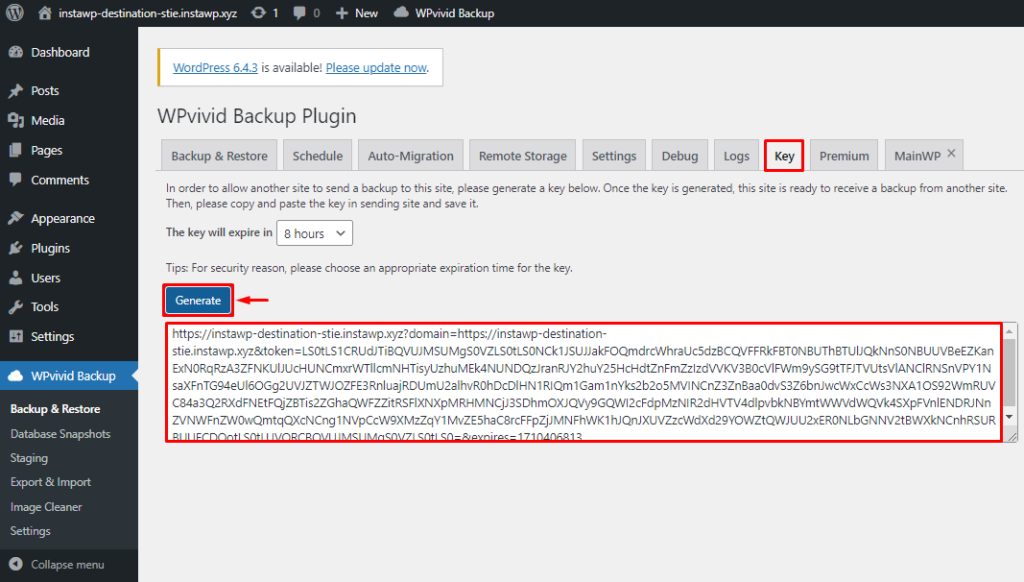
Open your destination site (created with InstaWP), then:
- Access your destination site (InstaWP), then:
- Go to WPvivid Backup > Backup & Restore > Key.
- Click Generate to create a key for your destination site.
- Once generated, COPY your key.
Step 5: Paste the Key into your Source Site
From your dashboard on the source site, go to WPvivid Backup > Backup & Restore > Auto Migration. Here, you need to paste your Destination WPvivid Key into the provided field and click Save.
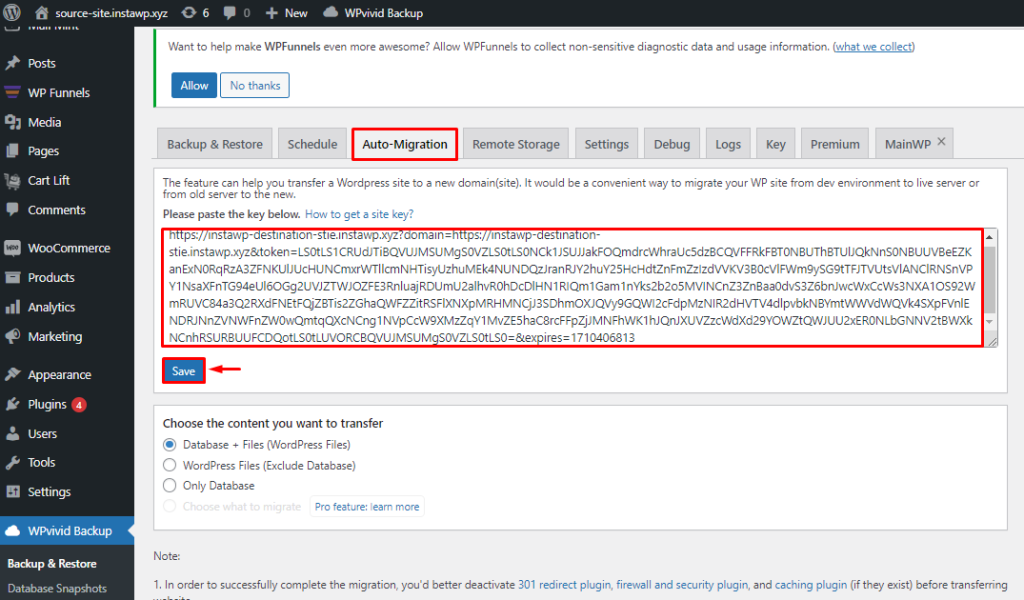
After saving the Key, proceed to click ‘Clone The Transfer’ button. Note that for this transfer, we’ll opt for the Database + Files (WordPress Files) option.

Note: The transfer duration may vary depending on your website’s file size (a few seconds to a few minutes).
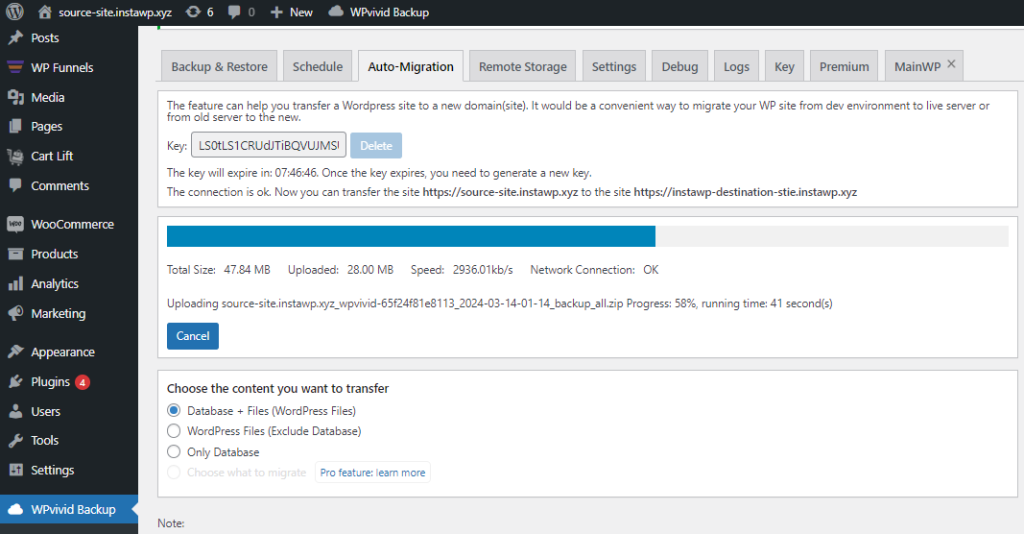
Step 6: Finalize Migration
After the transfer process is complete, proceed to your destination site (InstaWP) and access the WordPress Dashboard. Navigate to the WPvivid Backup section and select Backup & Restore. Click on “Scan uploaded backup or received backup” to locate your source site’s transferred files or backup.
Once identified, initiate the restoration process by clicking “Restore.”
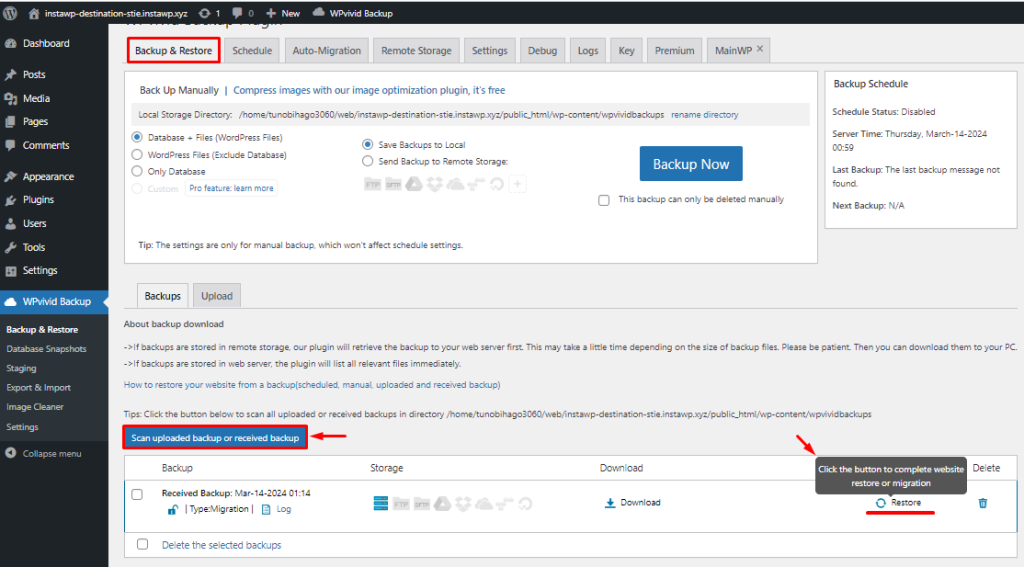
Confirm the action from the Restore screen to finalize the migration of your source site to the destination site (InstaWP).
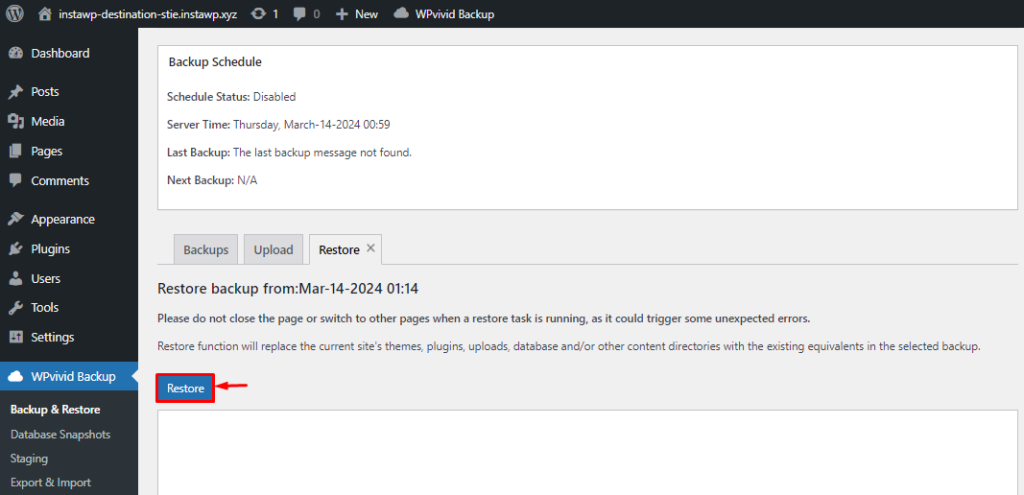
Step 7: Test and Verify in the WordPress Site Migration was successful
Upon successful migration, you’ll be logged out from your admin URL.
Log in again using your source WP Admin credentials.
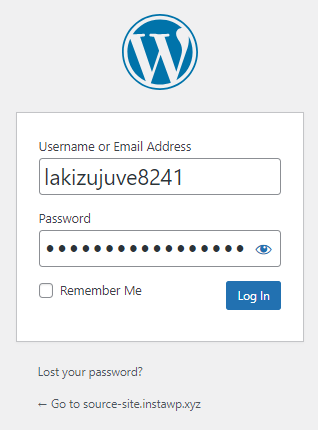
Verify that your source site has been successfully copied and migrated to InstaWP by checking all posts, pages, URLs, images, and other content.
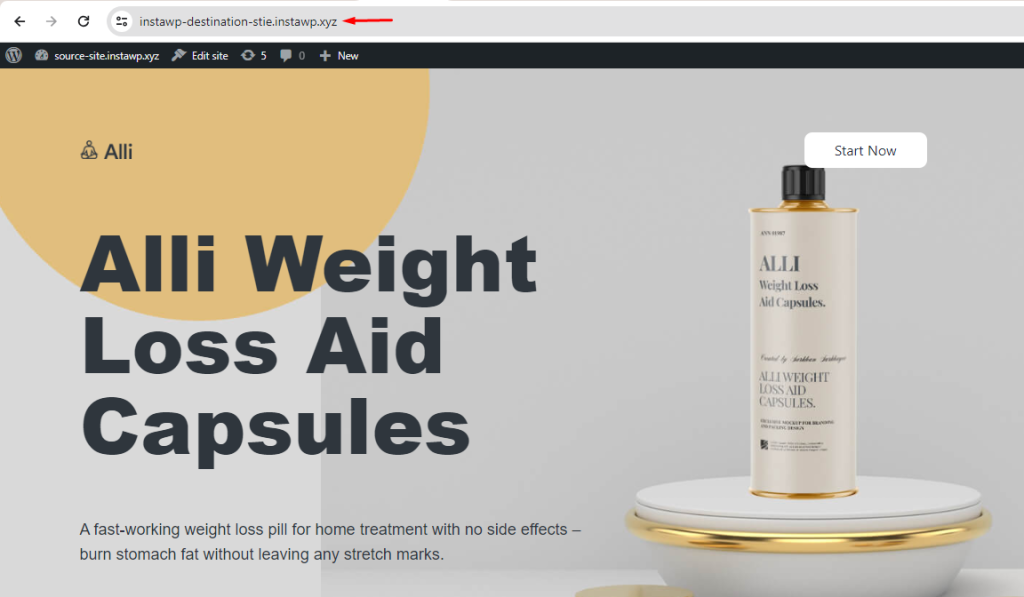
Ensure everything has been migrated correctly. If you encounter any issues during testing, feel free to contact support.
Tips to Follow Before Initiating the Migration Process
Backup Your Website and Save Backup: Before making any changes, it’s crucial to create a backup of your entire website, including files and databases. This ensures that you have a copy of your site in case anything goes wrong during the migration.
Update WordPress and Plugins: Ensure that both your source and destination WordPress installations are up to date, including all plugins and themes. This reduces the risk of compatibility issues and ensures optimal performance post-migration.
Check Compatibility: Review the compatibility of your current WordPress setup with InstaWP to ensure a seamless transition. Check for any plugins or themes that may not be supported or require additional configuration. You can do so by creating a staging of your live site using the InstaWP Connect Plugin.
Clean Up Your Website: Remove any unnecessary files, plugins, or themes from your website to streamline the migration process. This reduces the amount of data that needs to be transferred and minimizes the risk of errors.
Disable Cache, Security, and CDN Plugins: Deactivate any caching, security, or CDN plugins on both your source and destination sites before initiating the migration. These plugins can interfere with the migration process and cause issues with the transferred data.
Notify Stakeholders: If your website has multiple stakeholders or users, inform them about the upcoming migration process and any expected downtime. Provide clear communication about the timeline and potential impact on website functionality.
Test Migration Process: Before migrating your live website, test the migration process on a staging or test environment. This allows you to identify any potential issues or errors and make necessary adjustments before migrating your live site. Again, you can use InstaWP’s staging environment to make sure that everything is good.
About InstaWP WordPress Hosting Service
InstaWP hosting offers a revolutionary hosting service meticulously optimized for WordPress websites, ensuring quick, reliable, and effortlessly managed hosting solutions.
InstaWP’s infrastructure is purpose-built for WordPress: low page speed indexes, edge caching, and InstaCDN serving every site from 120+ global PoPs.
With expert support available via chat, seamless integration into the InstaWP platform, and agency pricing discounts for hosting 10+ websites, InstaWP hosting stands out as a reliable and cost-effective solution for WordPress hosting needs.
What sets InstaWP hosting apart is its comprehensive suite of managed WordPress services, including DDoS protection, web application firewall, real-time failover, automated backups, CDN, guaranteed uptime, and advanced development tooling.
With automated updates, easy migration tools like InstaWP Connect, and expert support, users can elevate their WordPress experience effortlessly. Offering simple pricing that scales with your business, InstaWP hosting provides affordable hosting plans tailored to different needs, ensuring hassle-free website management while focusing on building extraordinary digital experiences.
The Final Word
Migrating your WordPress site from any hosting provider to InstaWP using the WPvivid plugin is a straightforward process that can be accomplished with ease. By following the step-by-step guide outlined in this article, you can ensure a seamless transition to InstaWP’s live hosting service.
Use our migration tool to initiate the process in the simplest possible way right away.