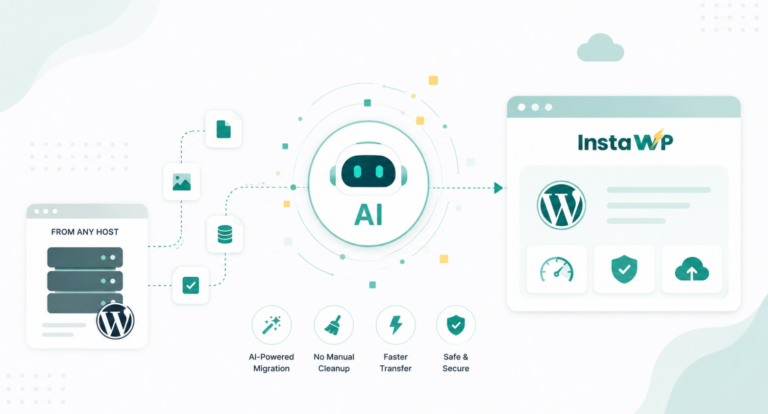
Is your WordPress site feeling cramped on its current server? Maybe it’s time to move to a new and more spacious home! Migrating your WordPress site, which means transferring everything to a new server, can be a nerve-wracking process. But what if there was a way to move everything smoothly and efficiently, without any technical headaches?
Enter InstaWP Connect! It’s a powerful tool designed specifically to make WordPress migrations a breeze. It handles all the heavy lifting – transferring your content, plugins, themes, and settings – so you can focus on running your awesome website.
In the coming sections, we’ll explore the world of WordPress migration and show you exactly how InstaWP Connect can be your secret weapon for a stress-free move.
Table of Contents
Understanding InstaWP Connect
So, what exactly is InstaWP Connect? It’s a tool designed to make WordPress staging and migrations as smooth and painless as possible.
With this plugin, you can move your entire website, including themes, plugins, content, and settings, without the usual hassles and technical hurdles.
One of the standout features of InstaWP Connect is its one-click migration capability. Yes, you read that right—just one click, and your site begins its journey to the new location. This feature is a game-changer, saving you time and reducing the risk of errors that can occur during manual migrations.
InstaWP Connect also provides customizable staging and migration options, allowing you to tailor the process to your specific needs. Whether you want to migrate only certain parts of your site or the whole thing, you have full control over what gets moved.
Key Features of InstaWP Connect
- Effortless Migration
InstaWP Connect offers a one-click migration process that makes moving your WordPress site as simple as possible. With just a single click, you can transfer your entire site, including all files, databases, themes, and plugins, without any hassle. This minimizes downtime, prevents data loss, and ensures that your site remains fully functional throughout the process.
- No Data Loss: InstaWP ensures the secure transfer of all website data, including blog posts, user information, and media files, using secure transfer protocols and temporary storage to protect valuable content during migration.
- Compatibility Checks: Before initiating the migration, InstaWP performs thorough scans to identify potential conflicts with plugins or themes. This allows users to address any issues in a staging environment, ensuring a smooth transition to the live site.
- SEO Maintenance: The tool helps maintain search engine visibility by preserving proper redirects and internal linking structures, minimizing any negative impact on SEO during the migration process.
- Two-Way Syncing: InstaWP’s unique two-way syncing feature allows for seamless updates and bug fixes between the local development environment and the live site without needing to perform a full migration each time. This enhances efficiency and collaboration for development teams.
- Easy Staging Environment Creation: Users can quickly create staging environments to test new plugins, themes, or code modifications in a safe space before making them live. This reduces the risk of disruptions to the live site.
- Live Tracking: InstaWP’s tracker displays what has migrated and what has not.
Getting started with InstaWP Connect Migration Tool
Migrating your website to a new hosting provider or InstaWP’s own hosting service, InstaWP hosting, is a breeze with InstaWP. It takes care of everything, from copying all your website’s files and database information to adjusting settings for a seamless transition to the new server.
This is a great option if you’re looking to upgrade your server for more features or improve your website’s speed.
Sign up to InstaWP and get started on your migration now!
- Access the dashboard and go to Staging.
- You can see all the staging sites. Click on the rocket icon to go live.

- Select how you want to migrate your site: InstaWP hosting, choose from supported providers or migrate with URL.
- To migrate your site to InstaWP hosting, select the first option. Choose from the various pricing plans and click on Next Step.

- Choose the website settings according to your needs and go ahead.

- Add any plugin or theme, if you want, and click on Go Live. Thus, your website migration starts. (How many clicks was it, huh?!)


- To migrate your website via supported providers, select the second option.
- Fill in the details of the website such as hosting account, server, domain name, etc., and move to the next step.

- Add plugins or themes if you require and click on Go Live. Your migration process starts.
- To migrate via URL, select the third option.
- Enter the URL of the website to be migrated and click on connect.

- You’ll be prompted to authorize the connection. Click on “Yes, I approve of this connection.”
- Click on begin migration.

- Another very easy option is to use InstaWP Migrate. Just enter the URL of the site to be migrated and the destination website. Click on Start Migration.

Now tell us, how easy was that?
For a complete guide refer to this article.
Benefits of Using InstaWP Connect
- Time Efficiency: Manual migration of a WordPress site involves numerous steps, including backing up data, exporting and importing databases, and configuring files. This process can be time-consuming and error-prone. InstaWP Connect streamlines the entire migration process with its one-click migration feature.
- Low Downtime: Downtime during migration can lead to lost revenue, decreased user engagement, and a negative impact on SEO rankings.InstaWP Connect ensures minimal disruption to your live site by performing migrations quickly and efficiently.
- Fewer Steps: As you have seen above with just a few clicks here and there and your migration begins!
- Automated Process: You can sit back and relax once the migration process is initiated. InstaWP takes care of everything since everything is automated.
- Anywhere to Anywhere: We understand the different needs you have and therefore we have facilitated the migration process in a way that allows you to migrate your site from any hosting provider to any other hosting provider.
- 2-Way Sync: InstaWP’s 2-way sync feature is a powerful tool designed to keep your live site and staging site perfectly aligned, ensuring that any changes made in one environment are seamlessly reflected in the other.
Tips And Tricks for Using InstaWP Connect Migration Tool
Here are some tips and tricks for using the InstaWP Connect Migration Tool to migrate your website:
Pre-Migration Tips
- Backup Your Website: Always create a full backup of your website before starting the migration process. This ensures you can restore your site if anything goes wrong.
- Update Everything:Ensure your WordPress core, themes, and plugins are up to date. This can prevent compatibility issues during migration.
- Check Hosting Requirements: Verify that the destination server meets the necessary requirements for your WordPress site.
Using InstaWP Connect Migration Tool
- Install and Activate the Plugin: Install the InstaWP Connect on your website’s dashboard.
- Select Data to Migrate: Choose what you want to migrate: full site, themes, plugins, database, or specific files. Be selective if you only need certain parts of your site, which can speed up the process.
- Start Migration: Initiate the migration process from the plugin’s interface. Monitor the progress and ensure that the connection remains stable.
Post-Migration Tips
- Verify the Migration: Check the destination website thoroughly to ensure everything has been transferred correctly. Look for missing files, broken links, and any errors.
- Update Permalinks: Go to your WordPress dashboard and update the permalinks. This can help fix broken links and improve site functionality.
- Test Functionality: Test all functionalities, including forms, payment gateways, and other interactive features to ensure they work as expected.
- Clear Cache: Clear the cache on the destination site to ensure all changes are visible and there are no conflicts with old cache files.
- SEO Considerations: Update your SEO settings if necessary, and ensure that any SEO plugins are working correctly.
Monitor Performance
Keep an eye on the performance of your migrated site. Use tools like Google Analytics and other performance monitoring tools to track site health.
Troubleshooting
- Check Error Logs: If the migration fails or encounters issues, check the error logs in your hosting account or within the plugin to identify and fix the problem.
- Contact Support: If you encounter any problems that you cannot resolve, contact InstaWP Connect Migration Tool’s support team for assistance.
By following these tips and tricks, you can ensure a smooth and efficient migration process using the InstaWP Connect Migration Tool.
Conclusion
InstaWP Connect is a game-changer for anyone looking to migrate their WordPress site with ease and efficiency. This powerful tool offers a seamless, reliable solution to one of the most challenging aspects of website management: migration.
With its one-click migration process, two-way sync feature, and customizable options, InstaWP Connect takes the hassle out of site transfers, ensuring minimal downtime and a smooth user experience.