Key Takeaways
- A domain transfer moves your registration, not your website. Your files, hosting and email stay exactly where they are.
- It takes 5 to 7 days, and most of that is a mandatory ICANN waiting period nobody can shorten.
- You need two things first: the registrar lock turned off, and the EPP authorization code from your current registrar.
- The domain must be over 60 days old. This applies after a registration and after a previous transfer, and no registrar can waive it.
- Approve the confirmation email. Ignoring it is the single most common reason a transfer quietly fails.
- Moving to a new host is not a domain transfer. That is a nameserver or DNS record change, and it takes minutes.
- You do not lose paid time. A transfer adds a full year on top of your existing expiry date.
- Save your DNS records before you touch anything. Missing MX records is how email breaks during a move.
To transfer a domain name, you unlock it at your current registrar, request the EPP authorization code, start the transfer at the new registrar, and approve the confirmation email. The transfer completes in five to seven days and adds one year to your registration. Your website and email stay online the entire time.
That is the short version. The reason domain transfers feel harder than they are is that four completely different jobs share the same name. Moving your registration to a new registrar, handing a domain to a client, and pointing a domain at a new host are three separate processes with three separate outcomes, and following the wrong instructions is how people end up with a rejected transfer or an offline site.
This guide covers all of them, in order, with the exact screens you will see. If you want to skip ahead, use the list below.
What Is a Domain Transfer?
A domain transfer moves your domain registration from one registrar to another. It changes who bills you and who manages the domain record, but it does not move your website files, and it does not by itself change where your site is hosted.

When people search for how to transfer a domain, they usually mean one of three different things. Working out which one you need takes ten seconds and saves a lot of wasted effort.
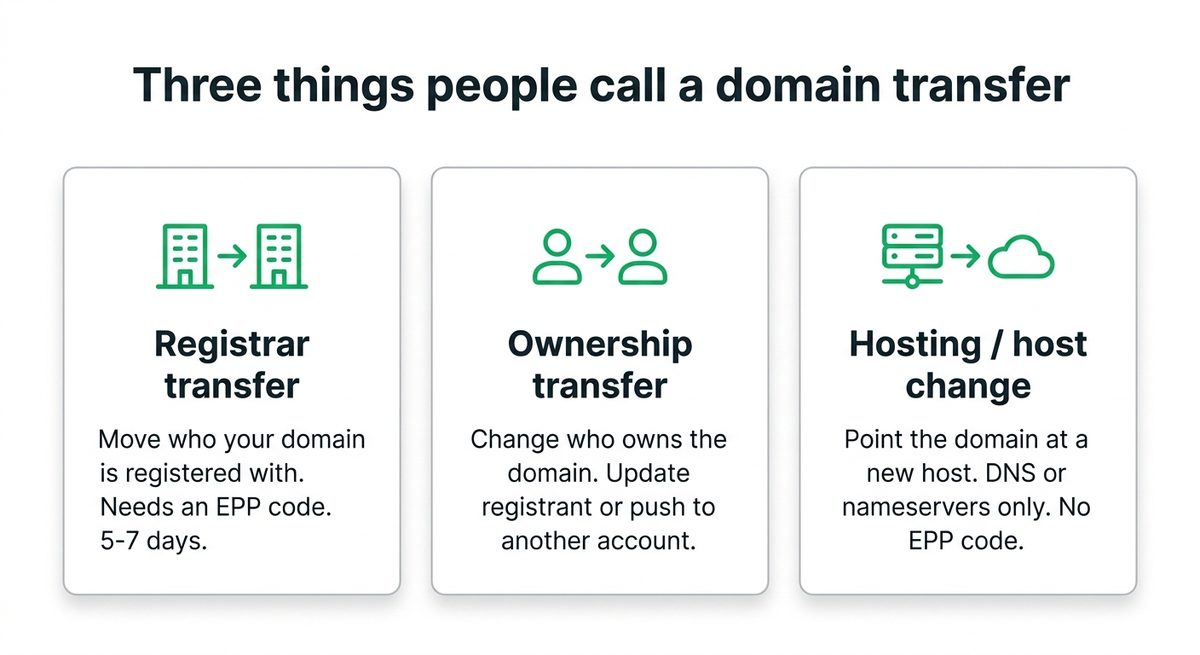
| What you want | What it is called | What you need | How long |
|---|---|---|---|
| Stop paying registrar A, start paying registrar B | Registrar transfer | EPP code, unlocked domain | 5 to 7 days |
| Give the domain to a client, a buyer or a colleague | Ownership transfer or push | Registrant details or an account push | Minutes to 5 days |
| Move the website to a new hosting company | Host change | Nameservers or a DNS record | Minutes to 48 hours |
| Change the address your WordPress site loads on | Site URL change | A search and replace in WordPress | Minutes |
The critical distinction is between the registration and the hosting. Your registration is the record at the registry that says you own the name. Your hosting is the server that answers when someone visits it. They are separate services, they can live at two different companies, and moving one does not move the other. If your only goal is a new hosting company, you do not need a domain transfer at all, and you can skip to the host change section.
Can My Domain Be Transferred?
A domain can be transferred if it was registered or last transferred more than 60 days ago, the registrar lock is off, you hold a valid EPP authorization code, and you can receive email at the registrant address. If any one of those is missing, the registry rejects the transfer.
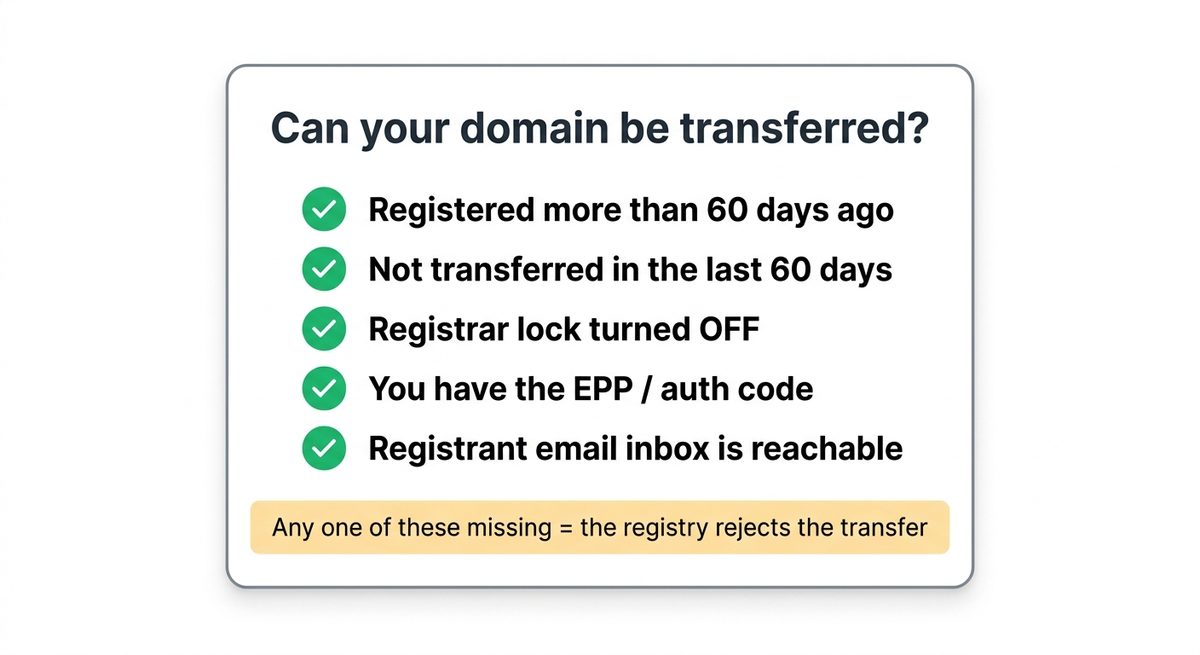
These are ICANN Transfer Policy rules, not the policy of any one company, so no registrar can waive them for you. Two of them catch people out regularly.
- The 60 day lock applies to transfers too. If you moved the domain to your current registrar six weeks ago, you cannot move it again yet. The clock restarts on every transfer.
- Changing the registrant can also trigger a 60 day lock. Some registrars apply a transfer lock after a change of owner details. If you are planning both an ownership change and a registrar move, do the registrar move first.
- An expired or redemption status domain cannot be transferred. Renew it first, then transfer.
- Country code domains have their own rules. Extensions such as .uk, .de and .in use different processes and sometimes different codes. Check the registry rules for your extension.
How Long Does It Take to Transfer a Domain?
A domain transfer takes five to seven days from start to finish. Most of that is a mandatory five day waiting period set by ICANN, during which your current registrar can decline the release. If you approve the confirmation email quickly, some transfers complete in one to two days.
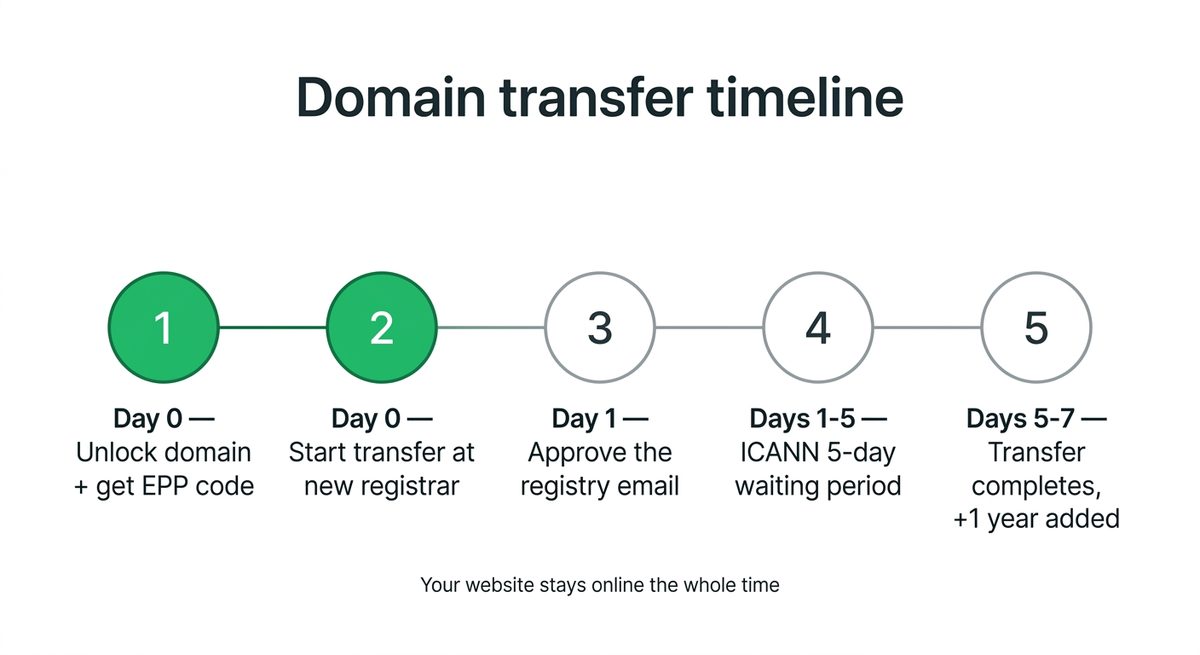
| Stage | Typical time | Who controls it |
|---|---|---|
| Unlock domain and request EPP code | Minutes to 24 hours | You and your current registrar |
| Submit the transfer and pay | Minutes | You |
| Approve the authorization email | Minutes, once it arrives | You |
| ICANN waiting period | Up to 5 days | Nobody, it is mandatory |
| Losing registrar releases the domain | 0 to 2 days | Your current registrar |
| Total | 5 to 7 days |
The single biggest thing you control is the approval email. It is sent to the registrant address in the WHOIS record, and if you do not click it, the transfer sits there and then cancels. If your registrant email is an old address you no longer read, update it before you start.
Your website does not go down during this window. Nothing changes at the DNS level until the transfer finishes, so your site and email keep resolving exactly as they did before.
What You Need Before You Start
Before starting any registrar transfer you need two things from your current registrar: the domain unlocked, and the EPP authorization code. Both are found in the domain settings of your existing account, usually under a heading like security, transfer or domain lock.
Step 1: Turn Off the Registrar Lock
Registrar lock, also called transfer lock or client transfer prohibited, is a safety feature that blocks unauthorised transfers. It is on by default on nearly every domain. Find it in your domain settings and switch it off.
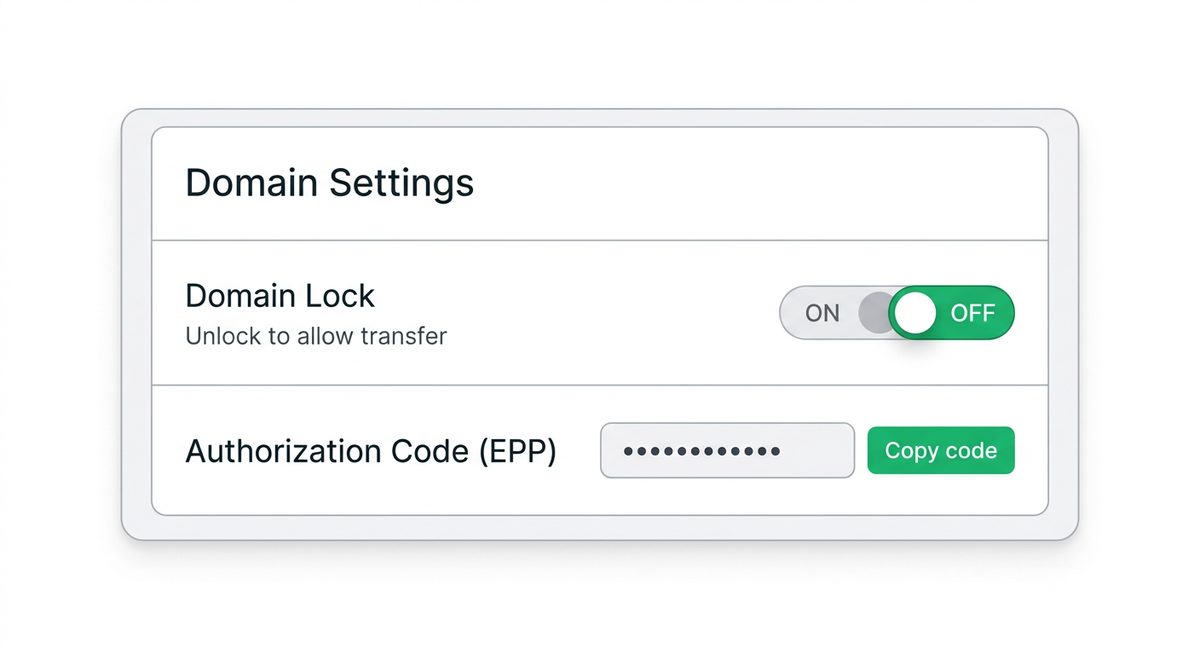
Registrar interfaces change often, so rather than matching a screenshot, look for these labels in your existing account:
| What you are looking for | Common labels | Usually found under |
|---|---|---|
| The lock | Domain lock, Registrar lock, Transfer lock, Theft protection | Domain settings or Security |
| The code | EPP code, Auth code, Authorization code, Transfer key, Secret code | Transfer out or Domain settings |
| The privacy toggle | WHOIS privacy, Domain privacy, ID protection | Privacy or Contacts |
Step 2: Request the EPP Authorization Code
The EPP code is a password that proves you control the domain. Most registrars either display it on screen or email it to the registrant address. It is case sensitive, it usually contains symbols, and it often expires after a set period, so copy and paste it rather than retyping it, and use it promptly.
If your registrar stalls, you have a right to it. Section 5.2 of the ICANN Transfer Policy requires registrars to give the registered name holder the AuthInfo code and remove the ClientTransferProhibited status within five calendar days of your request. Quote that clause if support tries to delay you.
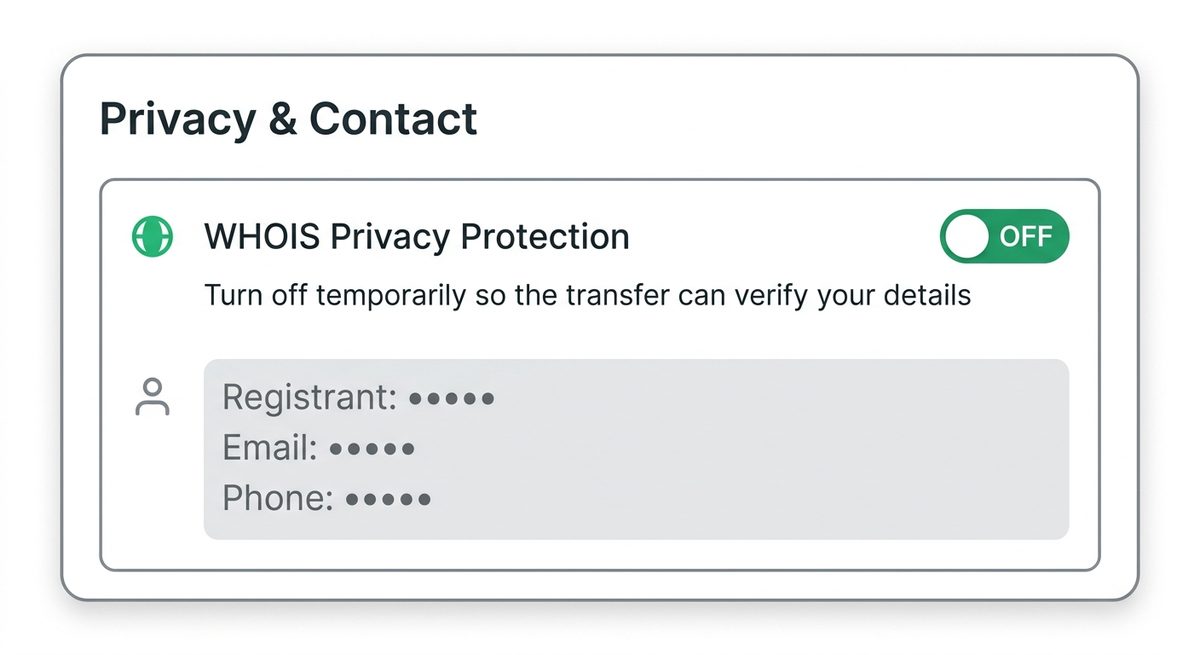
Step 3: Turn Off WHOIS Privacy if Verification Fails
Some registrars will not release a valid EPP code while WHOIS privacy is enabled, because the transfer process cannot read the registrant details it needs to verify. If your code keeps getting rejected, disable privacy temporarily, retry, then switch privacy back on once the transfer completes.
Step 4: Check Your Registrant Email Actually Works
Send yourself a test message at the registrant address before you begin. A transfer that stalls because the approval email went to a mailbox nobody owns anymore is the most common avoidable failure, and fixing the address mid transfer can restart the whole process.
How to Transfer a Domain Name, Step by Step
To transfer a domain to InstaWP, open Domains in your dashboard, click Add Domain, search for the domain you own, choose Transfer it instead, paste your EPP code, confirm the registrant contact details, and complete checkout. The transfer renews your domain by one year as part of the process.
The flow below is InstaWP, where the domain lands in the same dashboard as your sites, so DNS, nameservers, contacts and renewals are all in one place. The shape of the process is the same wherever you transfer to.
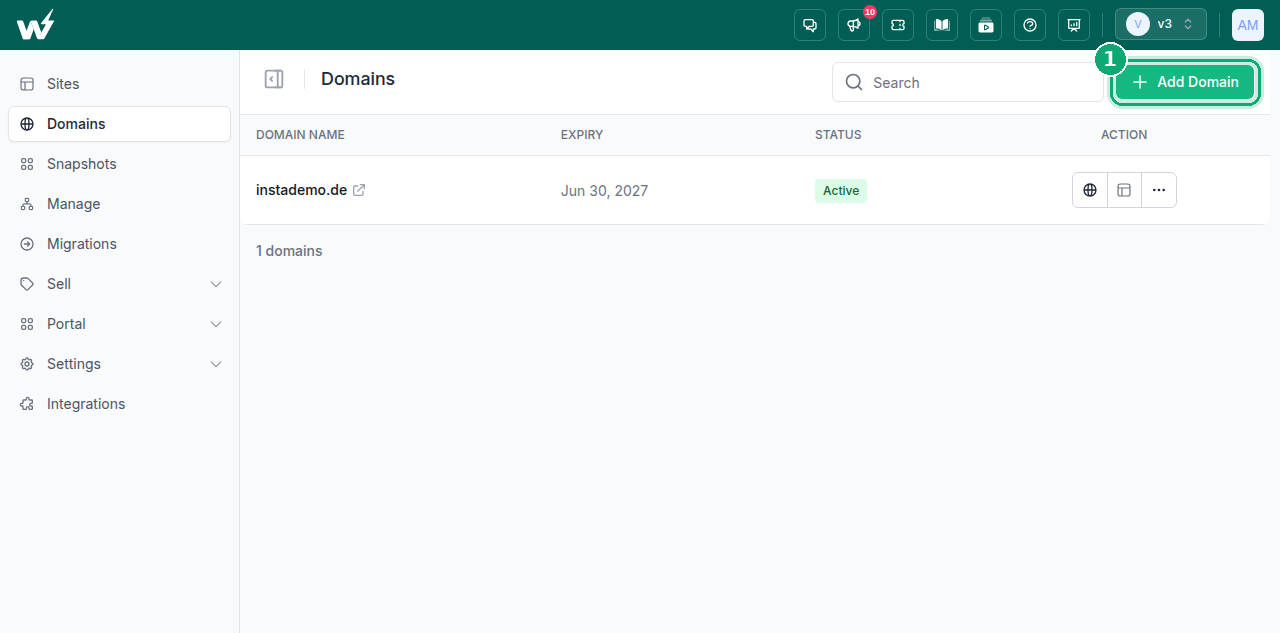
1. Open the Domain Dialog
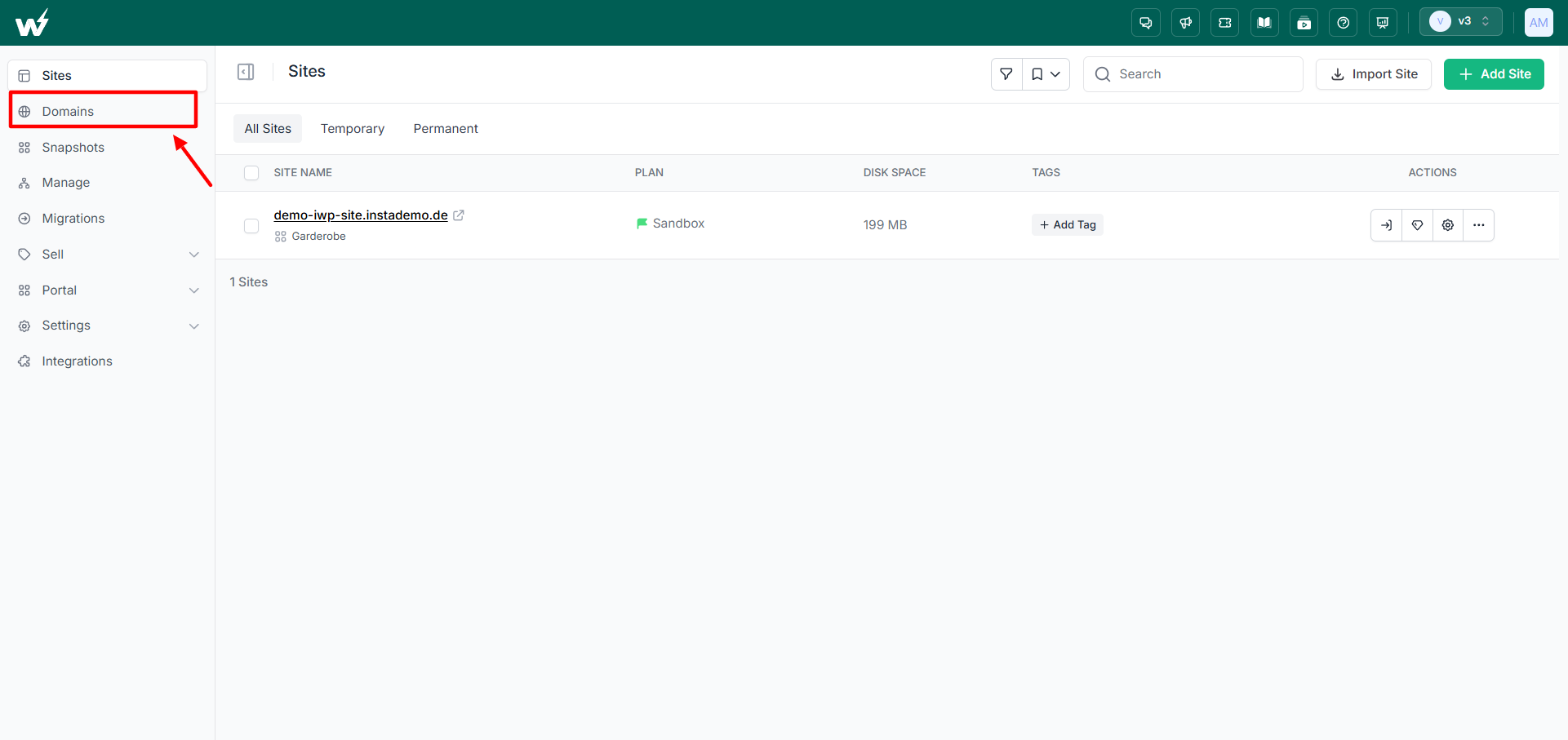
Log in, click Domains in the left sidebar, then click + Add Domain in the top right corner.
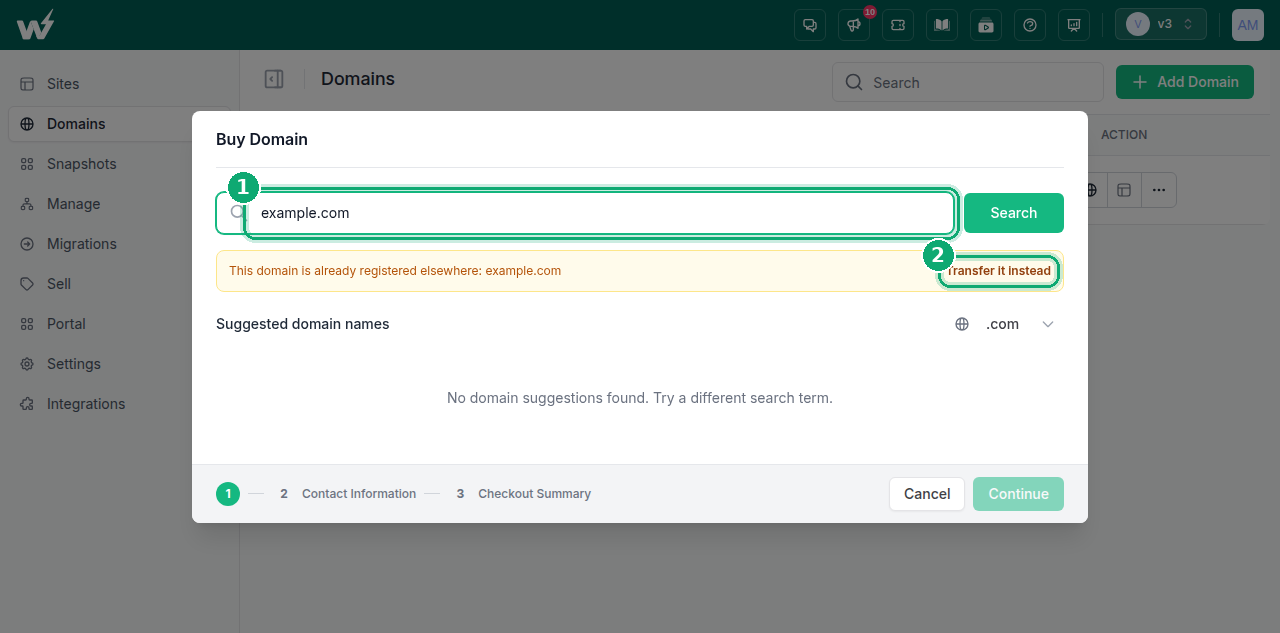
2. Choose Transfer It Instead
Type the domain you want to move into the search field and click Search. Because the domain is already registered, you will see a banner saying it is registered elsewhere, with a Transfer it instead link. Click that.
3. Check Eligibility and Enter the Auth Code
Confirm the domain and click Check. The domain is verified against the registry and you will see three things:
- Eligibility and price. A green eligible for transfer card, with the one year transfer price.
- Auth code field. Paste the EPP code from your current registrar and click Verify.
- Registrar lock warning. If the domain is still locked, a red warning tells you exactly what to fix. Unlock it at your current registrar, then click Refresh to re-check.
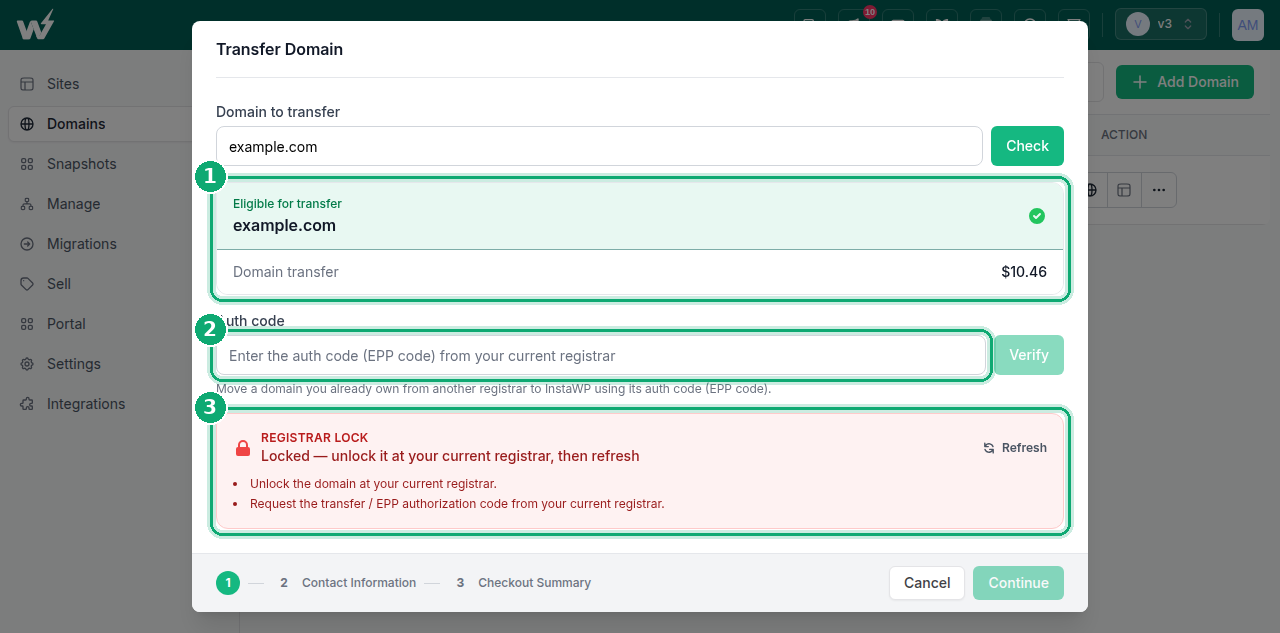
Once the lock is cleared and the code verifies, click Continue.
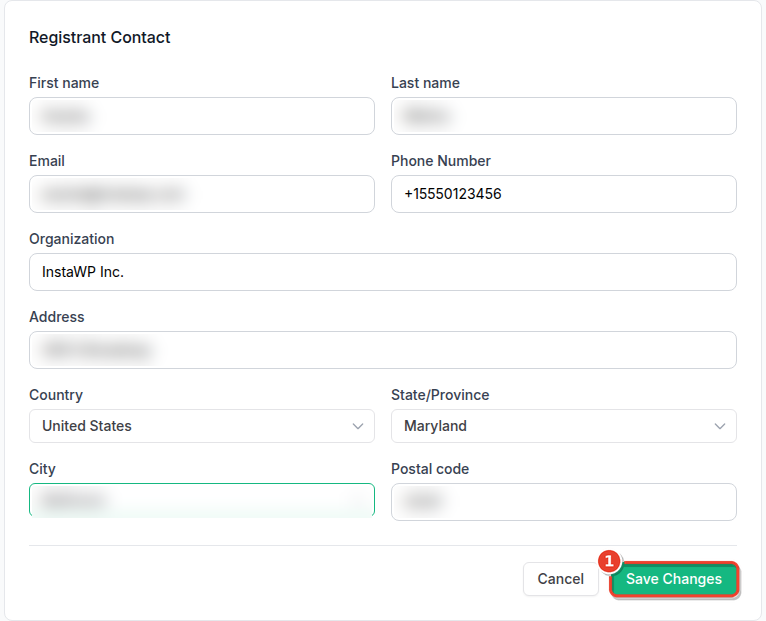
4. Confirm the Registrant Contact Details
Review the registrant name, email, phone and address. These become the domain WHOIS contact record, and the email address here is where the transfer approval message goes, so check it carefully before continuing.
5. Complete Checkout
Review the total, tick the confirmation checkbox to acknowledge the transfer charge, and complete the payment from your card or account credit. The fee covers a full year of registration, so you are not paying twice for the same thing. Any time left on your existing registration carries over on top.
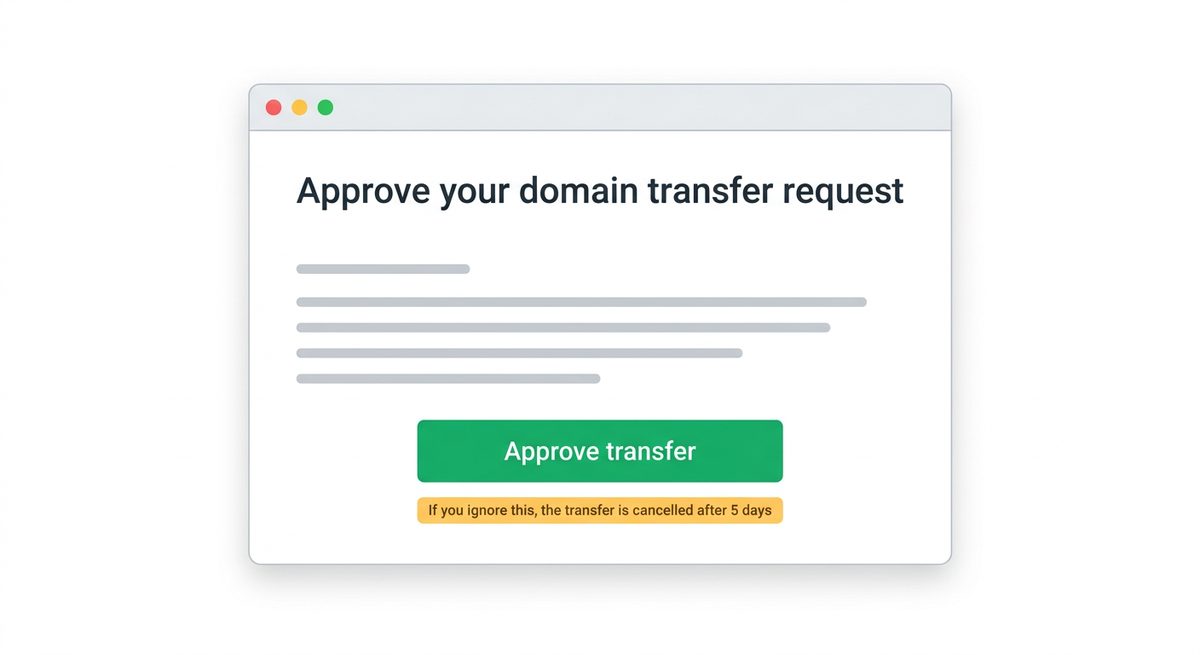
6. Approve the Authorization Email
The registry emails the registrant to authorize the transfer. This is the step most people miss. Approving it immediately can cut days off the process, and ignoring it cancels the transfer.
7. Watch the Status Until It Goes Active
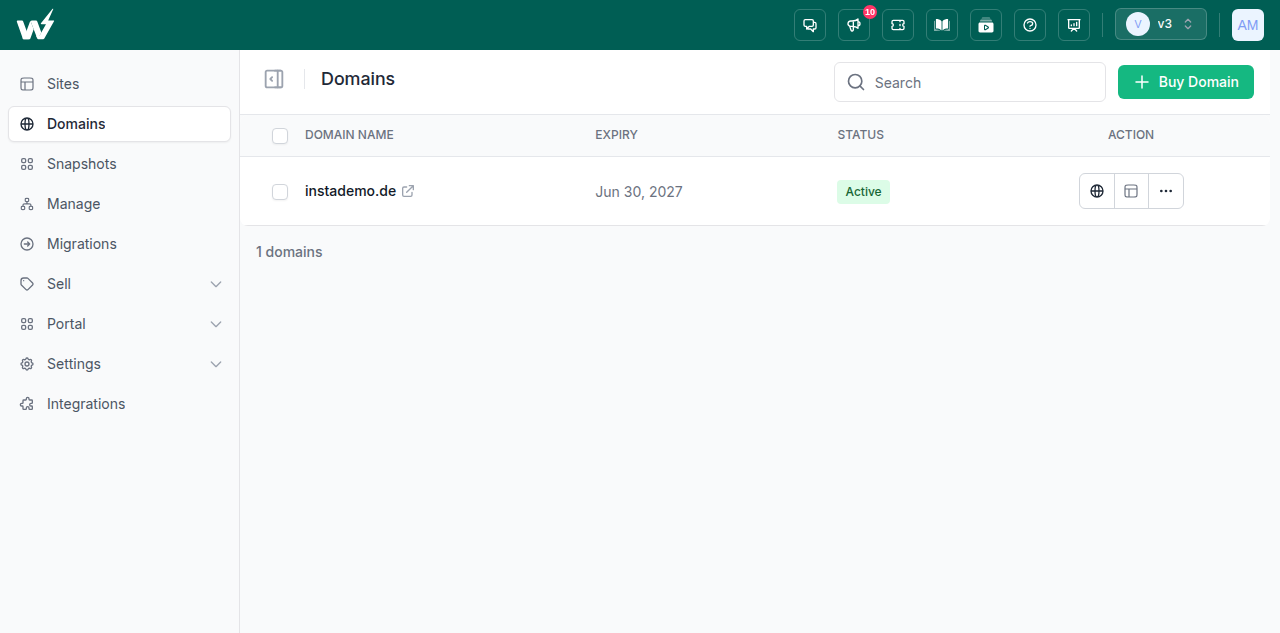
The domain appears in your Domains list as transfer in progress while your old registrar releases it. When it completes, the status flips to Active, the registration extends by a year, and you can manage DNS records, nameservers and the domain summary directly.
If the transfer fails because of a lock, a wrong code or a domain younger than 60 days, the charge is reversed and you can retry once the problem is fixed. The full steps are also in the transfer a domain documentation.
How to Transfer a Domain Name to Someone Else
To transfer a domain to someone else you either update the registrant contact details to their name, or push the domain into their account at the same registrar. If they also want it at a different registrar, give them the EPP code and let them run a normal transfer.
Transferring ownership is not the same as transferring registrars, and choosing the wrong one is why handovers go wrong. There are three routes.
| Route | Best when | Speed | Watch out for |
|---|---|---|---|
| Change the registrant contact | The domain stays where it is, only the owner name changes | Minutes, plus verification | Can trigger a 60 day transfer lock |
| Account push or move | Both parties use the same registrar | Minutes | Only works within one registrar |
| Hand over the EPP code | They want it at their own registrar | 5 to 7 days | Only do this once payment has cleared |
Transferring Domain Ownership Safely
- Get paid before you release anything. An EPP code is effectively the keys to the domain. For a sale between strangers, use an escrow service rather than trusting a bank transfer promise.
- Update the registrant email at the same time. If the email stays yours, future renewal and verification notices go to you and the new owner can lose the domain.
- Expect a verification email on both sides. ICANN requires the old and new registrant to confirm a change of owner. Neither party should ignore it.
- Agree who handles DNS during the handover. The registration can change hands while the site keeps running on the old host. Decide in advance when the DNS switch happens so the site does not go dark mid handover.
- Do the registrar move first if both are planned. Changing the registrant can lock the domain for 60 days, and a locked domain cannot be transferred.
This is the common case for agencies handing a finished site back to a client. If you run many client sites under one roof, mapping domains for WaaS sites covers the same handover at scale. If that is you, the cleanest sequence is to move the registration to the account you will keep it in, then change the registrant details to the client, then point DNS at wherever the site will live long term.
How to Transfer a Domain From One Host to Another
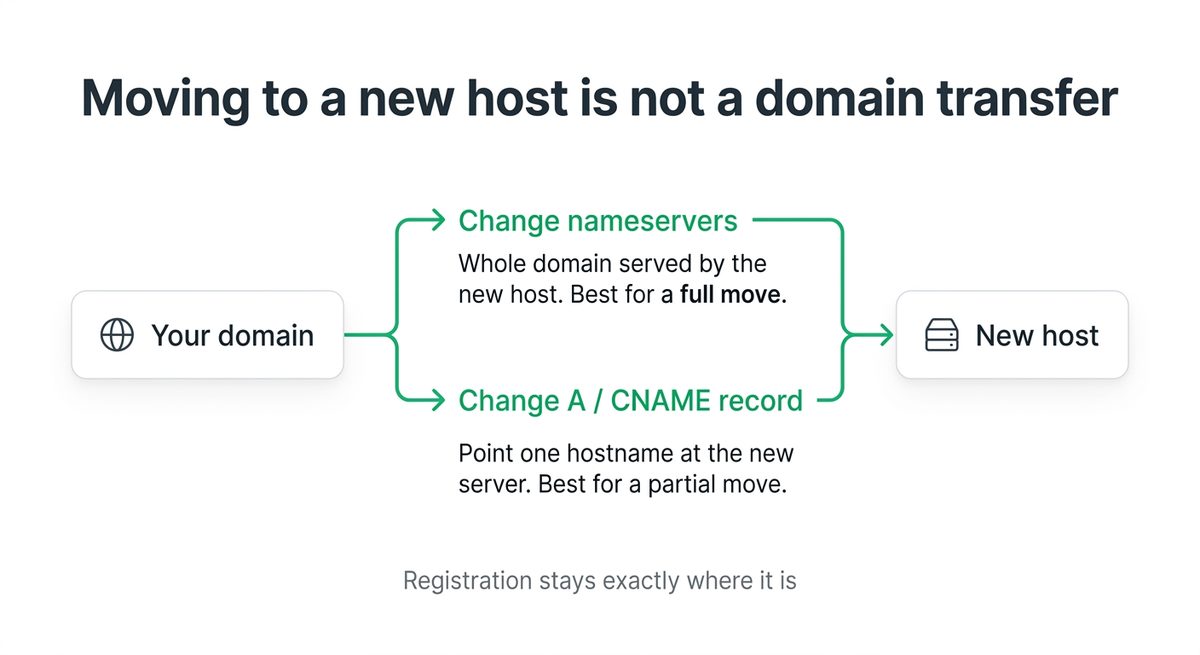
Moving a domain to a new host does not require a domain transfer. You either change the nameservers to those of the new host, which moves everything, or change the A or CNAME record, which moves one hostname. The registration stays exactly where it is and no EPP code is involved.
On InstaWP this is a single step, because the domain and the site live in the same dashboard. See linking a domain or subdomain to a site.
Option A: Change the Nameservers
Changing nameservers hands the whole domain to the new host, including every subdomain and every DNS record. It is the right choice for a full move, and the simplest one to reason about because there is a single place your DNS lives afterwards. The exact steps are in the update nameservers guide.
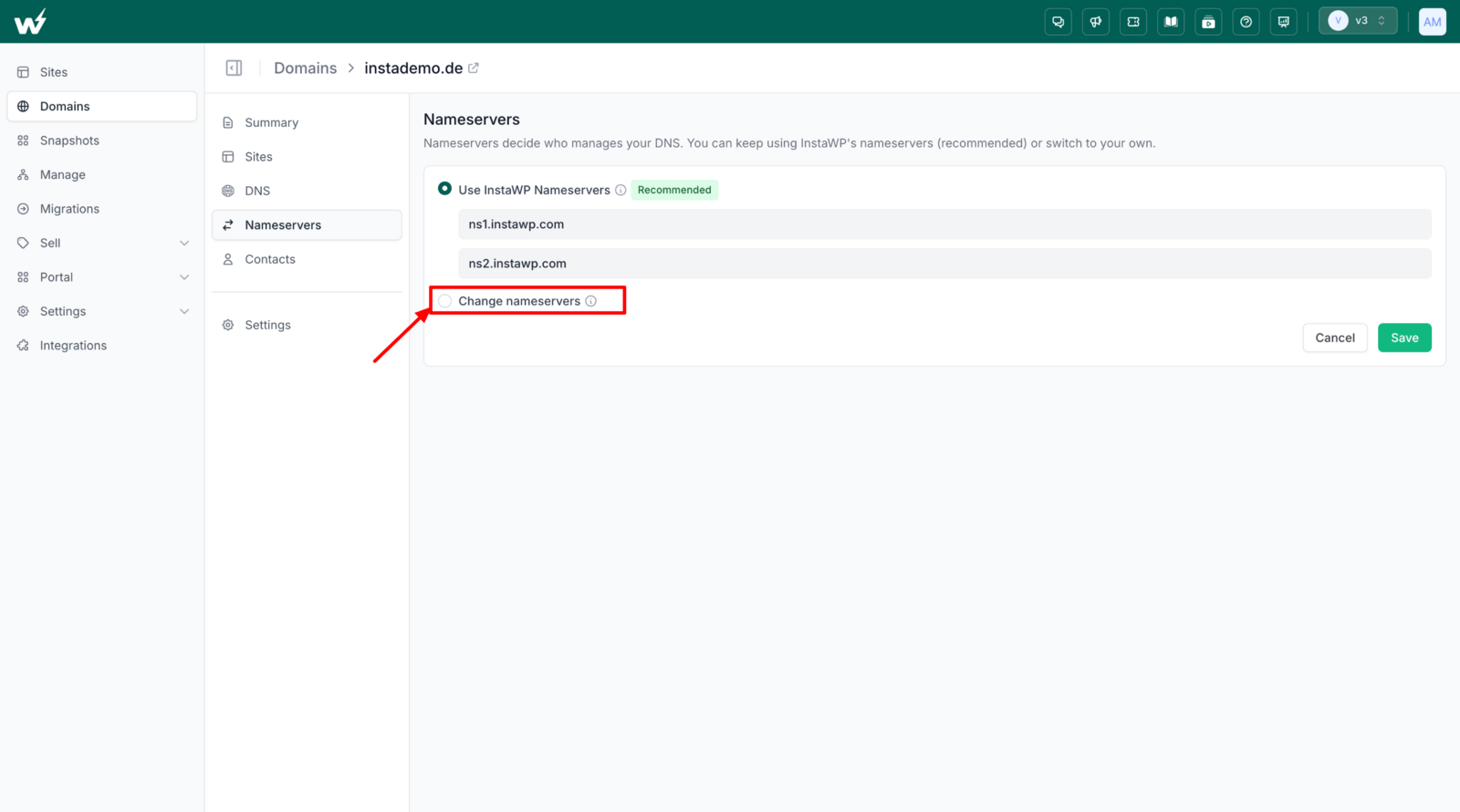
The catch is that it moves your email routing too. If your MX records live at the old host and you switch nameservers without recreating them, email stops arriving. Copy every existing record before you switch, not after.
Option B: Change the A or CNAME Record
Editing a single record points one hostname at a new server while everything else stays put. Use an A record when the new host gives you an IP address, and a CNAME when it gives you a hostname. This is the safer option when email, a subdomain or a separate service needs to stay where it is. See add or update DNS records for the field by field walkthrough.
| Change nameservers | Change A or CNAME | |
|---|---|---|
| Scope | The whole domain | One hostname |
| Best for | A complete move to a new host | Keeping email or subdomains where they are |
| Email risk | High if you forget MX records | Low |
| Propagation | Up to 48 hours | Usually minutes to a few hours |
| Where DNS lives after | The new host | Your current DNS provider |
Moving the Website Itself
DNS only decides where visitors are sent. The site files and database still have to get to the new host, and the order matters. Migrate first, test on a temporary URL, and only repoint DNS once the copy is working. Doing it the other way round sends live visitors to an empty server.
- Copy the site to the new host and test it on a temporary URL.
- Lower the DNS TTL to 300 seconds a day before the switch, so changes take effect fast.
- Note every existing DNS record, especially MX, TXT and SPF entries for email.
- Repoint nameservers or the A record.
- Reissue the SSL certificate on the new host and confirm HTTPS loads.
- Keep the old host running for a week in case anything was missed.
If the site is WordPress and the address is changing as well as the host, that is a third job again. Our guide on changing a WordPress domain name safely covers the search and replace that stops half your links breaking, and connecting a domain to WordPress walks through all three connection methods in detail.
Why Domain Transfers Fail, and How to Fix Each One
Most failed transfers come down to five causes: the domain is locked, the EPP code is wrong or expired, the domain is under 60 days old, the approval email was never clicked, or WHOIS privacy is blocking verification. All five are fixable, and a failed transfer is refunded.
| What you see | What it means | What to do |
|---|---|---|
| Domain is locked, or client transfer prohibited | Registrar lock is still on | Turn the lock off at your current registrar, then re-check |
| Invalid authorization code | Wrong, expired, or mistyped code | Request a fresh code and paste it, do not retype it |
| Domain is not eligible for transfer | Registered or transferred within 60 days | Wait out the 60 days from the registration or last transfer date |
| Transfer pending, then cancelled | The approval email was never actioned | Check spam, confirm the registrant email works, retry |
| Verification keeps failing | WHOIS privacy is masking the contact details | Disable privacy temporarily, retry, then re-enable it |
| Transfer rejected by current registrar | Unpaid balance, dispute, or a recent registrant change | Settle the account, then request the release again |
If a registrar refuses to release a domain you are entitled to move, ICANN publishes FAQs for registrants on transferring your domain name, including how to escalate a wrongly denied transfer.
What to Do After the Transfer Completes
A completed transfer is not quite the end. Five minutes of checks here prevents the classic problem of a domain quietly expiring a year later because auto renewal never got switched back on.
- Turn auto renewal back on. It does not always carry across from the old registrar.
- Re-enable WHOIS privacy if you disabled it to get the transfer through.
- Check every DNS record survived. Compare against the list you saved, paying particular attention to MX, TXT and SPF records.
- Confirm the new expiry date includes the extra year you paid for.
- Update the billing card at the new registrar so renewal does not fail.

Managing Domains and Hosting in One Place
Most of the pain in this guide comes from the domain living at one company and the site living at another. You unlock a domain in one dashboard, paste a code into a second, and edit DNS in a third, and every handover between them is a chance for something to break.
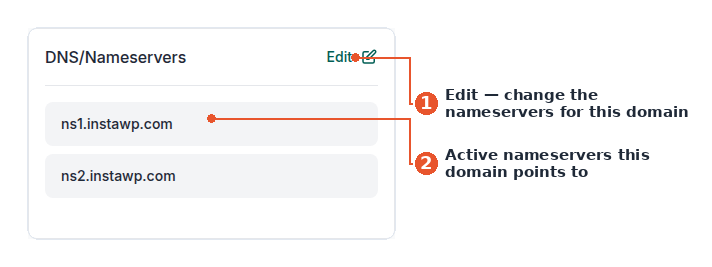
Transferring the registration to the same place you host removes that gap. On InstaWP the domain, its DNS records, its nameservers, its contacts, its renewal and the WordPress site it points at are all in one dashboard, so connecting a domain to a site is a dropdown rather than a copy and paste exercise across three tabs. New accounts get 25 dollars in signup credits, which is enough to spin up a site and try the whole flow before you move anything that matters.
If you are starting from scratch rather than moving, our guide to buying a domain and launching a WordPress site on it covers registration instead of transfer, and the register a domain documentation has the dashboard steps. You can read more about why we built this in introducing Domains on InstaWP.
Frequently Asked Questions
Will my website go down during a domain transfer?
No. A registrar transfer moves the registration record only. Your DNS settings, your hosting and your email all keep working exactly as before, and nothing changes at the DNS level until the transfer completes. Downtime only becomes a risk if you change nameservers at the same time.
Will I lose my email during a domain transfer?
Not from the transfer itself. Email breaks when nameservers change and the MX records are not recreated at the new DNS provider. Save a copy of every DNS record before you change anything, and check MX, TXT and SPF entries specifically.
Do I lose the time left on my current registration?
No. A transfer adds a full year on top of your existing expiry date, so any remaining time carries over. That is why the transfer fee is priced like a renewal rather than an extra charge.
How much does it cost to transfer a domain?
A transfer costs roughly the same as one year of registration for that extension, because it includes a one year renewal. Your old registrar cannot charge you a fee to release the domain, and any unused time you already paid for is added to the new expiry date instead of being refunded.
Can I cancel a domain transfer once it has started?
Yes, during the five day waiting period. Your current registrar can reject the transfer request from their dashboard, which cancels it. After the transfer completes you must wait 60 days before moving the domain again.
What is an EPP code?
An EPP code, also called an auth code or authorization code, is a password issued by your current registrar that proves you control the domain. The gaining registrar needs it to complete a transfer. It is case sensitive and often expires, so use it soon after you request it.
Why is my domain locked for 60 days?
ICANN blocks transfers for 60 days after a domain is registered or transferred, and many registrars also apply the lock after a change of registrant. It is an anti fraud measure and no registrar can override it. Wait out the 60 days, then transfer normally.
Is transferring a domain the same as transferring hosting?
No. A domain transfer moves the registration between registrars and needs an EPP code. Moving hosting means pointing DNS at a new server by changing nameservers or an A record, and the registration is untouched. Many people only need the second one.
How long does it take to transfer a domain?
A domain transfer takes five to seven days. Most of that is a mandatory five day waiting period set by ICANN, during which your current registrar can decline the release. If you approve the confirmation email quickly, some transfers complete in one to two days.
How do I transfer a domain to a family member or a client?
If you both use the same registrar, push the domain into their account. If they use a different one, unlock the domain, send them the EPP code, and let them run a standard transfer. Either way, update the registrant email to theirs so future renewal notices reach the right person.
Keep the Domain and the Site in One Place
Most of the friction in this guide comes from your domain living at one company and your site living at another. On InstaWP the registration, DNS, nameservers, contacts, renewals and the WordPress site itself all sit in one dashboard, so connecting a domain to a site is a dropdown instead of a copy and paste across three tabs. New accounts get 25 dollars in signup credits, so you can spin up a site and test the whole flow before you move anything that matters.