Are you looking to brand your Website as a Service (WaaS) offerings with custom domain names? Domain mapping is the key to transforming generic URLs into professional, memorable web addresses that build trust and recognition with your clients.
InstaWP’s domain mapping for WaaS is designed specifically for this use case. It lets your customers connect their own domains to the WordPress sites they purchase from you, while keeping your workflow scalable and hands-off.
This guide explains how domain mapping works for WaaS in InstaWP, what’s happening behind the scenes, and how to set it up correctly without running into common DNS or SSL issues.
Table of Contents
What Domain Mapping Means in a WaaS Context
In a WaaS or WordPress-as-a-website setup, domain mapping is the process of pointing a client-owned domain to the WordPress site created through your WaaS product. The site is already hosted and configured on InstaWP’s infrastructure. Domain mapping simply makes it accessible on the client’s chosen domain.
This is different from traditional WordPress setups where developers migrate files or databases. With InstaWP WaaS, the site stays exactly where it is. Only the domain changes.
Must read: Create a Website-as-a-Service with a Custom Domain
For WaaS businesses, this matters because:
- You don’t need to handle migrations or hosting handovers
- Clients can launch independently
- The same setup works whether you sell 5 sites or 500
Note: Domain mapping is available on InstaWP paid plans.
Domain Mapping Options Available in InstaWP
InstaWP supports domain mapping at multiple levels, depending on how you manage WordPress sites.
You can map a domain to a specific InstaWP site when you need a custom URL for a single staging or demo site. This is commonly used during development or previews.
You can also configure a suffix domain that applies automatically to all newly created sites. For WaaS businesses, the most important option is client-level domain mapping. This allows customers to connect their own custom domains to the sites they purchase, without requiring any DNS changes from your team.

How Domain Mapping Works for WaaS Sites in InstaWP
In a WaaS flow, domain mapping happens after the client creates their site. The site is provisioned automatically, and domain mapping is handled from the client’s site management panel.
If you’ve already configured a suffix domain for WP staging sites, the same domain setup also applies to WaaS sites automatically. You don’t need to configure domain mapping separately for WaaS.
This setup ensures:
- Consistent branding for previews and templates
- A smooth transition from demo to live domain
- No repeated configuration for each client
Mapping Domain for WaaS Sites
Once you’ve created a WaaS on InstaWP, you need to follow the below steps for WaaS domain mapping, allowing your clients to use their own custom domains for the sites they purchase from you.
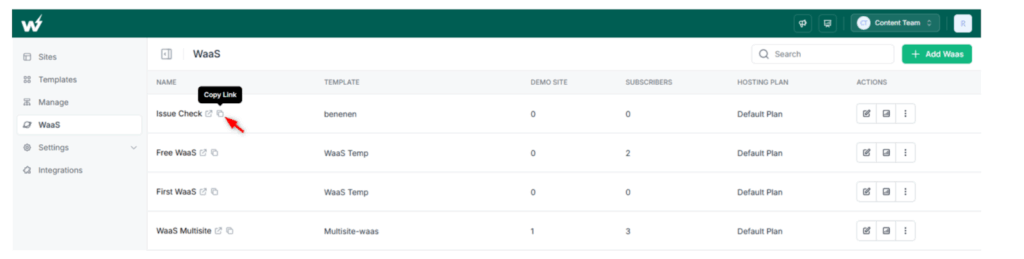
Step 1: To begin the process go to the WaaS section, select the site and click Copy Link for a shareable link.
Step 2: Client Site Creation
When your client visits the link, they’ll go through three sections:
- Enter Your Information
- Confirm
- Setting up your Site
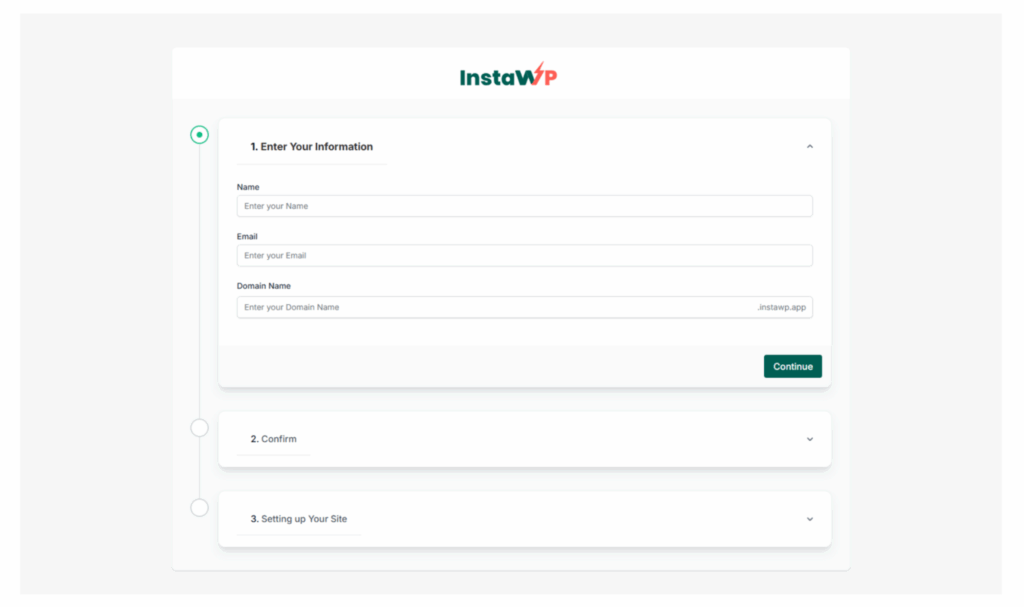
Note: Domain mapping requires an upgrade. After the client completes payment, they’ll gain access to custom domain mapping.
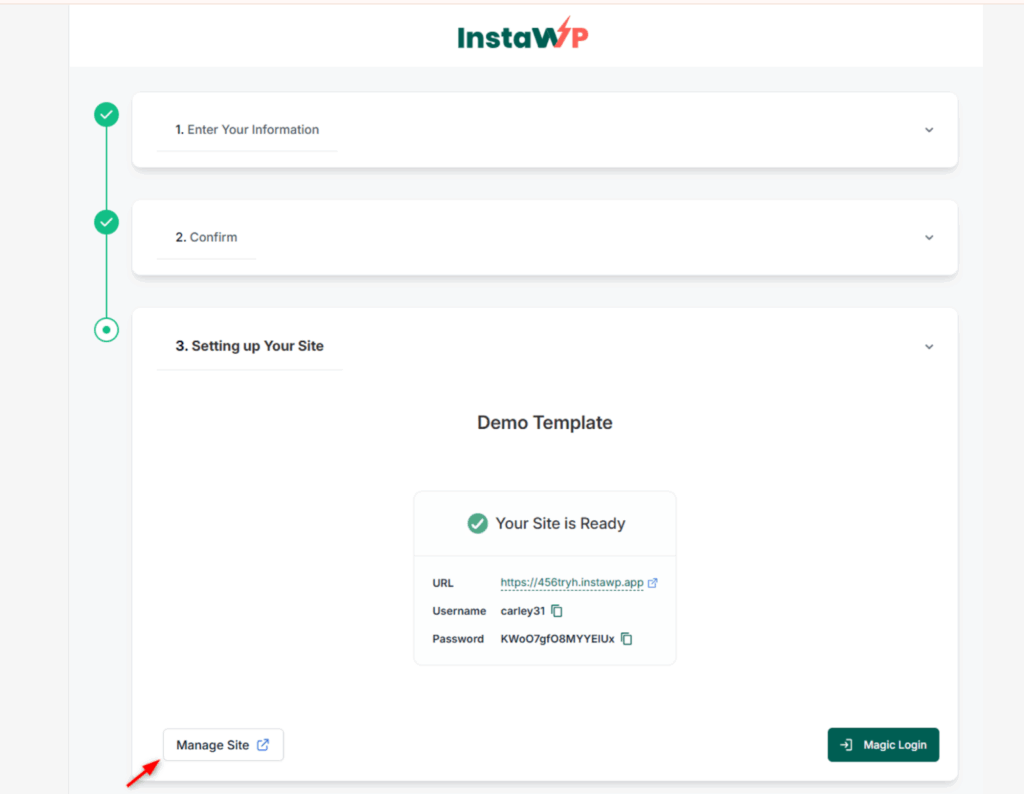
Step 3: Once the details are done the site is automatically configured. In order to map a custom domain, you need to click on Manage Site.
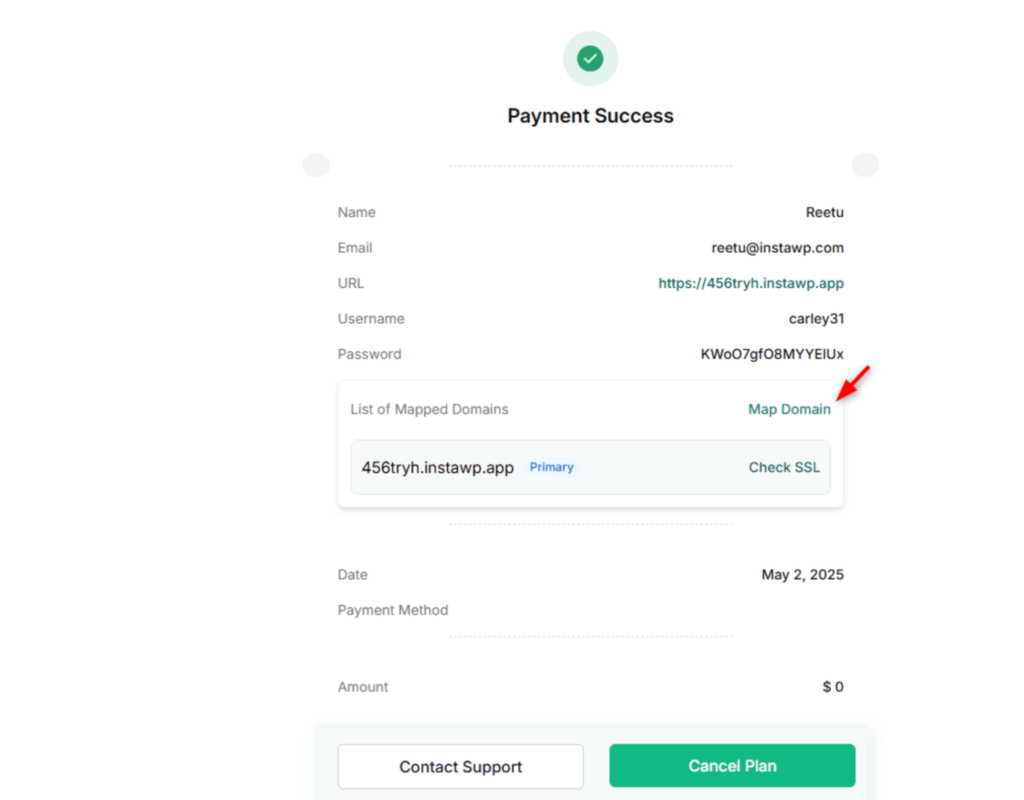
Step 4: Here, you’ll get the option for Map domain. Click on it.
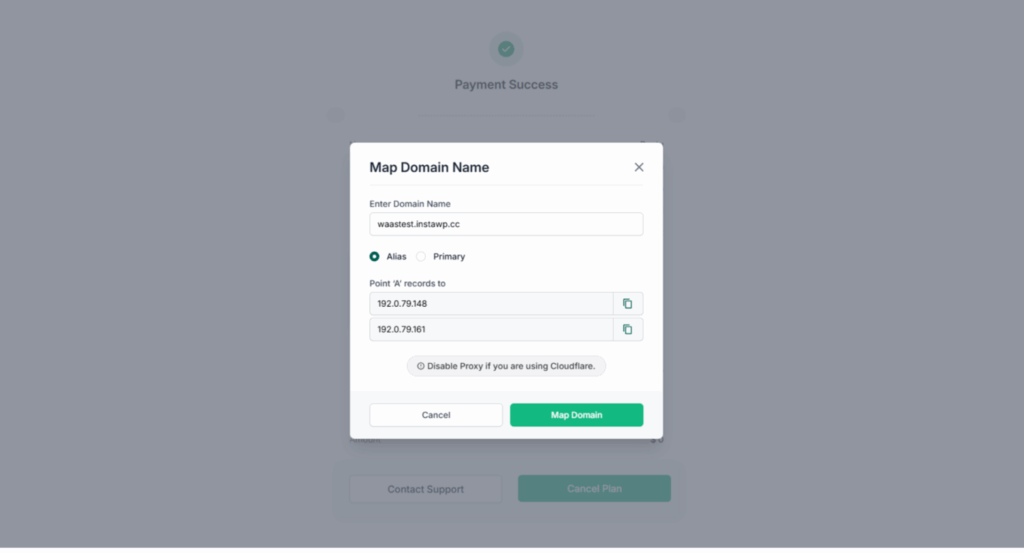
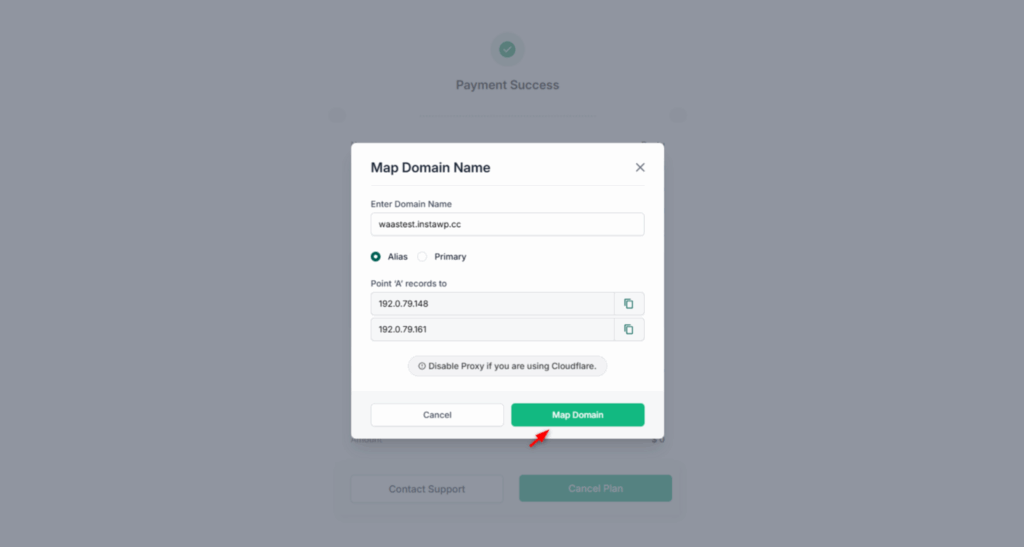
Step 5: A modal window will appear. Enter the details and copy the A Records to paste it.
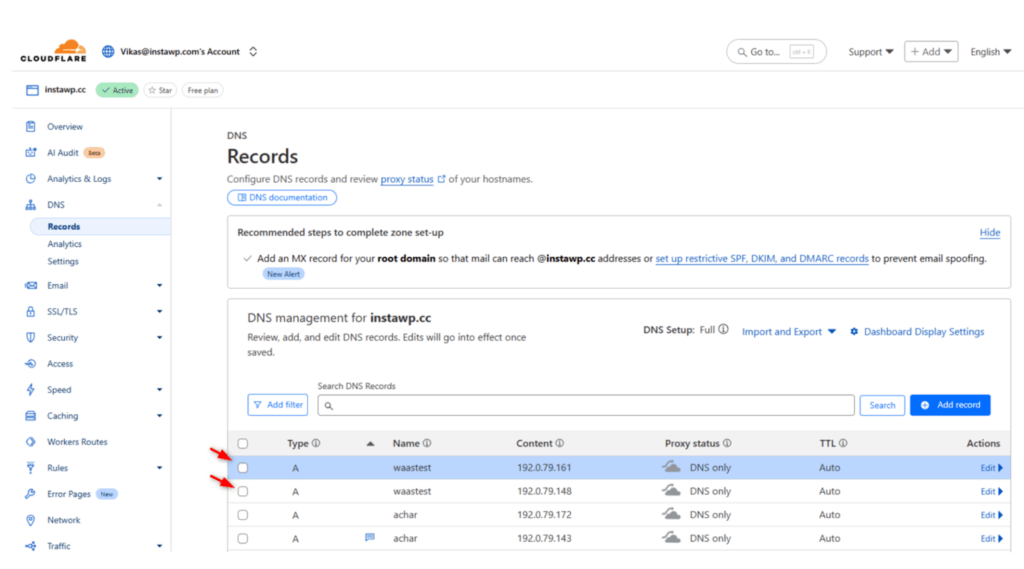
Step 6: So, to map your domain (registered on Namecheap) you need to copy the “A” records and paste the same into your domain registrar account.
Step 7: Finalize Mapping
Click “Map Domain” in the InstaWP modal window. The process completes within a few moments, and the domain appears in the domain list.
Important Notes and Best Practices
As you proceed with domain mapping of your WaaS sites, you need to keep a few things in your mind to ensure you\ve got everything right.
SSL Certificates
InstaWP automatically generates SSL certificates for the non-www version of your domain. If you want both www and non-www versions to work:
- Add A records for both versions
- You’ll need four A records in total (two for www, two for non-www)
- Save DNS settings before clicking “Map Domain” in InstaWP
Processing Time
Domain mapping typically completes quickly, but propagation can take time depending on:
- Your domain registrar
- DNS propagation delays (up to 48 hours in some cases)
- Most registrars other than Namecheap may require additional processing time
InstaWP automatically displays the status once propagation is complete.
Suffix Domain Benefits
The suffix domain you configure:
- Works for WaaS sites automatically
- Applies to templates as well
- Provides consistent branding across all your offerings
Troubleshooting Common Issues
Most domain mapping issues are related to DNS configuration rather than the InstaWP platform.
- If a domain does not resolve, verify the DNS records and allow enough time for propagation. Clearing browser and local DNS cache can help in some cases. Mapping status is always visible inside the InstaWP dashboard.
- If SSL does not activate, ensure that required DNS records are in place and give the system time to issue certificates automatically.
- When using Cloudflare, make sure the proxy is disabled during the initial setup and DNS records are set to DNS only.
Domain mapping transforms your WaaS offerings from generic staging sites into professional, branded experiences. Whether you’re mapping a single site, implementing company-wide suffix domains, or enabling client domain mapping for WaaS sites, InstaWP’s platform makes the process straightforward.
Conclusion:
Domain mapping is a foundational part of delivering WaaS with InstaWP. It allows clients to launch on their own domains, reduces manual work for your team, and keeps your delivery process scalable.
If you’re building or growing a WaaS business with InstaWP, setting up domain mapping ensures every site you sell is launch-ready from day one.
You can configure and manage domain mapping directly from your InstaWP dashboard.