In the case of WordPress development, the challenges of migrating WordPress sites often bring developers to a crossroads. Picture this: you are an experienced developer, and you found yourself in trouble while transitioning a client’s website to a new hosting provider. What are your options?
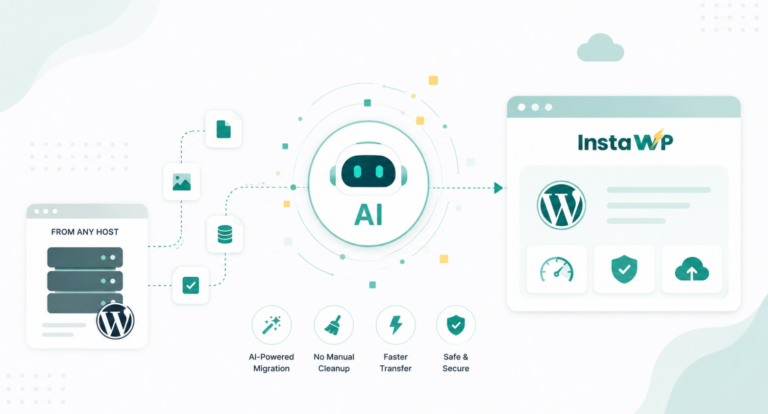
As you navigate the process of migration, unforeseen obstacles and unexpected triumphs will emerge. This article will not only showcase how to move WordPress site to new host with WordPress migration plugins but also show how to migrate WordPress site to any host with InstaWP seamlessly.
Things to Remember Before You Perform WordPress Migration
Before you migrate your WordPress site, it’s crucial to consider a few key factors to ensure a smooth transition. Whether you’re moving from one hosting provider to another or migrate from a local development environment to a live setup, here are some essential tips to keep in mind:
Tips for Migrating from One Host to Another
Backup Your Website
Before initiating any migration process, create a comprehensive backup of your entire WordPress site. This ensures that you have a safety net in case anything goes awry during the migration.
Choose a Reliable Hosting Provider
Selecting a reputable hosting provider for your new host is foundational. Look for a provider with good performance, excellent customer support, and compatibility with WordPress.
Choose the Right Migration Plugin
Select a reliable WordPress migration plugin that suits your specific needs. Plugins like InstaWP Connect, Duplicator, All-in-One WP Migration, or Migrate Guru can simplify the migration process and handle complex tasks efficiently.
Update DNS Settings Strategically
When you’re ready to make the switch, update the DNS settings to point to the new host. Consider lowering the Time to Live (TTL) value on your domain’s DNS records beforehand to expedite the DNS propagation process.
Check File Permissions
Verify that file permissions on the new server match the requirements of your WordPress installation. Incorrect file permissions can lead to issues with accessing files and directories.
Monitor for Broken Links and Errors
After migration, thoroughly check your website for broken links and errors. Use tools like Screaming Frog or online link checkers to identify and fix any broken links resulting from the migration.
Update URLs and Paths
After migration, ensure that all URLs and file paths are updated to reflect the new hosting environment. This includes updating links within your content, media files, and any custom configurations.
Tips for Migrating from Local Environment
Choose the Right Hosting Provider
Select a hosting provider that supports the technical requirements of your WordPress site. Some hosting providers offer specialized support for WordPress, which can simplify the migration process.
Upload Limit Consideration
Check the upload limit on your live hosting environment. If your exported package is large, you may encounter upload restrictions. In such cases, consider alternative methods like FTP or use hosting providers that allow larger file uploads.
Database Prefix Consistency
Ensure consistency in database table prefixes. If your database has a particular prefix, make sure the new hosting environment uses the same or update it accordingly in your database before migration.
Adjust Permalink Structure
If your local setup uses a different permalink structure than the live environment, update the permalink settings in WordPress before migration. This helps in maintaining link structures and avoiding broken links.
Update Site URLs
After migrating, update the site URLs in the WordPress settings to reflect the live domain. This can be done through the WordPress dashboard or by directly modifying the site URL in the database.
Search and Replace
Use a search and replace tool to replace instances of the local site URL with the live site URL throughout your database. This ensures that links within your content and database are updated accurately.
SSL Certificate Configuration:
If your live hosting environment uses SSL, configure the SSL certificate settings after migration. Update the site URL in the WordPress settings to use ‘https://’ and ensure that your SSL certificate is properly installed.
Test Functionality:
Before making the site live, thoroughly test its functionality. Check pages, posts, forms, and any interactive elements to ensure everything works seamlessly in the new hosting environment.
How to Migrate WordPress from One Host to Another?
Migrating your WordPress site from one host to another can be a seamless process with the help of InstaWP. InstaWP WordPress development environment is the best solution for migrating WordPress site to any host. Let us explore how to use the InstaWP migrating tool in this guide. Also, see this article for more on the topic.
Create a Staging Environment in InstaWP
The Staging environment in InstaWP is where you create a new site in seconds or test existing sites without affecting the live site (production site). To get started,
1. Sign in to your InstaWP account or create a new one. It only takes a few clicks. A user dashboard or work area will be automatically generated for you, where you can manage your sites seamlessly.

2. Navigate to the dashboard and locate the option to create a staging environment.

3. Choose the configuration that best suits your development goal and follow the prompts to set up a staging environment for your WordPress site.
Migrate WordPress Site To Any Hosting
1. To migrate the created site to any supported hosting using InstaWP, locate the site that you just created in your dashboard.
2. On the right side of the site are action menus that you can perform. Click on the icon menu that says “Go Live”

Or click on the 3 dot menu to see dropdown options. Select the “Migrate V3” action.
If you click on the “go Live” icon, you will open a pop-up with 2 options for transferring WordPress site to new host.

You can choose to migrate your site via InstaWP hosting option which provides managed and secure hosting for WordPress site or choose from any supported providers to host your site.
The InstaWP hosting option is straightforward. Follow the prompt and make payment to set up hosting for your site. You can then connect your domain name afterward with one click.
3. To migrate to any host via the second option, SSH is required. Click on the second option. The prompt in the image below will show.

A couple of actions you can perform here are to enter the domain name, choose a PHP version, and select a pre-configured server.

4. Click on the “Next Step” and wait for the migration of site data to new host.

In this step, you will have successfully migrated WordPress to the new host. You can check your newly hosted site in the “Hosting” menu.

Benefits of Using InstaWP for WordPress Migration
Effortless Staging Environment
InstaWP simplifies the creation of a staging environment for your WordPress site. Staging allows you to test and validate the migration process without affecting the live site.
User-Friendly Interface
InstaWP offers an intuitive interface, making it accessible to users of all skill levels. You don’t need extensive technical knowledge to set up and manage your staging environment.
Zero Downtime Migration
By using InstaWP as an intermediary, you can achieve a zero-downtime migration. Your live site remains unaffected during the migration process, ensuring a smooth experience for your visitors.
Automated Migration Process
InstaWP streamlines the migration process with automation. It handles the complexities of moving your WordPress site’s files and database, reducing the chance of errors during the transfer.
How to Migrate WordPress from Your Local Setup to Any Host
Migrating your WordPress site from a local development environment to any host is a crucial step in bringing your website to life. InstaWP makes this process even more seamless, allowing you to migrate and go live with ease.
1. To push your Local WordPress Site to InstaWP, go to the Local WordPress setup and install the InstaWP Connect plugin.
2. Install and connect your Local site to your InstaWP account through the plugin. After connecting to the InstaWP account, you will get a command to run to push the site to InstaWP.

3. Copy the command and go back to your Local Setup environment. Navigate to the local site setup and click on the “Open site shell”.

4. Past the command you copied

Wait while the command pushes the local site to InstaWP. With success, you can copy the URL generated like the one in the image below to access the newly pushed site. You will also be able to find the site in your InstaWP dashboard.

Go Live With InstaWP
Once you’ve pushed your site to InstaWP from your local setup and completed testing in the staging environment, the path to going live is notably straightforward, as highlighted in the guide on migrating WordPress site to any hosting using InstaWP.
By following these steps, you can successfully migrate your WordPress site from your local development environment to any host, but pushing to InstaWP first ensures a smooth transition and minimizes disruptions during the process.
Conclusion
The process of migrating WordPress to any host presents challenges that require careful consideration. Whether you are using reputable migration plugins to simplify the migration process by monitoring for potential issues such as broken links and errors post-migration will still not guarantee seamlessness.
InstaWP, as a solution to move WordPress site to a new host, offers features such as an effortless staging environment, a user-friendly interface, and a zero-downtime migration process.
Furthermore, you can also make your WordPress site migration from Local environment to live easier by pushing to InstaWP with a single line command and then migrating to any host seamlessly.