ChatGPT, a cutting-edge language model, offers a revolutionary way to enhance user interaction and engagement on your WordPress website. By integrating ChatGPT, you can provide intelligent and informative responses to visitor queries, automate customer support, and even generate content.
This guide will walk you through the step-by-step process of setting up the ChatGPT plugin on your WordPress site, empowering you to harness the power of AI for a more dynamic and interactive online experience.
Table of Contents
What is ChatGPT WordPress Plugin?
ChatGPT WordPress Plugin is a powerful tool that integrates the advanced language model, ChatGPT, into your WordPress website. This plugin enables you to create an AI-powered chatbot that can interact with your visitors, providing assistance, answering questions, and even generating content.
Key features of ChatGPT WordPress Plugin:
- Intelligent Conversations: ChatGPT can engage in natural language conversations with your website visitors, offering personalized assistance and support.
- Content Generation: The plugin can be used to generate blog posts, articles, product descriptions, and other types of content.
- Customer Support Automation: ChatGPT can automate customer support tasks, freeing up your time to focus on other areas of your business.
- Lead Generation: The plugin can capture visitor information and generate leads for your sales team.
- Customizable Chatbot: You can customize the appearance and behavior of your ChatGPT chatbot to match your website’s branding.
By integrating the best ChatGPT WordPress plugin into your website, you can enhance user experience, improve customer satisfaction, and drive conversions.
Who Should Get ChatGPT Plugin for WordPress
The ChatGPT WordPress Plugin is valuable for a range of businesses and industries aiming to improve site engagement.
- E-commerce sites can use the WordPress ChatGPT plugin to answer customer queries in real-time.
- Service-based industries can automate appointment scheduling or offer tailored advice.
- Educational institutions benefit by providing instant responses to FAQs, while content-heavy blogs can recommend articles based on user questions.
Essentially, any website that wants to provide real-time interaction, automate responses, or guide users through complex information will benefit from integrating the ChatGPT plugin.
Prerequisites of ChatGPT Plugin Installation
Ensure that your site meets these requirements to guarantee smooth plugin installation and optimal performance.
WordPress Version Requirements
For the ChatGPT WordPress Plugin to work correctly, your WordPress site must be running the latest WordPress version like 6.7 Beta. Compatibility with the most up-to-date version ensures that the plugin can fully leverage WordPress’s new features while maintaining stability and security.
Running the WordPress ChatGPT plugin on outdated versions might lead to compatibility issues, resulting in poor performance or failure of certain features. Always check for WordPress core updates before installation to optimize the ChatGPT plugin’s functionality.
Hosting Environment
A ChatGPT plugin does its real work on your server, not in the browser. Every reply is a live request from your WordPress site to the OpenAI API, so the plugin is only ever as responsive as the hosting underneath it. Weak or under-resourced hosting shows up in obvious ways: laggy replies, generations that time out halfway, or API calls that fail outright.
For a ChatGPT plugin to run smoothly, your hosting should provide:
- PHP 8.1 or higher. Current AI plugins and the libraries they depend on have dropped older versions, and PHP 8.x processes each API call faster.
- MySQL 8.0 or MariaDB 10.5 or higher, in line with current WordPress recommendations.
- Enough memory and a generous PHP execution time. A single AI response can take several seconds to return, so a tight timeout will cut generations off midway.
- Outbound HTTPS requests allowed. The plugin has to reach the OpenAI API, and some locked-down hosts block external calls by default.
A solid managed WordPress hosting environment takes these variables off your plate, so calls to the ChatGPT plugin stay fast and reliable instead of depending on how your server happens to be tuned.
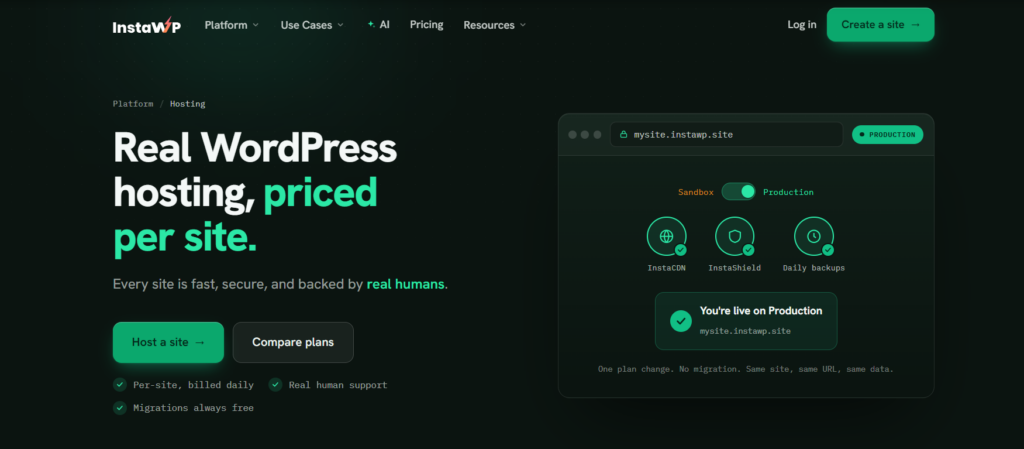
InstaWP runs its own managed WordPress hosting, built for exactly this kind of AI-driven workload:
- Modern PHP you control, switchable up to PHP 8.4, so you are never stuck on an unsupported version.
- SSH and SFTP access for direct file management, log checks, and quick debugging.
- Real-time staging so you can test the plugin and its API key on a copy of your site before anything touches production.
- A global CDN and caching that keep the rest of your site fast while the AI calls run in the background.
This allows you to test and optimize the ChatGPT WordPress plugin performance with the ideal hosting environment in place before deploying it live.
Basic Knowledge
Having a basic familiarity with the WordPress dashboard and plugin management is essential for installing and configuring the ChatGPT WordPress Plugin. Developers should be comfortable with navigating the backend of WordPress, including tasks like plugin uploads, activation, and basic troubleshooting.
For agencies or non-technical users, these steps are easy to follow and can be handled without any specialized coding knowledge, but familiarity with the basics of plugin installation ensures a smoother process when using the WordPress ChatGPT plugin.
How To Install ChatGPT WordPress Plugin
First, a quick reality check: there is no single plugin literally named “ChatGPT.” When people say “the ChatGPT plugin,” they mean one of several plugins that connect WordPress to OpenAI. The most widely used is AI Engine by Meow Apps, with over 100,000 active installs, which adds an AI chatbot, content generation, and more. AI Power is another popular choice. Decide which plugin you actually want first, then pick the install method below that matches how you work. The examples use AI Engine; swap in the plugin of your choice.
Method 1: Let an AI Tool Install It for You (Easiest)
If you built your site on InstaWP, installing a plugin is far simpler than the usual click-through. Enable MCP on your site, connect it to an AI tool like ChatGPT or Claude, then just say what you want in plain English:
Install and activate the AI Engine plugin on my site.The AI tool runs the install and activation for you through the connection and confirms when it is done. No dashboard, no ZIP files, no settings to hunt for. You can just as easily say “install AI Power instead” or “deactivate it,” and it carries out the whole operation. This works because InstaWP exposes your site’s actions as tools the AI can call safely; see how the WordPress MCP server works for the full picture. Best for anyone who would rather describe the outcome than click through screens.
Method 2: Install From Your Terminal (Developers)
Prefer the command line? Every InstaWP site ships with SSH and WP-CLI access, so you can install and activate any plugin from the WordPress directory in one command. Using AI Engine as the example:
wp plugin install ai-engine --activateSwap ai-engine for the slug of whichever plugin you want. This is the quickest route when you manage many sites, and it pairs naturally with the InstaWP CLI for creating and managing those sites from the same terminal. Best for developers who live in the shell.
Method 3: Install via the WordPress Dashboard
The classic route still works. In your dashboard, go to Plugins > Add New and search for the plugin by its real name, for example AI Engine, rather than just “ChatGPT,” since that search returns dozens of unrelated results. Click Install Now, then Activate. Best for a single site when you already know the plugin you want.
Method 4: Manual Upload (for Premium Plugins)
Some plugins, or the premium tiers of them, are not in the WordPress directory and arrive as a ZIP file from the vendor. Download the ZIP, go to Plugins > Add New > Upload Plugin, choose the file, click Install Now, and activate it. Best when your plugin is paid or is not yet published on WordPress.org.
How to Configure the ChatGPT Plugin Settings
Proper configuration of the ChatGPT WordPress Plugin is essential to match your website’s design and needs. Navigate to Settings > ChatGPT to access the plugin’s settings.
- API Key Setup: Obtain your OpenAI API key and input it into the plugin to enable chatbot functionality.
- Customization Options: Personalize the appearance by adjusting chat colors, fonts, and behavior.
How to Integrate ChatGPT To WordPress Sites
To fully utilize the ChatGPT WordPress Plugin, you’ll need to integrate it into specific areas of your site.
- Adding ChatGPT to Pages/Posts: Use shortcodes to embed the chat functionality in any post or page.
- Widget Integration: Add the ChatGPT plugin to your sidebar or footer using widget integration for site-wide accessibility.
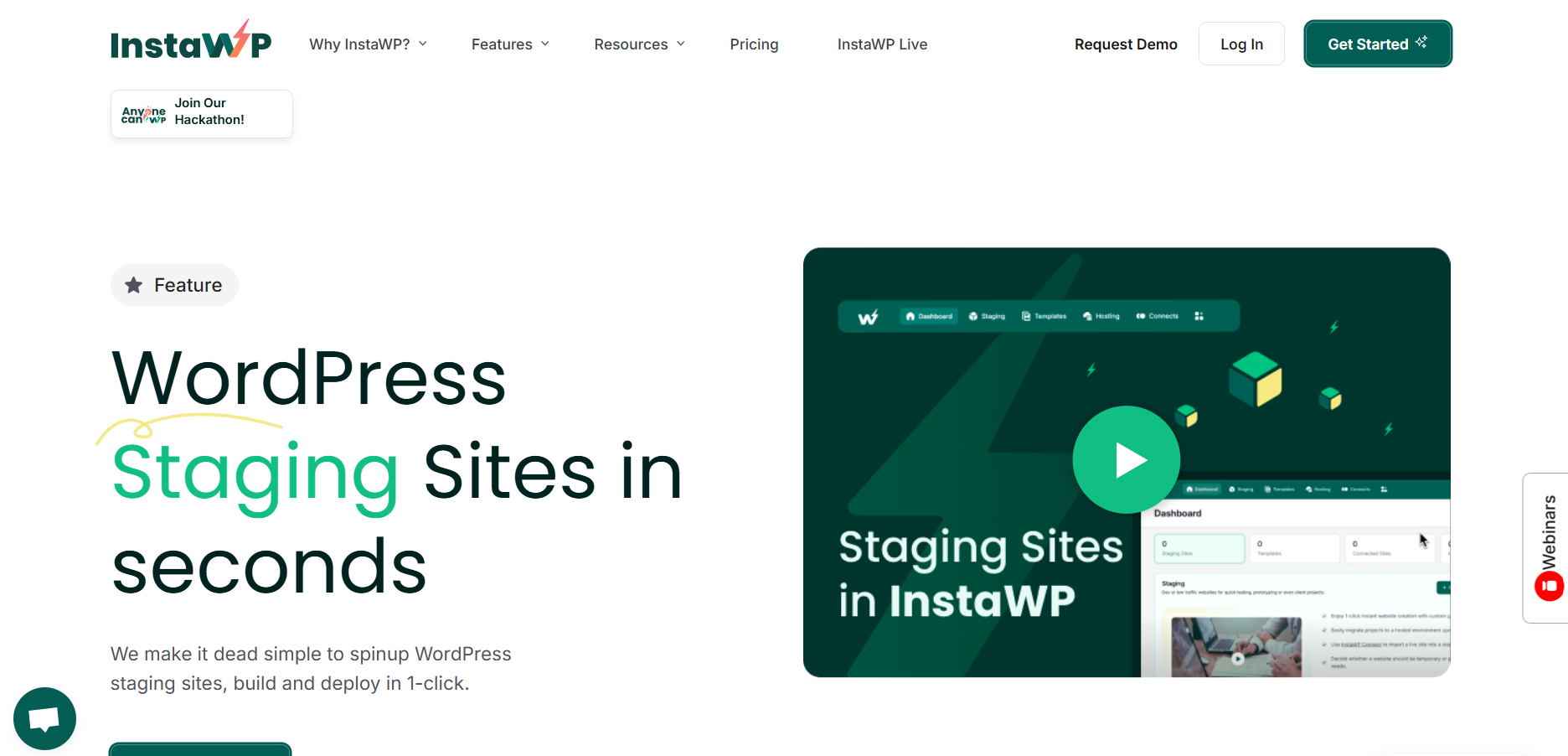
Use InstaWP’s real-time staging environment to test shortcode placement before going live.
How to Test and Optimize ChatGPT Plugin
Before fully deploying the ChatGPT plugin, it’s crucial to test its functionality.
- Testing Functionality: Ensure the chatbot works smoothly across all your site’s pages.
- User Experience Considerations: Improve response times and interaction clarity for a better user experience.
Troubleshooting Common Issues
If issues arise, the following troubleshooting tips can help.
- Resolve problems related to failed installations or plugin activation.
- Troubleshoot API key errors or connectivity issues.
- Secure FTP and SSH access via InstaWP can resolve file permission problems or plugin errors.
Conclusion
The ChatGPT WordPress plugin significantly enhances site interactivity, offering a versatile solution for engaging users. With its seamless installation, customization options, and testing features, developers can effortlessly integrate AI-driven conversations into their WordPress sites.
Don’t forget to explore InstaWP’s staging and other tools for a streamlined setup and optimized performance.