If your website is still running on Drupal, especially Drupal 7, now is the right time to make a move. Drupal 7 has officially reached its end of life. That means no more security updates, no more community support, and a growing risk of performance issues. Upgrading to Drupal 10 or 11 can be expensive, complex, and time-consuming.
That’s why more website owners and developers are choosing to migrate from Drupal to WordPress instead of rebuilding in Drupal.
In this guide, you will learn the exact steps to convert a Drupal site to WordPress using both traditional methods and a faster, modern workflow.
Table of Contents
Why Migrate from Drupal to WordPress Instead of Upgrading?
If you’re using Drupal 7, you already know it’s outdated. With official support now ended, continuing on Drupal means putting your website at risk. You might be thinking about upgrading to Drupal 10 or 11, but that path comes with higher costs, complex development work, and limited plugin support compared to WordPress.
That’s exactly why many businesses, agencies, and creators are choosing to migrate from Drupal to WordPress.
WordPress is easier to use, faster to customize, and supported by a massive global community. It also gives you access to thousands of plugins, themes, and tools designed to help your site grow. Hours of labor saved, and you get:

Here are the main benefits of switching from Drupal to WordPress:
- WordPress is easier to use. You don’t need to be a developer to manage your content.
- Faster setup and development. You can build and launch faster, especially when using InstaWP.
- Lower cost of ownership. No need for custom module development or expensive upgrades.
- Massive plugin ecosystem. Extend your site without touching code.
- Better SEO and marketing tools. WordPress integrates directly with popular tools like Rank Math, Mailchimp, and Google Analytics.
- More design freedom. WordPress supports full-site editing, block-based design, and page builders like Elementor.
Trying to upgrade from Drupal 7 to Drupal 10 can feel like rebuilding your entire website. On the other hand, migrating your Drupal site to WordPress is simpler, more affordable, and future-proof.
If you’re ready to stop maintaining outdated systems and start focusing on growth, now is the perfect time to convert your Drupal site to WordPress.
What to Do Before You Start the Drupal to WordPress Migration
Migrating your website from Drupal to WordPress isn’t something you should rush. A smooth transition starts with proper preparation. Before you begin the actual migration process, there are a few important steps to follow. These ensure you won’t lose your content, break your layout, or damage your search visibility.
Follow these steps before you migrate your Drupal site to WordPress:
1. Back Up Your Entire Drupal Website
Before making any major change, you should create a full backup of your Drupal site. That includes:
- Your Drupal database
- Your files directory, which contains images, PDFs, and other media
- Your settings.php file, located in sites/default
You can use Drupal modules like Backup and Migrate or perform a manual backup through your managed cloud hosting provider. InstaWP lets you skip the guesswork by launching a fully hosted WordPress site in seconds, not just a test sandbox, but a real, production-ready environment.
With InstaWP, you don’t have to:
- Set up a website server
- Install SSL certificates
- Integrate a CDN
- Set up site security at multiple levels
It takes care of everything. Just spin up a live WordPress site, migrate your Drupal content, test themes, install plugins, and map the domain; all from a clean, high-performance WordPress instance that’s ready to scale.
Whether you’re managing one migration or fifty, InstaWP gives you full control over the entire Drupal to WordPress migration, from planning to production, without needing to purchase extra infrastructure or wait on DevOps.
2. Prepare a List of Your Existing URLs
During the Drupal to WordPress migration, your site structure may change. To protect your SEO, note down all important URLs so you can set up 301 redirects later. This is key to ensuring you don’t lose traffic when you convert your Drupal site to WordPress.
3. Review Drupal Modules and Custom Features
Many Drupal sites rely on custom modules or unique configurations. These don’t always translate directly into WordPress. Take inventory of:
- Custom content types
- User roles and permissions
- Views, blocks, and module-based features
This helps you plan which WordPress plugins or tools you’ll need post-migration.
4. Choose Where You’ll Build Your New WordPress Site
You’ll need a clean WordPress install to move your Drupal content into. While some choose local development tools or traditional hosting setups, this often takes time and adds complexity.
When it comes to building and hosting WordPress sites, nothing can beat InstaWP. With its entire and fully integrated build → host → manage workflow, it has streamlined the entire WordPress lifecycle
From spinning up a new site to managing live production environments, InstaWP gives you everything in one place; no FTP, no manual installs, no hosting setup required.
You can launch a clean, fully hosted WordPress site in seconds; ideal for both temporary staging and permanent migrations.
Whether you’re an agency managing dozens of client sites or a solo dev making your first Drupal to WordPress switch, InstaWP eliminates the overhead. You get blazing-fast performance, instant SSL, built-in site tools (like DB editor, file manager, site tagging, performance scanner), and a scalable environment, right out of the box.
So, don’t forget to sign up with InstaWP before you plan your Drupal to WordPress migration.
How to Migrate From Drupal to WordPress
Now that you have all the basic Drupal to WordPress migration resources in place, here is how you can move ahead to convert your Drupal site to WordPress.
Step 1: Set Up Your New WordPress Site with InstaWP
Before you can migrate Drupal to WordPress content, you need a fresh WordPress installation that’s ready to receive your Drupal data. Most tutorials will tell you to install WordPress manually.
That process works, but it’s slow, and things often break along the way, especially if you’re working with live environments.
That’s why we recommend a faster, safer alternative.
If you want to migrate from Drupal to WordPress without touching code or setting up hosting right away, use InstaWP. It gives you a clean WordPress site in seconds, completely ready for import and testing.
Here’s how to do it:
1. Go to InstaWP.com and Sign Up
Head to InstaWP.com and create a free account. Once logged in, click on “Create New Site.” You have four ways to create a site on InstaWP: from scratch, using templates, from a store, and using AI.
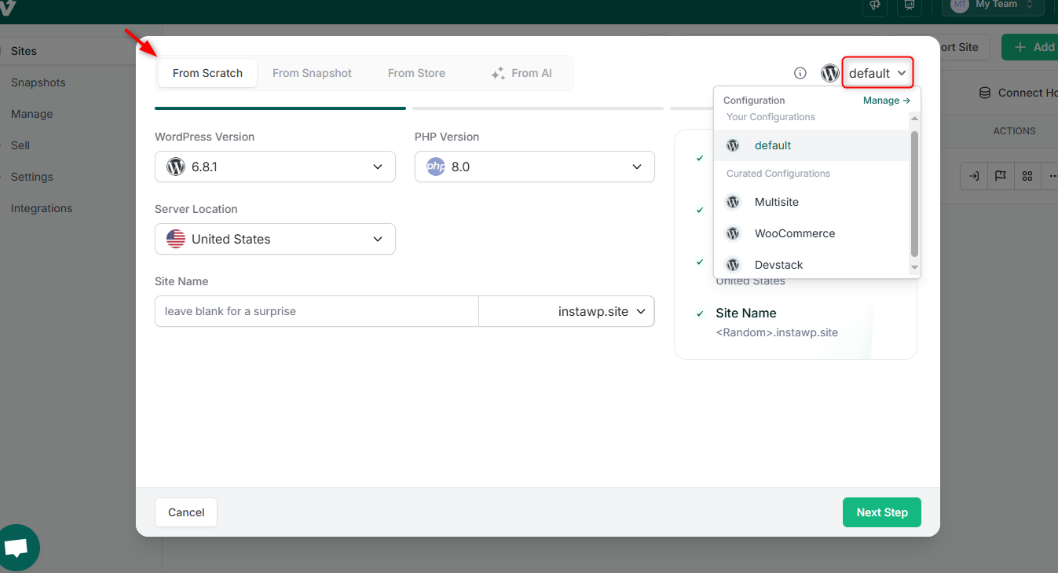
Regardless of the method you choose, you will get a fully hosted WordPress site in less than a minute.
Once you have selected the way to create a site on InstaWP, click on ‘Next Step’ and choose your preferred settings like PHP version, WordPress version, and Multisite (if needed)
2. Choose Preferred Tools
When someone is building a new site on InstaWP, they need to select some plugins that they will require for their WordPress site. You can skip this step, and you will have content exported from the Drupal site.
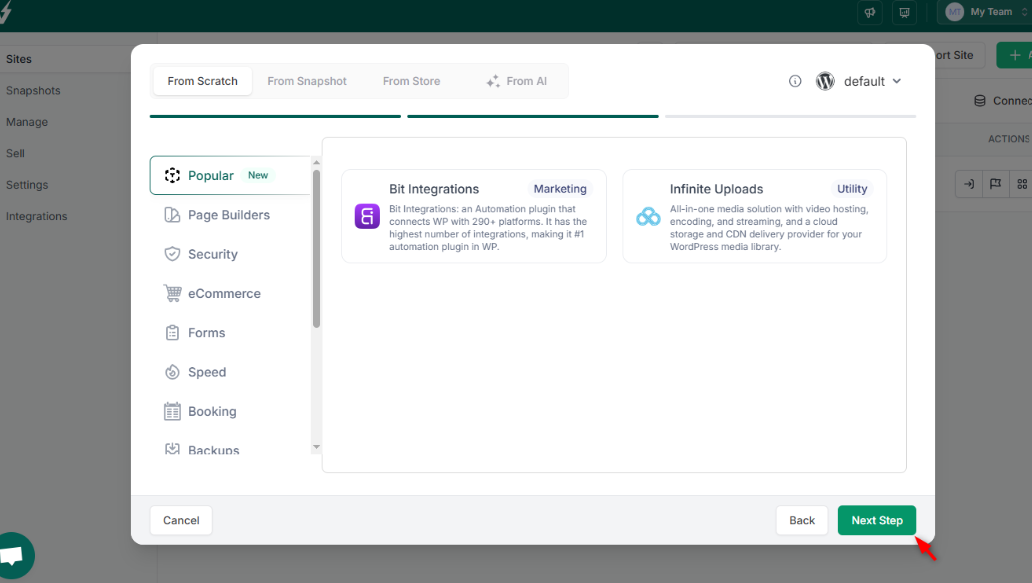
Then click “Next Step.”
3. Select the Site Plan
Once your WordPress site is live, the next step is selecting a hosting plan that fits your project’s needs. InstaWP offers flexible, pay-as-you-go site plans that charge you only for what you use, either daily or monthly. No overpaying. No unused resources. Just pure efficiency.
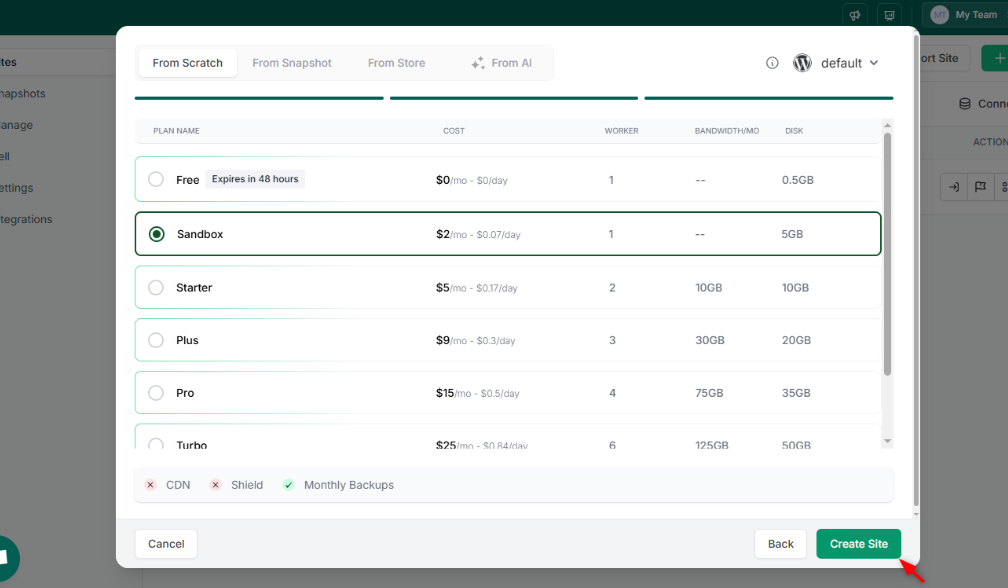
What makes this approach stand out is the freedom to upgrade or downgrade plans anytime based on your site’s real-time demands. Whether you’re launching a quick marketing site, building a full-fledged eCommerce store, or managing 50+ client websites, InstaWP lets you align each site with its own ideal plan.
For agencies and developers, this means you can assign different plans per site, scaling resource usage without lock-ins, long-term contracts, or surprise bills.
In short, you get full control over cost, performance, and scalability, all within the same unified WordPress platform.
As you select your site plan and click on ‘Create Site’, you will get a fully hosted site without any server set-up or installing WordPress manually.
Step 2: Install the FG Drupal to WordPress Plugin
If you want to import content directly from your existing Drupal site without uploading a full backup, you can use the FG Drupal to WordPress plugin. This is one of the most wisely used Drupal to WordPress migration plugins that lets you get your Drupal site’s database and key files without much hassle.
To install this plugin, you can either use the ‘Magic Login’ feature of InstaWP to go to the WP Admin of your new WordPress without using the credentials, or run the WP-CLI command to install this plugin directly from the InstaWP dashboard.
Here’s how to use it:
- Inside your WordPress site (on InstaWP), go to Plugins > Add New.
- Search for FG Drupal to WordPress and install it.
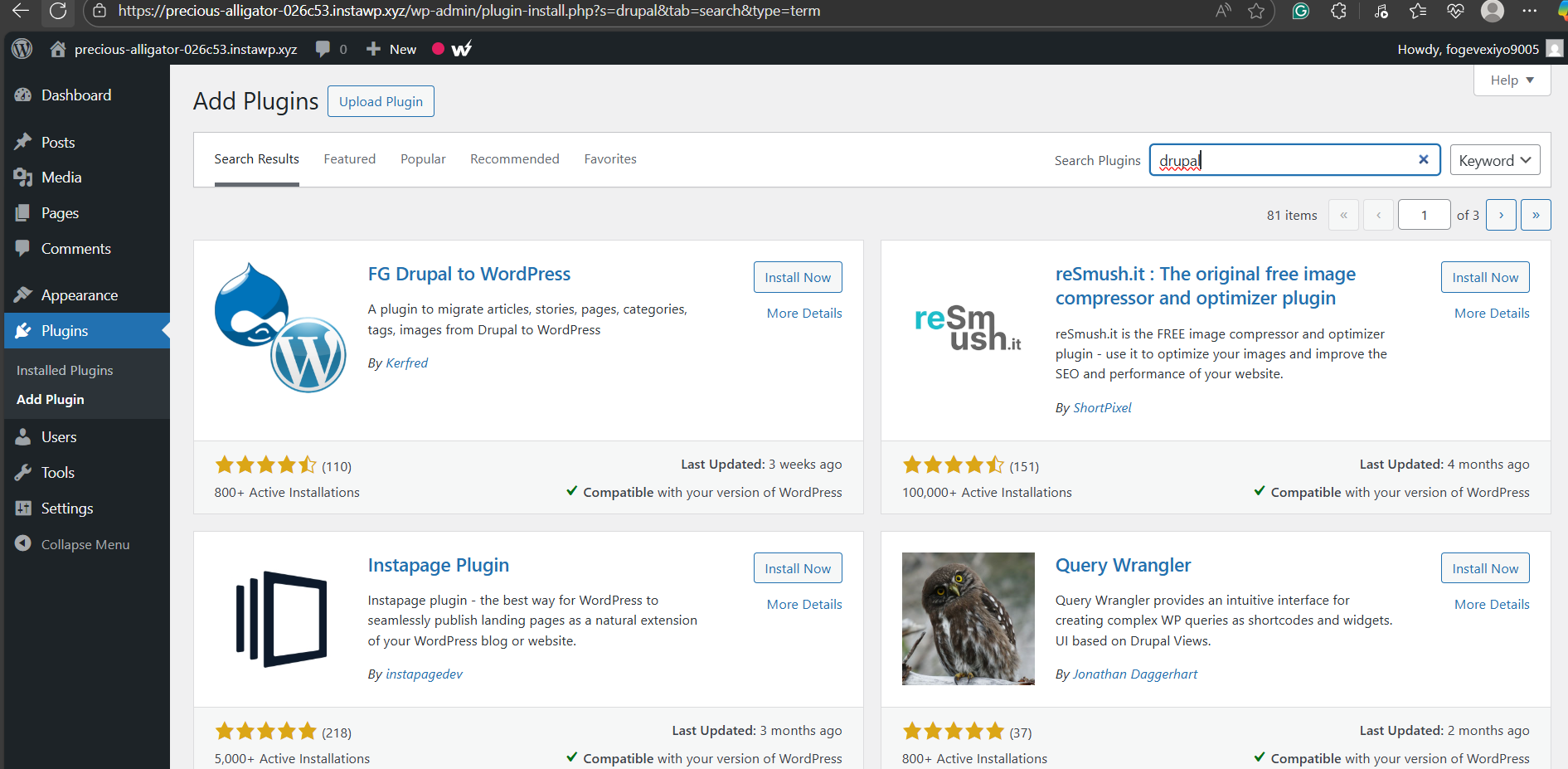
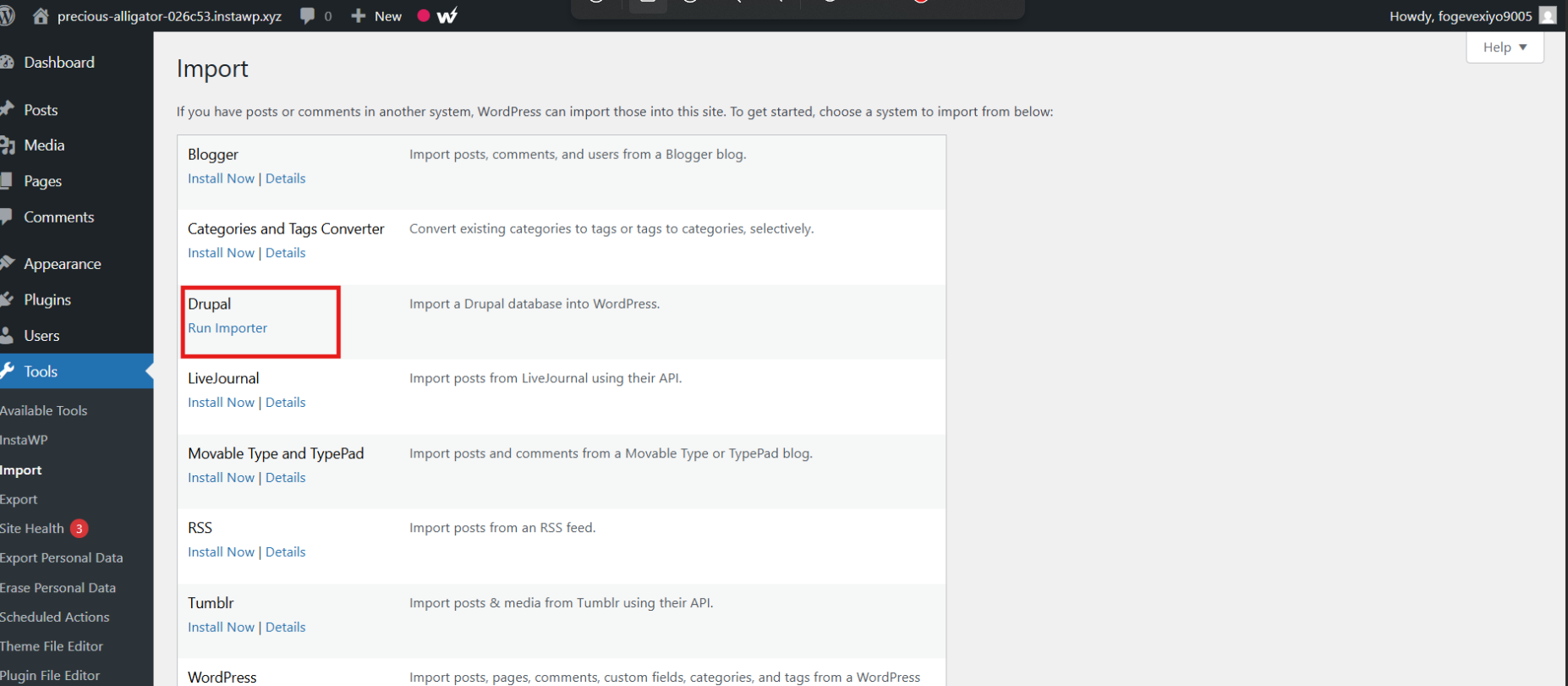
- Once activated, go to Tools > Import > Drupal and click Run Importer.
Step 3: Import Your Drupal Site Content
Under the importer, you will find different settings for Drupal to WordPress migration.
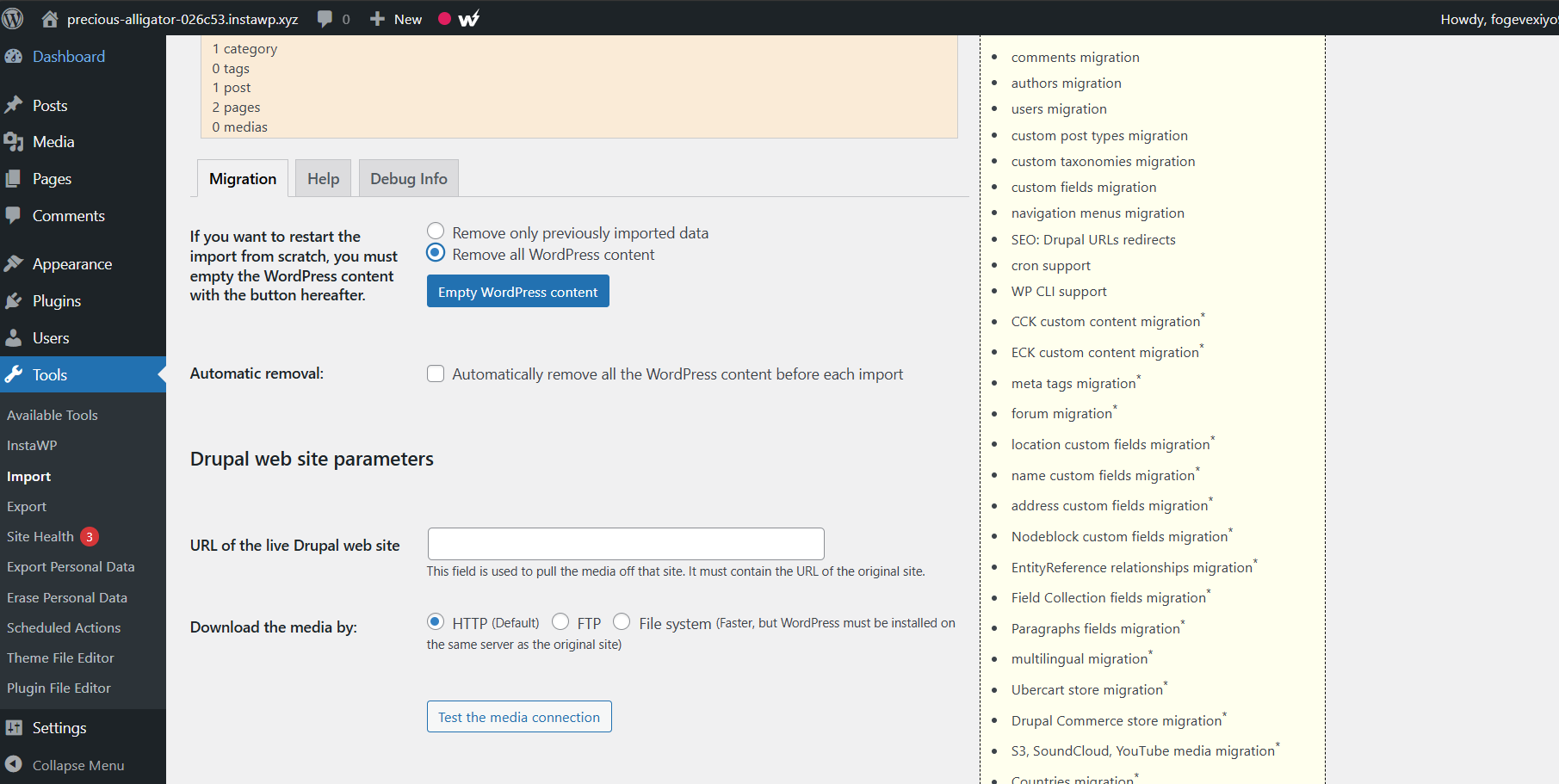
WordPress creates a dummy post for every new website. So, we recommend that you remove it by clicking on ‘Remove All WordPress Content’.
Once you have a clean slate, enter your Drupal website’s URL and choose how you’ll download the Drupal site files.
You have three options:
- HTTP
- FTP
- File System
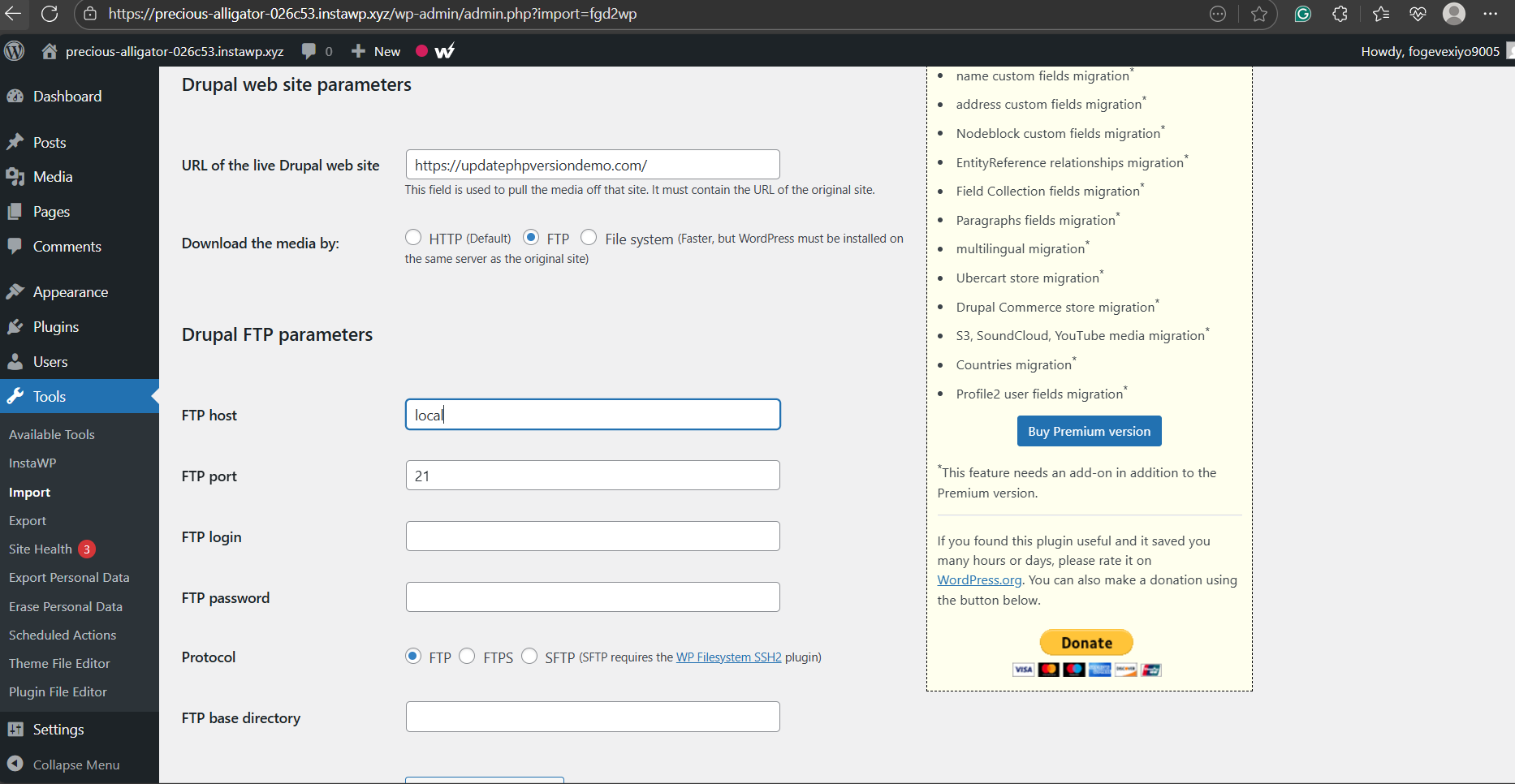
We choose FTP, and for this, we have to enter the FTP host, port, login, and password details. Once these details are entered, you need to click on the ‘Test the FTP Connection’ option.
Step 4: Import Your Drupal Site Database
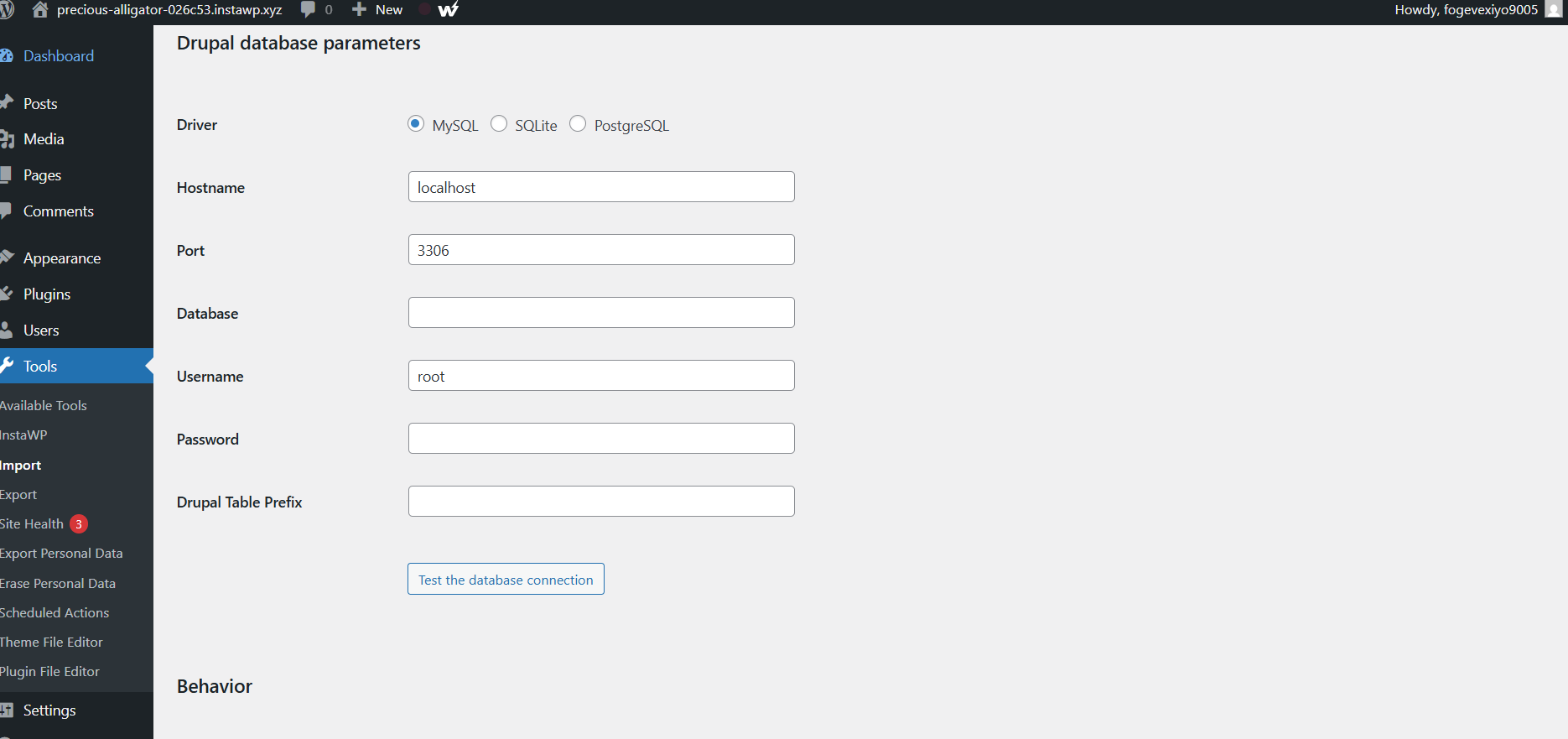
Enter your Drupal database details. You can find them in your settings.php file.
Use the cPanel File Manager to find the Drupal settings.php file. The path for this is: public_html > drupal > sites > default.
In the settings.php file, locate the database parameters such as database name, username, password, and host, and copy them.
Enter those details in your InstaWP site.
Step 5: Set up Drupal to WordPress Content Migration
Next, you have to set up the kind of content you want to migrate from Drupal to WordPress.
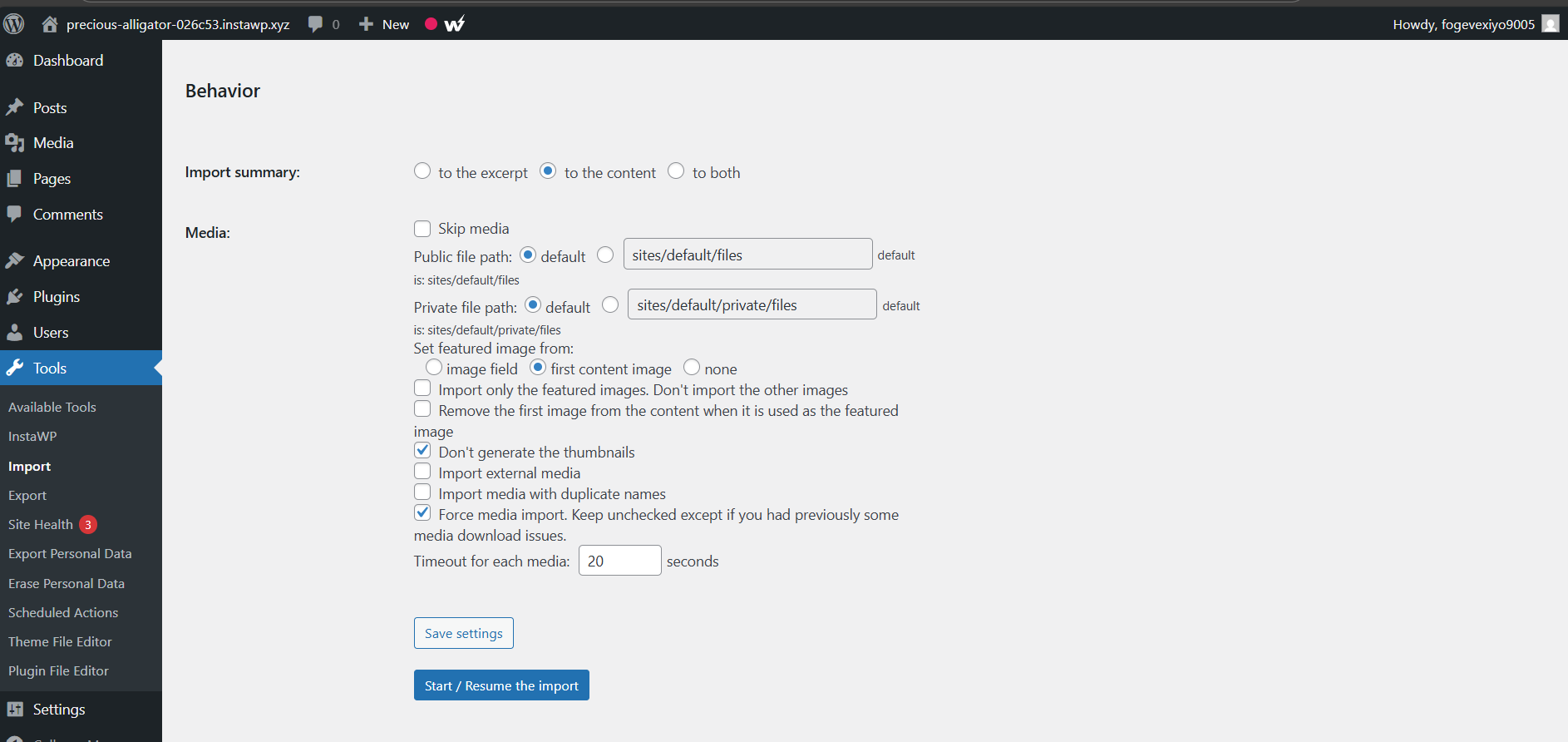
Step 6: Start the Drupal to WordPress Migration
Once you have configured Drupal to WordPress content migration settings, click Start / Resume Import to begin the migration.
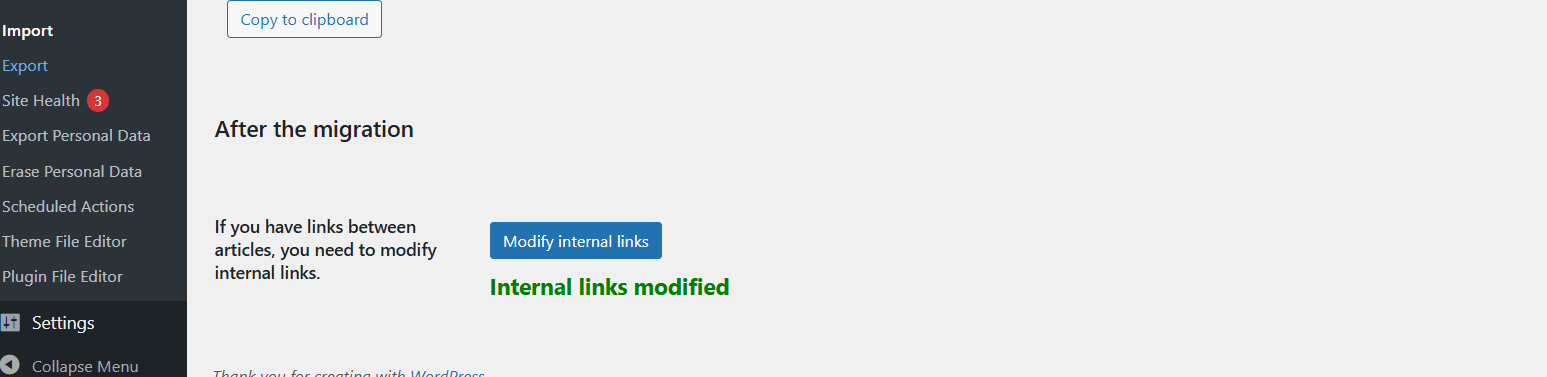
You will be able to view the migration progress. Once the migration is done, you have to go to the ‘After Migration’ step and modify the internal links.
Step 7: Map Your Domain
At present, this site is running on an instawp.xyz domain and you get a .com or .co domain, you need to map the domain of this WordPress site. Well, this is pretty easy as well.
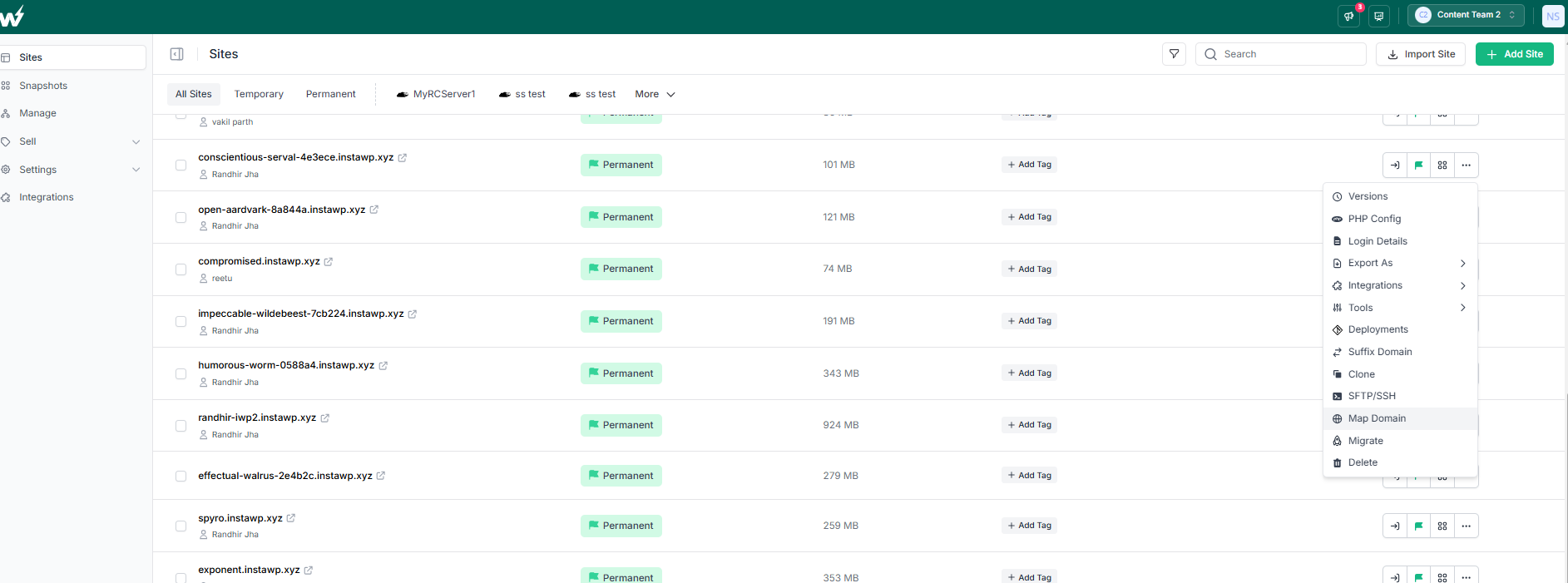
In your InstaWP dashboard and go to the site you just created for Drupal to WordPress migration and click on “Map Domain.”
Enter your custom domain (e.g., www.yoursite.com).
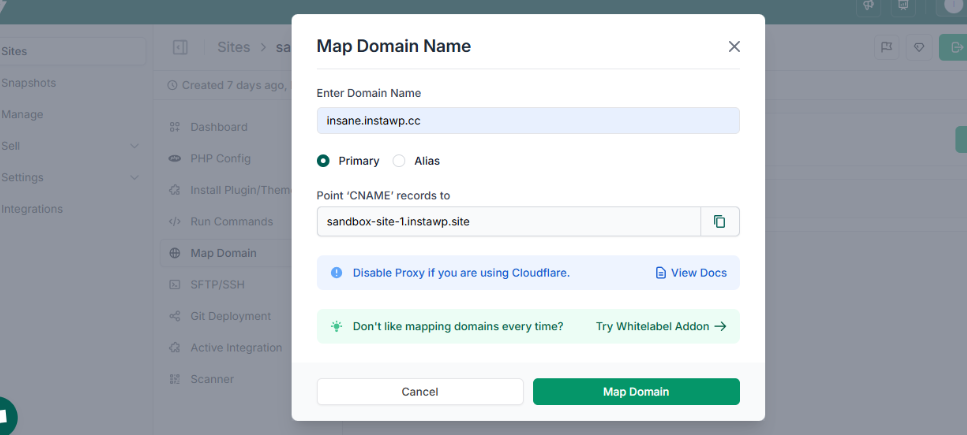
You also have to update the DNS settings at your domain registrar. This guide will help you understand the entire process of domain mapping for InstaWP sites.
In no time, your new WordPress site is live on your own domain. This completes the process of switching from Drupal to WordPress and makes your site ready for public traffic, clients, or customers.
Step 8: Customize and Rebuild Your Site After Drupal Migration
Once you’ve completed your Drupal to WordPress migration, you’ll notice something right away: your site content is intact, but the design probably doesn’t look like your original Drupal site.
That’s expected. Themes and layouts don’t carry over during the migration. This is your opportunity to redesign your site using WordPress’s modern tools and make it even better than before.
Here’s how to get started after you convert your Drupal site to WordPress:
1. Choose a WordPress Theme That Matches Your Goals
Drupal themes are not compatible with WordPress, so you’ll need to pick a new one. WordPress offers thousands of free and premium themes designed for different industries and use cases.
If you’re using InstaWP, you can preview and install themes in seconds:
- Go to Appearance > Themes
- Choose a default block theme or search for one in the WordPress repository
- Want more flexibility? Try a builder-friendly theme like Kadence, Blocksy, or Hello Elementor
This step makes switching from Drupal to WordPress feel like an upgrade, not a compromise.
2. Customize the Design with Block Editor or Page Builders
After selecting a theme, use the built-in Block Editor (Gutenberg) to design pages. It offers full-site editing features like:
- Custom headers and footers
- Reusable content blocks
- Style variations
If you prefer drag-and-drop building, install a page builder like Elementor or Spectra. These tools give you design freedom without touching code.
3. Rebuild Menus and Widget Areas
Your Drupal menus and sidebar widgets won’t automatically transfer, but you can recreate them easily in WordPress.
Go to:
- Appearance > Menus to rebuild your navigation
- Appearance > Widgets to set up sidebar or footer content
This is also a great time to clean up your structure and make your site easier to navigate.
4. Install Plugins to Replace Drupal Modules
One of the biggest Drupal to WordPress migration benefits is access to WordPress’s plugin ecosystem. You no longer need to write custom modules to add features.
Popular plugin replacements:
- Forms → WPForms or Gravity Forms
- SEO → Rank Math or Yoast SEO
- Caching → WP Rocket or LiteSpeed Cache
- Analytics → Site Kit by Google
You can install these plugins in one click inside InstaWP.
At this point, your site will start to feel like a fully functioning WordPress website, not just a Drupal import.
Step 8: Set Up Redirects and Preserve Your SEO After Migration
After you migrate your Drupal site to WordPress, one of the most important tasks is making sure your existing traffic and search rankings stay intact. Even if your content looks great on the new site, broken URLs or missing metadata can hurt your SEO performance.
This step is all about protecting what you’ve already built—and setting your new WordPress site up for long-term success.
1. Check for URL Structure Changes
Drupal lets you customize URLs, and many sites use clean paths like: yourdomain.com/blog/my-article
When you convert your Drupal site to WordPress, the default permalink structure might change to something like: yourdomain.com/?p=123
To fix this, go to:
Settings > Permalinks in your WordPress dashboard and choose Post name. This restores clean URLs that match most Drupal-style links and improves user experience.
2. Set Up 301 Redirects
If your new WordPress URLs don’t match your old Drupal ones exactly, you need to create 301 redirects. These tell search engines and browsers that your content has permanently moved to a new location.
Here’s how to do it:
- Install the Redirection plugin
- Add old Drupal URLs as the source
- Set the new WordPress URLs as the destination
- Test each redirect to make sure it works correctly
This is a key part of any Drupal to WordPress site migration. It prevents broken links and ensures you don’t lose rankings or traffic.
3. Resubmit Your Sitemap to Google
After the migration is complete:
- Generate a new sitemap using an SEO plugin like Rank Math
- Submit it in Google Search Console
- Monitor indexing status and fix any errors that show up
This helps Google re-crawl your site quickly and understand the new structure.
4. Review Metadata and SEO Settings
Your SEO titles, descriptions, and Open Graph tags may not carry over during the migration. Go through key pages and posts to:
- Re-add SEO titles and meta descriptions
- Set featured images
- Configure social sharing settings
This is especially important if you’re migrating from Drupal to WordPress on an existing, high-traffic site.
With these steps, your SEO will remain stable, and in many cases, even improve, after you switch from Drupal to WordPress.
After Migration: How to Maintain and Grow Your WordPress Site
Migrating from Drupal to WordPress is just the beginning. Now that your new site is live, it’s important to maintain its performance, security, and content quality. WordPress gives you powerful tools to grow, but only if you keep your site updated and monitored.
Here’s what to focus on next, especially if you converted your Drupal site to WordPress using InstaWP.
Don’t wait for something to go wrong. Set automatic backups right away with InstaWP. You can also download snapshots manually anytime you’re making big changes.
After completing your Drupal site migration, your new site should load faster and be more stable. But it’s smart to keep an eye on things. Use InstaWP’s Uptime Monitor and Performance Scanner to:
- Track downtime and fix issues before your visitors notice
- Get insights into site speed, TTFB, and Core Web Vitals
This helps you stay ahead of technical issues without hiring a full-time dev.
WordPress is secure, but only if you manage it well. We recommend that you keep WordPress, themes, and plugins up to date with the bulk update feature of InstaWP. Use InstaWP’s Activity Log Viewer to track changes
If you use custom modules on Drupal, make sure your plugin replacements are trustworthy and actively maintained.
Conclusion: Ready to Switch from Drupal to WordPress?
Migrating from Drupal to WordPress doesn’t have to be complex or risky. With the right tools and a solid process, you can preserve your content, improve site usability, and take full control of your digital presence.
WordPress offers the flexibility, ease of use, and scalability that Drupal often lacks, especially for non-developers or growing teams. And with InstaWP, the Drupal to WordPress migration process becomes dramatically faster.
You don’t need to set up hosting or configure WordPress manually. Everything from testing to launching your new WordPress site can happen in a few clicks.
Whether you’re planning to convert a Drupal site to WordPress, simplify your workflow, or future-proof your platform, this migration guide gives you a proven path forward.
Start small, test confidently, and go live instantly. InstaWP makes it possible.
FAQs
1. Why should I migrate from Drupal to WordPress?
Drupal is powerful but complex. WordPress is easier to manage, has a larger plugin ecosystem, and offers faster development for most use cases. If you want lower costs and more flexibility, it makes sense to migrate.
2. Can I migrate my entire Drupal site to WordPress?
Yes. You can migrate posts, pages, images, categories, tags, users, and more. Tools like the FG Drupal to WordPress plugin or InstaWP’s import feature make this possible. You may need to rebuild your theme and replace some modules with WordPress plugins.
3. Will I lose my SEO rankings if I switch from Drupal to WordPress?
Not if you do it right. Preserve your URLs or set up 301 redirects for any changes. Resubmit your sitemap and monitor traffic in Google Search Console. WordPress SEO plugins also help optimize your content post-migration.
4. What do I need before starting the migration?
You’ll need a full backup of your Drupal site, including the database and media files. It’s also a good idea to list your URLs and take note of any custom features or user roles you’ll want to replicate in WordPress.
5. How long does a typical Drupal to WordPress migration take?
It depends on the size and complexity of your site. Simple content sites can be migrated in a day. Larger sites with custom content types or modules may take several days to test and configure.
6. Do I need a developer to migrate my site?
Not necessarily. With tools like InstaWP and FG Drupal to WordPress, many site owners handle migrations themselves. For complex setups or enterprise sites, working with a developer can ensure nothing is missed.
7. Can I try the migration without affecting my live Drupal site?
Yes. InstaWP lets you spin up a temporary WordPress environment where you can test the migration first—no risk to your live site.


