If you’re planning to launch a WordPress site and want premium performance and reliability, Kinsta WordPress hosting is one of the top options available today.
In this detailed Kinsta tutorial, we’ll show you exactly how to host a website on Kinsta—from setting up a fresh WordPress install to testing it live. Whether you’re a beginner or a developer, this guide simplifies the process and includes a smarter Kinsta alternative.
Table of Contents
What is Kinsta Hosting?
Kinsta is a premium managed WordPress hosting provider that leverages the power of Google Cloud Platform to deliver high-speed performance, security, and scalability.
Instead of using cPanel, Kinsta offers its own custom dashboard called MyKinsta for site creation and management. It includes built-in CDN, automatic daily backups, malware protection, and staging environments—all optimized specifically for WordPress.
You don’t need a domain name to get started—Kinsta hosting gives you a temporary domain to test and configure your website before going live.
Check out here how an agency is able to host sites faster and better with the best Kinsta alternative.
How to Host Your Website on Kinsta
Follow these steps to create a WordPress site with Kinsta and go live within minutes.
Step 1: Choose a Kinsta WordPress Hosting Plan
The very first step to host a website on Kinsta is to choose the plans. There are 3 groups of Kinsta hosting plans with different sub-plans and price ranges. You can access all Kinsta hosting plans from the Pricing page.
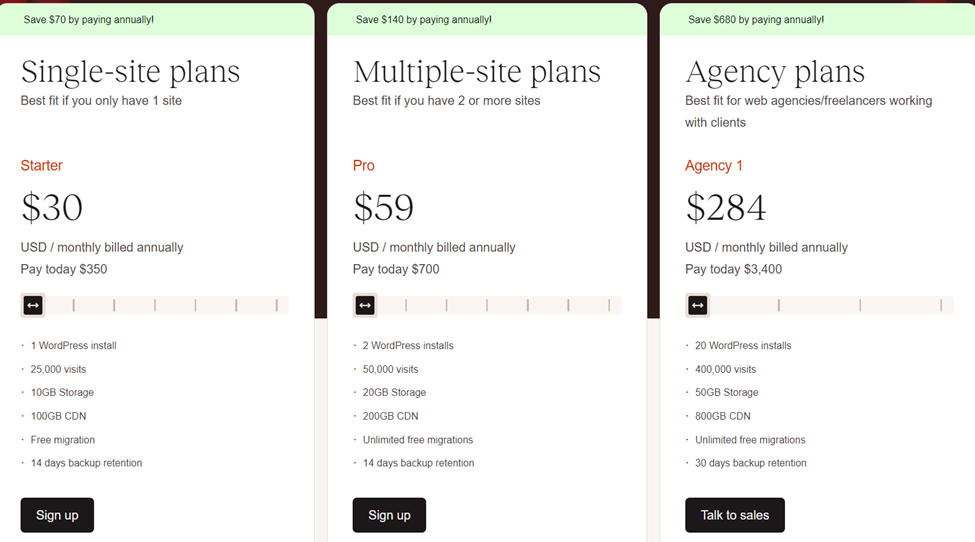
For a fresh WordPress site, you should buy the $35 ($350/year) Kinsta single-site hosting plan. You can choose to pay monthly or annually. For small agencies and freelance WordPress developers, this is a costly affair. This is why they prefer affordable managed hosting plans over Kinsta plans.
Must Read: Best Managed WordPress Hosting Plans
Once you’ve made up your mind on the type of hosting plan you need, fill out the form that follows with the appropriate information and click the Continue button.

Step 2: Create a Site on Kinsta via MyKinsta
Now that you have successfully created an account with Kinsta, it’s time to add a new site to your Kinsta account.
Log in to your Kinsta account, and from the WordPress card, select Create a Site. Alternatively, you can select WordPress sites > Add Site from the left sidebar. Then click on Create new site.
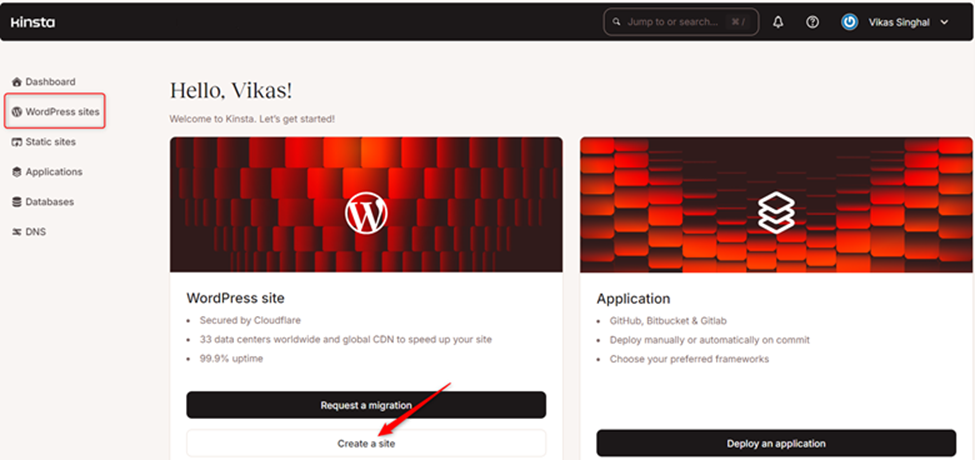
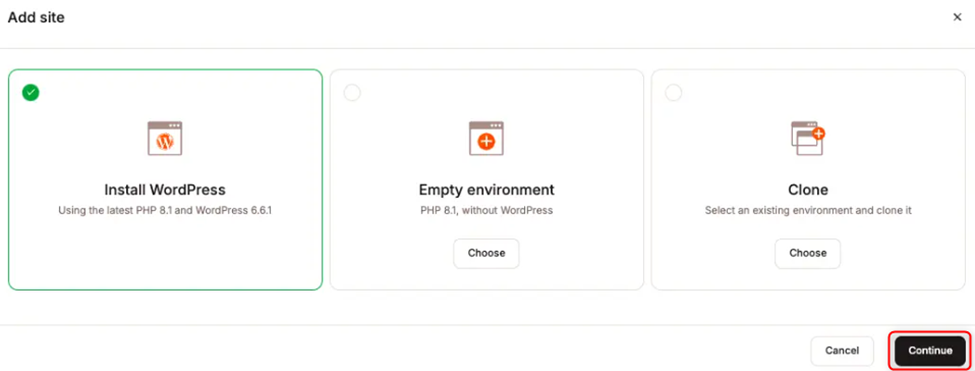
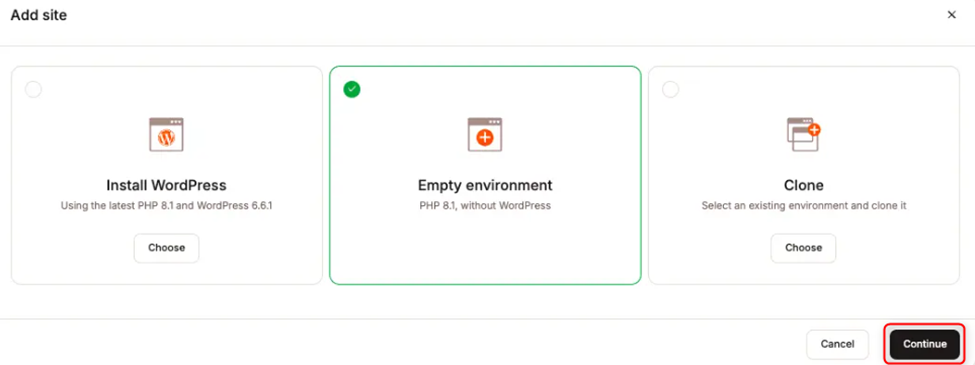
You will be provided with three choices:
- Install WordPress: This option automatically installs and sets up a WordPress site for you.
- Empty Environment: This option provides all the essential resources of a WordPress hosting server, including the server itself, but without a WordPress site’s automatic installation or setup.
- Clone an Existing Environment: This option lets you create an exact copy of an existing WordPress site, whether it’s in a live or staging environment.
We will create a fresh WordPress site for this guide, so we will choose the first option.
Step 3: Complete the WordPress Hosting Setup
After selecting the Install WordPress option, you will be taken to a page to fill out a form with all the details required to set up your WordPress site.
Some of the information you need to provide includes:
- Site Name (as to be shown in your Kinsta dashboard)
- Data center location
- Site Title
- WordPress Admin Username
- WordPress Admin password
- WordPress Admin email
- Site Language
- Optional Installs: Multi-site, WooCommerce, Yoast SEO. If you’re focused on improving your site’s SEO from the start, installing tools like Yoast can help you optimize on-page SEO, manage backlink structure, and meta tags.
When you’re done, click ADD and allow the process to complete.
Check out this Kinsta alternative that offers more easier WordPress hosting process.
Step 4: Migrating Your Site to Kinsta
There are various ways by which you can migrate your site to Kinsta. Here are a few commonly used methods:
Method 1: Migrate Using WordPress Backup & Migration Plugins
You can use backup and migration plugins for migrating a WordPress site from an old hosting provider to Kinsta. If you’re comfortable handling files, this is a quick way to perform a full site transfer into Kinsta WordPress hosting.
Backup plugins will allow you to download a copy of your site database and files. You can then upload these files to your account in the new hosting provider.
Now, here’s the migration process to Kinsta:
- Backup your site using a backup plugin and download the database and compressed site file.
- Create a new site from your Kinsta dashboard. Select the empty environment option instead, i.e., Do not install WordPress.
- Upload your site files to the new site and configure the wp-config.php file to the new hosting WordPress database name, username, and password.
Alternatively, some backup plugins like UpdraftPlus allow you to back up your site to a remote storage or cloud like Google Drive and restore the site from the backup in the remote storage, eliminating the need to save your site files and database locally.
You can take advantage of this feature by creating a fresh WordPress site in Kinsta, installing and activating UpdraftPlus on the new site, and restoring the backup from Google Drive. The backup will override the fresh WordPress site with all the data and files from the old hosting.
Method 2: Requesting Free Migration with Kinsta Support
Kinsta offers free migration assistance to its customers. From your Kinsta dashboard, go to WordPress Sites > Add Site > Request migration.
You will be able to choose one of two migration options offered by Kinsta’s team:
- Request a migration from another host
- Request a migration from a backup
Please select the option and complete the process, providing the correct details. Kinsta’s team will then handle the migration for you.
?️ If you’re unsure which method to choose, this is the safest option for hassle-free onboarding into Kinsta WordPress hosting.
Method 3: Use InstaWP’s One-Click WordPress Migration Tool
If you’re looking for the fastest, safest way to migrate, use InstaWP’s integrated WordPress migration tool—no files to download or upload. Migration with this tool is easy, free, and remote, eliminating the need to download any files.
To use InstaWP to migrate your site to Kinsta, follow the quick steps highlighted below:
Install and activate InstaWP Connect on the live site you want to migrate. Then, go to Tools > InstaWP and connect the live site to InstaWP.
Return to your live site and confirm that it has been connected to InstaWP. Then click on Create Staging Site.
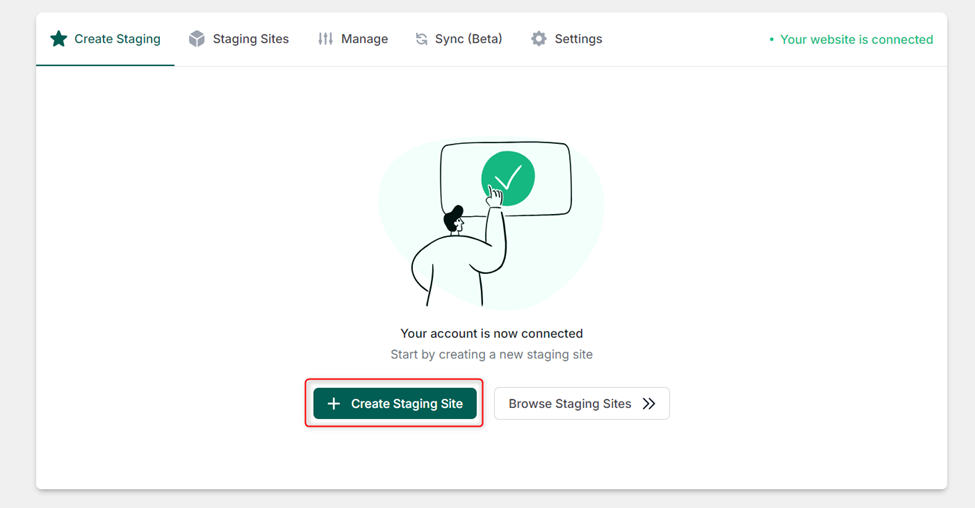
From the type of staging, select Full Staging since we are doing a full-site migration.

From the following step, you might want to select to create the staging site with only active plugins and themes. This will reduce the staging site size and speed up the staging process.
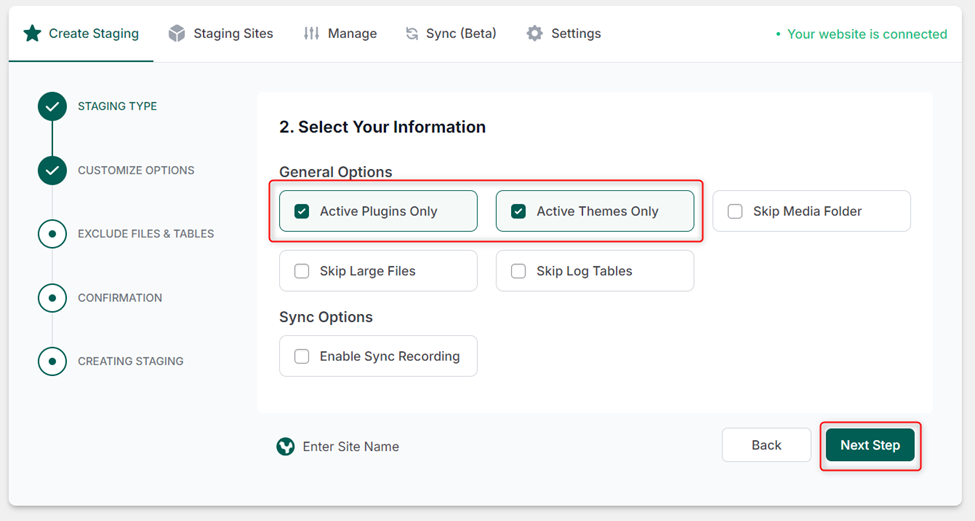
For the Exclude step, you can choose to exclude files and tables in the database that may not be important or necessary for your site. If there are none, then you can skip this step.
Finally, confirm your settings and click the Create Staging button.
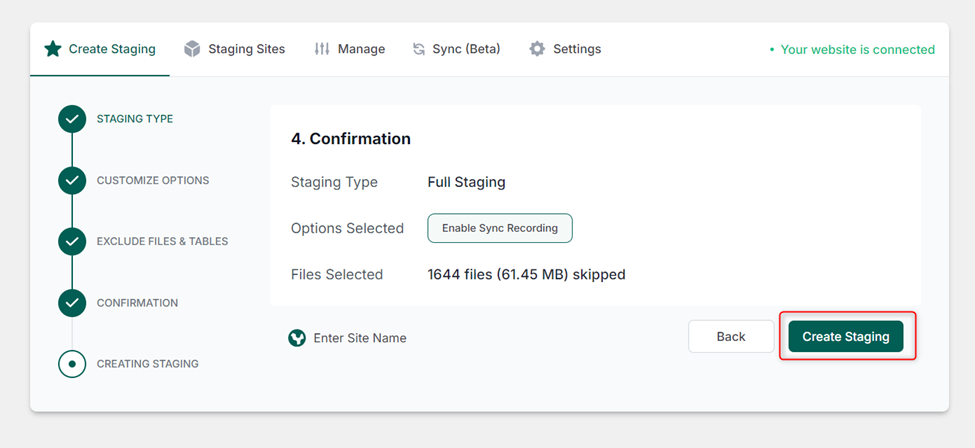
Once your staging site has been created, take the staging site for a spin to ensure everything was properly copied and that the staging site is free of errors.
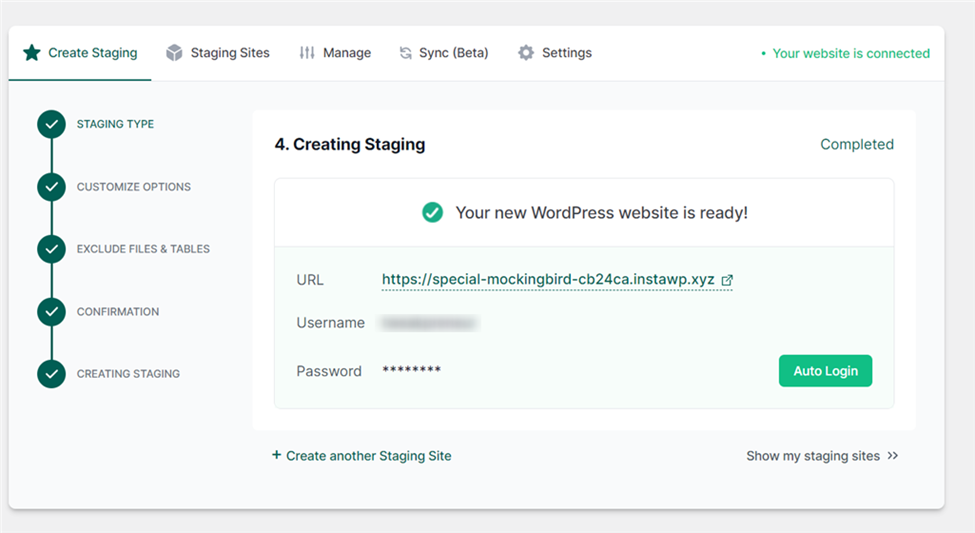
You can then proceed to migrate that staging site to a host with Kinsta. Here’s how:
Return to Kinsta and create a new site. Select the Install WordPress option. Copy the temporary URL for the newly created WordPress site.
Then, log in to your InstaWP dashboard and go to Staging.
At present, this staging site is hosted with InstaWP’s native cloud hosting. You migrate it to Kinsta. For this, just click on the three-dot menu and choose Migrate.

As up do so, you will receive this notification. Click on ‘Disconnect‘.

In the next window, select the Migrate via URL option.
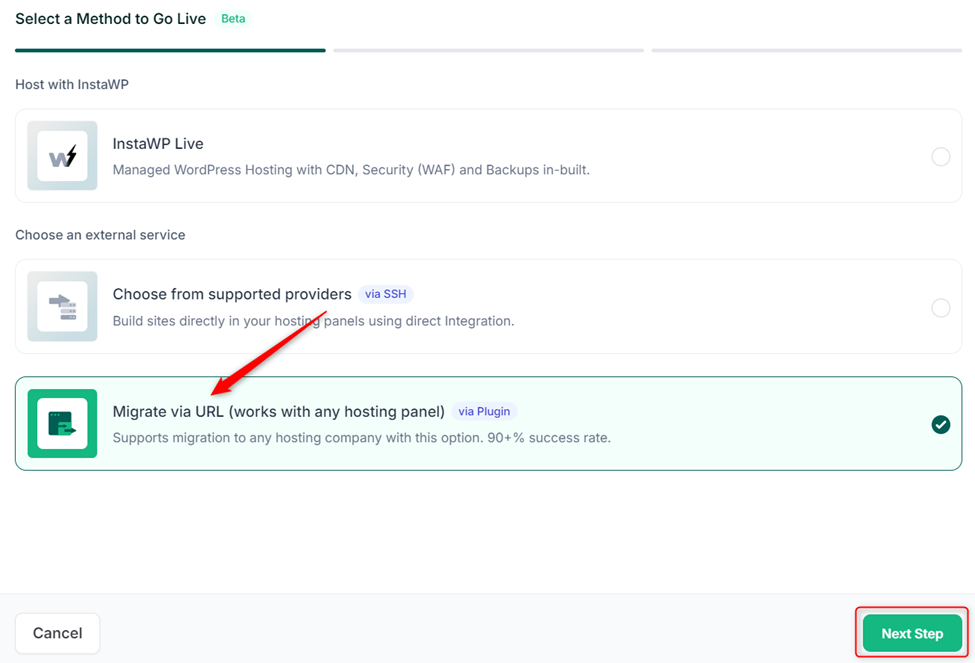
Enter the temporary URL for the new WordPress site on Kinsta and click on the Connect Website button.
You will be taken to the site and asked to authorize access to the new site.

After authorizing and connecting InstaWP, click the Begin migration button, and the staging site will be seamlessly migrated to the new WordPress site.
Post-Migration Verification and Adjustments
- Before pointing your domain name to Kinsta, visit the temporary URL for the WordPress site to ensure that the migration was done properly.
- Compare the live site on the old hosting with the temporary site on Kinsta to verify that the migration went smoothly.
- Check your thumbnails and image resolution, most recent posts and uploads, check pages, check the look and feel of your theme, etc, and make adjustments on the new site where necessary.
- When you are finished and verified, all that needs to be done is to update your domain name’s nameservers to Kinsta and link the domain to the site on Kinsta.
Challenges of Kinsta Hosting
While Kinsta WordPress hosting is fast, secure, and reliable, it does come with certain limitations, especially for agencies and developers managing multiple sites or requiring advanced flexibility. If you’re wondering how to host a website on Kinsta but aren’t sure it’s the perfect fit, these challenges are worth considering.
1. High Pricing for Beginners and Freelancers
Kinsta’s entry-level plan starts at $35/month, which may be costly for personal projects or new freelancers. Compared to other WordPress hosting solutions, this price-to-resource ratio is high, especially when you need to create multiple WordPress sites with Kinsta.
2. No Email Hosting Included
Unlike traditional web hosts, Kinsta WordPress hosting doesn’t include email services. You’ll need to configure and pay for a third-party solution like Google Workspace or Zoho Mail, an extra step and added cost.
3. Learning Curve with MyKinsta Dashboard
Kinsta’s custom control panel (MyKinsta) is clean and modern, but first-time users may find it unintuitive compared to cPanel or more visual builders. This slows down the onboarding process when you create a site on Kinsta for the first time.
4. Limited Backup Control
Kinsta does provide automatic daily backups, but the number of backups and retention period are plan-restricted. You can’t fully customize backup frequency or use third-party tools freely due to plugin restrictions.
5. No Built-in WordPress WAF
While Kinsta uses Cloudflare Enterprise for general protection, it lacks a dedicated WordPress-optimized Web Application Firewall (WAF). This means more advanced threats like SQL injection or XSS specific to WordPress may require third-party security plugins or services.
All these shortcomings of Kinsta WordPress hosting force its users to look for better Kinsta alternatives. Gladly, we have one.
InstaWP: Best Kinsta Hosting Alternative
InstaWP’s native hosting is a fully managed WordPress hosting solution built on top of the powerful InstaWP platform. While InstaWP originally became popular for spinning up instant WordPress sandboxes, InstaWP adds blazing-fast, production-ready hosting to the mix, turning the toolset into a complete end-to-end WordPress management environment.
While Kinsta is known for premium managed WordPress hosting, InstaWP goes several steps further. Built on InstaWP’s own production infrastructure, InstaWP’s managed WordPress hosting combines developer-first workflows with production-ready hosting, making it a smart Kinsta alternative for modern WordPress users.
There are many reasons why developers, agencies, and creators are moving from Kinsta WordPress hosting to InstaWP:
1. Unified Workflow: From Sandbox to Live, Instantly
With Kinsta hosting, you need multiple tools to build, test, and go live. DevKinsta, their local development environment, isn’t connected to your hosting dashboard. So, after developing locally, you still need to export, import, and manually deploy your work.
InstaWP eliminates that friction.
You can:
- Create a sandbox site instantly in the browser (no download required)
- Use 1-click staging
- Turn any sandbox into a live, production-ready site; no third-party migration plugin needed
We unify the entire workflow. You build, stage, launch, and manage your WordPress sites, all in one place.
This is a major upgrade for agencies and freelancers who work across multiple environments.
2. Local Mount: True Local Development, On Your Terms
Kinsta promotes DevKinsta as its local development tool, but it doesn’t support true push-pull sync with your hosting environment. That means your local changes still require manual upload or plugin-based deployment, which adds complexity and risk.
InstaWP offers “Local Mount”, a powerful feature that lets you mount any WordPress site as a local folder. It’s fast, secure, and lets you use your own editor, CLI tools, and stack, with full access to the site files and database.
Unlike Kinsta’s siloed workflows, InstaWP brings full local dev flexibility into a live-connected platform, with WordPress hosting priced per site and billed daily.
3. Flexible Pricing: Pay-as-You-Go vs Fixed Plans
Let’s talk cost.
Every Kinsta plan is a fixed monthly subscription. Even their smallest tier starts high, and you’re paying whether or not the site gets traffic. For developers managing multiple client sites, this adds up fast.
InstaWP is built differently.
We offer pay-as-you-go hosting plans, starting at just $2 per site/month. That means:
- You only pay for what you use
- You can scale up or down based on each client’s needs
- You don’t have to commit to high, fixed plans just to test or demo a site
This flexibility is why more agencies are switching from Kinsta to InstaWP, especially if they handle a mix of static sites, blogs, WooCommerce stores, or internal projects.
4. Built-In Edge Security: Shield vs No Shield
Security is a non-negotiable in 2026; yet many still rely on plugins or third-party firewalls.
Kinsta hosting includes basic server-side protection, but doesn’t offer integrated edge-level security by default. You’re expected to configure Cloudflare Enterprise or rely on external security plugins.
InstaWP includes Shield, our always-on edge security layer, for all Plus plans and above. It’s powered by Bunny Shield and includes:
- Layer-7 DDoS protection
- Managed Web Application Firewall (WAF)
- Bot detection via behavior fingerprinting
- Zero-CAPTCHA experience for users
This means your WordPress site is protected before threats even reach your server, with no setup or extra cost.
If you’re wondering how to secure your WordPress site or prevent attacks without plugins, Shield is your answer, and it’s something you won’t get by default when you host a site with Kinsta.
5. Better for Testing, Demos, and WordPress-as-a-Service
InstaWP was built for experimentation and client work.
Unlike Kinsta hosting, we support:
- Temporary demo sites with expiry timers (perfect for pre-sales or training)
- Template creation from snapshots (great for repeat builds or white-label work)
- Instant provisioning from URLs; ideal for internal teams and agency workflows
Kinsta doesn’t offer this. If you need to spin up dozens of test or client preview sites, you’ll need custom code or expensive workarounds.
With InstaWP, you get it out of the box.
Kinsta is a solid host, but it wasn’t built for modern developer workflows. If you’re tired of fixed plans, disconnected tools, and limited automation, InstaWP gives you more power and less overhead.
You don’t need to choose between local dev and fast hosting. You don’t need to install plugins for security. And you don’t need to stretch your budget just to keep projects moving.
InstaWP is the Kinsta alternative that’s purpose-built for WordPress developers and agencies.
✅ Try it for free
✅ Host sites from just $2/month
✅ Secure every site with Shield
✅ Build, launch, and manage from one unified cloud
Kinsta Vs. InstaWP’s Managed WordPress Hosting
InstaWP is a managed WordPress hosting solution. It’s one of the best, fastest, and most reliable, and it’s also a perfect Kinsta hosting alternative.
Here’s a summarized comparison between Kinsta VS InstaWP, managed WordPress hosting:
1. Speed and Performance
Kinsta: Kinsta’s speed and performance are excellent due to the use of Google’s cloud premium tier infrastructure, CDN, and edge caching.
InstaWP: InstaWP also offers very impressive speed and performance, with InstaCDN edge caching across 120+ global PoPs.
2. Security
Kinsta: Kinsta security comprises Cloudflare integrations such as Enterprise-level firewall, DDoS protection, coupled with SSL and HTTP/3 isolated container technology. But as already pointed out, Kinsta lacks WordPress WAF.
InstaWP: InstaWP security Shield comprises DDoS Protection, Web Application Firewall (WAF), SFTP/SSH access control, SSL, and Bot Protection.
3. Support and Customer Rating
Kinsta: Kinsta provides 24/7/365 support via live chat. They have a 4.6/5 star rating on Trustpilot.
InstaWP: InstaWP also provides 24/7 priority support for hosting via live chat. However, InstaWP has a 4.7/5 star rating on Trustpilot.
4. WordPress Site Development Environment
Kinsta: Kinsta provides a free development tool called DevKinsta for local site development. DevKinsta allows you to build a WordPress site from the ground up for free on your local device and then push it to live with your preferred Kinsta hosting plan.
InstaWP: InstaWP provides a free remote WordPress staging or sandbox environment that allows you to create a WordPress site within seconds and build it from the ground up. After development, you can easily push the site to live with any InstaWP-managed WordPress hosting plan.
5. Site Migration
Kinsta: Migrating a site from another host to Kinsta is quite complex. You have to use a third-party WordPress migration plugin, as Kinsta doesn’t have its own WordPress migration tool.
InstaWP: Migrating a site from another host to InstaWP is very basic. You connect the site to InstaWP and create a staging account using the InstaWP Connect plugin.
Both Kinsta and InstaWP provide free migration support.
5. Pricing and Resources
Kinsta: Kinsta plans are quite expensive, starting at $35/month ($350 yearly) for 10GB storage space and 25,000 visits.
InstaWP: InstaWP offers affordable and considerate WordPress hosting plans, starting at just $2/month. The best part? You can upgrade or downgrade anytime with no extra fuss and hassle.
Key Takeaways
- If you want high-speed WordPress hosting with hands-off management, Kinsta is a strong choice.
- If you’re an agency, freelancer, or WordPress product company needing fast prototyping, multi-site control, and smart automation, InstaWP delivers far more at a lower cost.
And while Kinsta focuses solely on hosting, InstaWP brings together hosting, staging, development, testing, and deployment—all in one streamlined workflow.
Added Benefits of Hosting with InstaWP
InstaWP is not just a managed WordPress hosting provider. InstaWP is a tool for instant WordPress site creation, staging site creation for testing changes and troubleshooting errors, WordPress site migration, WordPress product testing and demos, multiple site management, and a collaboration hub for team members.
InstaWP also offers WaaS (Website-as-a-Service), which allows developers and agencies to sell WordPress sites with hosting as a service to their customers in return for recurring payments.
These features are included in the InstaWP platform and give you more control and extended capabilities than any other hosting provider can offer.
Leveraging InstaWP for Pre-Migration Staging
As already demonstrated, you can use InstaWP to create a staging site before migration. This staging site can serve as a transition medium or a backup before migrating your site from one hosting to another.
Using InstaWP for Testing and Optimization Post-Migration
After migration, you may have to test and optimize your site on the new hosting server. To mitigate risks, you can easily create a staging site post-migration. There, you can carry out performance checks and optimization, SEO checks, and make updates, theme changes, or plugin installations.
Final Thoughts: Should You Host on Kinsta or InstaWP?
If your only goal is to host a website on Kinsta, you’ll get solid performance, reliability, and support. But if you’re a modern WordPress professional, developer, agency, or product builder, InstaWP gives you more power, flexibility, and speed.
From instant site creation to advanced staging and live deployment tools, InstaWP isn’t just a WordPress hosting platform—it’s your entire workflow.
? Ready to launch better WordPress sites, faster?
? Try InstaWP and host your next project with confidence—at half the cost and double the agility.
FAQs
u003cstrongu003e1. What are the steps to host my WordPress site on Kinsta?u003c/strongu003e
Start by creating a Kinsta account, then proceed to add a site, select a plan, choose to install WordPress, and supply the WordPress site details.u003cbru003eu003cbru003eu003cstrongu003e2. Can I migrate my website to Kinsta easily?u003c/strongu003eu003cbru003eu003cbru003eYes. You can use free WordPress migration plugins like Duplicator, Migrate Guru, UpdraftPlus, etc. You can also use staging platforms like InstaWP or contact Kinsta for their free migration service.u003cbru003eu003cbru003eu003cstrongu003e3. What features make InstaWP different from other hosting providers?u003c/strongu003eu003cbru003eu003cbru003eInstaWP has its own WordPress plugin to connect sites for seamless WordPress staging and site migration. InstaWP provides a free remote site development sandbox, can serve as a centralized site management platform, and supports the WaaS business model.u003cbru003eu003cbru003eu003cstrongu003e4. Does Kinsta provide one-click staging for testing changes and troubleshooting errors?u003c/strongu003eu003cbru003eu003cbru003eYes. Kinsta allows you to create a staging site to test changes and updates and to troubleshoot and resolve errors.u003cbru003eu003cbru003eu003cbru003eu003cstrongu003e5. Can I integrate Kinsta with tools like InstaWP to simplify my workflow?u003c/strongu003eu003cbru003eYes. InstaWP is a very versatile tool. You can use it to facilitate and hasten the migration process to and from Kinsta by creating migration-ready temporary staging sites.