Google ignores the meta keywords tag: its Search Central documentation says the tag “is not used by Google Search, and it has no effect on indexing and ranking at all.” To add keywords in WordPress that actually count, put your focus keyword in the post title, H1, URL slug, first 100 words, image alt text and meta description.
None of that needs an SEO plugin. In a default WordPress install, one field, the post title, fills three of those six spots at once. This guide shows where to edit each one, two tested ways to add the meta keywords tag if a client or an internal tool still asks for it, and how to try every change on a staging copy first. On InstaWP’s managed WordPress hosting, built-in staging comes with the Pro plan and up, and the free InstaWP Connect plugin creates a staging copy of a site hosted anywhere else.
This guide is built for WordPress developers, agencies, and advanced site owners who want cleaner control without adding another SEO plugin to every site.
Table of Contents
- Google does not read meta keywords. Its own documentation says the tag has “no effect on indexing and ranking at all”, and none of the 13 ranking guides InstaWP checked on 12 October 2026 print the tag on their own pages.
- Start with the post title. In a default WordPress install it becomes the title tag, the H1 and the URL slug, so one keyword decision covers three placements.
- WordPress prints no meta description by itself. Write an excerpt and add the short snippet in this guide, or Google picks the snippet text from the page.
- Block themes have no header.php. Twenty Twenty-Five, the default theme, ships without one, so use the custom-field method in a child theme or a small plugin instead of editing the header.
- Test PHP on a staging copy first. One typo in functions.php can stop the whole site from loading, which is why every snippet here was tested before publishing.
Does Google Use the Meta Keywords Tag?
No. Google has not used the meta keywords tag for ranking since at least 2009, and its current documentation still says so. Adding the tag will not move a WordPress page up in Google, and leaving it out costs you nothing.
Google’s list of the meta tags it supports (last updated 10 December 2025) says: “The meta-keyword tag is not used by Google Search, and it has no effect on indexing and ranking at all.” Matt Cutts first announced the change on the Google Search Central blog on 21 September 2009.
The guides that teach this topic follow the same rule in practice. On 12 October 2026, InstaWP fetched the pages ranking in Google’s top 10, or cited in the AI Overview, for “meta keywords wordpress” and “how to add keywords in wordpress”. Of the 13 pages that could be fetched (the WordPress.org Codex page blocked the request), none prints a meta keywords tag in its own page head, including the ones that explain how to add one. Only two of them link to Google’s statement. Getting cited in that AI Overview is its own job, covered in how to rank in ChatGPT and AI Overviews.
So the tag still has a few narrow uses (an internal site search that indexes it, a client contract that lists it, or a legacy tool that reads it), which the meta keywords section below covers. For Google rankings, the visible placements in the next section matter far more, along with the rest of the WordPress SEO basics.
Where Should You Put Your Focus Keyword in WordPress?
Put your focus keyword in six places Google reads: the title tag, the H1, the URL slug, the first 100 words, image alt text and the meta description. Without an SEO plugin, WordPress fills the first three from the post title, so you edit fewer fields than the list suggests.
InstaWP checked these defaults on a clean WordPress 7.1.3 site running Twenty Twenty-Five on 12 October 2026: the post title “Keyword test” produced the title tag “Keyword test – My WordPress Website”, the H1 “Keyword test” and the slug keyword-test, and the page head contained no meta description and no meta keywords tag.
To print a meta description from the excerpt without a plugin, add this to your child theme‘s functions.php or to a small custom plugin. It only prints when a post or page has a hand-written excerpt, so it never invents a description. The same approach works for other head tags, such as a canonical tag in the WordPress header.
add_action( 'wp_head', function () {
    if ( ! is_singular() ) {
        return;
    }

    // Meta description from the excerpt. Google may use it as the snippet.
    $post_id = get_queried_object_id();

    if ( has_excerpt( $post_id ) ) {
        $description = wp_strip_all_tags( get_the_excerpt( $post_id ) );
        echo '<meta name="description" content="' . esc_attr( $description ) . '">' . "\n";
    }
}, 1 );Why Add Keywords Without SEO Plugins?
SEO plugins are useful, but not every WordPress project needs one. Some agencies prefer lean builds, custom themes, headless WordPress setups, WaaS templates, or client sites where plugin use is restricted. In those cases, knowing how to add keyword-related data manually gives you more control.

Plugin-free keyword work is also useful when you want to avoid plugin bloat, reduce conflicts, standardize a custom theme, or create repeatable templates for multiple client sites. But this should be done carefully. Editing theme files or adding PHP directly to a production site can break things if the code is wrong.
Before making changes, test the workflow in a staging environment. With WordPress staging in InstaWP, you can test keyword-related changes, theme edits, and page updates before touching the live site.
Which Method Should You Use?
Use the method based on what you are trying to control. If you need different meta keywords for each post or page, use custom fields. If you need one static keyword tag for a small landing site, edit the theme header. If your goal is SEO impact, focus on visible on-page keyword placement.
The Key Step to Take Before Adding Keywords to WordPress Without a Plugin
Plugin-free SEO changes can involve theme files, custom fields, PHP snippets, headings, screenshots, internal links, and metadata. If the page already gets traffic, avoid making risky changes directly on the live site.
Hence, before you add keywords in WordPress without a plugin, create a staging version of your live site. This gives you a safe place to test code snippets, custom fields, header changes, URL updates, and on-page keyword edits without affecting the production site.
If your site is on managed WordPress hosting, your hosting provider may already include built-in staging. In that case, create a staging copy from your hosting dashboard, make the keyword changes there, test everything, and then push the approved changes live.
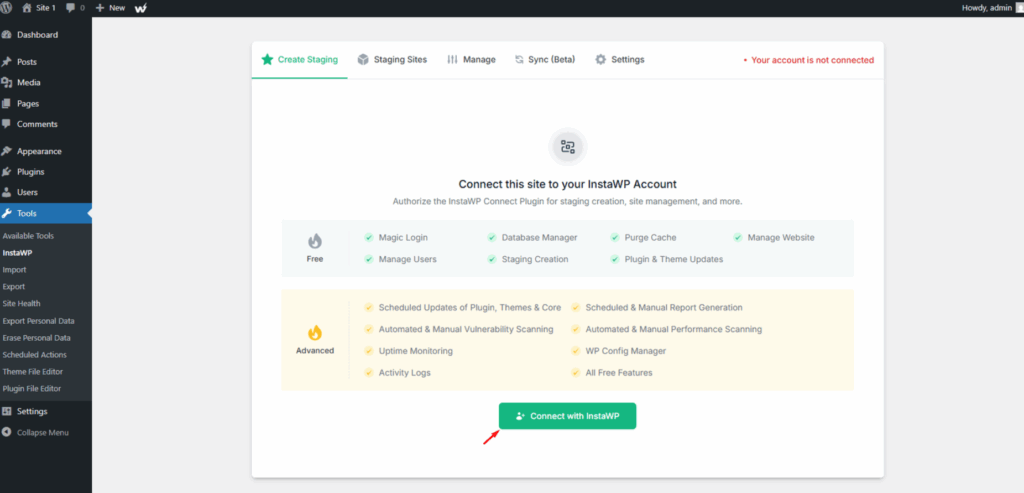
If you are self-hosting WordPress or using shared hosting without staging, the easiest way to create a staging site is to install the InstaWP Connect plugin on your live site. Once connected, you can create a staging copy of the site in InstaWP and safely test all keyword-related changes before applying them to production.
Watch the video tutorial to learn how to create a staging site using InstaWP.
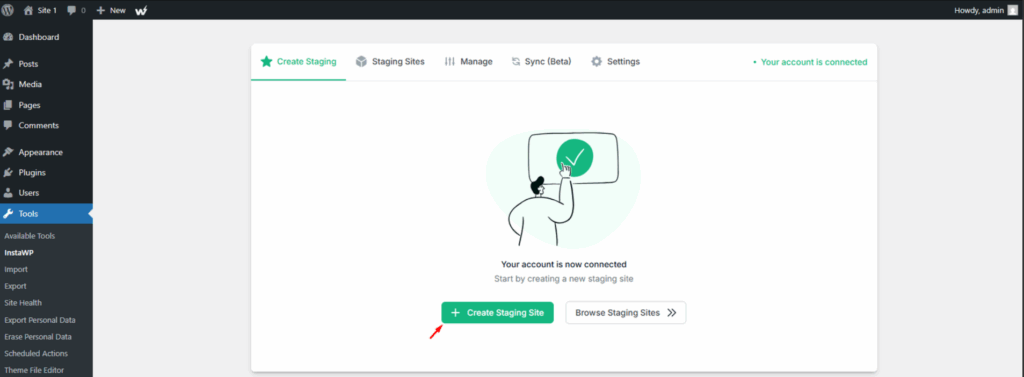
The process is easy. Install the InstaWP Connect plugin on your live WordPress site like any general plugin. Connect the site to your InstaWP account.
Create a staging site from the connected live site.
This step is especially important for agencies managing client sites. You can standardize the plugin-free SEO workflow once, test it safely in InstaWP, and reuse the same process across custom themes, landing pages, WooCommerce sites, and WaaS templates.
Method 1: Add Keywords With Custom Fields and PHP
The custom fields method is the most flexible way to add meta keywords in WordPress without a plugin. It lets you store unique keyword values for each post or page, then output those values inside the page head using PHP.
This method is best for custom themes, agency templates, and client sites where you want per-page control without installing a full WordPress SEO plugin. Use a child theme or custom functionality plugin for the PHP. Do not edit a parent theme directly because updates can overwrite your changes.
Step 1: Enable Custom Fields in WordPress
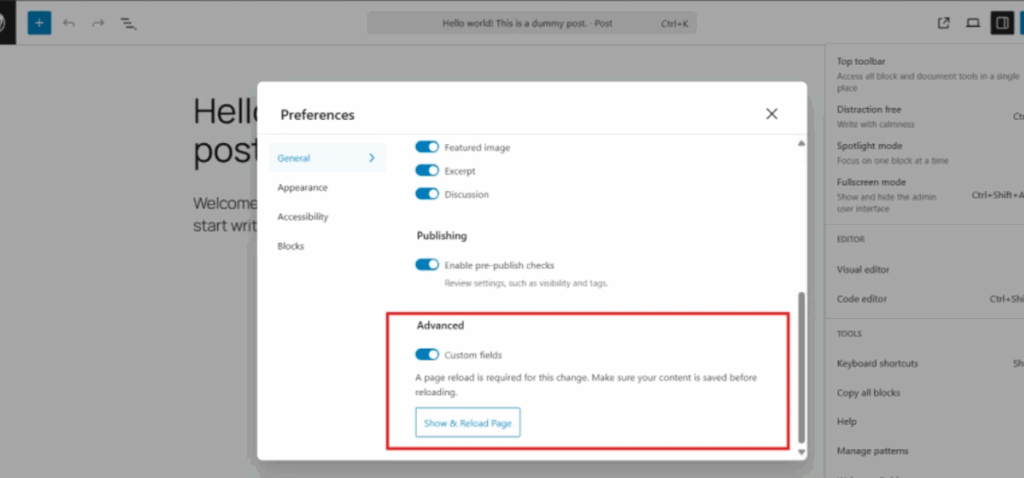
Open the post or page you want to optimize. In the block editor, open the three-dot menu, go to Preferences, then Panels, and enable Custom Fields. WordPress may ask you to reload the editor.
Step 2: Add a Keywords Custom Field
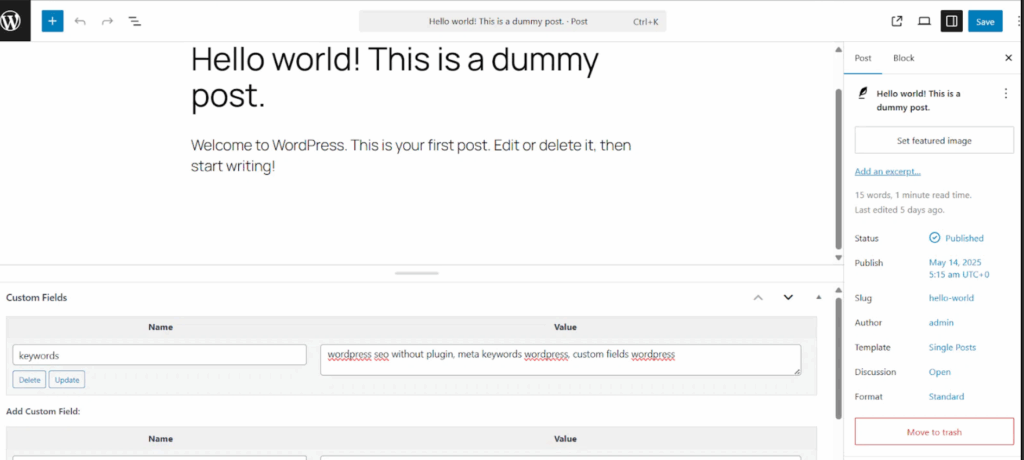
Scroll to the Custom Fields section. Add a new custom field with the name keywords. In the value field, add comma-separated phrases that describe the page topic.
Example value: how to add keywords in WordPress without plugins, WordPress meta keywords, add SEO keywords in WordPress
Step 3: Output the Custom Field in the Page Head
Add this code to your child theme’s functions.php file, or to a small custom functionality plugin. This outputs a meta keywords tag only when the current post or page has a keywords custom field.
add_action( 'wp_head', function () {
    if ( ! is_singular() ) {
        return;
    }

    // Meta keywords from a "keywords" custom field. Google ignores this tag.
    $keywords = get_post_meta( get_queried_object_id(), 'keywords', true );

    if ( ! empty( $keywords ) ) {
        echo '<meta name="keywords" content="' . esc_attr( $keywords ) . '">' . "\n";
    }
}, 1 );After saving, open the page on the front end and view the page source. Search for meta name="keywords" to confirm that the field is being printed correctly.
InstaWP tested this snippet on WordPress 7.1.3 with Twenty Twenty-Five on 12 October 2026. It printed the tag on posts and pages that had a keywords field, escaped quotes and ampersands correctly, and printed nothing on posts without the field. The 1 at the end runs it early, so the tag lands near the top of the head.
This method gives you dynamic control, but remember the SEO limitation: adding meta keywords is not enough to rank. Use this method when the project needs custom metadata control, not as a replacement for proper content optimization.
Method 2: Add Static Meta Keywords in header.php
The second method is to add a static meta keywords tag directly inside your theme’s header.php file. This is simpler than custom fields, but it applies the same keywords across the site or across every page using that header template.
This method works only for narrow use cases such as single-page sites, microsites, static landing pages, or controlled WaaS templates where the same keyword theme applies across every page. It is not ideal for blogs, stores, documentation sites, or client sites with many different topics.
Use a child theme before editing header.php. If you edit the parent theme file directly, your changes may disappear during a theme update.
header.php at all: on the WordPress 7.1.3 test site the file did not exist in the theme folder. Block themes build the page head through the wp_head hook, so use the Method 1 snippet in a child theme or a small plugin instead. On block themes, the Theme File Editor also sits under Tools rather than Appearance.Step 1: Open the Theme Header File
Go to Appearance → Theme File Editor and open header.php. Find the <head> section of the file.
Step 2: Add the Meta Keywords Tag
Add your static meta keywords tag inside the <head> section.
<meta name="keywords" content="how to add keywords in WordPress without plugins, WordPress SEO without plugin, meta keywords WordPress">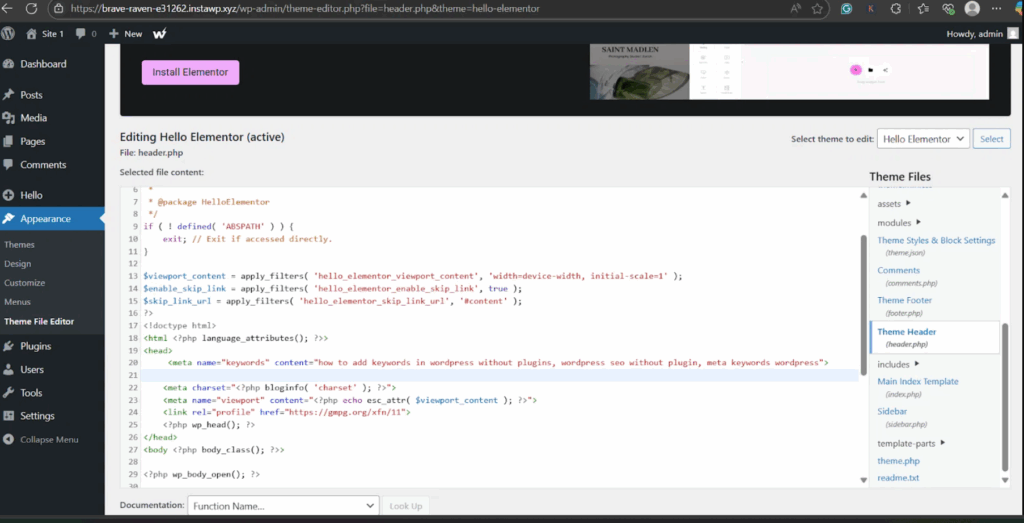
Save the file, open the page on the front end, and view the source to confirm the tag appears.
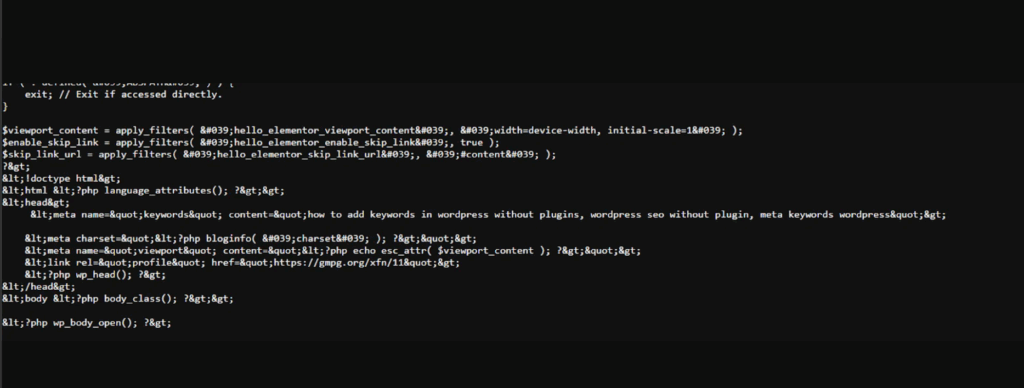
This method is fast, but it is also blunt. Every page gets the same keyword tag, which can be inaccurate if the site covers multiple topics. Use it only when a static tag makes sense.
Method 3: Add Keywords Through On-Page SEO Placement
This is the method that matters most for real search visibility. Instead of relying on a hidden meta keywords tag, place keywords where users and search engines can actually understand them: title, slug, headings, introduction, body copy, image alt text, internal links, SEO title, and meta description.
If your target query is “where to add keywords in WordPress,” this is the section that directly answers that intent. You do not need an SEO plugin to do most of this work. You can edit titles, slugs, headings, content, images, and links directly inside WordPress.
WordPress Keyword Placement Map
Use keywords where they help users and search engines understand the page.
Use the primary keyword in the page or post title when it fits naturally.
Keep the slug short and descriptive, such as /add-keywords-wordpress/.
Use keywords or close variations in H2s and H3s where they match the section topic.
Mention the main keyword early so the page topic is clear immediately.
Use related phrases naturally while answering the searcher’s real question.
Use descriptive file names and alt text when the image supports the topic.
Use descriptive anchor text when linking to related WordPress SEO or staging content.
Write a helpful SEO title and meta description that match search intent.
Add Keywords to the Page Title
The page title is one of the clearest signals on the page. If your target keyword is “how to add keywords in WordPress,” a title like “How to Add Keywords in WordPress Without Plugins” is clear, specific, and aligned with user intent.
Add Keywords to the URL Slug
The URL slug should describe the page in a short, readable way. For example, instead of a long slug like how-to-add-keywords-and-meta-keywords-and-seo-tags-in-wordpress, use something cleaner like add-keywords-wordpress or how-to-add-keywords-in-wordpress.
If the page is already live and ranking, be careful before changing the URL. If you change it, add a proper redirect from the old URL to the new one.
Add Keywords to Headings and Body Content
Headings help readers scan the page and help search engines understand the structure. Use your keyword or related phrases in H2s and H3s when they match the section naturally.
Body content is where keywords should feel natural. Use related phrases such as “add SEO keywords in WordPress,” “WordPress meta keywords,” “add keywords without plugins,” “focus keyword,” “meta description,” and “image alt text” only where they help explain the topic.
Avoid keyword stuffing. If the sentence sounds awkward, rewrite it.
Add Keywords to Image File Names and Alt Text
Before uploading an image, use a descriptive file name such as wordpress-keyword-slug-setting.png instead of IMG_4829.png. After uploading the image, add alt text that describes what the image shows.
For example: “WordPress editor showing where to add a keyword in the URL slug.” This is better than stuffing the same keyword repeatedly into every image.
Add Keywords to Internal Link Anchor Text
Internal links help users and search engines discover related pages. Use descriptive anchor text when linking between relevant articles. For example, WordPress performance optimization is more useful than “click here.”
Should You Add Meta Keywords in WordPress?
You can add meta keywords in WordPress manually, but you should understand what they are used for today. The old meta keywords tag is not a meaningful Google ranking signal. It may still be used for internal systems, legacy workflows, custom search, or non-Google use cases, but it should not be treated as the main SEO method.
This is why the strongest workflow is to combine technical control with visible optimization. If a client specifically asks for meta keywords, Method 1 or Method 2 can add them. If the goal is better rankings and traffic, Method 3 matters more.
What Is a Focus Keyword in WordPress?
A focus keyword is the main phrase you want a page to target. SEO plugins use focus keywords to grade your content and give optimization suggestions. However, the focus keyword itself is not automatically sent to Google as a ranking signal.
If you are not using an SEO plugin, you can still choose a focus keyword manually. Write it at the top of your content brief, then make sure the page answers that search intent better than competing pages.
How Many Keywords Should You Add to a WordPress Page?
Most WordPress pages should focus on one primary keyword and a small group of closely related secondary keywords.
For example, this page can target “how to add keywords in WordPress without plugins” as the main keyword and support it with related phrases like “where to add keywords in WordPress,” “how to add meta keywords in WordPress without plugin,” and “add SEO keywords in WordPress.”
Do not create a page that tries to rank for every SEO term at once. Keep the search intent tight and answer the user’s actual question.
Common Mistakes When Adding Keywords in WordPress
Adding keywords is simple, but it is easy to do it badly. Avoid these common mistakes.
Keyword Mistakes to Avoid
These mistakes can hurt readability, trust, and search performance.
Repeating the same keyword unnaturally makes the page harder to read.
A hidden keyword tag is not a substitute for useful visible content.
Theme updates can overwrite direct parent-theme edits. Use a child theme.
If a ranking page URL changes, add a redirect to protect traffic.
Plugin-Free Keyword Checklist
Use this before publishing or updating a WordPress page.
Conclusion
Google ignores the meta keywords tag, so the keywords that matter in WordPress are the ones people see: the title, H1, slug, opening paragraph, image alt text and meta description. Use custom fields and PHP when a project still needs meta keywords per page, and a static header.php tag only on classic themes with one narrow topic. Then run through a WordPress SEO checklist before you publish.
The best approach is practical: understand how to add meta keywords manually when the project requires it, but spend most of your SEO effort on the visible parts of the page that users and search engines actually read.
If you are editing PHP, updating headings, changing URLs, or restructuring an already-ranking page, test the changes in InstaWP first. A staging workflow helps you improve SEO without risking the live site.
FAQs
Does Google use meta keywords?
No. Google’s documentation says the meta keywords tag “is not used by Google Search, and it has no effect on indexing and ranking at all.” Google has ignored it for ranking since at least 2009.
Does WordPress add meta keywords by default?
No. A default WordPress install prints neither a meta keywords tag nor a meta description. You add them with an SEO plugin or a small wp_head snippet like the ones in this guide.
Why can’t I find header.php in my WordPress theme?
You are probably using a block theme. Block themes such as Twenty Twenty-Five have no header.php; they build the head through the wp_head hook, so add tags with a snippet in a child theme or small plugin instead.
How do I add a meta description in WordPress without a plugin?
Write an excerpt for the post, then add a wp_head snippet to a child theme or small plugin that prints the excerpt as a meta description. Remove the snippet if you later install an SEO plugin, so the page does not print two descriptions.
Can I add keywords in WordPress without an SEO plugin?
Yes. You can add keywords in WordPress without an SEO plugin by editing page titles, slugs, headings, content, image alt text, internal links, and metadata. You can also add meta keywords manually using custom fields and PHP or by editing your theme header.
How do I add meta keywords in WordPress without a plugin?
The most flexible method is to create a custom field named keywords, add comma-separated keyword values, and use PHP to output that field as a meta name="keywords" tag in the page head.
Should I edit header.php to add keywords?
You can edit header.php to add a static meta keywords tag, but it should be done only in a child theme and only when the same keyword tag makes sense across the relevant pages. It is not the best method for large or content-heavy sites.
Are meta keywords still useful for SEO?
Meta keywords are not a meaningful Google ranking signal today. They may still be useful for legacy workflows, custom search, or internal metadata requirements, but they should not be your main SEO strategy.
Where should I add keywords in WordPress for SEO?
Add keywords naturally in the page title, URL slug, headings, introduction, body content, image alt text, internal link anchor text, SEO title, and meta description.
What is the safest way to add keyword-related PHP in WordPress?
The safest approach is to use a child theme or a small custom functionality plugin, then test the change in staging before applying it to the live site.