A WordPress demo is a live, fully functional WordPress site built so people can click around, log in to the WordPress demo admin, and test themes, plugins, or a full design before anything goes live.
When someone searches for a WordPress demo website, a WordPress demo site, or a WordPress online demo, this is what they actually want: a real, hands-on environment, not a screenshot or a static mockup.
The old way of building one was slow. You would install WordPress on a subdomain, configure hosting, upload plugins, then tear it all down afterwards. The faster way is to spin a WordPress demo up in the cloud in seconds, share a link, and reset, expire, or clone it whenever you want.
This guide shows you both methods, leads with the fastest one, and shows you how to scale a single demo into a self-serve demo system that runs while you sleep.
Table of Contents
Key Takeaway
A WordPress demo is a live, disposable WordPress site used to showcase or test a theme, plugin, or full build without touching production. The fastest way to create one is on InstaWP, the all-in-one WordPress cloud platform and managed hosting provider:
- Sign up for InstaWP (free, no card to start).
- Launch a new WordPress demo site in seconds.
- Open the WordPress demo admin with Magic Login and add your theme, plugins, and content.
- Share the live link, then expire, reset, clone, or push it to production hosting.
Need a demo for every visitor automatically? Turn that one build into a self-serve trial funnel with InstaDemos, so each prospect gets their own isolated WordPress demo admin in one click.
Spin up a live WordPress demo in under 60 seconds, no server setup required.
Create Your Free WordPress Demo →What Is a WordPress Demo Website?
A WordPress demo website (also called a WordPress demo site) is a fully working WordPress install created purely to showcase or test something.
It looks and behaves like a real website on the front end, and usually gives visitors limited access to the WordPress demo admin so they can change settings, edit content, and see results in real time. Because it is disposable, you can reset it, expire it, or clone it without any risk to a production site.
This is different from a static “demo.” A screenshot, a video, or a locked front end shows people what your product looks like. A proper WordPress demo lets them use it. That difference is exactly why demos convert: prospects who interact with a live WordPress demo admin are far closer to buying than those who only watch.
For agencies, a WordPress demo is how you show a client a near-final version of their project before launch. For plugin and theme developers, a WordPress demo website is often the main conversion lever, since people can test layouts and features before they buy.
SaaS, membership, and hosting businesses use a WordPress demo as a live trial that mirrors the real product. Because InstaWP is a full WordPress cloud platform, the same demo can later be cloned to staging and pushed to managed production hosting, so your demo is the first step of a real workflow, not a throwaway.
WordPress Demo Site vs WordPress Demo Website: Is There a Difference?
People use “WordPress demo site,” “demo website in WordPress,” and “WordPress online demo” interchangeably, and for most purposes they mean the same thing. There is one subtle distinction worth knowing:
- A WordPress demo site usually means a temporary, interactive environment built for testing or exploration. It is often disposable and gets reset, cloned, or expired after use.
- A WordPress demo website leans more toward a polished, public-facing showcase, branded and designed to impress clients or prospects.

Why Do You Need a WordPress Demo Website?
A WordPress demo is not a nice-to-have. It is how you turn an idea into trust, and trust into a sale. Here is why agencies, developers, and product creators rely on WordPress demo sites:
- Client previews without the wait. Show a client a live, interactive version of their future site. No screenshots, no PDF mockups, just a real-time WordPress demo they can explore at any time.
- Plugin and theme demos that convert. Let people try your product in a safe, disposable WordPress demo admin that auto-resets, expires, or white-labels to your brand. The prospects who actively engage with the demo are usually your best-fit buyers.
- SaaS, membership, and hosting onboarding. A WordPress demo acts as a live trial. Prospects test features and workflows before committing, which removes hesitation and shortens the sales cycle.
- Internal QA and team collaboration. Developers and designers test new features or design changes in a shared, disposable environment without risking the live site, then reset or clone it anytime.
⚡ Pro tip: When you build a WordPress demo on InstaWP, you do not need a server, a domain, or an install process. You can launch a WordPress demo site in about 5 seconds and have a shareable link instantly.
How to Create a WordPress Demo Website (Step-by-Step)
Creating a WordPress demo used to mean installing WordPress manually, setting up a subdomain, configuring a theme, and cleaning it all up later. With InstaWP, the all-in-one WordPress cloud platform, you can create a fully hosted WordPress demo website in seconds. Here is the exact process.
Step 1: Sign Up for InstaWP
Go to the InstaWP website and create a free account. You can also install the Chrome extension if you want to test plugins or themes straight from the WordPress.org repository in one click. In under a minute you will have your first fully hosted WordPress demo environment ready to go.

Step 2: Launch a New WordPress Demo Site in Seconds
Sign in to the InstaWP dashboard and click the New Site button to create a new WordPress demo. You can create a site from scratch, from a Snapshot, from the template store, or with an AI builder like ZipWP or Kadence AI.

Choose your WordPress version, PHP version (anything from 5.6 to 8.4), server location, and any optional plugins or themes you want pre-installed.
Free demo sites are perfect for quick previews and expire in 48 hours, while a paid site plan turns the same demo into a permanent, fully hosted site with CDN, security, and daily backups. Not sure which to pick? See the WordPress site plan guide.

InstaWP is pay-as-you-go hosting and billed daily per active site, so you only pay for demos while they are live, and you get $25 in free credits when you add a card. Within seconds you receive a live, shareable WordPress demo website.
Watch the Video Tutorial:
Step 3: Open the WordPress Demo Admin and Customize It
Use the Magic Login button for password-free access to the WordPress demo admin, exactly like any regular install. From here you add your plugin, set up your theme, import starter content, or use InstaWP’s Faker tool to populate the site with dummy data.

To install a theme, go to Appearance > Themes in the WordPress demo admin, click Add New, search the WordPress theme repository, then click Install and Activate. You can also upload a ZIP from your machine with the Upload Theme button. Keep page-builder compatibility in mind; this example uses a Gutenberg block theme for flexible editing.

To install plugins, click Plugins in the sidebar, search the WordPress plugin repository, and click Install Now, or upload a zipped plugin with Upload Plugin. Plugins extend your demo with contact forms, security, performance tools, WooCommerce, and much more.

Did you know?
Agencies building many WordPress demos can skip repetitive setup with InstaWP’s bulk Build feature. Enter a slug, URL, or upload a ZIP for your chosen themes and plugins, and InstaWP installs them across one site, or all your client sites, in a single action.
Step 4: Add Content (Posts, Pages, and Dummy Data)
Your WordPress demo is running, but it is empty. If you only need to check functionality, fill it with dummy content using InstaWP’s Core Faker. Just enter the number of posts, pages, tags, categories, attachments, and authors you want, and InstaWP generates them instantly, no demo importer needed.

For WooCommerce, the WC Generator (part of Faker) adds products, orders, coupons, discounts, and customers to your store in seconds, so a store demo looks real from the first click.

To add real content, WordPress uses two main content types. Posts are dynamic, time-based entries shown in reverse chronological order and organized by categories and tags (create one via Posts > Add New). Pages are static, hierarchical content such as About or Contact (create one via Pages > Add New).
In both, click the plus icon to add blocks, then click Publish. For a deeper walkthrough, see our guide on building a WordPress website from scratch.

Step 5: Save It as a Reusable Template (Optional)
Built something you want to reuse? Save any site as a Snapshot for your internal team, or turn it into a Template for external sharing.
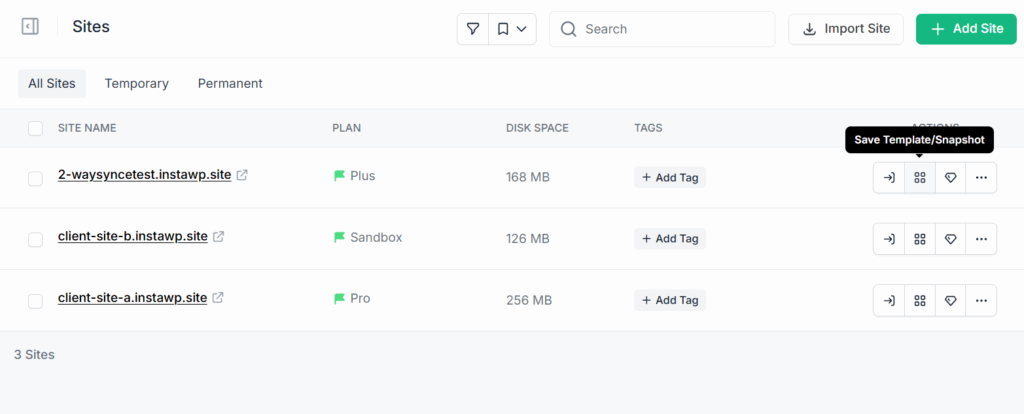
- Snapshots: ideal for agencies and developers who want to standardize a workflow. Save a complete setup (themes, plugins, configuration) and reuse it across projects without rebuilding.
- Templates: ideal for showcasing a WordPress demo to clients or partners with a live, interactive link instead of screenshots.
This way, a single project becomes the foundation for many client builds.
Must read: Snapshots vs Templates: What’s New in InstaWP’s Template System.
Watch the Video Tutorial:
Step 6: Share the WordPress Demo with Clients or Users
Copy the site link and send it. For extra polish, add a custom domain, set an auto-expiry timer, and password-protect the WordPress demo to keep control. InstaWP also supports white-labeling, so your brand stays front and center on the demo and the WordPress demo admin.

Step 7: Expire, Reset, or Clone the Demo, or Push It Live
Once your WordPress demo is created, you can manage its full lifecycle from the dashboard:
- Set an auto-expiry timer
- Reset the site to a clean state
- Clone it to a managed environment
- Push it to production with one click on InstaWP’s managed WordPress hosting
That last point is the difference that matters: InstaWP is not just a WordPress demo generator. It is an all-in-one WordPress cloud platform and managed hosting provider, so your demo can flow through a real sandbox to staging to production workflow on the same global infrastructure that powers your live sites.
Other Ways to Create a WordPress Demo (and Why They Fall Short)
InstaWP is the fastest method, but it is not the only one. Here are the other common ways to build a WordPress demo, and the trade-offs of each:
- Manual install on a subdomain. Buy hosting, create a subdomain, install WordPress, configure everything, and delete it later. Full control, but slow, and painful to repeat for multiple demos.
- Local environment (LocalWP, DevKinsta, XAMPP). Free and offline, but nobody else can see it without extra tunneling or migration. Not shareable as a public link out of the box.
- WordPress.org Playground. Instant, browser-based, and great for quick tests, but it runs in the browser, is not persistent, and is not suited to branded client previews or lead capture.
- Theme or plugin vendor demos. Pre-built showcases hosted by the vendor. Good for inspiration, but you do not control the environment and cannot reuse it for your own clients.
All of these work, but only a cloud platform gives you instant creation, a shareable link, white-labeling, lifecycle controls, and a clean path to production hosting in one place. That is why the InstaWP method sits at number one.
Traditional WordPress Demo Setup vs InstaWP (Side-by-Side)
| What you do | Traditional setup | InstaWP |
|---|---|---|
| Spin up a demo | Install WP, configure hosting, set up a subdomain | One click, live in seconds |
| Add dummy content | Import demo files manually | Core Faker and WC Generator in seconds |
| Share with clients | Send credentials or screenshots | Shareable link with Magic Login |
| Reuse the setup | Rebuild from scratch each time | Save as Snapshot or Template |
| Branding | Generic test box | Full white-label, your domain and logo |
| Go to production | Manual migration | One-click push to managed hosting |
Verdict: the traditional way to create WordPress demo websites is slow, repetitive, and error-prone, especially across multiple clients. With InstaWP you create a WordPress demo in seconds, reuse it with templates, and scale delivery like a pro.
How to Run WordPress Demos at Scale with InstaDemos
Building one WordPress demo is easy. The harder problem is giving every visitor their own demo automatically, without maintaining demo servers, user accounts, or reset scripts. That is exactly what InstaDemos does. It layers a self-serve trial funnel on top of the same InstaWP workflow you just learned.
The workflow is simple: you build one polished master WordPress demo, save it as a Shared Snapshot, and InstaDemos uses that blueprint to spin up a fresh, isolated demo site for each user. If you are a plugin or theme developer, a hosting company, or an agency running lots of demos, InstaDemos lets you:
- Generate a fresh demo WordPress site automatically for every visitor
- Drop people straight into the WordPress demo admin with Magic Login
- Control demo lifetime, auto-expiry, and cloning
- Keep every demo on brand with full white-labeling
- Capture leads, connect usage data to your CRM, and migrate the demo into live hosting when the user converts
For hosting companies and agencies, this is powerful: the demo runs on the same managed stack you actually sell, so prospects experience real performance and real tools, then move their real site over with one click. One InstaWP host used this exact flow to nearly double conversions.
See how agencies can create hosting demo sites that convert and how Loopia turned demo users into paying customers.
Turn one WordPress demo into a self-serve trial funnel that converts visitors into customers.
Explore InstaDemos →Real Use Cases of WordPress Demo Websites
Wondering how developers, creators, and agencies actually use WordPress demo sites to save time and convert faster? A few common examples:
- Plugin and theme trials: launch a WordPress demo with your product pre-installed. With InstaDemos, every prospect gets their own isolated WordPress demo admin to test features without breaking anything.
- Live product previews: create demos with starter content and templates so users see the full layout in action, not just screenshots. Turn your best build into a Shared Snapshot and spin up copies on demand.
- Client presentations: build once on InstaWP, clone for multiple clients, and share polished, password-protected previews that look and feel like production.
- Hosting and SaaS trials: let prospects experience your hosting or product inside a secure, time-limited WordPress demo, with fine-grained control over expiry, cloning, and redirects.
With InstaWP you do not just create a WordPress demo, you create an experience that converts. With InstaDemos, you run that same experience at scale.
Conclusion
Creating a WordPress demo no longer has to be a slow, manual chore. Whether you are launching a product preview, testing a new theme, or handing a project to a client, InstaWP makes it effortless. As an all-in-one WordPress cloud platform and managed hosting provider, it lets you create WordPress demos that are:
- Instant (no installs, no delays)
- Branded (white-label ready with your domain and logo)
- Shareable (link, password, and expiry built in)
- Reusable (Templates and Snapshots save hours)
- Production-ready (push any demo live on managed hosting in one click)
In just a few clicks, you have a live WordPress demo ready to impress, test, or sell.
Ready to skip the setup?
Sign up for InstaWP and build your first WordPress demo the fastest way, for free.
Create Your Free WordPress Demo →FAQs
What is a WordPress demo website?
A WordPress demo website is a live, fully functional WordPress site created to showcase or test a product, theme, plugin, or design. It looks and works like a real site and usually gives visitors limited access to the WordPress demo admin so they can change settings and see results in real time. Because it is disposable, you can reset, expire, or clone it without affecting any production site.
How do I create a WordPress demo website?
The fastest way is on InstaWP: sign up for free, click New Site to launch a WordPress demo in seconds, open the WordPress demo admin with Magic Login, install your theme and plugins, add content with Core Faker, then share the live link. You can also build one manually on a subdomain, locally with LocalWP or DevKinsta, or in WordPress Playground, but those are slower and harder to share or reuse.
Do I need hosting to create a WordPress demo site?
No. You do not need to buy traditional hosting or set up a subdomain. InstaWP is a WordPress cloud platform that provides fully hosted demo sites you can launch in seconds. Everything runs in the cloud, so you skip server configuration, local setup, and DNS work. When you are ready, the same demo can be pushed to InstaWP managed production hosting in one click.
How do I access the WordPress demo admin?
On InstaWP, click the Magic Login button next to your site to get password-free access to the WordPress demo admin (the wp-admin dashboard). From there you manage themes, plugins, posts, pages, and settings exactly like a normal WordPress install. For self-serve demos built with InstaDemos, each visitor is dropped straight into their own isolated WordPress demo admin automatically.
How long does a WordPress demo site last?
It depends on the plan. Free demo sites on InstaWP expire in 48 hours, which is ideal for quick previews. Paid site plans keep the demo running permanently as a fully hosted site. With InstaDemos you can set custom auto-expiry timers per demo, so trial sites clean themselves up automatically.
Is a WordPress demo site free?
Yes, you can create a WordPress demo on InstaWP for free, with free sites that expire in 48 hours. InstaWP is pay-as-you-go and billed daily per active site, so paid demos cost only the daily rate while they are live, and you get $25 in free credits when you add a card. There is no need to commit to a monthly plan to try it.
How is InstaWP different from just a demo generator?
InstaWP is an all-in-one WordPress cloud platform and managed hosting provider that covers the full site lifecycle: Build, Host, Manage, and Sell. A demo is just the starting point. The same site can move from sandbox to staging to production on a global CDN-backed managed stack, and InstaDemos can turn one demo into a self-serve trial funnel for plugins, themes, and hosting offers.
Can I create a WooCommerce demo site?
Yes. Launch a WordPress demo on InstaWP, install WooCommerce, then use the WC Generator (part of Faker) to populate it with products, orders, coupons, discounts, and customers in seconds. This gives you a realistic store demo without manually adding data.
Can a WordPress demo be turned into a staging or live site?
Yes. Because InstaWP handles the whole workflow, you can clone a demo into a managed staging environment, use 2-Way Sync to move changes, and push it to live production hosting with one click. You can also use the InstaWP Connect plugin to create a staging site from an existing live site.