Is your WooCommerce website chugging along slower than a snail in quicksand? In the world of e-commerce, every millisecond matters. A one-second delay in page load time can result in a 7% drop in conversions and a frustrated customer who is likely to click away to a competitor.
If you want to provide a lightning-fast browsing experience that keeps customers engaged and boosts your SEO rankings, you need to master WooCommerce caching.
Table of Contents
What is WooCommerce Caching?
WooCommerce caching is the set of techniques that speeds up an online store by reusing previously generated data, while excluding cart, checkout, and account specific content that must stay dynamic.
In practical terms, caching stores parts of your store such as product images, styling assets, and repeatable page output in fast storage, so WordPress does not have to rebuild the same information on every visit through PHP execution and database queries.
Caching a WooCommerce store is more complex than caching a blog because WooCommerce is dynamic by design. Your cart is unique per user, stock changes in real time, and totals can vary based on location, taxes, shipping rules, coupons, and whether the visitor is logged in.
If “blind” caching captures the wrong version of a page, it can show incorrect or personalized data to the wrong visitor. That is why key WooCommerce pages like cart, checkout, and account areas should stay excluded from full page caching, along with any view that changes per user.
A simple example makes the difference clear. A blog post looks the same for most readers, so caching the full page is usually safe. In WooCommerce, two people can load the same product page and still see different outcomes. One visitor may have items in their cart and a shipping location set, while another visitor does not.
If the wrong version is cached, the second visitor could see cart badges, totals, availability messaging, or location-based pricing signals that do not apply to them. This is why WooCommerce caching is not about caching everything, it is about caching the right layers while keeping user-specific flows dynamic.
Different Types of WooCommerce Caching
To truly master WooCommerce caching, you need to understand that a high-performance store isn’t built on a single “switch.” Because your shop is a mix of static information (like a product description) and dynamic data (like a customer’s unique cart), you must use a layered approach.
| WooCommerce caching type | What it speeds up | Best for WooCommerce pages | What to avoid caching | Why it matters |
|---|---|---|---|---|
| Browser caching | Images, CSS, JS, fonts | All pages (assets load faster) | Nothing critical, just set good expiry | Faster repeat visits and smoother browsing |
| Page caching | Full HTML output | Shop, product, category, blog, static pages | Cart, checkout, my account, logged-in views | Makes public pages load instantly |
| Object cache | Database queries and computed data | Product pages, filters, search, cart actions, dynamic requests | Do not force-cache user sessions | Cuts MySQL load, speeds up dynamic WooCommerce |
| CDN / edge caching | Static delivery across regions | Product images, assets globally | Personalized HTML, cart/checkout | Faster global storefront and traffic spike handling |
| Opcode caching | PHP execution time | Entire WooCommerce site | Not applicable (server-level) | Reduces CPU load, improves responsiveness |
Object Cache (database query caching for dynamic speed)
Object cache is often the most valuable caching layer for WooCommerce because it accelerates the “dynamic” parts of your store without freezing pages into potentially incorrect HTML. WooCommerce runs many repeated database queries on every request, including product data, pricing rules, tax settings, shipping zones, user sessions, and transients.
Object caching stores these expensive query results in memory so WordPress can reuse them instead of hitting MySQL repeatedly.
This is especially helpful in stores with large catalogs, heavy filtering, high traffic, or frequent add-to-cart actions, where database load becomes the main performance limiter. If you want WooCommerce speed without breaking personalization, object cache is usually the safest performance lever.
Traditionally, setting up a persistent object cache is a technical nightmare involving server terminal commands. InstaWP’s Object Cache feature simplifies this into a single toggle. By enabling it in the InstaWP dashboard, your site automatically connects to a high-speed data store. This reduces database queries by up to 90%, making your “Add to Cart” actions and admin dashboard lightning fast.
Must Read: InstaWP Object Cache: What It Is, How It Works, and When to Turn It On
Browser Caching (static files cached in the visitor’s browser)
Browser caching is the simplest win for any WooCommerce store because it targets assets that rarely change, like product images, theme CSS, JavaScript files, icons, and fonts. Once these files are cached in the customer’s browser, repeat page loads become noticeably faster because the browser does not re-download the same assets again and again.
Imagine a customer visits your “Summer Collection” page. Their browser downloads your logo, the “Add to Cart” button icon, and the main CSS styling. When they click on a specific product page, the browser already has those files stored.
It drastically reduces bandwidth usage. Instead of re-downloading your 200KB logo on every single page, the browser loads it instantly from the user’s hard drive.
Page Caching (full HTML caching for public, repeatable pages)
Page caching stores a ready-to-serve HTML version of a page, so WooCommerce does not have to generate it from scratch each time. This can dramatically improve performance for anonymous visitors on pages that are mostly the same for everyone, like product pages, category pages, the shop page, and informational pages.
The key is to apply page caching carefully. Cart, checkout, and account pages should generally be excluded because they are user-specific. Page caching works best when paired with smart cache rules that vary content correctly and never cache personalized states like cart totals, logged-in views, or location-dependent checkout calculations.
Suppose a guest visitor lands on your “Best Sellers” category page. Without caching, the server has to ask the database which products are top-rated and then format the HTML. With page caching, the server serves a pre-built version of that list in milliseconds.
This must be disabled for the Cart and Checkout pages. If you cache those, Customer A might accidentally see the credit card details or address of Customer B.
CDN and Edge Caching (faster delivery of images and static content globally)
A CDN caches and serves static content from locations closer to the visitor, which reduces latency and speeds up asset delivery. For WooCommerce, CDN caching is most impactful for product images, scripts, and stylesheets, especially if you have customers in multiple regions.
It also reduces load on your origin server during traffic spikes because repeated requests for the same images and assets are handled at the edge. CDN caching is not a replacement for page caching or object cache, but it pairs extremely well with both because it tackles the “distance” problem while other caches tackle the “processing” problem.
Opcode Caching (PHP execution acceleration at the server level)
Opcode caching improves performance by storing compiled PHP bytecode in memory, so the server does not recompile PHP files on every request. WooCommerce stores run a lot of PHP, and without opcode caching, the same files are repeatedly parsed and compiled, wasting CPU cycles.
This type of caching is invisible to users but can make your store feel more responsive under load. It is especially helpful when plugins and theme code are heavy, or when your store has many concurrent visitors.
So, which type of caching works for WooCommerce?
WooCommerce stores are fast when these caching layers work together: browser caching reduces repeat asset downloads, page caching makes public pages instant for new visitors, object cache keeps dynamic requests from hammering the database, CDN caching reduces global latency for static content, and opcode caching reduces server CPU overhead.
The goal is not to cache everything, it is to cache what is safe and repeatable, while keeping cart, checkout, and account flows dynamic and accurate.
How to Set up WooCommerce Caching?
Here is how you can set-up WooCommerce caching on your online stores.
Step 1: Choose the right WooCommerce caching option
If you want WooCommerce caching to actually improve speed without breaking cart or checkout, start by choosing a caching setup that matches how WooCommerce behaves. A store is dynamic.
Even when you do everything “right” with WooCommerce cache rules, cart sessions, stock checks, taxes, and logged-in account states still trigger heavy database work. That is why the best first decision is not “which cache plugin is best,” it is “where will my store get a reliable object cache layer from?”
Option A: Build your WooCommerce store on InstaWP managed cloud hosting
For most store owners and agencies, the cleanest and safest baseline for WooCommerce caching is managed cloud hosting that ships with persistent object caching built into the stack.
On InstaWP, Object Cache is built in and is Redis-compatible. The important part is that you do not have to install Redis, configure credentials, or touch server settings. You enable it from the site panel with a toggle, and InstaWP automatically installs & configures secure cache credentials and enables caching for that WordPress site.
Learn more about the built-in Object cache feature of InstaWP.
Choosing this matter specifically for WooCommerce stores as:
- WooCommerce is query-heavy by nature. Product pages, variations, filters, cart updates, checkout steps, and even wp-admin actions trigger repeated database queries. Object cache stores those expensive query results in memory, so WooCommerce does not hit MySQL for the same lookups on every request. This is exactly the kind of performance win WooCommerce stores need because many important pages cannot be fully page cached.
- It helps where page cache cannot. Even the best page caching rules typically bypass cart, checkout, and account pages (for good reason). Object caching still speeds up the backend work that happens on those dynamic flows, so shoppers feel fewer slowdowns during “active” browsing and checkout.
- It is safer operationally. With InstaWP’s approach, the risk is not “did someone misconfigure Redis.” The workflow becomes: enable Object Cache, verify it is connected inside WordPress, and clear cache when needed. That is a much more predictable path for teams shipping changes regularly.
InstaWP’s object cache feature can cut database queries significantly and reduce page load time multiple times by serving frequently accessed data from memory instead of repeatedly querying the database.
Bottom line: If you are serious about WooCommerce performance, having persistent Object Cache available as a hosting-level feature is the easiest “high impact, low risk” move. You get the speed benefit without the usual manual setup overhead.
Option B: Set up a WooCommerce caching plugin manually
The more traditional route is installing a caching plugin and configuring WooCommerce cache rules yourself (page caching, minification, CDN integration, exclusions, cookie handling). This can work, but it comes with two realities:
- WooCommerce page caching needs strict exclusions. WooCommerce’s own developer guidance is clear that key pages like Cart, Checkout, and My Account must stay dynamic and should be excluded from cache rules. If you get this wrong, you risk serving user-specific data to the wrong visitor, which is catastrophic for a store.
- You are now responsible for correctness and maintenance. Many caching plugins will help by auto-excluding common WooCommerce pages, but you still need to verify behavior on your specific store setup, especially if you use custom checkout flows, cart plugins, dynamic pricing, or membership rules.
Also, plugin-based caching often speeds up the “public browsing” side of WooCommerce (anonymous visitors on product and category pages), but it does not replace object caching. Even WP Rocket recommends adding object caching (Redis or Memcached) for WooCommerce to reduce database load by caching query results.
If your store is on InstaWP managed cloud hosting, you start with the hardest part of WooCommerce performance already handled: persistent object caching, correctly wired, per-site, with a toggle.
Caching plugins can still be useful later, mainly to accelerate public pages, but they work best when they sit on top of a stable hosting stack.
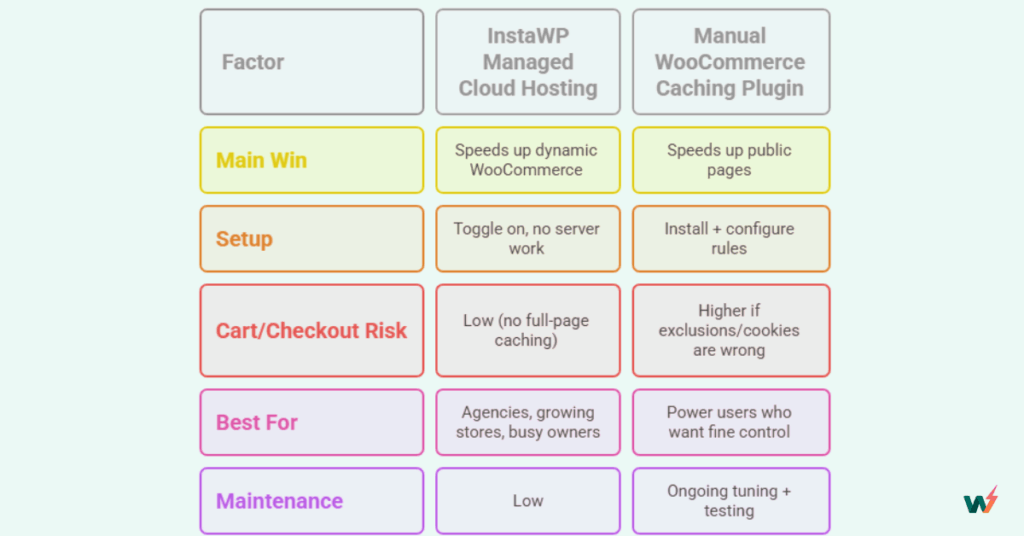
Build on InstaWP for built-in Object Cache first, then layer page caching rules only if needed and only with WooCommerce-safe exclusions.
Step 2: Set up your WooCommerce caching layer
Once you have picked your WooCommerce caching approach, the next move is getting it running without turning your store into a guessing game.
Option A: Using InstaWP
If you are building your store on InstaWP, “installing and configuring” object caching is basically done for you.
Here’s the setup flow:
a. Open your InstaWP dashboard and go to Sites.
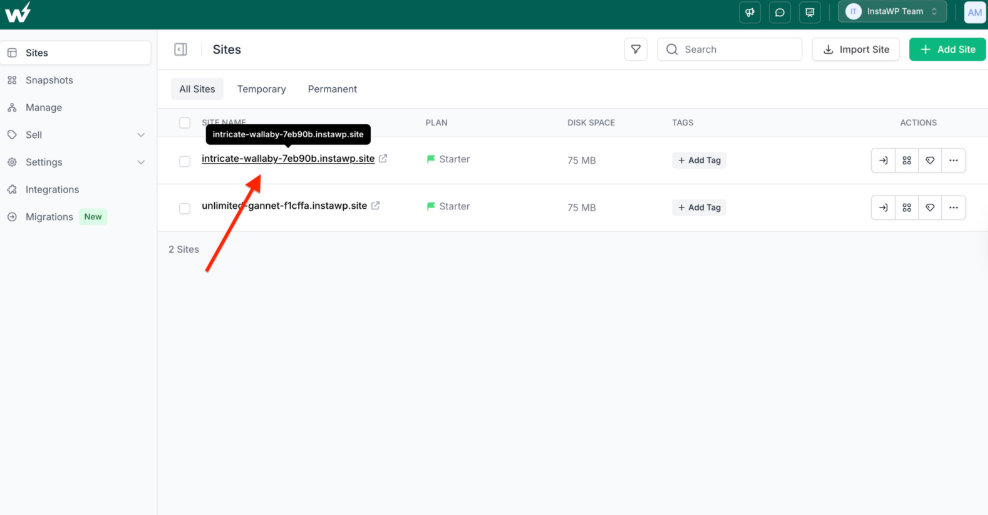
b. Click the WooCommerce site you want to optimize, then open Object Cache from the left menu.
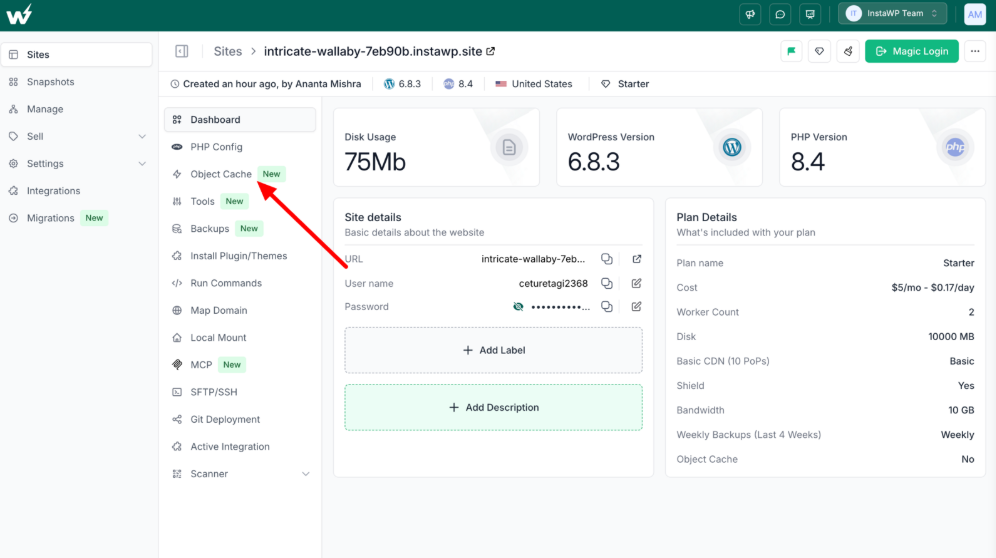
c. Toggle Enable Object Cache to ON. InstaWP will automatically install the Redis Object Cache plugin, configure secure credentials, and enable caching for the site.
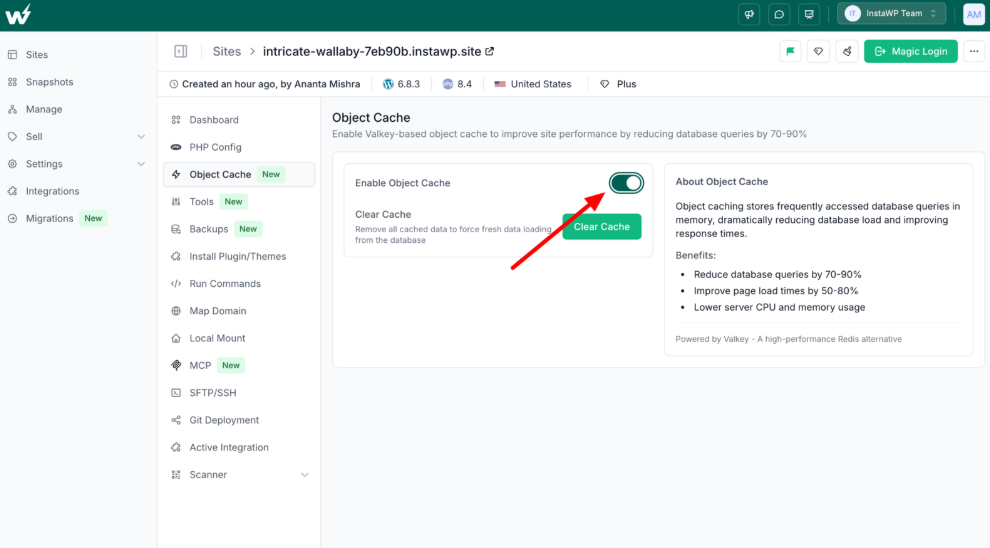
Once enabled, you will also see a Clear Cache button for quick troubleshooting when changes are not reflecting.
How to confirm it is working: Log into WordPress admin using the Magic Login button from the InstaWP Dashboard. You don’t have to enter the login credentials.
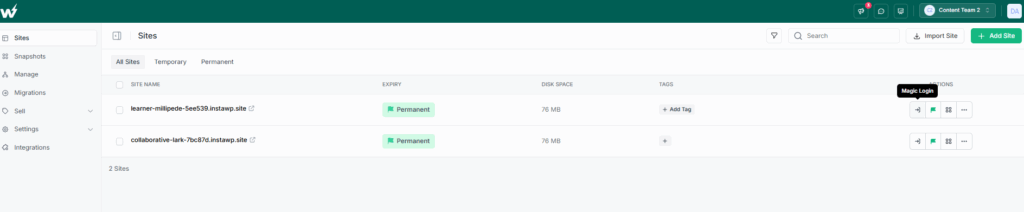
Go to Settings → Redis, and check that it shows Status: Connected along with cache stats.

This approach fits WooCommerce well because page caching cannot safely cover everything, but object caching still speeds up query-heavy store behavior, including dynamic flows and logged-in usage.
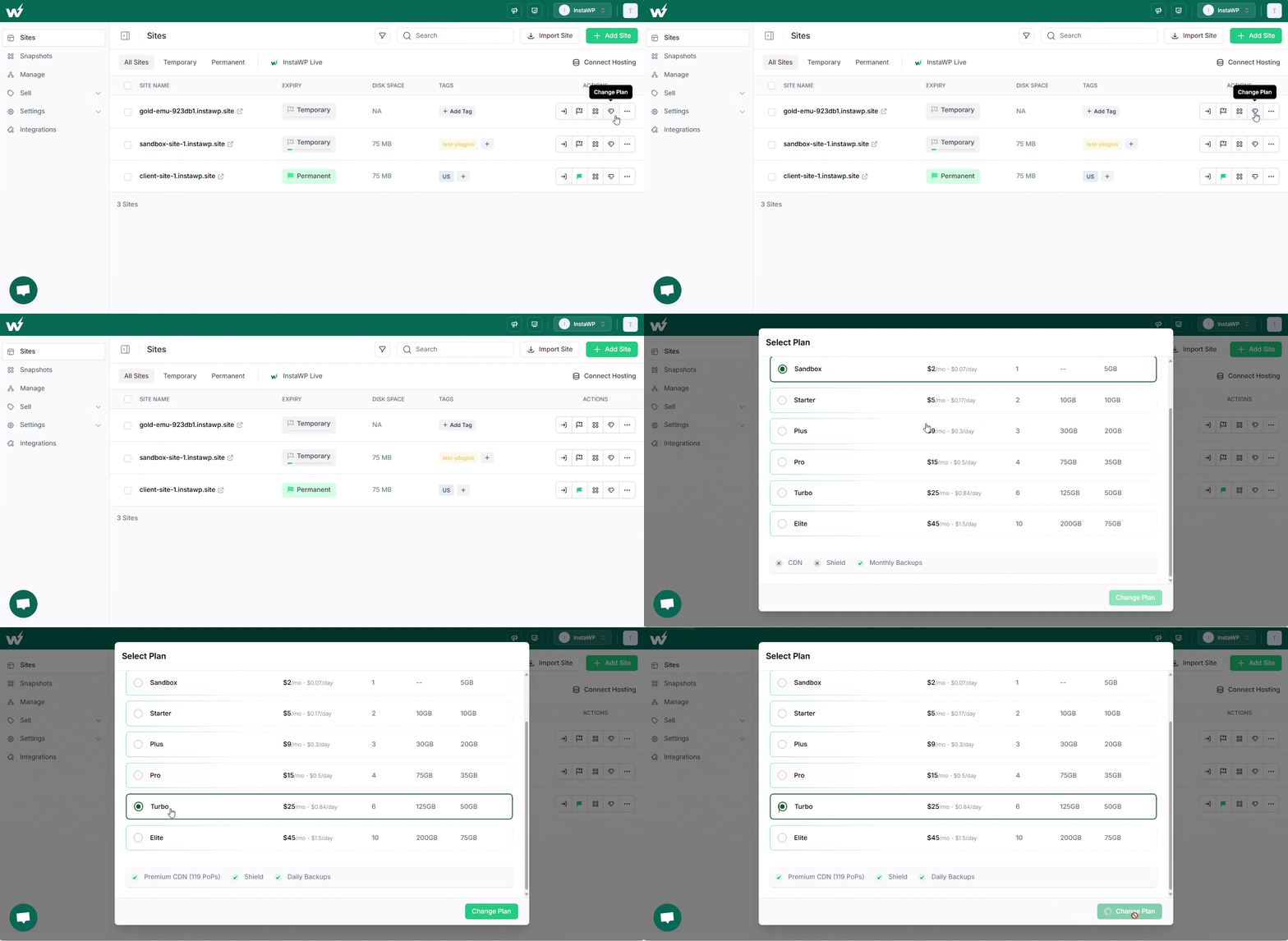
Note: This feature is available on Plus plans and above.
Learn more about InstaWP’s site plans, and if you want to change your site plan, here is a quick guide.
Option B: Manual WooCommerce cache plugin setup
If you are not using managed cloud hosting with built-in object cache, you can set up WooCommerce caching with a WordPress cache plugin. The workflow is familiar: install a caching plugin, enable page caching for logged-out users, and rely on WooCommerce-safe defaults that typically exclude cart, checkout, and account pages.
Then you add advanced features like minification only after testing, because one aggressive setting can break add-to-cart, mini-cart refresh, or checkout scripts.
Step 3: Exclude Dynamic WooCommerce Pages
One non-negotiable rule of WooCommerce caching is never serving cached HTML for pages that can show user-specific data. WooCommerce is dynamic by default, so the wrong WooCommerce cache setup can leak cart state, show incorrect totals, or break checkout flows.
Your page caching layer, whether it is a plugin, server cache, or CDN edge cache, should bypass caching for:
- Cart (
/cart/) - Checkout (
/checkout/) - My Account (
/my-account/and all sub-pages)
If your account area has sub-pages (orders, downloads, addresses), exclude with a wildcard:
/my-account/*
A cached product page is usually safe for logged out browsing. A cached cart or checkout page is dangerous because two visitors can generate different content on the same URL based on location, coupons, shipping rules, and session state. When the cache serves the wrong version, the store looks broken and trust drops instantly.
If you are on InstaWP managed cloud hosting, you don’t have to worry about dynamic pages being cached, as you have Object cache in place. Object caching speeds up WooCommerce without caching full pages, so it is a safer baseline. But if you also enable any page caching layer (plugin or CDN), you still must exclude these URLs.
If you are using a caching plugin for WooCommerce cache, go to the plugin setting that looks like Never Cache URLs, Exclude URLs, or Page Rules, then add: /cart/, /checkout/, and /my-account/*.
After saving, clear cache once, then test cart and checkout in an incognito window.
Step 4: Exclude WooCommerce Sessions and Cookies
Excluding URLs (cart, checkout, account) is step one, but it is not enough for reliable WooCommerce caching. WooCommerce also uses cookies to track who is actively shopping, even if the customer is not logged in. That means your WooCommerce cache should automatically bypass cached pages when WooCommerce detects an active session.
A visitor can be on a “cache-safe” page, like a product page or category page, and still have a personalized shopping state, for example:
- they added an item to cart
- they have a cart hash
- they have a live WooCommerce session cookie
- they are logged in and seeing account-aware content
If caching ignores that session state, the shopper can see stale content like a frozen mini-cart count, incorrect pricing signals, or a checkout that behaves unpredictably.
Most caching tools use these common WooCommerce cookie patterns to detect sessions:
woocommerce_cart_hashwoocommerce_items_in_cartwp_woocommerce_session_(cookie prefix, often appears with a unique suffix)
When these cookies are present, the visitor is not a “generic anonymous” user anymore. Your caching layer should treat them as dynamic.
InstaWP’s built-in Object Cache improves performance without caching full HTML pages, which makes it safer for session-driven WooCommerce behavior. But if you also enable page caching through a plugin or CDN, cookie-based bypass rules are still essential.
The clean approach is: let Object Cache handle database query speed, then keep page caching only for truly anonymous visitors.
If you are using a WooCommerce caching plugin, look for settings named something like:
- “Do not cache pages for logged-in users”
- “Reject cookies” / “Cookie exclusions”
- “Bypass cache when cookie is present”
Add the WooCommerce cookie names (or patterns) there so caching is skipped when a session exists.
This step is what prevents the classic WooCommerce caching failure: pages that look fast but behave wrong.
Step 5: Configure minification settings carefully
Minification can help WooCommerce caching performance, but it is also one of the fastest ways to break a store if you enable it aggressively. WooCommerce relies on complex JavaScript for key flows like add-to-cart, variation selection, coupon handling, mini-cart refresh, and checkout validation.
If your WooCommerce cache plugin minifies or combines scripts incorrectly, shoppers can end up with buttons that do nothing, carts that do not update, or checkout fields that fail silently.
Treat minification like a controlled experiment, not a one-click “speed boost.”
- Start with CSS minification only. Enable CSS minification first and check that product pages still look correct, the layout is stable on mobile, and cart and checkout pages render properly.
- Enable JavaScript minification, but test store actions deeply.
- If anything breaks, exclude the problem files. Most caching plugins allow “exclude from minification” rules. Use them. For WooCommerce, it is common to exclude specific scripts tied to checkout or payment gateways rather than disabling minification entirely.
If your store runs on InstaWP’s managed cloud hosting, you can test minification changes on a WP staging copy first. That way, if a minification toggle breaks checkout behavior, you are not learning it from real customers. This is especially useful when you are running multiple WooCommerce extensions, because minification conflicts are usually extension-specific, not generic.
Don’t know how to create a staging from a live site using InstaWP? Check this: How to Create a Copy of your Live or Hosted site as Staging on InstaWP?
Step 6: Integrate CDN and edge caching
A CDN improves WooCommerce speed by serving static assets like product images, CSS, and JavaScript from servers closer to your customers. This reduces latency for global visitors and also lowers load on your origin server during traffic spikes. For many stores, CDN delivery is the quickest way to make product browsing feel faster without touching WooCommerce logic.
The key detail is that CDN and edge caching must follow the same safety rules as your on-site WooCommerce caching. Your WooCommerce cache should never serve personalized content from the edge
On InstaWP’s managed cloud hosting, it is easier to keep a clean separation: use hosting-level performance features for dynamic speed (like Object Cache), then use CDN caching mainly for static assets. This layered approach works well for WooCommerce because it improves global delivery without risking session-specific HTML being cached incorrectly.
After CDN setup:
- Load a product page from an incognito window and confirm assets are served from the CDN.
- Add an item to cart in a normal window and confirm cart badge and totals update correctly.
- Test checkout end-to-end to ensure no stale content is being served.
Done right, CDN and edge caching make WooCommerce feel faster worldwide while keeping cart and checkout behavior accurate.
Step 7: Keep Object Cache secure (especially if you manage multiple stores)
Caching is performance work, but in WooCommerce it also touches sensitive data. A store handles customer accounts, order history, addresses, and session-driven behavior. That’s why the security side of WooCommerce caching matters, particularly when object caching is enabled.
The risk to understand is simple: if multiple WordPress sites share the same object cache instance without proper isolation, a misconfiguration or breach could expose cached data across sites. For agencies hosting multiple client stores on one server, this is where “fast” can turn into “risky” if isolation is ignored.
A secure object cache setup ensures:
- one WooCommerce site cannot read or overwrite another site’s cached keys
- cached data is protected from unauthorized access
- cache credentials are not shared loosely across environments
On InstaWP’s managed cloud hosting, the built-in Object Cache is handled at the platform level, so you are not manually wiring Redis, exposing ports, or reusing the same credentials across multiple installs. That reduces the most common security mistakes store owners make when they try to bolt object caching onto a server themselves.
If your WooCommerce cache strategy includes a self-managed Redis setup, treat isolation as mandatory. Use per-site separation and access controls so a single compromised site cannot become a doorway into cached data from other sites. If you cannot guarantee isolation, object cache becomes an avoidable risk in multi-site or multi-client environments.
Step 8: Test and troubleshoot your WooCommerce cache
A WooCommerce caching setup is only “done” when you have proven two things: cached pages are actually being served to the right visitors, and dynamic shopping flows stay fully accurate. A flawed WooCommerce cache configuration can look fast on the surface while silently breaking cart behavior or checkout conversions.
Use two separate sessions so you can compare cached vs dynamic behavior:
- Incognito window (logged-out visitor): Browse product and category pages. These are the pages most likely to be cached safely. You want them to feel fast and consistent.
- Normal window (active shopper): Log in as a test customer or add an item to cart as a guest. Then repeat the same browsing. If your cookie and session rules are correct, this session should bypass page cache where needed and always show accurate cart state.
If anything looks stuck or inconsistent, your cache is bypassing dynamic behavior incorrectly. Troubleshooting WooCommerce cache issues is usually about isolating the layer that caused it:
- Clear all caches (plugin cache, server cache, CDN cache, browser cache) and re-test
- Disable the most recent change (minification is a common culprit)
- Re-check URL exclusions for cart, checkout, and account
- Confirm cookie-based cache bypass for active shoppers
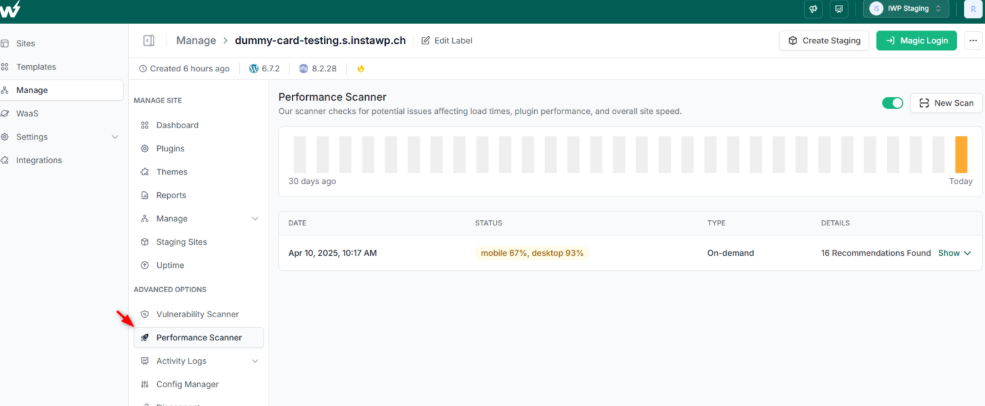
If you are running the store on InstaWP’s managed cloud hosting, troubleshooting becomes less chaotic because you can reproduce issues on a staging clone first. You can also use built-in tools like Activity Logs to see what changed during your tests and Performance Scanner to compare before and after results, without guessing which tweak actually helped.
Conclusion
WooCommerce caching is not about caching everything. It is about speeding up what is safe to cache, while keeping cart, checkout, and account flows fully dynamic. The best results come from a layered setup: browser caching for assets, page caching for public store pages, and object cache for the database heavy work WooCommerce does on every request.
If you want the simplest path with fewer manual steps, building your store on InstaWP managed cloud hosting gives you built-in Object Cache, which improves WooCommerce performance where page caching cannot. Test every change, keep exclusions strict, and you will get speed without breaking sales.
Ready to speed up your WooCommerce store without risking cart or checkout issues? Build it on InstaWP and enable built-in Object Cache in minutes, then test safely on staging before pushing changes live.
FAQs
1) What is WooCommerce caching in simple words?
WooCommerce caching is the process of saving reusable store data (assets, public page output, and database query results) so WooCommerce does not rebuild everything from scratch on every visit, while still keeping cart and checkout dynamic.
2) Which WooCommerce pages should never be cached?
Cart, checkout, and my account pages should not be full-page cached. Any page that shows user-specific totals, shipping, taxes, pricing, or logged-in content should also bypass page caching.
3) Is caching bad for WooCommerce?
Caching is not bad, but misconfigured caching is. The risk comes from caching dynamic pages or ignoring WooCommerce session cookies, which can cause stale carts, wrong totals, or broken checkout behavior.
4) What is the difference between page cache and object cache for WooCommerce?
Page cache stores a ready HTML version of a page and is best for public pages. Object cache stores repeated database query results in memory, which speeds up dynamic WooCommerce requests without freezing pages into incorrect HTML.
5) Do I need a WooCommerce caching plugin?
Not always. Many stores benefit more from a reliable object cache layer first. A caching plugin can still help for public page caching, minification, and CDN integration, but it should be configured carefully for WooCommerce.
6) How does InstaWP help with WooCommerce caching?
InstaWP managed cloud hosting includes built-in Object Cache, which reduces database load and improves WooCommerce performance without manual Redis setup. It also supports staging-first testing, so you can validate caching changes before pushing them live.
7) Can I use a CDN with WooCommerce?
Yes. A CDN is highly recommended for product images and static assets. If you use edge caching for full HTML, it must respect the same WooCommerce exclusions and cookie bypass rules so it never caches cart or checkout flows.
8) Why is my WooCommerce cart or mini-cart not updating?
This usually happens when page caching is serving cached content to an active shopper. Check cookie bypass rules for WooCommerce session cookies and confirm that cart and checkout URLs are excluded from cache.
9) Should I enable minification for WooCommerce?
You can, but do it carefully. Start with CSS minification, then test store behavior before enabling JavaScript minification. If checkout or add-to-cart breaks, exclude specific scripts instead of disabling everything.
10) What is the easiest way to test if WooCommerce caching is working?
Use two sessions: incognito for a logged-out visitor (public pages should be fast), and a normal session with items in cart (cart, totals, and checkout must stay accurate). Run a full test transaction end-to-end after every major change.