WordPress development has evolved significantly over the years, with the introduction of Full Site Editing (FSE) revolutionizing how developers approach theme and site customization.
FSE is the next step in WordPress’s ongoing journey toward providing more control to users and developers alike.
If you’re a WordPress developer looking to stay ahead of the curve, understanding FSE and how to leverage its power is essential.
In this guide, we’ll explore the ins and outs of Full Site Editing, from its core components to advanced use cases. We’ll also discuss how to integrate FSE seamlessly into your workflow and the tools that make this process smoother.
Table of Contents
What is Full Site Editing (FSE) in WordPress?
Full Site Editing (FSE) is a new feature introduced in WordPress that allows users to customize their entire site through the block editor. FSE lets developers, designers, and site owners manipulate every part of their site, from headers and footers to single posts and archives, all without writing any code.
This shift represents a major leap from traditional theme customization, which typically requires child themes or custom PHP code.
In the past, customizing a WordPress site beyond content often required editing PHP files manually or using third-party theme builders. With FSE, WordPress makes it easier for developers to create layouts, manage design elements, and customize templates directly within the editor.
Key Features of Full Site Editing in WordPress
1. Block-Based Theme Customization
One of the standout features of FSE is the ability to edit WordPress themes directly in the block editor. WordPress blocks are no longer limited to just content – now, developers can edit templates for pages, posts, and even custom post types.
This block-based approach provides greater flexibility and makes it easier to create highly customized layouts without needing to dive into code.
2. Site Editor
The Site Editor is where all the magic happens in FSE. It allows developers to edit templates, headers, footers, and any other part of a theme. The Site Editor provides a comprehensive user interface where you can add, remove, and reorder blocks on various parts of the website.
This centralized location for all your site’s design customization simplifies workflows.
3. Template Parts
Template parts in Full Site Editing refer to reusable sections of a website, like headers, footers, or sidebars. Developers can design these once and reuse them throughout the site. These parts can be customized in the Site Editor, ensuring that changes made in one section reflect throughout the website.
4. Global Styles
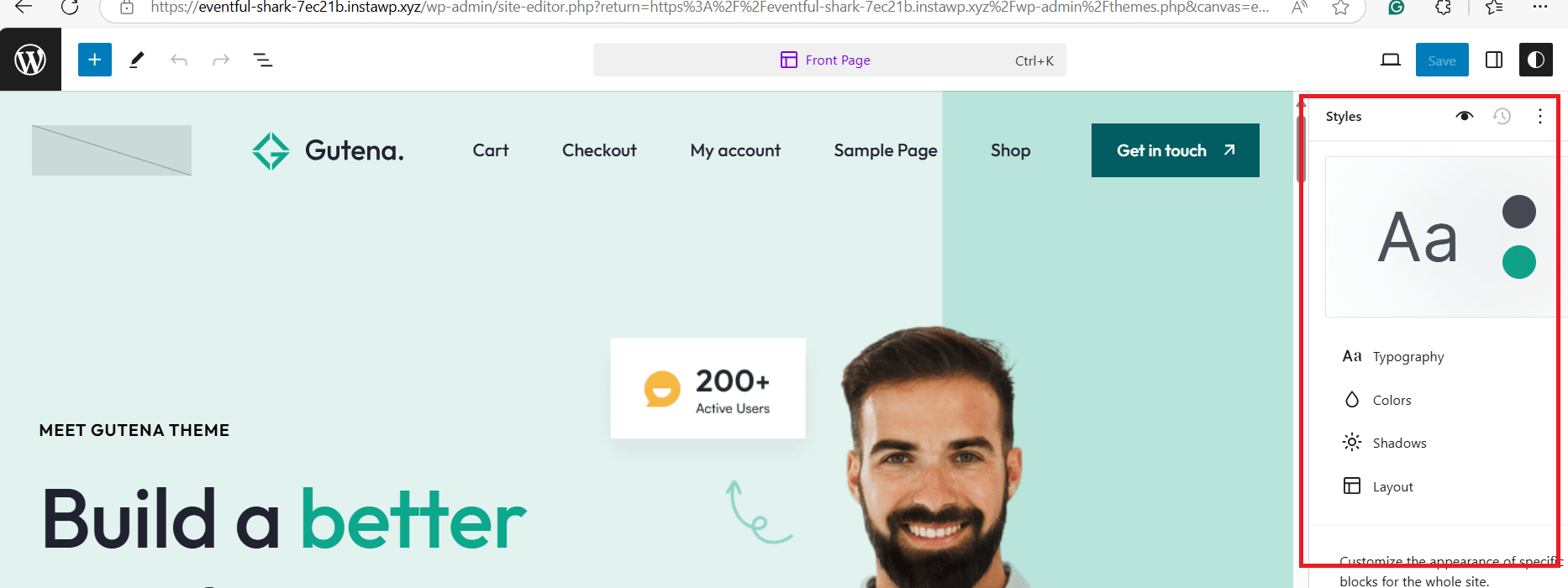
Global styles allow developers to define universal design elements such as fonts, colors, spacing, and button styles. By adjusting the global styles, developers can maintain consistent branding across the entire site, simplifying the process of site-wide design updates.
5. Template Editor
In FSE, the template editor allows developers to design and control the layout for different page types on the site. Whether you’re designing a homepage, blog post, or product page, FSE provides granular control over each page’s structure, allowing full customization down to the individual block.
Step-by-Step Process of Editing Full Site Editing (FSE)
Full Site Editing (FSE) in WordPress is a game-changer for developers, offering unprecedented flexibility and control over site design. Whether you’re creating a custom theme, adjusting layouts, or fine-tuning templates, mastering FSE is essential to delivering high-quality websites.
But how do you ensure your changes don’t disrupt your live site? That’s where the staging environment comes in.
The full site editing process can be a bit daunting, especially when you’re making big changes. That’s why we recommend using a staging site as part of your workflow. Here’s why:
- Safe Testing Environment: A staging site replicates your live site, meaning you can experiment with design changes without the risk of crashing your actual website.
- Real-Time Feedback: Staging sites are perfect for collaboration. You can test changes, gather feedback from team members, and make adjustments—all before anything touches the live site.
- Fast Deployment: Once you’re happy with the changes, staging sites with staging-to–live features enable you to push your updates live in just a few clicks
Step 1: Set Up a Staging Site
The first step is to create a staging environment. InstaWP simplifies this process by automating most of the setup. Here’s how to do it:
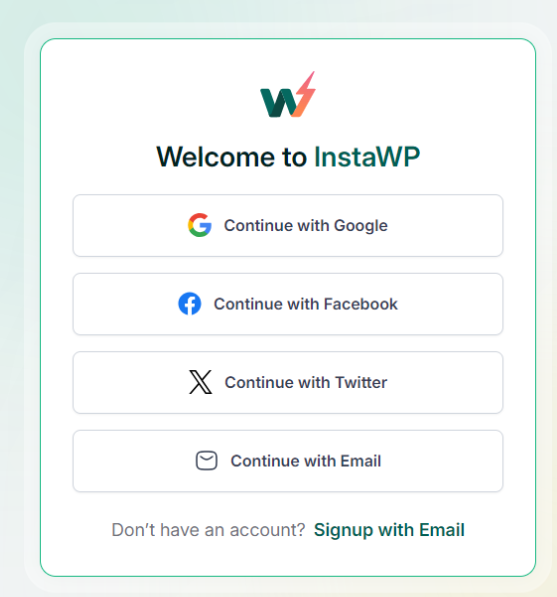
- Log into InstaWP: Start by logging into your InstaWP account, where you manage your WordPress sites.
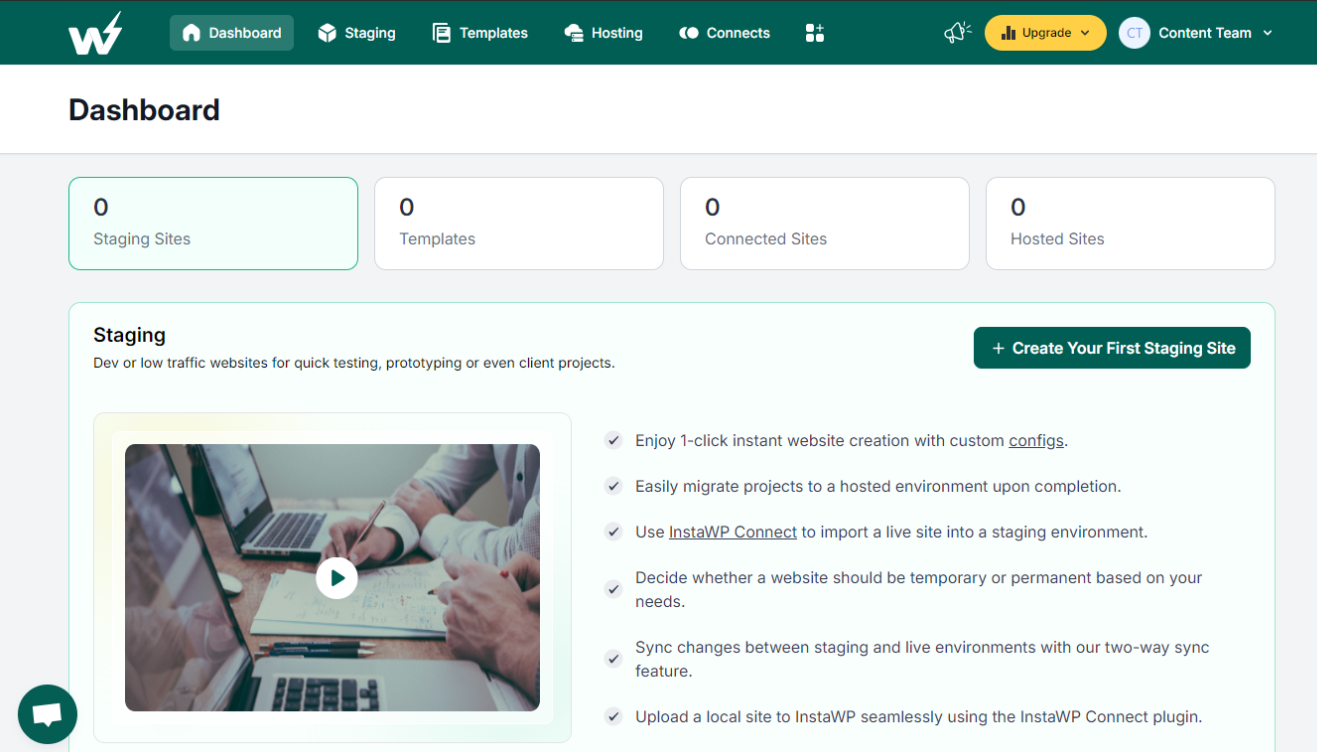
- Create a New Site: Click the “Create New Site” button. InstaWP will automatically generate a staging site by cloning your live WordPress website.
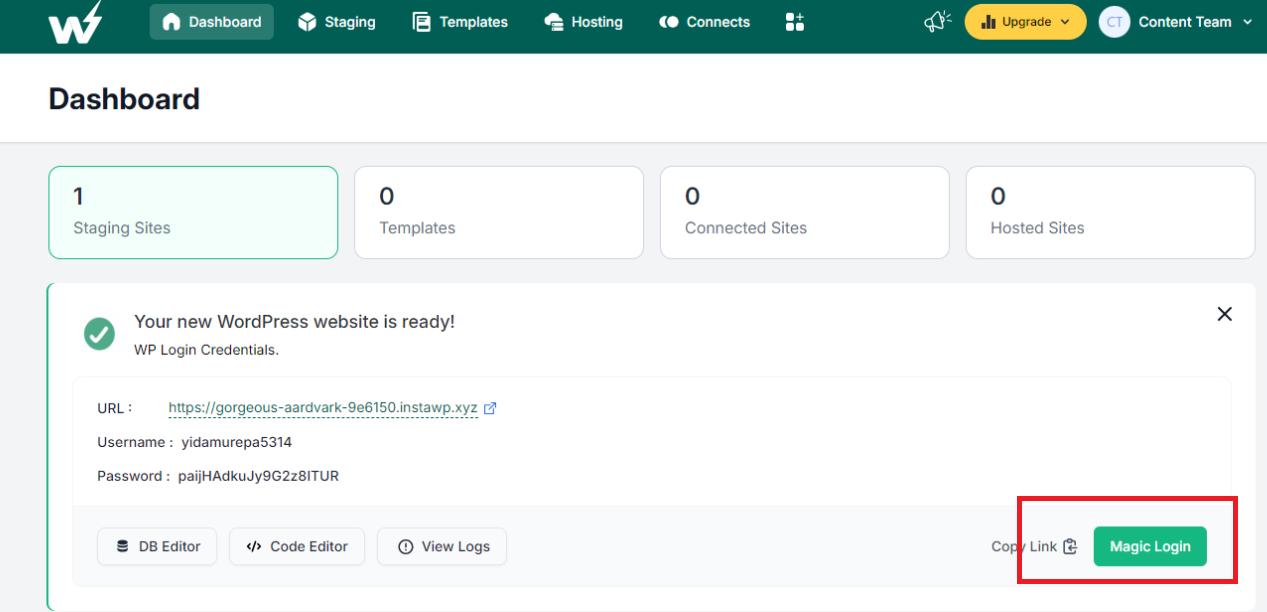
- Use Magic Login: With this feature, you can access the WordPress Dashboard without entering credentials.
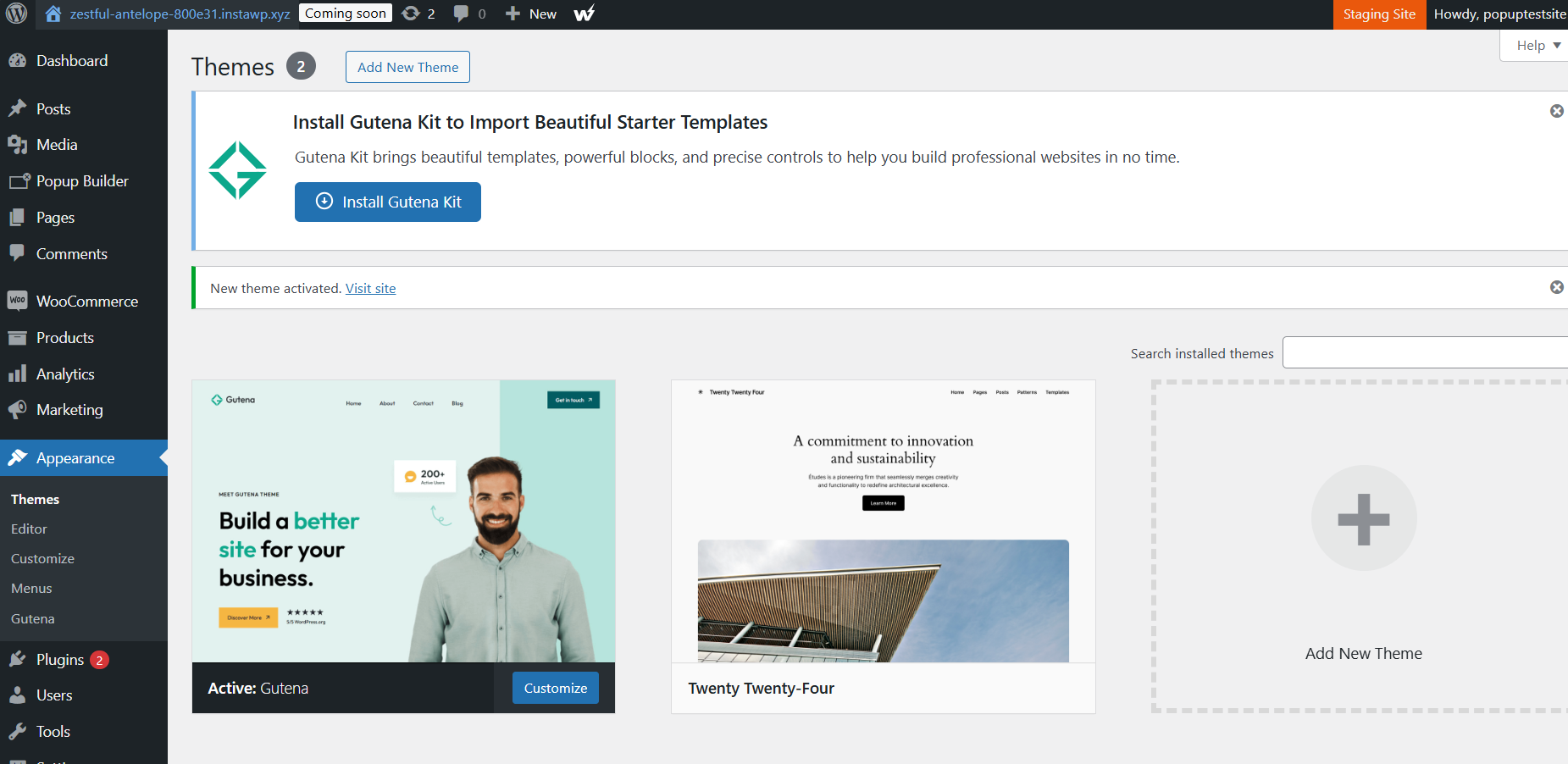
- Choose Your Theme: Access the WordPress dashboard of the staging site. Go to Appearance>Theme. Select the theme you want to edit. If you’re working with Full Site Editing, ensure your theme supports FSE like Gutena or choose the best full site editing theme of your choice.
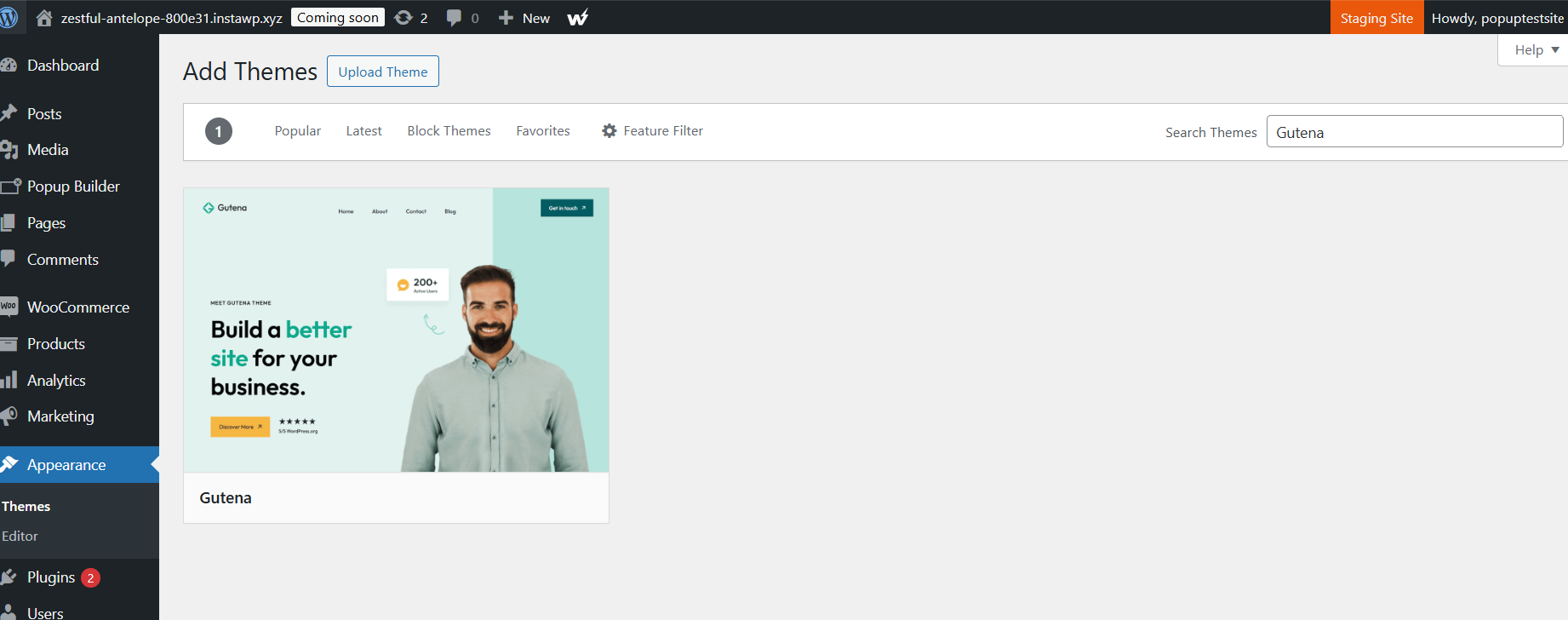
Install >activate this full site editing theme.
Step 2: Begin Editing with Full Site Editing Features
Now that your staging site is set up, you can begin editing your WordPress site using Full Site Editing (FSE). Here are some areas you can focus on:
Edit Template Parts: Start customizing the header, footer, or other template parts. Use InstaWP’s staging environment to make changes and preview them live without impacting the main site.
Customize Global Styles: Set global styles for typography, colors, and spacing. This helps maintain a consistent design across your entire site.
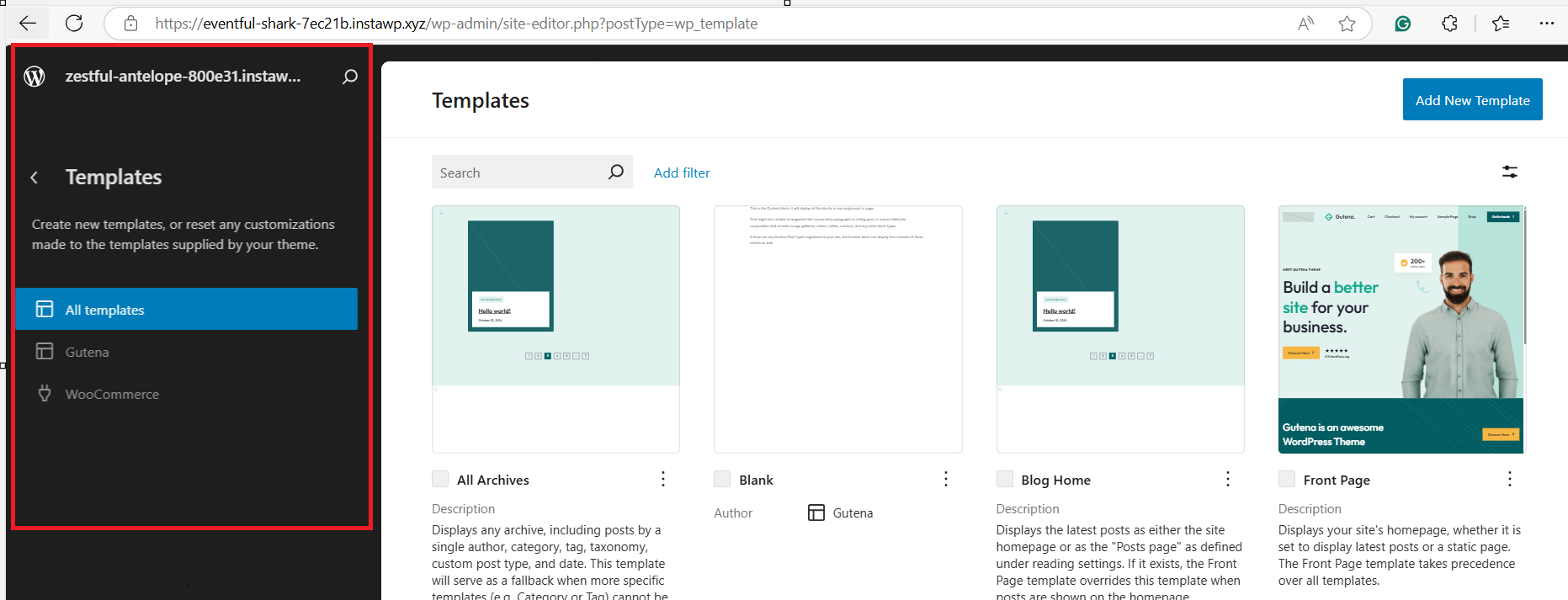
Modify Page Templates: Use the Template Editor to design or modify templates for specific pages like the homepage, blog posts, or product pages. InstaWP ensures that all changes are reflected only on the staging site until you’re ready to push them live.
Step 3: Collaborate in Real-Time (If You’re Working with a Team)
One of InstaWP’s standout features is its collaboration tools. If you’re working with a team, real-time collaboration in the staging environment can drastically speed up the editing process:
- Invite Team Members: You can invite developers, designers, or other stakeholders to join the staging environment. This allows for simultaneous editing and feedback, making the process more efficient.
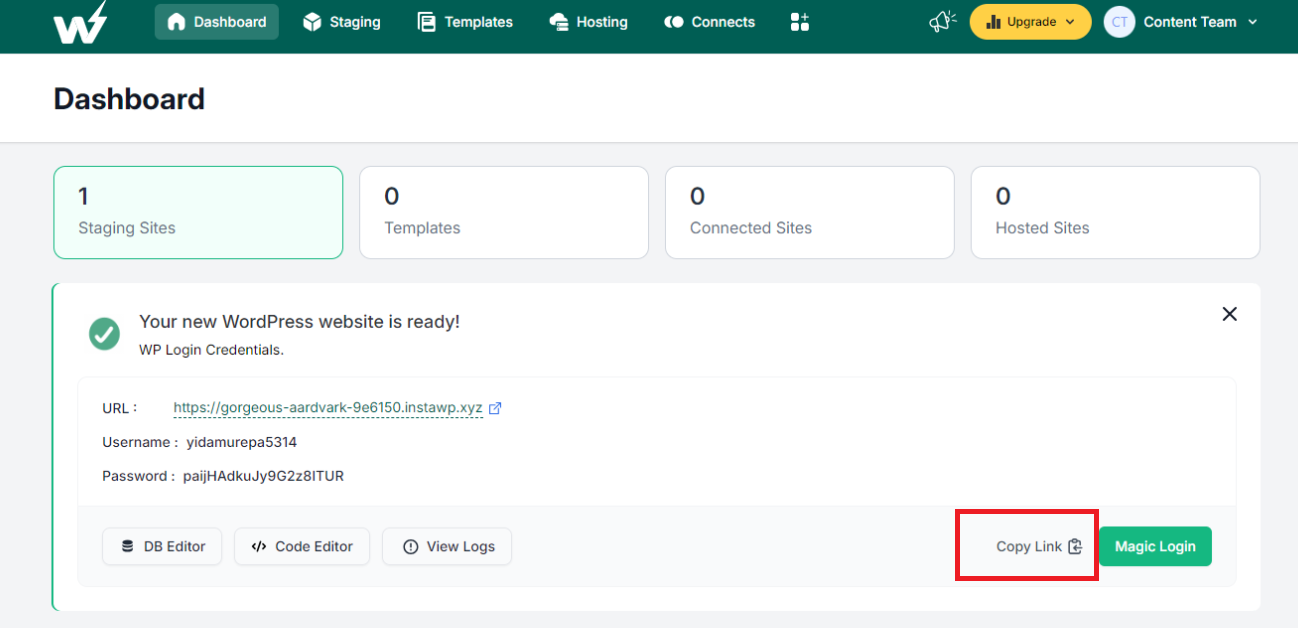
This real-time workflow ensures that every member of your team is on the same page and that your Full Site Editing changes meet client or project expectations.
Step 4: Test Your Changes
After making your customizations in the staging environment, it’s important to thoroughly test your changes before going live. InstaWP’s staging tool makes it easy to:
- Preview Changes: InstaWP allows you to preview your site’s design changes before publishing them. You can view how new templates, blocks, or styles look on both desktop and mobile devices.
- Check Functionality: Ensure that all functionalities, such as forms, menus, and plugins, are working correctly. Since InstaWP provides a fully functional copy of your live site, you can test every change in a risk-free environment.
Step 5: Push Changes to Your Live Site
Once you’ve reviewed your edits and are satisfied with the staging site, it’s time to deploy your changes to the live site. InstaWP makes this process incredibly simple:
- Select the Deployment Option: From the InstaWP dashboard, click on the “Push to Live” option to deploy the changes made in the staging environment to the live site.

- Confirm Changes: InstaWP will provide a summary of all changes that will be pushed live, using managed WordPress hosting, including template edits, block patterns, and global style adjustments. Confirm that everything looks correct.
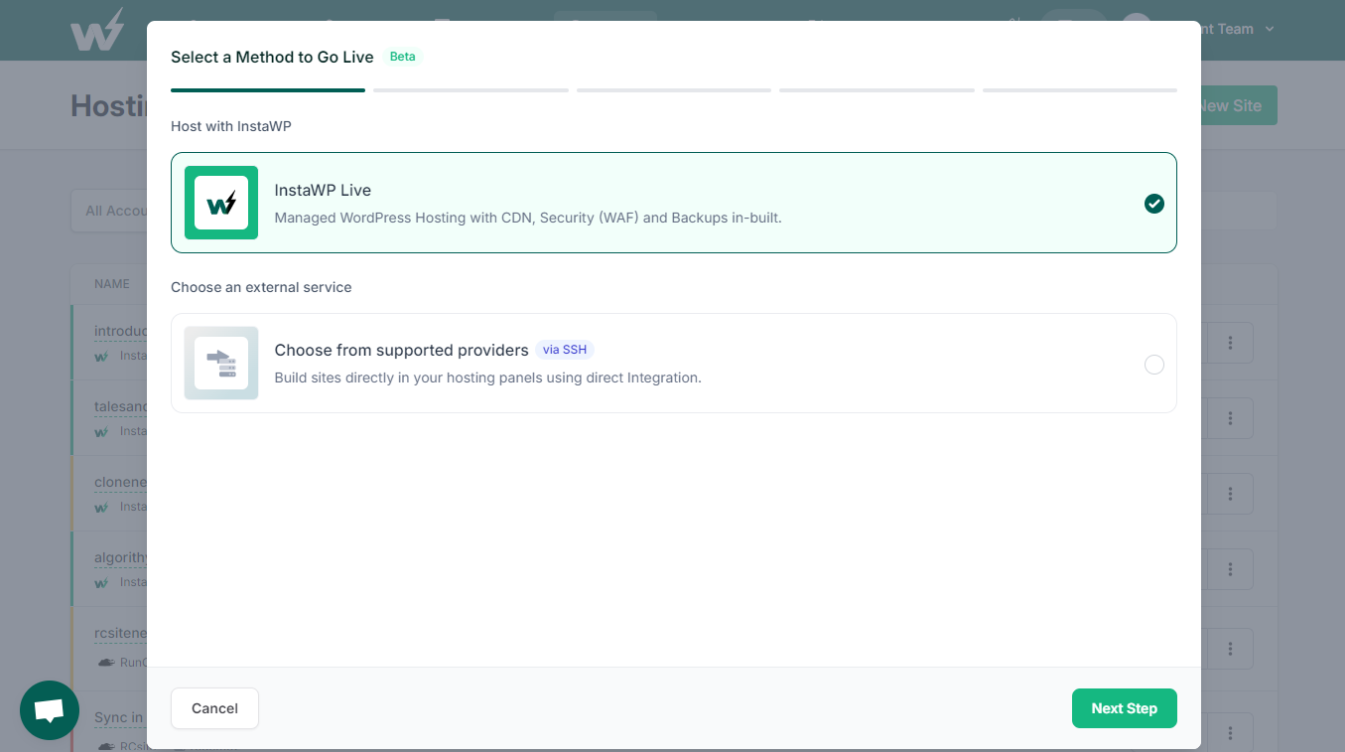
- Deployment Complete: InstaWP will automatically push your changes live without affecting the existing content or structure of your site. The deployment process is fast, and you can monitor it in real-time.
Step 6: Monitor Post-Deployment
Even after pushing changes to your live site, InstaWP provides monitoring tools to ensure everything runs smoothly:
- Rollback Option: If anything goes wrong post-deployment, InstaWP allows you to roll back to a previous version of your staging site, ensuring minimal downtime.
- Instant Updates: Any minor tweaks or additional adjustments can be easily made in the staging site and redeployed to the live site with the same simple process.
Best Practices for Full Site Editing with InstaWP Staging
To make the most of Full Site Editing and InstaWP’s staging tool, consider these best practices:
- Use Version Control: Regularly save snapshots of your staging environment so you can revert to previous versions if necessary.
- Test Extensively: Always test your Full Site Editing changes across multiple devices and browsers to ensure a seamless user experience.
- Collaborate Early and Often: Utilize the collaboration features within InstaWP to involve your team in the design process from the beginning. This ensures faster iterations and better results.
How Full Site Editing Transforms WordPress Theme Development
Full Site Editing fundamentally changes how WordPress themes are developed. Traditionally, developers created themes by writing PHP, HTML, and CSS code. While this remains an option, FSE introduces a more intuitive, block-based approach, enabling developers to:
- Create Custom Layouts Easily
No need for complex coding or child themes anymore. FSE simplifies the process of building custom layouts by allowing developers to place blocks wherever needed and adjust styles visually. - Increase Design Flexibility
With the addition of reusable template parts and the ability to modify templates, developers can create unique designs that cater to specific client needs, whether that’s for e-commerce, blogs, or portfolio sites. - Save Time with Template Reusability
As template parts and layouts are reusable, developers can significantly cut down the amount of time spent on repetitive tasks, allowing for quicker iteration and fewer mistakes.
Conclusion
Full Site Editing (FSE) is a game-changer for WordPress developers, offering an intuitive, flexible, and powerful way to create fully customized websites without relying on code.
Whether you’re building a simple blog or a complex e-commerce site, FSE provides the tools necessary to streamline the design process, save time, and deliver high-quality, tailored websites to your clients. By embracing FSE, WordPress developers can stay ahead of the curve and unlock a whole new level of design potential.


