If you’re working in WordPress content creation, first off, a big thank you from the WordPress community (and us).
Your work shines a light on various themes and plugins (i.e. the ones that help fellow content makers with their social media) and teaches people how to use them, which is invaluable. It’s a cool job, too, getting early access to new plugins and software. We bet some people might be envying your job right now!
However, as you’re likely aware, being a WordPress content creator or WordPress educator isn’t always easy. It involves a lot of trial and error, testing things to see if they work as promised, along with editing videos, writing content, or however you push your work out. It’d be great if there were ways to streamline some of these tasks, right?
This is where InstaWP and its WordPress staging capability come into play. We offer a solution that can help speed up at least one aspect of your WordPress content creation process. Keep reading to find out how InstaWP can make your content creation quicker and more efficient.
Table of Contents
Key Takeaways
1. Use need to create WordPress staging, especially fresh WP instances, more than often.
2. This tool is a game-changer for creators who regularly need fresh installations for their projects, saving them a lot of setup time and hassle.
3. With InstaWP, creators can focus more on creating content like videos, articles, or tutorials and spend less time on the technical side of things.
4. InstaWP offers plenty of tools that WordPress educators and content creators can use, such as code editors, database management, and template creation.
The above-mentioned aspects of InstaWP make it easier for creators to enhance their WordPress projects and share their work with others, improving the overall quality of their content.
The Biggest Challenge In WordPress Content Creation: The Need for Repetitive Fresh Installs
Do you know that one thing in your WordPress workflow that takes up a huge chunk of your time even before you start making your content? If you said “fresh install”, you’re right! Fresh install basically means starting a new WordPress website from scratch, and in a nutshell, it typically involves the following steps:
- Download the latest version of WordPress from the official website/. Use this link.
- Prepare the hosting environment and decide if you want to delete your old website permanently or keep your existing website’s data. However, since you usually do content on fresh websites, you likely delete old website data.
- Uploading all the necessary files and overwriting any existing files if you are prompted to do so.
- Create a new database and come up with new login credentials.
- Run the installation and finally configure the website.
There, you have a fresh website. But even in the short process alone, you can already see many ways how it can hold up your WordPress worfklow for your content creation.
The Problem With Fresh Installs
While a fresh install is necessary in your line of work, there are many downsides, such as:
- Time Drain: Each fresh install requires a considerable amount of time to set up, taking away from content creation, ideation, research, and design. The time on setup can also lead to delays in project timelines and pushing out of content,
- Focus Shift: The technical demands of setting up a new WordPress environment can divert attention from your creative and strategic planning. Let’s say you’ve done it plenty of times, but if that isn’t really your line of work, you might mistakes, and having to hire someone to do it for you every single time might not be financially feasible.
- Inefficiency: The cycle of uninstalling and reinstalling WordPress for testing purposes interrupts the workflow, reducing your overall productivity. And that leads to one more downside, which is:
- Creative Blockage: Know that feeling where you’re in the mindset to go make some content, then suddenly, you’re hit with the fact that you have to do a fresh install first? Won’t that sort of drain your enthusiasm? Getting bogged down in the technicalities can stifle creativity, making it harder for you to present your content better.
That’s where InstaWP comes into play. With its ability to spin up a WordPress staging site in seconds, you’ll get over these problems in no time.
What Kind Of WordPress Content Creator Would Benefit From Using InstaWP?
If you’ve been nodding along with the problems we’ve talked about, you’re probably glad to hear someone’s finally pointing them out and that there’s a way to fix them. This is good news for all kinds of WordPress content creators, such as:
Video Creator
If you’re a video creator or YouTuber focusing on creating WordPress content, InstaWP is a tool that can make your life a lot easier. Because it lets you quickly set up new WordPress sites, it’s perfect for creating tutorials, reviews, or showcasing themes and plugins. This means less time on setups and more on producing content—especially since video editing can take a lot of time.
In other words, InstaWP helps video creators focus on what they do best: creating engaging and informative content. It’s a game-changer for anyone looking to streamline their workflow and enhance the quality of their WordPress-related videos.
Tech Writers
Another kind of creator who would benefit from using InstaWP are tech writers that make WordPress guides and tutorials. If you’re one of these writers, you will appreciate the ability to quickly generate fresh WordPress installations, which means you can ensure your guides are up-to-date and accurate and reflecting the latest WordPress features and updates.
For example, you can download the latest WordPress version on the test site, and you can really check if it’s working as it is. You’ll also spend less time doing the setup, which means more time for you test and write.
Documentation Specialists
One more creator type who would appreciate InstaWP is documentation specialists who focus on WordPress plugins, themes, and extensions.
If you were such a creator, wouldn’t you appreciate a more streamlined process of setting up environments to test and document new features or updates?
For one thing, you’ll have the ability to create clean environments to test specific features, leading to clearer, more focused documentation.
Also, you can quickly switch between different plugin and theme configurations to cover more ground in less time. And you can be sure about the quality of your documentation, since it’s based on true, firsthand testing, which makes it more useful for end-users.
Now, we get to the main event: how do you use InstaWP, exactly?
How to Use InstaWP as Your Content Creation Ally
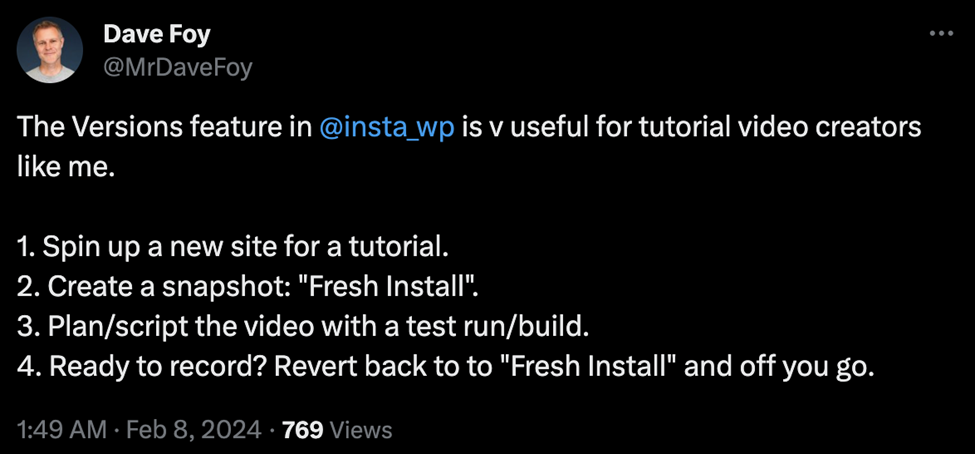
Now, to get started on actually using InstaWP as your fresh install or WP Staging, instead of actually having to do a fresh install. Don’t worry, it’s pretty easy. Just ask Dave Foy:
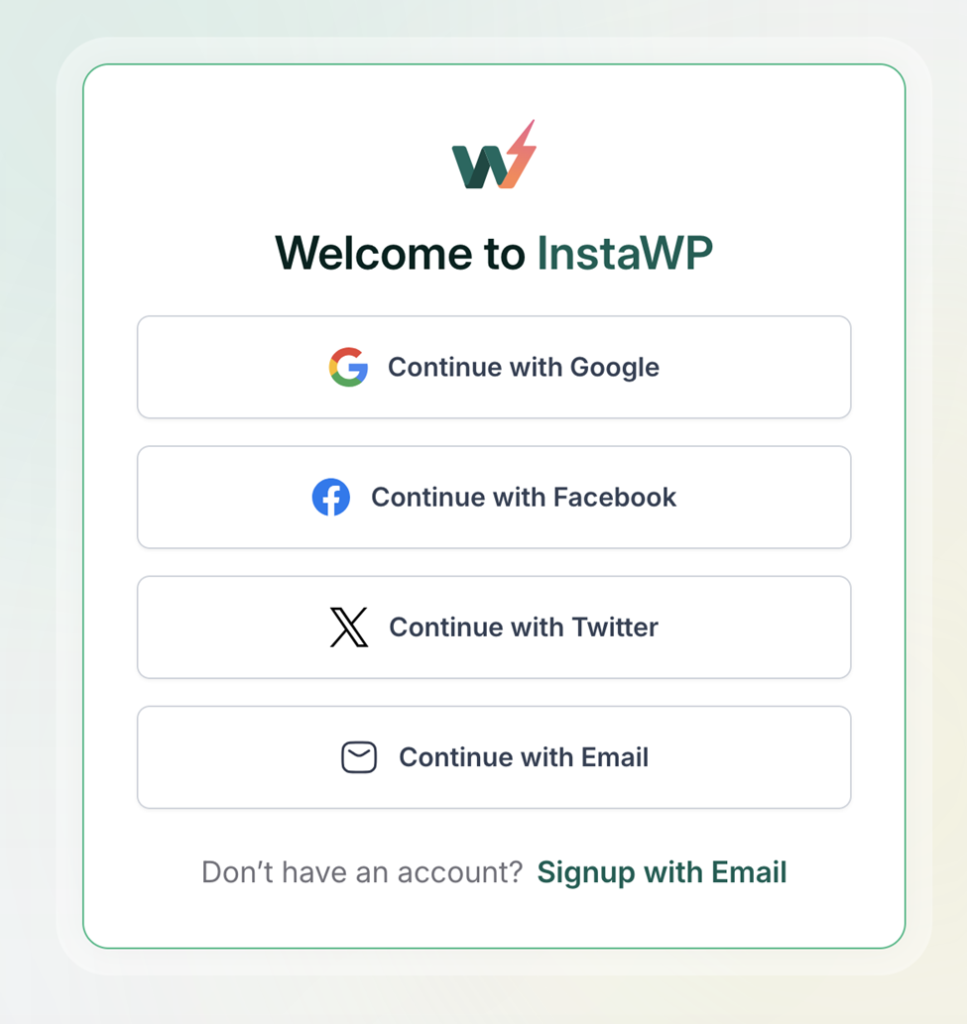
The first thing you need to do is sign up for an account to InstaWP.
Once you have an account, you’ll arrive at your Dashboard.
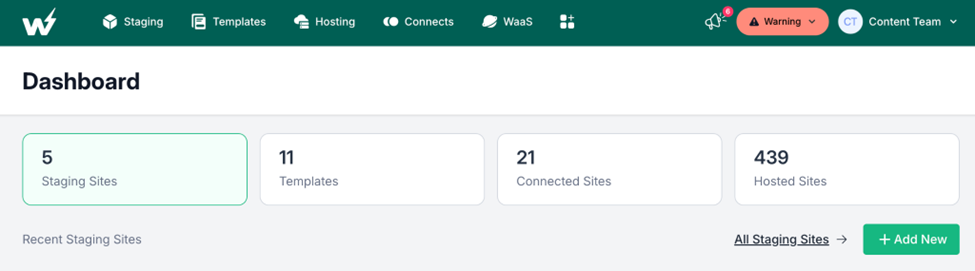
Let’s say you’re going to use a totally clean WordPress website to try out a theme or plugin. See that + Add New button? Press that and this will pop up:
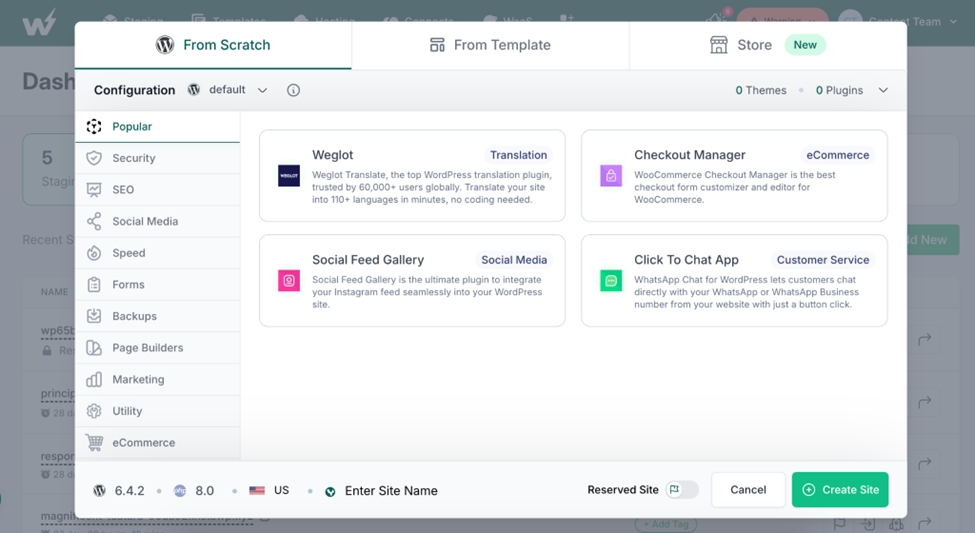
You know have the option to create a website entirely from scratch with certain plugins, themes, and so on. Once you’re done selecting everything, press the + Create Site button on the lower right.
Wait for a bit, and then this will appear on your Dashboard:
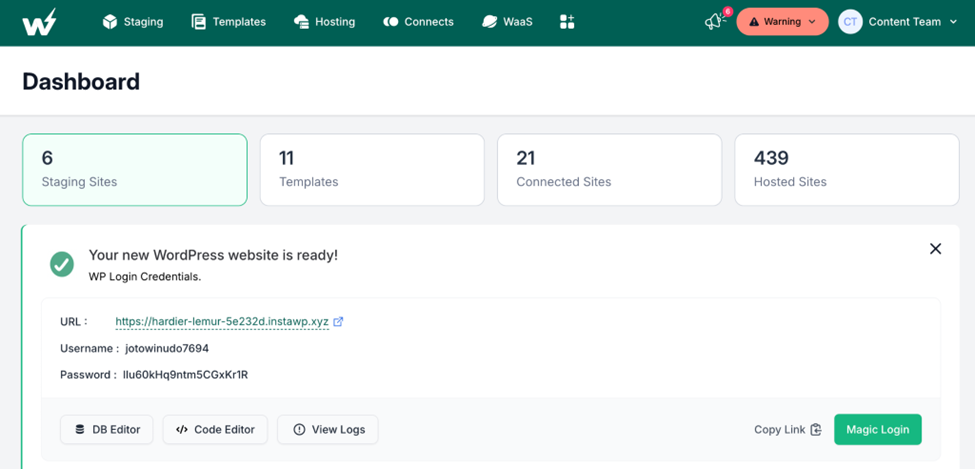
Congratulations, you now have a test website that has been generated in seconds! Press the Magic Login to check it out and you’ll arrive at the WordPress site.
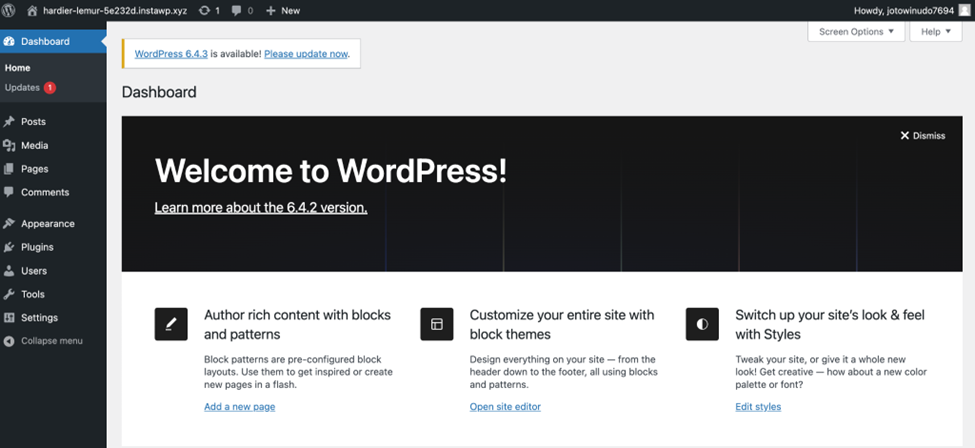
You now have a clean website for your content purposes.
Now, what if you wanted to start with this kind of website setup already for all of your future content? Does that mean you have to repeat the process from the Dashboard all the way to the website generation?
Well, thankfully, no. After all, we’re interested in saving time, right? And when it comes to time saving, this is where the Snapshot feature comes in.
Create A Snapshot
InstaWP has documented this feature, but let’s summarize it here. You’ll be able to save a version of your website and then, to quote Dave Foy, save it as “Fresh Install.” Here’s how.
Back at your Dashboard, click on the Staging button at the top of the menu.

Look for the WordPress staging website you want to save, then go over to the rightmost part, the one with the three dots. Click on it, and look for the Versions option.
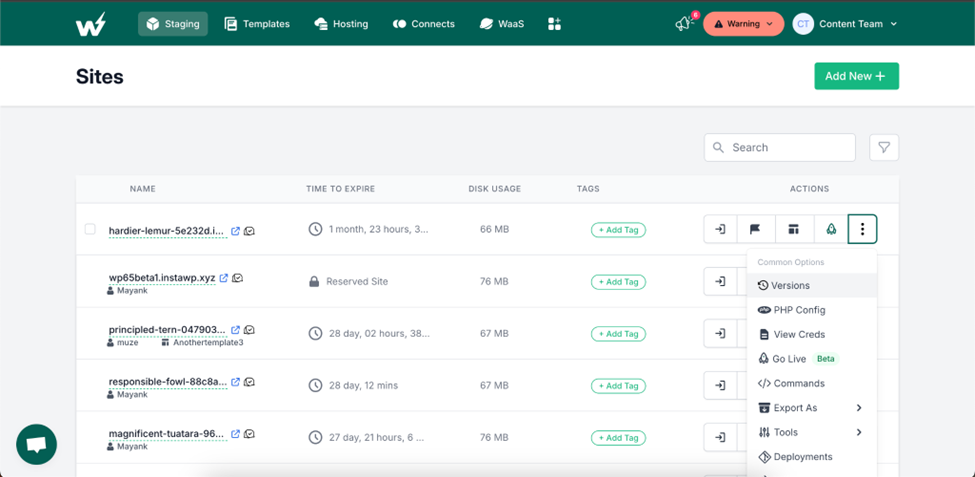
When you click on it, this will appear:
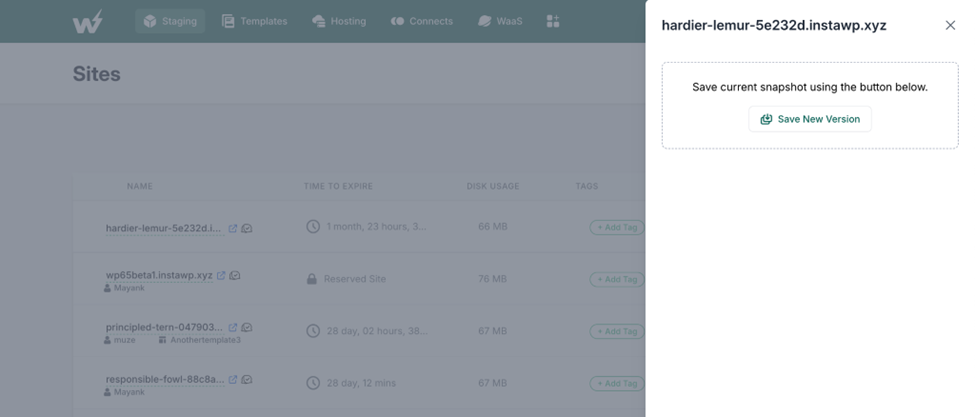
Press the Save New Version. Let InstaWP save it, then this new screen will appear:
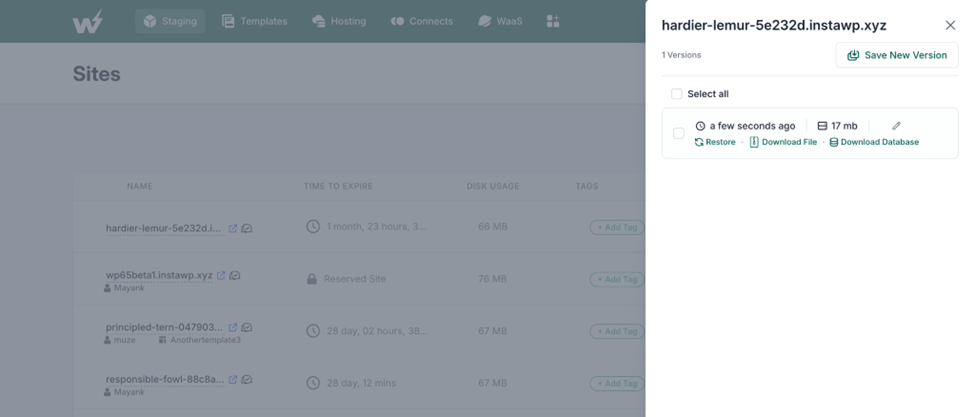
See the pencil? Click on it to rename this version as Fresh Install, or however you want to call it. Press the Save button to save the new label.
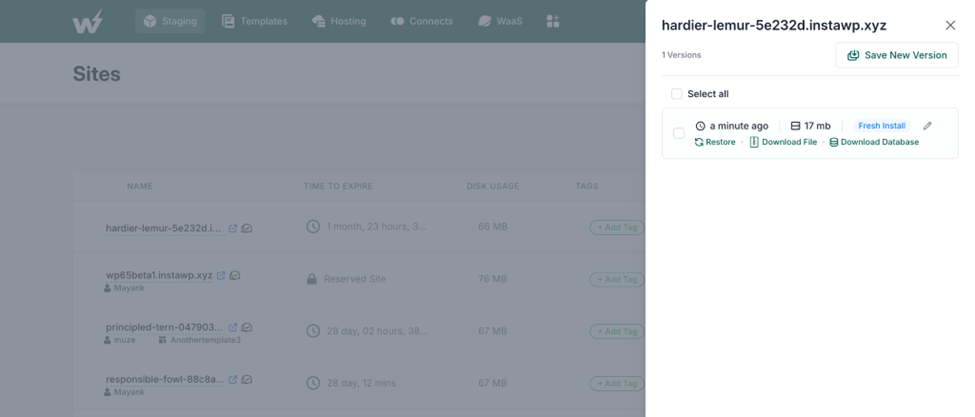
Now, everytime you want to revert to fresh install, it’s easy. Say you went crazy on the test site, and now you need a new fresh install, right? Or maybe for video, you wanted to do a rehearsal video first, and now you want to start anew.
Just look for the test site again, press Versions, and this time, press Restore to get this prompt:
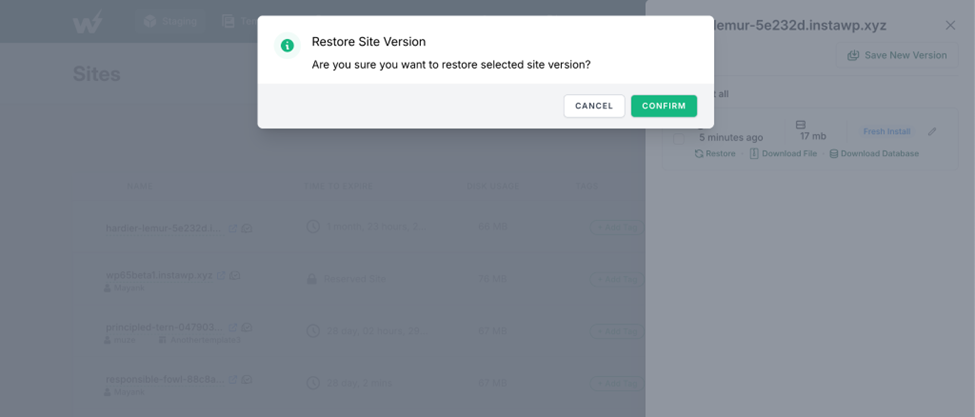
Press Confirm and congratulations, you now have a Fresh Install! You can now just do this every single time you’re making new content. Talk about a huge time saver, agree?
Other Features That You Can Try Out With InstaWP
Aside from the Snapshot feature, Dave appreciates this about InstaWP as well:

InstaWP has a bunch of other features that can really help WordPress creators and educators, such as the following:
Advanced Code Editor
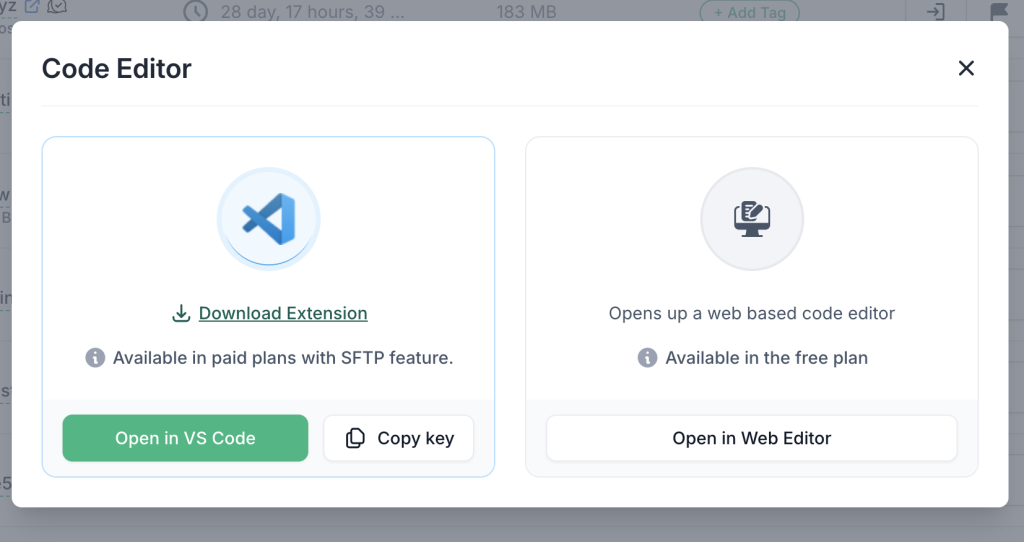
InstaWP’s Advanced Code Editor allows WordPress content creators and educators to directly write and edit source code files within their WordPress sites. This feature is invaluable for those who need to tweak themes, plugins, or custom code snippets on the fly, providing a seamless and efficient way to make changes without leaving the InstaWP environment.
Read more about InstaWP’s Code Editor here.
DB Editor
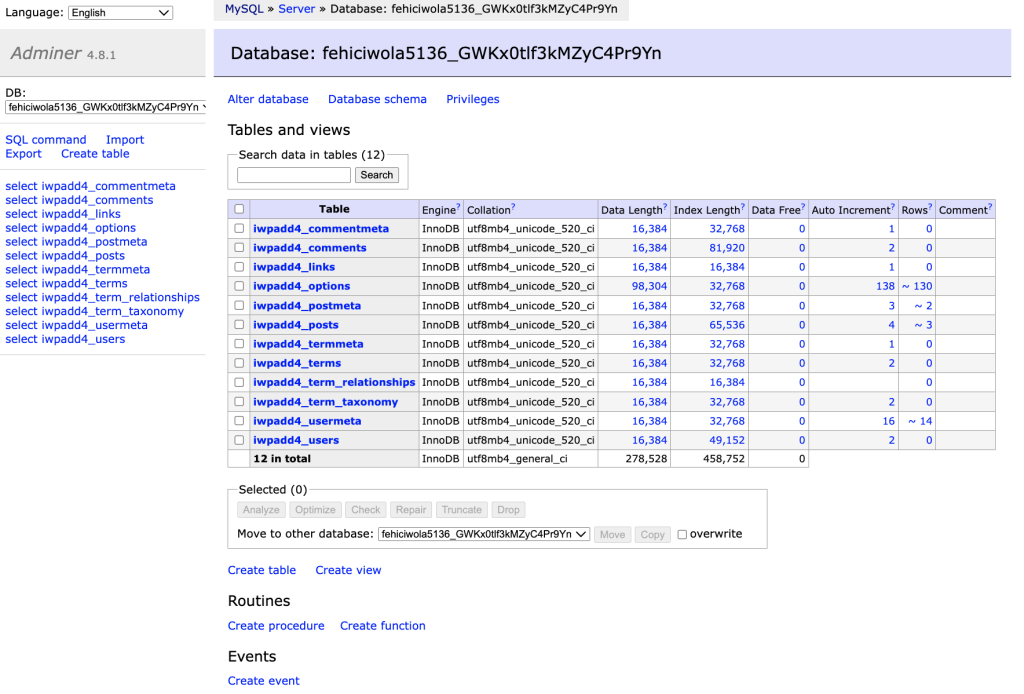
The DB Editor feature offers a straightforward and powerful interface for managing WordPress databases.
This tool is perfect for any WordPress educator looking to demonstrate database management, including how to safely edit tables, optimize performance, or clean up test data. It simplifies complex database operations, making it accessible for both teaching and practical applications in WordPress development.
Read more about the DB Editor here.
Template Creation and Sharing
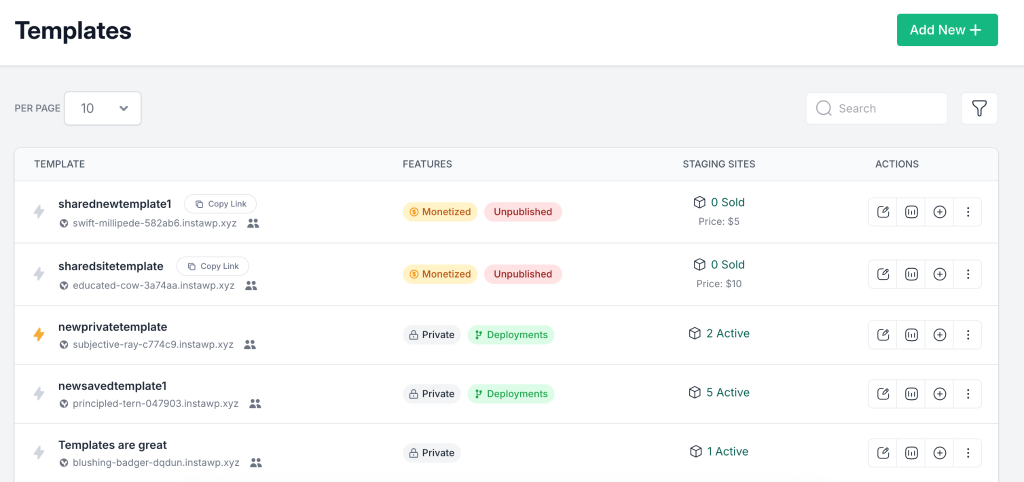
InstaWP also lets you create templates from WordPress sites, which can be saved and shared with others. This feature is great for WordPress educators and content creators who wish to distribute pre-configured setups to students or audiences.
By sharing templates, educators can ensure that everyone starts from the same baseline, facilitating more effective learning and collaboration, and standardizing the learning environment.
Read more about template creation here.
In other words, InstaWP is not just for setting up WordPress sites quickly; it’s also great for editing code, managing databases, and sharing site templates with others. These tools make it easier to work on your projects and teach WordPress stuff.
Want to know what else you can do with InstaWP? Check out the complete list of features here.
Other Things To Do To Optimize Your WordPress Educational Content Creation Workflows
Beyond using InstaWP for efficient WordPress setups, here are other things you can do to further improve your content creation workflows.
- Batch Content Production: Plan and produce your content in batches. For example, record multiple video tutorials or write several blog posts in one go. This approach helps minimize the setup and transition times between tasks.
- Use Content Calendars: One thing that hurts consistency is not having a proper schedule. Implementing a content calendar can help you organize topics, deadlines, and publishing schedules. It’s a great way to stay on track and ensure a consistent output of educational content.
- Leverage Content Templates: Develop templates for your videos, blog posts, or tutorials. Templates can streamline the creation process, ensuring that each piece of content maintains a consistent format and quality. If you find yourself getting bored over time, just create new templates.
- Collaborate and Outsource: Collaborate with other content creators which can help both of you, since you’ll end up with new content. As for content tasks that you don’t particularly enjoy, why not outsource them? Collaboration can bring new insights and ideas, while outsourcing tasks like editing or graphic design can free up your time to focus on content creation.
- Stay Updated with WordPress Developments: Keeping abreast of the latest WordPress updates, plugins, and themes is crucial. Subscribe to WordPress news sources, forums, and communities to ensure your content remains relevant and informative. For example, you don’t want to be left behind if WordPress has a new beta release, right? For sure you’d want to review that.
- Feedback and Analytics: Regularly gather feedback from your audience and analyze your content’s performance. Use these insights to refine your approach, focusing on topics and formats that resonate most with your audience.
Conclusion
To wrap things up, one thing is clear: InstaWP is a game-changer for anyone creating content on or about WordPress. It tackles the headache of starting from zero every time you need a new site for your work. With InstaWP, setting up a new WordPress site becomes quick and easy, letting you focus on what you’re really passionate about—making great content.
Sign up for an account today to really optimize your content creation process.
FAQs
What is InstaWP?
InstaWP is a tool that helps the user create staging environments quickly for testing, development, and content creation.
How does InstaWP streamline the WordPress content creation process?
InstaWP simplifies the process by allowing quick setup of WordPress environments. This means you can start with a new WordPress site in seconds, significantly reducing the time spent on installations and technical setups, so you can focus more on creating content.
Can InstaWP be used for video content creation?
Yes, InstaWP is ideal for video creators and YouTubers who focus on WordPress-related content. It allows for rapid setup of test environments, making it easier to produce tutorials, reviews, and showcases without spending excessive time on site preparation.
Is InstaWP suitable for all types of WordPress content creators?
Absolutely. Whether you’re a blogger, video creator, tech writer, or documentation specialist focusing on WordPress themes, plugins, or core updates, InstaWP can enhance your workflow by providing quick and easy access to fresh WordPress setups.
How can tech writers benefit from using InstaWP in their workflow?
Tech writers can use InstaWP to ensure their tutorials and guides reflect the latest WordPress features accurately. The ability to spin up new sites rapidly allows for more efficient testing and validation of content, making the writing process smoother and more reliable.
Does InstaWP offer features that support collaboration among WordPress content creators?
Yes, InstaWP supports collaborative efforts by enabling multiple users to access and work on the same staging environments. This feature is particularly useful for teams working on large WordPress projects, ensuring everyone is on the same page and can contribute efficiently.
How can I get started with InstaWP?
Sign up for an account on the InstaWP website. Once registered, you can immediately begin creating new WordPress sites from your dashboard. InstaWP offers various plans, including a free option, to suit different needs and scales of content production.