Starting a blog in WordPress no longer needs to feel like a technical obstacle course. Traditionally, creating a blog website meant buying hosting, pointing domains, installing WordPress, and hoping nothing broke.
But tools like InstaWP have changed the game. Now you can start a WordPress blog in seconds; no setup headaches, no plugin overload, and zero downtime.
Whether you want to create a blog in WordPress for travel, tech, or tutorials, this guide will walk you through every step, from setup to publishing your first post. If you’ve been wondering how to create a blog on WordPress without the usual stress, you’re in the right place.
Table of Contents
What Do You Need to Start a WordPress Blog?
If you’ve been Googling how to create a blog on WordPress, chances are you’ve come across dozens of checklists: buy a domain, choose a hosting plan, install WordPress manually, configure databases, and hope nothing breaks. It sounds like a rite of passage, but it doesn’t have to be.
When you create a blog in WordPress using InstaWP, you skip all that complexity.
Here’s the truth:
Every site you launch on InstaWP is a fully hosted WordPress site powered by cloud infrastructure. You don’t need to separately register a domain, pay for hosting, or download any software. InstaWP takes care of the entire backend, from the web server (Nginx + Apache) to the database and even automatic backups.
You click “Create New Site” and within 5 seconds, you’re dropped into a real WordPress dashboard, ready to start customizing your blog.
So, what do you need to start a WordPress blog with InstaWP?
- A clear topic or niche (e.g., travel, food, tech tutorials)
- An InstaWP account (free or paid; even free lets you publish for 48 hours)
- Basic content ideas for your first blog post
- (Optional) Your own domain, which you can connect later once you’re ready to go live
That’s it. No server configuration, no FTP logins, no plugin conflicts out of the gate.
Now, this modern way to create a WordPress blog is far faster, better, and hassle-free than the traditional method.
Let’s compare:

With InstaWP, you’re not just figuring out how to create a blog website; you’re doing it with the fastest, most frictionless WordPress workflow available. You can even spin up multiple blogs with WordPress to test ideas before settling on a direction. Everything is containerized, secure, and scalable.
Whether you’re building a blog for yourself, a client, or as part of a marketing campaign, InstaWP lets you start a blog in WordPress without worrying about the infrastructure. It’s not just easier; it’s smarter.
And since every InstaWP site comes with WordPress pre-installed, HTTPS enabled, CDN integrated, and PHP optimized, your blog doesn’t just launch fast; it loads fast too.
So if you’re wondering how to create a blog on WordPress site without the pain of traditional setup, the answer is simple: start with InstaWP and blog smarter from day one.
How to Create a Blog on WordPress Using InstaWP
Now, let’s talk about the real meat: how to create a WordPress blog. We’re using InstaWP for this because we have already mentioned that this is the best way to create a blog using AI, without coding, and with zero hosting hassle.
Step 1: Create a New WordPress Site on InstaWP
To get started, you will create a fresh WordPress instance on InstaWP. InstaWP offers multiple ways to launch a site instantly:
- Go to the InstaWP dashboard and log in (create an account if you haven’t). Once in your workspace, click the “Add Site” button (often labeled Add New or Add Site). This opens the site creation dialog.
- In the Create New Site dialog, select either “From Scratch” (a blank new WordPress) or “From Template” (reuse a saved site template).

From Scratch: Pick this for a clean WordPress install. You can configure details like WordPress/PHP versions, server location, and site name.
From Snapshot: If you have a pre-made WordPress template, select it to clone a ready-made site. This can jump-start your blog with a preconfigured theme and plugins. You can still adjust options like PHP version, custom site name, or mark it permanent before creating the site.
From Store: Choose pre-built templates from the InstaWP Store to create a blog.
From AI: You can use AI website builders within the InstaWP dashboard to create a WordPress blog.
- InstaWP allows you to pre-select commonly used WordPress blog plugins before creating the site. After clicking Next, you’ll see categories like Popular, Security, Speed, Forms, Backups, Page Builder, SEO, etc.

Check any tools you want to include. For example, you might choose a security plugin, a WordPress caching plugin for speed, a forms plugin for contact forms, a WordPress backup plugin, and an SEO plugin. This one-click selection saves time by installing these plugins on the site.
- Click “Create Site”. InstaWP will provision a new WordPress instance with the chosen settings and plugins. Within seconds, your temporary blog URL (something like your-site.instawp.xyz) will be ready. You’ll see the new site listed on your InstaWP dashboard.
- Once the site is running, you can log in to its WordPress Dashboard. InstaWP provides a “Magic Login” feature for convenience. It lets you jump into the WordPress admin area without entering credentials. (You can also find default admin credentials under Site Creds if needed.)

Now you have a fresh WordPress blog environment running on InstaWP, ready for customization.
Step 2: Customize the Theme, Plugins, and Content of Your WordPress Blog
Once your WordPress site is live inside InstaWP, it’s time to make it visually appealing. One of the best things about creating a blog in WordPress is the freedom to pick a design that fits your voice, your niche, and your brand. Whether you’re blogging about food, travel, tech, or finance, there’s a theme for everyone.
You have thousands of WordPress blog themes and blog website templates to choose from.
Let’s handle basic WordPress blog customization:
Choose and Install a Theme
Here is how you can install a WordPress blog theme.
- Go to your WordPress dashboard.
- Navigate to Appearance → Themes.
- Click “Add New” to browse free themes from the WordPress.org directory.

You’ll find thousands of free themes sorted by popularity, features, and categories. Agencies building multiple WordPress blog websites can avoid logging in to each site to install a WordPress blog theme on all the clients’ blog websites.
They can simply use the ‘Bulk Action’ feature of InstaWP. Simply select the site > Bulk Action > Run Command. Enter the WP CLI command to install a specific WordPress blog theme.

In the blink of an eye, the selected theme will be installed on all the client sites.
Install Essential Plugins
If you pre-selected WordPress plugin categories when creating the site, those will already be installed. Verify and activate them under Plugins. If not, you should install key plugins now:
- SEO Plugin: e.g., Yoast SEO or Rank Math, to optimize meta tags and sitemap.
- Caching/Performance: e.g., WP Super Cache or LiteSpeed Cache, to improve load times.
- Security: e.g,. Wordfence or iThemes Security, to harden login and protect against threats.
- Analytics: consider adding Google Analytics via a plugin or code to track visitors.
- Any Other Needed Features: contact form plugin (if your theme doesn’t have one), social sharing buttons, etc.
To Install:
Go to Plugin > Add New. Type the name of your plugin and click on Install > Activate.
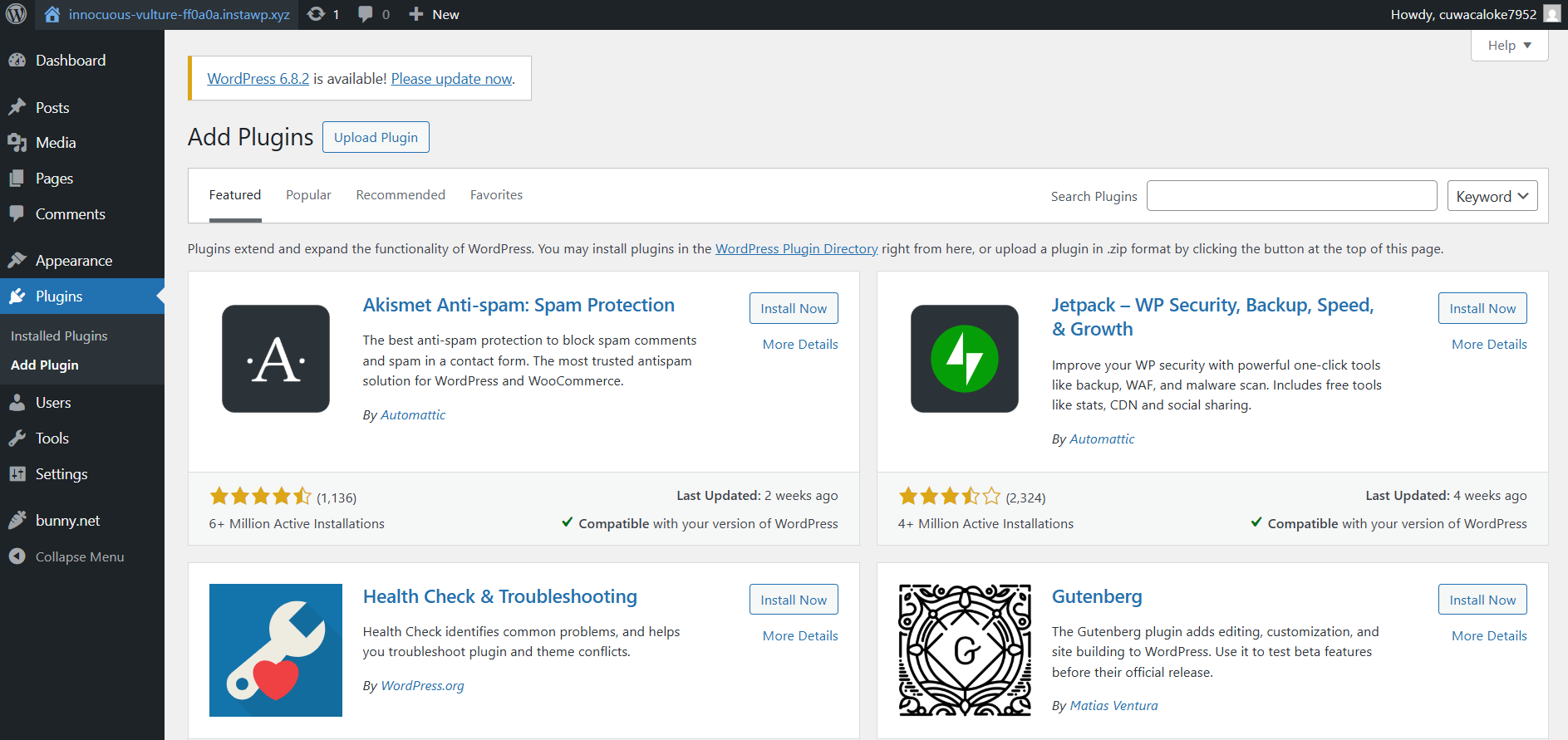
Similarly, agencies can use the Bulk Action feature to install WordPress blog plugins of their choice on multiple client sites.
Customize the Design of Your WordPress Blog
A theme sets the foundation, but customization brings your blog to life. Whether you’re going for elegant minimalism or vibrant visual storytelling, you’ll want your blog to reflect your personality (or your brand’s tone) from the very first glance.
Thanks to InstaWP, you’re working in a live WordPress environment; no waiting for DNS changes, no theme-breaking risks, and no staging plugins required. You can create a blog website that looks and feels right from day one.
From your WordPress dashboard, go to Appearance > Customize to customize the appearance of your blog. This opens the WordPress Customizer, where you can adjust design elements and instantly preview changes.

Most themes will let you customize:
- Site Identity: Set your blog’s name, tagline, and logo.
- Colors: Adjust background, header, and link colors.
- Typography: Choose font styles and sizes for headings and body text.
- Layout: Pick between full-width or boxed designs, sidebar positions, header styles, etc.
If you’re using a modern WordPress block theme, you’ll also have access to style variations, allowing you to apply prebuilt design palettes with one click.
Want a quick tip? Use InstaWP’s Config Manager to modify PHP settings like image upload size or memory limits, without touching the wp-config files manually.
Upload a logo and favicon
Your logo is a visual signature. Even a simple one makes your WordPress blog page look more professional. If you don’t have one yet, you can create a logo with AI in just seconds.
Inside the Customizer:
- Go to Header Settings > Site Identity
- Upload your logo and adjust its display

- Set a Site Icon (favicon) that appears in browser tabs

Step 3: Create Must-Have Pages for Your WordPress Blog
Before you start writing blog posts, you need to set up a few foundational pages that help readers understand your site, contact you, and navigate smoothly. These pages aren’t just fillers; they shape the structure and trustworthiness of your blog with WordPress.
If you’re using InstaWP, you’re already ahead. You can build and preview all your pages live before you publish or connect a domain. That means zero risk and full flexibility.
Essential pages to create:
- Home Page: The face of your blog. This can be a static welcome page or a dynamic post feed.
- Blog Page: Where all your blog posts will appear automatically.
- About Page: Share your story, mission, or background — builds trust and relatability.
- Contact Page: Let readers or clients reach out via a form, email, or social links.
These are the pages every good WordPress blog page setup should include, no matter the niche.
How to create them:
- From your WordPress dashboard, go to Pages > Add New

- Title the page (e.g., “Home”, “About”, “Blog”, or “Contact”)
- Click Publish; you can leave the content blank for now if you plan to design it later
- Repeat this for each core page
Each of these pages is now live at a URL (e.g., yourblog.instawp.xyz/about).
Tip: If you’re building multiple blogs for clients, use InstaWP’s Snapshot feature to save these base pages as a reusable template. This will save you hours down the line.
Skipping these foundational pages is one of the biggest mistakes new bloggers make. A WordPress blog page without structure feels incomplete, like walking into a store with no signage. Whether you’re building a personal site or managing client blogs, adding these pages early gives your blog a professional edge.
Step 4: Set Your Homepage and Blog Page in WordPress
By default, WordPress shows your latest posts on the homepage. That’s great for personal blogs or news sites, but if you want a proper front page with an introduction and a separate space for your articles, you need to set that up manually.
InstaWP makes this process seamless. Since your site is already live and hosted, you can preview your homepage and blog feed in real-time without worrying about breaking anything.
Here’s how to set up your pages properly:
- Go to your WordPress dashboard
- Navigate to Settings > Reading
- Under “Your homepage displays,” select A static page

- For Homepage, choose the page you titled “Home”
- For the Posts page, select the page you titled “Blog”
- Click Save Changes
That’s it. You’ve now configured your WordPress blog page to act as a dedicated post feed (yourdomain.com/blog) while your homepage (yourdomain.com) becomes a welcoming landing space.
When you create a blog in WordPress, structure matters just as much as content. Assigning a static homepage makes your site look more like a full website and less like a default install. This is especially important if you plan to monetize, build a brand, or grow a reader base.
And if you’re working on a client project, a clean blog in WordPress setup with separate content sections gives you a professional starting point that’s easier to scale and customize.
Step 5: Write and Publish Your First Blog Post
You’ve set the foundation; your theme is in place, the homepage is ready, and your WordPress blog page is now live. It’s time for the part that really brings a blog to life: creating content.
If you’ve been wondering how to start a WordPress blog and actually publish something useful, this is your moment. With InstaWP, you’re already inside a fully configured environment. There’s nothing left to set up. Just write and hit publish.
How to create your first post:
- From your dashboard, go to Posts > Add New
- Enter your blog post title at the top; something catchy and clear
- Use the block editor to write your content. Add paragraphs, images, quotes, lists, and headings using the (+) button
For example:
- H1: 5 Tools I Use to Plan Every Trip
- Image block: Insert a photo
- Quote block: Add a personal tip
- List block: 5 destinations or must-have apps

On the right-hand sidebar of the editor:
- Under Categories, click “Add New Category” — e.g., Travel Tips or Freelance Life
- Under Tags, add keywords related to your post — e.g., planning, remote work, Paris
This helps organize your blog in WordPress and improves both UX and SEO.
Scroll down or look at the right sidebar for Featured Image:
- Upload an eye-catching image that represents the post
- This image will appear as a thumbnail on your WordPress blog page
Don’t forget: InstaWP’s built-in Performance Scanner can help you optimize images later if you’re worried about page speed.
- Click Preview to see how your post will look live
- When you’re happy, hit Publish
Congratulations! You’ve now written your first post and officially started your WordPress blog.
It’s live at a URL like yourdomain.com/blog/my-first-post and automatically shows up on your blog page.
Step 6: Set Up Navigation Menus and Sidebar Widgets
Now that your first post is live, you need to make sure visitors can find it, along with your About, Contact, and Blog pages. This is where navigation menus and sidebars come in.
If you want to build a clean, professional blog with WordPress, your site’s menu should be intuitive, and your sidebar should enhance the browsing experience, not clutter it.
Create your site’s main menu
- In your WordPress dashboard, go to Appearance > Menus

- Click “Create a new menu”, give it a name like “Main Menu”
- Under Add menu items, check the pages you’ve created: Home, Blog, About, Contact
- Click “Add to Menu”, then drag to reorder them as you like
- Under Menu Settings, check “Primary Menu” (or “Header” depending on theme)
- Click the Save Menu
That’s it; you’ve now created a menu that appears at the top of your blog, linking to all your key pages. Every good WordPress blog page setup should have this.
InstaWP’s Magic Login makes it super fast to jump between your client blogs and update menus across multiple sites in just a few minutes.
Set up your blog sidebar (optional)
Many themes show a sidebar on blog posts and archive pages. Here’s how to personalize it:
- Go to Appearance > Widgets
- Find the Sidebar or Right Sidebar area (depending on your theme)
- Drag and drop widgets like Search bar, recent posts, categories, Text, and Custom HTML.
Want a personal touch? Add a Text widget that says “Welcome to my blog! I write about [your niche].” Add an image block above it with your photo to humanize the space.
Also, go to Settings > General, ensure your Site Title and Tagline are set appropriately for your blog. Also, go to Settings > Permalinks and choose a human-readable URL structure (e.g., “Post name”) for SEO-friendly blog post URLs.
A good menu and sidebar make your blog easier to navigate and more inviting to explore. Now that you’ve got content and structure in place, let’s talk about managing and optimizing your blog behind the scenes.
Step 7: Manage, Monitor, and Optimize Your WordPress Blog with InstaWP
Most bloggers stop at publishing, but smart creators know that ongoing site management is just as important as setup. When you create a blog in WordPress, you’re not just launching a page; you’re launching a system that needs regular care: performance tuning, plugin updates, security checks, and maybe even design revisions over time.
That’s where InstaWP becomes more than a launch tool; it becomes your long-term blog management platform.
InstaWP gives you a unified dashboard to monitor and manage all your sites in one place.
Once you’ve created a blog with InstaWP, you can:
- Use Magic Login to instantly access the WP admin (no passwords needed)
- View performance scores and uptime for each blog
- Check the PHP version, WordPress version, and installed plugins at a glance
This alone saves hours of toggling between tabs, especially if you manage multiple blogs in WordPress for clients or campaigns.
Performance Monitoring & Alerts
Nobody likes a slow blog. With InstaWP’s Performance Scanner, you can:
- Audit slow plugins or themes
- Identify memory or execution bottlenecks
- Get suggestions on how to optimize load time

Pair that with the Uptime Monitor and you’ll always know when your blog is down, even before your visitors do.
Schedule Auto-Updates (Or Trigger Manual Ones)
When you’re managing your WordPress blog with InstaWP, you don’t have to worry about keeping its WordPress core, themes, and plugins updated. You can use its Bulk Edit feature to update/install/uninstall plugins and themes in one go.

You can also enable automatic updates for WordPress core or schedule them for quiet hours. No more logging into each blog to run updates; InstaWP does it all from one interface.
Stay Secure with Built-In Vulnerability Scanning
Building a blog is not enough. You need to keep it safe from WordPress vulnerabilities. Those who are building a WordPress blog can ensure high-grade blog security with its built-in vulnerability scanner.

InstaWP scans your blog in real-time and alerts you to:
- Outdated plugins with known CVEs
- Insecure themes or configurations
- Core file changes or threats
This is how you protect your blog with WordPress without needing an extra security plugin or monitoring tool.
Test Before You Break Things
Here’s the game changer: Multiple staging sites per blog.
Want to try a new layout? Test a different comment plugin? Redesign your homepage?
Just clone your blog website with InstaWP’s staging feature, make the changes in a test environment, and then push the changes live with one click.
It’s perfect for anyone serious about maintaining a stable, high-performing WordPress blog page, without ever breaking the live site.
Final Thoughts: You’re Now Ready to Launch and Grow Your Blog
You’ve just walked through everything you need to create a blog in WordPress, from the first click to ongoing management. And the best part? You did it without juggling hosting accounts, dealing with messy installations, or worrying about breaking something in production.
With InstaWP, you didn’t just start a WordPress blog; you built it the smart way.
Let’s recap what you’ve accomplished:
✅ Launched a fully hosted WordPress blog in seconds
✅ Customized the look and layout with your own style
✅ Created key pages like Home, Blog, About, and Contact
✅ Published your first blog post and structured it for SEO
✅ Set up intuitive navigation and sidebars
✅ Enabled powerful site management tools (updates, backups, monitoring)
✅ Created a foundation you can scale — from sandbox to live
Whether you’re building for yourself or for clients, InstaWP makes it ridiculously easy to create a blog website that’s fast, secure, and always manageable, no matter your skill level.
Ready to try this with zero risk? Launch your blog instantly with InstaWP’s free sandbox, no hosting setup, no credit card, and no delay.
Let’s make WordPress blogging feel effortless.
FAQs
1. How do I start a WordPress blog for free?
You can start a WordPress blog for free using InstaWP’s sandbox feature. It gives you a live, fully hosted WordPress site instantly; no hosting or domain needed. You can customize everything, publish posts, and test plugins. Once ready, you can reserve the site or connect your own domain to make it permanent.
2. Can I create a blog on WordPress without buying a domain?
Yes. When you create a blog in WordPress using InstaWP, it comes with a free subdomain. You can start blogging immediately and connect your own domain later if needed. This makes it perfect for testing, client demos, or launching without upfront costs.
3. What’s the difference between WordPress.com and InstaWP for blogging?
WordPress.com is a hosted blogging platform with restrictions. InstaWP, on the other hand, gives you full WordPress access, same as self-hosted WordPress, but without the technical hassle. You can install any plugin or theme, manage PHP settings, and even stage updates safely.
4. How do I publish a blog post on WordPress?
To publish a post, go to Posts > Add New in your WordPress dashboard. Enter your title, write your content using the block editor, assign a category, set a featured image, and hit “Publish.” Your post will appear on your WordPress blog page instantly.
5. Is WordPress good for blogging in 2026?
Absolutely. WordPress remains the most flexible and powerful blogging platform. With tools like InstaWP, it’s now easier than ever to create a blog website, customize the design, and manage performance, all without coding or complicated hosting setups.
6. How do I structure my blog homepage in WordPress?
Go to Settings > Reading, choose “A static page,” and assign your homepage and blog page. This lets you create a custom welcome layout on your homepage while your posts appear on a separate WordPress blog page. InstaWP’s visual editor or templates make this setup even easier.


