What if you could build a working WordPress plugin without touching a single line of code?
Thanks to the rise of AI for WordPress development, that’s no longer a wild idea. Tools like Claude, ChatGPT, and GitHub Copilot are changing how developers approach plugin creation, from boilerplate scaffolding to real-time debugging.
Whether you’re building a custom feature for a client or experimenting with WooCommerce enhancements, the best AI tools for WordPress can save you hours of work if you know how to guide them.
In this tutorial, we’ll walk you through exactly how to build a WordPress plugin with AI, using real prompts and real results.
Table of Contents
Why Developers Are Turning to AI for WordPress Plugin Development
Can AI really build a WordPress plugin? Yes, and that’s exactly why developers and agencies are rethinking how they build, test, and deploy features.
The demand for AI in WordPress development is rising fast, not just for novelty, but because it brings real productivity gains. Whether you’re managing dozens of client sites or experimenting with new features, using AI for WordPress website development helps you move faster, code smarter, and ship confidently.
Here’s why more professionals now build WordPress plugins with AI as part of their workflow:
1. Rapid Prototyping Without Manual Coding
Traditional plugin development takes time: creating folder structures, registering hooks, writing admin pages, sanitizing input, and testing every detail. With the best AI tools for WordPress, you can generate all of this instantly by describing your requirements in natural language.
For example: “Create a plugin that adds a badge to WooCommerce products in a specific category.”
AI tools like Claude or ChatGPT turn this into working, testable code in seconds.
This makes AI the fastest way to prototype plugins for client projects, product ideas, or internal tools.
2. Automate Repetitive WordPress Tasks
Instead of rewriting similar logic across multiple projects, you can now use AI for WordPress development to generate custom post types, metaboxes, shortcodes, and admin settings panels with just a few prompts.
When you use an AI tool for WordPress, you get back more than just code; you get structured, often documented modules that follow WP conventions (when prompted correctly).
3. Bridge the Skill Gap for Teams and Freelancers
AI doesn’t just help senior developers move faster; it also helps junior devs and non-coders learn by doing. Want to understand how a filter works? Ask the AI. Need a quick security fix? Prompt the AI to add nonce verification or sanitize user input.
This makes AI a 24/7 mentor and coding assistant rolled into one.
4. Less Debugging, More Shipping
Used properly, the best AI for WordPress development reduces the trial-and-error phase. Many tools are trained on the WordPress codebase and know which hooks to use, how to enqueue scripts properly, and even when to check for plugin dependencies like WooCommerce.
You can ask AI to optimize your code, remove redundancy, and even add performance improvements like caching.
5. Works Best When Paired with the Right Workflow
Of course, AI alone isn’t enough; you need the right tools to test safely. That’s where InstaWP makes a huge difference. It lets you create a sandbox WordPress site instantly, upload your AI-generated plugin, and validate how it performs, without risking a live site.
When you combine AI for WordPress plugin development with InstaWP, you unlock the safest, fastest dev workflow available today.
In Summary:
- AI for WordPress website development enables faster, more consistent plugin builds.
- It’s ideal for agencies, solo developers, and even marketers who need functional WP features.
- Paired with testing environments like InstaWP, it reduces risk while increasing velocity.
- The potential of AI for WordPress isn’t in replacing developers; it’s in freeing them to build better tools, faster.
Which AI WordPress Development Tools Are Required to Build a WordPress Plugin with AI?
To successfully build a WordPress plugin with AI, you need more than just a good prompt. You need the right stack of tools, ones that let you generate, test, and refine your plugin without breaking your workflow (or your live site).
We have also created a landing page for WordPress using AI.
Here’s a breakdown of the essential tools used by WordPress developers leveraging AI, including the ones that make plugin development and deployment seamless.
1. AI Coding Assistants (The Brains)
These tools convert natural language into working WordPress code:
Claude Code (by Anthropic): Great at structured plugin scaffolding, settings pages, and secure logic. Ideal for detailed prompts.
ChatGPT (GPT-4): ChatGPT can be used to explain WordPress functions, generate code snippets, or even produce whole modules like a settings page or custom post type on request. It’s versatile.
For example, you might ask ChatGPT to “explain what this error means” or “write a function to do X” and then use that output in your plugin. ChatGPT can help with understanding and brainstorming, complementing whatever primary coding AI you use.
GitHub Copilot: Copilot is an AI pair-programmer integrated into code editors, and it was highlighted as a useful background assistant during coding. As the developer types or reviews code in VS Code, Copilot can suggest the next line or complete a WordPress function call automatically.
For instance, as you start writing a loop or an if-check, Copilot might auto-complete it. It’s especially handy for boilerplate like escaping output or registering hooks that follow common patterns.
Cursor (AI-powered VS Code fork): Cursor is an AI-enhanced version of VS Code that the presenter mentions as part of an AI-driven workflow. It has features like an “Ask” chat panel and an “Agent” mode to apply changes to code.
In practice, one could use Cursor to chat about the code (e.g. “Why isn’t this function working?”) and get explanations or have it modify the code directly.
For this tutorial, we’re going to use Claude Code to generate and modify the plugin’s PHP code based on natural language prompts. It can read and write files on your behalf through the terminal, essentially acting like an AI pair programmer.
Use these tools for: generating boilerplate, sanitizing input, writing shortcode logic, adding filters/actions, and more.
2. InstaWP
InstaWP is a platform for quickly spinning up WordPress instances in seconds, which is central to this demo. It is the core of every WordPress AI development project, as you can create a WordPress site (temporary/permanent), with its different site plans, for testing the plugin.
When you’re trying to build a WordPress plugin with AI, the biggest roadblock is not generating code; it’s setting up an environment where you can actually run that code.
Traditional local setups require you to install a server stack (MAMP, WAMP, XAMPP), configure databases, and troubleshoot PHP versions.
That’s wasted time, especially when your AI tool just handed you a plugin file and you’re ready to test.
InstaWP eliminates all of that.
With InstaWP, you can launch a fully functional, pre-configured WordPress site in under 10 seconds; no installation, no hosting panel, no setup wizard. Whether you’re building with Claude, ChatGPT, or any other AI tool for WordPress, you can spin up a test environment the moment your plugin is generated.
Here’s how it helps:
- Test AI-generated plugins instantly without touching your local machine.
- Create multiple WordPress instances to test different plugin versions side-by-side.
- Use staging templates with WooCommerce or block themes already pre-installed.
This is especially important for AI for WordPress development workflows, where iteration is fast and frequent. InstaWP acts as your real-time testing lab.
InstaWP also has many variety of other features that make WordPress AI development seamless and hassle-free. Here is what we meant:
- Local Mount Feature: With InstaWP’s Local Mount, AI plugin developers can connect your InstaWP site directly to your local system; treat your plugin files like native folders, edit in VS Code, and push changes instantly.
- VS Code Integration: You get a built-in Code Editorthat lets you open and edit plugin files directly inside your favorite IDE.
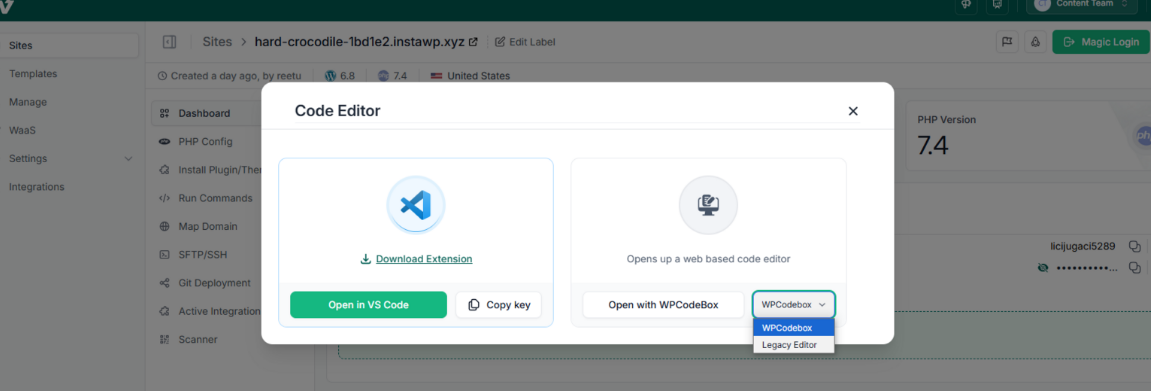
- Built-In WP-CLI: InstaWP supports WP-CLI, so the developer can run commands on the sandbox (like installing WooCommerce or activating the plugin) right from the terminal.
- Site Management Features: Snapshot versions of your test site, debug PHP errors, view activity logs, or scan plugin performance in real-time.
- WordPress Git Integration for Deployment: For deployment or version control, you need to use Git (to track changes in the plugin code). Also, if you plan to publish the plugin, you should prepare it with proper versioning and possibly push it to a repository. InstaWP comes with WordPress Git integration to make the entire deployment process seamless.
Whether you’re debugging a logic error or styling a settings panel, InstaWP gives you a zero-risk, production-like environment, perfect for AI plugin development.
The combination of Claude Code + InstaWP essentially gives a cloud-hosted “local” environment where AI-written code can be tested immediately.
How to Build a WordPress Plugin with AI: Step-by-Step Guide
Once you have all the resources at your disposal, let’s get ready to learn WordPress AI development for a plugin in detail.
Watch the video to see the steps of building a WordPress plugin with AI in action.
Step 1: Planning the Plugin (Defining Scope & Features)
Before writing any code, the video emphasizes clearly defining what the plugin should do. The example plugin is “Broken Link Email Alert”. The plugin’s scope includes showing the banner on product pages and listings, and providing a settings page to customize the banner text or target category.
By outlining features and requirements (such as which WordPress hooks to use, how to check the product’s category, ensuring the code follows security and performance best practices, etc.), the developer creates a “spec sheet” for the AI.
You can use any AI tools for this. We used OpenAI to get the structured plugin description. Keep all the instructions handy in a file.
Step 2: Set Up a WordPress Site Using InstaWP
You need a WordPress site to install and test your plugin. InstaWP makes this process instant; no hosting, setup, or local install required.
- Visit InstaWP and click “Add Site.”
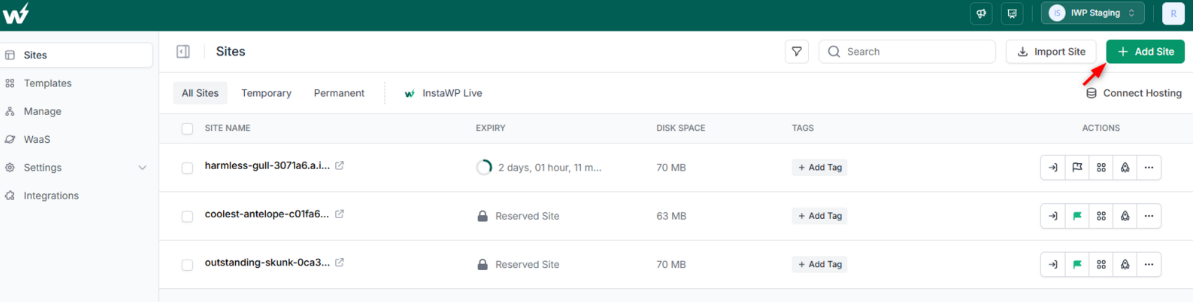
- Choose how to build a site from different methods. As we’re building a WooCommerce-based plugin, we will create a site using Snapshot with WooCommerce installed (or install it later from the dashboard).
You can use AI, Store, and the From Scratch options to create a WordPress site on InstaWP.
- Select the right ‘Site Plan’. If you’ll use this site only to test your AI plugin, you can choose the Sandbox plan to launch your site.
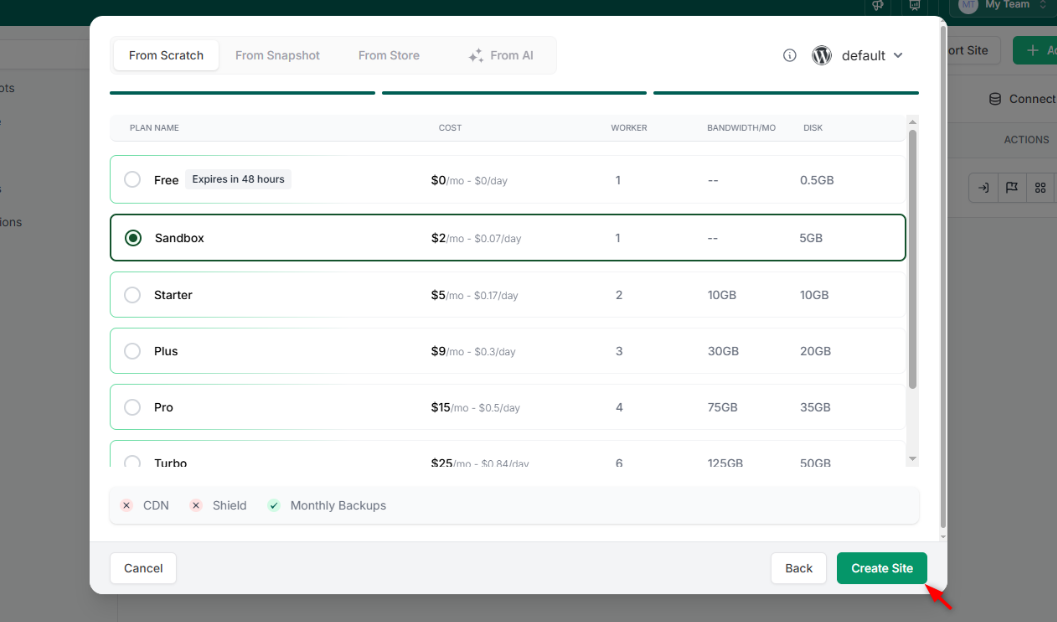
- Click on ‘Create Site’ to complete the site creation process. In an instance, the site will be ready.
- Enable the Local Mount feature on this site so that you can access this site locally to edit the core files.
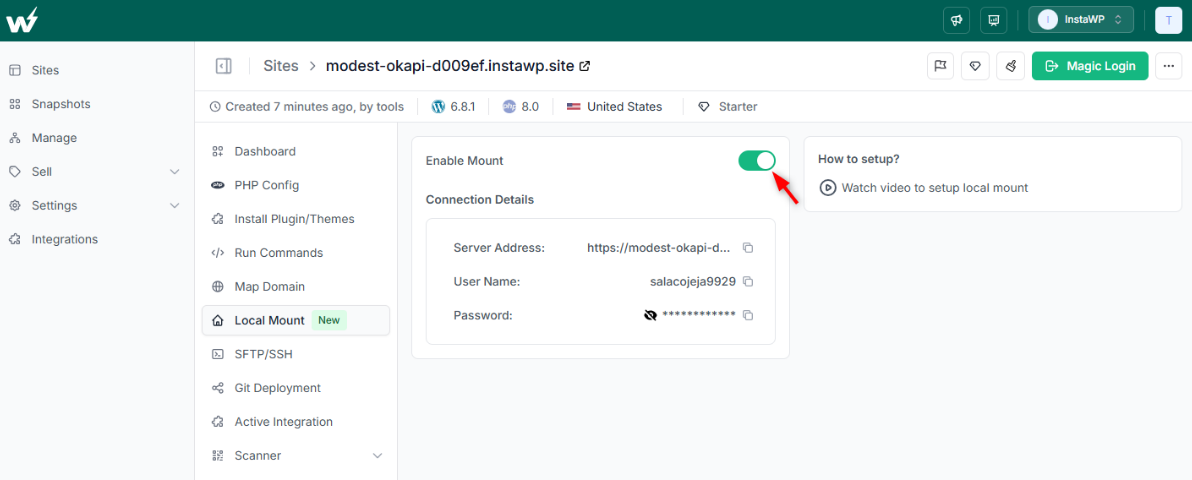
- Copy the server address that you will get after enabling the Local Mount feature and paste it in the Finder ( for macOS), in This PC (for Windows), and in File Manager ( for Linux) to access the site locally.
Understand more about the Local Mount feature and how to enable it for different types of OS.
Step 3: Set Up Claude Code
Next, you have to set up Claude Code, Anthropic’s AI coding tool, on your local machine (a command-line-based assistant for writing and modifying code). Make sure your system meets the basic requirements.
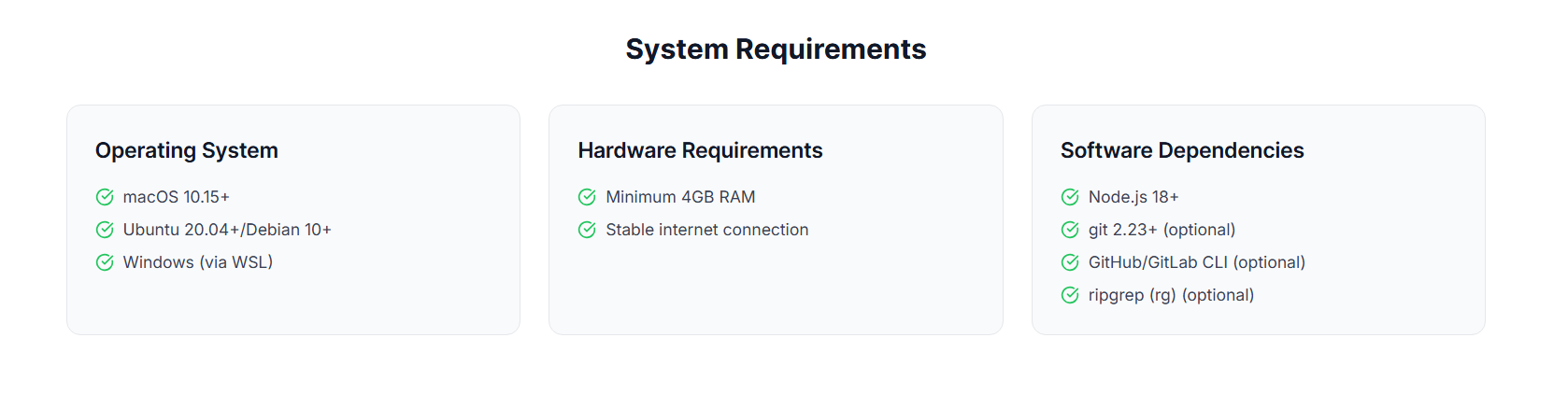
To install Claude Code on your system:
- Go to https://www.claudecode.io/install
- Select the OS types and then click on the relevant link.
- Follow the respective installation instructions. Read the Claude Code installation guide for more help.
- Once Claude Code is installed, open Claude Code using the command below in your terminal.
npm install -g @anthropic-ai/claude-code
Step 3: Run Cloud Code Inside Website
Once you have the InstaWP site locally accessible and Claude Code fully installed on your system, you need to run Claude Code inside your site’s file.
For this, access Finder ( for macOS) or Command prompt ( for Windows). We are using macOS for this demo.
- Go to Finder and navigate to / volumes and list the files of Insta Mount. You will be able to view all your WordPress site files on your screen.
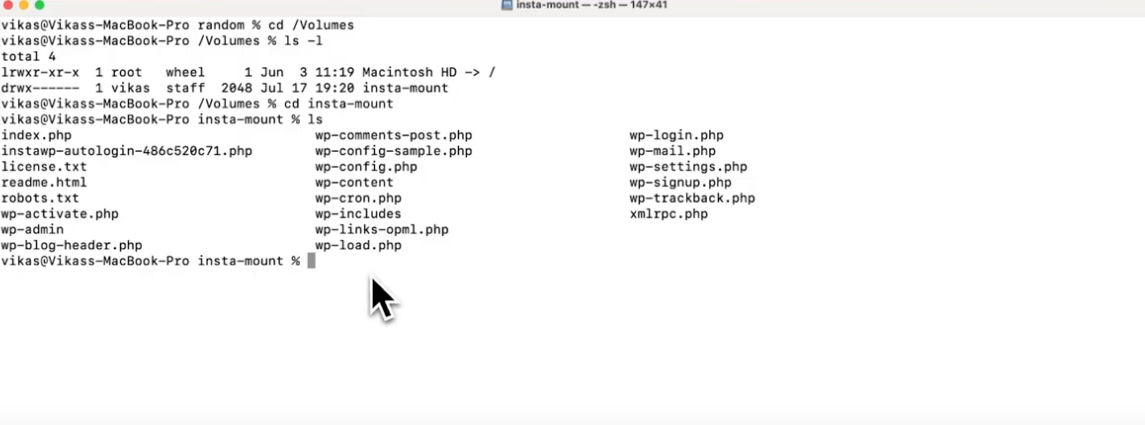
- Access the header.php file and run Claude inside this folder. Type Claude to start the process. Gran permission.
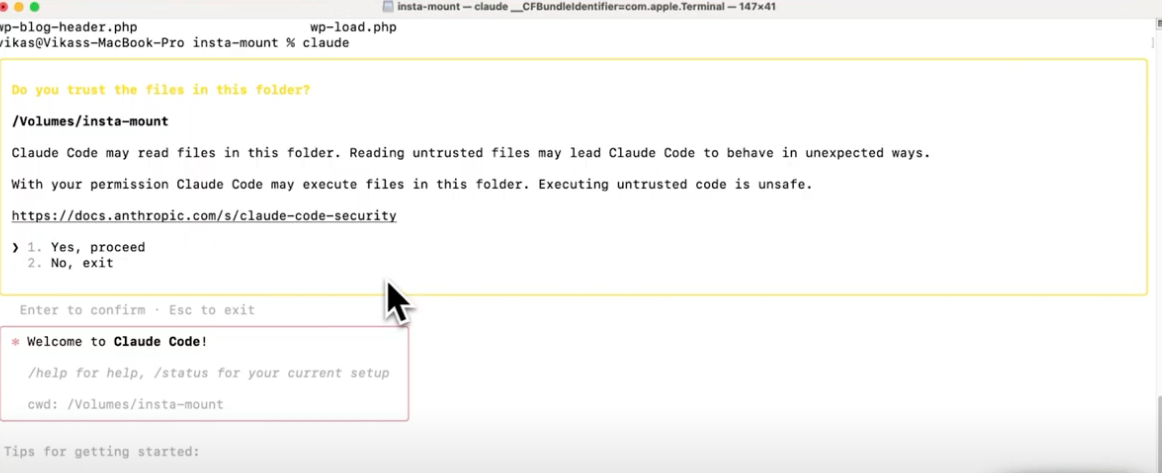
- Paste your plugin scope and instructions once Claude Code is connected with your site’s header.php folder and hit ‘ Enter’.
Step 4: Reviewing and Refining the AI-Generated Code
After the AI generates the plugin code, you need to review the code. This is where your focus should be:
- Ensure proper data sanitization and escaping are in place for any output. (The AI had been instructed to follow security best practices, so it added functions like esc_html() when outputting the banner text.)
- Confirm that expensive operations are minimized.
- The banner should appear under the right conditions. If the banner doesn’t show or an error occurs, they would troubleshoot. (For instance, if the AI mistakenly hooked into the wrong action or if WooCommerce wasn’t detected, they adjust the code accordingly. In the generated code, an activation check was included to ensure WooCommerce is active, with an admin notice if not.)
- The AI also outputs some CSS for the banner (a dark background, star icon, responsive font sizing) by injecting a <style> block via the wp_head hook.
At the end of the code, you will be able to view a message:
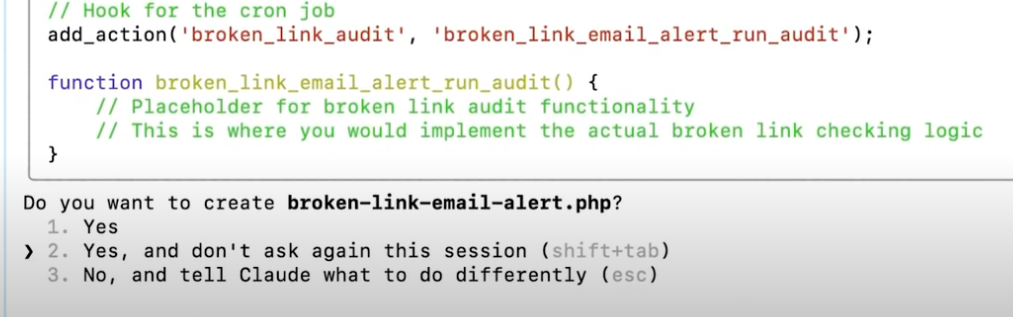
If everything seems fine to you, select ‘Yes’.
Step 5: Activate the Plugin
- Go to your InstaWP Dashboard and click on the ‘Magic Login’option to access the WordPress dashboard of the site.
- Go to Plugins> Installed, and you will be able to view the AI-generated plugin here. This is the beauty of the InstaWP. You have built the plugin locally, but the platform has fetched the plugin on your live sandbox site. You don’t have to do any extra efforts.
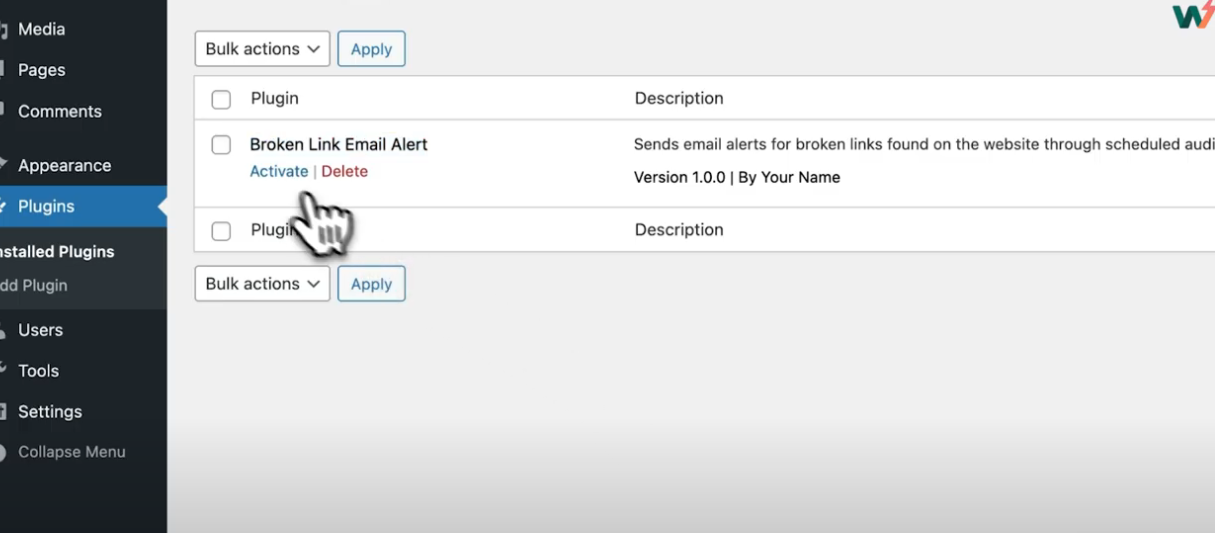
- Activate the plugin.
Step 6: Set up the Plugin’s Settings and Other Aspects
Go back to the terminal and enter the setting prompts for your plugin in the Claude Code. Once the setting prompt is passed, go to Settings > Broken Link in your site’s WordPRess dashboard.
You will be able to view the settings that you’ve configured here.
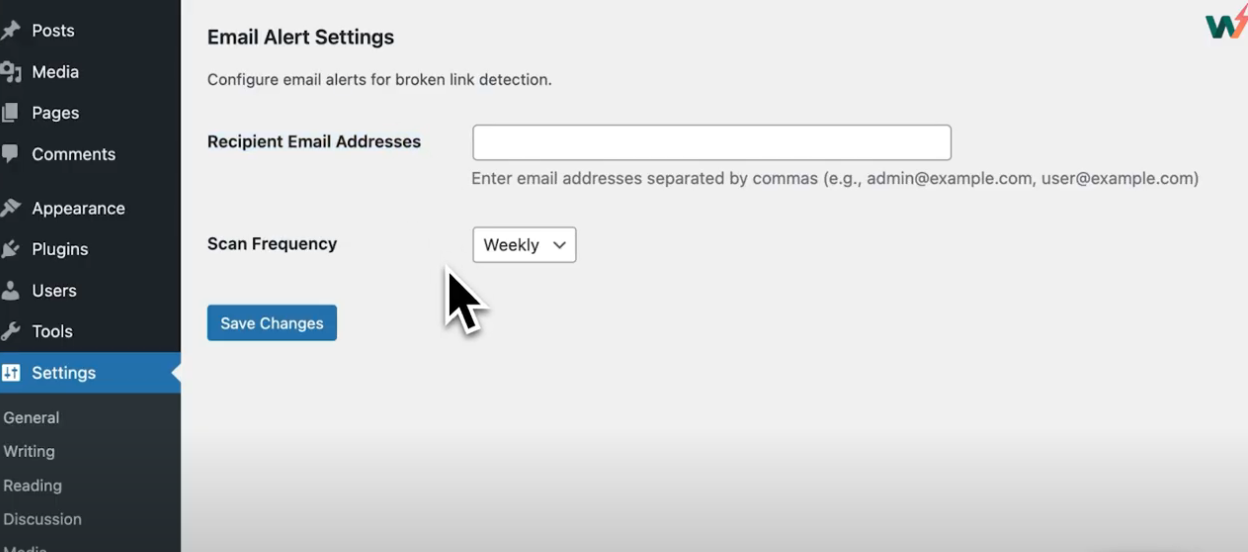
Just like that, keep on passing other plugin development aspects such as Cron scheduler, URL checker, Post crawler skeleton, CSV builder, and so on.
Best Practices to Adopt While Building a WordPress Plugin With AI
Building a WordPress plugin with AI not only seems easy, but it is certainly a piece of cake. However, you still need to pay attention to a few crucial aspects to make sure you don’t let AI overpower the process.
Always Use a Staging Environment for AI-Generated Code
Never run AI-generated code on a live production site without testing. This isolates any crashes or bugs. For example, if the AI code had an error that broke the site, only the disposable InstaWP site would go down, not your live website. This practice will save you from potential downtime and allow rapid iteration.
Provide Clear Guidance to the AI (Prompt Quality)
The quality of AI output is directly related to the prompt given. A key takeaway suggestion is to write detailed, structured prompts for the AI, specifying not just what the plugin should do, but also any constraints or best practices it should follow.
Invest time upfront in describing your requirements to the AI; it pays off with more accurate code generation.
Understand and Verify the AI’s Output
Do not blindly trust AI code. AI can and will make mistakes or omissions. For instance, AI might forget a security measure or use an outdated WordPress function. It’s the developer’s job to review every part of the generated plugin. If something is unclear, ask the AI (or use ChatGPT) to explain the snippet, but always verify against official documentation or known best practices.
One mantra: AI is an assistant, not a replacement for a developer. You should never copy-paste AI code into production without understanding it.
Leverage Multiple AI Tools for Cross-Verification
Each AI tool has its strengths and might catch something another misses. The video mentions using multiple AI assistants in tandem. For example, after Claude Code generated the plugin, the developer could ask ChatGPT to review the code: “Is this code secure and optimized?” Different AI might highlight different potential issues or improvements.
Similarly, the developer could run a portion of the code through GitHub Copilot by typing a comment like “// check if this is correct” and seeing if Copilot suggests a correction. Using AIs to double-check each other can increase confidence in the code. However, even with multiple AIs, the final verification should be done by the human developer.
Iterative Testing and Debugging
Adopting an iterative approach, generate a piece of code, test it, fix issues, then generate more or refine. For example, after getting the basic banner showing, we tested it and then decided to enhance the plugin by adding an admin settings page (so that site owners can change the banner text or category).
We also went back to the AI with a new prompt to extend the plugin’s functionality. This incremental development, with testing at each step, helps isolate problems. When the first version of the plugin worked on single product pages but not in the shop loop, they identified the gap and prompted the AI specifically to add the loop hook.
This approach of small prompts → small code generations → frequent tests was presented as a best practice when coding with AI.
Don’t Over-Engineer (Avoid “Vibe Code”)
An interesting caution to adopt while using AI for WordPress development is to be wary of AI producing overly complex or unnecessary code, what some call “vibe-code” (code that looks fancy or convoluted but isn’t actually needed).
We advise you to keep the plugin straightforward and focused on its purpose. Here, we meant not letting the AI add extraneous features beyond the scope (e.g. if the AI tried to implement a whole options framework or an elaborate UI when a simple settings field sufficed).
Security and Privacy Considerations
When using AI for WordPress development, especially with proprietary code, be mindful of what you share. If your plugin code is sensitive, you might not want to paste it into a public AI service.
Solutions include self-hosted AI instances or tools like Claude Code, which run locally with your API key, so your code isn’t logged on a third-party server (depending on the AI’s privacy policy). While not a huge focus of the demo (since the example plugin code was generic), it’s a general best practice mentioned for real-world use.
Continuous Learning and Maintenance
Finally, a takeaway is that adopting AI in your workflow is an ongoing learning process. We encourage developers to start experimenting with AI on smaller projects to get comfortable.
Over time, you’ll learn how to write better prompts and when to trust or double-check the AI. They also predict that AI will become more integrated into WordPress development tools over the next year (for tasks like debugging, code generation inside the block editor, etc.), so getting familiar with these tools now is valuable.
But no matter how advanced AI gets, the core advice remains: use AI to enhance productivity, but continue following sound development practices and personal judgment.
AI Is Changing How We Build WordPress Plugins
The plugin we just built, a Broken Link Email Alert tool, isn’t just proof of concept. It’s a glimpse into the future of WordPress development.
With the right planning and the right tools, you can now build a WordPress plugin with AI in under an hour, even if you’re not a seasoned developer. Claude (or ChatGPT) writes the logic. InstaWP gives you the perfect environment to test it instantly and safely. Together, they remove the friction that used to slow down plugin development.
Whether you’re creating tools for clients, solving internal workflow problems, or experimenting with ideas at midnight, the best AI tools for WordPress now let you go from idea → prompt → working plugin, without spinning up servers or worrying about broken live sites.
The real power? You’re no longer limited by your coding speed. You’re only limited by your creativity.
Ready to try it yourself?
Spin up your own InstaWP site, describe your plugin to Claude or ChatGPT, and start building; smarter, faster, and safer.
FAQs
Q1. Can AI really build a WordPress plugin from scratch?
Yes, AI tools like Claude and ChatGPT can generate functional WordPress plugin code based on detailed prompts. You describe the features, and the AI writes the PHP, hooks, and logic. With the right structure and testing (e.g. using InstaWP), you can go from idea to plugin without writing the code manually.
Q2. What is the best AI tool to build WordPress plugins?
Claude (by Anthropic) and ChatGPT (by OpenAI) are among the best AI tools for WordPress plugin development. Claude is great for generating modular, secure code, while ChatGPT excels at explaining and refining it. GitHub Copilot and Cursor also support real-time suggestions in code editors.
Q3. How do I test AI-generated WordPress plugins safely?
Use InstaWP to instantly launch a WordPress sandbox site where you can upload and activate your plugin without affecting a live environment. InstaWP also supports features like Local Mount, file editing in VS Code, WP-CLI, and snapshots for safe plugin testing and rollback.
Q4. What kind of plugins can I build with AI for WordPress?
You can build many types of plugins using AI, from simple WooCommerce badges and admin tools to automation features like email alerts, content scanners, or backend utilities. As long as you clearly define the logic, AI can handle most of the PHP-heavy lifting.
Q5. Is it safe to use AI-generated code in a live WordPress website?
AI-generated code can be used in production, but only after thorough review and testing. You must ensure the code follows WordPress security practices (sanitization, escaping, permissions) and does not conflict with existing themes/plugins. InstaWP is ideal for this testing phase.


