Adding MP3 audio files to your WordPress website opens up new ways to engage and connect with your visitors. Whether you’re a podcaster sharing your latest episode, a musician promoting your new track, or a business offering audio tutorials, integrating audio into your site can elevate the user experience and increase retention.
According to recent stats, over 464 million people listen to podcasts globally, and audio consumption continues to rise every year. If your website doesn’t yet support audio, you could be missing out on a significant engagement opportunity.
The good news? WordPress makes it surprisingly easy to add MP3 files without requiring any advanced coding. From native WordPress audio player support to embed options and plugins, you have multiple flexible methods to choose from. This tutorial will walk you through exactly how to add MP3 to WordPress—safely, quickly, and professionally.
Table of Contents
What File Types Are Supported in WordPress for Audio?
Before you upload audio to WordPress, it’s important to understand which file formats are supported natively. WordPress allows you to embed and play several audio file types, but MP3 is the most widely used and compatible across browsers and devices.
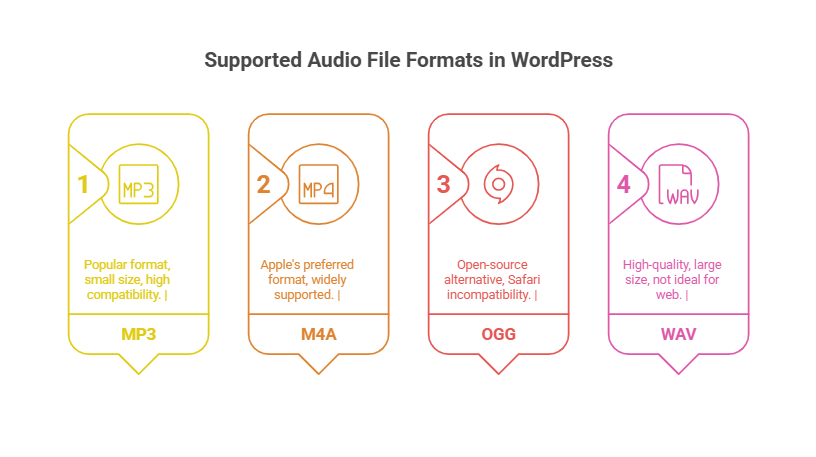
Among all these, MP3 WordPress support is the most seamless, making it the go-to choice for embedding music tracks, podcasts, interviews, or sound bites.
? Important Notes:
- The maximum upload size depends on your hosting provider and WordPress settings. Typical limits range between 25MB and 100 MB.
- If your file exceeds the limit, you can compress it using tools like Audacity or MP3Smaller.
- You can always check supported media types by visiting Media> Add New in your WordPress dashboard.
Optimizing your file before you add audio files to WordPress ensures faster loading and better performance, especially critical for mobile users.
How to Add MP3 Audio Files to WordPress (Best Methods Explained)
If you’re wondering how to add MP3 audio files to your WordPress website, you’re in the right place. In this section, we’ll walk you through the best ways to embed MP3s in WordPress, starting with the built-in Block Editor method, which requires no plugins and works beautifully for most users.
Let’s begin with the simplest and most native approach.
Method 1: Add MP3 Using the WordPress Block Editor (No Plugin Required)
WordPress comes with a powerful Audio block that lets you upload and embed MP3 files directly into posts or pages. This method is ideal for beginners or anyone who wants to quickly embed MP3s in WordPress without installing extra tools.
Step-by-Step Guide:
- Go to your site and navigate to Posts or Pages, then click Add New or choose an existing one to edit.
- Click the ‘+’ (Add Block) button, then search for “Audio”. Select the Audio block from the list.
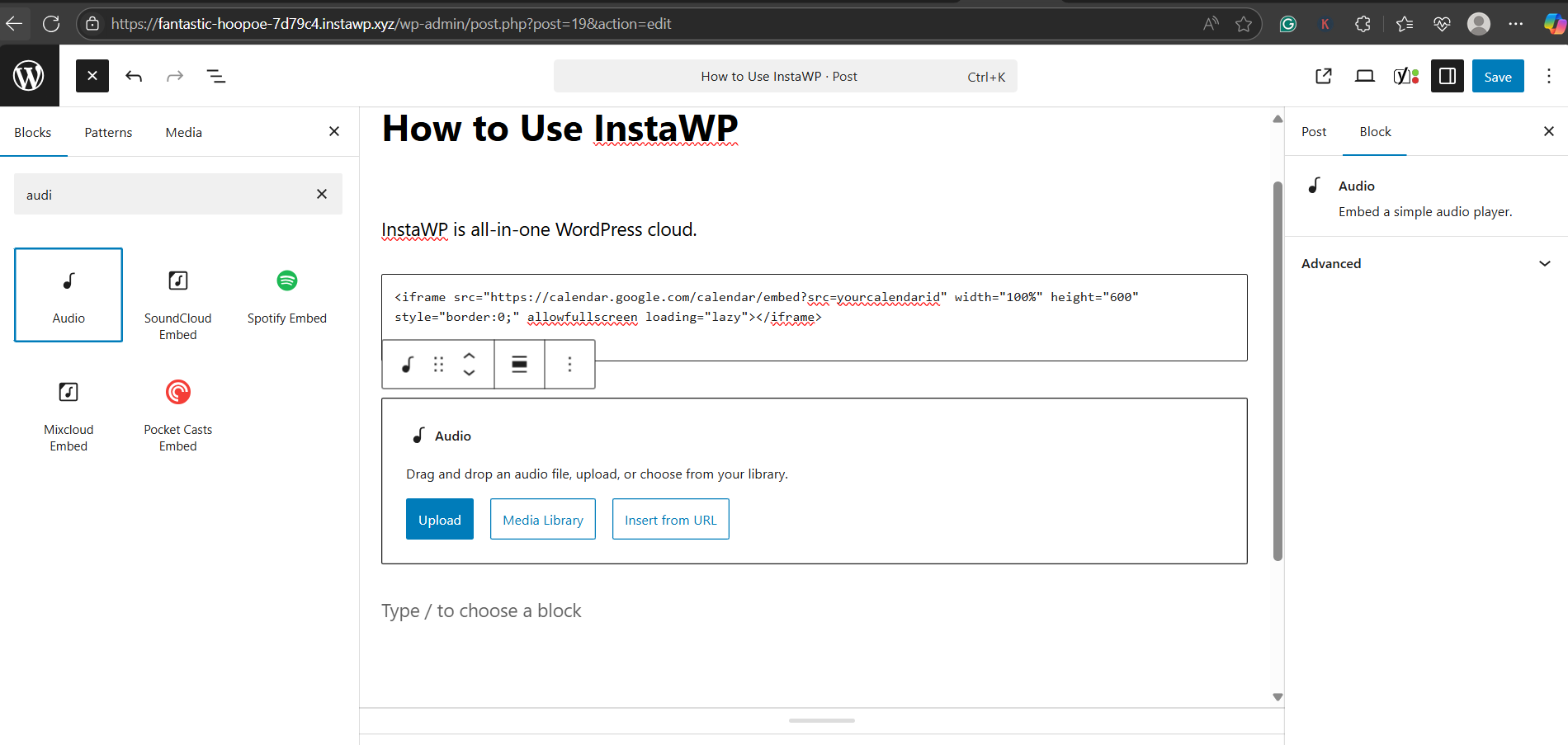
- You can either:
- Upload a new MP3 file directly from your computer
- Select an existing file from your Media Library
- Or insert from a URL if your audio is hosted externally
- Upload a new MP3 file directly from your computer
- After uploading, the block displays an audio player with playback controls. You can enable or disable options like: Loop, Autoplay, Preload
- That’s it! The MP3 audio player is now embedded in your WordPress page, ready for visitors to play.
Why Use This Method?
- 100% native—no plugin bloat
- Fully responsive and mobile-friendly
- Best for adding single tracks, voice clips, or standalone audio files
This is one of the most reliable ways to add MP3 to WordPress while keeping your site lightweight and user-friendly.
Method 2: Embed MP3 from SoundCloud, Spotify, or External Hosts
If you’re hosting your audio files on platforms like SoundCloud, Spotify, Anchor, or any external server, you can easily embed those MP3s into WordPress using the built-in Embed block. This approach is great when you want to add audio files to WordPress without increasing your site’s bandwidth usage or storage limits.
Step-by-Step Guide:
- Copy the Audio File URL or Embed Link
- From platforms like SoundCloud, go to the track you want to embed
- Click Share → then Embed or Copy Link
- Spotify and others also offer shareable links or iframe code
- From platforms like SoundCloud, go to the track you want to embed
- Go to Pages or Posts, click Add New or edit an existing one.
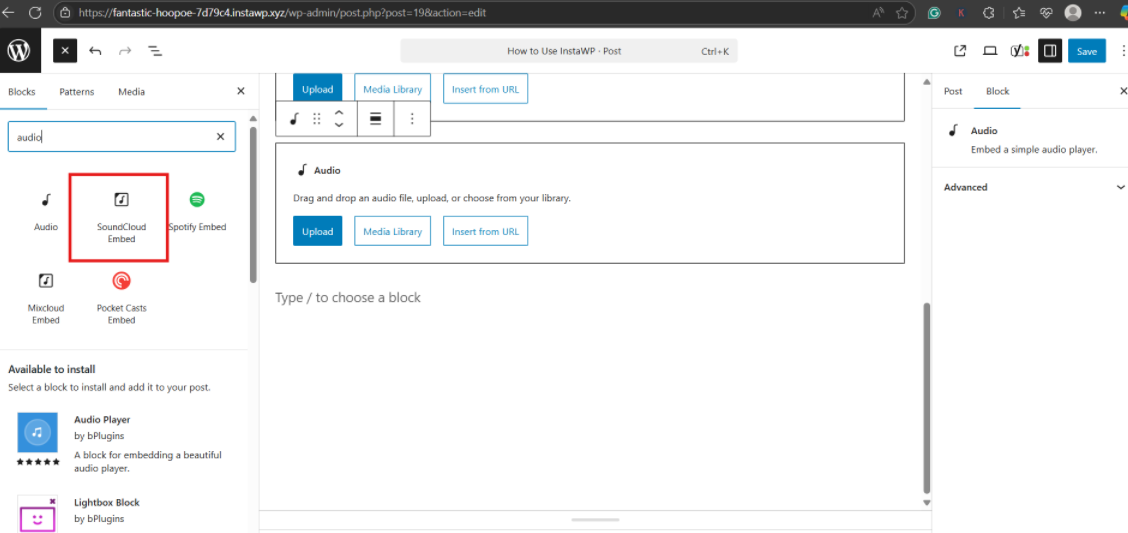
- Click ‘+’ (Add Block) and search for the Embed block or specific integrations like Spotify or SoundCloud blocks (WordPress supports them natively)
 .
.
- Paste the copied link into the Embed block. WordPress will auto-convert it into a live audio player.
- Once embedded, you’ll see a live preview of the audio player. Click Publish or Update.
Why Use This Method?
- Ideal for WordPress podcast audio or music hosted externally
- Saves your server space and reduces page load time
- Easy to manage via external platforms with built-in analytics
Platforms like SoundCloud and Spotify offer sleek, professional audio players that enhance your site’s appearance and user experience.
? If you’re using InstaWP, you can quickly try these embeds on a temporary site to ensure compatibility and styling before deploying live.
Method 3: Use a WordPress Audio Player Plugin (More Features & Flexibility)
If you need more control over playback, playlists, or design customization, using a dedicated WordPress audio player plugin is your best bet. Plugins allow you to add MP3 to WordPress with advanced functionality—ideal for musicians, podcasters, or educators who want to manage multiple audio files or episodes.
Here’s how to do it.
Step-by-Step Guide:
- Go to Plugins> Add New in your dashboard and search for an audio plugin. If you’re having a tough time finding some of the best WordPress audio plugins, you can check out our recommendations.
- Once you find your preferred plugin, hit Install Now and then Activate it. Each plugin provides a different method. Some offer a drag-and-drop interface. Others let you create playlists or episode feeds. You can often pull files from your Media Library or enter external MP3 URLs
- Insert Audio Player into your Post or Page. Use the plugin’s shortcode or select the plugin-specific block from the block editor. Customize player style, background, buttons, and more
- Review how the embedded MP3 looks and sounds. Adjust styling or functionality through the plugin settings.
Why Use an Audio Plugin?
- Supports playlists, audio series, and episode management
- Offers theming options and player customization
- Adds features like download buttons, analytics, track skipping, etc.
- Ideal for advanced users, podcasters, and artists needing dynamic audio experiences
? InstaWP Tip: Create a plugin testing site instantly using InstaWP. Spin up a clean environment, install the plugin ZIP or use WP-CLI, and experiment without breaking your live site.
Using a plugin is one of the most flexible and professional ways to embed MP3 in WordPress, especially if you’re planning ongoing audio content.
Best Practices for Adding MP3 Audio Files to WordPress
Now that you know how to add MP3 audio files to your WordPress website, it’s crucial to optimize your audio setup for speed, SEO, and user experience. Whether you’re embedding a podcast episode or uploading a music track, following these best practices ensures your content sounds great and performs smoothly.
1. Compress Your MP3 Files
Large audio files can slow down your website, especially if you self-host them.
- Use free tools like Audacity, MP3Smaller, or Online Audio Converter to reduce file size without losing too much quality.
- Aim for 128 kbps for spoken audio and 192–256 kbps for music.
? Tip: Lower bitrates = faster load times = better user experience on mobile.
2. Use Descriptive File Names & Metadata
Before uploading, rename your MP3s with descriptive, SEO-friendly names (e.g., wordpress-speed-tips-episode1.mp3). Add proper metadata like title, artist, album, and artwork if your plugin displays them.
This helps both with WordPress podcast audio management and SEO.
3. Choose the Right Method for Your Needs
- For single audio files, the Block Editor’s Audio block is perfect.
- For external hosting, SoundCloud or Spotify embeds are efficient.
- For multiple episodes or customization, use a WordPress audio player plugin.
Don’t overcomplicate—pick the method that best fits your publishing goals.
4. Avoid Autoplay on Load
Autoplay may seem engaging, but it often annoys users and is restricted by many browsers.
If you still want to use autoplay, test it carefully on mobile and desktop using a staging tool like InstaWP.
5. Don’t Overload Your Hosting
If you’re uploading multiple MP3s directly to your site, monitor your bandwidth. Shared hosting plans can easily slow down with heavy audio traffic.
Instead, offload large MP3s to cloud storage or podcast hosts and then embed them using WordPress blocks.
6. Always Test Audio Performance
After embedding, test audio playback on:
- Chrome, Safari, Firefox
- Android and iOS devices
- Slow networks (3G simulations)
Following these best practices not only helps you add audio files to WordPress effectively but ensures that your site remains fast, stable, and user-friendly, no matter how many tracks you publish.
Start Adding MP3 Audio Files to WordPress the Smart Way
Adding MP3 audio files to your WordPress website isn’t just about embedding sound—it’s about enhancing user engagement, sharing your voice, and building an immersive content experience.
Whether you choose the native Block Editor, external platforms like SoundCloud, or advanced plugins for full control, WordPress makes it easy to upload audio to WordPress and deliver high-quality playback across all devices.
? Want to test audio blocks, plugins, or player designs before touching your live site?
Use InstaWP to spin up a sandbox WordPress environment in seconds. It’s the perfect tool to safely experiment with media, layouts, and theme compatibility—no risk, just speed.
Now that you know how to add MP3 to WordPress, go ahead—let your content speak for itself.
Frequently Asked Questions (FAQs)
Q1. Can I autoplay MP3 files in WordPress?
Yes, you can. When using the HTML <audio> tag, add autoplay as an attribute:
<audio controls autoplay>
However, autoplay is discouraged as modern browsers may block it. For the best user experience, let visitors choose when to play audio.
Q2. What is the maximum file size for MP3 uploads in WordPress?
It depends on your hosting provider, but most WordPress setups have a default upload limit of 25MB to 100MB. You can increase this via php.ini, .htaccess, or with help from your host. InstaWP environments respect these limits for safe testing.
Q3. Is it better to host MP3s directly or embed from SoundCloud?
Embed from platforms like SoundCloud or Spotify if you expect high traffic or want built-in analytics. If you prefer complete control and branding, self-host MP3s and use a plugin. Each method has its pros—choose based on your site’s goals and hosting capacity.
Q4. How can I add audio to a page without using a plugin?
Use the Audio block in the Block Editor. Simply upload your MP3 or paste the URL, and WordPress will generate a built-in audio player with basic controls—no plugin required.
Q5. Can I add MP3s to WordPress widgets or footers?
Yes! You can either use the Audio widget (if your theme supports it) or insert an HTML <audio> tag into a Custom HTML widget or footer block. This allows you to showcase MP3 files globally across your site.