Traditionally, if you wanted to run WordPress locally, you’d spin up a development environment using tools like XAMPP, MAMP, or LocalWP. You’d install WordPress manually, configure your database, and spend time syncing changes back to the live server. Not fun.
But what if you could skip all that?
What if you could edit your WordPress site locally, in your code editor, while it runs live in the cloud, with every file change instantly reflected on your hosted site?
Yes, WordPress development has changed a lot, and now we have features such as Local Mount that let you bridge the best of both worlds, a local WordPress workflow paired with a live, production-ready cloud site. Zero FTP. Zero delays. All speed.
Table of Contents
Why Developers Prefer to Run WordPress Locally
Even with the rise of cloud-based workflows, many developers still choose to run WordPress locally. The reason is simple: a local WordPress setup gives you control and a distraction-free development space.
When you run WordPress on your own machine, everything feels faster. You can open your project in your preferred code editor, make changes to files, and view results immediately in the browser. There’s no need to upload files through FTP or wait for sync tools. This is why WordPress local environments remain a go-to choice for plugin and theme developers.
However, the traditional approach comes with friction. Most developers follow this process:
- Use a tool like XAMPP, MAMP, or LocalWP to simulate a server.
- Manually install WordPress locally, configure the database, and add your files.
- Develop the site on your computer.
- Migrate changes back to staging or production using FTP or a deployment plugin.
This setup works, but it’s time-consuming and error-prone. You’re constantly switching between local and cloud environments, which can lead to broken features or missed updates.
Today, there’s a better solution: a workflow where you can edit your WordPress site locally while it runs in the cloud. This hybrid model keeps your local speed while eliminating sync issues. With the right tools, you can create faster, more stable WordPress projects.
How Can You Run WordPress Locally and On Cloud Simultaneously
If you’re looking for a smarter way to run WordPress locally, InstaWP’s Local Mount feature is worth exploring. It offers a modern alternative to the usual tools like LocalWP or XAMPP. Instead of building your local WordPress environment from scratch, you can connect directly to a cloud-hosted WordPress site and access its files just like a local folder.
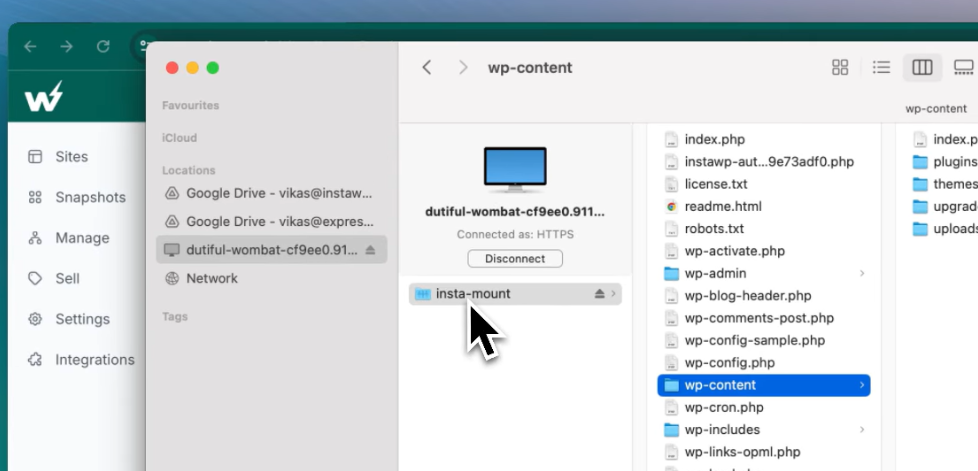
With InstaWP’s Local Mount, you no longer have to choose between running a site locally or in the cloud. This hybrid workflow lets you edit a local WordPress file system using your favorite tools while the site itself stays hosted, accessible, and secure in the cloud.
When you run WordPress locally using traditional tools, your work is limited to your own machine. But with Local Mount, you can:
- Access your files through File Explorer or Finder
- Use any code editor to make changes
- Instantly see the result on your live WordPress site
This is a huge advantage when working on real-world projects. You get all the benefits of a WordPress local development environment, like fast editing, direct file access, and offline-friendly tools, while maintaining the visibility, security, and scalability of cloud hosting.
For example, if you’re building a client site, you can keep the staging version on InstaWP, edit files locally using Local Mount, and send the client a live preview link as soon as changes are made. There’s no need to upload files or wait for deployment scripts to run.
If you’re new to WordPress development and want to learn how to install WordPress locally, this method removes the complexity. You don’t need to configure a web server or database manually. Everything is already set up in your InstaWP account.
This feature combines the speed of a WordPress local environment with the convenience of managed cloud hosting. You get the benefit of local development without giving up the ability to test changes in a real-world server environment.
No wonder many developers find InstaWP as the best XAMPP alternative.
InstaWP’s Local Mount is ideal for developers who want faster feedback loops and fewer deployment hassles. If you’ve ever wished for a way to develop locally while staying in sync with your cloud site, this is the answer.
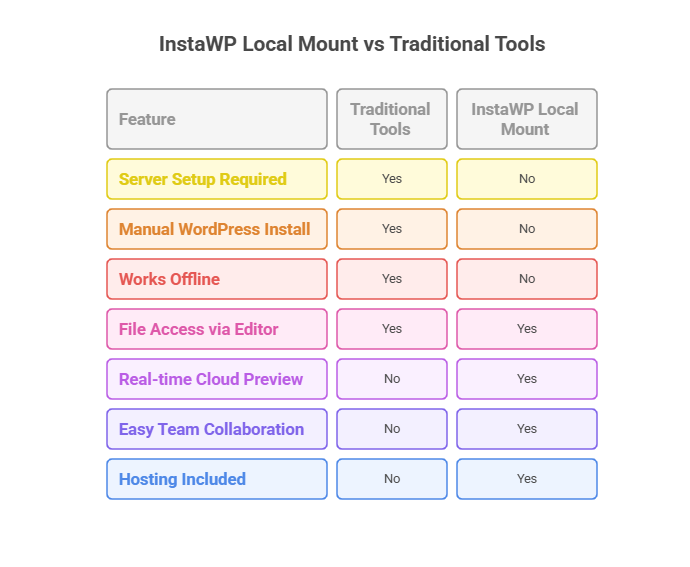
With traditional tools, once you install WordPress locally, you also need to worry about version compatibility, syncing environments, and manual deployment. If you’re working with a team, everyone has to set up their own local environment, which can introduce inconsistencies.
On the other hand, InstaWP lets you skip these complications. Your WordPress local files are instantly synced with the cloud-hosted site. You don’t need to run a local server, and you never worry about manual migrations. Whether you’re editing code or testing functionality, everything just works live.
If your goal is to build, test, and launch WordPress sites faster, this hybrid model is clearly more efficient.
Learn more about the Local Mount feature of InstaWP.
Who Will Benefit From This Local and Cloud WordPress Editing
Using InstaWP’s Local Mount opens up a unique development workflow. You can work with the speed and flexibility of a local WordPress setup while maintaining the stability and accessibility of cloud hosting. This hybrid model is ideal for developers, freelancers, and agencies working on real-world WordPress projects.
Here are some valuable use cases where this feature truly shines:
1. Theme and Plugin Development
When you’re building a custom theme or plugins, being able to run WordPress locally helps you work faster. You can test changes instantly, fix bugs on the fly, and save hours of deployment time. With Local Mount, your edits go live without needing to upload ZIP files or use version control for every tweak.
2. Live Debugging on Cloud Sites
Sometimes bugs only appear in specific environments. With InstaWP’s approach, you can edit your WordPress local files and immediately see the effect on your cloud-hosted site. This real-time feedback loop is essential when you’re troubleshooting issues that don’t replicate in offline servers.
3. Collaborative Development
Traditional local setups are not easy to share. But with Local Mount, multiple team members can connect to the same InstaWP site and work on different parts of the file system. It feels like everyone is working in their own WordPress local environment, yet everything stays in sync.
4. Faster Client Review Cycles
Agencies often spend time packaging files, syncing environments, and deploying preview builds. With Local Mount, you can make changes in your IDE and share the live preview link with clients immediately. This simplifies feedback loops and reduces friction in the review process.
5. Streamlined Learning and Experimentation
Beginners who are learning how to install WordPress locally can use this method to explore WordPress core files without worrying about server setup. They can practice editing, testing, and customizing.
How to Set Up Local Mount on Any Operating System
Setting up Local Mount in InstaWP is much easier than traditional methods used to run WordPress locally. You don’t need to install a full server stack or configure phpMyAdmin. All you need is an active WordPress site inside InstaWP and a few minutes to connect your system.
Below is a step-by-step guide on how to mount a local WordPress file system on Windows, macOS, or Linux using InstaWP.
For Windows Users
- Launch your InstaWP site and go to the Local Mount tab.
- Click “Enable Local Mount” to generate your secure server address, username, and password.
- On your Windows machine, open File Explorer and right-click on “This PC.”
- Choose Map network drive and select a drive letter (e.g., Z:).
- Paste the InstaWP server address into the folder field.
- Check Reconnect at sign-in and click Finish.
- When prompted, enter your username and password.
Once mapped, your WordPress local folder will appear like a regular drive. You can now open it in VS Code or any IDE and start editing.
For macOS Users
- Copy the secure server address from the InstaWP dashboard.
- Open Finder, click on the Go menu, and select Connect to Server.
- Paste the server address, then click Connect.
- Enter your credentials when prompted.
- The connected site will show up under Locations in Finder.
You now have a live WordPress site behaving like a local WordPress installation. Any edits you make to the files are saved instantly to the cloud version.
For Linux Users
Linux users can mount the InstaWP site using tools like SSHFS or through GUI file managers such as Nautilus or Dolphin.
Using CLI:
sshfs username@server-address:/ /local/folder/path
After mounting, you can browse and modify your WordPress local files in your preferred development environment.
This setup allows you to use your usual tools to edit themes, plugins, and core files, just like you would when you run WordPress locally. But unlike traditional local environments, you don’t need to push updates manually. Everything is already live.
Conclusion and Next Steps
If you’ve ever struggled with syncing your local code to a live WordPress site, you’re not alone. Developers have relied on tools like XAMPP and LocalWP for years to run WordPress locally, but those setups come with friction: manual installations, complicated migrations, and version mismatches.
InstaWP changes that.
With the Local Mount feature, you get the full power of a local WordPress development environment, without leaving the cloud. You can build themes, edit plugins, and modify files using your own tools, while your changes reflect instantly on your cloud-hosted site.
Ready to try it?
- Spin up a site on InstaWP; it takes seconds.
- Enable Local Mount from the dashboard.
- Map the site to your local machine and start building.
You’ll never look at WordPress local development the same way again.
Sign up for free and try this amazing feature now!
FAQs
1. What does it mean to run WordPress locally?
Running WordPress locally means setting up a WordPress site on your own computer instead of a remote web server. It lets you develop, test, and modify your site in a private environment using tools like XAMPP, MAMP, or InstaWP’s Local Mount. This approach is ideal for developers who want full control without uploading files to a live server.
2. Is it possible to run WordPress locally and on the cloud at the same time?
Yes, with InstaWP’s Local Mount feature, you can connect to a cloud-hosted WordPress site and access its files as if they were stored locally. This setup allows you to work on your WordPress local files using a code editor while the site runs on the cloud, offering real-time sync without the need for FTP or manual deployments.
3. Do I need to install a server stack like XAMPP or LocalWP to run WordPress locally?
Not necessarily. While traditional methods require tools like XAMPP, you can avoid them by using InstaWP. It provides a pre-installed WordPress site that you can mount locally. This means you don’t have to manually install WordPress locally or set up Apache, PHP, and MySQL on your computer.
4. Can I use my code editor with a WordPress local site from InstaWP?
Absolutely. Once you enable Local Mount, your InstaWP site appears like a folder on your system. You can open it with editors like VS Code, Sublime Text, or PHPStorm and make changes directly. All edits will reflect instantly on your cloud-hosted site.
5. Is Local Mount secure for development work?
Yes. InstaWP provides secure login credentials and a dedicated server address for each mounted site. As long as you keep your credentials private and disconnect when not in use, Local Mount is a safe way to work with local WordPress files without compromising your data.