If your CSS is broken in WordPress, the cause is almost always one of a handful of things: a stale cache or a minification plugin serving old styles, a plugin or theme conflict, a CSS syntax error, a stylesheet returning a 404, the Customizer Additional CSS not saving, or mixed content after an HTTPS move.
The fastest way to fix it is to open your browser developer tools to see which CSS is failing, clear every cache, and test the change on a staging copy before it touches your live site.
This guide shows you how to diagnose broken CSS, fix each common cause step by step (including Additional CSS that will not save and broken wp-admin styling), and prevent it from happening again. It is written for WordPress developers, agencies, and site owners who want their design to hold up, update after update.
Key Takeaways
- Broken CSS shows up as misaligned layouts, wrong fonts or colors, missing styles, a site that is not responsive, or an unstyled WordPress admin.
- The single most common cause is caching or CSS minification serving stale styles, so clear every cache and disable combine or minify first.
- Browser developer tools are the fastest way to diagnose: Inspect for the applied rule, the Network tab for 404s, and the Console for syntax errors.
- Additional CSS can vanish because block themes drop the old Customizer. You then add CSS from the Site Editor Styles panel or a child theme instead.
- Always test CSS fixes on a staging copy, and keep customizations in a child theme so theme updates never overwrite them.
- On InstaWP you can spin up a staging site, edit CSS in a browser code editor, and even ask an AI assistant to find and fix the issue.
Table of Contents
What Broken CSS Looks Like in WordPress
CSS (Cascading Style Sheets) controls how your site looks: fonts, colors, spacing, layout, and responsiveness. When CSS is broken, those rules are not being applied as intended, so the page renders but the design falls apart. The site still loads, but it looks like the styling was stripped out or scrambled.
You are most likely dealing with broken CSS if you see any of these symptoms:
- Layout issues: misaligned or overlapping elements, content spilling out of its container, or large gaps of unexpected whitespace.
- Font and color problems: the wrong typeface or sizes, default system fonts, missing colors, or background images that do not load.
- A site that is not responsive: the layout no longer adapts to phones or tablets and looks broken on smaller screens.
- Visual glitches: distorted elements, missing icons, or animations that do not run.
- An unstyled admin: the WordPress dashboard itself loses its styling and looks like plain HTML.
In short, any time the page no longer matches your intended design because the stylesheet is not loading or not applying, you are looking at broken CSS. The next step is understanding why it happens.
What Causes Broken CSS in WordPress
Broken CSS is rarely random. It almost always traces back to one of a few causes, and knowing which one you are facing saves you most of the debugging time. Here is a quick map from symptom to likely cause and fix, followed by the detail.
A few of these deserve a closer look because they cause the most confusion:
- Caching and minification. Caching plugins, server caches, and CDNs all store a copy of your CSS, and optimization plugins often combine and minify stylesheets. After you make a change, any of these can keep serving the old version, which looks exactly like broken CSS.
- Theme and plugin conflicts. Themes and plugins ship their own stylesheets. When selectors collide or load in the wrong order, the more specific or later rule wins and overrides your intended styling.
- Updates that change markup. A theme or plugin update can rename classes or restructure HTML. If your custom CSS targeted the old markup, those rules suddenly match nothing.
- Custom code errors. A single missing semicolon, a misspelled property, or a malformed selector can invalidate an entire CSS rule or block.
- Broken file paths. Sometimes the CSS is fine but the link to it is wrong. A renamed file or a bad path in wp_enqueue_style returns a 404, and the styles never load.
Did you know?
If the Customizer Additional CSS box has disappeared, your theme is probably a block theme. Block themes use Full Site Editing and do not load the classic Customizer, so the Additional CSS panel is simply not there. Your custom CSS is not lost; it now lives in the Site Editor Styles panel or in your child theme stylesheet.
How to Diagnose Broken CSS with Browser Developer Tools
Before you fix anything, find out exactly what is failing. Browser developer tools (DevTools), built into Chrome, Firefox, Edge, and Safari, let you inspect the rendered HTML and CSS of any page in real time. This is the single most useful skill for broken CSS, and it answers the question of what those tools are for when a layout looks wrong.
Open DevTools by right-clicking the broken element and choosing Inspect, or press F12 (Ctrl+Shift+I on Windows and Linux, Cmd+Option+I on Mac).
Then use these three panels:
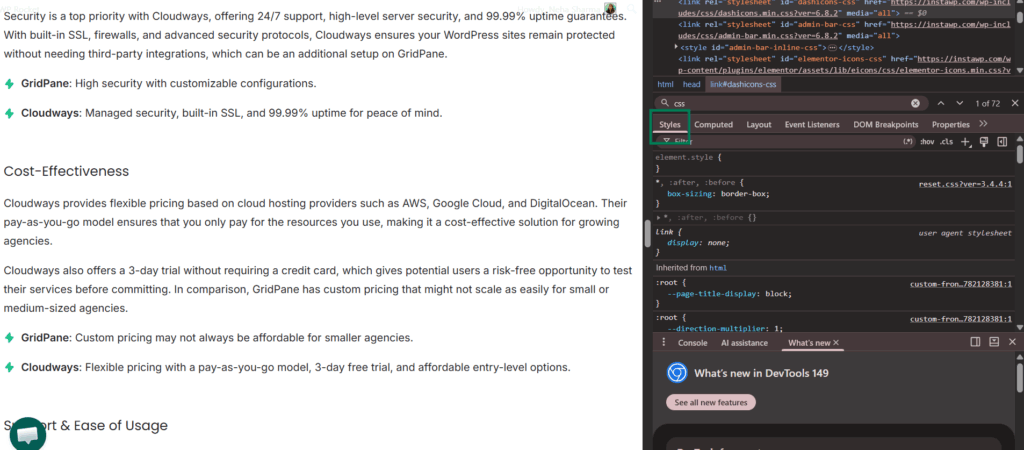
- Elements and Styles: with the broken element selected, the Styles panel shows every rule applied to it and which file and line each came from. A rule shown with a strikethrough is being overridden by a more specific rule, which points straight at a specificity conflict.
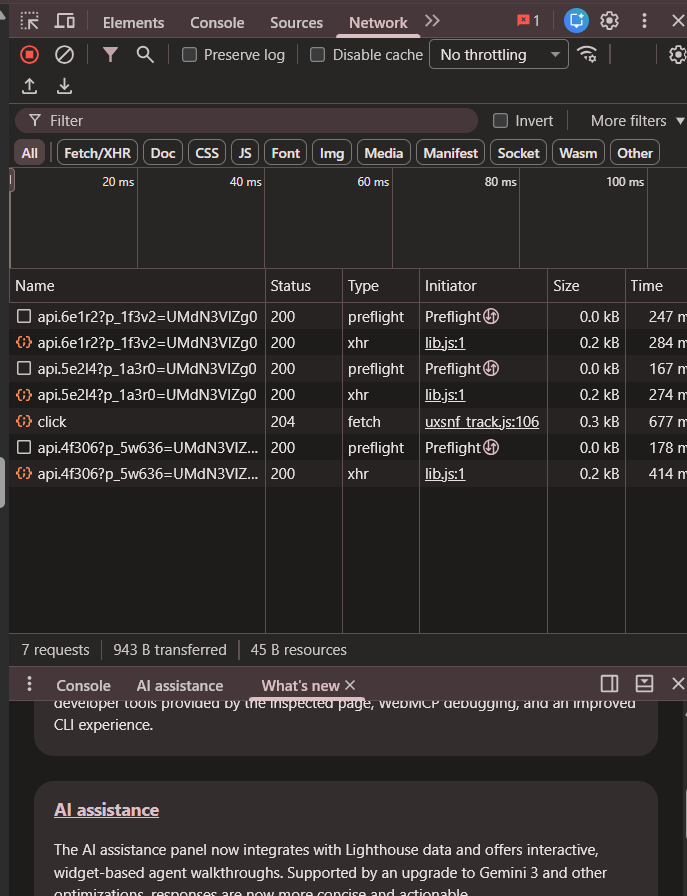
- Network: open the Network tab, reload the page, and filter by CSS. Any stylesheet returning a 404 (not found) or 403 (forbidden) means the browser cannot load that file, so the problem is a broken path, not the CSS itself.
- Console: reload with the Console open to surface parsing errors and warnings about invalid properties, which quickly flags basic syntax mistakes.
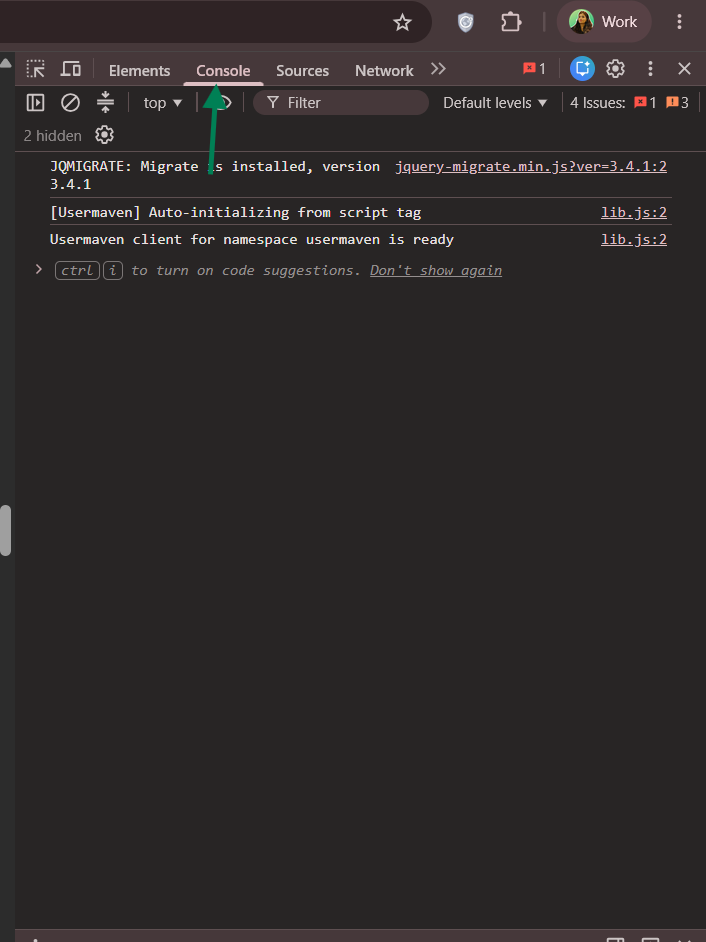
The best part is that you can edit CSS live in the Styles panel and watch the page update instantly. Changes there are temporary and disappear on reload, but they let you confirm a fix before you commit it to your stylesheet. Once a tweak works in DevTools, apply the same change to your actual CSS.
How to Fix Broken CSS in WordPress
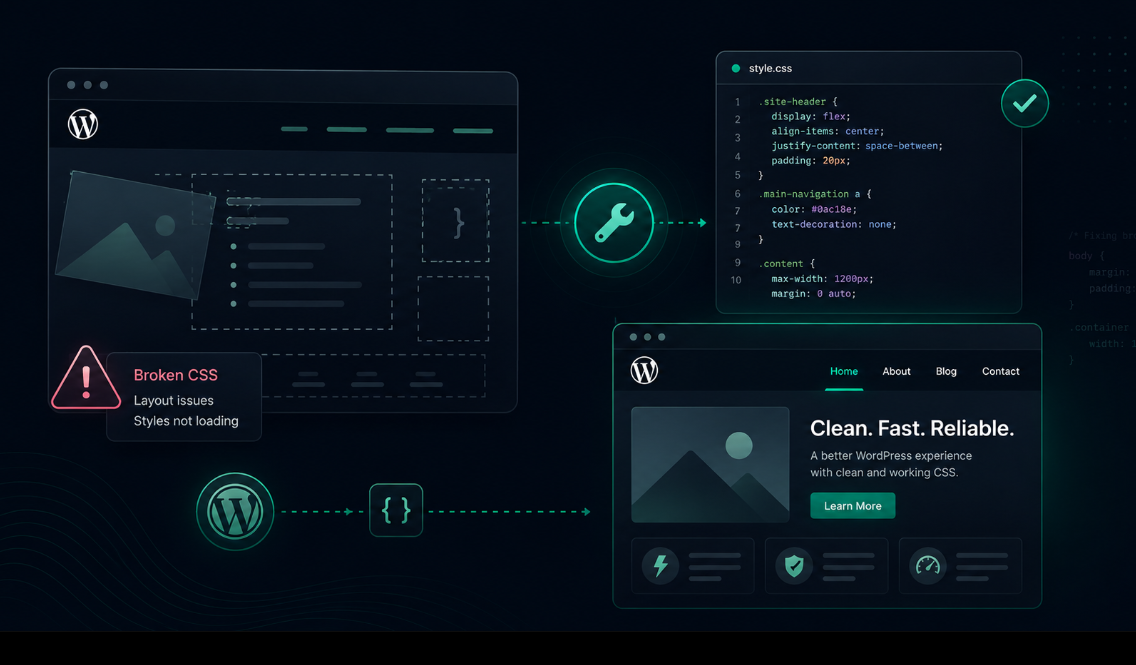
Once DevTools has told you what is failing, work through the fix that matches the cause. The methods below are ordered from the most common and least risky to the more involved, so start at the top and stop when your styles come back.
1. Clear All Caches and Disable CSS Minification
If you just edited CSS and nothing changed on the front end, caching is the most likely reason, and this is the first thing to rule out. Clear caches from the outside in:
- Browser cache. Do a hard refresh with Ctrl+Shift+R (Windows and Linux) or Cmd+Shift+R (Mac) to force the browser to reload assets from the server. For a clean test, open the page in a private window.
- Caching plugin. Clear the cache in your WordPress caching plugin from its settings or the admin toolbar.
- Server and CDN cache. Purge any server-side cache from your host, and clear your CDN cache (for example Cloudflare) so edge locations stop serving the old stylesheet.
Hosted on InstaWP? This step is much simpler. A global CDN (InstaCDN) and server caching are built into the platform, so there is no separate Cloudflare or server cache panel to log into. You clear everything from your dashboard in one place, and the edge locations refresh for you, so your CSS update goes live without the usual cache juggling.
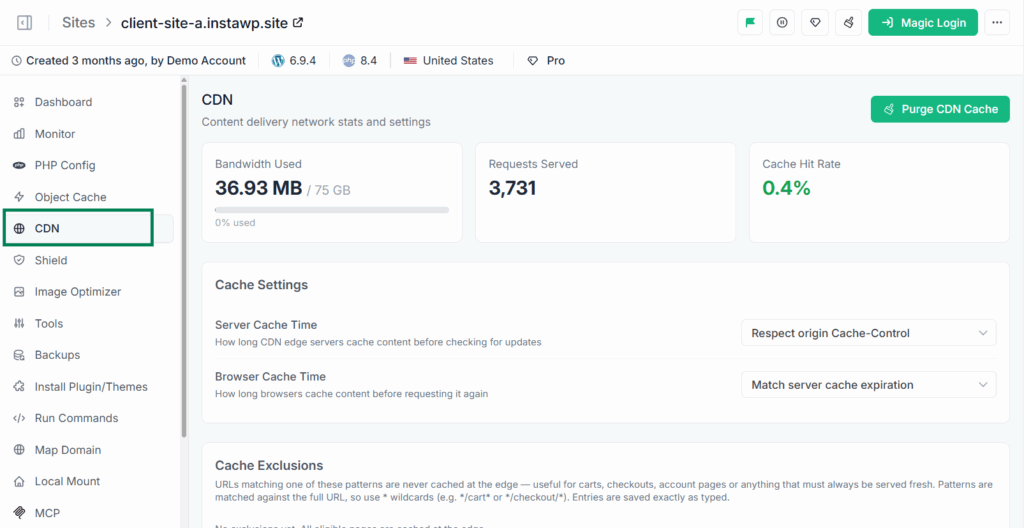
If clearing caches is not enough, check your optimization plugin. Features that combine and minify CSS (in plugins like Autoptimize, WP Rocket, or LiteSpeed Cache) can strip or reorder rules and break your layout.
Temporarily turn off CSS combine and minify, then reload. If the styling returns, re-enable the options one at a time to find which setting caused it, and exclude the affected stylesheet rather than disabling optimization entirely.
2. Fix Additional CSS Not Saving or a Missing Editor
Two of the most common complaints are that Additional CSS will not save and that the custom CSS editor has disappeared. They have different fixes, so handle them separately.
If the Additional CSS editor is gone: you are almost certainly on a block theme. Block themes use Full Site Editing and do not load the classic Customizer, so Appearance > Customize > Additional CSS is no longer there.
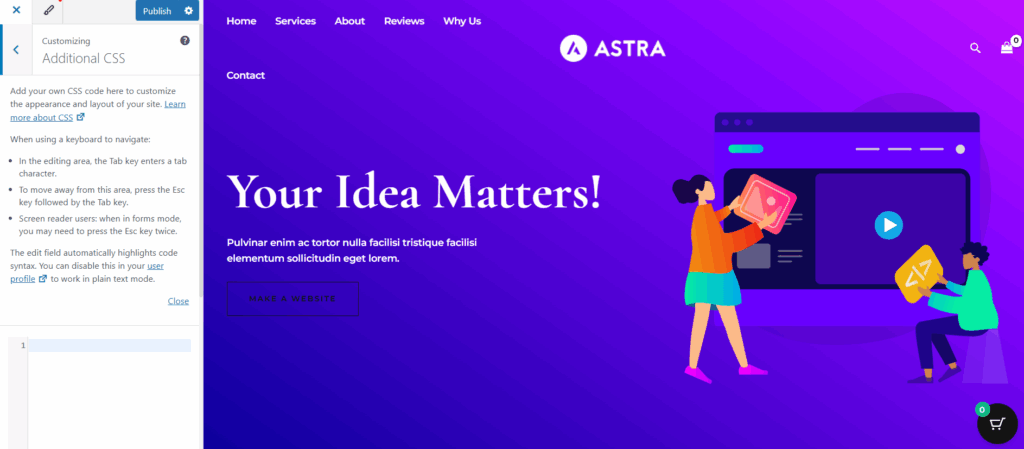
You have three good options: add CSS through the Site Editor under Appearance > Editor > Styles, add it to a child theme stylesheet, or install a small plugin that restores the Additional CSS box. Your previous custom CSS is still stored in the database, so switching back to a classic theme or to the Styles editor brings it back into view.
If Additional CSS will not save or has no effect: work through these causes in order:
- Caching. The CSS may be saving correctly while a cache serves the old version. Clear all caches as described above and hard refresh.
- User role and permissions. Saving Customizer CSS requires the edit_theme_options capability. Confirm you are logged in as an administrator, since editor and lower roles cannot save it.
- Security plugin or firewall. Some security plugins block the request that saves CSS. Temporarily pause the plugin, save again, then re-enable it and add an exception if that was the cause.
- It is stored per theme. Additional CSS is tied to the active theme. If you switched themes, the CSS you wrote for the old one will not appear under the new one. Copy it across, ideally into your child theme.
- Specificity. If the CSS saves but does nothing, your rule is probably being overridden. Use DevTools to confirm, then make the selector more specific.
3. Find and Resolve Theme or Plugin Conflicts
If DevTools shows your styles being overridden by another stylesheet, or the layout broke right after an update, a conflict is the likely cause. Isolate it with a simple process of elimination:
Deactivate plugins one by one
Under Plugins, deactivate each plugin in turn and recheck the page after each. When the styling returns, the last plugin you disabled is the culprit or part of the conflict.
If your sites are built and hosted on InstaWP managed hosting, this hunt is far quicker because the platform’s built-in site management handles the heavy lifting. You can run bulk plugin and theme updates, and activate or deactivate plugins and themes, across all of your sites from one dashboard, instead of logging into each one.
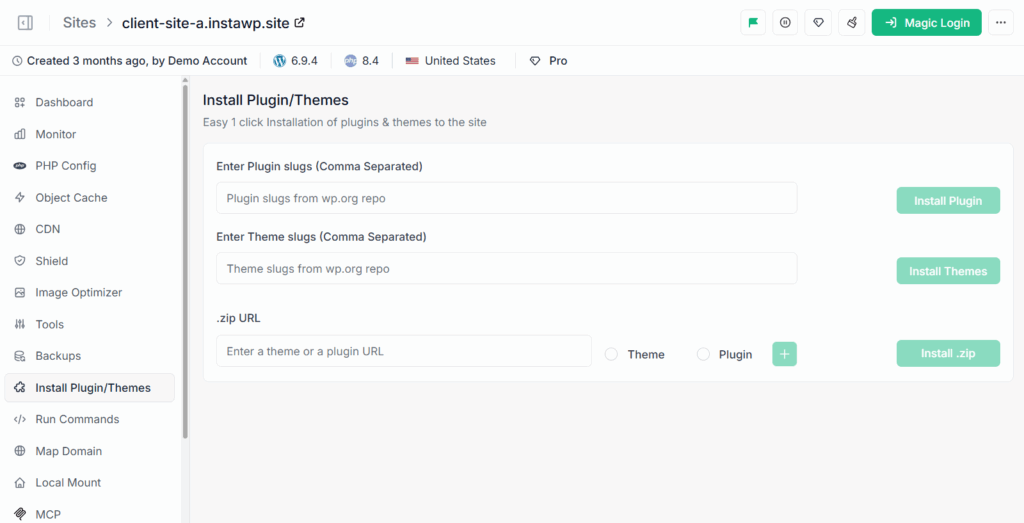
For faster toggling, the built-in WP-CLI command runner lets you disable a plugin or switch a theme with a single command, no SFTP or SSH required.
Use the built-in code editor to open your theme or plugin stylesheet and correct a syntax error or path straight from your dashboard, with no FTP or SSH needed.
With site management, enable WP_DEBUG and view a site’s logs from one dashboard, or turn on the Performance Scanner for a real-time overview that flags render-blocking and asset issues.
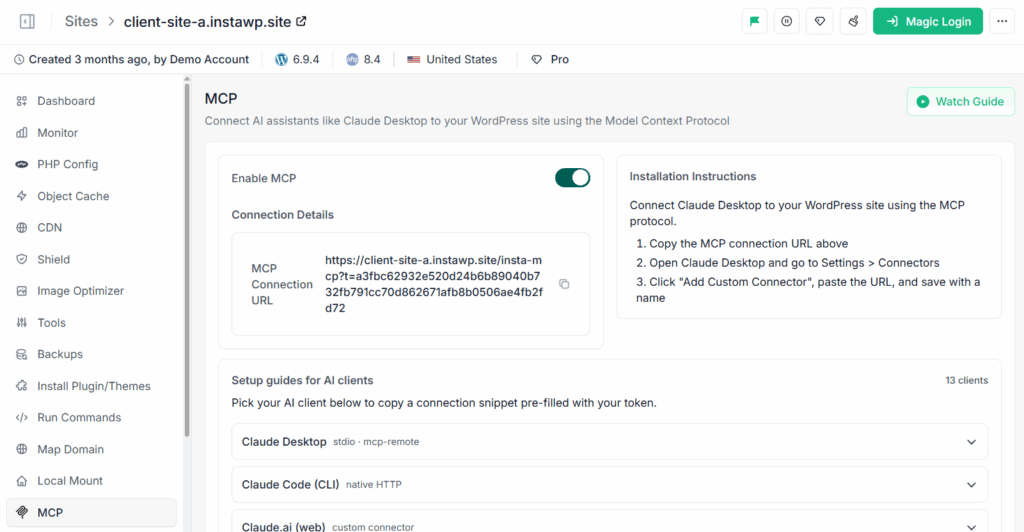
You can also let AI do the digging. By connecting your site to an AI assistant with InstaWP MCP, you can ask the assistant to inspect your theme files, find the CSS rule that is breaking the layout, and apply the fix in plain language.
InstaMCP connects 13 AI clients, including Claude, ChatGPT, and Cursor, through a single connection, so you can troubleshoot CSS by describing the problem instead of hunting through stylesheets.
Did you know?
You can enable MCP on an InstaWP site with one toggle, no server setup or API keys. Once it is on, an AI assistant can read your theme and plugin files, spot the exact selector or syntax error breaking your CSS, and write the correction back to the site, all from a chat window.
Switch to a default theme
If plugins are not the cause, temporarily activate a default theme such as Twenty Twenty-Five. If that fixes it, the issue lives in your theme stylesheet or in how your theme interacts with a plugin.
Override with specificity, not !important
When you must beat a plugin or theme rule, target the element with a more specific selector (for example .my-section .button rather than .button). Reserve !important for genuine last resorts, since it makes CSS hard to maintain.
Keep changes in a child theme
Move any theme edits into a child theme so the next parent-theme update does not wipe them. If the conflict is a genuine bug, contact the theme or plugin developer with the versions, the symptom, and your DevTools findings.
Do this testing on a staging copy rather than your live site, so visitors never see a half-deactivated site while you hunt for the conflict.
4. Correct CSS Syntax Errors in Your Code
If the trouble is in your own custom CSS, a small syntax error can break an entire rule or everything after it. Use the file and line DevTools pointed you to, then check for the usual suspects:
- Missing semicolons or braces. Every declaration needs a semicolon, and every rule needs a matching closing brace. One missing character can swallow the rules that follow.
- Misspelled properties or values. A typo like colr instead of color, or an invalid unit, makes the browser ignore that line.
- Malformed selectors. Confirm classes start with a dot and IDs with a hash, and that the selector actually matches your markup.
Paste the stylesheet into a free online CSS linter to catch errors you might miss by eye. While you are in there, comment your CSS and group related rules so the next fix is faster. This is also where common CSS syntax errors in development projects get caught before they ship.
5. Repair Broken CSS File Paths and 404s
If the Network tab shows a stylesheet returning a 404, the file is not where the page expects it. The same applies to broken internal JavaScript and CSS files in general. Fix the link rather than the CSS:
- Note the failing path. Copy the exact URL of the file returning the 404 from the Network tab.
- Check your enqueue call. In your theme, find the wp_enqueue_style() call that loads the file and verify the path is correct relative to the theme directory. Typos and stale paths are the usual cause.
- Confirm the file exists. Make sure the stylesheet is actually present at that location and was not renamed, moved, or deleted during an edit or migration. Restore or re-point it as needed.
- Clear caches. After correcting the path, clear all caches so the corrected URL is served.
6. Fix Broken CSS in the WordPress Admin Area
When the WordPress dashboard itself loses its styling and wp-admin looks like plain HTML, the cause is usually one of these, in order of how often it happens:
- Browser cache. Start with a hard refresh or a private window, since a cached admin stylesheet is the simplest explanation.
- An interrupted update or corrupted core file. If admin styling broke during an update, reinstall WordPress from Dashboard > Updates, or replace the wp-admin and wp-includes folders with fresh copies from a clean WordPress download. This restores the admin stylesheets without touching your content.
- Script concatenation. On some servers, WordPress combining admin scripts and styles can fail. Add
define( 'CONCATENATE_SCRIPTS', false );to wp-config.php to rule this out. - A plugin conflict. Deactivate recently added plugins. If you cannot reach the dashboard, rename the plugins folder over SFTP to disable them all, then re-enable one at a time.
- Mixed content. After moving to HTTPS, admin assets still requested over HTTP get blocked. The next fix covers this.
7. Fix Mixed Content After Moving to HTTPS
If your CSS stopped loading after switching to HTTPS, the browser is most likely blocking mixed content: stylesheets or assets still requested over insecure HTTP on a secure page. The Console will flag these as blocked or mixed-content warnings.
To fix it, make sure your WordPress Address and Site Address both use https in Settings > General, update any hardcoded http links in your theme and database to https, and enqueue assets without a fixed protocol so they follow the page. A search-and-replace for old http URLs across the database usually clears the last stragglers. Then clear your caches and recheck the Console.
How to Prevent Broken CSS in WordPress
Fixing broken CSS is good. Not breaking it in the first place is better. A few habits prevent the large majority of styling issues:
- Use a child theme for customizations. Keeping your CSS in a child theme means a parent-theme update can never overwrite your work. This is the single most effective safeguard against update-related breakage.
- Test every update on staging. Apply theme, plugin, and core updates on a staging copy first and check the design across browsers and devices before going live.
- Keep your CSS organized. Group related rules, use clear class names, comment your sections, and avoid overly long selectors so styles stay easy to override and maintain.
- Lint before you ship. Run new CSS through a linter to catch syntax errors and quality issues early, ideally as part of your build process.
- Use version control. Track CSS in Git so you can see every change and roll back instantly if an edit introduces breakage.
Conclusion
Broken CSS looks alarming, but it is almost always one of a few predictable causes: a stale cache or minified stylesheet, a plugin or theme conflict, a syntax error, a 404 on a stylesheet, Additional CSS that will not save, or mixed content after an HTTPS move. Diagnose with your browser developer tools, apply the matching fix, and clear your caches, and the design comes right back.
The safest way to do all of this is on a copy of your site, not the live one. Spin up a staging environment, make your fix, confirm it across devices, and push it live when you are sure. Your visitors never see a broken layout, and you never debug under pressure.
Fix broken CSS without touching your live site
Create a staging copy on InstaWP, debug your styles in a browser code editor, and push the fix live when it is ready. Add a card and get $25 in free credits to start.
Get Started FreeFAQs
Why is my CSS not working in WordPress?
The most common reason is a stale cache or a minification plugin serving old or combined CSS. Clear your browser, caching plugin, server, and CDN caches, and turn off CSS combine or minify. If it persists, check for a plugin or theme conflict, a CSS syntax error, or a stylesheet returning a 404 in your browser developer tools.
Why is Additional CSS not working or not saving in WordPress?
Additional CSS in the Customizer is stored per theme, so it can look missing if you switched themes. It may also fail to save because of caching, a low user role without the edit_theme_options capability, or a security plugin blocking the request. Clear caches, confirm you are an administrator, and re-check the Customizer or your theme Styles editor.
Where did the Custom CSS editor go in WordPress?
Block themes that use Full Site Editing do not load the old Customizer, so the Additional CSS panel can disappear. You can add CSS from the Styles editor in the Site Editor, add it through a child theme stylesheet, or use a small plugin to bring back the Additional CSS box.
How do I fix broken CSS in the WordPress admin area?
Broken wp-admin styling is usually an interrupted update, a plugin conflict, a browser cache, or script concatenation. Clear your browser cache, deactivate recently added plugins, and reinstall WordPress core. If it continues, add define CONCATENATE_SCRIPTS false to wp-config.php and check for mixed content after an SSL move.
How do I find what is breaking my CSS?
Open your browser developer tools. Use Inspect to see which rule is applied in the Styles tab, the Network tab to spot CSS files returning 404, and the Console to catch syntax errors. You can edit CSS live in the Styles tab to test a fix before you save it to your stylesheet.
Why did my layout break after a plugin or theme update?
An update can change the HTML markup or stylesheet your custom CSS depended on, or introduce a conflicting style. Test by deactivating the updated plugin or switching to a default theme. Keep customizations in a child theme so future updates do not overwrite them, and test updates on a staging site first.
How do I test CSS changes without breaking my live site?
Create a staging copy of your site and make your CSS changes there first. On InstaWP you can spin up a staging site in seconds, edit CSS in the browser code editor, confirm the fix across devices, then push only the approved changes back to live. This keeps visitors from ever seeing a broken layout.
Can AI fix broken CSS in WordPress?
Yes. By connecting your site to an AI assistant with InstaWP MCP, you can ask the AI to inspect your theme files, find the CSS error, and apply the fix. It works with 13 AI clients through one connection, so you can debug CSS in plain language instead of hunting through stylesheets by hand.