Protecting your WordPress files isn’t just a technical task; it’s essential for ensuring your website’s longevity, trustworthiness, and success. Whether you’re running a bustling eCommerce store, a high-traffic news portal, or a simple blog, understanding how to protect WordPress files is crucial for safeguarding your valuable content and users’ sensitive data.
While WordPress itself is secure out of the box, the responsibility for comprehensive WordPress security ultimately rests with you, the site owner or developer. It’s vital to proactively secure WordPress files by applying best practices like setting correct file permissions, monitoring suspicious activities, and implementing strategic backups.
Ready to fortify your WordPress site from the inside out? Let’s dive in and learn exactly how to protect WordPress files with confidence.
Table of Contents
Why You Should Learn About Protecting WordPress Files
Before we dive into how to protect WordPress files, let’s briefly clarify why your files are a prime target for attackers and what exactly you’re protecting.
WordPress, being the world’s most popular CMS, naturally attracts a great deal of attention from hackers. While WordPress security involves many layers, user passwords, plugin updates, and server security, one critical component often overlooked is securing your core WordPress files themselves.
When we say “protect WordPress files,” we’re primarily referring to:
- Core WordPress Files: These are foundational files like wp-config.php, .htaccess, wp-admin, wp-includes, and wp-content. Each file plays a specific role, and tampering with any of them can disrupt or compromise your entire website.
- Media Files & Uploads Directory: Often overlooked, your media files (images, PDFs, videos) can also pose vulnerabilities. If attackers gain access, they might upload malicious scripts disguised as legitimate media files. Hence, knowing how to effectively protect WordPress media files is just as critical as securing the core files.
- Plugins & Theme Files: Plugins and themes often have vulnerabilities that hackers exploit to insert malware. Ensuring these files remain secure and updated is paramount to your overall WordPress security.
Failing to properly secure WordPress files has real consequences. From harmful malware injections and phishing attacks to complete data loss and SEO penalties from Google, poor file protection can damage your site’s reputation, user trust, and bottom line.
Fortunately, the good news is that securing your files is straightforward when you approach it methodically. By the end of this guide, you’ll have clear, actionable knowledge to confidently protect WordPress files, keep your website running safely, and maintain trust among your visitors and customers.
What Are the Common Threats to Your WordPress Files?
To effectively learn how to protect WordPress files, you first need to understand the common threats they face. Attackers target your website files for various malicious purposes, ranging from defacement and data theft to distributing malware.
Here are some of the most frequent threats that underline why you must proactively secure WordPress files:
1. Unauthorized File Access
Hackers might attempt to directly access sensitive files like wp-config.php, which contains crucial database credentials and authentication keys. If this file becomes exposed, attackers could compromise your entire WordPress installation.
2. File Injection Attacks
Malicious actors often exploit outdated plugins, themes, or file upload vulnerabilities to inject harmful scripts directly into your files. Such attacks may create backdoors, allowing hackers continued unauthorized access or causing your website to serve malware unknowingly.
3. Brute Force Attacks
Attackers may use automated scripts to repeatedly attempt to access your website files, especially admin login pages or files with weak protection. Once successful, they can manipulate files or databases, severely compromising your website.
4. Cross-Site Scripting (XSS)
XSS attacks inject malicious scripts into your site files, which then execute in visitors’ browsers. These can redirect your visitors to malicious websites, steal sensitive data, or hijack sessions.
5. Directory Traversal Attacks
If attackers discover improperly configured file permissions, they can traverse directories, reading or editing files they shouldn’t have access to. This can lead to sensitive data exposure or file deletion.
Understanding these threats and identifying which files are most critical gives you clarity and direction. Next, we’ll show you how exactly to protect WordPress files effectively, step-by-step, using straightforward techniques and tools designed specifically for robust WordPress security.
How to Protect WordPress Files (Step-by-Step Guide)
Now that you’re aware of the common threats and key files you need to secure, let’s explore the most effective methods to practically protect WordPress files from unauthorized access and attacks.
Each of these best practices not only helps you secure your WordPress site but also simplifies the entire security process. Also, we’ve built our test site on InstaWP as this is one of the best all-in-one WordPress cloud development platforms we have today.
From managed cloud hosting to centralized site management, you get every essential resource under one roof. The best part is its pay-as-you-go site plans. You can upgrade any time without breaking anything.
And, you’re changed per day. Created a site and deleted it in 3 days, then paid only for 3 days. No need to block your money for the entire month. This sort of flexible payment is hardly seen.
Step #1: Set Correct File Permissions to Protect WordPress Files
Setting proper file permissions is the cornerstone of securing your WordPress website. When permissions aren’t set correctly, your critical website files become vulnerable to unauthorized modifications, potentially exposing sensitive data or causing site downtime.
To effectively protect WordPress files, you must clearly understand the importance of file permissions and implement them accurately.
Why File Permissions Matter for WordPress Security?
File permissions dictate who can read, write, or execute files on your server. If permissions are too loose, malicious attackers can easily alter your site’s files or inject harmful scripts. Conversely, overly restrictive permissions can lead to functionality issues. Finding the correct balance is essential to secure WordPress files effectively.
The recommended secure permission levels are:
- Folders: Set permissions to 755. (Owner can read, write, and execute; others can read and execute.)
- Files: Set permissions to 644. (Owner can read and write; others can only read.)
This configuration ensures your WordPress core, themes, plugins, and especially your media files remain secure without sacrificing functionality.
When you plan to protect WordPress files, avoid using ‘777’ and ‘666’ as they both are dangerous. ‘777’ grants full access to everyone, leaving your files vulnerable, whereas ‘666’ allows all users to modify files, a prime target for malware.
How InstaWP Makes Securing File Permissions Effortless:
Managing file permissions manually can be tedious and error-prone, especially if you’re dealing with multiple client sites or complex WordPress installations. InstaWP streamlines this crucial aspect of your WordPress security workflow:
1. Built-in Code Editor: InstaWP provides a secure, browser-based Code Editor integrated directly within your WordPress dashboard. You don’t need external FTP clients or file managers, saving you time and reducing the risk associated with manual file transfers.
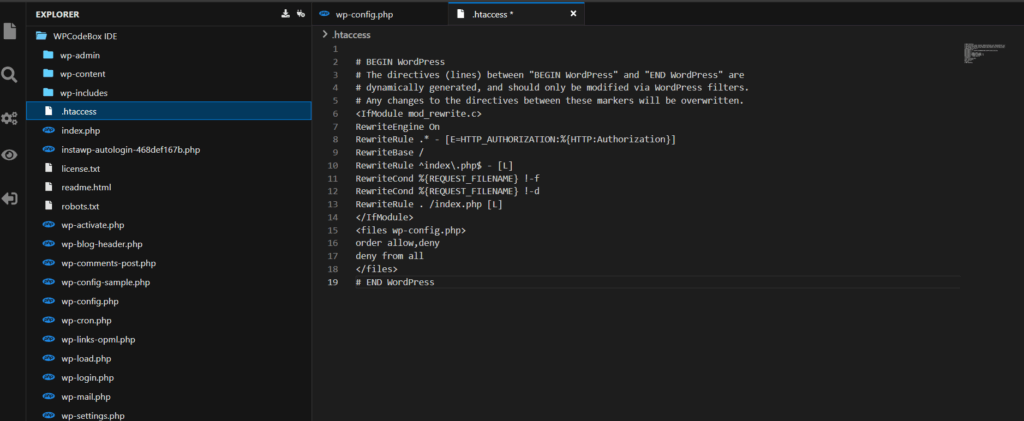
2. Quick Permission Checks and Edits: InstaWP allows you to inspect and adjust file permissions in just a few clicks. Clearly visible file permission indicators mean you instantly spot and correct vulnerabilities without leaving the dashboard.
3. Consistent Security Across Staging and Production: With InstaWP’s staging sites, you set and test permissions securely before pushing changes to your live site. This guarantees that permissions are always secure, even when deploying frequent updates or new features.
4. Instant Recovery from Permission Errors: If permissions are mistakenly altered or compromised, InstaWP’s automated backups and restore functionality help you quickly revert to a secure state without technical hassle.
By following this essential step, setting proper file permissions, and using InstaWP’s built-in site tools, you establish a strong foundational layer to effectively protect WordPress files, streamline your security workflow, and confidently manage your WordPress installations.
Step #2: Secure Your wp-config.php File to Protect WordPress Files
Your WordPress website’s heart beats inside one crucial file: wp-config.php. This file holds essential details such as your database credentials, unique security keys, and sensitive configurations.
If compromised, attackers can easily take full control of your site, access your users’ personal data, and severely damage your brand’s credibility. Clearly, learning how to protect WordPress files, especially the wp-config.phponescore, is non-negotiable for robust WordPress security.
Think of wp-config.php as your website’s master key. It contains:
- Database connection information.
- Authentication keys and salts are used to encrypt user sessions.
- Debugging settings and advanced WordPress configurations.
If attackers gain access, they don’t just get entry into your WordPress site; they receive direct access to your entire database and potentially your server. Therefore, securing this file is fundamental to securing WordPress files effectively.
How to Protect Your wp-config.php (Using InstaWP)
Since you’re using InstaWP, securing your wp-config.php file is straightforward, convenient, and highly secure. Follow these simple, practical steps to effectively protect WordPress files and specifically safeguard your wp-config.php using InstaWP’s built-in features:
Step 1: Log in to Your InstaWP Dashboard
- Navigate to your InstaWP account.
- Select the site you want to secure.
Step 2: Launch the Code Editor
- Within your selected site’s dashboard, click on the Code Editor tool provided by InstaWP.
You will be directed to the codes of your WordPress site. You can also download your site and edit its files locally using the ‘Local Mount‘ feature of InstaWP.
- Locate the root directory where your
wp-config.phpfile resides.
Step 3: Adjust File Permissions (Critical Security Step)
- Right-click on your
wp-config.phpfile. - Choose File Permissions.
- Set permissions to
400or440:400means only the file owner (you) can read the file.440means you and your server group can read it; no one else has any access.
- Click Save to apply these secure permissions instantly.
Step 4: Restrict Direct Access via .htaccess
Still within InstaWP’s Code Editor, open your .htaccess file located in the same directory as your wp-config.php. Add the following secure snippet at the end of the file to deny direct web-based access:<files wp-config.php>
order allow,deny
deny from all
</files>

Click Save to confirm this configuration.
Step 5: Verify Your Security with InstaWP’s “View Logs”
Now, use the View Logs feature from your InstaWP dashboard. Confirm no unauthorized attempts are occurring. Regular checks here ensure continuous monitoring and immediate threat detection.
Step #3: Protect WordPress Media Files and Uploads Directory
When considering how to effectively protect WordPress files, it’s easy to focus only on core WordPress files or databases.
However, your media files, stored primarily in the uploads directory, are equally vulnerable and critical. Attackers often exploit these files to inject malware disguised as legitimate images, documents, or videos, potentially jeopardizing your site’s security and harming your users.
Your WordPress uploads directory (/wp-content/uploads) is where images, documents, PDFs, and other user-uploaded files reside. Without proper WordPress file security:
- Hackers may upload harmful scripts or malicious content.
- Malware disguised as normal images can infect your visitors’ devices.
- Unauthorized access might lead to stolen content, copyright infringements, or sensitive data leaks.
This not only compromises your site’s integrity but can severely damage your business reputation and SEO rankings.
To proactively secure WordPress files, you should:
- Disable PHP Execution in the Uploads Folder: Prevent execution of harmful scripts by disabling PHP execution within /uploads.
- Restrict Direct Directory Browsing: Block attackers from directly browsing your uploads directory contents.
- Set Secure File Permissions: Folders set to 755, files set to 644.
- Regularly Audit and Monitor File Uploads: Quickly detect unauthorized uploads or suspicious files.
Here’s exactly how you can achieve this effortlessly using InstaWP:
- From the InstaWP dashboard, access the built-in Code Editor.
- Navigate to /wp-content/uploads/. If there’s no .htaccess file here, create one quickly using InstaWP’s Code Editor.
- Add the following code snippet to disable PHP execution inside your uploads directory:
<Files *.php>
deny from all
</Files>
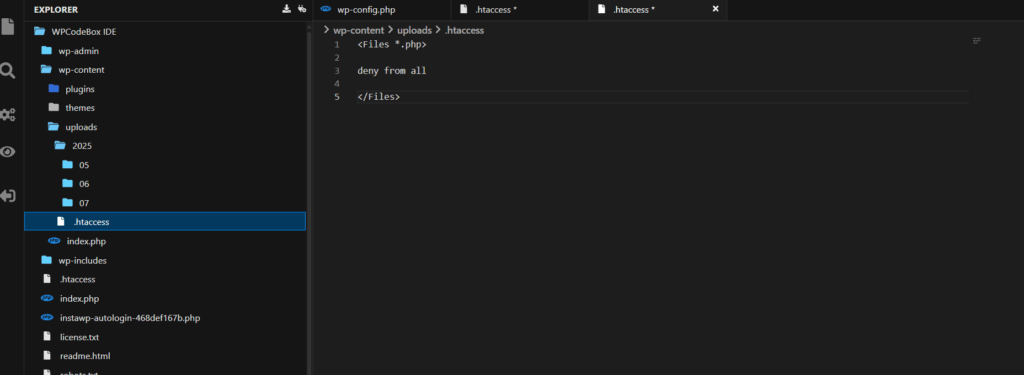
Save your changes immediately. This ensures that even if attackers successfully upload malicious scripts disguised as images, those scripts won’t execute, rendering them harmless.
Step #4: Monitor and Detect Unauthorized Changes in Your WordPress Files
When it comes to effectively learning how to protect WordPress files, one of the most critical, but often overlooked, tasks is monitoring your site files regularly.
No matter how thoroughly you set file permissions or configure security, unexpected issues may still arise. Proactively monitoring your WordPress files ensures you quickly identify unauthorized changes or suspicious activities before they escalate into bigger problems.
Attackers commonly attempt subtle alterations, injecting malicious code discreetly into files, plugins, or themes. Without proper monitoring:
- Malicious code can remain hidden, silently compromising your website.
- SEO rankings and website reputation may suffer due to security breaches.
- You risk unauthorized file access, modification, or deletion going unnoticed.
Consistent monitoring helps you quickly detect and neutralize threats, keeping your website safe, secure, and reliable.
To comprehensively secure WordPress files, ensure you:
- Regularly check for file integrity and modification.
- Review logs frequently for suspicious activity.
- Receive instant alerts for unusual file activities.
Using InstaWP significantly simplifies these critical monitoring tasks, enabling you to respond swiftly and effectively.
From your site’s InstaWP dashboard, click on the built-in View Logs feature.

InstaWP automatically logs essential file events, ensuring you have real-time insights on activities such as:
- File edits or deletions
- New file uploads or installations
- Changes in file permissions
- Access attempts to protected files (like wp-config.php or .htaccess)
Check these logs periodically (daily or weekly) for unexpected or suspicious actions.
- If you notice suspicious activities, like unauthorized edits or frequent failed access attempts, immediately investigate further.
- If unauthorized file changes or malicious injections occur, leverage InstaWP’s automated backups.
- If suspicious or unauthorized code is found, securely remove it directly within the Code Editor.
Verify permissions and restore original code from backups if needed, ensuring your files remain secure.
Step #5: Regularly Back Up WordPress Files for Robust Protection
Regular WordPress backups are your ultimate safety net when you’re learning how to effectively protect WordPress files.
Despite your best efforts to secure and monitor your site, unexpected incidents, like malware infections, file corruption, or accidental deletions, can still happen. Having regular, secure backups ensures you quickly recover your website without panic or downtime, safeguarding your content, reputation, and users’ trust.
Without a reliable WordPress site backup strategy, your site risks catastrophic data loss. Imagine scenarios like:
- Accidental file deletions or corruption.
- Malicious attacks cause irreversible file damage.
- Plugin or theme updates are causing compatibility issues.
In each case, WordPress site backups allow rapid restoration, keeping your site secure and functional without disruption.
To comprehensively secure WordPress files through backups:
- Maintain frequent and scheduled backups.
- Store backups securely off-site (away from your live site).
- Regularly test backup restoration processes.
- Ensure backups include your entire WordPress site, core files, media uploads, themes, plugins, and databases.
Fortunately, with InstaWP’s integrated backup features, this process becomes streamlined, automated, and virtually effortless. Even with the Free Plan, you get monthly site backup.
If you wish to get weekly or daily backups, upgrade your free plan site plan to a higher-tier plan, such as Pro Tubor, Elite, and so on. Keep in mind that these are fully automated WordPress site backups. And, InstaWP saves backups to secure, off-site cloud storage.
InstaWP clearly displays your recent backup history, timestamps, and file sizes, ensuring transparency and peace of mind.
Protecting WordPress Files Isn’t Optional; It’s Foundational
If you’ve made it this far, you already know: learning how to protect WordPress files is no longer a “nice to have”; it’s non-negotiable for anyone serious about running or managing WordPress websites in 2026 and beyond.
From wp-config.php to your /uploads directory, from hidden PHP scripts to over-permissive folders, your site files are ground zero for most attacks. And while WordPress itself is secure, it can’t save you from poor file management or unmonitored vulnerabilities.
Here’s the good news: protecting your site doesn’t have to be overwhelming or complex.
With InstaWP, you’re not just following best practices—you’re making them second nature. Whether you’re:
- Editing files securely via the Code Editor
- Monitoring live changes with View Logs
- Testing updates in a staging site
- Backing up automatically and restoring in seconds
- Mounting your site locally without risking FTP security
…you’re building a proactive, scalable, and stress-free workflow for WordPress security.
Protect WordPress files. Secure your reputation. Simplify your workflow. That’s what you unlock when you combine best practices with the right tools.
Create a secure WordPress site with InstaWP now.