A bloated WordPress database slows down every page load, inflates your backups, and quietly degrades admin performance over time. The good news is you don’t need a heavyweight plugin to fix it.
This guide walks you through 8 proven WordPress database size reduction methods, using SQL, WP-CLI, and built-in tools, so you can clean up safely, test before you touch production, and keep your sites running fast.
Table of Contents
Key Takeaway

Post revisions, expired transients, and orphaned plugin tables are the most common sources of database bloat in WordPress.
The wp_postmeta and wp_options tables tend to grow the largest and should be audited regularly.
You can limit or disable future bloat by adjusting WordPress settings in wp-config.php.
InstaWP’s built-in Database Editor is the best way to reduce WordPress datasize as it lets you run SQL queries directly in the browser, without needing phpMyAdmin access.
Before You Start: Understand What’s Eating Up Your Database
Not all database tables grow equally. Some plugins generate excessive metadata or transients, while others leave behind unused tables even after deletion. Before running any cleanup to reduce the WordPress database size, it pays to know which tables are causing the problem, so you’re not deleting blindly.
If you’re managing your site on InstaWP, you don’t need to hunt for phpMyAdmin in a hosting panel. InstaWP’s built-in Database Editor gives you direct browser-based access to your WordPress database. From your site dashboard, choose the site for which you want to reduce the WordPress database size.
Go to the three dot menu, select Tools, and click on DB Editor.
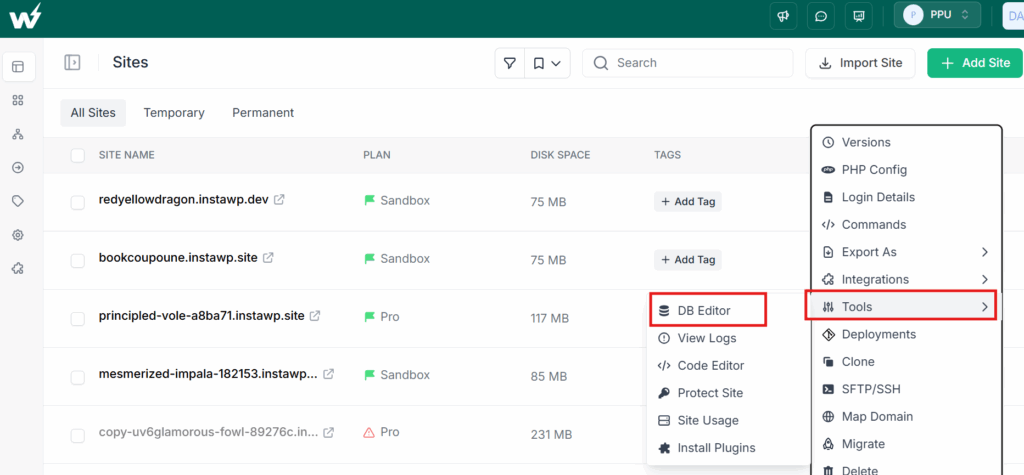
You can now open any table, run SQL queries, and inspect table sizes, all without leaving your workflow.
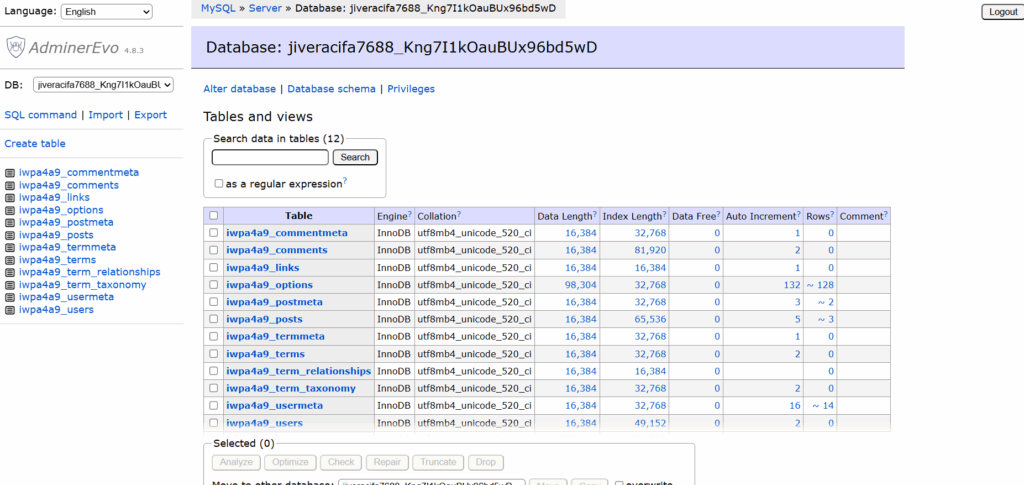
For developers who prefer the terminal, WP-CLI makes it easy. Developers using InstaWP enjoys built-in commond line tool.
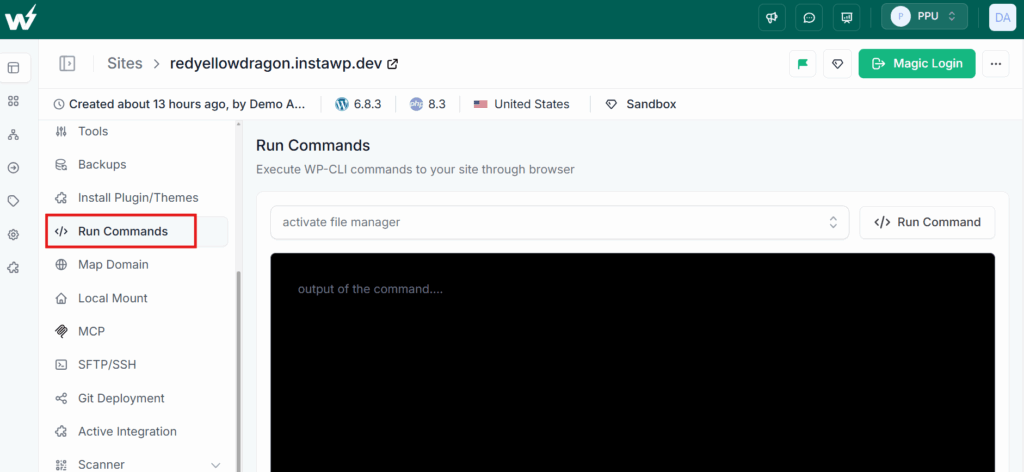
To check the database status using WP-CLI, first add the below command on the InstaWP. Read our guide to Add Command to learn the proces.
wp db size --tablesOnce the command is saved, excute this command by simply running it inside the site’s dashboard.
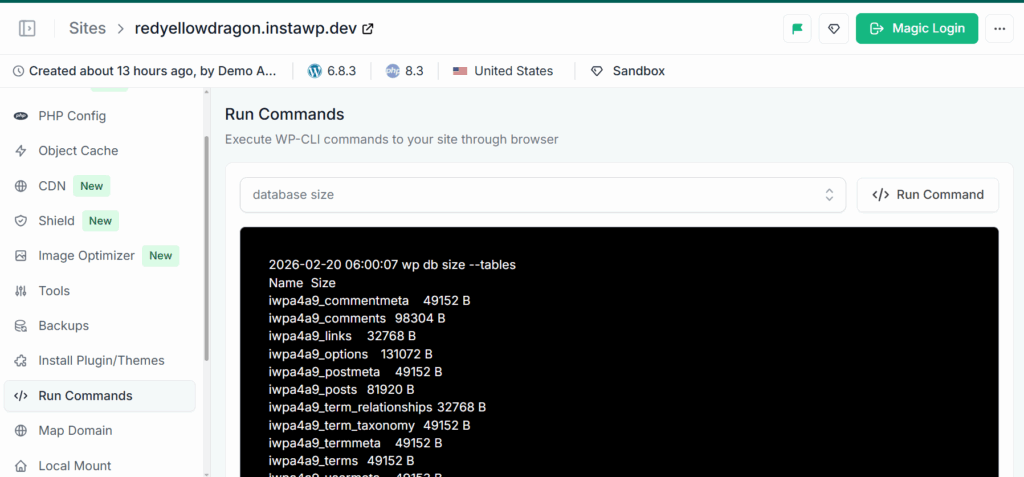
You’ll have all the details under a minute. This outputs the size of each table individually. It’s clean, fast, and works great inside scripts or automated maintenance pipelines.
Those who are not using managed WordPress hosting have to log in to their hosting panel and open phpMyAdmin. Select your WordPress database, then scroll through the list of tables. Look at the “Size” column next to each one.
The usual suspects are wp_options, wp_postmeta, and wp_commentmeta. Sorting tables by size immediately shows you where the bloat is concentrated.
For example, a wp_options table bloated with transients can noticeably slow down your admin dashboard, even if your front-end feels fine.
Understanding what’s taking up space helps you plan a targeted cleanup without relying on plugins or guesswork. It’s the first step every WordPress developer should take before making changes to the database.
Before You Clean: Always Back Up First
This step is not optional when it comes to reduce the WordPress database size. Running SQL queries on a live database without a backup is how data gets lost permanently.
Take a full database backup before you touch anything. You can use your hosting panel, a WordPress back-up plugin or WP-CLI:
wp db export backup.sqlInstaWP gives the easiet way to take the site’s back-up. Just choose Backups from the site’s dashbaord and enjoy on-demand back-up by clicking on Backup Now.
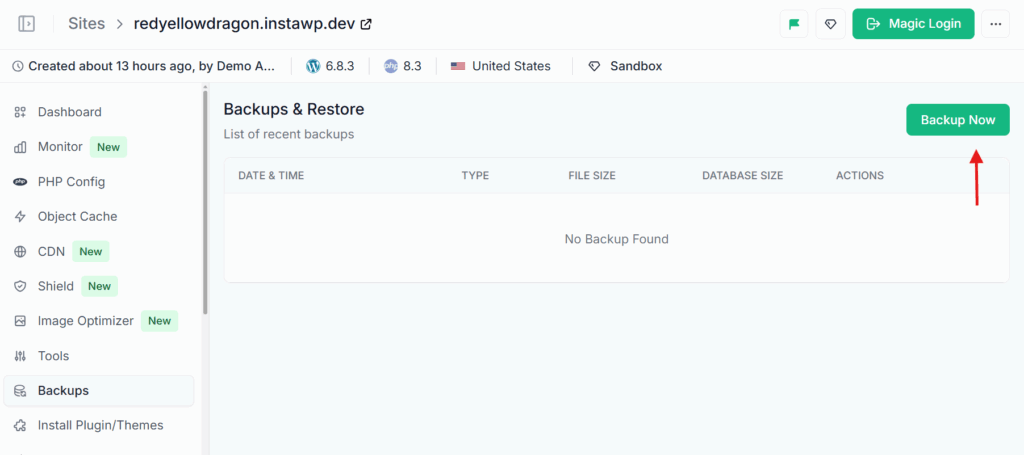
In general, you enjoy daily/weekly auto backups, based upon the managed hosting plan you’ve choosen.
8 Best WordPress Database Size Reduction Methods
A leaner database means faster queries, quicker page loads, snappier admin panels, and smaller backups. Here are the most effective methods, ordered from highest impact to most targeted.
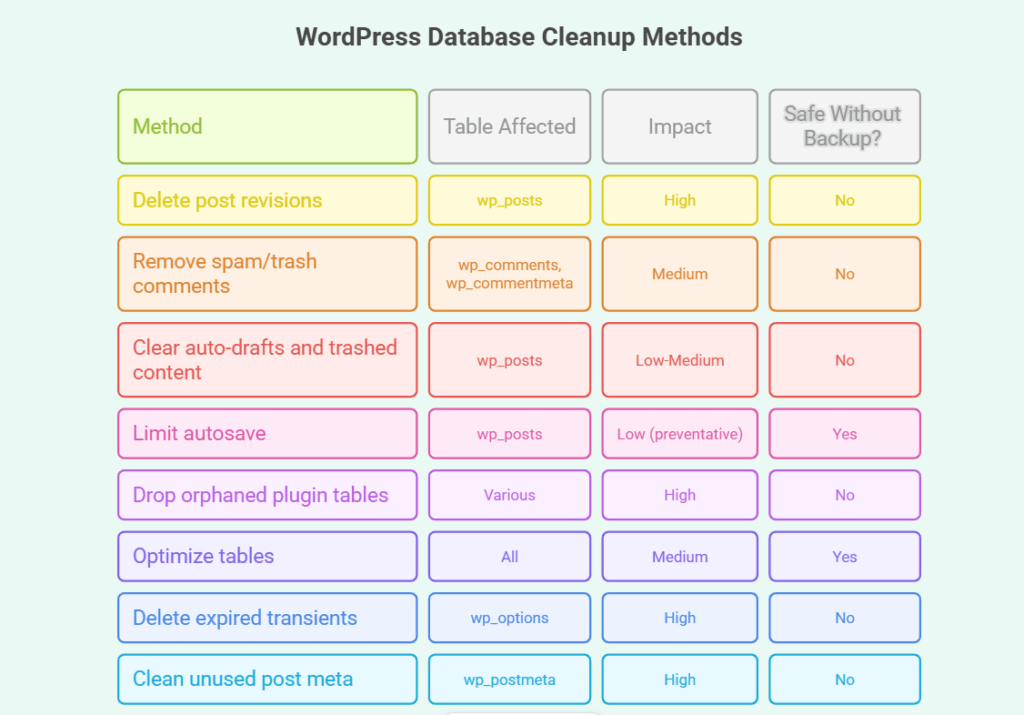
#1: Clean Up Old Post Revisions
Every time you save or update a post, WordPress stores a revision in the wp_posts table. On content-heavy sites, especially blogs or WooCommerce stores under active development, this can mean thousands of revision entries that serve no real purpose after publishing.
So, to reduce the WordPress database size, you need to delete all existing revisions via SQL.
Open phpMyAdmin or InstaWP’s Database Editor and run:
DELETE FROM wp_posts WHERE post_type = 'revision';Replace wp_ with your actual table prefix if you’ve changed it. This removes all saved revisions without affecting your published content.
To stop WordPress from accumulating new revisions and reduce the WordPress database size, add this to your wp-config.php:
define('WP_POST_REVISIONS', false);If you still want some revision history as a safety net, set a limit instead:
define('WP_POST_REVISIONS', 3);This keeps the last three revisions and automatically discards the rest. For most sites, three is more than enough.
#2: Delete Spam, Trash, and Unapproved Comments
WordPress stores every comment it receives, including ones you never approved and ones your spam filter caught. Over time, the wp_comments and wp_commentmeta tables fill up with entries that provide zero value. For high-traffic blogs, this can become a meaningful source of bloat.
To reduce the WordPress database size, go to Comments in your WordPress dashboard. Click into the Spam tab, select all, and choose Delete Permanently.
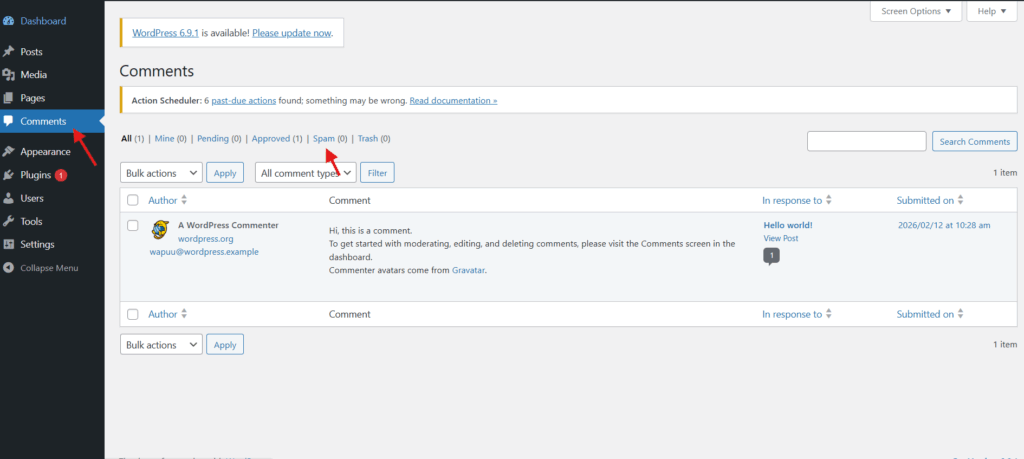
Repeat the same for the Trash tab. It’s worth reviewing the Pending tab too, especially if you have a backlog of old, unapproved comments from months ago.
For a faster, scriptable approach, access the DB Editor on InstaWP and excecute below SQL command.
DELETE FROM wp_comments WHERE comment_approved = 'spam';
DELETE FROM wp_comments WHERE comment_approved = 'trash';
DELETE FROM wp_comments WHERE comment_approved = '0';The third query removes unapproved comments to reduce the WordPress database size. Run these in sequence and you’ll clear out all three categories in seconds.
#3: Remove Auto-Drafts and Trashed Posts or Pages
When WordPress saves content automatically while you’re writing, it creates an “auto-draft.” These are genuinely useful during editing, but they accumulate when posts get abandoned or deleted. Similarly, posts you move to Trash aren’t permanently gone, they stay in the wp_posts table until you explicitly empty the trash.
Go to Posts, click the Trash tab, select all entries, and choose Delete Permanently.
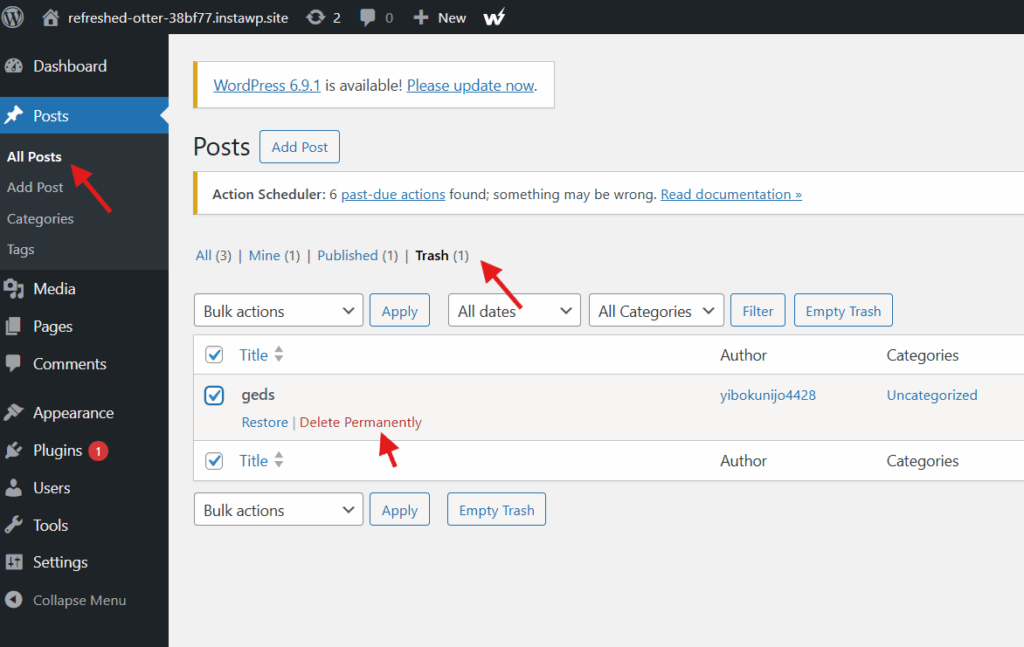
Repeat under Pages. For drafts, filter by “Draft” status and remove any that are no longer needed.
For a one-line fix via your database editor, use below command to reduce the WordPress database size.
DELETE FROM wp_posts WHERE post_status = 'auto-draft';This targets only auto-saved drafts, leaving your real published content and intentional drafts completely untouched.
#4: Disable or Limit WordPress Autosave (Advanced)
WordPress autosaves your content every 60 seconds while you’re editing. This is useful on live editorial sites, but on WP staging environments, development builds, or sites with static landing pages, it’s creating unnecessary database entries with no real benefit.
The wp-config.php approach is the cleanest way to manage this to reduce the WordPress database size. You can extend the autosave interval to reduce how often WordPress writes to the database. Open DB Editor on InstaWP and give this command to reduce the WordPress database size.
define('AUTOSAVE_INTERVAL', 300); // saves every 5 minutes instead of 60 secondsIf you want to turn off autosave entirely for a specific environment, add this to your theme’s functions.php.
Go to Appearance > Themes > Theme File Editor > functions.php and add:
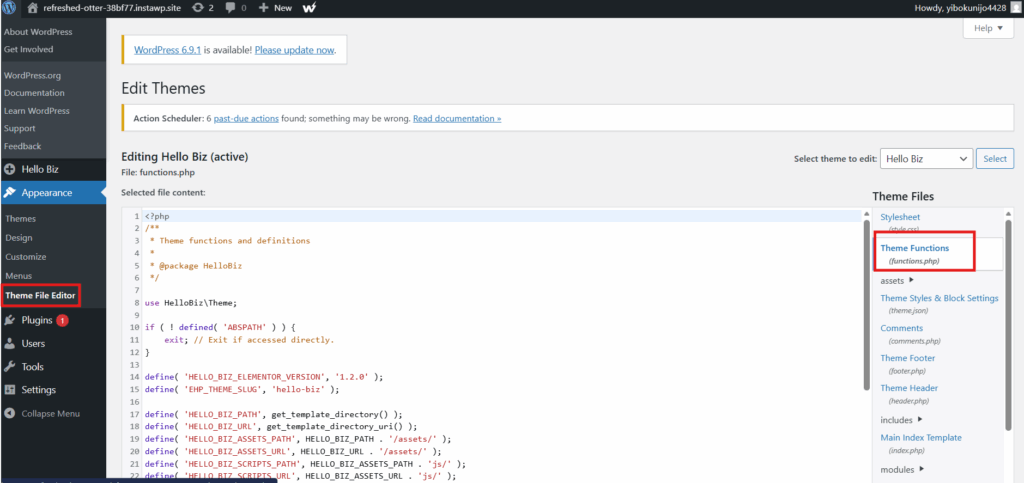
add_action('admin_init', function() {
  wp_deregister_script('autosave');
});With InstaWP, you can use the built-in Code Editor to modify wp-config.php directly in the browser and reduce the WordPress database size without connecting via SFTP or SSH. This is especially convenient when you’re configuring multiple staging environments and want to apply consistent settings across all of them.
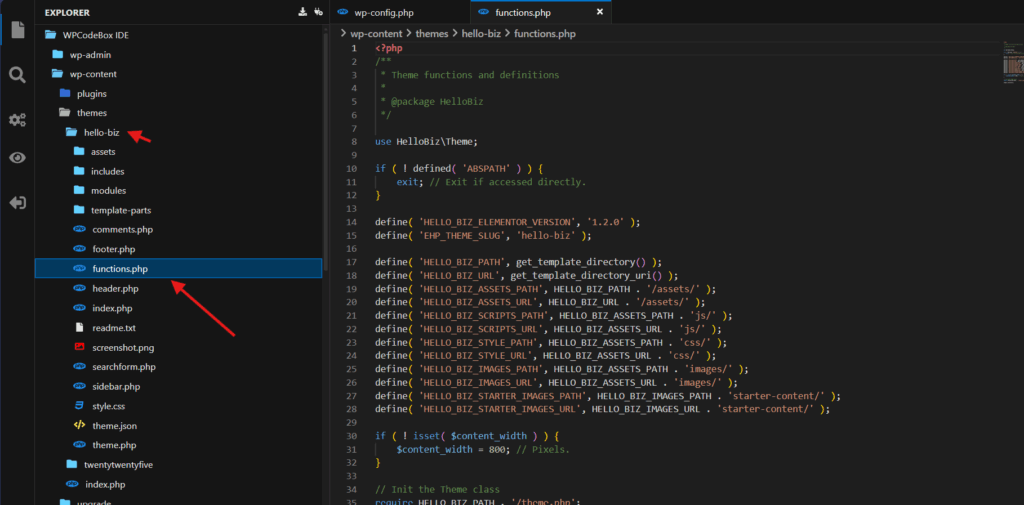
This approach is best suited for developer environments, prototyping sandboxes, or sites to reduce the WordPress database size where the content rarely changes. For active blogs or sites with multiple contributors, keep autosave on.
Did You Know: InstaWP’s Database Editor lets you run SQL queries directly from your site dashboard to reduce the WordPress database size.; no phpMyAdmin login, no hosting panel navigation. You can inspect table sizes, run cleanup queries, and verify the results all in one place. It’s one of 20+ developer tools available inside the InstaWP dashboard.
#5: Delete Orphaned Plugin Tables
When you install a WordPress plugin, it often creates its own database tables. When you delete the plugin, those tables frequently stay behind. They’re called orphaned tables, and on sites that have gone through lots of plugin experimentation, they can account for surprisingly large amounts of dead weight.
The best way to avoid this problem and to reduce the WordPress database size in the first place is to test plugins on a WordPress sandbox before installing them on your live site. If a plugin doesn’t meet your needs, you discard the sandbox rather than leaving cleanup work on your production database.
For existing orphaned tables, the process is straightforward. Open your database editor, look through the list of tables, and identify any that don’t match standard WordPress tables like wp_posts, wp_options, or wp_usermeta.
Tables with names tied to deleted plugins (for example, wp_revslider_settings after removing Slider Revolution) can be safely dropped.
DROP TABLE wp_oldplugin_logs;Only run this after confirming the plugin is completely deactivated and removed. Dropping an active table will break functionality immediately.
#6: Optimize Database Tables to Reclaim Overhead
Over time, WordPress tables accumulate internal overhead, fragmented space left behind by updates and deletions. This doesn’t show up as identifiable “bad data,” but it makes your database larger and slower than it needs to be. Optimizing tables reclaims that space without deleting anything.
In InstaWP’s Database Editor, select all tables, then choose “Optimize table” from the action menu. The editor will defragment and compact each table, reclaiming wasted space automatically.
You can also use Run Commands feature of InstaWP to run below command to reduce the WordPress database size.
wp db optimizeThis runs the same operation across all tables and is easy to slot into scheduled maintenance scripts or cron jobs. It’s safe to run on a live site, but running it on a staging copy first is still good practice.
#7: Delete Expired Transients from wp_options
Transients are WordPress’s way of caching temporary data in the wp_options table. Plugins use them constantly, for API responses, calculated values, and query results. The problem is that expired transients often stay in the database long after their expiry date has passed, silently bloating wp_options and slowing down admin queries.
Run this SQL query to clear them out:
DELETE FROM wp_options WHERE option_name LIKE '%_transient_%';This removes both expired transients and any orphaned ones to reduce the WordPress database size. WordPress will automatically regenerate any transients it still actively needs, so this cleanup is safe to run without affecting site functionality.
One note worth keeping in mind: some plugins store large blocks of data as transients (analytics tools, heavy caching configurations). If your site relies heavily on these, test the cleanup on a staging copy first and check that everything still behaves as expected before applying it to production.
#8: Clean Up the wp_postmeta Table
The wp_postmeta table stores custom field data attached to posts, pages, and custom post types. It’s one of the most commonly overlooked sources of database bloat, and based on what developers search for most, it’s also one of the most frequently problematic.
Every plugin that adds custom fields writes to this table. When you remove a plugin, its meta entries almost always stay behind. On sites that have gone through several redesigns or plugin changes, wp_postmeta can grow to millions of rows with large portions being completely unused.
Each row contains a meta_key and meta_value pair linked to a specific post. To see which keys are taking up the most space, run this in your database editor:
SELECT meta_key, COUNT(*) as count
FROM wp_postmeta
GROUP BY meta_key
ORDER BY count DESC
LIMIT 20;This gives you a ranked list of the most common meta keys on your site, a clear starting point for identifying what’s unnecessary.
If you’ve removed a plugin that generated custom fields, an SEO plugin, a page builder, or a membership plugin, its meta keys are likely still filling your wp_postmeta table. Once you’ve confirmed a plugin is gone and its data is no longer needed, you can target those keys specifically:
DELETE FROM wp_postmeta WHERE meta_key = 'your_plugin_meta_key';Always confirm the key name through the audit query above before deleting. And as always, test this in a staging environment before running it on a live database.
The safest workflow for wp_postmeta cleanup to reduce the WordPress database size is to clone your production site to a staging environment, run the audit queries to identify high-volume keys, delete what you can confirm is unused, and then browse your posts and custom post types to verify nothing is broken. Once confirmed, repeat the same queries on production.
InstaWP makes this workflow straightforward. You can create a staging copy of your site with one click, use the built-in Database Editor to run queries directly in the browser, and push verified changes to production when you’re ready, without touching your live site until you’re confident in the results.
Did You Know: InstaWP lets you spin up a full WordPress staging site in seconds from your existing production site. When cleaning a database as large as wp_postmeta, having an identical staging copy to test on first is the difference between a smooth cleanup and a late-night rollback.
Conclusion
Cleaning up your WordPress database isn’t just about saving disk space—it directly improves performance, makes backups faster, and ensures your site runs smoothly over time. For agencies managing dozens of client sites, a bloated database can quietly become a bottleneck that affects everything from site speed to admin usability.
The good news is that you don’t need to rely on bulky optimization plugins. With the right methods, like deleting revisions, clearing transients, removing orphaned plugin data, and optimizing tables, you can keep your database lean and efficient.
If you’re unsure about running SQL commands on live sites, tools like InstaWP offer a reliable workflow. You can test all your database size reduction methods safely in a sandbox, then push only the verified improvements to production.
Ready to clean up your WordPress database with zero risk?
Start by launching a free staging sandbox on InstaWP and try these methods without touching your live site.
FAQs
u003cstrongu003e1. How can I reduce WordPress database size without a plugin?u003c/strongu003e
You can manually clean your database using phpMyAdmin or WP-CLI. Delete post revisions, spam comments, orphaned tables, and transients. You can also optimize tables to remove overhead. These methods are safe and effective when tested properly.u003cbru003eu003cbru003eu003cstrongu003e2. Is it safe to delete post revisions in WordPress?u003c/strongu003eu003cbru003eYes, deleting post revisions is safe and does not affect your live content. Revisions are backup drafts saved during editing. Use SQL or a sandbox to test before running the deletion on a live site.u003cbru003eu003cbru003eu003cstrongu003e3. Why is my WordPress database so big?u003c/strongu003eu003cbru003eLarge WordPress databases often contain post revisions, spam comments, orphaned plugin data, expired transients, and auto-drafts. These can accumulate over time if not cleaned regularly.u003cbru003eu003cbru003eu003cstrongu003e4. How often should I clean my WordPress database?u003c/strongu003eu003cbru003eFor most sites, cleaning your database once a month is ideal. Agencies managing high-volume or frequently updated sites may benefit from weekly cleanups using scheduled tasks or cron jobs.u003cbru003eu003cbru003eu003cstrongu003e5. What’s the difference between deleting and optimizing tables?u003c/strongu003eu003cbru003eDeleting removes unused data like revisions or spam. Optimizing removes overhead, which is internal clutter from updates and deletions. Both are needed to keep your database efficient.u003cbru003eu003cbru003eu003cstrongu003e6. Can I use a staging site to test database changes in WordPress?u003cbru003eu003c/strongu003eAbsolutely. Using a staging site like InstaWP lets you run cleanup queries safely. You can confirm that nothing breaks before syncing those changes to your live site.