When building a content-heavy website, one of the most common questions beginners ask is: “What is the difference between WordPress categories and tags?” You’re not alone. Even experienced users sometimes get tangled in the WordPress tags vs categories debate.
Understanding how to use both WordPress categories and WordPress tags effectively can transform your site structure, improve user experience, and indirectly boost your SEO. In this guide, we’ll demystify categories vs tags WordPress usage, explain their differences, and walk you through how to use them—step by step.
We’ll also show you how to optimize your taxonomy system using best practices you can test safely in a sandbox before going live.
Table of Contents
What Are WordPress Categories?
WordPress categories are your go-to solution for organizing content on your site. They allow you to cluster blog posts around major themes or topics, which makes it simpler for visitors and search engines to grasp your website’s structure.
Think of WordPress categories like the chapters in a book; they represent significant subject areas your site covers and can help arrange posts in a neat, hierarchical setup.
Imagine you’re running a food blog. Your categories might look something like this:
? Recipes
? Reviews
? Cooking Tips
? Nutrition
And you could also have subcategories, such as:
Recipes → Breakfast, Lunch, Dinner
Reviews → Cookware, Ingredients
Nutrition → Keto, Vegan, Low-Carb
This organization leads to URLs like:
yoursite.com/recipes/breakfast/avocado-toast
What’s fantastic is that not only is this structure user-friendly, but it also aids search engines in understanding how your site is organized.
Why Use WordPress Categories?
Using WordPress categories wisely provides your content with a solid foundation for growth and scalability.
- Create a logical site structure: Think of categories as your site’s navigation roadmap.
- Enhance navigation: Visitors can easily peruse posts based on specific themes.
- Boost discoverability: Category archives gather all related content in one place.
- SEO-friendly URLs: Many themes and permalink structures integrate categories into slugs.
- Enable breadcrumbs: Helps users track their path within your site.
Pro Tip: Every post is automatically assigned to at least one category in WordPress. If you overlook it, the post defaults to “Uncategorized.” Rename that to something relevant like “General” or “Miscellaneous” to keep your taxonomy looking professional.
Thinking of experimenting with different category structures without disrupting your live site? Set up a safe WP test environment where you can preview menus, URLs, and archive behavior without affecting real visitors.
What Are Tags in WordPress?
Now, let’s dive into what tags are in WordPress and how they differ from categories.
If WordPress categories are akin to chapters in a book, then WordPress tags are like index terms—specific keywords or phrases that capture the finer details of a post’s content.
They clarify what each specific post holds and link it to other related content on your site.
For a post under the “Recipes” category, your tags could include:
✅ Vegan
✅ Gluten-Free
✅ 30-Minute Meal
✅ Mediterranean
Unlike WordPress categories, tags are non-hierarchical, meaning they can’t have sub-tags or parent categories. They act more like labels or hashtags, and you can assign as many as needed (but moderation is advised)
What Are Tags in WordPress Used For?
WordPress tags serve multiple content and SEO-supportive functions:
- Help users discover related content: Clicking a tag shows all posts with that label.
- Create content clusters: Organize specific topics across categories.
- Support internal linking: Tags connect thematically similar posts.
- Assist related-post plugins: Most plugins use tags to recommend similar content.
You can assign multiple tags to a post, but using 20+ tags is overkill and can dilute your taxonomy system. Worse, it can create dozens of thin tag archive pages that search engines view as low-value or even duplicate content.
Before rolling out new tags sitewide, preview their impact on related content visibility using a test site or staging environment. It’s the safest way to optimize your tag strategy without accidentally hurting your SEO.
These two elements—WordPress categories and WordPress tags—may seem similar, but they play very different roles in your site’s taxonomy. Using both strategically will improve usability, structure your content for growth, and ensure your site is ready to scale without chaos.
WordPress Categories vs Tags: What’s the Real Difference?
Understanding the difference between categories and tags in WordPress is essential for organizing content effectively. While both serve to group posts, their design, purpose, and impact on user experience and SEO differ in critical ways. Below is a breakdown of how they compare across the most relevant technical and strategic dimensions.
1. Purpose & Function
| Aspect | WordPress Categories | WordPress Tags |
|---|---|---|
| Intent | To broadly group content into major topics or themes | To describe specific details or attributes of a post |
| Functionality | Acts like a chapter in a book or a table of contents | Functions like an index or keyword label |
WordPress categories are used to define the main topic of a post. For example, if your blog is about travel, your categories might be “Destinations,” “Travel Tips,” or “Gear Reviews.” Each post must be assigned to at least one category, making them fundamental for structural organization.
Tags, however, are optional. They exist to provide more granular context. If a post is about “Travel Tips for Iceland,” tags could include “budget travel,” “winter gear,” or “solo travel.” These make it easier to connect related content across categories.
SEO Tip: This difference in scope helps search engines understand your content hierarchy (via categories) and thematic relationships (via tags).
2. Hierarchy and Structure
| Aspect | WordPress Categories | WordPress Tags |
|---|---|---|
| Hierarchical? | ✅ Yes – Parent/Child relationships | ❌ No – Flat structure |
| Depth | Supports nesting (e.g., Recipes > Breakfast > Vegan) | Flat list – no nesting allowed |
This is one of the clearest technical differences between tags and categories in WordPress. Categories support hierarchy, meaning you can create subcategories under main ones to better organize your content. This creates a clear and logical structure both for users and search engines.
Tags, in contrast, are flat and do not support sub-tags. All tags exist on the same level, regardless of how specific they are. They work best as standalone identifiers rather than nested content classifiers.
3. Required Usage
| Aspect | WordPress Categories | WordPress Tags |
|---|---|---|
| Mandatory? | ✅ Yes – each post must have at least one | ❌ No – completely optional |
| Fallback | Defaults to “Uncategorized” if not assigned | No default or fallback if unused |
In WordPress, every post must be assigned to a category. If the user doesn’t choose one, the system automatically places it under “Uncategorized.” (It’s best practice to rename this to something like “General” to avoid SEO issues.)
Tags, on the other hand, are not required at all. You can publish a post without using any tags. However, when used wisely, they can significantly improve discoverability and site navigation.
4. Impact on URLs and Permalinks
| Aspect | WordPress Categories | WordPress Tags |
|---|---|---|
| URL Inclusion | ✅ Can appear in URLs (e.g., /category/breakfast/) | ❌ Not shown in post URLs |
| SEO Relevance | Helps with breadcrumb and contextual structure | Mostly useful for internal linking via archives |
Categories in WordPress can become part of your permalink structure, especially if you enable “Post name with category” under Settings → Permalinks. This can contribute to cleaner, SEO-friendly URLs and a sense of place for your content.
Tags in WordPress do not appear in the post URL. Instead, they generate archive pages listing all posts that share the same tag. These pages are useful for internal navigation but less impactful on SEO unless curated intentionally.
Want to test different permalink setups or category nesting without breaking your site? Use a WP staging environment to safely preview taxonomy changes before deploying them live.
5. Navigation and Discoverability
| Aspect | WordPress Categories | WordPress Tags |
|---|---|---|
| Menu Placement | ✅ Often used in site navigation | ❌ Rarely used in menus |
| User Behavior | Helps users browse by topic | Helps users discover similar content |
| Archive Pages | Yes (often prioritized) | Yes (usually secondary) |
WordPress categories are commonly used in main menu navigation, sidebar widgets, and breadcrumb trails because they represent broad content groupings. This makes them central to how visitors explore your site
Tags in WordPress are typically come into play at the bottom of posts or in related post widgets. They allow visitors to jump between articles with shared characteristics. For instance, someone reading a “Vegan Breakfast” post might click the “Vegan” tag to find similar recipes across various categories.
Read more here to learn how tags in WordPress improve navigation on your WordPress site.
6. Content Strategy and Best Practices
| Aspect | WordPress Categories | WordPress Tags |
|---|---|---|
| Suggested Quantity | 1–2 per post | 5–10 relevant tags per post |
| Risk of Overuse | Too many categories cause confusion | Excessive tags can dilute SEO |
| Duplication Concern | Avoid repeating tags as categories | Do not overlap tags and categories with the same name |
A common mistake is assigning a post to multiple overlapping categories. This creates ambiguity and dilutes the category’s value. Stick to one primary category per post, with a maximum of two if absolutely needed.
For tags, overuse leads to tag bloat. Creating a unique tag for every post defeats the purpose of grouping related content. Reuse meaningful tags consistently to enhance internal linking and user experience.
Also, never create a category and tag with the same name (e.g., both “Travel”)—this creates duplicate archive pages, confusing Google and users alike.
7. Influence on SEO and Site Architecture
| Aspect | WordPress Categories | WordPress Tags |
|---|---|---|
| Structural SEO | Strong influence via hierarchy and URLs | Indirect impact via internal linking |
| Crawlability | Guides search engines through site structure | Supports topical clustering and content relevance |
| Risk | Poor category setup = crawl inefficiencies | Tag spamming = low-quality archive pages |
Categories are a cornerstone of your site architecture, helping Google understand how content is segmented. They offer a reliable, crawlable path for bots and a logical experience for users.
Tags are more about semantic connections between posts. They enhance on-site navigation and support related content, but can backfire if you create too many low-quality tag pages with only one post each.
The difference between tags and categories in WordPress isn’t just technical—it’s strategic. Categories provide your content with structure, clarity, and a hierarchy that benefits both users and SEO. Tags offer flexibility, helping readers and bots discover connections across your content.
Used together (and correctly), they form a powerful taxonomy system that keeps your WordPress site organized, engaging, and search-friendly.
Categories vs Tags WordPress – Use Both, Strategically
What is the bottom line in the categories vs tags WordPress debate?
- Use WordPress categories to define your site’s main structure.
- Use WordPress tags to enhance findability and internal navigation.
- Keep it clean, consistent, and strategic.
And most importantly, test your changes in a staging site first. Whether you’re experimenting with new categories, bulk editing tags, or reorganizing your taxonomy for better SEO, doing it in a sandboxed environment helps avoid costly mistakes.
Watch the video below to learn how to create WP staging sites without any setup and hosting hassles.
How to Add Categories in WordPress
Let’s now explore how to add categories in WordPress like a beginner. There are two ways:
Method 1: While Writing a Post
- Go to your WordPress dashboard → Posts → Add New
- On the right sidebar, open the “Post” tab
- Under “Categories,” either:
- Check an existing category
- Or click “Add New Category”
- Check an existing category
- If it’s a subcategory, select the parent from the dropdown
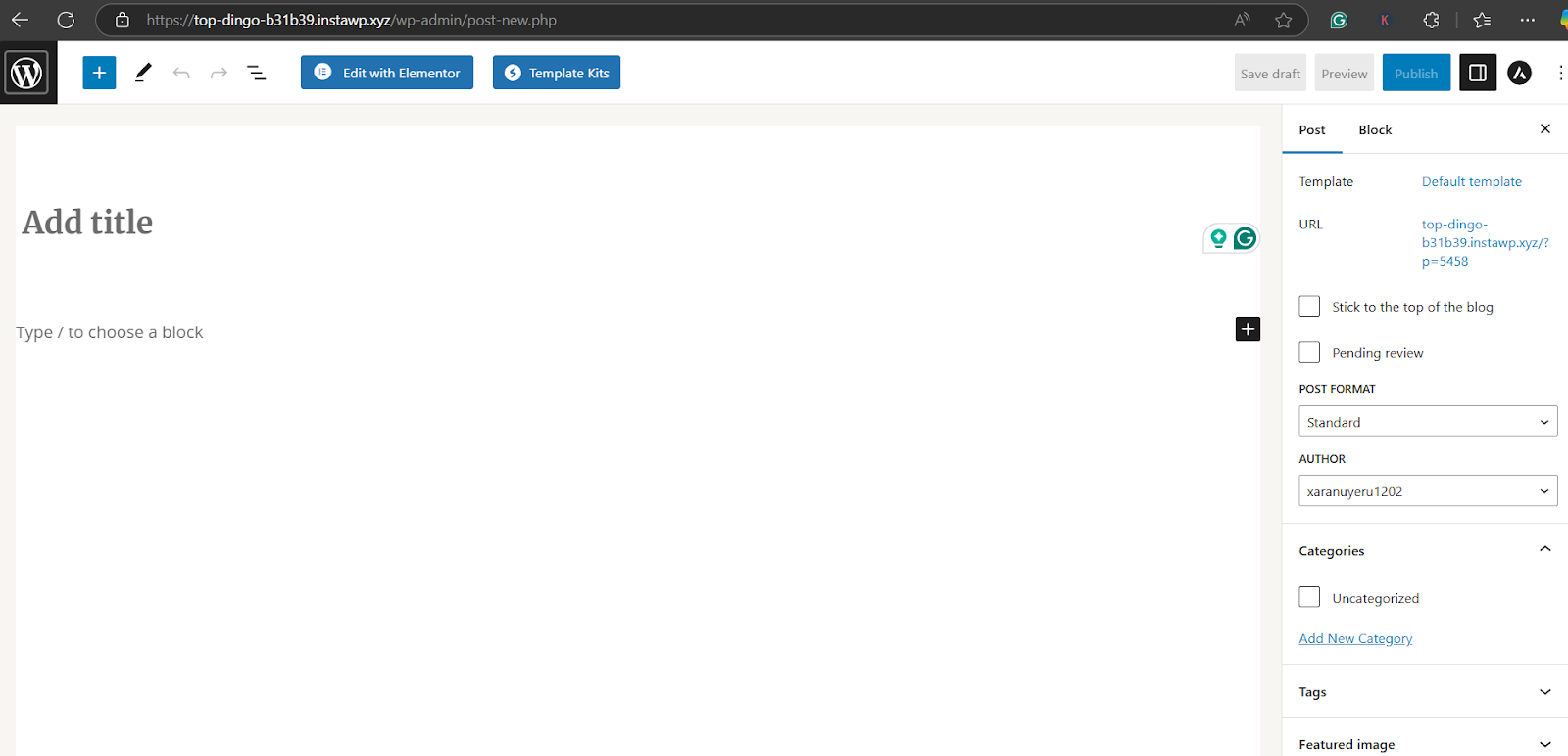
- Publish or update your post
Method 2: Via the Categories Page
- Navigate to Posts → Categories
- Enter:
- Name (e.g., “Recipes”)
- Slug (optional)
- Parent Category (optional)
- Description (optional)
- Name (e.g., “Recipes”)
- Click “Add New Category.”
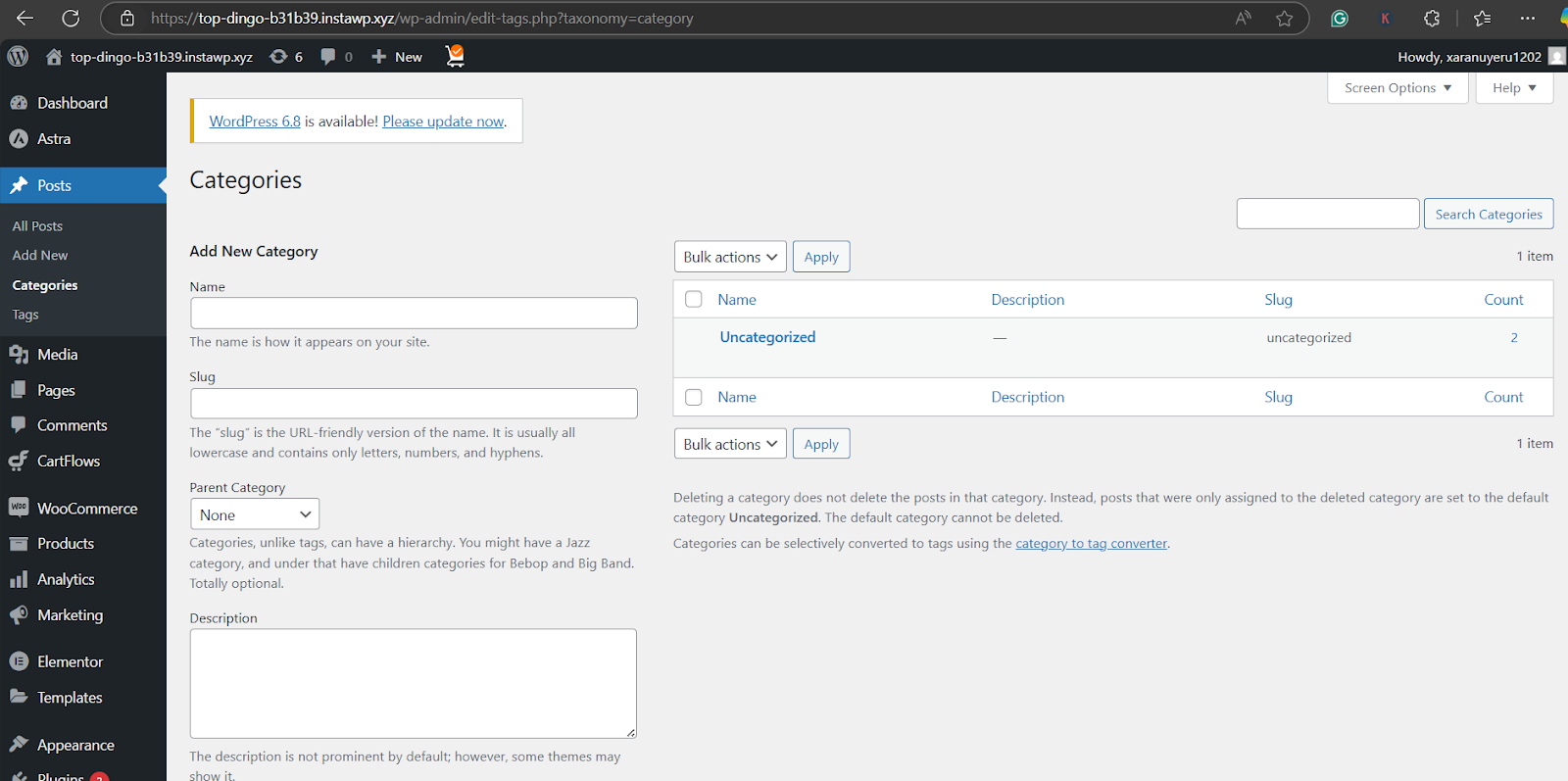
If you want to test this process without affecting your live site, spin up a temporary staging environment to experiment safely.
How to Add Tags in WordPress the Right Way
Still wondering how to use tags in WordPress? It’s even easier than using categories.
- While creating or editing a post, go to the “Tags” section below Categories
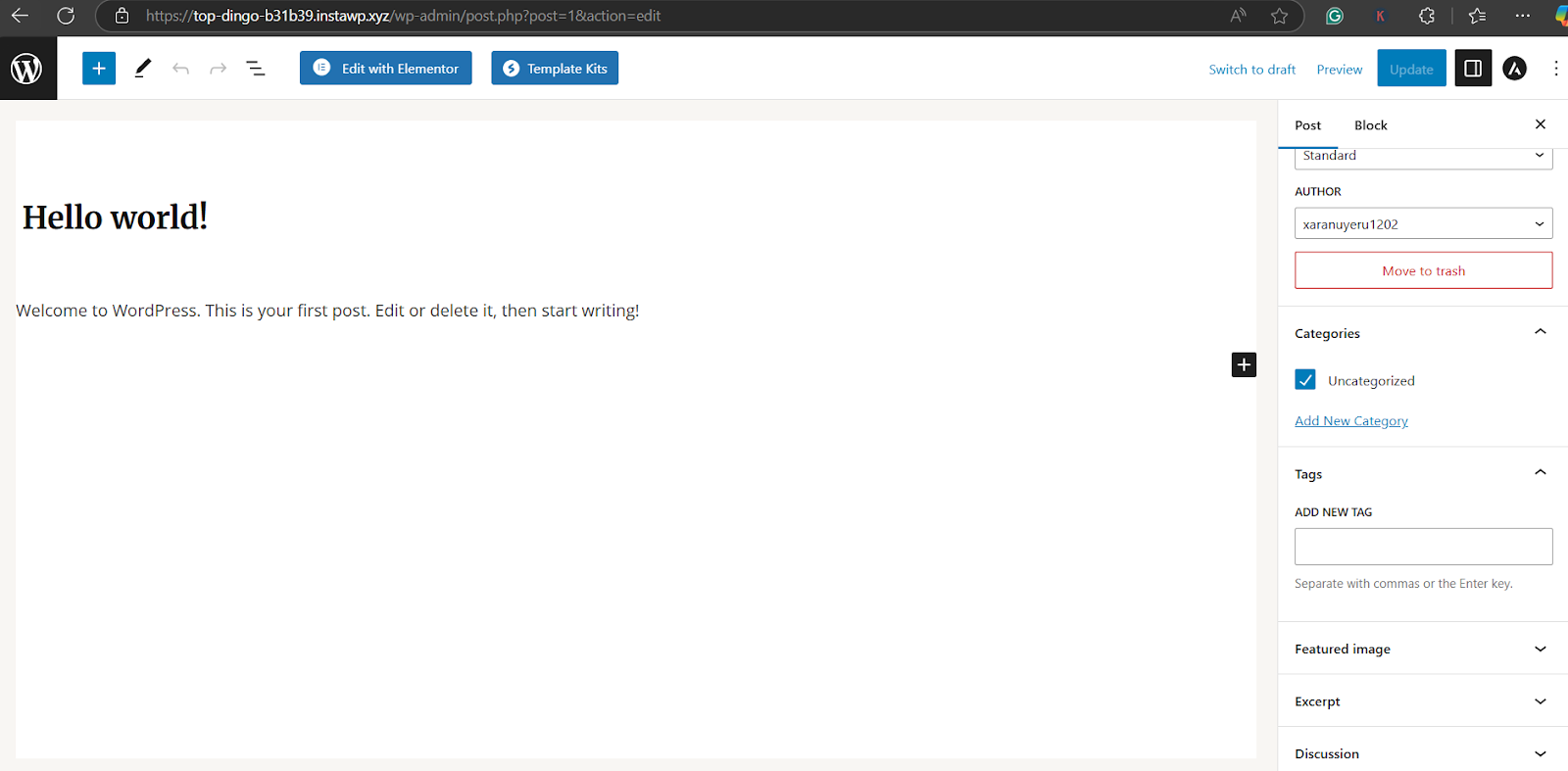
- Type a word or phrase that describes your post (e.g., “Quick meals”)
- Hit Enter or click “Add.”
- Repeat for up to 10 tags
You can also go to Posts → Tags to create and manage them site-wide.
Read more about how to add WordPress tags.
Pro Tip: Use WordPress tags consistently. Avoid creating tags like “WordPress speed” in one post and “speed optimization for WordPress” in another. Use consistent phrasing to group content effectively.
How to Optimize Categories and Tags for SEO (Without Hurting Your Rankings)
One of the biggest misconceptions in the WordPress ecosystem is that WordPress categories and tags directly influence search engine rankings. In reality, they don’t carry inherent SEO weight like backlinks or keywords—but they do shape site structure, crawlability, and user experience. These elements are all part of Google’s evaluation of your content.
When used improperly, poor taxonomy design can lead to duplicate content, thin tag archives, or bloated indexation—all of which weaken your SEO. The good news? A few strategic changes can fix this quickly.
Here’s how to optimize WordPress categories and tags without damaging your rankings.
1. Use Categories and Tags with Distinct Purposes
Avoid using the same term as both a category and a tag (e.g., “Travel” as a category and a tag). This creates duplicate archive pages and splits SEO signals.
Search engines struggle to prioritize between duplicate taxonomy pages, and users may land on nearly identical archives. Keep the purpose clear: categories group content broadly, and tags describe details.
? Tip: Audit your site for overlapping taxonomy terms using a site management service that will highlight all the performance concerns under one roof.
2. Consolidate Thin Tag Pages
If you’ve been tagging every post with 10+ unique terms, you may be generating hundreds of tag pages with only one post each. These “thin” archives offer little value to users or search engines.
Fix:
- Review tag usage via Posts → Tags in the WordPress dashboard
- Merge redundant or underused tags into more common ones
- Delete unused tags or noindex them to prevent indexing clutter
3. Limit the Number of Categories per Post
While WordPress allows you to assign a post to multiple categories, doing so excessively can cause duplicate content issues—especially if category slugs are included in your permalin. Assign one primary category per post. Two at most. Keep your category structure clean, logical, and hierarchical.
? Pro tip: Use WordPress SEO plugins to define a “primary category” for canonical URL purposes, reducing ambiguity for search engines.
4. Set Archives to Noindex If They Provide Little Value
If your tag or category archive pages have thin content (like a single post or partial snippets), it may be worth setting them to noindex to prevent diluting your overall site quality.
How to do it:
- Use Yoast SEO or Rank Math to set specific archives (e.g., Tags) to noindex
- Apply this to underperforming or low-value pages only
- Avoid blocking important archive pages that support topic clusters
5. Write Custom Descriptions for Categories and Tags
Most users skip this step, but writing a custom intro for each taxonomy archive (category or tag) boosts UX and crawlability.
Where to do it:
- Edit each category or tag from the WordPress dashboard
- Add a brief but relevant description that summarizes the content theme
- Some themes (and SEO plugins) display this above post listings
✅ This is especially useful when optimizing categories vs tags in WordPress as indexable, valuable pages.
6. Avoid Auto-Generating Tags from Post Keywords
Some plugins auto-create tags based on post content or focus keywords. This sounds useful—but often leads to tag overload and SEO noise.
Curate tags manually. Reuse meaningful ones that represent actual content relationships. Your goal is not to create a tag for every variation, but to group related content meaningfully.
7. Link Internally to Tag and Category Archives
Your WordPress categories and tags shouldn’t be SEO dead ends. Internally link to high-quality archive pages from relevant blog posts, landing pages, or menus.
Examples:
- Link “See all vegan recipes” to your
/tag/veganarchive - In your blog sidebar, highlight category links like “Beginner Tutorials” or “Ecommerce Tips”
This strengthens site architecture and improves crawl depth—two factors that help Google understand your site’s topical relevance.
8. Use Clean URL Structures for Categories
If you’re using category slugs in permalinks (e.g., yourdomain.com/category/recipes/). Make sure they are concise and aligned with your content strategy. Avoid unnecessary depth or overlap.
Pro Tip:
- Keep category slugs short (
/blog/seo/, not/category/seo-tips-for-beginners) - Use hyphens to separate words; avoid special characters
- Remove “category” base using plugins like Remove Category URL
9. Monitor Index Coverage via Google Search Console
Once you’ve optimized your categories and tags, track their performance:
- Go to Search Console → Pages → Indexed Pages
- Look for tag or category archives
- See which ones are indexed, performing, or generating errors
Bonus Insight:
If some tag pages get clicks and traffic, keep and improve them. If not, consider merging or noindexing.
Best Practices to Optimize Categories and Tags in WordPress
Let’s now break down how to use WordPress tags vs categories effectively for SEO without overcomplicating your content strategy.

Use Categories and Tags to Build a Smarter WordPress Site
Understanding the difference between WordPress categories and tags isn’t just a technical detail—it’s foundational to how you structure, scale, and optimize your website.
- WordPress categories help you build a clear, navigable content hierarchy.
- WordPress tags help you enrich discoverability and connect content across topics.
- Together, they create a seamless experience for your users and search engines.
Whether you’re launching a blog, managing 50+ client sites, or optimizing an established WordPress property, using categories and tags strategically is a content organization power move.
Before making major taxonomy changes, always test them in a safe, staging environment. You can review how categories appear in breadcrumbs, test if tag archives are meaningful, and make sure nothing breaks when you restructure. This kind of sandbox testing is essential, especially for agencies and developers managing mission-critical websites.
So take a step back, audit your current categories and tags, clean up where needed, and build a taxonomy that’s SEO-smart and user-first.
FAQs
1. What’s the main difference between WordPress categories and tags?
WordPress categories are broad topics used to group your posts. They’re hierarchical and required. WordPress tags are more specific keywords or labels that describe details within a post. They’re optional and non-hierarchical.
2. Do I need to use both categories and tags in WordPress?
No, but it’s highly recommended. While only categories are required, using tags helps with internal navigation, related content display, and user engagement. The right balance improves your site’s structure and discoverability.
3. Can I assign a post to more than one WordPress category?
Yes, but it’s best to assign each post to one main category to avoid duplicate content and confusion. Use subcategories and tags to add depth without overcomplicating your taxonomy.
4. How many tags should I use per post?
Ideally, use 5 to 10 tags that are relevant and consistent. Avoid over-tagging, as having 20+ tags per post can create cluttered archives and dilute the SEO value of your internal linking.
5. Should tags and categories be indexed by search engines?
Only if they provide unique, high-value content, otherwise, you can disable the indexing of tag/category archives using an SEO plugin. This helps prevent duplicate content issues and ensures search engines prioritize your primary posts and pages.
6. Is it bad to use the same word as both a category and a tag?
Yes. Doing so creates duplicate archive URLs and can confuse search engines and users alike. Keep your naming conventions distinct for each taxonomy type.
7. Can I change a post’s category or tags later?
Absolutely. WordPress makes it easy to edit categories and tags. However, if you’re updating many posts at once, consider testing changes in a staging environment to avoid URL conflicts or broken navigation.
8. Do categories and tags help with SEO directly?
No, not directly. But they support SEO by enhancing user experience, crawlability, and internal linking, all of which are ranking signals for search engines.
9. How do I add categories and tags in WordPress?
When creating or editing a post, you’ll find the Categories and Tags panels in the right-hand sidebar. You can also manage them via Posts > Categories or Posts > Tags from the dashboard.
10. What should I do with the “Uncategorized” default category?
Rename it to something meaningful like “General” or “Other.” This helps maintain a polished appearance and improves your site’s taxonomy.