Imagine cruising down the information superhighway, only to hit a sudden roadblock: a 502 Bad Gateway error. This digital hiccup can leave your website visitors stranded, frustrated, and potentially lost.
Understanding this 502 error is crucial for WordPress developers and site owners alike, as it can significantly impact user experience and site performance.
If you’re wondering what a 502 bad gateway error is, we have a detailed blog on this.
For now, we will give you a quick overview- A 502 error, also known as a 502 Bad Gateway Error, is an HTTP status code that indicates a communication issue between servers. When you encounter this error, it means that the server acting as a gateway or proxy received an invalid response from an upstream server.
Table of Contents
What Causes of the 502 Bad Gateway Error
Understanding the underlying causes of the 502 Bad Gateway error is essential for effective troubleshooting. Here are some common reasons why this error may occur:
1. Server Overload
When too many requests hit the server simultaneously, it can become overloaded and unable to respond properly. For instance, if your WordPress site is hosted on shared hosting, not on managed hosting, and experiences a surge in traffic during a flash sale, you may encounter this error as the server struggles to process all incoming requests.
2. Network Issues
Network problems can disrupt communication between servers. For example, if there are connectivity issues between your web server and the database server, requests may fail, resulting in a 502 error. This can happen due to faulty network hardware or misconfigured network settings.
Bonus Read: How to Repair WordPress Database
3. Browser Cache Problems
Sometimes, users may encounter a 502 Bad Gateway error due to corrupted cache data in their browsers. If they have outdated information stored, it might conflict with what the server is trying to deliver.
As developers, it’s essential to advise users to clear their browser cache when they report issues.
4. Firewall Restrictions
Firewalls play a critical role in protecting websites from malicious attacks; however, overly strict firewall settings can block legitimate requests from reaching your server.
For example, if you have WordPress security plugins configured too aggressively, they might inadvertently block API requests necessary for your site’s functionality.
5. Faulty Plugins or Themes
Plugins and themes that are poorly coded can lead to conflicts that trigger 502 errors. Suppose you recently added a new plugin that integrates with your e-commerce platform but it hasn’t been fully tested with your current theme or other WordPress plugins.
This could cause communication issues between servers and result in users seeing an error message instead of your product pages.
This WordPress 502 Bad Gateway error guide is all you need to understand the causes, solutions, and how to quickly resolve it, so your site can get back to running smoothly!
How to Resolve the 502 Bad Gateway Error: 7 Trusted Methods
Resolving a 502 Bad Gateway error involves several systematic steps:
1. Refresh Your Browser
The simplest initial step is to refresh the page. Sometimes, temporary glitches can cause this error, and reloading may resolve it. Here is how you can do it.
Step 1: Click the refresh/reload button in your browser (or press Ctrl + R or Cmd + R on a Mac).
Step 2: Wait for the page to reload and check if the 502 error is resolved.
Step 3: If the error persists, proceed to the next troubleshooting step
2. Clear Browser Cache
Instruct users experiencing issues to clear their browser cache and cookies to eliminate any corrupted data that might be causing conflicts.
This is how you do this.
Step 1: Open your browser settings and find the option to clear browsing data.
- In Chrome: Go to Settings > Privacy and security > Clear browsing data.
- In Firefox: Go to Settings > Privacy & Security > Cookies and Site Data > Clear Data.
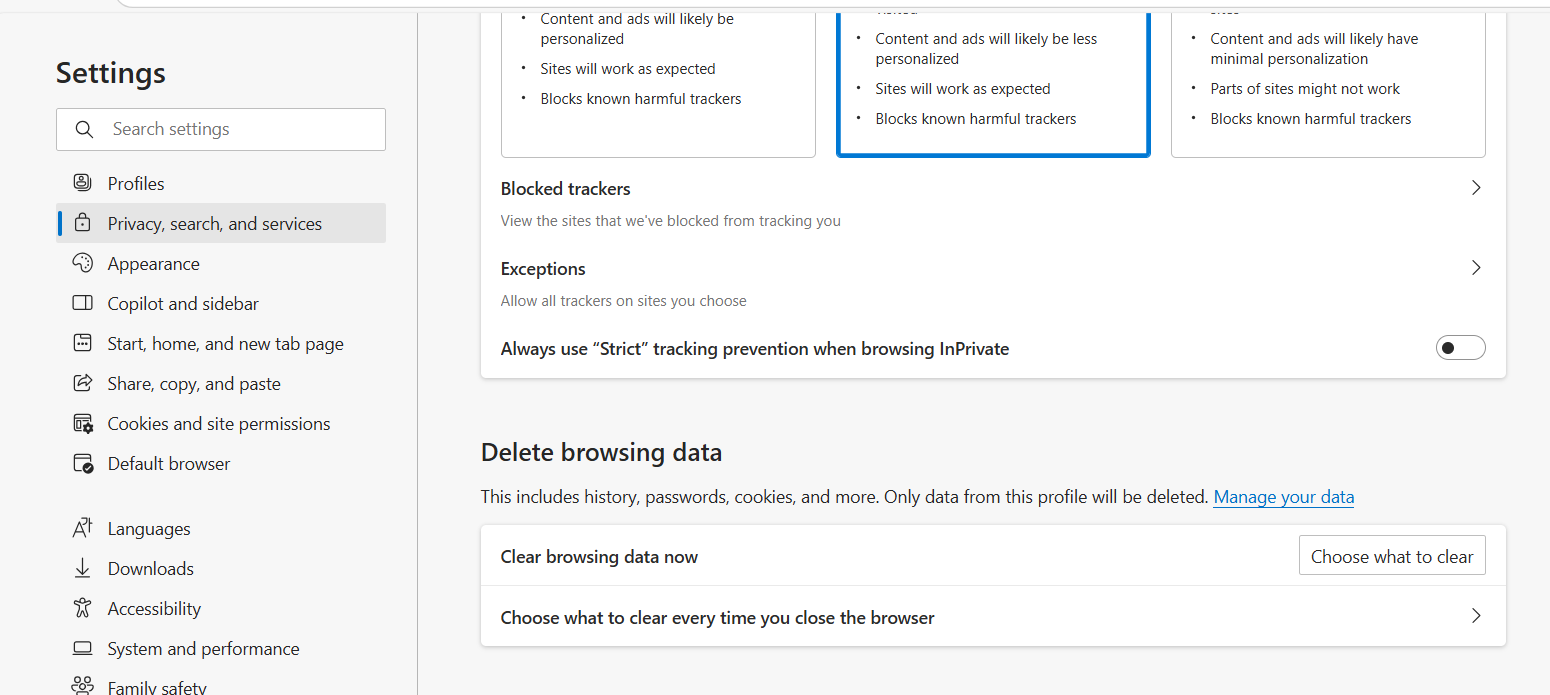
Step 2: Choose the option to clear cached image files and cookies.
Step 3: Click Clear data.
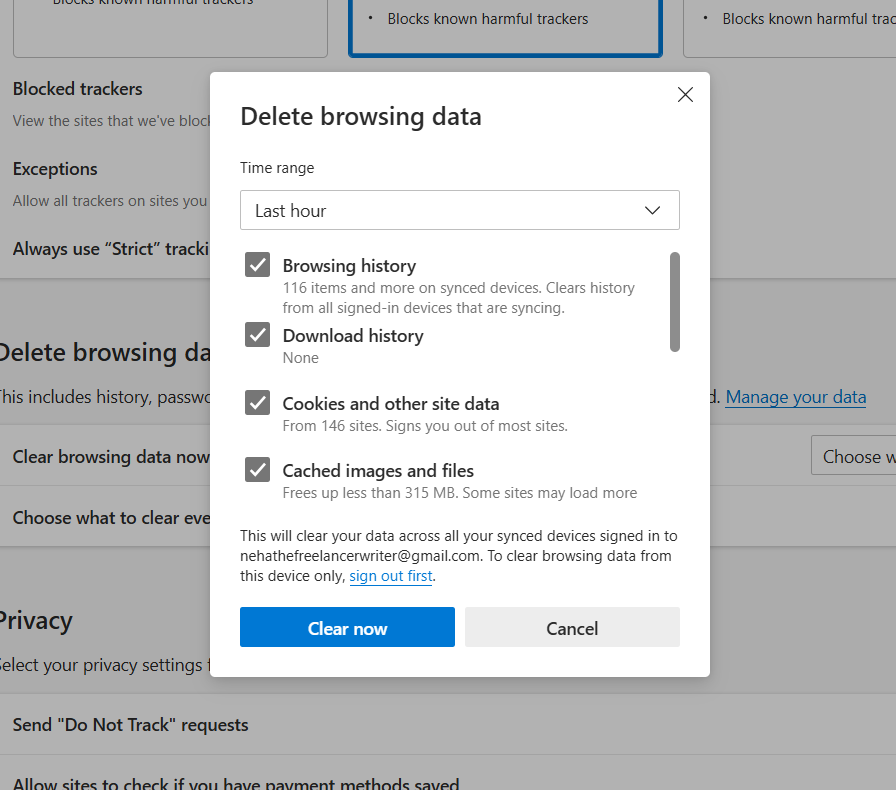
Step 4: Close and reopen your browser and try reloading the site to see if the issue is resolved.
3. Check Server Status
Use monitoring tools like UptimeRobot or Pingdom to check if your server is down or overloaded. If you notice consistent downtime during peak hours, consider upgrading your hosting plan.
Follow these steps and get an update on the server status instantly.
Step 1: Use a monitoring tool like UptimeRobot or Pingdom to check the current status of your server.
Step 2: Enter the website URL in the monitoring tool to check if your server is down or experiencing frequent downtime.
Step 3: If your server is down or showing high downtime during peak hours, consider upgrading your hosting plan or improving server capacity.
4. Disable Plugins and Themes
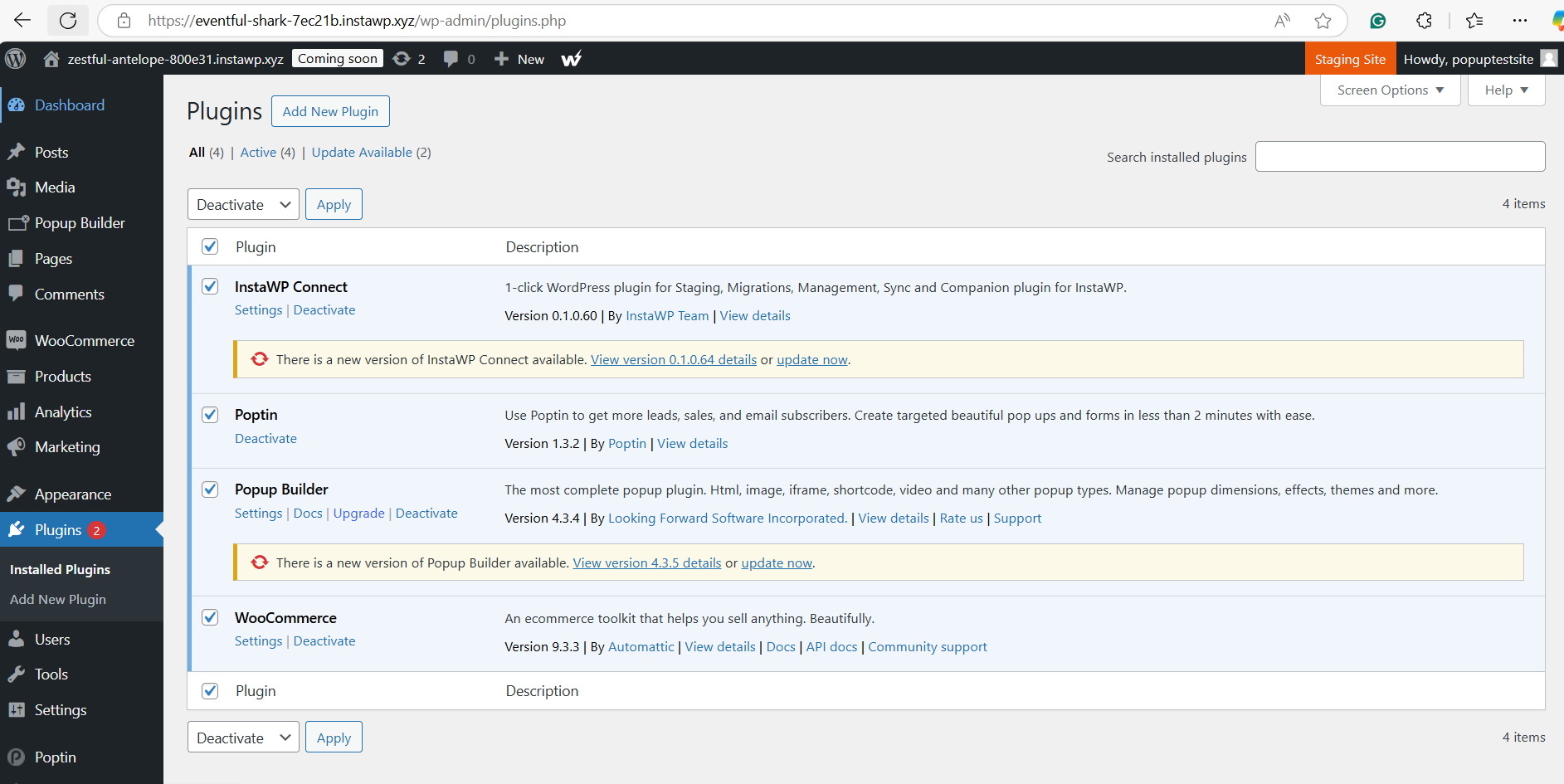
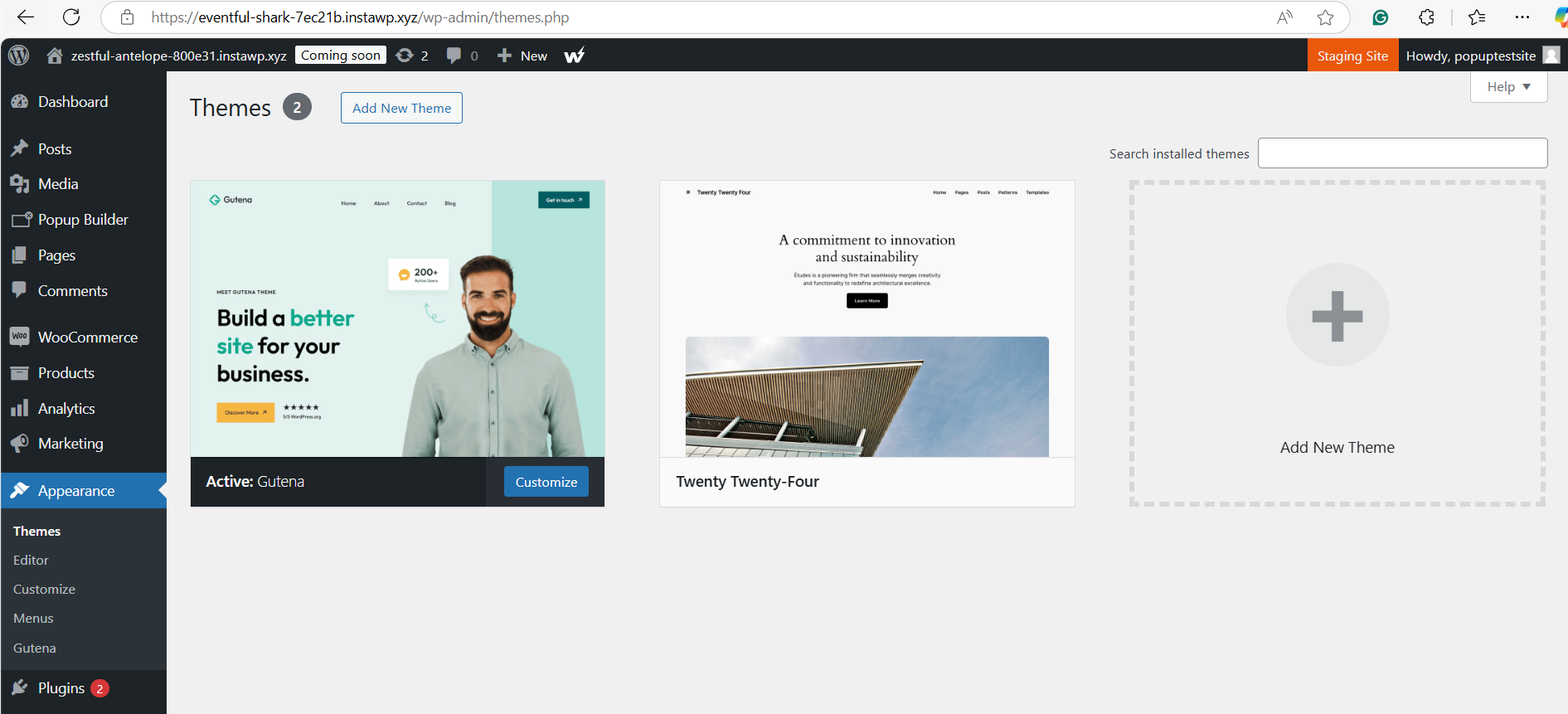
Faulty plugins or themes often cause 502 errors. As a developer, deactivate all plugins and switch to a default theme (like Twenty Twenty-One) to see if the issue persists.
Bonus Read: How to Resolve WordPress Theme Conflicts and Errors Like a Pro
If deactivating resolves the issue, reactivate plugins one by one to identify the culprit.
Below-mentioned steps will help you disable plugins and themes, causing 502 bad gateway errors.
Step 1: Log in to your WordPress dashboard.
Step 2: Deactivate all plugins by going to Plugins > Installed Plugins and selecting Deactivate for all plugins.
Step 3: Switch to a default theme by going to Appearance > Themes and activating a theme like Twenty Twenty-One.
Step 4: If the 502 error is resolved, reactivate your plugins one by one to identify the one causing the issue.
5. Review Server Logs
Check your server logs for any errors that coincide with the occurrence of error 502. Look for entries indicating memory exhaustion or timeout errors during high-traffic periods.
This is how you can review server logs.
Step 1: Access your server logs, which can typically be found in your hosting control panel (e.g., cPanel or Plesk).
Step 2: Look for entries that match the timing of the 502 error occurrence. Pay special attention to errors like memory exhaustion or timeout errors.
Step 3: If you see errors related to server resources, consider optimizing your server configuration, upgrading server specs, or resolving coding issues.
6. Verify DNS Settings
If you’ve recently changed hosting providers or DNS records, ensure they are correctly configured. DNS changes can take time (up to 48 hours) to propagate fully across the internet.
Here is how you can verify the DNS settings.
Step 1: Check your DNS settings, especially if you’ve recently changed hosting or DNS records.
Step 2: Use a tool like Whatsmydns.net to verify if the DNS records are propagating correctly across the internet.
Step 3: If you’ve made recent changes to DNS settings, keep in mind that it can take up to 48 hours for these changes to fully propagate. Be patient and check again later.
7. Contact Your Hosting Provider
If all else fails, reach out to your hosting provider for assistance. They may have insights into server-side issues contributing to the problem—such as hardware failures or network outages—that are beyond your control as a developer.
Step 1: If none of the previous steps resolve the issue, contact your hosting provider’s support team.
Step 2: Explain the situation and share any relevant information, such as server log entries or the steps you’ve already taken to troubleshoot the issue.
Step 3: They may provide further insights into potential server-side issues, like hardware failures, network outages, or misconfigurations, and help resolve the error.
Or, you can simply switch to a managed hosting provider that offers specialized features and support to help avoid 502 gateway errors. Managed hosting providers typically offer:
- Optimized Server Performance: They ensure your server is configured for optimal performance, reducing the likelihood of overloads that can lead to 502 errors.
- Automatic Scaling: Many managed hosting services automatically scale resources based on traffic spikes, preventing server overload during peak times.
- 24/7 Monitoring: Continuous monitoring of server health and immediate response to any issues can prevent prolonged downtime caused by 502 errors.
- Enhanced Security Features: Managed hosting often includes advanced security protocols and regular updates, reducing the chances of server misconfigurations or vulnerabilities that could trigger 502 errors.
- Expert Support: Access to expert support teams who can quickly diagnose and resolve server-side issues, minimizing the impact of 502 errors and ensuring your site runs smoothly.
By switching to a managed hosting provider, you can alleviate many of the common causes of 502 errors and ensure a more stable, reliable website experience for your users.
Dealing with other WordPress issues? Here is a WordPress troubleshoot guide to help you.
Preventing Future 502 Bad Gateway Errors
To keep your website running smoothly and reduce the likelihood of 502 errors, try implementing these proactive strategies:
- Optimize Server Performance: Make sure your hosting environment can handle traffic spikes by investing in a robust infrastructure that aligns with your site’s needs. This helps prevent the server from getting overwhelmed during high-demand periods.
- Implement Load Balancers: Distribute incoming traffic across multiple servers to ensure that no single server is overloaded. Load balancers enhance performance and provide a buffer against sudden surges in traffic.
- Leverage Content Delivery Networks (CDNs): CDNs cache static content across a network of global servers, speeding up load times for users while reducing the strain on your primary server. This can be particularly helpful during high-traffic events.
- Conduct Regular Maintenance: Schedule routine health checks and configuration reviews on your server to catch potential issues before they escalate into bigger problems. Consistent upkeep can prevent errors from slipping through the cracks.
Conclusion
The 502 Bad Gateway error is more than a temporary inconvenience; it signifies server communication issues that can harm user experience and disrupt business operations.
By understanding the causes of this error and adopting preventive measures, WordPress developers can enhance site performance, maintain client trust, and build a more resilient web environment.
With these strategies in place, you’ll be prepared to tackle this common error head-on, keeping your website accessible and running smoothly.