Making your WordPress site live and available to the World requires several technical steps and may get complicated and time-consuming. For example, you have to have already developed the site somewhere in a separate local environment, then start hunting for hosting from another platform before another process of migrating the website to your live hosting.
Taking your WordPress live can be smoother with InstaWP. This article will guide you on just how to do that. Let’s dive into it.
Table of Contents
How to Take Your WordPress Site Live with InstaWP
There are two ways to take your WordPress site live with InstaWP. It is not a matter of choice here but rather of unique need. This comes down to the question which is: is the WordPress site you want to take live a completely new site or an old site? Read on as we answer that question for you.
How to Take your WordPress Site Live while Building it from Scratch
To start building a WordPress site from scratch in InstaWP go to InstaWP and login to your dashboard. If you don’t already have an account, sign up through this link in a few clicks. After logging into your account, you will be redirected to your user workspace/dashboard that looks like the image below.

Step 1: Create a WordPress Staging site
1. To create a WordPress staging site and start building, click on the Add New button.

2. When you click to add a new staging site, it will open a dialogue box that looks like the image below.

This popup box clearly states that you are creating a WordPress site, ‘From Scratch’. Within this popup menu, you can set your staging site configuration that suit your needs. The scope of this guide is not to go through those configurations, but you learn about those configuration options from this well-written guide.
3. After configuring your staging site, click on the “Create Site” button. Your new staging site will be instantly created. It doesn’t get easier than that!!!
4. Your new staging will be accessible to you directly from your workspace/dashboard or you can click on the “Staging” menu to view your staging sites.

Step 2: Customize your site
This stage is where you let your development skills shine. InstaWP doesn’t just stop shy of helping you spin up a WordPress site from scratch in seconds, it goes further to hand you the freedom to do whatever you like with your site.
Configure Your DB
To configure your database, click on the “DB Editor” menu. This will instantly open up your WordPress staging site database.

Edit Site Code
InstaWP has a built-in code editor that not just excites but gives the power to developers who want to add, remove, or change text, images, colors, fonts, layout, and position of all the elements on your site.
InstaWP has also integrated VS Code into the platform if that is your code editing preference. The bottom line is you get to choose. Talk about a solution designed with care for users.

Remember you have complete control of your WordPress staging site, hence any configuration and customization you so choose. This may include customizing your staging site with a page builder rather than editing with code.
To do that, click on your staging site in your dashboard. It will take you to this page below where you can install the page builder plugin to your site directly inside InstaWP.

another way you can customize your WordPress staging site in InstaWP is by using the InstaWP “magic Login” to access your WordPress site dashboard. We can categorically assure you of how smooth this process is. No need to copy and paste some URLs and then input credentials you are most likely to forget within 24 hours.

Go Live with InstaWP WordPress Hosting
The InstaWP “Go Live feature is perhaps the most exciting agency/developer-friendly feature out there.
In most cases, the goal of a local WordPress development or cloud-based WordPress development environment like InstaWP is to take that development from production to live. The problem is, while still thinking about that development. Agencies are already worried about how to host their multisites. InstaWP users don’t have that worry.
InstaWP hosting is a WordPress management hosting. It is quite different from the regular hosting you will find out there. Now how do you go live with InstaWP WordPress hosting?
After creating a staging site in InstaWP, customizing it, and making all the configurations that you want, your site is ready.
1. In your InstaWP dashboard navigate to the far right of the staging site you already prepared for lunch – particularly if you are looking for the icon menu shown in the image below:

2. Click on “Go Live”. The popup to select the methods to go live will show on your screen.

3. Click on the “Next Step” button to proceed to the InstaWP pricing page.

3. On the pricing page, choose the price that best fits your budget needs. Importantly, you can host more than one site at once. To do that navigate to the pricing calculator on the pricing page and select the number of sites you want to host at once. Click on the “Next Step” button.
4. In this step, choose your WordPress staging site settings. These settings are: the region where you want your WordPress site data to be hosted; the site PHP version and lastly, input your WordPress site domain name.

5. Click on the “Next Step” button to proceed. In this step, choose and install any plugins you need. Proceed to the next step again.
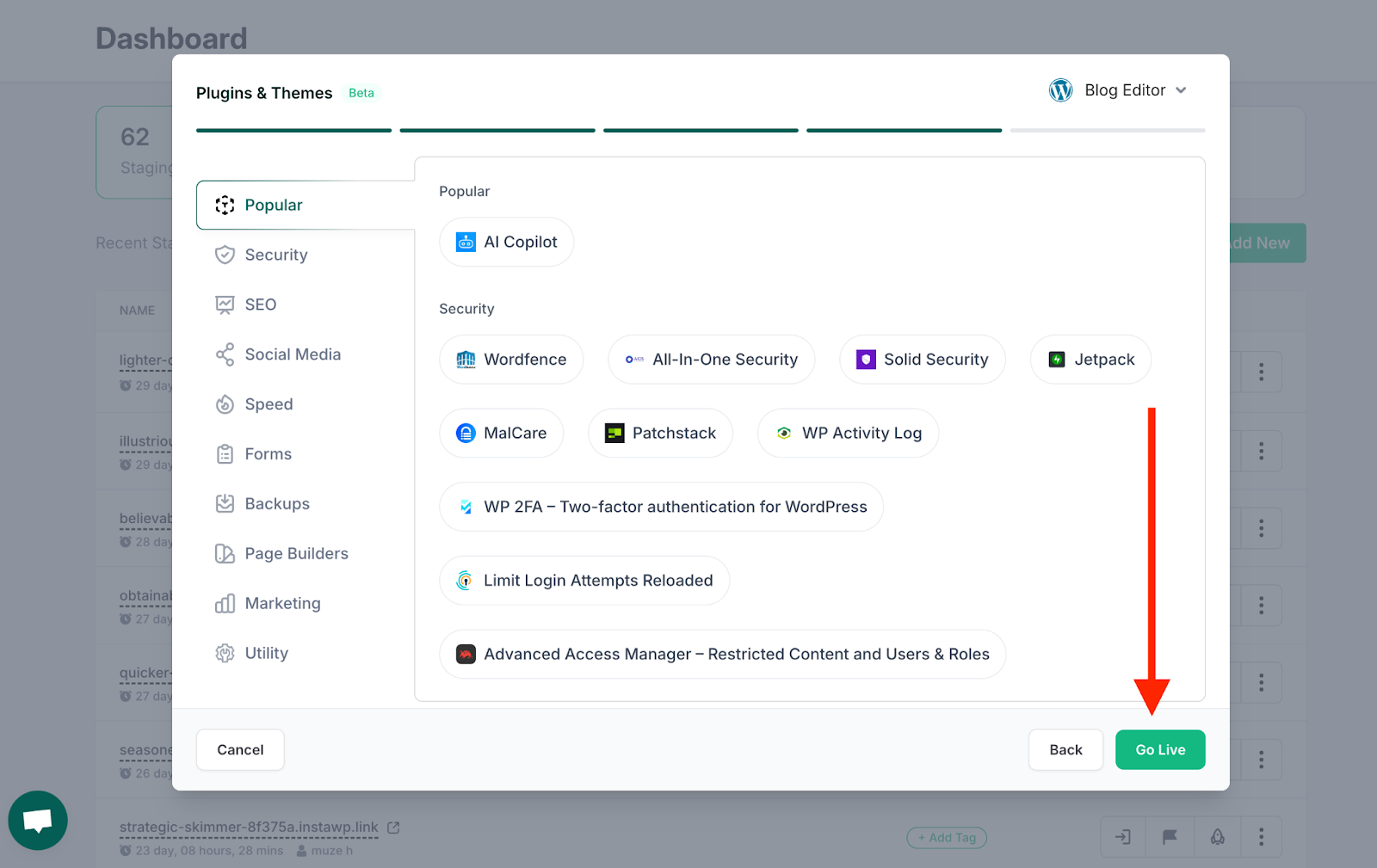
6. Click on the “Go Live” button. A prompt box will pop up asking you to continue. Click on the “Continue” button.
With that one click, your WordPress staging site will be live in a few seconds!
How to Migrate your Existing Site to InstaWP
If your site already exists, perhaps with another hosting, but you want to enjoy the features of InstaWP that let you develop, manage, and host your WordPress site from one platform this next guide is for you.
Connect Your WordPress Site
1. log in to your WordPress dashboard and go to the WordPress plugin repository. Search for the instaWP plugin called InstaWP Connect. Install and activate the plugin

2. Navigate to the installed plugin and look for the InstaWP plugin that you just installed. Click on the “Connect With InstaWP” button.

3. After successfully connecting your live site to InstaWP via the InstaWP Connect plugin, go ahead and create a staging site of that live site by clicking on the “Create Staging” button.

Run through the options until finally, you are satisfied with the staging options you choose. Then, proceed to create the staging site for your WordPress live site.
Go Live
1. Go back to your InstaWP dashboard and locate the staging site you created from your existing WordPress site. Click on the “Go Live” menu icon.
2. Disconnect the staging site you just created from your existing site

3. Choose the InstaWP hosting option and proceed and choose the pricing that reflects your hosting needs.
4. Finish hosting the hosting process and you will have successfully migrated your existing site to InstaWP hosting in a few minutes and seamlessly.
Tips for WordPress Developers
Let us look at some great tips for WordPress developers that you should consider.
How to Build a Great WordPress Site?
Plan Your WordPress Site Structure and Prototype
Before diving into development, map out the structure of your site. Identify key pages and plan the navigation menu. Make a rough sketch and prototype to give yourself an overall visual of your ideas.
Leverage InstaWP Staging Environment
Use the InstaWP staging environment to develop and test changes & new features without affecting your live site. InstaWP provides an easy way to create WordPress staging sites, ensuring that updates are safe and error-free.
Customize Your WordPress Site For Optimization
Choose a theme that is lightweight, responsive, and aligns with your site’s purpose. Avoid installing unnecessary plugins. Test plugins and themes in the InstaWP staging environment before deploying your WordPress site to live.
Speed is crucial for user experience and SEO. Optimize images, use lazy loading, and minimize the use of heavy plugins. Implement caching using plugins like W3 Total Cache or WP Super Cache to reduce server load
Manage WordPress multisite from a Single Platform
If you are an agency developing multiple sites and needing to manage them seamlessly, use InstaWP WordPress multisite management tools.
Code, Test, and Deploy
Coding, testing, and deploying from a single platform should be the most important tips developers who are trying to build a great WordPress site consider. Apart from saving you from going back and forth and saving you a considerable amount of development time, you should also be able to deploy live from that same platform. InstaWP gives you all that!
How to Choose Your WordPress Hosting Provider?
If you want to know how to choose your next WordPress Hosting provider, consider the following factors:
Site’s Requirements
The only way to choose efficient hosting for your WordPress site without compromising on quality like speed is by knowing what hosting features your site requires. With this knowledge, you can fit your hosting plans within your workable budget.
Performance
How well your WordPress site performs will be due to how well your hosting can perform. Features like SSD storage, CDN integration, and caching mechanisms are crucial for ensuring fast loading times and high performance.
Reliability and Uptime
Constant downtime will down your website’s integrity and business, so ensure the hosting provider guarantees at least 99.9% uptime.
Security Features
Choose a host that prioritizes security with features like SSL certificates, DDoS protection, regular malware scans, and automatic backups. A secure hosting environment is essential for protecting your site and data.
Ability To Scale
As your website grows, you will need also need to expand your hosting infrastructure. If you don’t host your WordPress website with a hosting like InstaWP hosting that offers easy upgrade options to handle increased traffic and resource needs without significant downtime, your website is bound to fail.
Website Backup feature
Regular backups are crucial. Ensure the hosting provider offers automatic backups and easy restoration options to safeguard your site data.
Customer Support and Accessible Documentation
Customer support and documentation are how you get the needed help when you run into technical issues with your hosting infrastructure. Consider a hosting provider like InstaWP hosting that provides 24/7 support through multiple channels like live chat, email, and phone.
What makes InstaWP the best Hosting for WordPress?
Apart from top-notch features like DDoS, backup, managed hosting, scalability, and responsive customer support, InstaWP hosting is a feature in your InstaWP staging environment. This means you stay in the same platform where you develop and test your WordPress site and host your site. Why not give a spin and change your WordPress development to hosting flow?
Conclusion
To take your WordPress site live in InstaWP is the fastest way to take your developed site from the staging environment to live. With InstaWP WordPress hosting, you will get the best performing, scalable, and secure hosting for your WordPress site.
FAQ
1. Does InstaWP offer WordPress site hosting?
InstaWP offers managed hosting for developers through its service, InstaWP hosting. Whether you created the WordPress site from scratch or migrated it to InstaWP, the platform allows it all.
2. Can I build from scratch in InstaWP?
To build from scratch in InstaWP, create a WordPress staging site and start customizing how you want. It’s easy.
3. What type of WordPress hosting is InstaWP?
InstaWP WordPress hosting is a managed cloud-based hosting.
4. Can I host multiple sites with InstaWP?
InstaWP hosting allows you to host as many of your staging sites. Choose from the option on the hosting pricing page how many sites you wish to host.