Migrating a WordPress website, especially one with WooCommerce, to a new platform can feel like an overwhelming task. But fear not! With the right tools and a straightforward approach, you can make the transition smooth and hassle-free.
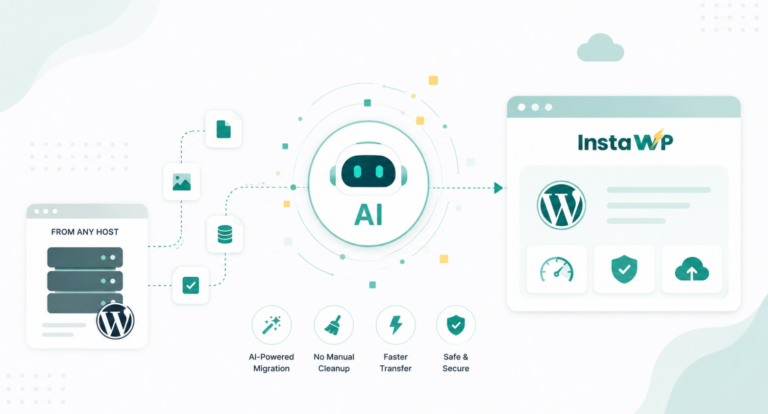
One tool that stands out for its speed and ease of use is InstaWP’s WordPress migration tool. As someone who frequently uses it, I can attest to its efficiency and effectiveness.
Let’s dive into how you can use InstaWP to migrate your WooCommerce site seamlessly.
Table of Contents
How to Migrate your WooCommerce Website?
1. Backup Your Site
Before you start the migration process, it’s crucial to back up your site.
You can use your preferred backup plugin for this task. This step ensures that you have a secure copy of your website in case anything goes awry during migration. It’s like having a safety blanket while you transition your site to a new home.
2. Set Up the New WordPress Instance
Next, you’ll need to set up a fresh WordPress install on your new host.
This is the foundation where your site will reside after WordPress Migration. Just like preparing a new house before moving in, you want to make sure your new WordPress instance is ready to receive all your content and settings.
3. Start the Migration
With your backup and new WordPress instance ready, it’s time to start the migration. Here’s a step-by-step guide to using InstaWP’s WordPress migration tool:
Step 1: Head over to the InstaWP migration tool to kick off the process. This tool is designed to make your life easier, so you’re in good hands!

Step 2: Enter the source URL of the site to initiate migrating WooCommerce. This is the address of your current site from where all your data will be pulled.
Step 3: Authorize InstaWP’s site import tool by installing and activating the InstaWP Connect Plugin on your source site. This plugin facilitates the data transfer and ensures everything is copied accurately.
Step 4: Input the destination URL of your new site. This tells the migration tool where to send all your site data.
Step 5: Hit the ‘Migrate’ button and let InstaWP’s tool work its magic. The migration tool will handle the heavy lifting, transferring your content, settings, and WooCommerce data smoothly.
4. Verify the Migration
Once the migration is complete, it’s time to check everything over. Ensure that all your WooCommerce elements, including products, orders, and customer data, have been migrated correctly.
Also, verify internal links, SEO settings, and overall site functionality. This is like doing a final walkthrough to make sure everything is in place and ready for your visitors.
5. Update DNS Settings
The final step in the migration process is to update your DNS settings.
This tells the internet to point your domain to the new hosting environment where your migrated site is now located. It’s like forwarding your mail to your new address—important to make sure everyone can find you in your new home.
Checking if Migration Was Successful: Key Elements to Verify
After migrating your WooCommerce site using InstaWP’s tool, it’s crucial to ensure everything has transitioned smoothly. Here’s a checklist of essential elements to verify to confirm that your migration was successful:
- WooCommerce Products: Ensure all your products are present and displayed correctly. Check that product images, descriptions, and prices are accurate. Also, verify that any custom attributes or variations are intact.
- Orders and Customer Data: Confirm that all order history and customer data have been migrated. Check if recent orders, customer details, and order statuses are correctly reflected. This is vital for maintaining continuity in your store’s operations.
- Internal Links: Test internal links on your site to ensure they are functioning correctly. Broken links can negatively impact user experience and SEO. Ensure that all links point to the correct pages on your new site.
- SEO Settings: Verify that SEO settings, including meta titles, descriptions, and URL structures, have been preserved. This helps in maintaining your site’s search engine ranking and visibility.
- Site Functionality: Test key site functionalities, such as the checkout process, payment gateways, and contact forms. Ensure that all interactive elements are working as expected.
- Permalinks: Check if the permalink structure is correctly set up and matches your previous site. This helps in preventing 404 errors and preserving your site’s search engine rankings.
- Media and Files: Ensure all media files (images, videos, documents) are properly migrated and accessible. Check if they are displayed correctly across your site.
By thoroughly checking these elements, you can ensure that your WooCommerce site migration is successful and that your new site is ready for business.
The Final Word
With InstaWP’s WordPress migration tool, moving your WooCommerce site to a new platform doesn’t have to be a daunting task. By following these steps, you’ll ensure a smooth and successful transition. Remember, the key is to prepare thoroughly, follow each step carefully, and verify that everything is in order once the migration is complete. Happy migrating!
FAQs
What if some products or orders are missing after migration?
If you notice missing products or orders, it’s likely an issue with the migration process. Double-check the migration settings and consider re-running the migration tool. If problems persist, contact InstaWP support for assistance.
How do I verify if my SEO settings were transferred correctly?
To verify your SEO settings, compare the meta titles, descriptions, and URL structures on your new site with those on your old site. Use SEO tools or plugins to cross-check and ensure no settings were lost during migration.
What should I do if internal links are broken after migration?
Broken internal links can be fixed by updating them manually or using a link checker plugin to identify and correct broken links. Ensure all links are updated to reflect the new site structure.
How can I test if my checkout process is working properly?
Perform test transactions using different payment methods to ensure the checkout process functions smoothly. Verify that payment gateways are working correctly and orders are processed as expected.
What if my media files are not displaying correctly after migration?
Check if the media files are properly uploaded to the new server and ensure their URLs are correctly linked. You might need to manually re-upload files or adjust file paths if needed.
How do I check if my permalink structure is correct?
Visit various pages on your site to ensure that URLs are resolving correctly. Check for 404 errors and compare the permalink structure with your old site to ensure consistency.
Can I use InstaWP’s migration tool for multiple sites or just one at a time?
InstaWP’s migration tool can handle multiple sites, but it’s best to manage them one at a time to ensure each migration is successful. For bulk migrations, consult InstaWP support for guidance.