If you’re managing multiple client sites, you already know the drill: Friday rolls around, and it’s time to prepare your WordPress maintenance reports. Manually pulling uptime logs, plugin updates, backup statuses, and security scans for each site? That’s a few hours of your week gone; every week.
And yet, weekly client reports matter. They keep clients in the loop, reduce support questions, and justify your ongoing maintenance fees. But doing it manually isn’t scalable, especially as your agency grows.
That’s where automation changes the game.
In this guide, we’ll show you how to generate and schedule WordPress reports so you can send detailed, branded client reports every week, without the repetition. Less time compiling. More time optimizing.
Table of Contents
Why Weekly WordPress Maintenance Reports Are Worth Sending
Many agencies default to monthly WordPress maintenance reporting, and for some clients, that works just fine. But if you’re managing high-traffic sites, ecommerce stores, or clients with tight turnaround expectations, generating WordPress maintenance reports weekly is not just a nice-to-have; it’s a trust-builder.
Here’s why weekly WordPress maintenance reporting makes a difference:
- Reduces doubt: When clients don’t hear from you for 30 days, they start wondering what’s happening behind the scenes. Weekly reports prevent that silence.
- Highlights ongoing value: From minor plugin updates to performance checks, even small actions show up as consistent care when reported weekly.
- Fewer support emails: Clients who receive regular updates are less likely to email, “Just checking in—any updates on my site?”
- Faster issue detection: When you track and report weekly, it’s easier to spot trends like recurring plugin errors or performance dips.
Plus, a well-formatted weekly WordPress maintenance report keeps your agency top-of-mind, without needing to chase the client with meetings or calls.
What You Need to Generate Weekly WordPress Maintenance Reports
Before you can start scheduling automated WordPress maintenance reports with InstaWP, here’s what you need to know.
InstaWP is an all-in-one WordPress cloud platform that lets you build, host, and manage client websites from a single dashboard. What makes it even more powerful for agencies? You can generate and send client-ready WordPress maintenance reports, complete with uptime stats, security scans, and update logs, with just one click.
There’s no need to install additional plugins or rely on third-party tools. From vulnerability scanning to uptime monitoring and performance insights, InstaWP tracks everything behind the scenes. That data is instantly available to include in your reports, so you can deliver value to clients without doing the manual grunt work.
Sound effortless? It is. But before you start scheduling reports, here’s what you need to have in place.
1. A Site Built with InstaWP or Connected via InstaWP Connect
To make the most of InstaWP’s WordPress maintenance reporting features, your site must either be built on InstaWP or connected using the InstaWP Connect plugin.
If you’re building and launching your site directly on InstaWP, your access to maintenance features will depend on the selected site plan:
- Sandbox Plan users can perform essential tasks like manual plugin/theme updates.
- Higher-tier plans like Turbo and Elite unlock Advanced Site Management tools, such as uptime monitoring, vulnerability scanning, auto-updates, and most importantly, automated report generation.
Already have a live client site hosted elsewhere? No problem.
Simply connect it using the InstaWP Connect plugin. This plugin enables real-time syncing for updates, performance data, and security metrics, making the site eligible for inclusion in scheduled maintenance reports. Once connected, the site will appear in your Connects dashboard, ready for reporting and monitoring.
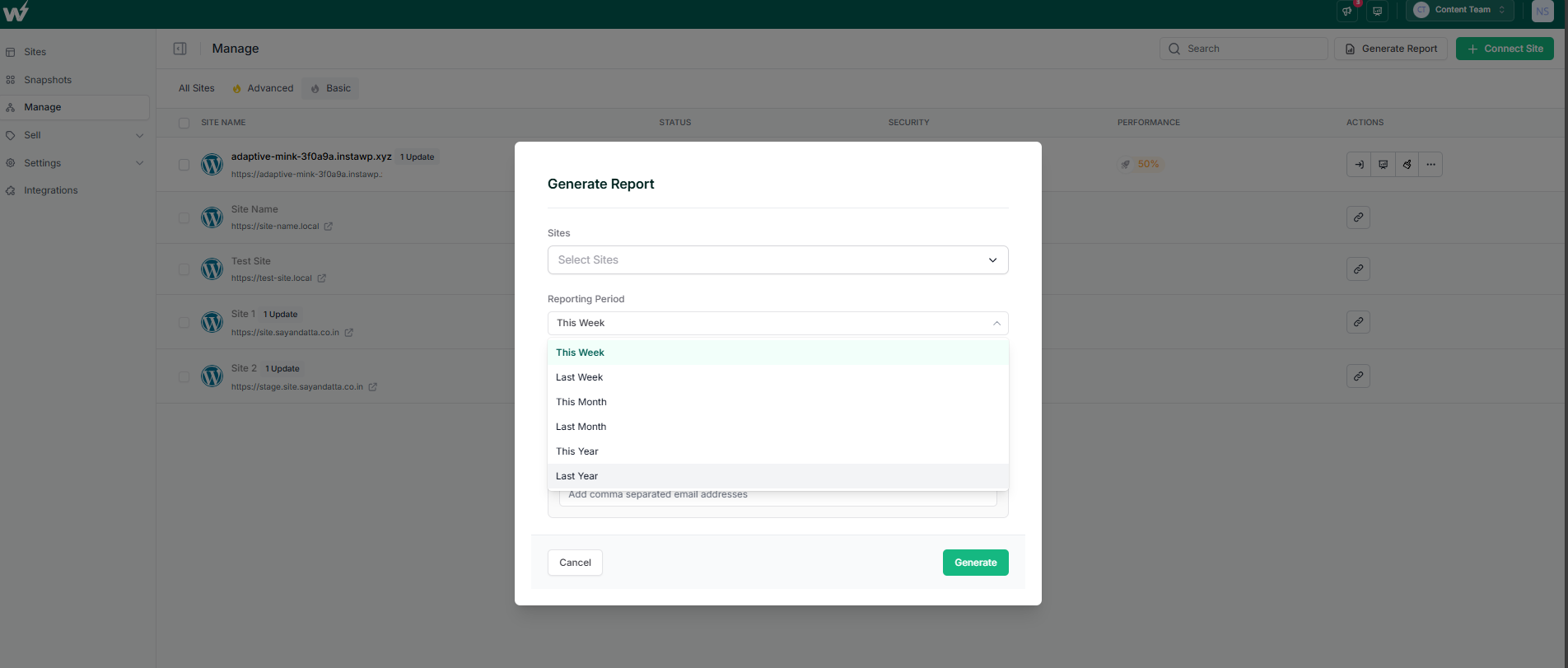
Did You Know: You can get a WordPress maintenance report for different periods in InstaWP. From This Week to Last Year, you have different options to choose from.
2. Site Management Plan Enabled
Automated reporting is part of InstaWP’s site management features. You’ll need an active InstaWPs site plan that includes Connected Site management, either Advanced, Sandbox, or above.
The Free plan supports basic features, but scheduled reports require at least a Sandbox or Advanced tier.
3. Enable Website Maintenance Metrics
InstaWP automatically tracks different website maintenance tasks such as uptime, Core/plugin/theme updates, Vulnerability scans, Activity logs, Disk usage & PHP version, and so on.
Make sure these features are activated in your dashboard so they show up in the report.
For example, uptime monitoring remains disabled unless you explicitly enable it for a specific site.
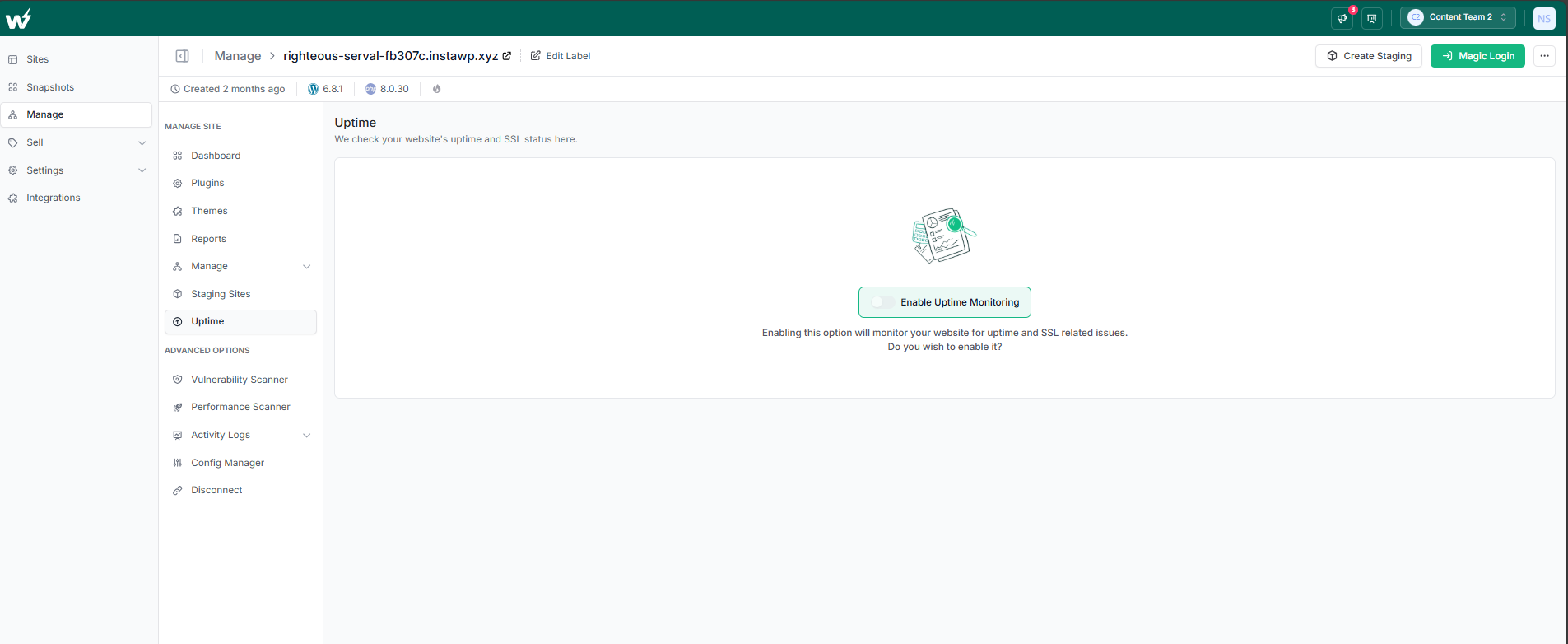
Taking a minute to review and activate the features you want to track ensures that your reports reflect everything you’re doing behind the scenes, accurately and completely.
Once these are in place, you’re ready to start scheduling branded, weekly WordPress maintenance reports; no spreadsheets or manual copy-pasting needed.
How to Generate a Weekly WordPress Maintenance Report
Setting up scheduled WordPress maintenance reports inside InstaWP is quick and straightforward. Once your client sites are either built with InstaWP or connected via InstaWP Connect, you can generate and automate maintenance reports in just a few clicks.
Follow these steps to create a fully branded, automated weekly WordPress maintenance report:
Step 1: Log into Your InstaWP Dashboard
Start by accessing your InstaWP account. From the left menu, go to the Manage section; this is where all your managed and connected client sites are listed.
Step 2: Select the Site(s) You Want to Report On
Choose the site you want to generate a report for. You can repeat this process for multiple sites, depending on your reporting cadence.
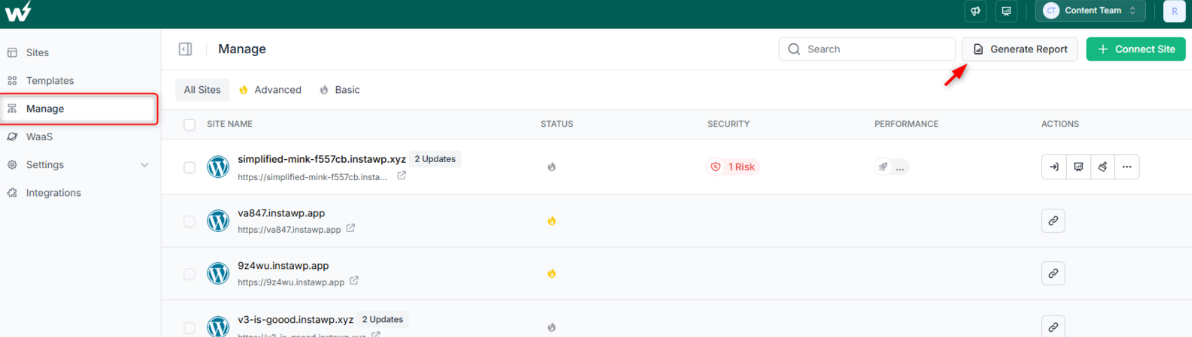
Step 3: Click on ‘Generate Report’
Once you’re in the site’s panel, click the “Generate Report” option. This will open the report builder, where you can configure what goes into the report.
Step 4: Select the Data Points You Want to Include
InstaWP lets you choose exactly what to include in your report:
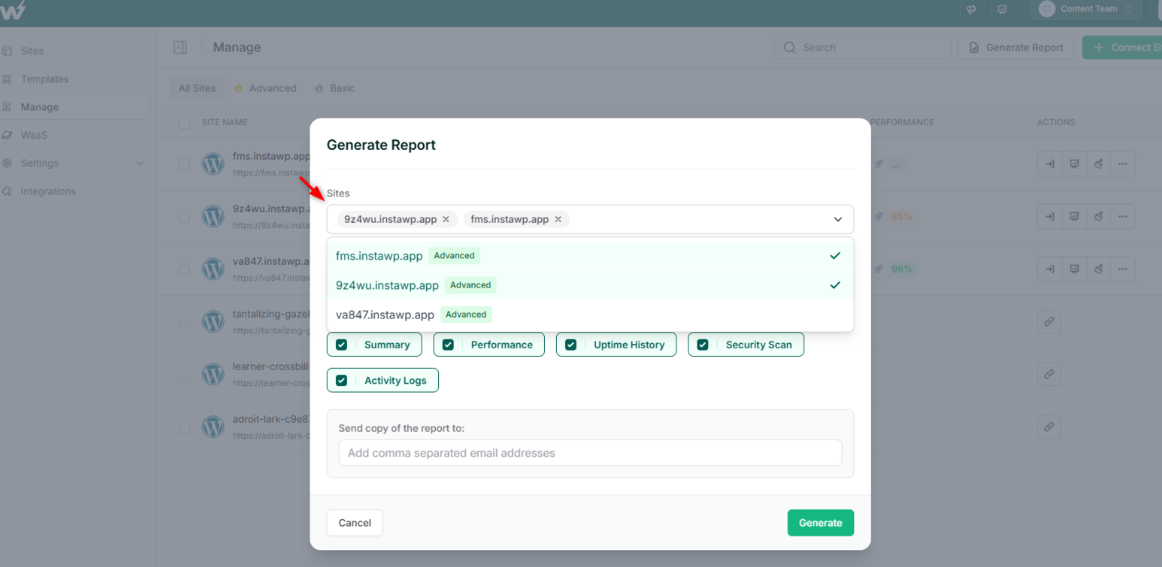
You can select Uptime Monitoring, Security Scans, Activity Logs, Performance, and Summary.
Select the items that best reflect your ongoing work and that your client will find valuable. Also, select the time for which you want to create the WordPress maintenance report.
Enter the email address of your client.
Once everything is set, hit the “Generate” button. InstaWP will now automatically generate and email a client-ready WordPress maintenance report every week; no manual compiling required.

What Makes InstaWP’s WordPress Maintenance Reporting Workflow Different
For agencies managing multiple WordPress sites, reporting often feels like assembling a puzzle with missing pieces; pulling uptime data from one tool, security scans from another, and plugin updates from yet another dashboard. InstaWP changes that completely.
Here’s what sets InstaWP apart when it comes to automated client reporting:
No Plugins or Third-Party Integrations Required
You don’t need to install and configure extra reporting plugins or connect external services. Once a site is built with InstaWP or connected via the InstaWP Connect plugin, you get full access to reporting tools immediately.
All Key Metrics Tracked Natively
InstaWP automatically monitors:
- Uptime and downtime
- WordPress core, plugin, and theme updates
- Security vulnerabilities and scan results
- Performance scores and slow plugin detection
- Activity logs and file changes
These are the same elements your clients expect in a report, and they’re already being tracked behind the scenes.
One Dashboard for All Sites
Whether you’re managing 5 sites or 50, InstaWP gives you a unified Managed dashboard where you can schedule reports, check site health, and apply updates, all without jumping between logins.
One-Click Report Generation
Creating a client-ready report takes less than a minute. Select a site, choose the metrics, set the frequency, and click “Generate.” You can even automate delivery via email.
In short, InstaWP doesn’t just help you schedule WordPress maintenance reports; it makes the entire reporting workflow frictionless, scalable, and built for agencies.
Weekly WordPress Maintenance Reports Made Simple, Scalable, and Client-Ready
Delivering weekly WordPress maintenance reports shouldn’t feel like a repetitive admin task; it should feel like a strategic part of how you retain and grow client relationships. When you communicate consistently, clients see your value without needing to ask, “What have you done this week?”
With InstaWP, generating and scheduling these reports doesn’t require multiple tools, manual log gathering, or complicated workflows. You get a centralized dashboard, real-time tracking, white-label branding, and automated delivery, all built specifically for agencies.
Ready to stop sending reports the hard way?
Launch a free sandbox with InstaWP and start scheduling your first WordPress maintenance report in minutes; no setup, no bloat, no friction.
FAQs
1. How do I schedule a weekly WordPress maintenance report?
You can schedule a weekly report using InstaWP by selecting a connected site, choosing your desired metrics (like uptime, security, updates), setting the frequency to “weekly,” and entering your client’s email. The report will be sent automatically.
2. Can I automate WordPress client reports without a plugin?
Yes. With InstaWP, there’s no need for a separate plugin. Reporting is built into the dashboard—simply connect your site and automate reports with one click.
3. What should a weekly WordPress maintenance report include?
A strong report includes uptime stats, plugin/core/theme updates, backup activity, security scan results, and performance metrics. Visual summaries and one-line insights improve readability for non-technical clients.
4. Can I white-label WordPress reports for my agency?
Absolutely. InstaWP allows white-label customization in its advanced plans, letting you add your agency’s logo and footer to every scheduled report.
5. How do I connect an existing WordPress site to InstaWP for reporting?
Install the free InstaWP Connect plugin on your live site. Once connected, the site will appear in your InstaWP dashboard and be eligible for maintenance reporting.
6. Will InstaWP reports include all client site activity?
Reports include all tracked metrics: uptime, updates, vulnerabilities, and logs. If no activity occurred in a given section (e.g., no plugin updates that week), the report will reflect that accurately.


