Trying to add or remove blank space between WordPress blocks? In most cases the fix lives inside the Gutenberg block settings: open the block’s Dimensions panel, adjust its margin or padding, set the block gap, delete any stray Spacer blocks, and preview on mobile before you publish.
When the gap comes from the theme itself, a small amount of CSS or a theme.json change fixes it site-wide. And when the page is a live or client site, the safe way to do all of this is to make the change on a staging copy first, then push the approved layout back to production.
This guide covers every reliable way to control WordPress spacing between blocks, paragraphs, columns, images, buttons, and full sections.
Quick answer
The Spacer block is the WordPress block that adds blank space between other blocks. To remove unwanted space, work through five layers in order: Spacer blocks, then block margin, then block padding, then the parent block gap, then theme CSS / theme.json. For live sites, fix it on a staging copy first, then sync to production.
Still seeing a gap after you delete the Spacer? It almost always comes from the parent block’s gap or from the theme, not from the block you are looking at. Find the source of the gap before you change anything else.
Table of Contents
- The Spacer block adds space; margin, padding and block gap remove it. Margin is the space outside a block, padding is the space inside it.
- Remove space in this order: stray Spacer blocks, block margin, block padding, the parent block’s gap, then theme CSS or theme.json. Most gaps are solved by the third step.
- Gap between paragraphs? Press Shift + Enter for a line break inside one paragraph instead of Enter, which starts a new block with its own spacing.
- Use a Spacer only for one-off gaps. For repeated spacing, set it once in theme.json so every page stays consistent.
- Fix live sites on a copy. Test the change on a WordPress staging site, or connect an existing site with InstaWP Connect and push the approved layout back with 2-way sync.
- Save a clean spacing setup as one of your Snapshots or Templates and start the next build from it.
Why WordPress Spacing Issues Happen
WordPress spacing issues happen because several layers control the same visual gap at once. The block editor applies its own margin and padding, the active theme adds spacing through CSS and theme.json, and individual blocks such as Group, Columns, Cover, Paragraph, Image, and Buttons each inherit their own rules.
When two of these layers disagree, you get a layout that looks perfect inside Gutenberg but appears “off” on the published page.
If you work with WordPress professionally, especially as an agency handling multiple clients, you already know that controlling block spacing is more complex than it should be. The good news is that almost every spacing problem traces back to one of four sources, and once you can name the source, the fix is quick.
Usually caused by paragraph margins, default theme rhythm, or Enter vs Shift + Enter.
Usually caused by block gap, block margin, padding, or stray Spacer blocks.
Usually caused by the Columns block gap, inner column padding, or parent Group spacing.
Usually caused by global CSS, theme.json settings, or page builder styles.
How to Diagnose the Source of the Gap First
Before you change a single value, find out where the space is coming from. Editing blindly is exactly how a “small spacing tweak” turns into a broken layout. Spend 60 seconds diagnosing first:
- Click the block above the gap, open the sidebar, and expand Dimensions. Note its bottom margin and bottom padding.
- Click the block below the gap and note its top margin and top padding.
- Open List View (top-left icon) and look for an empty Paragraph block or a Spacer block sitting between the two.
- If both blocks live inside a Group or Columns block, check that parent’s block gap.
- If the editor shows no spacing but the live page does, the source is theme CSS or theme.json. Use your browser’s Inspect tool to see which rule applies.
Once you know the source, jump to the matching method below. If the page is on a production or client site, start with Method 1 so you never test on the live site.
Best Methods to Fix Space Between WordPress Blocks
WordPress spacing issues can come from Spacer blocks, paragraph margins, column gaps, Group block padding, or theme CSS. The best fix depends on where the extra space is coming from. Below are the most effective ways to add or remove space between WordPress blocks safely, whether you are editing a simple blog post, a landing page, or a live client website.
Method 1: Fix WordPress Block Spacing Using AI + Staging (Safest for Live Sites)
If the spacing problem is on a live site, the worst place to fix it is the live site. A wrong margin value, a deleted Spacer, or an over-aggressive CSS rule can shift an entire section, and on a WooCommerce or lead-generation page that can cost real conversions while you debug in public.
The safe, repeatable method is to create a staging copy, fix the spacing there (on your own or with an AI agent that can read and edit the layout for you), test the result on desktop and mobile, and then sync only the approved change back to production.
This is where InstaWP, as a full WordPress cloud platform, does more than a plain Gutenberg tutorial can, because staging, the AI connection, and the one-click push to your live site all live in one place.
Spin up a free WordPress sandbox and test spacing changes safely in seconds.
Create a Free Staging Site →Step-by-Step: The Safe Spacing Workflow on InstaWP
Install the free InstaWP Connect plugin on your existing WordPress site and link it to your InstaWP dashboard. If your site is already hosted on InstaWP, skip this step.
Must Read: InstaWP Connect Plugin
From the dashboard, create a staging site of the live site. You now have an identical, disposable environment that nobody else can see.
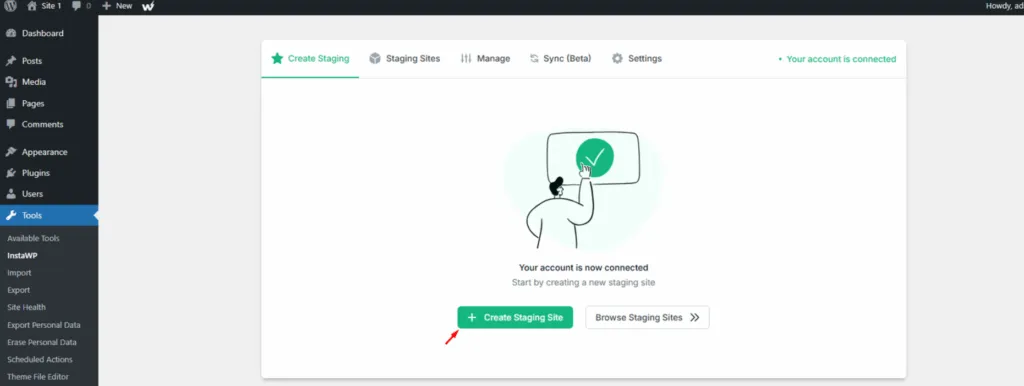
Watch the Video Tutorial.
Enable 2-Way Sync so InstaWP records exactly which changes you make on staging and lets you push them back later in either direction.
Open the site’s MCP panel and toggle Enable MCP to ON. InstaWP installs the MCP plugin, generates a secure token, and gives you a connection URL you paste into your AI client.
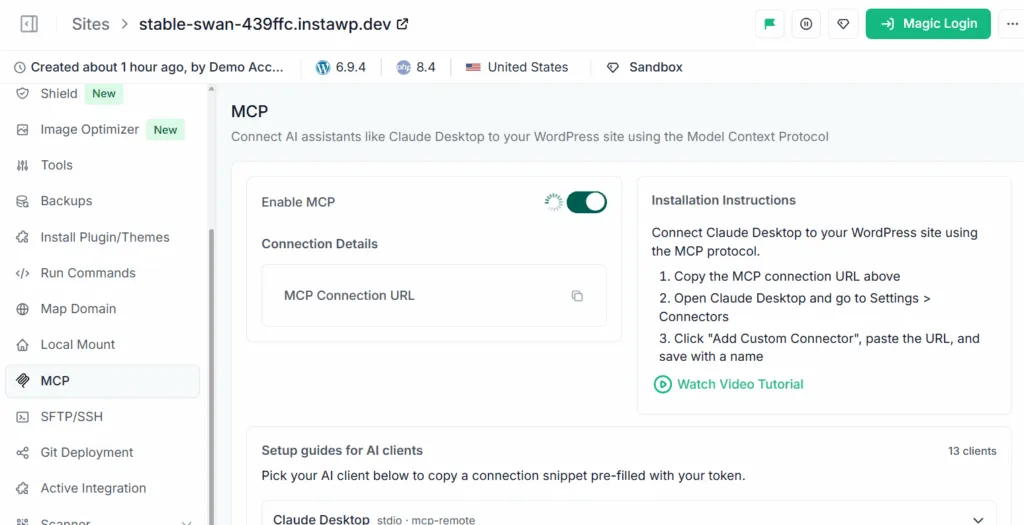
Either adjust the block settings yourself (Methods 2 to 5 below) or ask the AI agent to find the source of the gap and propose the smallest possible fix. Always review the change before applying it.
Test on every breakpoint. Preview the page on desktop, tablet, and mobile. Spacing bugs love to hide on small screens.
Push approved changes live. Once the layout looks right, sync the change from staging back to production with one click. Your live site only ever receives the finished result.
Example Prompts for AI-Assisted Spacing Fixes
Once your AI client is connected to the staging site, these prompts work well. Notice that each one asks the agent to diagnose before editing and to prefer the cleanest fix.
Find the source of the extra blank space between the hero section and the next Group block on the homepage. Check for Spacer blocks, block margins, padding, and block gap before changing anything, and tell me which one is responsible.Remove the extra space between these two paragraph blocks without affecting the rest of the page. Use Gutenberg block settings first, and only fall back to CSS if the gap is coming from the theme.The columns on the pricing section have a large gap on mobile but look fine on desktop. Check the Columns block gap, each inner column's padding, and the parent Group spacing, then fix only the mobile gap.Why Use a Staging Site Before Fixing WordPress Spacing?
Staging is not just a “nice to have” for spacing work. It is what separates a calm, reversible edit from a public mistake. A staging-first workflow gives you:
- No risk to the live layout. Visitors and customers never see a half-finished fix.
- Safer for client sites. You can show the client the corrected staging page before anything goes live.
- Easy rollback. If a fix looks wrong, you discard the staging copy instead of scrambling to undo production changes.
- Safe space for AI edits. Giving an AI agent write access is far less risky when it is pointed at a disposable staging site rather than your live store.
- Real testing before deployment. You confirm desktop, tablet, and mobile all look right, then push once.
Method 2: Adjust Margin, Padding, and Block Gap in Gutenberg
The cleanest no-code way to add or remove space between WordPress blocks is to use Gutenberg’s built-in spacing controls. These live under the block sidebar’s Styles tab in the Dimensions panel. The exact controls available depend on your theme and WordPress version, with block themes exposing the most options.
How to Remove Space Between Two WordPress Blocks
Open the page or post in the WordPress Block Editor. Select the block above the unwanted gap. In the sidebar, open Styles and expand Dimensions.
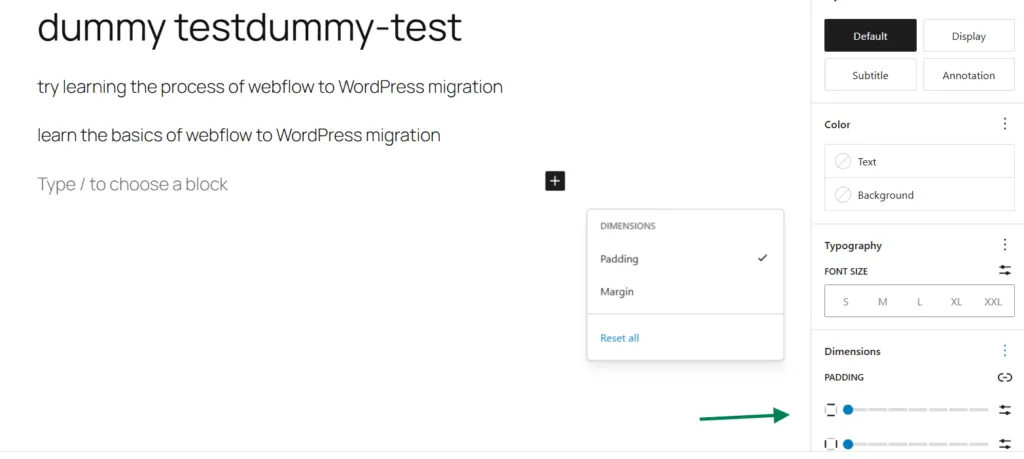
Reduce its margin bottom and padding bottom (set to 0 if the block should sit flush). Select the block below the gap and reduce its margin top and padding top. Prefer responsive units such as rem over fixed pixels so the spacing holds up on mobile.
Margin vs Padding vs Block Gap
Knowing which of the three controls to reach for is the whole game. Here is the quick reference:
| Setting | What it controls | Use it when |
|---|---|---|
| Margin | Space outside the block | You want to add or remove the gap between two separate blocks |
| Padding | Space inside the block | You want more or less breathing room inside a Group, Cover, Column, or Button |
| Block gap | Space between child blocks inside a parent | You are editing a Group, Row, Stack, or Columns layout |
How to Remove Space Between Paragraphs in WordPress
Extra space between paragraphs is one of the most searched WordPress spacing problems, and it usually has one of three causes. Work through them in order:
- Separate paragraph blocks. Pressing Enter creates a new Paragraph block with its own margin. If you only want a line break inside the same paragraph, press Shift + Enter instead.
- Block spacing on the paragraph. Select the paragraph, open Dimensions, and reduce the margin if your theme exposes the control.
- Theme paragraph margin. If the gap persists, the theme is applying margin to the paragraph tag. Adjust it with targeted CSS.
.entry-content p {
  margin-bottom: 1rem;
}Reduce the value gradually and only after testing. Stripping all paragraph margins site-wide makes long-form content harder to read, so aim for tighter, not zero.
How to Fix Space Between Columns in WordPress
Column spacing trips people up because there are two different blocks involved: the parent Columns block and each child Column block. Select the parent Columns block first, not just one column, then work outward:
- To reduce horizontal space between columns: select the Columns block and lower the block gap.
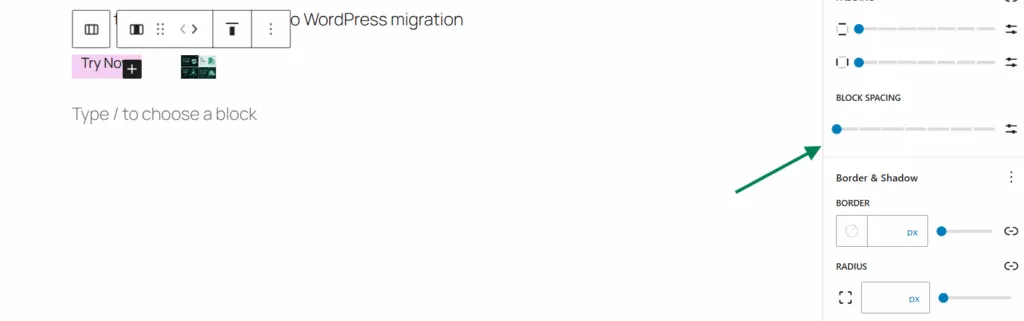
- To fix vertical gaps that only appear on mobile: columns stack on small screens, so check each Column’s top and bottom padding.
- To fix section-level gaps: if the columns sit inside a Group or Container, inspect that parent’s margin and padding.
Method 3: Use the Spacer Block to Add Blank Space
The Spacer block is the dedicated WordPress block for adding blank space between other blocks. It is the most beginner-friendly option and is genuinely useful for quick layout adjustments, prototypes, and simple one-off gaps where margin and padding would be overkill.
How to Add a Spacer Block
Click the + icon between the two blocks where you want space. Search for Spacer and insert it.
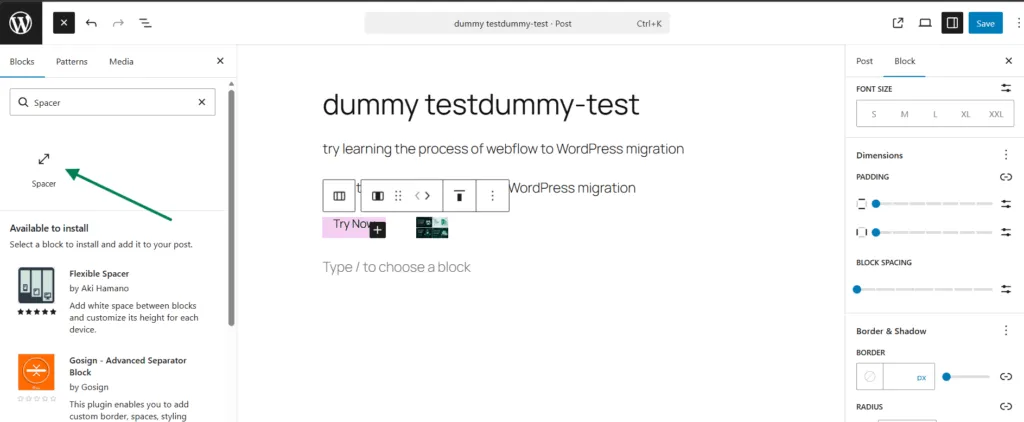
Drag the handle to resize, or set an exact height in the Dimensions panel. Switch the unit to rem or em where possible so the gap scales responsively.

Preview on mobile before publishing.
If you build the same kind of layout repeatedly, set the spacing once in an InstaWP sandbox, save the build as a Snapshot or Template, and reuse it across future projects instead of rebuilding spacing by hand on every site.
Method 4: Use Custom CSS or Custom HTML for Precise Fixes
Reach for custom CSS when Gutenberg’s controls are not enough, or when a theme applies stubborn default spacing you cannot override from the sidebar. CSS is also the right tool for reusable spacing rules you want to apply across many pages, patterns, or templates at once.
Remove Extra Space Below a Specific Block
Select the block, open Advanced > Additional CSS class(es), add a class such as no-bottom-gap, then add this rule to your theme’s Additional CSS or stylesheet:
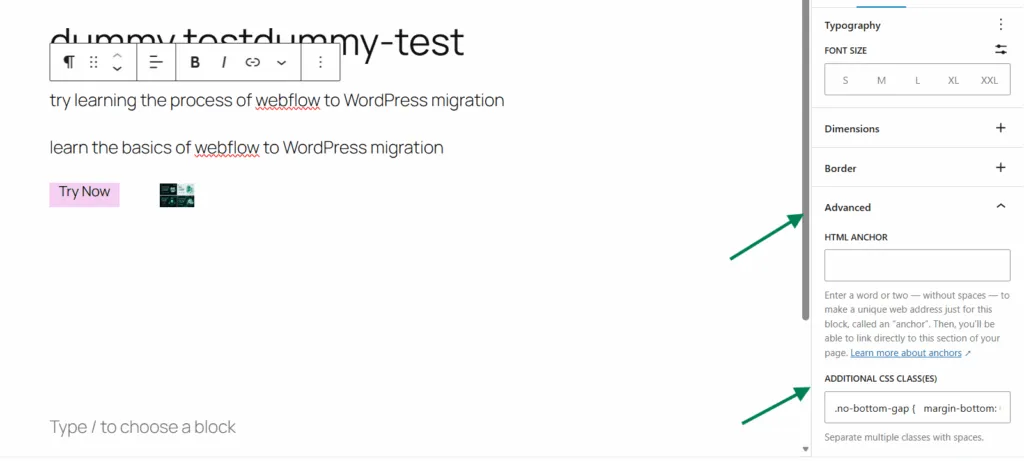
.no-bottom-gap {
  margin-bottom: 0 !important;
}Set Consistent Spacing After Headings
.entry-content h2,
.entry-content h3 {
  margin-bottom: 1rem;
}Control Paragraph Spacing Globally
.entry-content p {
  margin-top: 0;
  margin-bottom: 1rem;
}Reduce the Gap Between Child Blocks (Block Gap)
If a Group or Columns block adds too much space between its children, target the block gap variable directly:
.wp-block-group.tight-group {
  --wp--style--block-gap: 0.75rem;
}Add a One-Off Gap with Custom HTML
For a single visual gap where you do not want a Spacer block, a Custom HTML block works and stays accessible:
<div style="height:2rem" aria-hidden="true"></div>Use this sparingly. For anything you will repeat, prefer Gutenberg spacing controls or a reusable CSS class so your layout stays maintainable.
Use HTML Entities Inside Text Only
HTML entities such as force a non-breaking space inside text, but they are not the right fix for layout spacing between blocks. Use them only for spacing inside a sentence or label, never to separate sections.
Word Word!important on a shared class can silently change spacing on dozens of pages. Test it in a sandbox, confirm the live layout, then sync it across with InstaWP.
Method 5: Set Global Spacing in theme.json (Site-Wide Fix)
If you keep fixing the same gap on page after page, stop treating it as a per-page problem. In block themes, theme.json is the single source of truth for global spacing, and setting it once fixes the whole site. This is the most scalable method for developers and agencies.
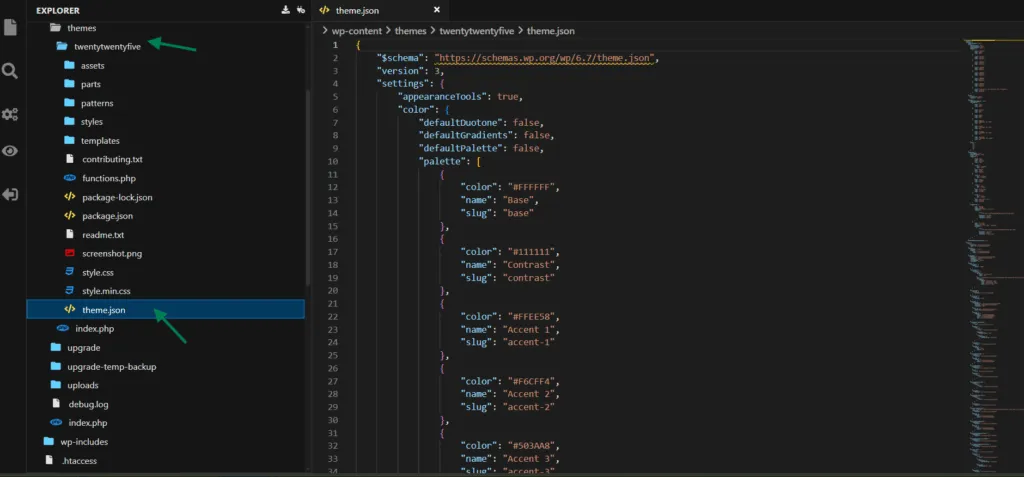
If ypu have build your WordPress site with instaWP, you get a built-in Code Editor. Simply go to Sites, select your site, and click on the three dot icon. Click on Tools > Code Editor.
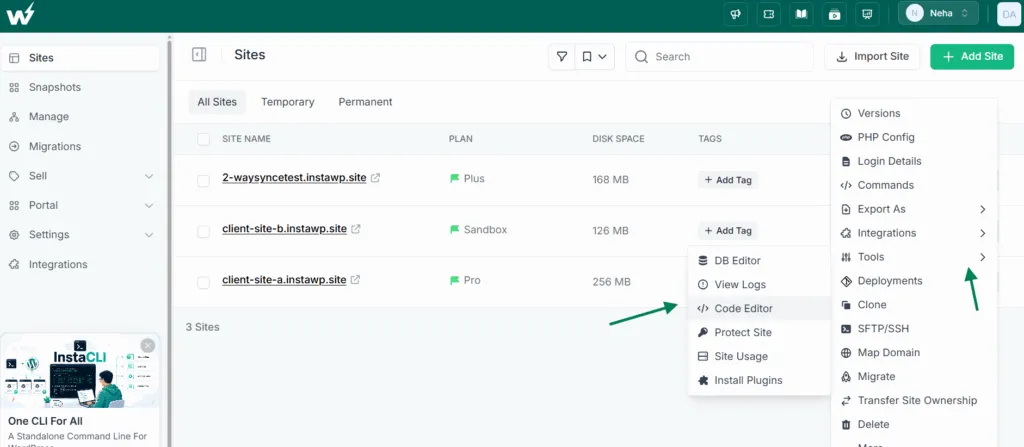
You have two options: VS Code Editor and WPCodeBox.
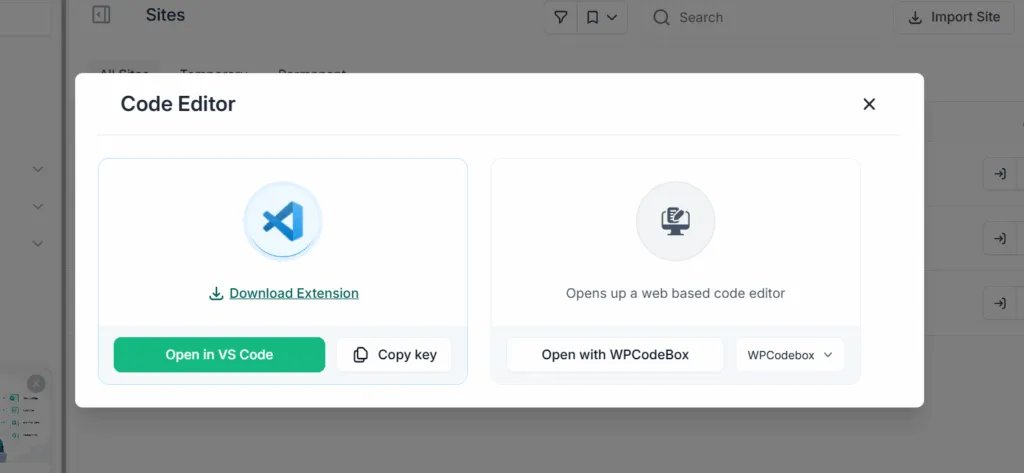
We’re opening the theme.json file using WPCodeBox. This opens the file code in a browser. Now, go to wp-content >themes. Go inside your theme and look for json file.
Define a clean spacing scale and the editor will offer those presets everywhere:
{
  "version": 3,
  "settings": {
    "spacing": {
      "blockGap": true,
      "units": [ "px", "em", "rem", "vh", "vw", "%" ],
      "spacingScale": {
        "steps": 7
      }
    }
  },
  "styles": {
    "spacing": {
      "blockGap": "1.5rem"
    }
  }
}You can also create a child theme so your theme.json edits survive theme updates, then test the change on an InstaWP staging copy before it touches production. Because theme.json affects every page at once, staging-first is not optional here, it is the difference between a clean rollout and a site-wide spacing surprise.
Best Practices for WordPress Block Spacing
| Scenario | Best fix | Avoid |
|---|---|---|
| Need a quick visual gap | Single Spacer block (rem units) | Stacking multiple Spacer blocks |
| Remove space between two blocks | Margin, padding, or block gap | Random negative margins |
| Remove space between paragraphs | Shift + Enter, paragraph spacing, theme CSS | Killing readable rhythm everywhere |
| Fix space between columns | Columns block gap + column padding | Editing only one inner column |
| Need site-wide consistency | theme.json, CSS classes, templates, snapshots | Manual per-page fixes |
| Fix a live client site | Staging + InstaWP Connect + 2-Way Sync | Testing directly on production |
For agencies and developers, the long-term win is not reducing one gap. It is building a spacing system: define section spacing, paragraph spacing, heading spacing, column gaps, and mobile behaviour once, save that layout as a reusable template or snapshot, and start every future project with clean spacing from day one.
Pair that with a staging-first habit and spacing stops being a recurring fire drill.
Final Thoughts
To add blank space between WordPress blocks, use the Spacer block for one-off gaps or Gutenberg’s margin, padding, and block gap controls for everything else. To remove blank space, work through the layers in order: Spacer blocks, margin, padding, block gap, then theme CSS or theme.json.
For consistency across a whole site, set the spacing scale once in theme.json. And for any production or client site, make the change on a staging copy first, optionally with an AI agent connected via InstaMCP, so you can test the layout before it ever reaches your visitors.
Fix WordPress spacing the safe way
Spin up a free WordPress sandbox to test layout changes, or connect an existing site with InstaWP Connect and fix spacing in staging before syncing it live. Add a card and get $25 in free credits to start.
Start Free on InstaWP →FAQs About WordPress Spacing Between Blocks
Which block adds a blank space between other blocks in WordPress?
The Spacer block adds blank space between other blocks in WordPress. Insert it between two blocks from the + menu, then set its height by dragging the handle or entering a value in the Dimensions panel. Use rem or em units so the gap scales on mobile, and avoid stacking multiple Spacer blocks.
How do I remove space between WordPress blocks?
Select the blocks above and below the gap and check their margin and padding under Dimensions, then check the parent block’s block gap. Delete any stray Spacer or empty Paragraph blocks using List View. If the editor shows no spacing but the live page does, the source is theme CSS or theme.json, which you can override with a targeted rule.
How do I remove space between paragraphs in WordPress?
Press Shift + Enter for a line break inside the same paragraph instead of Enter, which creates a new Paragraph block with its own margin. If gaps still look too large, reduce the paragraph block spacing under Dimensions, or lower the paragraph margin-bottom in your theme CSS. Reduce gradually so long-form text stays readable.
How do I change the space between columns in WordPress?
Select the parent Columns block (not a single column) and adjust its block gap to control horizontal spacing. Then check each individual Column block’s padding, especially for vertical gaps that appear only on mobile where columns stack. If the columns sit inside a Group, also check that Group’s padding.
What is the difference between padding, margin, and block gap in WordPress?
Margin is the space outside a block, padding is the space inside a block, and block gap is the space between child blocks inside a parent such as a Group or Columns block. Use margin to change the gap between two separate blocks, padding for breathing room inside a container, and block gap for evenly spaced children.
How do I set spacing for my whole WordPress site at once?
In a block theme, edit theme.json and set styles.spacing.blockGap to your preferred default, and define a spacingScale so the editor offers consistent presets everywhere. This applies site-wide, so use a child theme to survive updates and test the change on a staging copy before pushing it to production.
Can I use AI to fix WordPress spacing issues?
Yes. Every InstaWP site is MCP-ready with one toggle, so you can connect an AI client like Claude Desktop, Claude Code, Cursor, ChatGPT, or Gemini and ask it to find and fix the source of a spacing gap. The safe practice is to point the AI at a staging copy rather than your live site, review its proposed change, then sync the approved fix to production.
Should I fix WordPress spacing issues directly on a live site?
For a small personal site, simple edits are usually fine. For client, business, WooCommerce, or high-traffic sites, fix spacing on a staging copy first. With InstaWP Connect and 2-Way Sync you can create a staging site, test the layout on desktop and mobile, and push only the approved change back to production, so visitors never see a broken layout.