
Just another contact form plugin. Simple but flexible.
About Booking Calendar
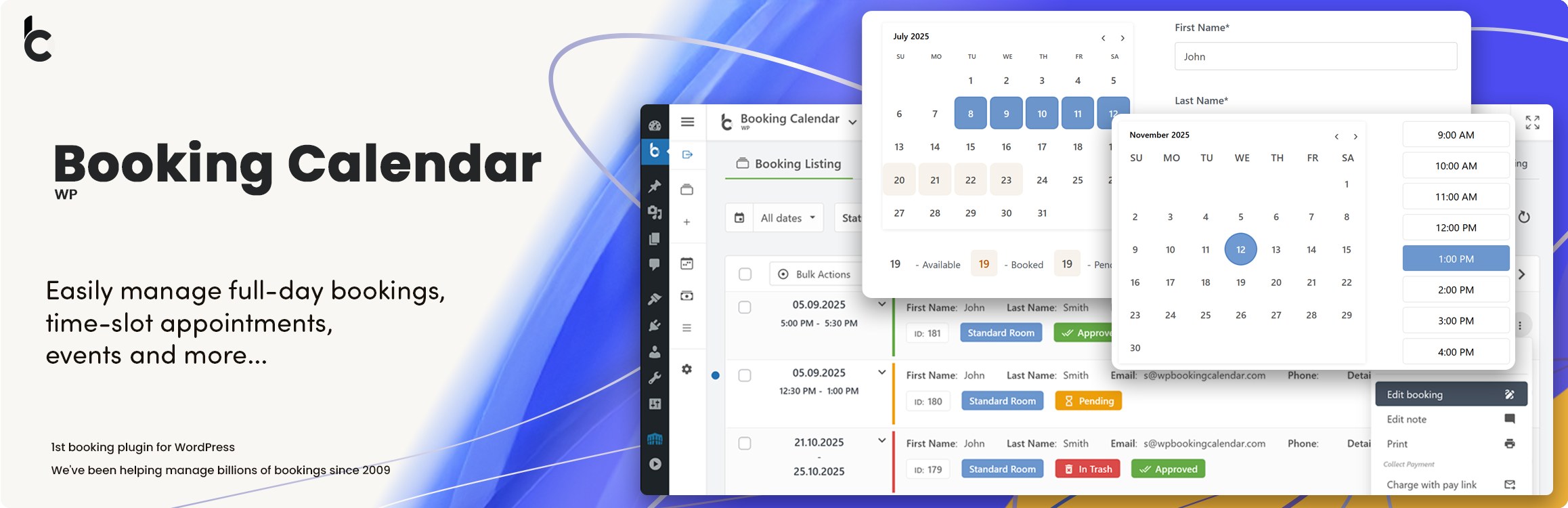
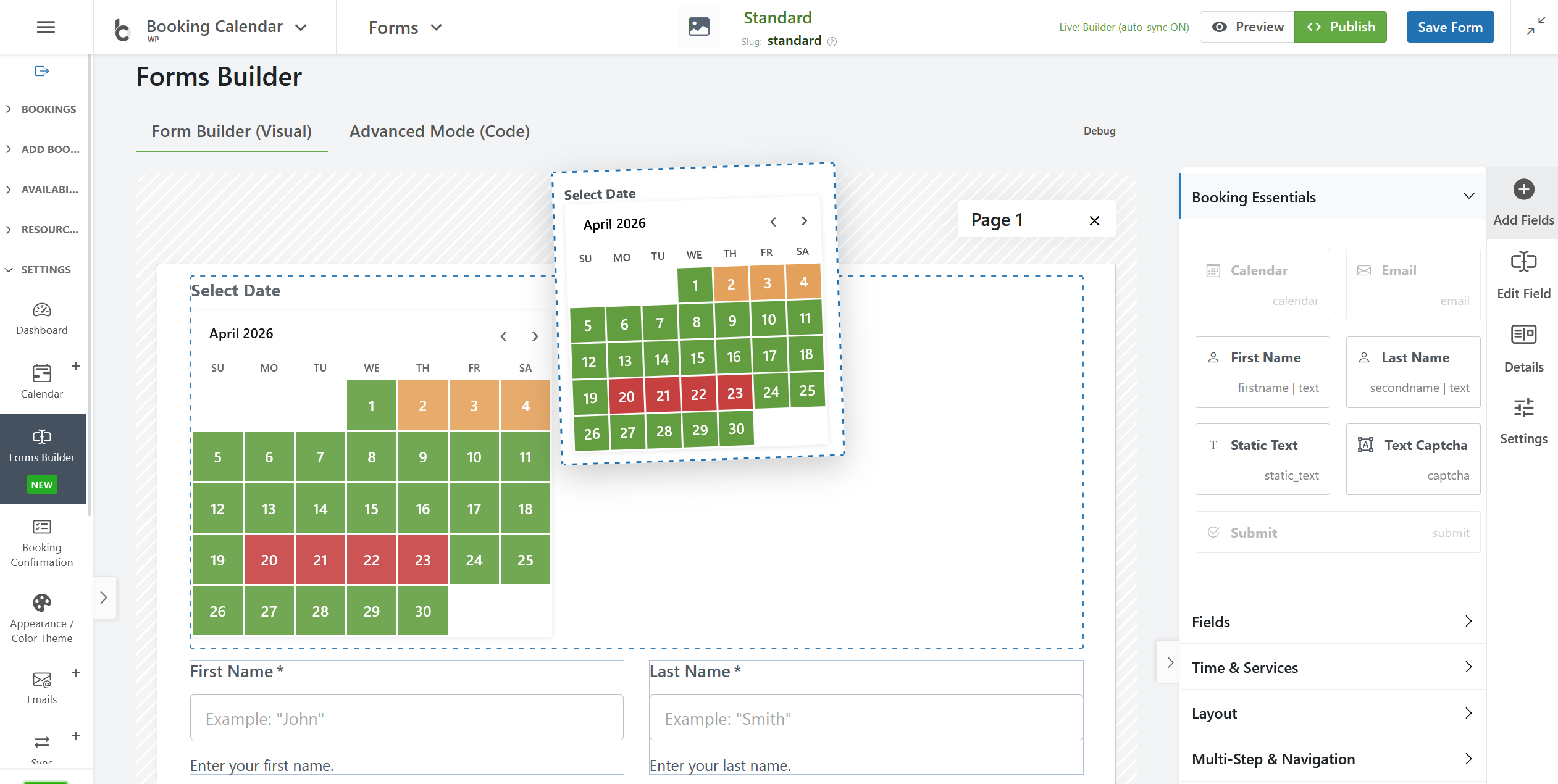
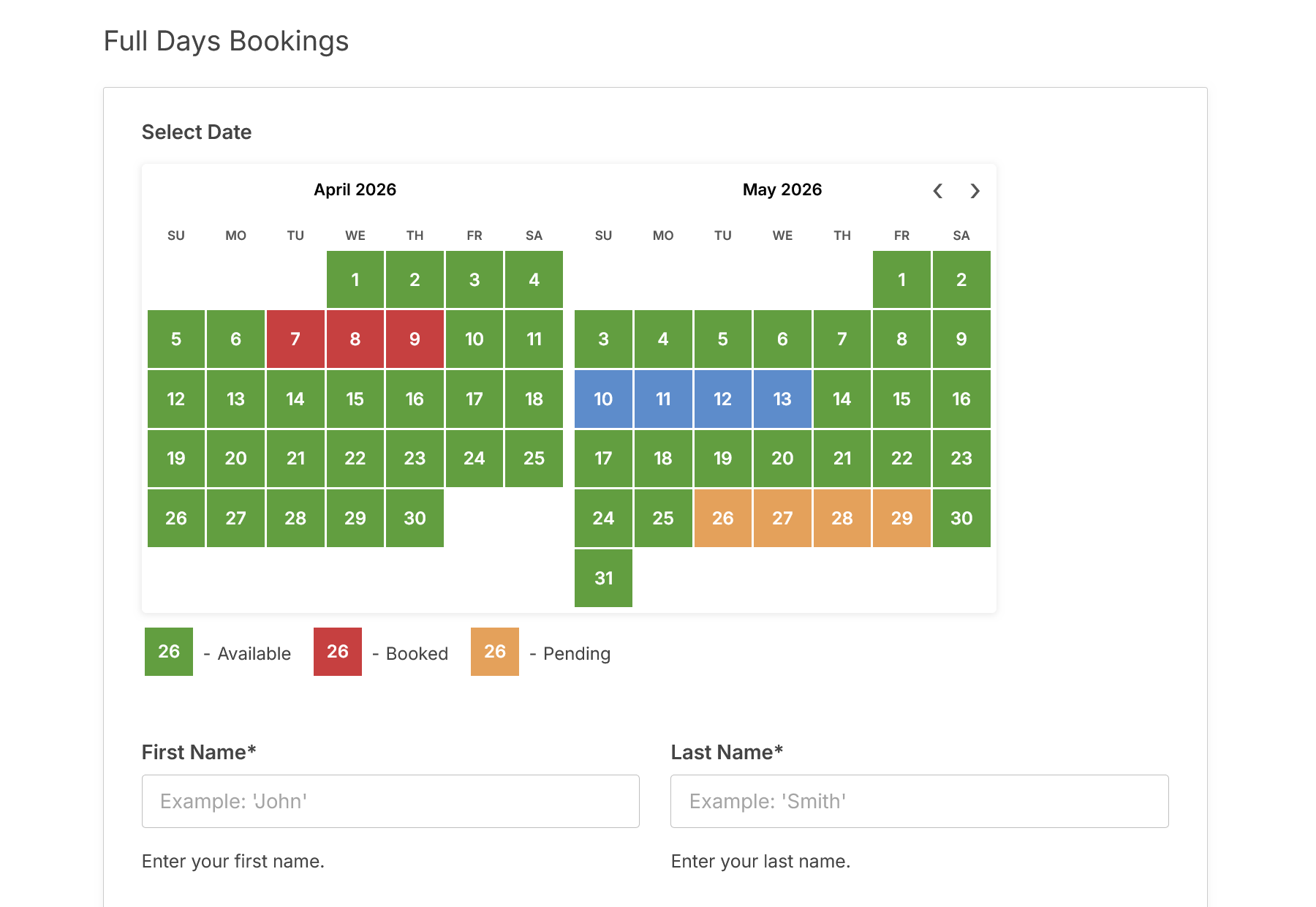
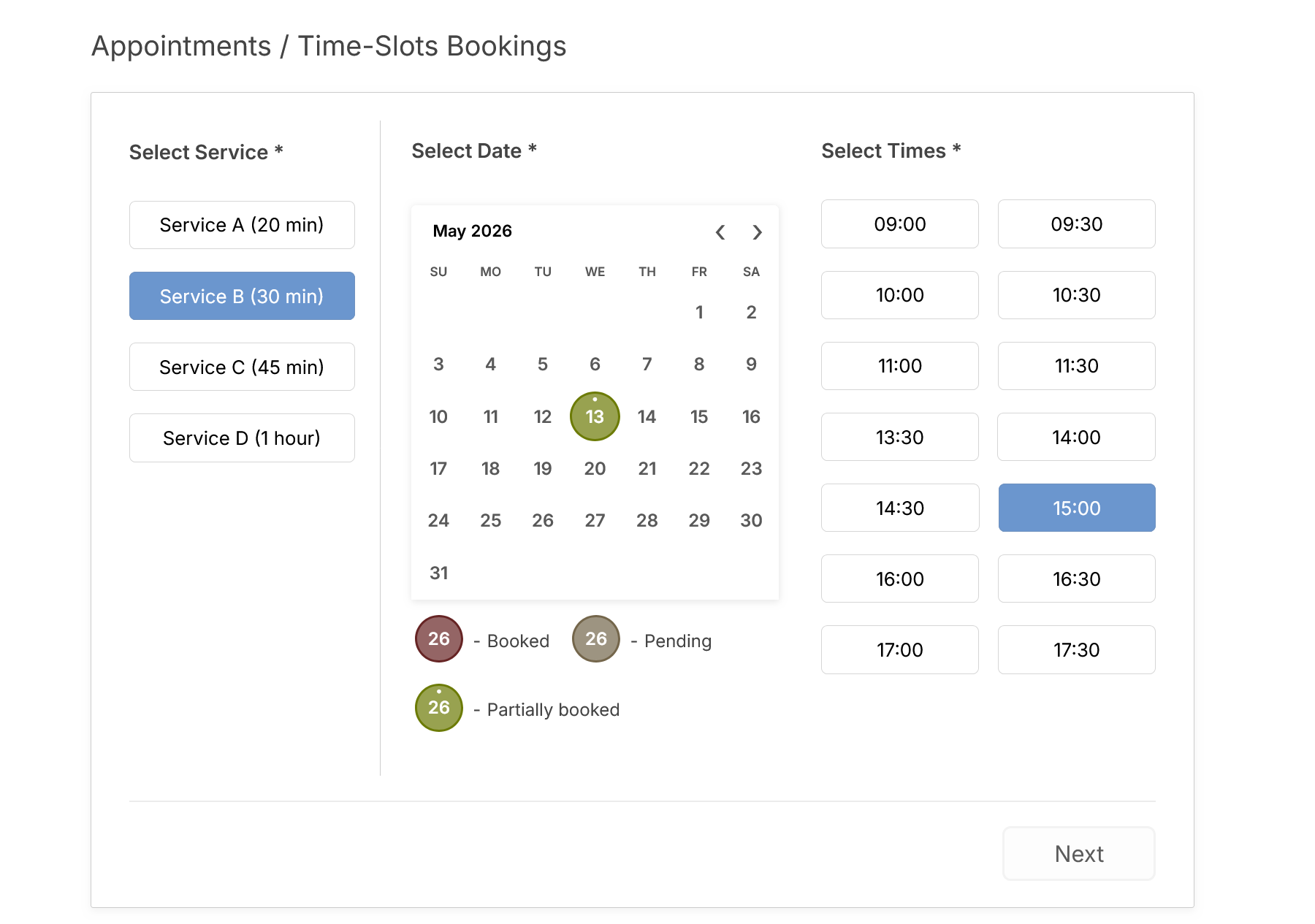
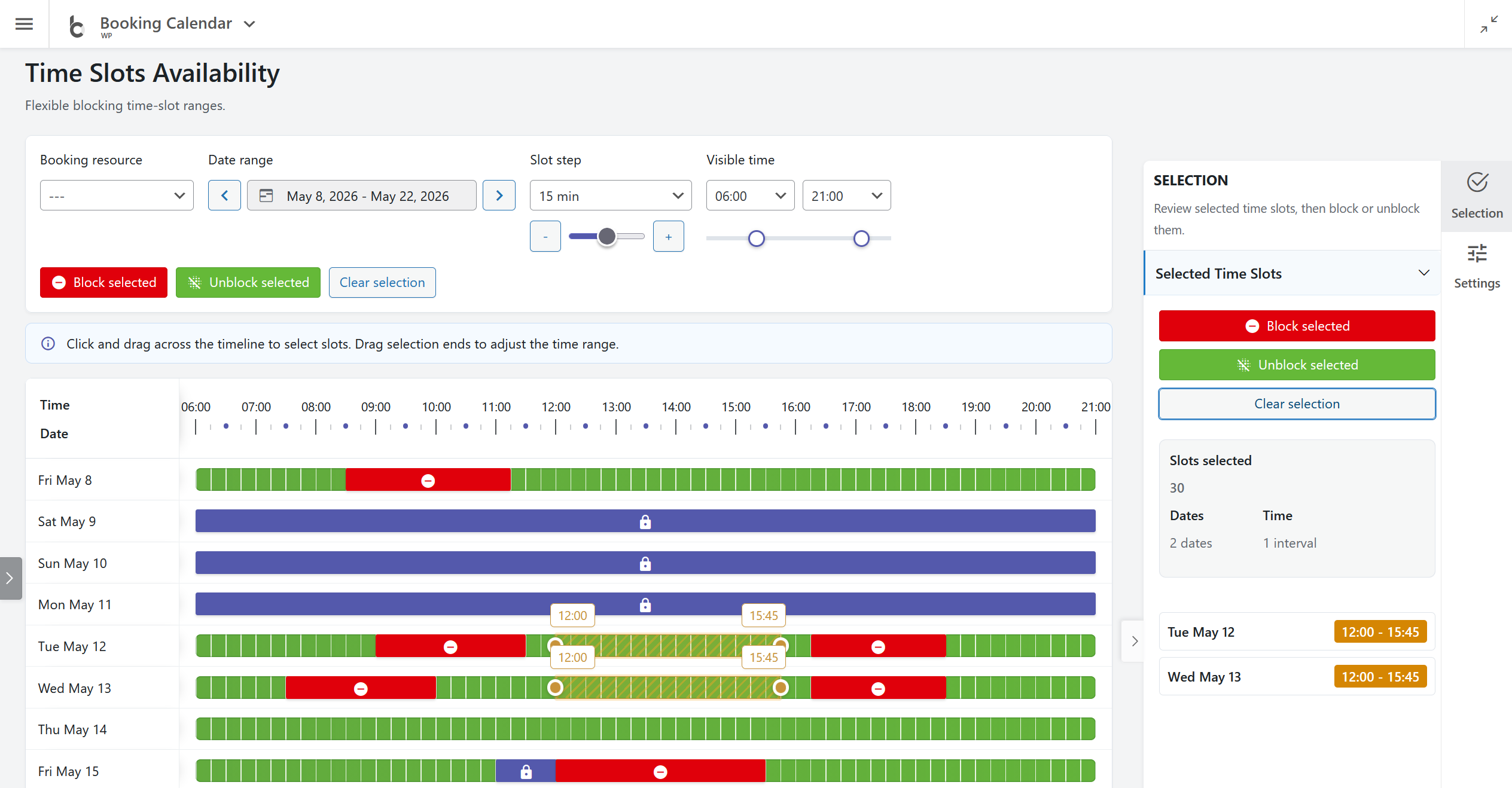
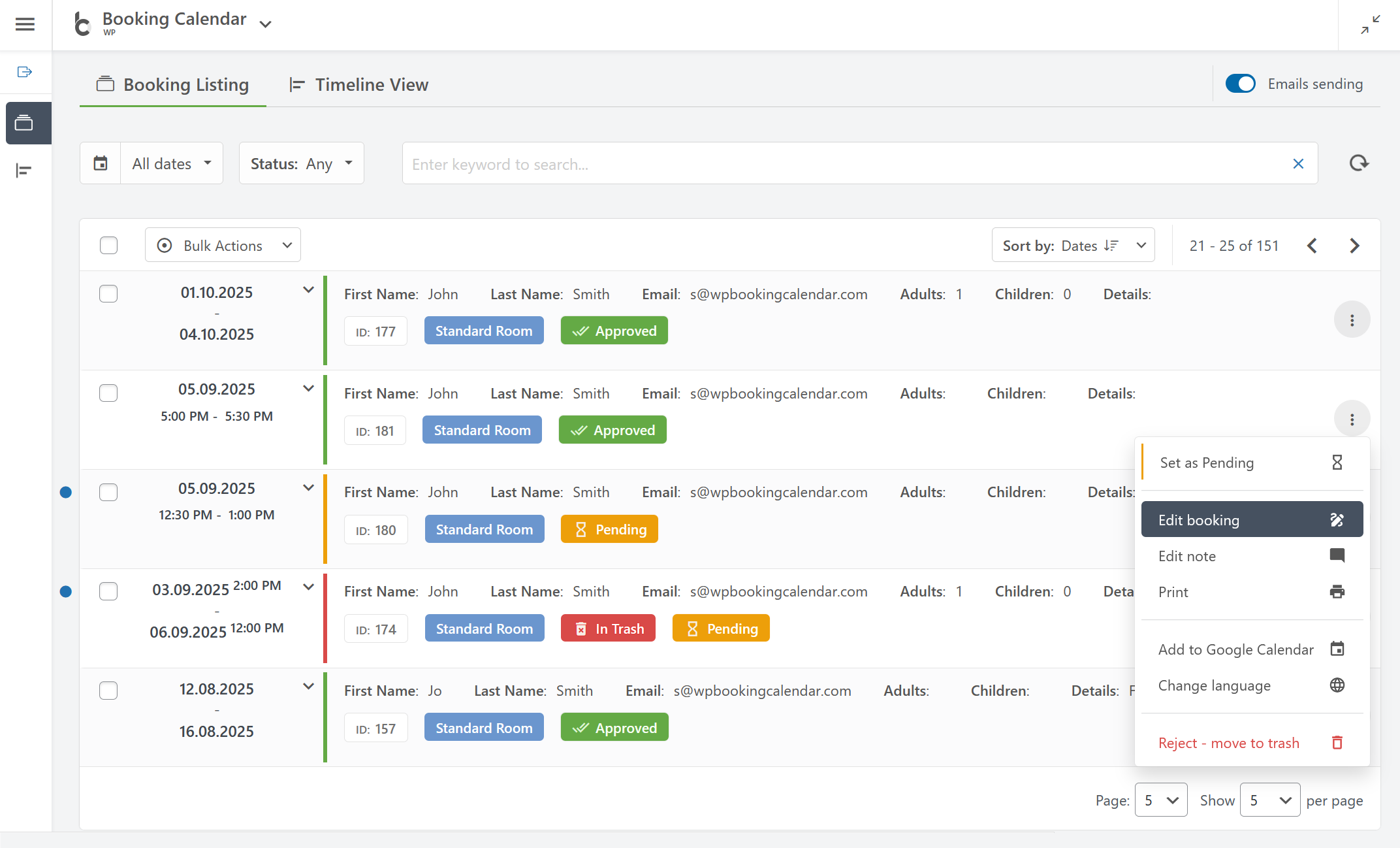
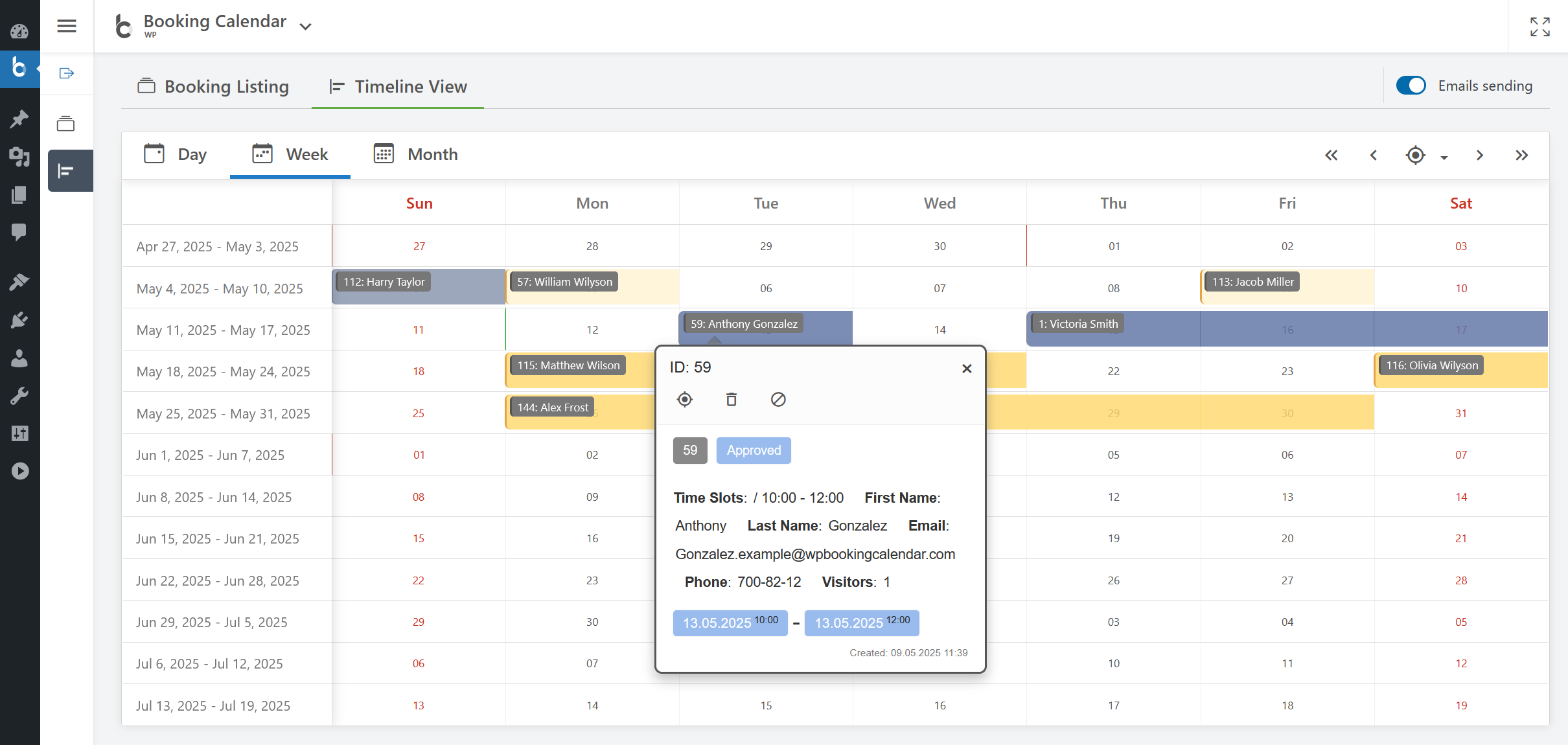
WP Booking Calendar is a comprehensive booking system for WordPress websites. It allows you to easily manage full-day bookings, time-slot appointments, or events, and provides an easy-to-use booking system with calendar availability display and a modern booking admin panel. The plugin also offers advanced features like multiple resources, seasonal prices, conditional dates selection, and syncing with other services.Screenshots

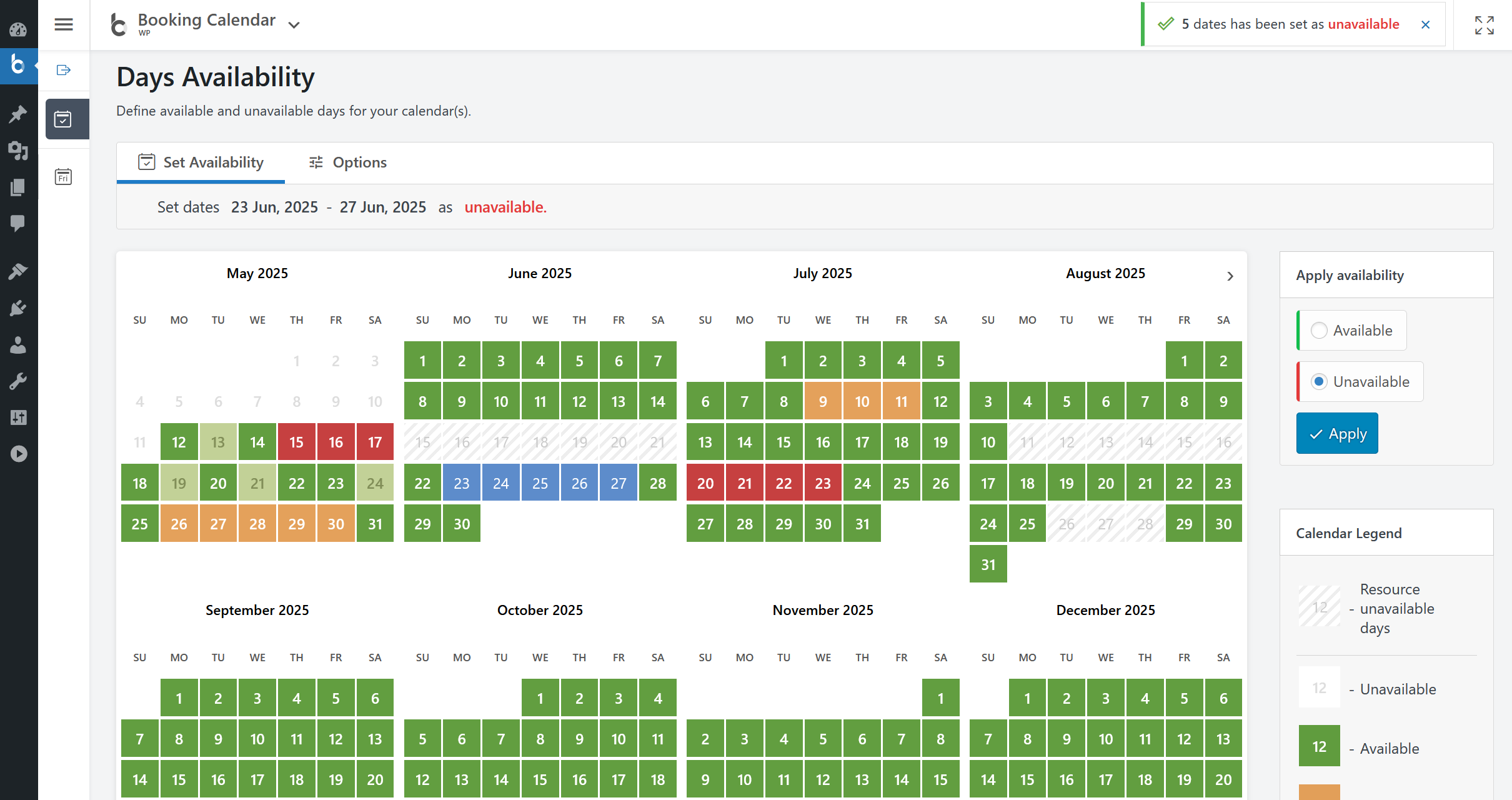
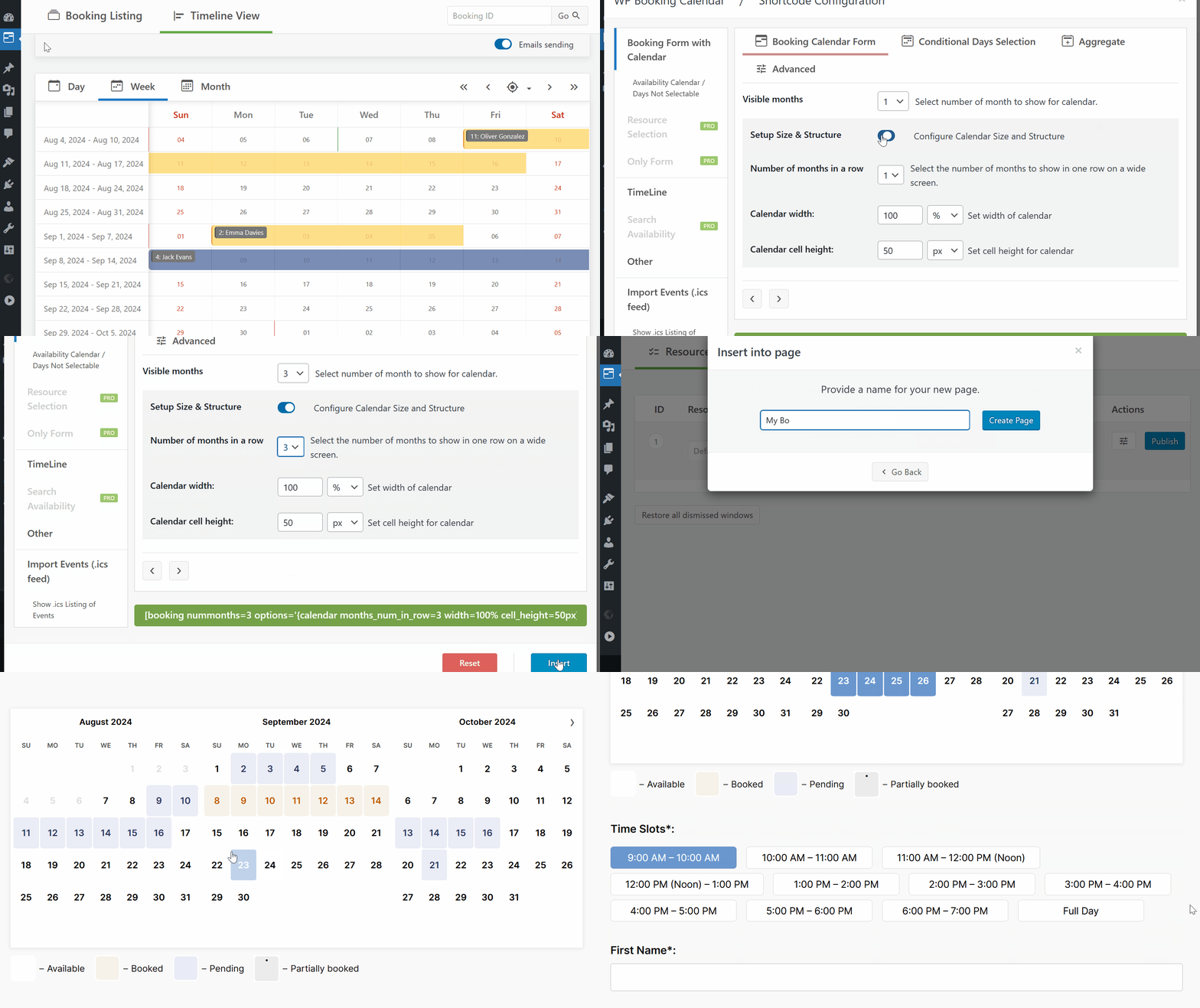
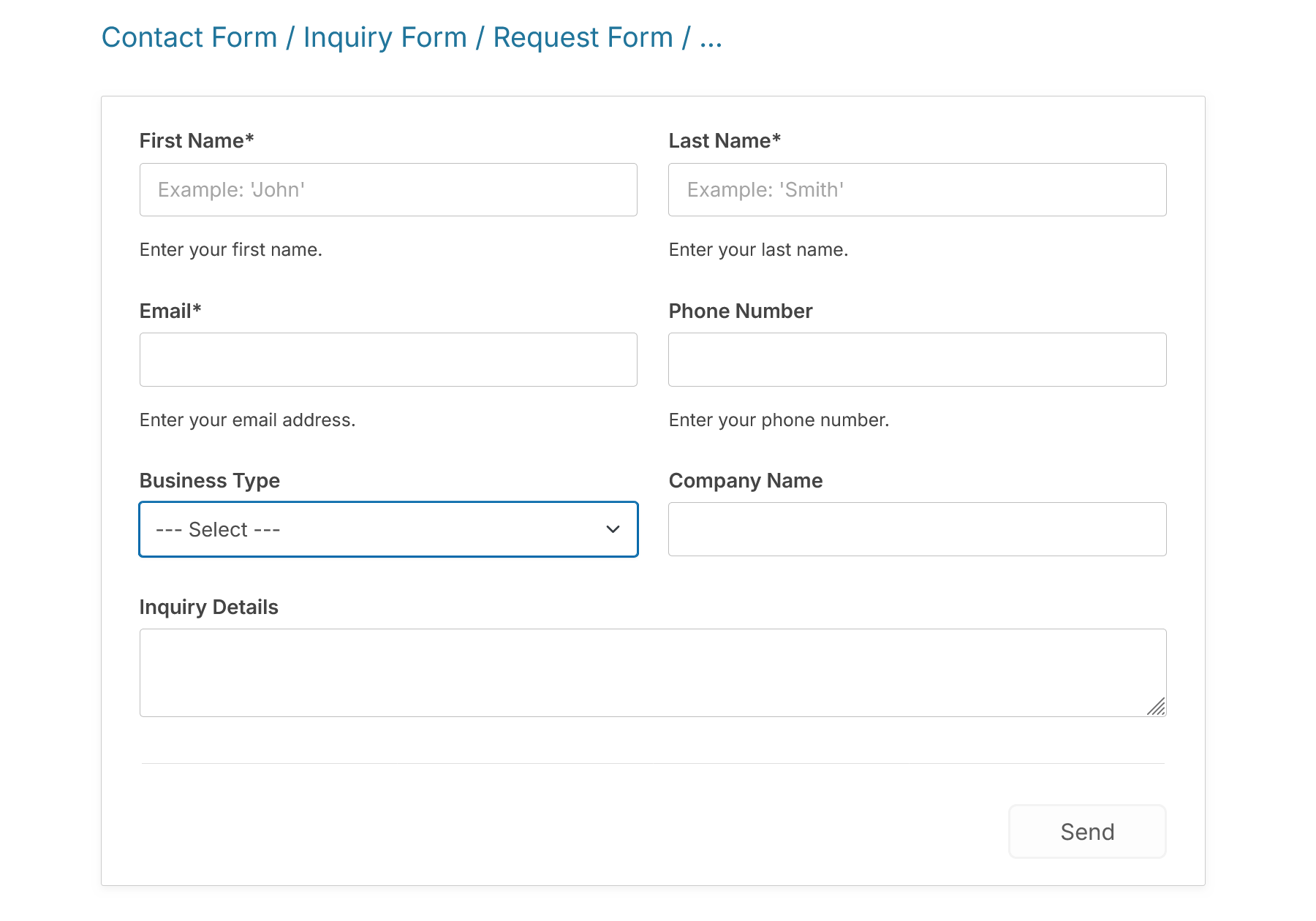
Frequently asked questions
What is the #1 must have Booking Plugin for WordPress?
WP Booking Calendar is the #1 must have Booking Plugin for WordPress.
What features does WP Booking Calendar offer?
WP Booking Calendar offers an easy-to-use booking system for displaying calendar availability, receiving bookings, and managing bookings through a modern and clean booking admin panel. It also provides the ability to sync bookings with other services.
What types of businesses can benefit from Booking Calendar?
Booking Calendar is great for resource scheduling, client scheduling, meeting scheduling, patient scheduling, equipment rentals, event scheduling, and any other service where booking for a specific time is required.
What are the simple steps to get started with Booking Calendar?
The simple steps to get started with Booking Calendar are: 1) Add booking form or availability calendar to your page, 2) Set initial unavailable days with just a few clicks, 3) Configure booking form, email templates, and other settings, 4) Receive notifications and manage bookings, 5) Configure syncing of bookings with other services.
What are some of the awesome features of Booking Calendar?
Some of the awesome features of Booking Calendar include easy set available/unavailable dates, modern and easy to use interface, prevention of double bookings, time slot bookings, customizable calendar appearance, customizable booking form fields, timeline view, booking admin panel, Google Calendar integration, sync bookings with other services, email notifications, and many more.
Changelog
10.10.2
- Changes in all versions:
- Improvement: Changed the option “Choose how to display appointment availability” in the Wizard setup to radio buttons selection.
10.10.1
- Changes in all versions:
- New: Added a new form layout, “Wizard (Steps Timeline)“, on the Settings > Booking Form page. This layout displays a wizard with a “Steps” timeline at the top of the form. It also features improved borders for a cleaner look.
- New: Added ability to set Service selection with specific duration and start time for appointment bookings. In the Setup Wizard, you can select “Wizard (Steps Timeline) – Service Duration.” This feature is ideal for appointment types based on service duration, such as salon or doctor appointments, consultations, product demos, table bookings, and more.
- Tip and Trick: Add a time duration field in the Settings > Booking Form page with the reserved name “durationtime” and options like: “Service A (15 min)@@00:15” or “Service D (1 hour)@@01:00“. The option format is “Title@@Time Duration,” where “Title” is usually the service name and “Time Duration” is defined in the format HH:MM (HH = hours from 00 to 23, MM = minutes from 00 to 59). (10.10.1.4)
- Tip and Trick: Add a start time field in the Settings > Booking Form page with the reserved name “starttime” and options like: “8:15 AM@@08:15” or “4:20 PM@@16:20.” The option format is “Title@@Time,” where “Title” is any text (typically the time in AM/PM format) and “Time” is defined in the 24-hour format (HH:MM), where HH = hours (00 to 23) and MM = minutes (00 to 59).
- Improvement: Updated the timepicker color scheme to a more modern style.
- Fix: Changed the booking hash by default after approval, pending, trash, or restore actions. This helps prevent unauthorized visitors from editing bookings by using outdated booking hashes. (10.10.1.1)
- Fix: In the simple booking form, only show the title and value for the time slot field. Hide them for other select boxes or checkboxes to avoid duplicating data, such as “Data A / Data A.” (10.10.1.3)
- Changes in Personal / Business Small / Business Medium / Business Large / MultiUser versions:
- Improvement: Removed the legacy option: “Disable changing booking resource while editing a booking.” (10.10.1.2) (Business Large, MultiUser)
- Fix: Resolved an issue with using translation shortcodes in the “Warning for Missing Dates” message in the Search Form. (Business Large, MultiUser)
10.10
- Changes in all versions:
- Improvement: Automatically hide/disable past times when selecting today’s date.(10.9.6.4).
- Improvement: “Unavailable time from current time” now follows the local WordPress timezone. Added help tooltips in WP Booking Calendar > Settings > General > Availability. (10.9.6.3)
- Improvement: Removed default colons (:) from field labels. You can manually add them when editing forms in Simple Mode at WP Booking Calendar > Settings > Booking Form. (10.9.6.2)
- Under the hood: Introduced a new JavaScript event: ‘wpbc_before_booking_create’, triggered before a booking is created. Developers can bind actions using: jQuery(‘body’).on(‘wpbc_before_booking_create’, function(event, resource_id, params) { … }); (10.9.6.1)
- Fix: Resolved CSS conflicts affecting calendar day cell width in certain WordPress themes.
- Changes in Personal / Business Small / Business Medium / Business Large / MultiUser versions:
- New: Added “Appointments Based on Service Duration” form template for quick service-based bookings. (10.9.6.5)
- New: Added support for Saving “Option Titles” in select boxes, checkboxes, and radio buttons using the format “Title@@Value”. Example: [selectbox durationtime “Service A (20 min)@@00:20” “Service B (30 min)@@00:30”]. Display the title using [durationtime_val] (use configuration with field name + “_val” sufix) or the value using [durationtime]. This feature enables better customization for service durations and other selected options with Titles and Option Value configuration.
- New: Introduced a Steps Timeline Shortcode: [steps_timeline steps_count=”3″ active_step=”2″ color=”#cd7b32″], where steps_count=”N” – defines total number of steps; active_step=”X” – highlights the current step; color=”#RGB” – optional parameter to customize step color. (10.9.6.5)
- Improvement: “Limit available days from today” now follows the local timezone from midnight instead of UTC. Help tooltips added in WP Booking Calendar > Settings > General > Availability. (10.9.6.3)
- Improvement: If “Change hash after booking approval” is enabled, the hash now also updates when moving bookings to Pending or Trash.(10.9.6.1)
10.9.1 – 10.9.5
- Find more at this page
10.9
- Changes in all versions:
- New: Added the ability to define unavailable intervals for specific hours and minutes starting from the current time, in addition to defining unavailable dates starting from today. (10.8.1.4)
- New: Added the ability to select the “Number of months in a row” value in the Options toolbar on the WP Booking Calendar > Availability > Days Availability page. This feature enhances the display of calendar days for some calendar skins, with the default set to 3 months. (10.8.1.5)
- Improvement: Added a warning message with a troubleshooting link during the 4th and 5th steps of the Setup Wizard for users with the Wordfence plugin installed. This helps address potential conflicts during setup.
- Improvement: Automatically restore bookings from the Trash when they are approved. (10.8.1.1)
- Improvement: Set the input type of HTML tags for email fields to email for improved validation. (10.8.1.2)
- Changes in Personal / Business Small / Business Medium / Business Large / MultiUser versions:
- New: Added support for the Redsys payment gateway via the Redsys Redirection method. This integration allows Spanish users to accept payments for bookings.
- Fix Resolved an issue with the “real-time” cost display, which sometimes showed incorrect values due to delays caused by multiple requests to the server. (10.8.1.3)
- Fix Resolved a warning issue on the WP Booking Calendar > Availability > Season Availability page. (10.8.1.6)
10.8
- Changes in all versions:
- New Added the ability to configure the booking form structure as a multi-step wizard in the Booking Calendar Free version. This feature enables users to complete the booking process in several steps for improved usability. (10.7.1.7)
- New Added the ability to define the number of columns in the booking form in the Booking Calendar Free version. Configure the column layout at WP Booking Calendar > Settings > Booking Form page under the “Form Layout” section. (10.7.1.6)
- New Added a 20-minute time-slot interval template for faster configuration of time slots. Access this feature on the WP Booking Calendar > Settings > Booking Form page.
- Under hood Enabled the use of ‘allow_past’ URL parameter to show past bookings and scroll through past months on the Booking > Add Booking page in the admin panel. (10.7.1.2)
- Enhanced Added new skins: “Black-2”, “Green-01”, “Light-01”, and “Traditional-times” to the legacy calendar skin group. (10.7.1.5)
- Enhanced Disabled auto-selection of legacy calendar skins. (10.7.1.5.1)
- Changes in Personal / Business Small / Business Medium / Business Large / MultiUser versions:
- New Added a new “Time-Based Appointments” form template in a multi-step wizard style. Please reset your booking form by selecting this template from the dropdown list in the toolbar at Settings > Booking Form page. (10.7.1.4)
- New Introduced shortcodes [search_days_number] and [search_nights_number] for use in search results. Available on the WP Booking Calendar > Settings > Search page. (10.7.1.1) (Business Large, MultiUser)
10.7
- Changes in all versions:
- New Easy Setup Wizard for quick booking calendar configuration of essential booking settings.
- Enhanced Step-by-step guide for booking types, calendar look, availability, and form settings.
- Enhanced Updated ‘Get started’ dialog at Booking Listing and Timeline View pages.
- Added Quick access to Setup Wizard, from Settings General page.
- Fix Showing warning message at some servers: “WPBC Error. JavaScript library “datepick” was not defined.”. (10.6.6.1)
- Fix Resolved issue of generating payment request links at some servers. (10.6.6.3)
10.6.1 – 10.6.5
- Find more at this page
10.6
- Changes in all versions:
- New Implemented a structured settings dashboard with brief descriptions for each feature. This update enhances user navigation, making it easier to locate and configure the desired settings.
- Improvement Refactored code for improved efficiency and maintainability.
- Translation. Local German translation updated by Christian Hölscher.
- Fix Removed the highlighting of days in the calendar when the mouse cursor moves out of the calendar container. (10.5.2.4)
- Fix Resolved an issue with the dropdown list auto-closing after selecting the start date in the navigation panel on the Timeline view. (10.5.2.1)
- Fix Hidden notice messages from other plugins in the header on Booking Calendar pages to avoid interruptions to the normal workflow. (10.5.2.2)
- Fix Implemented validation to check the start time, ensuring that users cannot select times that have already passed for the current day. (10.5.2.3)
- Changes in Personal / Business Small / Business Medium / Business Large / MultiUser versions:
- Improvement Replaced the “From” email address with the website’s “Administration Email Address” for all newly activated regular users. This prevents emails from being marked as spam if the user’s email is not from the website’s domain. (10.5.2.5) (MultiUser)
- Fix Resolved an issue with saving the correct color of the “Send” button after the second click on dates while using the range dates selection mode. (10.5.2.3)
- Fix Resolved the issue of date/time hints not displaying in the booking form when no date was selected. Previously, ‘0’ would be shown if only the time was selected. (10.5.2.7)
10.5.1
- Find more at this page
10.5
- Changes in all versions:
- New Added a new calendar color skin, ’24_9__light’, with rounded day cells for an updated aesthetic.
- New Added a new dark calendar theme, inspired by the ’24_9__light’ skin, with rounded day cells for a contemporary design.
- New Added a new “24_9__light_square_1” color scheme for the “24_9__light” Calendar Skin, giving your calendar a stylish new look with square rounded day cells.
- New Introduced easy configuration of calendar skin parameters through CSS variables. You can now adjust day cell radius, colors, and other parameters, enabling fast and efficient customization of your calendar skin.
- New Updated the UI for booking form fields setup. The code has been refactored and UI elements updated, resulting in a cleaner and clearer interface.
- New Added new field blocks, including Calendar, Captcha, and Send button. These fields can now be organized in the booking form, and you can configure the label or title for each.
- New Added new statistic options to the Dashboard Agenda: Check-in: Today, Check-out: Today, Check-in: Tomorrow, Check-out: Tomorrow
- Improvement Updated the Timeline View in the admin panel to display multiple time slot bookings with a small margin, improving clarity and organization. (10.5.0.1)
- Fix Addressed a possible issue that could arise when downgrading from the Paid to the Free version if the ‘Range Days’ selection mode was in use, as this mode is not supported in the Free version. (10.4.0.4)
- Changes in Personal / Business Small / Business Medium / Business Large / MultiUser versions:
- New Added the ability to create and use multiple custom booking forms while setting up in “Simple Form” mode. This improvement provides a more efficient and user-friendly way to configure booking forms. (Business Medium / Large, MultiUser)
- Improvement Updated the UI of booking forms in “Advanced Form” mode. The code has been refactored, and toolbar UI elements have been updated for an improved user experience.
- Under hood: Added a new hook that triggers after cost/dates hints are shown. To bind this event, use the following JavaScript: jQuery(“.booking_form_div”).on(‘after_show_cost_hints’, function(event, resource_id) { … });
10.4
- Changes in all versions:
- New Added a modern calendar skin called ‘Light 24_8’.
- New Added 10 new color schemes for the ‘Light 24_8’ calendar skin, allowing for more customization and personalization.
- New Added a modern time picker skin called ‘Light 24_8’.
- New Added a configuration shortcode button at WP Booking Calendar > Publish menu page for easy configuration and publishing of booking forms, availability calendars, or timelines into existing or new pages. (10.3.0.8)
- Improvement The Timeline Views and Booking Listing pages have been updated. They now feature a clearer and more sleek user interface.
- Improvement Grouped current and legacy calendar skins in the drop-down list on the Settings > General page in the “Calendar” section for better organization.
- Improvement Set the default structure of the booking form to ‘Form at right side of calendar’ during the initial installation of the plugin. (10.3.0.6)
- Fix Corrected preview updates in the ‘Color Theme’ section on the Settings > Booking Form page when using a custom calendar skin from ‘/wp-content/uploads/wpbc_skins/’. (10.3.0.5)
- Changes in Personal / Business Small / Business Medium / Business Large / MultiUser versions:
- New If the range days selection mode is activated, the check-in and check-out dates now display with a stronger color than the middle dates for clearer visibility. (10.3.0.9)
- Improvement Updated typography and styles for the booking resources select-box in the booking resources selection shortcode. (10.3.0.4) (10.3.0.4)
- Fix Fixed an issue with defining availability on the WP Booking Calendar > Availability > Days Availability page, which occurred if booking resources were previously deleted and now only one resource remains. (10.3.0.7)
10.3
- Changes in all versions:
- New Updated Calendar Overview and Timeline views. Timelines now have a minimum width for day/time cells for improved readability. You can scroll horizontally to search for specific date and time intervals.
- New Updated Bookings view in Calendar Overview and Timeline. Booking bars now have a transparent background for easier identification of specific dates under the booking pipeline.
- Improvement Updated typography in the Bookings view within the Calendar Overview and Timeline for a more polished appearance.
- New Added shortcode [add_to_google_cal_button] to show “Add to Google Calendar” button in Booking Confirmation widow. (10.3.0.1)
- New Added an option to remove booking summary details in export when clicking the “Add to Google Calendar” button. This can be enabled in the WP Booking Calendar > Settings > Sync > “General” page. (10.3.0.1)
- Fix Resolved several issues. Find more at this page
- Changes in Personal / Business Small / Business Medium / Business Large / MultiUser versions:
- New Added Change Over Days in Timeline views for pro versions. Timeline and Calendar Overview now show change over days as triangles for check-in/out dates, making it easier to identify these dates and providing a better overview of bookings if your system uses the change over days functionality.
- Fix Fixed the issue of invalid Start/End Time in some configurations when using range days selection mode and change-over days. (10.2.3.2)
10.2.1 – 10.2.2
- Find more at this page
10.2
- Changes in all versions:
- New Added a Configurable Confirmation section. You can now decide what to show in the “Confirmation Window” after a booking is created. Enable or disable content and configure it with shortcodes to display information in the “Personal Information” and “Booking Details” sections of the Booking Confirmation window.
- Support WordPress 6.6
- New Updated typography for booking form elements. This enhancement provides a cleaner interface and helps prevent CSS conflicts with themes.
- New Added the option “Use Selected Times for Each Booking Date“, which can be enabled if the ‘Multiple Days‘ selection mode is activated. This feature is useful for using the selected times as booked time slots on each selected date. Otherwise, the selected times will serve as the start time for the first date and the end time for the last date, with all middle dates fully booked. Enable this option on the Settings > General page in the “Calendar” section. (10.1.5.4)
- New Added the ‘Partially Booked’ calendar legend item. Configure this feature on the Settings > General page in the “Calendar” section under the ‘Show legend below calendar’ option. (10.1.5.5)
- New Added the [only_dates] shortcode for email templates. This shortcode inserts only booking dates without times. (10.1.5.6)
- Translation. Added Korean translation, now 96% complete thanks to modelaid.
- Many improvements and fixes. Find more at this page
- Changes in Personal / Business Small / Business Medium / Business Large / MultiUser versions:
- Improvement Improved form times templates for enhanced usability and functionality. (Personal, Business Small/Medium/Large, MultiUser)
- Improvement Updated the view of the “Back to Super Admin” button when a super booking admin user simulates a login as a “Regular User.” (10.1.5.2) (MultiUser)
- Improvement Updated the spinners for cost and date hints in the booking form to improve user experience and clarity. (Business Medium/Large, MultiUser)
- Under hood: Introduced a new hook ‘wpbc_visitor_action__booking_trash’ that triggers when visitors cancel their own booking. Example usage: function your_cust_func_wpbc_visitor_action__booking_trash ( $booking_id, $resource_id ) { /* Your code here */ } add_action( ‘wpbc_visitor_action__booking_trash’, ‘your_cust_func_wpbc_visitor_action__booking_trash’, 100, 2 ); (10.2.0.3)
10.1.1 – 10.1.4
- Find more at this page
10.1
- Changes in all versions:
- New: Introduced the Booking Form Setup page with an updated UI for configuring booking forms. Features include defining layout, size, and alignment, creating or editing fields, setting color themes, enabling CAPTCHA, and more.
- New: Added booking form preview, allowing users to see changes in real-time on the WP Booking Calendar > Settings > Booking Form page.
- New: Enhanced Admin Panel Calendar Overview. Experience an updated UI on the Calendar Overview page, optimizing space for clear viewing of bookings. The clean and clear design minimizes space for UI elements, maximizing the focus on bookings and enhancing the user experience for managing them. This redesign not only improves user experience but also ensures seamless usability across all devices, including mobile, allowing for increased visibility of bookings. (10.0.0.25)
- New: Display first and last names in the booking pipelines on the Calendar Overview page to simplify finding specific bookings. (10.0.0.24)
- New: The Settings > Emails page now features an updated, user-friendly interface. The email template selection menu is conveniently located in the left navigation panel, clearly showing enabled and disabled templates. The configuration UI for email subjects and templates has been improved, with a revamped help section that highlights available shortcodes more effectively and clearly.
- New: Added support of new shortcodes of booking creation for emails on WP Booking Calendar > Settings > Emails page: [creation_date], [creation_year], [creation_month], [creation_day], [creation_hour], [creation_minutes], [creation_seconds] (10.0.0.34)
- New: Smart Days Selection during booking editing. The system now selects dates in the calendar after all dates are loaded. If multiple non-consecutive dates are selected but a different selection mode is defined later, the system sets Multiple Days selection mode to ensure correct selection. If Single Day selection mode is enabled but the booking has multiple dates, the system switches to Multiple Days selection mode during the edit. (10.0.0.50)
- Improvement Updated the admin UI for booking forms with toggle options instead of checkboxes on the Settings > Booking Form page for easier configuration.
- Improvement When adjusting the number of months in ‘Setup Size & Structure,’ the overall ‘Visible months’ count will automatically update in the Shortcode Configuration dialog. (10.0.0.4)
- Improvement Now, you can define to scroll through the calendar for a period of 1.5 years (18 months). (10.0.0.11)
- Improvement Enhanced parameter sanitization for improved security and stability. (10.0.0.12)
- Improvement Enhanced the view of submenu items on settings pages for improved navigation and usability.
- Improvement Show text captcha on dark background if activated dark color theme in WP Booking Calendar > Settings General page in “Form Options” section. (10.0.0.54)
- Translation. Dutch and Hungarian translation update.
- Under hood: 14 new different tips and hooks for internal usage. Find more at this page
- Fix 11 different fixes of the issues. Find more at this page
- Changes in Personal / Business Small / Business Medium / Business Large / MultiUser versions:
- New “Searchable Resource Setup” for easy customization of search availability. This feature allows users to personalize search visibility and attributes for booking resources. Customize search options like summary text and thumbnail images to improve visibility and user engagement in search results. Additionally, configure specific parameters for resource filtering in search forms, providing users with targeted search options for finding relevant booking resources. (10.0.0.18) (Business Large, MultiUser)
- New Completely New Search Availability Engine. This feature enables searching for available dates and/or times based on existing bookings, unavailable dates, and other criteria defined in the search form. (10.0.0.37) (Business Large, MultiUser)
- New Added the ability to search for specific time slots on particular dates or date ranges. This feature enhances appointment-based businesses by enabling searches for available time slots for various service providers. Users can search for appointments with specific providers, such as hair stylists or doctors, on specified dates and times. Additionally, the feature allows for approximate date ranges (+/- N days from the desired date) to find available appointments within a specific time slot. (Business Large, MultiUser)
- New Automatically open the Check Out calendar for date selection after choosing a date in the Check In field in the search availability form. (10.0.0.39) (Business Large, MultiUser)
- New Updated the search interface on the Settings page. The help section has been improved to provide easier access to required shortcodes, enhancing usability and efficiency. (Business Large, MultiUser)
- New Added 6 new templates for the Search Form Availability on the WP Booking Calendar > Settings > Search page. This update provides more customization options for creating search forms. (Business Large, MultiUser)
- New Discover 4 new Search Result Templates, to suit your website’s style and user preferences. Configure it at the WP Booking Calendar > Settings > Search page. (Business Large, MultiUser)
- New Added shortcodes for the search form: [search_quantity “1” “2” “3”] – Search for a specific number of items to book. [search_extend “2”] -Extend the search by +/- 2 days. [search_time “Full Day@@” “10:00 – 14:00” “15:00 – 16:00”] – Search for available times. (Business Large, MultiUser)
- New Added shortcodes for ‘Search Filter Options’: [selectbox amenity “Any@@” “Parking” “WiFi”] – Filter by amenities. [selectbox max_visitors “Any@@” “1” “2” “3”] – Filter by maximum number of visitors. [selectbox location “Any@@” “Spain” “France”] – Filter by location. (Business Large, MultiUser)
- New Added support for “Simple HTML tags” in the search form and search results: Easily configure the structure of the search form. Example of a row with 2 columns: .. .. . (Business Large, MultiUser)
- New Added Dark Theme for Search Form and Search Results. Switch to “Dark” in WP Booking Calendar > Settings > General page under “Form Options” to update colors. The system automatically applies the dark theme to the Search Form and Search Results to match your website design. (Business Large, MultiUser)
- New Search Results Shortcodes! Customize your search results with a range of new shortcodes. [search_time] – Display available times in search results. [search_time_check_in] – Show check-in times in search results. [search_time_check_out] – Display check-out times in search results. [search_result_title] – Show the title of each search result. [search_result_info] – Display additional information for each search result. [search_result_image] – Show images in search results. [search_result_image_url] – Display image URLs in search results. [search_result_url] – Provide URLs for each search result. [search_result_button “Book Now”] – Add customizable booking buttons to search results. [resource_title] – Display the title of each resource in search results. [resource_id] – Show the ID of each resource in search results. [resource_capacity] – Display the capacity of each resource in search results. [available_count] – Show the available count for each resource in search results. [resource_cost] – Display the cost of each resource in search results. [search_check_out_plus1day] – Provide the check-out date plus one day in search results. (Business Large, MultiUser)
- New Incorporate predefined search filter options directly into your search results layout. If specific filters are set in the Search Filter section of the Searchable Resource page, such as location = Spain, you can now incorporate corresponding shortcodes like [location] into your Search Results Layout. (Business Large, MultiUser)
- New Updated the loading icon in search results for a more enhanced user experience. (10.0.0.38) (Business Large, MultiUser)
- New Enhanced UI for Daily Costs Page. The Daily Costs page has been redesigned to offer a clearer and more user-friendly interface at WP Booking Calendar > Prices > Daily Costs. This update includes standardized resource lists, action sections, labels, and the ability to easily search for and sort booking resources by various parameters. (10.0.0.8) (Business Medium/Large, MultiUser)
- New Updated UI for Payment Setup Settings. The Settings > Payment Setup page now features an updated, user-friendly interface. The payment gateways menu located in the left navigation panel, clearly showing enabled and disabled payment systems. The configuration UI for payment systems has been improved.
- New Added the ability to use attributes in “Simple HTML tags”, such as ‘style’ or ‘class’. This allows for greater flexibility and customization in your HTML structures. Example: ..
- New Pre-Check-in Date Hint Shortcode: Introduced the [pre_checkin_date_hint] shortcode, which shows the date that is N days before the selected check-in date. You can select the number of days for the [pre_checkin_date_hint] shortcode at the WP Booking Calendar > Settings General page in “Form Options” section”. (10.0.0.31) (Business Medium/Large, MultiUser)
- Many improvements and fixes. Find more at this page
10.0
- Changes in all versions:
- New: Easy Shortcode Integration. Discover the simplicity of integrating Booking Calendar shortcodes into your pages. Our updated UI for the configuration popup dialog simplifies the process of inserting booking forms, availability calendars, and other Booking Calendar shortcodes. Configuring all parameters is now super easy with our new structured wizard-style configuration dialog. Add the Booking Calendar to your page by using Booking Calendar Blocks in the WP Block Editor or by clicking on the Booking Calendar icon in the WP Classic Editor.
- New: Added “Unavailable Dates” legend item under the calendar. Easily configure it at WP Booking Calendar > Settings General page in the “Calendar” section (9.9.0.5).
- Improvement Ability to dismiss the booking statistic section at Booking > Settings General page in “Info / News” for improved admin panel loading speed. (9.9.0.8).
- Improvement Enhanced Performance – To improve the speed of page loading in the admin panel, statistic functions will now run only on the Dashboard and Booking Calendar settings pages. This optimization ensures a smoother user experience by focusing resource-intensive tasks only where necessary. (9.9.0.40)
- Improvement Prevent showing real preview in Elementor to reduce potential conflicts; instead, show ‘WP Booking Calendar Shortcode block’ (9.9.0.39).
- Improvement Prevent execution of Booking Calendar shortcodes while editing posts/pages, reducing potential conflicts (9.9.0.39).
- Under hood: Customize showing booked time slots as inactive slots with a red background after selecting specific dates. Configure this in the ../{Booking Calendar Folder}/js/wpbc_time-selector.js file by searching //FixIn: 9.9.0.2 (9.9.0.2).
- Translation. German, Hungarian translation update
- Fix Resolved more than 6 different issues. Find more at this page
- Changes in Personal / Business Small / Business Medium / Business Large / MultiUser versions:
- New UI Design of Resource Page. Easily toggle between table header tabs to view specific information, such as the shortcode for embedding into pages, costs, default form, or parent/child relation for defining booking resource capacity. The interface is now clearer and more straightforward for a seamless experience. (9.9.0.6) (9.9.0.7) (Personal, Business Small/Medium/Large, MultiUser)
- New Added search booking resources field to Options toolbar for easy searching by ID or Title keywords (9.9.0.11) (Personal, Business Small/Medium/Large, MultiUser)
- New Super easy configuration of “Conditional Days Selection”. You can now easily: a) Set the number of days for selection based on a specific weekday. b) Determine the number of days for selection in a specific season. c) Choose weekdays as start days for selection during a specific season. d) Define the number of days for selection starting from a specific date. (Business Medium/Large, MultiUser)
- New New shortcode [total_cost] for displaying taxes or additional fees based on the total booking cost. This shortcode is used for displaying additional cost hints without affecting cost calculations. Since the total cost has already been calculated at this stage. For example, if you want to show the tax cost as 20% inclusive part of the total booking cost, set up your booking form fields like this: [checkbox tax_fee default:on “”] Tax: [tax_fee_hint]. Now, define the additional cost for tax_fee at WP Booking Calendar > Prices > Form Options Costs page: tax_fee = ( [total_cost] * 0.2 ) (Business Medium/Large, MultiUser) (9.9.0.32)
- New Track Changes: Booking Edit Notification. Whenever a booking is edited, a note stating ‘The booking has been edited’ will be generated for the booking. This note also contains the URL of the page where the user made the modifications. With this feature, you gain control over tracking changes to booking details. (Personal, Business Small/Medium/Large, MultiUser)
- New Save Booking Notes. Now, booking notes such as “Imported from Google Calendar,” “Payment section displayed,” “Total cost manually entered,” “Automatically calculated cost,” etc., will be saved only if the “Logging actions for booking” option is activated in the WP Booking Calendar > Settings General page in the “Admin Panel” section. (9.9.0.41) (Personal, Business Small/Medium/Large, MultiUser)
- New Sage/Opayo gateway becoming a payment product under the Elavon brand. Update name of payment gateway from SagePay to Opayo – Elavon. For more information, visit: https://www.elavon.co.uk/resource-center/news-and-insights/opayo-migration-faqs.html (9.9.0.34) (Business Small/Medium/Large, MultiUser)
- Many improvements and fixes. Find more at this page