Is your WordPress site acting strange lately? Maybe it’s loading painfully slow, showing unexpected pop-ups, or you’ve discovered mysterious admin users you never created. These aren’t just minor glitches – they’re red flags that your WordPress site might be compromised.
Here’s a sobering reality: WordPress sites face over 90,000 attacks per minute globally. With WordPress powering 43% of all websites, hackers have made it their primary target. In 2024 alone, security researchers detected over 18 billion malicious login attempts on WordPress sites.
But before you panic, know this: catching a hack early makes all the difference between a quick recovery and losing months of content, customer data, and search rankings.
In this comprehensive guide, we’ll walk you through 12 critical warning signs that indicate your WordPress site has been hacked, plus a complete step-by-step recovery process that protects your site from further damage.
Table of Contents
Immediate, Visible Signs Your WordPress Site Is Hacked
Some hacks are loud, messy, and hard to miss, and that’s actually a good thing. When your WordPress site is visibly compromised, it gives you a fighting chance to act fast and limit the damage. From defaced homepages to forced redirects, these obvious indicators are your early warning system.
But here’s the catch: many site owners don’t recognize these changes as signs of a hack. They assume it’s a plugin issue or a theme glitch. That delay can cost you traffic, trust, and even search engine visibility.
In this section, we’ll break down the most common visible signs your WordPress site is hacked, and show you how to confirm the problem without making it worse.
Sign #1: Your Homepage Looks Different (and You Didn’t Change It)
One of the clearest signs your WordPress site is hacked is when your homepage suddenly changes, without your involvement. You log in and see unfamiliar text, strange images, or even political messages. In most cases, this isn’t a design glitch; it’s a defacement attack, where hackers alter your front-end to send a message or redirect traffic.
Hackers exploit vulnerabilities in outdated themes, plugins, or admin accounts to overwrite your homepage content or templates. Sometimes, they even add malicious scripts that remain hidden from logged-in users but affect your visitors.
How to Check
- Visit your homepage in an incognito window or from a different IP to see what general users are seeing.
- Inspect your index.php, front-page.php, and page builder templates for unauthorized edits.
- Check the post and page content in the dashboard—sometimes attackers inject code via the editor.
When your live homepage is compromised, investigating directly on production can make things worse. That’s where InstaWP becomes your safety net. Get its Sandbox plan to spin up a clean WP sandbox environment instantly and clone your hacked site into a secure sandbox with a few clicks. No damage to your live environment.
Inside the sandbox site, use InstaWP’s Code Editor to inspect index.php, wp-content, and template files.

If you’ve previously saved a snapshot or backup of your site on InstaWP, you can restore or compare code versions side-by-side.
This means you can check if your WordPress site is hacked, explore the root cause, and plan recovery, without triggering more issues for your live visitors.
Did You Know:
You can use InstaWP’s Activity Log Viewer to identify when your homepage was last modified, and by whom. This can help you track down the exact moment of the breach and the compromised user or plugin.
Your homepage is your storefront. If something looks off, don’t wait. Check it. Clone it. Investigate it in staging. With InstaWP, you’re not just guessing; you’re responding like a pro.
Sign #2: Your WordPress Site Redirects to Another Website
Another unmistakable sign your WordPress site is hacked is when it suddenly redirects visitors to an unrelated, and often shady, external website. This could be a fake tech support page, an adult site, or a phishing scam designed to steal user data. What makes this attack especially dangerous is that it often doesn’t affect logged-in users, so you might not notice it unless a customer tells you.
These redirections are typically caused by:
- Malicious code was injected into the theme or plugin files
- Compromised JavaScript files
- Manipulated .htaccess rules
- Rogue redirect scripts buried in header.php or custom functions
How to Check
Step 1: Open your site in incognito or private mode (or use a different device)
Step 2: Scan key files for suspicious redirect codes. If you suspect a redirect or injection hack, start by checking the usual suspects: .htaccess, functions.php, and header.php. Look for suspicious snippets like:
- window.location = “http://…”
- eval() functions executing hidden code
- Strings encoded with base64_decode()—often used to obfuscate malicious payloads
These are red flags that your WordPress site has been hacked and someone has tampered with core files to manipulate user behavior.
Those who have built and host their site with InstaWP can inspect these files quickly and securely without logging into cPanel or risking further damage to their live site:
- Use InstaWP’s Code Editor to browse and open sensitive files in a clean, browser-based interface.
- Search across your entire file system for suspicious functions or scripts.
- Need local access? InstaWP’s Local Mount feature lets you connect your site as a folder on your machine, so you can scan files with your preferred tools, IDEs, or malware scanners.
This means you can deeply inspect every layer of your WordPress site without relying on third-party plugins or putting your production environment at risk.
Step 3: Use browser developer tools to inspect network activity and watch for outbound calls to unknown URLs. Look for unfamiliar JavaScript files or scripts injected inline in your pages
Pro Tip:
After scanning and cleaning, take a fresh backup or Snapshot inside InstaWP. That way, you always have a clean version to roll back to if something suspicious shows up again.
A silent redirect doesn’t just cost you visitors; it kills your SEO, trust, and revenue. And because it often goes unnoticed by logged-in admins, it can live undetected for days or weeks.
Clone. Clean. Confirm. InstaWP gives you a no-risk staging space to find and fix these hidden redirects before your users (or Google) notice something’s wrong.
Sign #3: Search Engine Warnings (Google Safe Browsing or “This Site May Be Hacked”)
One of the most overlooked signs your WordPress site is hacked is when Google tells you outright, yet many site owners ignore it until traffic vanishes. If your site is displaying “This site may be hacked” or “This site may harm your computer” in search results, or if you’re seeing warnings in Google Search Console, you’ve already been flagged as compromised.
These warnings don’t appear randomly. Google has detected malicious behavior on your site, often from:
- Hidden spam links or cloaked redirects
- Malware-laced scripts are injected into your HTML or theme files
- Suspicious behavior detected by their crawlers, like phishing code or download hijacking
How to Check
- Search for your website name on Google. Look for warning labels like: “This site may be hacked” or “This site may harm your computer.”
- Open your Google Search Console (GSC):
- Navigate to Security Issues
- Look for flagged malware, hacked content, or spam notifications
- Navigate to Security Issues
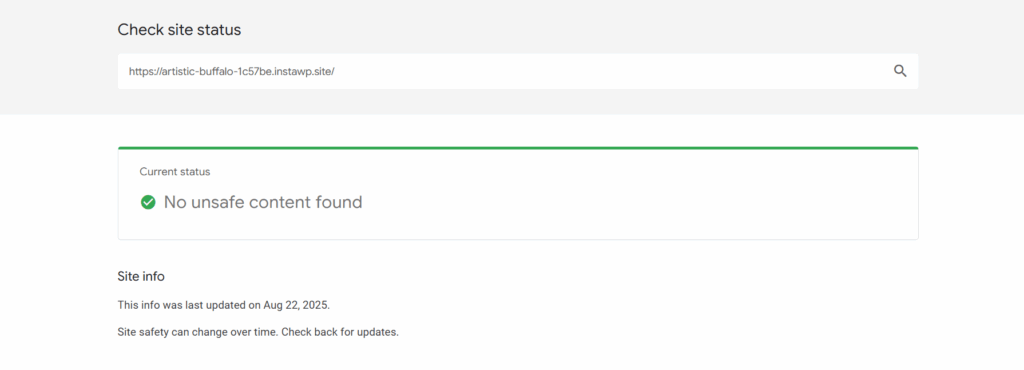
- Use Google’s Safe Browsing tool, https://transparencyreport.google.com/safe-browsing/search, and enter your domain and check if it’s listed as unsafe. We created a demo WordPress site and checked its status:
Sign #4: You’re Locked Out of Your WordPress Admin (And You Didn’t Change Your Password)
Suddenly unable to log into your WordPress admin panel, even though you’re sure your password is correct? That’s one of the more alarming signs your WordPress site is hacked. Hackers often block legitimate admins to retain control while hiding their tracks.
This lockout can happen due to:
- Passwords are being changed, or admin accounts are being deleted
- New “admin” users are being created with malicious intent
- The login page is being redirected or disabled
- Database entries are being altered to revoke your access
In short, if your admin credentials don’t work, and you didn’t reset anything, it’s a red flag you need to act on immediately.
How to Check
- Try logging in via multiple browsers or devices
- Use the “Lost Password” link; if your email doesn’t exist anymore in WordPress, it’s likely been removed
- Check your site’s login page URL for changes (some hacks redirect it to fake login pages or unrelated domains)
- Use your hosting file manager or database access to look for suspicious users or roles in the wp_users table
Being locked out of the admin panel doesn’t mean you’re out of options, especially if you’re using InstaWP.
You can clone your live site into a secure InstaWP WordPress sandbox using the site’s file access or recent backup
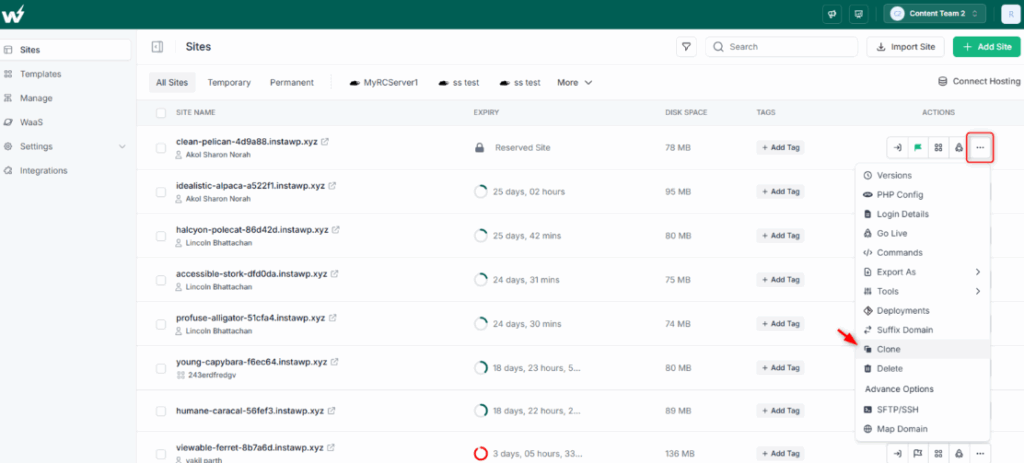
Once inside the sandbox, use InstaWP’s DB Editor to inspect your wp_users and wp_usermeta tables. Just click on the site that is giving you the hacked signs on the InstaWP dashboard, open the site tools > DB Editor.
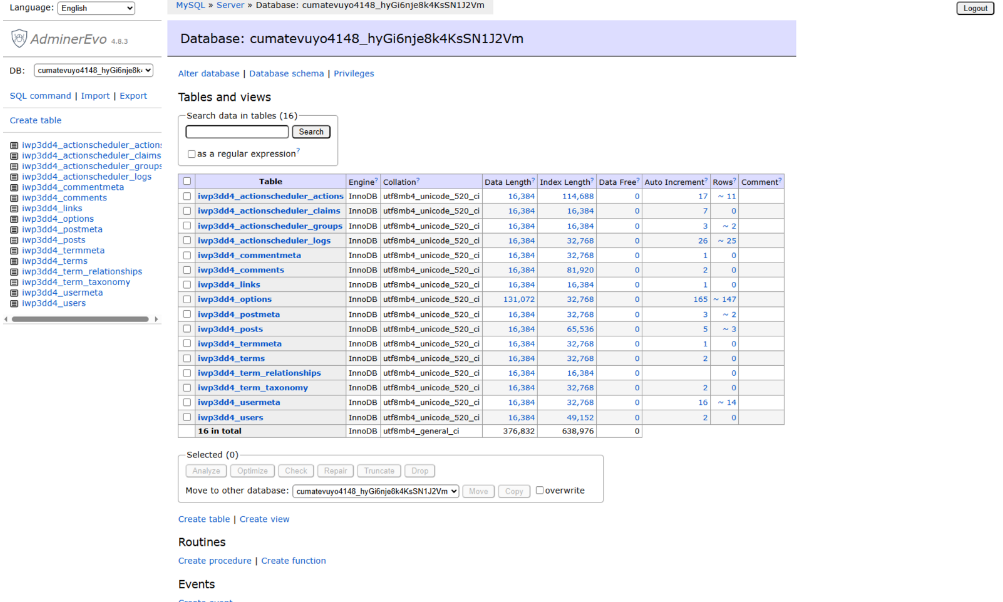
Look for any suspect activities in your site’s wp_users and wp_usermeta tables from here. You can also restore your own admin access manually by resetting credentials or reassigning your role from the user role functionality. Just go to Users under the Manage tab and control the site’s user access from here.
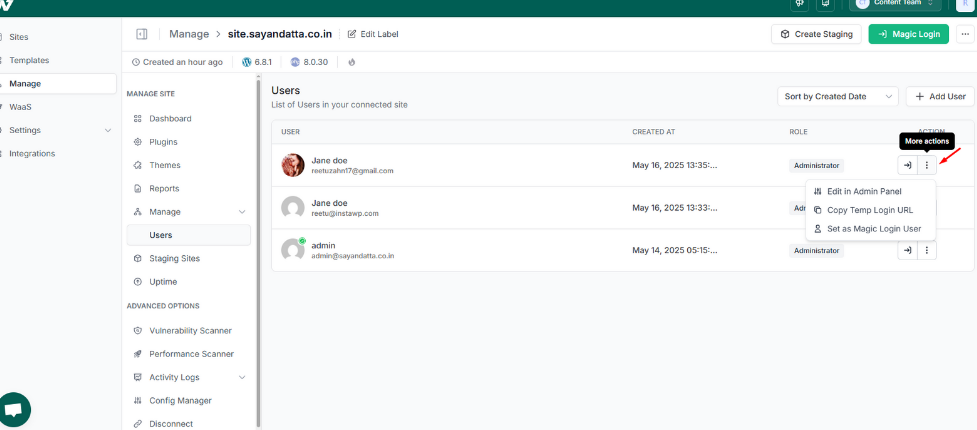
You can view who has what kind of access to your site without accessing WP Admin. This is a great advantage for agencies and developers when their clients’ sites are hacked, they are not able to access them.
Need more assistance when your WordPress site is hacked? Well, use the Code Editor to check for login page redirects or modifications in functions.php or custom plugins.
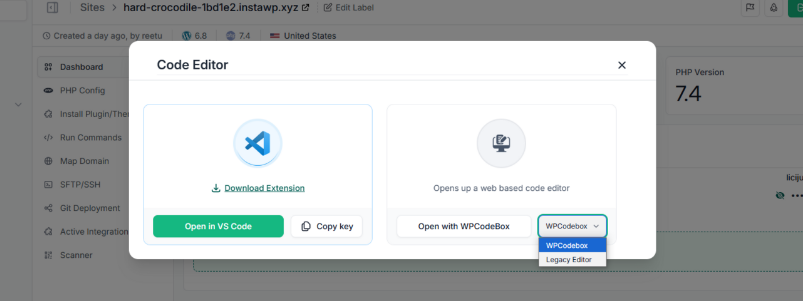
A locked-out admin panel isn’t just frustrating; it’s a sign your site is compromised at the core level. Don’t panic. With InstaWP, you can stage, scan, and recover your admin access safely, without risking data loss or downtime.
Sign #5: Suspicious Admin or User Accounts You Didn’t Create
Take a quick look at your WordPress user list. See a new admin you don’t recognize?
Maybe with a strange username like admin888, rootuser, or something oddly generic like test? That’s a classic, high-risk sign that your WordPress site is hacked.
Hackers often create hidden administrator accounts after gaining access, either by exploiting vulnerable plugins or brute-forcing credentials. These accounts allow them to silently maintain control of your site, even after you change your password or restore a backup.
Sometimes, they even downgrade your access, removing your admin rights while keeping their own hidden in plain sight.
How to Check
- Go to Users → All Users in your dashboard (if you still have access)
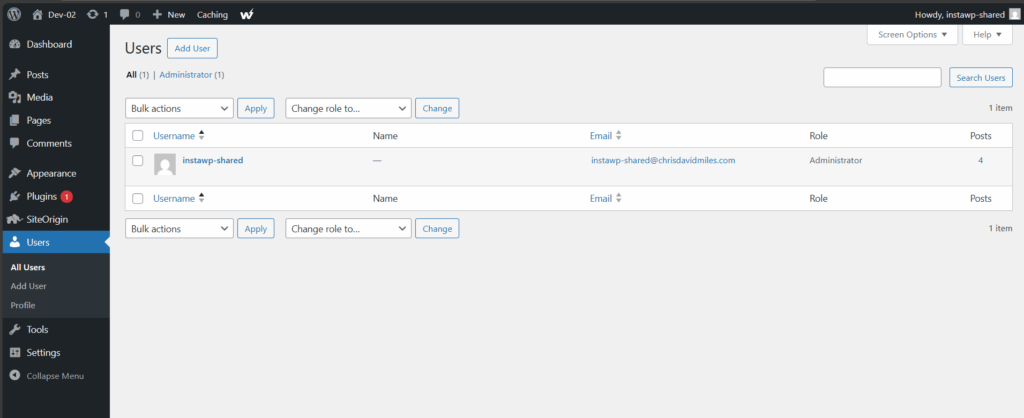
- Look for unknown usernames with Administrator privileges
- Check for recently added user accounts in your database (wp_users and wp_usermeta)
- Watch for users created with generic or suspicious email domains (e.g., @mail.ru, @protonmail.com, or gibberish strings)
When you suspect unauthorized access, auditing user roles directly on the live site can be risky, especially if the attacker is still active. InstaWP gives you a safer route, its managed hosting plans.
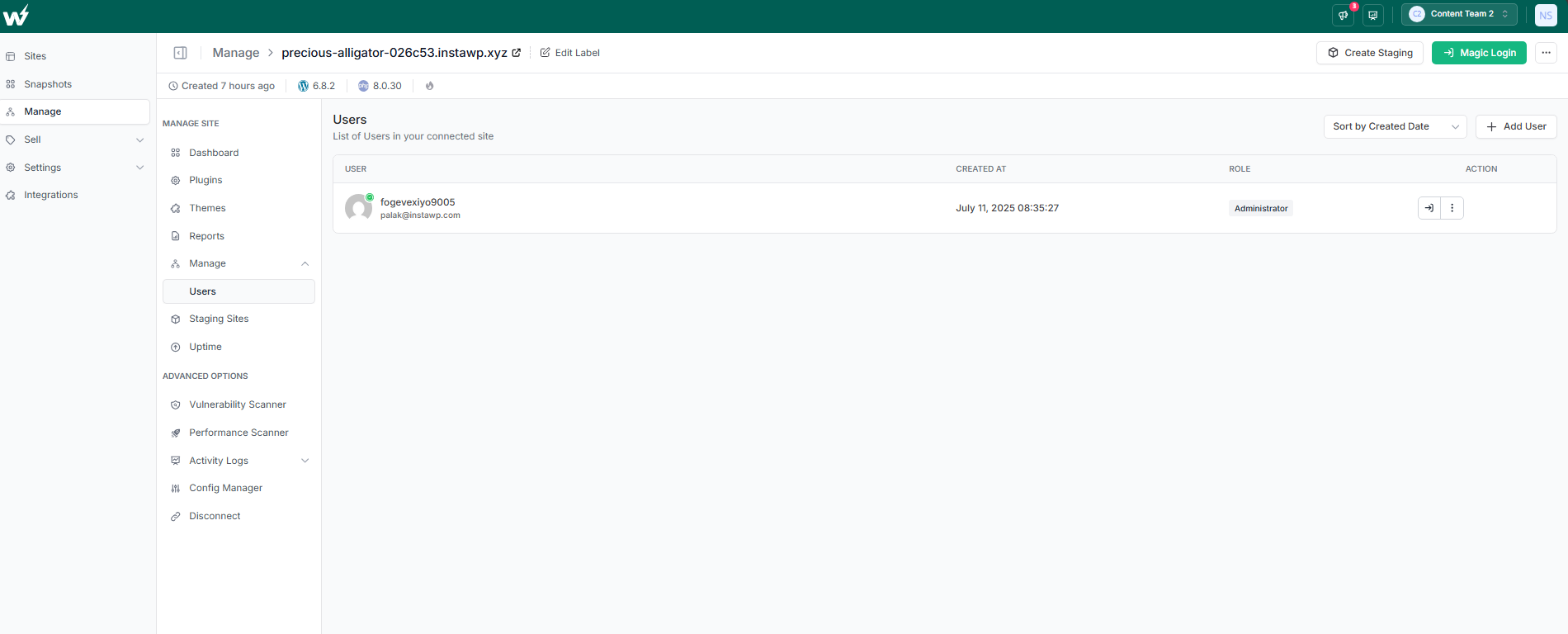
Use the built-in Manage Users feature to add, remove, or update user roles without needing to log into the compromised WordPress admin panel. This makes a huge difference when you’re locked out, under attack, or working with a less tech-savvy client.
A hacker with admin access has total control. They can inject malware, steal data, or lock you out indefinitely. The faster you spot suspicious users, the better.
With InstaWP, you can investigate safely, act decisively, and restore your site’s security, without putting your live site at further risk.
Subtle, Hidden Signs You Might Miss
Not every hack announces itself with flashing banners or full-page defacements. In fact, some of the most dangerous breaches leave no visible trace on the surface.
These are the stealthy intrusions, the kind designed to stay hidden, mine your server resources, inject spam quietly, or use your WordPress site as part of a larger botnet. And because they don’t crash your homepage or break your layout, they often go unnoticed for days… or even weeks.
The scary part? By the time you notice something’s off, like email deliverability issues, SEO spam, or sudden traffic from strange countries, your WordPress site has already been compromised.
This section dives into the subtle, technical, and easily missed signs your WordPress site is hacked, the ones that don’t slap you in the face but slowly drain your site’s reputation, performance, and revenue.
Sign #6: New or Strange Files Appearing in wp-content or Uploads
One of the more subtle, but serious, signs your WordPress site is hacked is the appearance of unfamiliar files or folders in places they shouldn’t be, especially in the wp-content, uploads, or even themes directories.
These files might be:
- PHP files with odd names like backdoor.php, shell404.php, or wp-cache-update.php
- Text files like readme.txt with spammy or foreign content
- Executable scripts disguised as images (e.g., logo.jpg.php)
- Entire folders are injected into your plugins or uploads directory
Hackers often place hidden backdoors in these locations so they can regain access even after you’ve cleaned up the initial infection.
How to Check
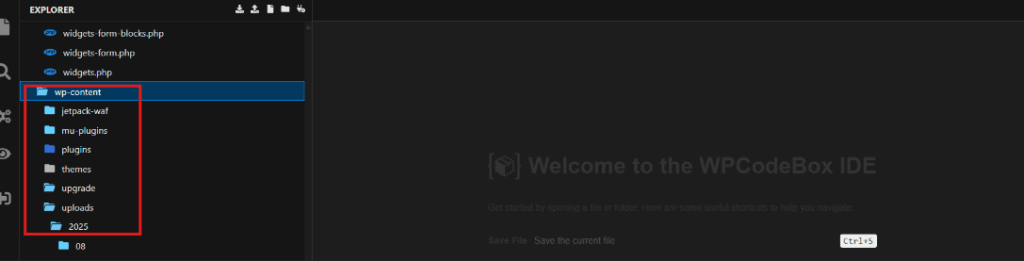
- Open your /wp-content/uploads/ folder using the InstaWP Code Editor and look for .php files; these should not exist in uploads. For our demo WordPress site, there are no PHP files in the said folder. Hence, it’s not hacked.
- Sort files by “Last Modified” to see what’s been added recently
- Check for .php files inside plugin folders that were never there before
- Use developer tools to scan your page source for references to unexpected file paths
Pro Tip:
Use InstaWP’s Local Mount feature to mount your site’s directory as a local folder. This allows you to scan files using your favorite security tools, antivirus software, or even WP CLI-based malware checkers, without ever logging into your live server.
Strange files are rarely “just an upload error.” They’re often backdoors waiting to be triggered. With InstaWP, you can isolate, investigate, and eliminate malicious files, all without breaking your live site or dealing with FTP stress.
Sign #7: Spike in Server Resource Usage (Even When Traffic Looks Normal)
Have you noticed your WordPress site suddenly becoming sluggish? Maybe your hosting provider flagged high CPU or memory usage, or your site keeps crashing despite average traffic levels. These are often early, but easily overlooked, signs that your WordPress site is hacked.
What’s going on behind the scenes? Hackers frequently exploit compromised sites to run resource-heavy background tasks, such as:
- Cryptojacking (mining cryptocurrency using your server)
- Hosting phishing pages or spam sites hidden on your domain
- Running bots for brute-force attacks or email spam
- Creating thousands of fake cron jobs or bloated temp files
Because these actions don’t always touch the frontend, they can persist quietly for days or weeks, slowly draining your server and frustrating users.
How to Check
Go to your site on InstaWP Dashboard > Site Tools > Site Usage.
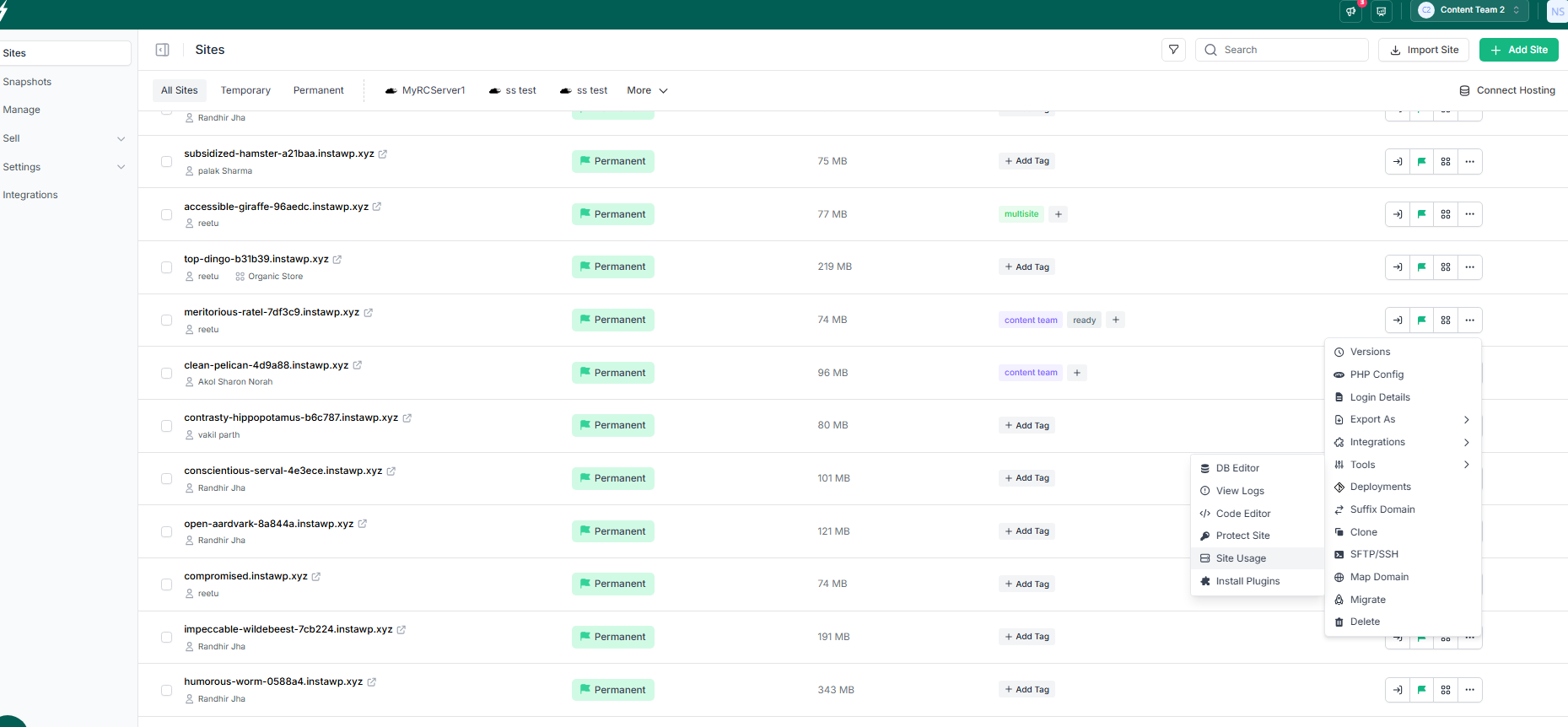
You will have the detailed site usage data in front of you using cPanel or FTP.
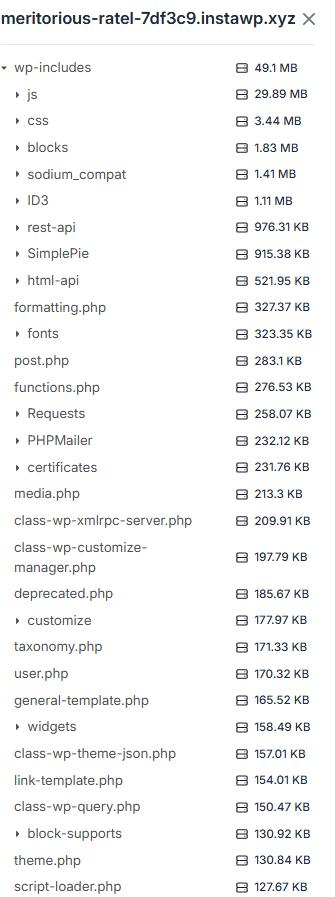
Check for a sudden increase in cron jobs, active processes, or storage usage (especially inside /tmp/ or /wp-content/cache/). Look at your site analytics; if your bandwidth is spiking but traffic hasn’t increased, something’s off.
If possible, access server logs to see if unknown scripts are executing frequently
Pro Tip:
Set up automated Snapshots in InstaWP before major site updates. If resource usage spikes after an update, roll back instantly and investigate in staging; no disruption to production.
Your WordPress site doesn’t need thousands of visitors to crash. Just one smart attacker using your server for crypto mining or bot attacks can bring everything down.
With InstaWP, you get a zero-risk testing ground to track down the source of performance issues, clean hidden scripts, and optimize your WordPress site safely and efficiently.
Sign #8: SEO Spam Injected Into Your Pages (Even If You Can’t See It)
You may not notice it right away, but Google does. If your rankings drop suddenly or your pages start appearing in search results with Japanese characters, Korean spam, or links to online casinos, it’s a strong sign your WordPress site is hacked with an SEO spam injection.
This is also known as “Japanese keyword hack” or “cloaking spam”, and it’s designed to hijack your search engine visibility for someone else’s gain.
These attacks typically:
- Inject spammy content into your site’s pages, posts, or meta fields
- Create fake posts or hidden pages that only search engines can see
- Modify your sitemap and indexable links
- Trick Google into associating your domain with scams, adult content, or counterfeit product listings
Left unchecked, this doesn’t just hurt your traffic—it ruins your credibility, gets your site blacklisted, and makes recovery far harder.
How to Check
- Google your own domain and look for foreign-language characters or strange page titles
- In Google Search Console, go to Pages → Indexed Pages to spot unexpected URLs or injected content
- Scan the source code of affected pages for invisible <span style=”display:none”> or keyword stuffing
- Check your Posts and Pages list in WordPress for content you didn’t create, or suspicious drafts
Pro Tip:
Some SEO spam only appears to Googlebot. In InstaWP, you can simulate a Googlebot user-agent in your staging site and view what the search engine sees, without affecting your real traffic.
Sign #9: Your Emails Aren’t Sending (Or You’ve Been Blacklisted)
You send a contact form. Nothing arrives. Your WooCommerce order notifications? Gone. Maybe clients start saying your emails are landing in spam—or worse, not arriving at all. If this sounds familiar, it’s likely more than just a misconfigured SMTP plugin. It could be a sign your WordPress site is hacked.
When hackers compromise your site, one of the first things they often do is turn it into a spam server. They use your hosting environment to send thousands of unsolicited emails, phishing scams, spam promotions, or malware-laced links, all under your domain’s name.
Over time, this gets your domain or server IP added to email blacklists like:
- Spamhaus
- Barracuda
- Microsoft blocklists
- Gmail/Outlook filters
The result? Even your legitimate emails stop being delivered.
How to Check
- Run your domain or server IP through tools like MXToolbox or Spamhaus Lookup
- Test contact forms and order confirmations, do they land in inbox, spam, or not at all?
- Check your site’s email logs (if your host or plugin supports it)
- Review recently added or updated plugins—some hacks disguise mail scripts as plugin files
Pro Tip:
Once cleaned, use InstaWP’s Local Mount to run external email tests (via Mailtrap or SendGrid) on your cloned site, without affecting your production email reputation.
When your emails vanish, it’s not just a glitch; it’s a trust issue. Missed client communications, failed orders, and a tarnished domain can cost you more than a few messages.
With InstaWP, you can dig deep, uncover silent email scripts, and rebuild your domain’s credibility, without touching your live site until it’s safe.
Sign #10: Core WordPress Files Have Been Modified (Without Any Updates)
Sometimes a hack doesn’t announce itself; it buries itself. If files like wp-config.php, .htaccess, or functions.php have been changed and you didn’t make those changes, that’s a strong sign your WordPress site is hacked.
These files are often targeted by attackers because they give access to:
- Database connections and secret keys (wp-config.php)
- Redirect rules and execution behavior (.htaccess)
- Theme-level functions and hooks (functions.php)
The worst part? You might not notice unless something breaks or your host flags it.
How to Check
- Review your file modification dates using FTP or your hosting panel
- Scan .htaccess for unexpected redirects, especially ones that use RewriteRule or point to strange external URLs
- Look for obfuscated code like eval(base64_decode(…)) in functions.php
- Compare current versions with known clean backups—if available
Pro Tip:
A minor line of malicious code in functions.php or wp-config.php can trigger backdoors, spam injections, or remote file execution. Never ignore modified timestamps; always investigate.
If your WordPress core files are being edited without your knowledge, you’re not in control anymore. With InstaWP, you can take back that control by auditing, restoring, and deploying clean versions safely and smartly.
What to Do If Your WordPress Site Is Hacked
If you’ve confirmed your WordPress site is hacked, it’s critical to act fast—but methodically. Panic leads to rushed decisions, which often make things worse (like deleting files you’ll need to restore). This section gives you a clear, step-by-step approach to recover your site safely, cleanly, and with minimal disruption.
And with InstaWP, you can perform most of these steps in a sandboxed environment first, so you don’t accidentally bring down your live site while fixing it.
Step 1: Immediately Back Up What You Have (Yes—even the hacked version)
Before making any changes, take a complete backup of your current (infected) site:
- Files: themes, plugins, uploads, core
- Database: including posts, user data, and settings
This may seem counterintuitive, but it gives you a snapshot for analysis or rollback if cleanup goes sideways.
You can use the Local Mount or site export feature to upload your hacked backup into a secure staging environment, then clean and test safely.
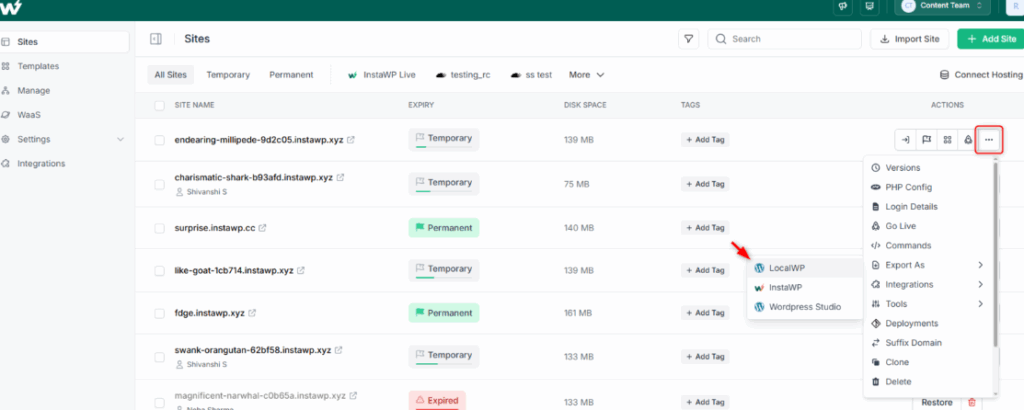
Step 2: Spin Up a Staging Site with InstaWP for Diagnosis
Working directly on a hacked live site is risky. Instead:
- Clone your WordPress site into an InstaWP sandbox
- Use the Code Editor and DB Editor to isolate infected files, injected content, or malicious users
- Compare with previous InstaWP Snapshots (if available) to detect what changed
This lets you plan your cleanup without impacting visitors or search rankings.
Step 3: Remove Unused Themes, Plugins, and Suspicious Users
Many hacks persist through backdoors hidden in:
- Unused themes (especially nulled ones)
- Abandoned plugins
- Unknown users with admin privileges
Inside InstaWP, test deactivating/removing these safely, without risking functionality. Once verified, apply the same steps to your live site.
Step 4: Reinstall Core WordPress Files
Hackers often tamper with core files. Reinstall WordPress core (without deleting content) to ensure clean versions of:
- wp-admin/
- wp-includes/
- Base root files like wp-settings.php
Step 5: Change All Passwords and Security Keys
Reset:
- All WordPress user passwords (especially admins)
- Hosting panel, cPanel, FTP, and database credentials
- WordPress secret keys in wp-config.php
Pro tip: InstaWP’s Protect Site feature helps prevent future unauthorized config file access.
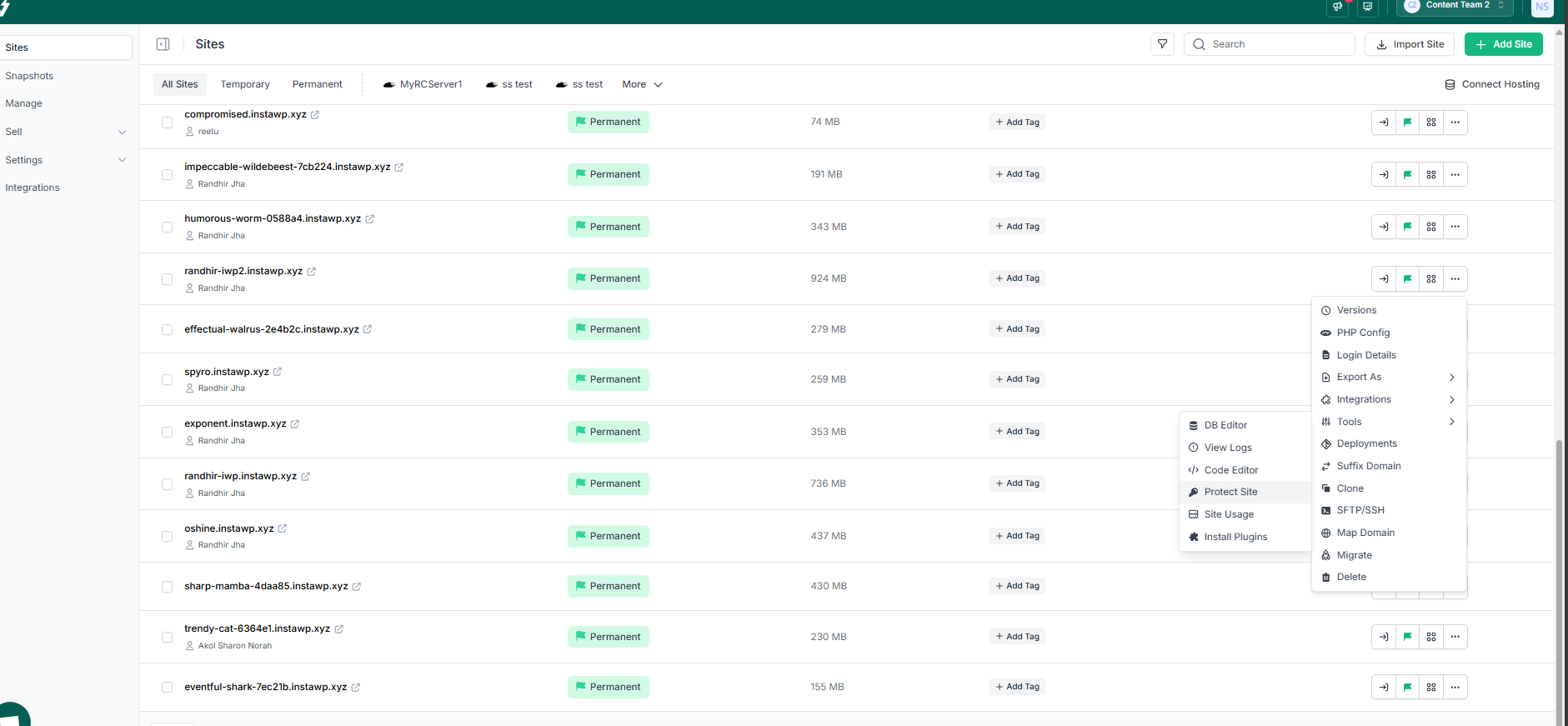
Step 6: Scan and Clean Your Files
Use trusted tools like:
- Wordfence
- Sucuri
- Anti-Malware Security plugin
You can install these inside your InstaWP sandbox, run full scans, and test if the site functions cleanly afterward, before deploying anything back live.
Step 7: Restore From Clean Backup or Rebuild
If cleaning isn’t feasible, restore a clean backup or rebuild:
- Use InstaWP to recreate your site using a secure template
- Import safe content from the infected site after manual review
Once you’re confident the site is safe, push it live or replace the old site entirely.
Step 8: Request a Review in Google Search Console
If your site was blacklisted or flagged, use GSC’s Security Issues page to request a reconsideration after cleanup. Ensure you’ve:
- Fixed all malware
- Replaced or cleaned flagged content
- Updated your sitemap and robots.txt if needed
Getting hacked isn’t the end; it’s a reset moment. With InstaWP, you don’t just react, you investigate, isolate, clean, and recover like a pro.
How to Secure WordPress and Prevent Future Hacks
Cleaning up a hacked WordPress site is only half the battle. The real win is making sure it doesn’t happen again. In this section, we’ll walk you through the essential, modern-day steps to secure WordPress, plug vulnerabilities, and build long-term protection into your workflow, especially using InstaWP’s built-in security-first features.
These aren’t theoretical tips; they’re actionable, proven practices that protect both single sites and large-scale WordPress client portfolios.
1. Keep WordPress Core, Plugins & Themes Updated
Outdated code is the #1 attack vector. Hackers exploit known vulnerabilities in abandoned plugins, out-of-date themes, and older versions of WordPress core. To make sure your WordPress site remains secure.
- Enable auto-updates for minor WordPress versions
- Regularly audit and delete unused or low-rated plugins/themes
- Use trusted, actively maintained tools only
InstaWP’s website management features ensure you get to do all these without much hassle.
Must Read: How to enable auto updates in WordPress for Core, Plugins, and Themes
2. Disable File Editing from the WordPress Dashboard
By default, WordPress lets admins edit plugin and theme files from within wp-admin. This is convenient but also risky.
Add this to your wp-config.php:
define('DISALLOW_FILE_EDIT', true);Giving you safe file access via the Code Editor, so you don’t need to rely on the vulnerable in-dashboard editor at all.
3. Use Strong Passwords and Two-Factor Authentication (2FA)
Weak passwords remain an open door. And without 2FA, even stolen credentials offer instant admin access.
Best practices:
- Enforce strong passwords for all users
- Use 2FA via plugins like WP 2FA, Duo, or Wordfence Login Security
- Avoid reusing passwords across sites
With InstaWP’s managed cloud hosting, you can reset user passwords and remove compromised accounts directly from the hosting dashboard, even if you’re locked out of wp-admin.
4. Set Proper File Permissions
Locking down your file system helps prevent unauthorized script execution. You need to keep the correct file permissions, such as Folders: 755, Files: 644, and wp-config.php: 400 or 440.
With InstaWP, built-in Code Editor, you can check and adjust permissions using the, without needing FTP or hosting panel access.
5. Set Up Regular Backups and Snapshots
Backups are your insurance policy. If anything goes wrong, you can restore quickly and confidently.
- Schedule automatic daily backups
- Keep at least one off-site copy
- Validate backups regularly
You get automated Snapshots and backup options for each site you spin up on InstaWP. Easily restore from a clean state or roll back to a known-good version with one click.
You don’t need five different tools and three different logins to secure a WordPress site. With InstaWP, you get a streamlined, developer-first workflow that covers security, recovery, and prevention, without slowing you down.
Conclusion: One Sign Is Enough; Act Before It Spreads
If you’ve spotted even one sign your WordPress site is hacked, don’t wait for more. Hacks move fast, and what starts as a hidden redirect or unauthorized user can quickly lead to search engine penalties, customer data leaks, or a completely disabled site.
The good news? WordPress security is fully within your control when you follow the right process and use the right tools.
That’s where InstaWP changes everything.
Instead of reacting in panic, you can:
- Clone your WordPress site instantly to investigate without risking the live version
- Inspect code, logs, and database entries in a clean, secure sandbox
- Test and validate cleanups or fixes before touching production
- Restore previous snapshots or rebuild your site using known-safe versions
- Secure your WordPress setup in real time—with full access to file, user, and database control
Whether you manage one site or fifty, InstaWP makes it easier to secure WordPress, detect problems early, and recover faster.
Frequently Asked Questions (FAQs)
How do I check if my WordPress site is hacked?
Look for signs like unexpected redirects, unfamiliar admin users, or “This site may be hacked” warnings in search results. Use security plugins or clone your site into an InstaWP sandbox to check files and user activity without harming the live environment.
What’s the first thing I should do if I think my WordPress site is hacked?
Back up the site immediately, even if it’s infected. Then use InstaWP to spin up a secure sandbox, scan for malicious files, and begin cleanup steps without affecting your live visitors.
Can I recover a hacked WordPress site without starting over?
Yes. Most hacked sites can be cleaned without rebuilding from scratch. You can restore a clean backup, remove malicious files, or overwrite affected areas. With InstaWP, you can test this process first in a staging environment.
How can I scan WordPress files for malware?
Check for suspicious functions like base64, eval(), or injected scripts inside functions.php, .htaccess, and plugin files. InstaWP’s Code Editor and file versioning features make this easier to manage without FTP or cPanel access.
Is there a safe way to test recovery steps without breaking my live site?
Yes. InstaWP was built for this. You can clone your live WordPress site, troubleshoot the issue, clean it, and only apply the fix to the live version once you’re 100% confident. No downtime. No risk.