An event website is a site that displays a list or calendar of events. It includes event details and lets people buy tickets.
Even though AI builders are really powerful, it is good to pair one with an events calendar plugin to build your event website.
An AI site builder can produce a good-looking event website in a couple of prompts. However, when an AI builder writes “Saturday, 14 March, 10am” into a page, that date is only text. The site has no way to stop selling when the class is full, or to show the event in a calendar filtered by month. An events plugin stores each event as a record with its own date, capacity and ticket fields, so the site can act on them.
In theory, you could ask AI to build event management features for you. In practice, getting semi-reliable event management out of an AI is likely to cost far more in tokens than the $99 a year a single-site EventKoi Pro licence costs. AI is likely to have trouble implementing key parts like ticket checkouts, timezones and recurring event rules. InstaWP Studio says as much on its own product page: pages, forms, settings and plugins work well, while bookings and memberships are best-effort.
When you are busy trying to sell out your event, the last thing you want to deal with is troubleshooting why customers cannot purchase tickets on your vibe-coded events plugin. Using an established events plugin helps you avoid this headache and gets you up and running much faster.
In this post, you’ll learn how to use InstaWP Studio and EventKoi to build an event website with AI, what the setup costs, and how to keep managing your events with AI once the site is live.
- Use AI for pages, layout and copy. Use an events plugin for dates, recurring schedules, tickets, payments and attendee lists.
- InstaWP Studio builds a real WordPress site from a short description, with a first homepage in about three to five minutes.
- Publish the site on InstaWP before you set up ticket payments, so checkout runs on the address your customers will use.
- EventKoi Pro ($99 a year for one site) adds recurring events, multiple calendars and Stripe or SureCart checkout.
- After launch, an AI assistant can manage your events too, but only once it has written instructions for EventKoi’s fields. In our test that took it from 0 of 3 events to 3 of 3.
Summary of when to use AI and when to use an events calendar plugin
How to create an event website with AI, step by step
The example below is a small pottery studio that runs weekly wheel-throwing classes and a couple of weekend workshops a month. It uses InstaWP Studio to build the site and EventKoi Pro to run the events.
One thing to know before you start: Studio builds the first version of your site inside your browser. Ticket payments need a site at a real web address, so the steps below publish the site on InstaWP before EventKoi Pro goes in.
Step 1: Describe the site in InstaWP Studio
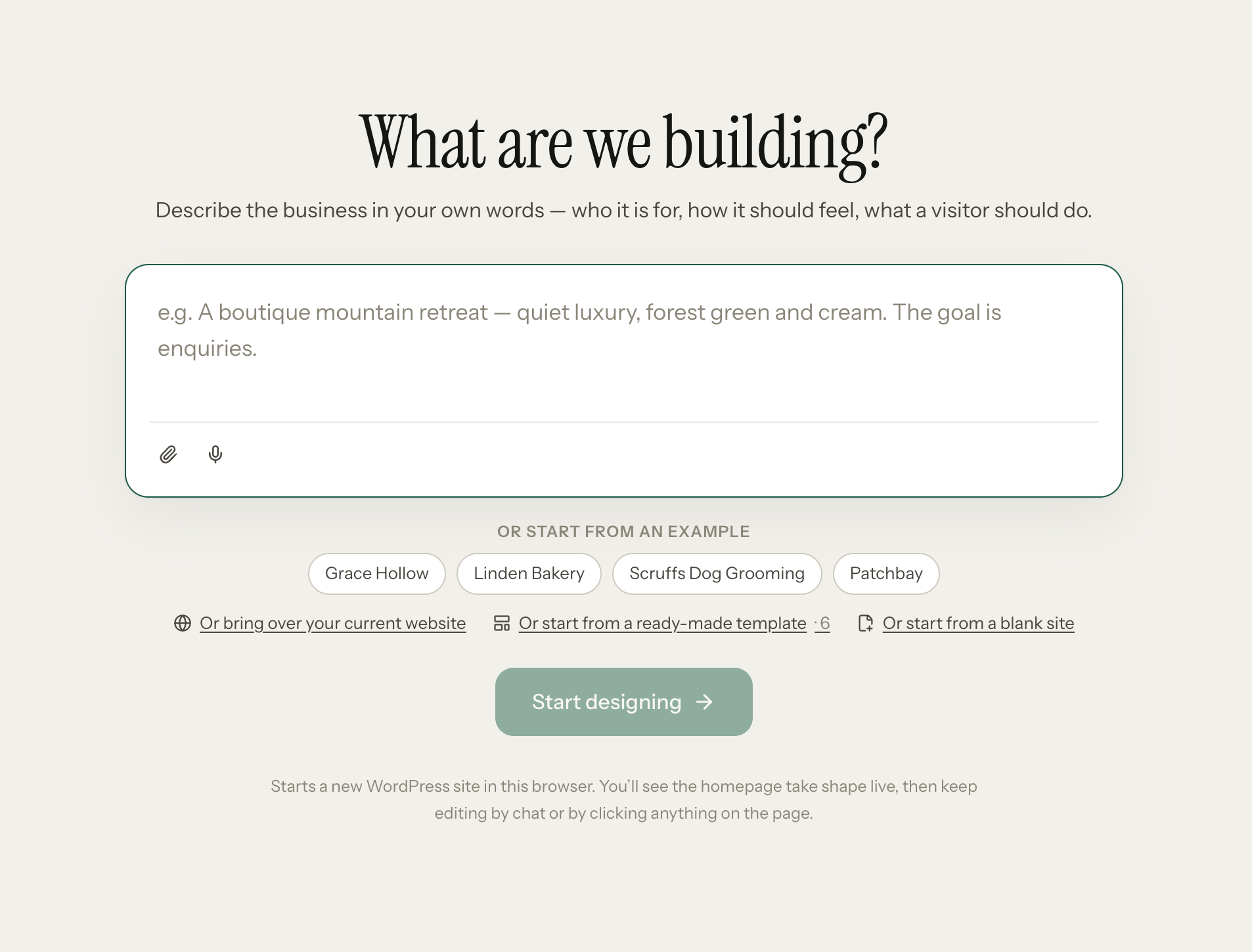
Open InstaWP Studio and describe the business in your own words: who it’s for, how it should feel and what a visitor should do. You don’t need an account or a card to start. Studio starts a new WordPress site in your browser, sketches three looks for you to pick from (one on-brief, one calmer, one wilder), and shows a first homepage in about three to five minutes. You can also start from an example, a ready-made template, a blank site or your current website.
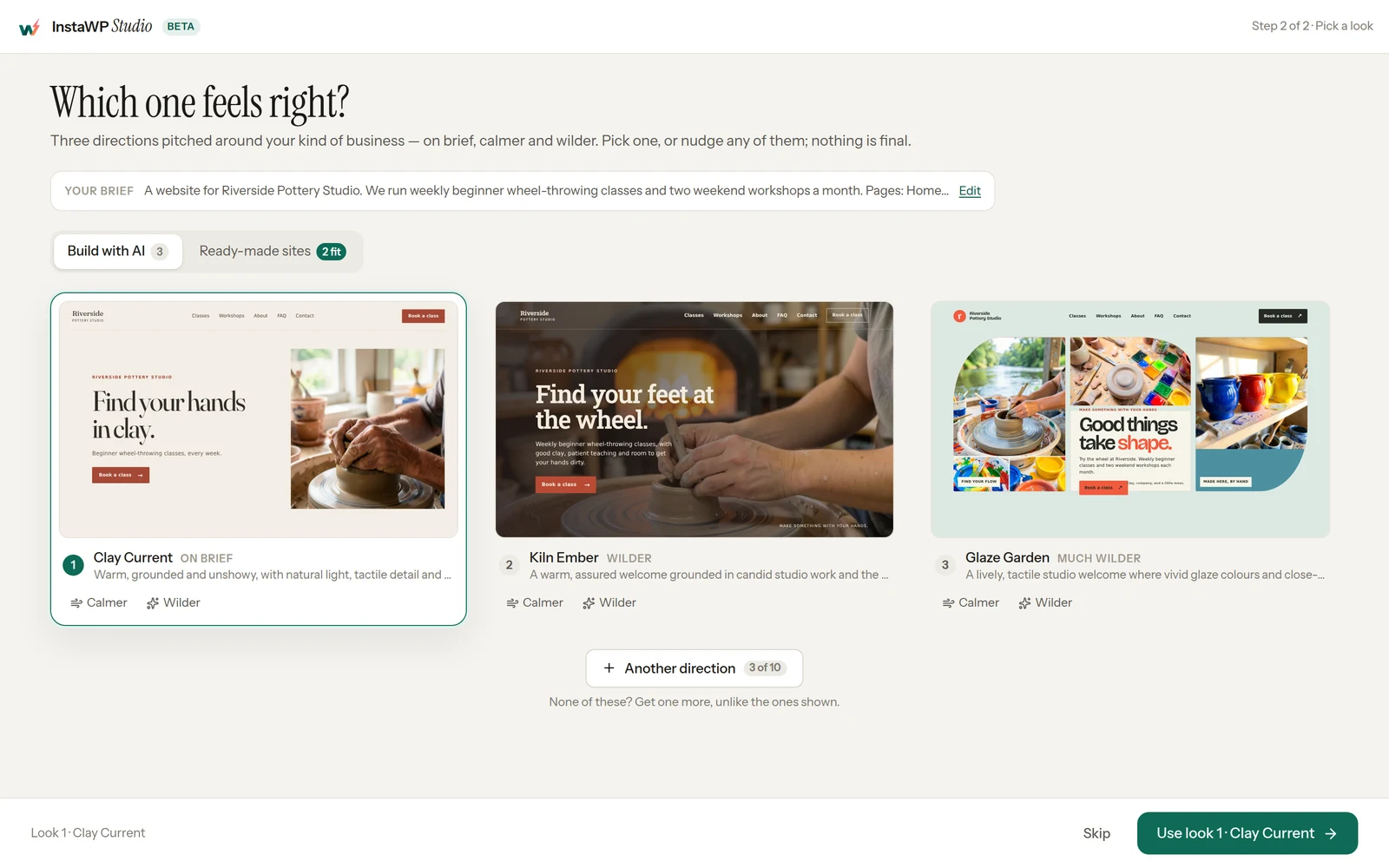
Here’s an example brief written for a pottery studio that runs beginner classes:
A website for Riverside Pottery Studio. We run weekly beginner wheel-throwing classes and two weekend workshops a month. Pages: Home, Classes, Workshops, About, FAQ, Contact. Tone: warm and plain. Main action on every page: book a class. On the Classes and Workshops pages, leave a heading called “Upcoming dates” with an empty area under it.
Step 2: Refine the pages by chat
Ask Studio for changes in plain language, such as “make the Classes page lead with what a beginner will make in their first session”. You can also click any part of the page, leave a comment beside it and press Apply to make all your comments in one go, or open the page in the WordPress editor and retype it yourself. Studio keeps your manual edits when you go back to chat.
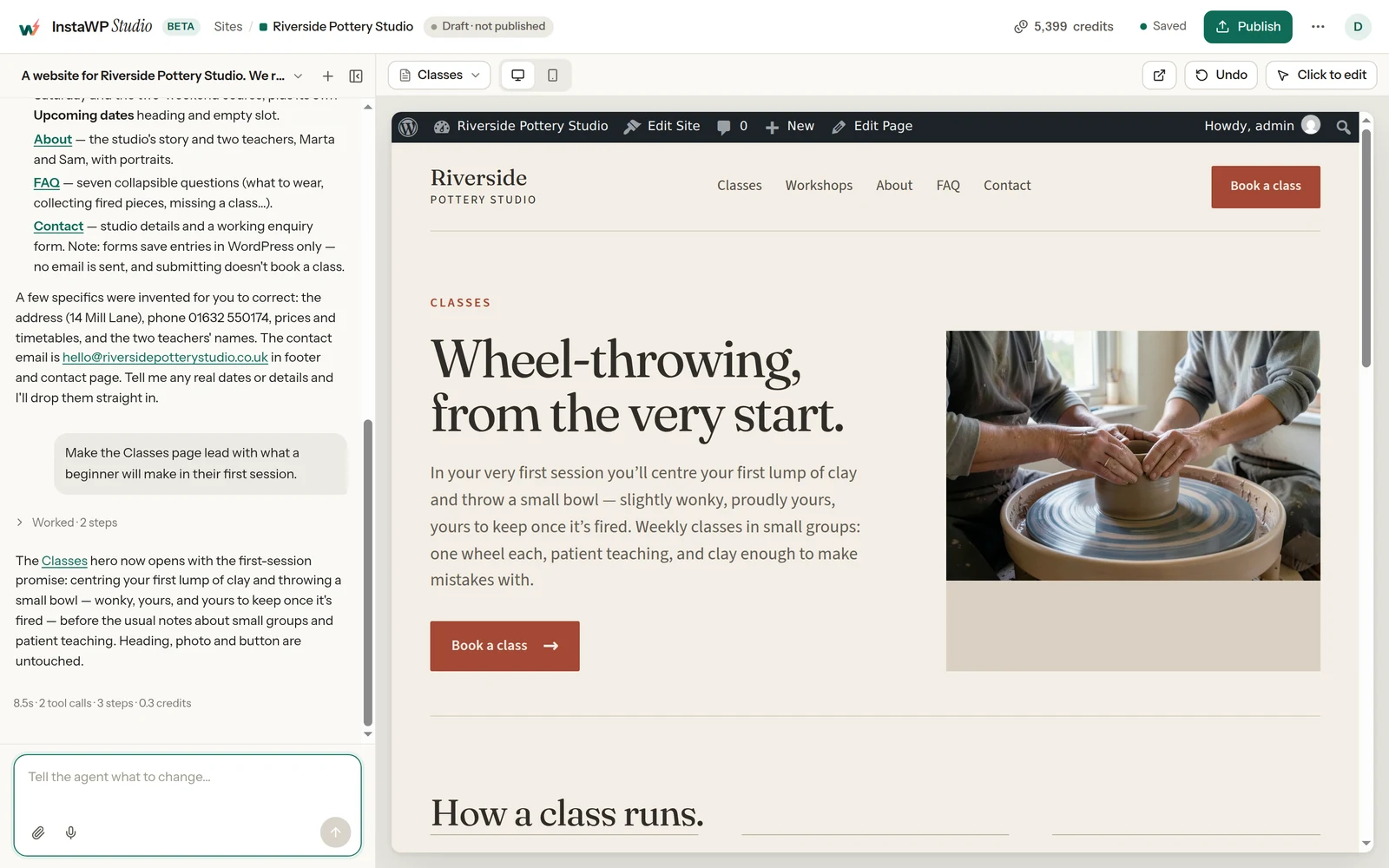
Treat the AI copy as a first draft, and check prices, policies and anything a customer will rely on yourself. Studio flags this itself: on our test site it listed the address, phone number, prices and teachers’ names it had invented, so they could be replaced with real ones.
Step 3: Publish the site on InstaWP
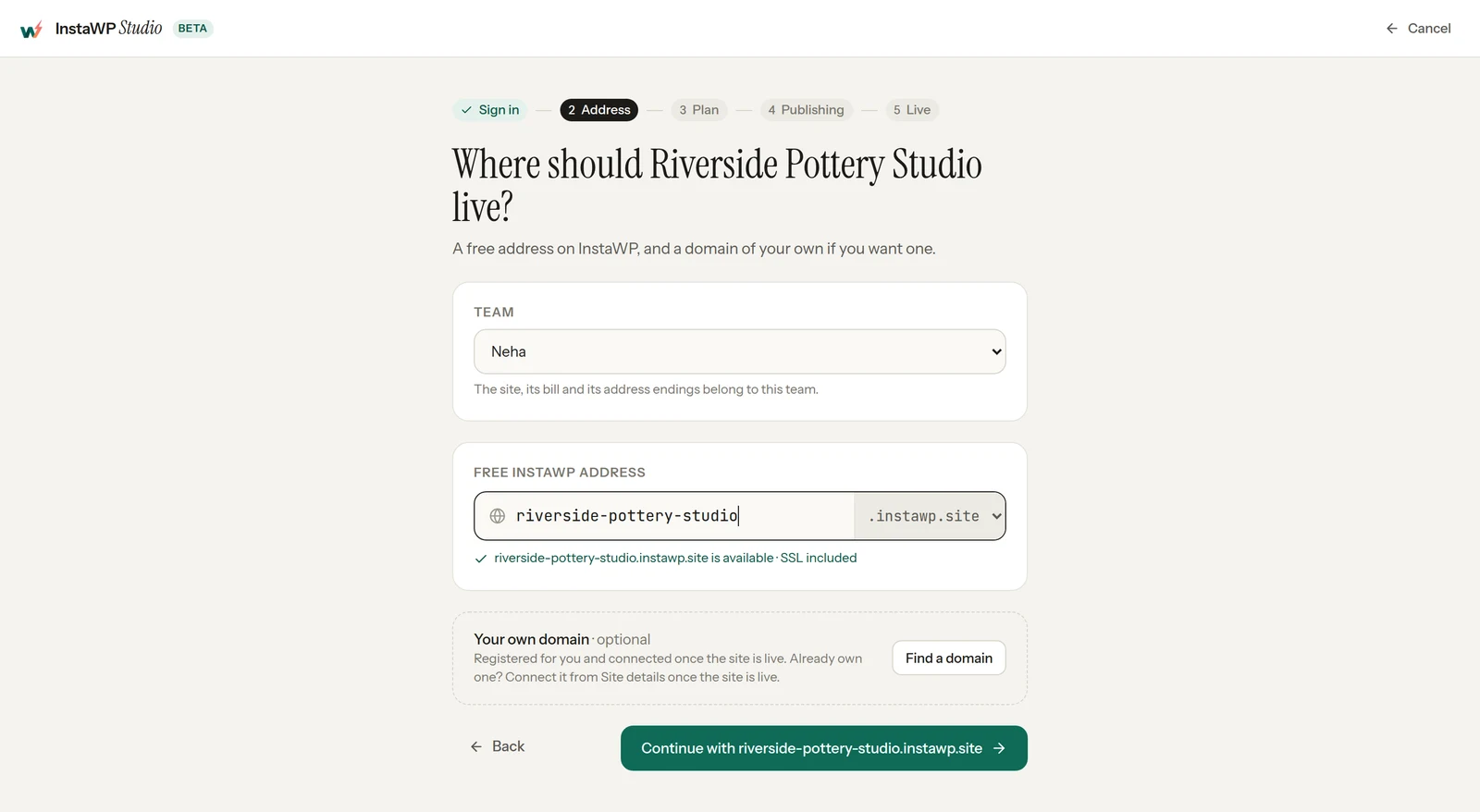
When the pages look right, click Publish in Studio. Publishing takes three short screens. First, choose a free web address on InstaWP, such as riverside-pottery-studio.instawp.site, which comes with SSL. You can register a new domain on the same screen; a domain you already own is connected from the site’s details once the site is live.
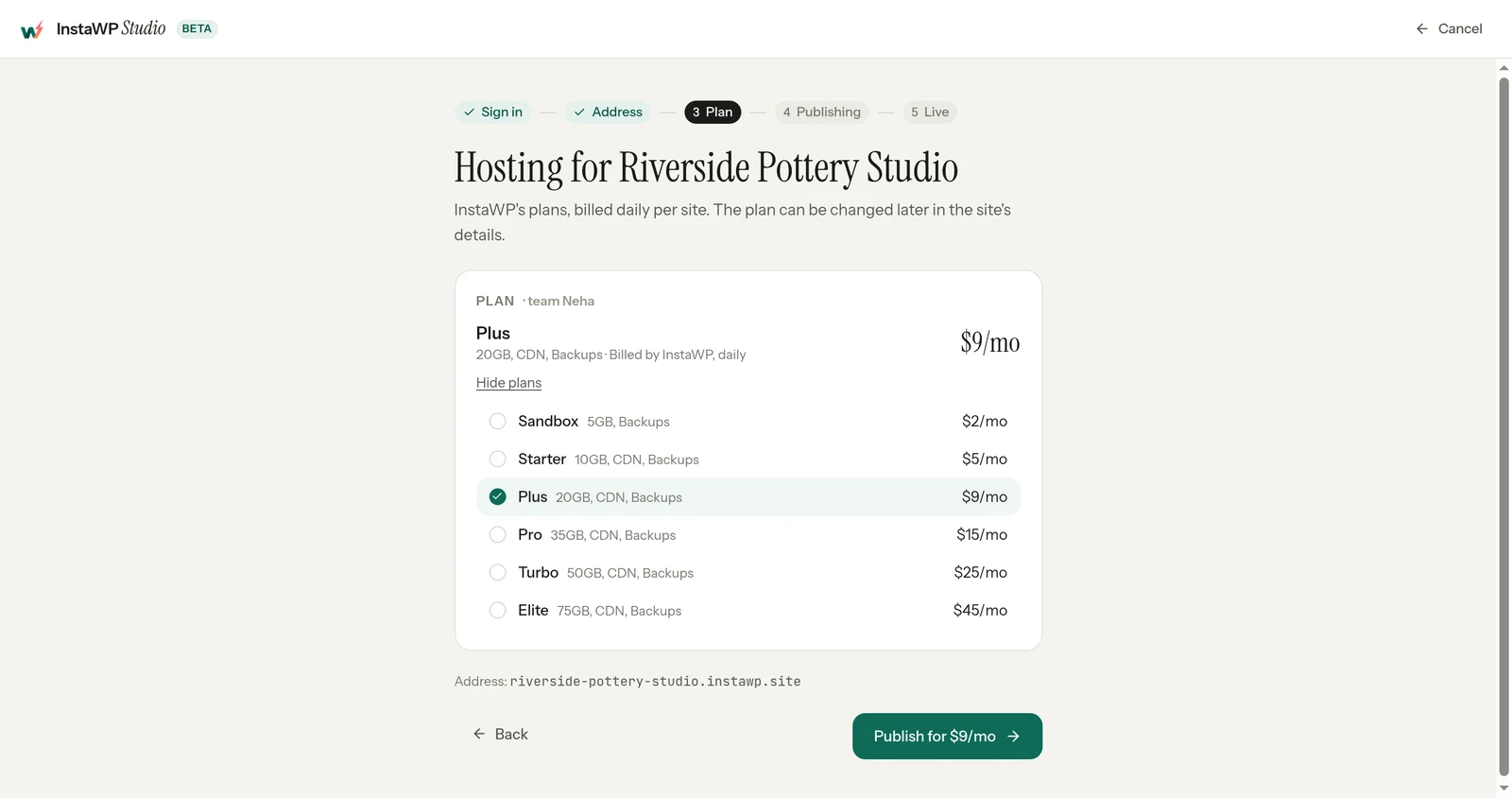
Then pick a hosting plan. InstaWP managed WordPress hosting is billed daily per site, and the plans in the publish screen run from $2 a month (Sandbox) to $45 a month (Elite). Starter, at $5 a month, is the first plan with a CDN, and connecting your own domain needs Starter or higher. Every hosted site gets 100 AI credits a month, so you can keep editing the live site from the same Studio chat with no separate AI subscription.
Publishing now, before you add tickets, means your payment setup and the test purchase in Step 9 run on the same address your customers will use.
Step 4: Purchase and install EventKoi Pro
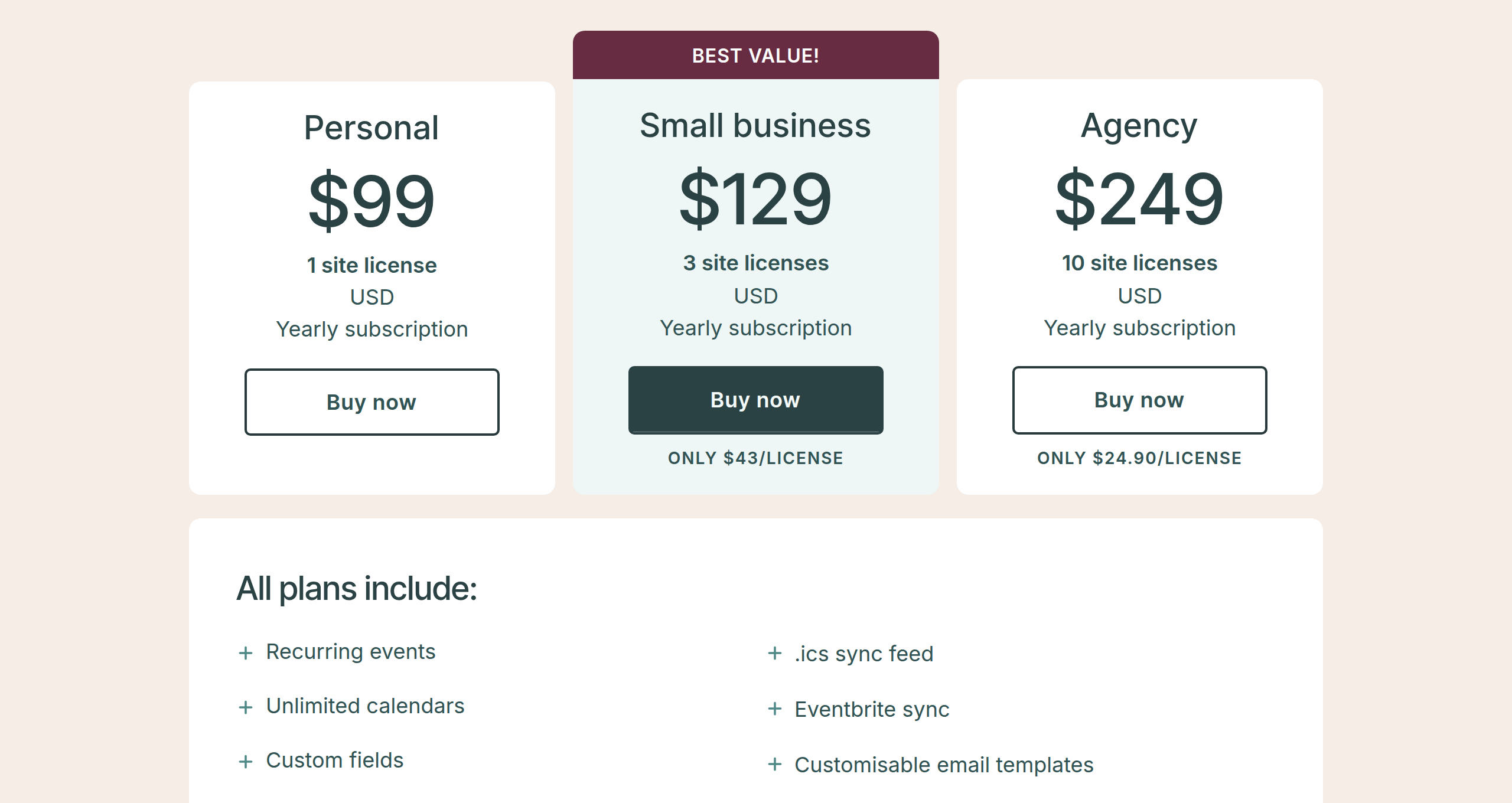
Head to EventKoi and purchase the right plan for you. A single-site licence is $99 a year.
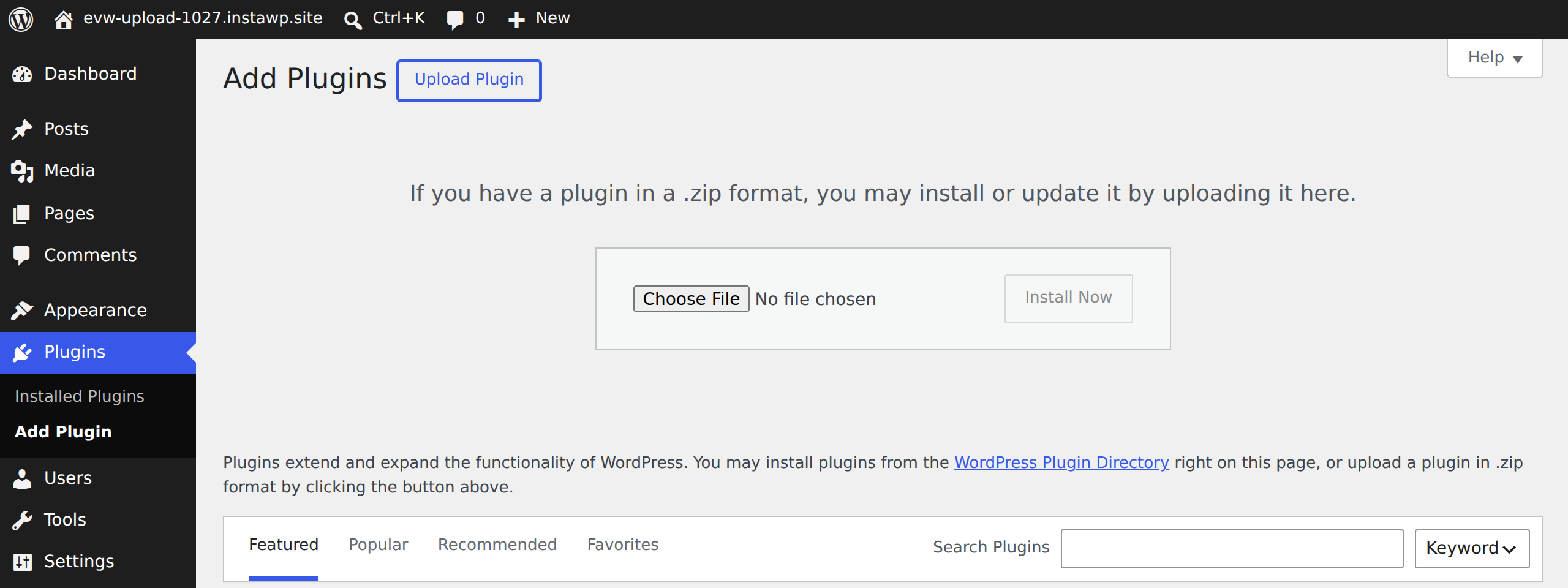
Open WordPress admin on your published site, go to Plugins > Add New Plugin > Upload Plugin, upload the EventKoi Pro zip and activate it with your licence key. Studio can install free plugins from the WordPress.org directory by chat, but EventKoi Pro is a paid plugin delivered as a zip, so upload it in WordPress admin.
Step 5: Create a calendar for each type of event
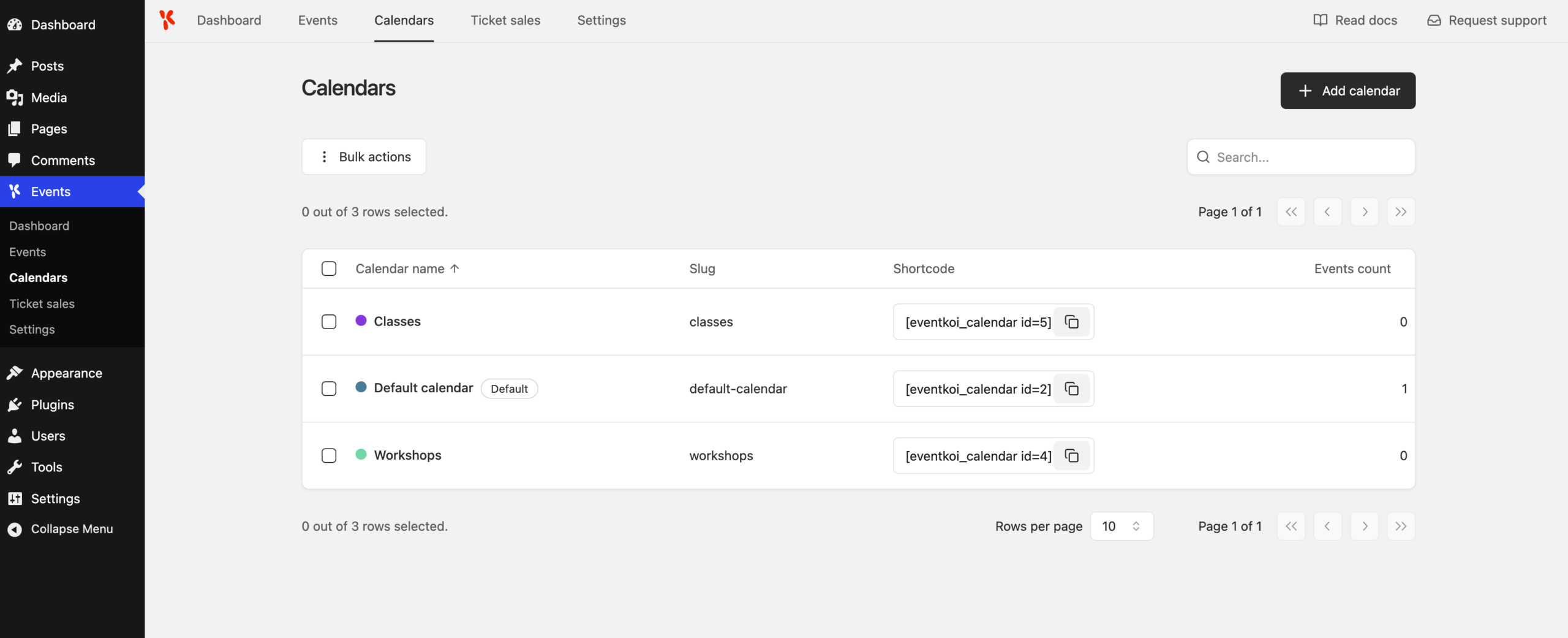
In EventKoi, create two calendars, Classes and Workshops. Each page on the site can then show only its own events, and a visitor looking for a weekend workshop doesn’t have to scroll past eight weeks of Tuesday classes.
Step 6: Create the events
Fill in the title, date and time, location and description, and assign each event to its calendar.
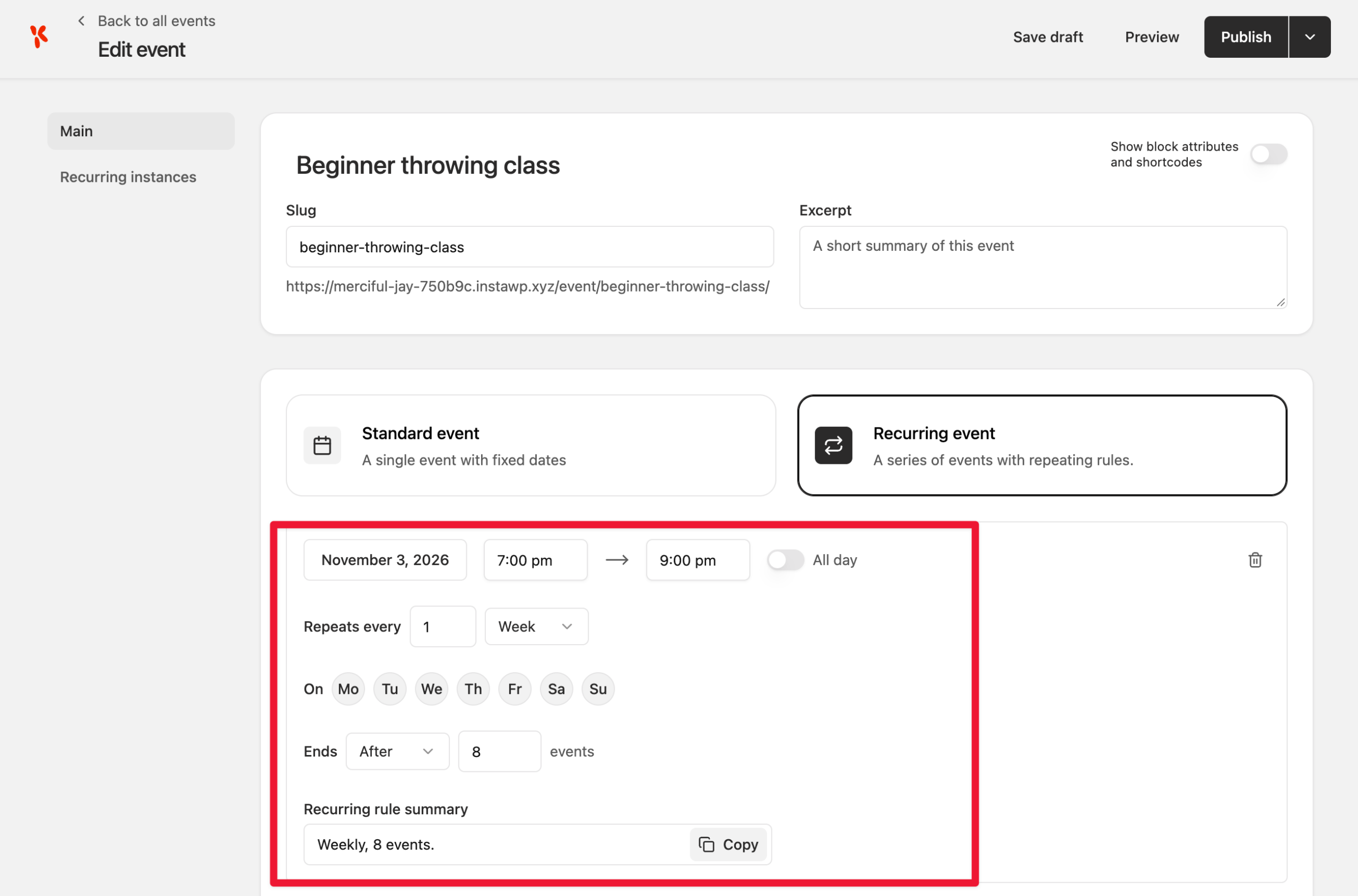
Since beginner classes take place regularly, you can add them as a recurring event: every Tuesday at 7pm for eight weeks, set once.
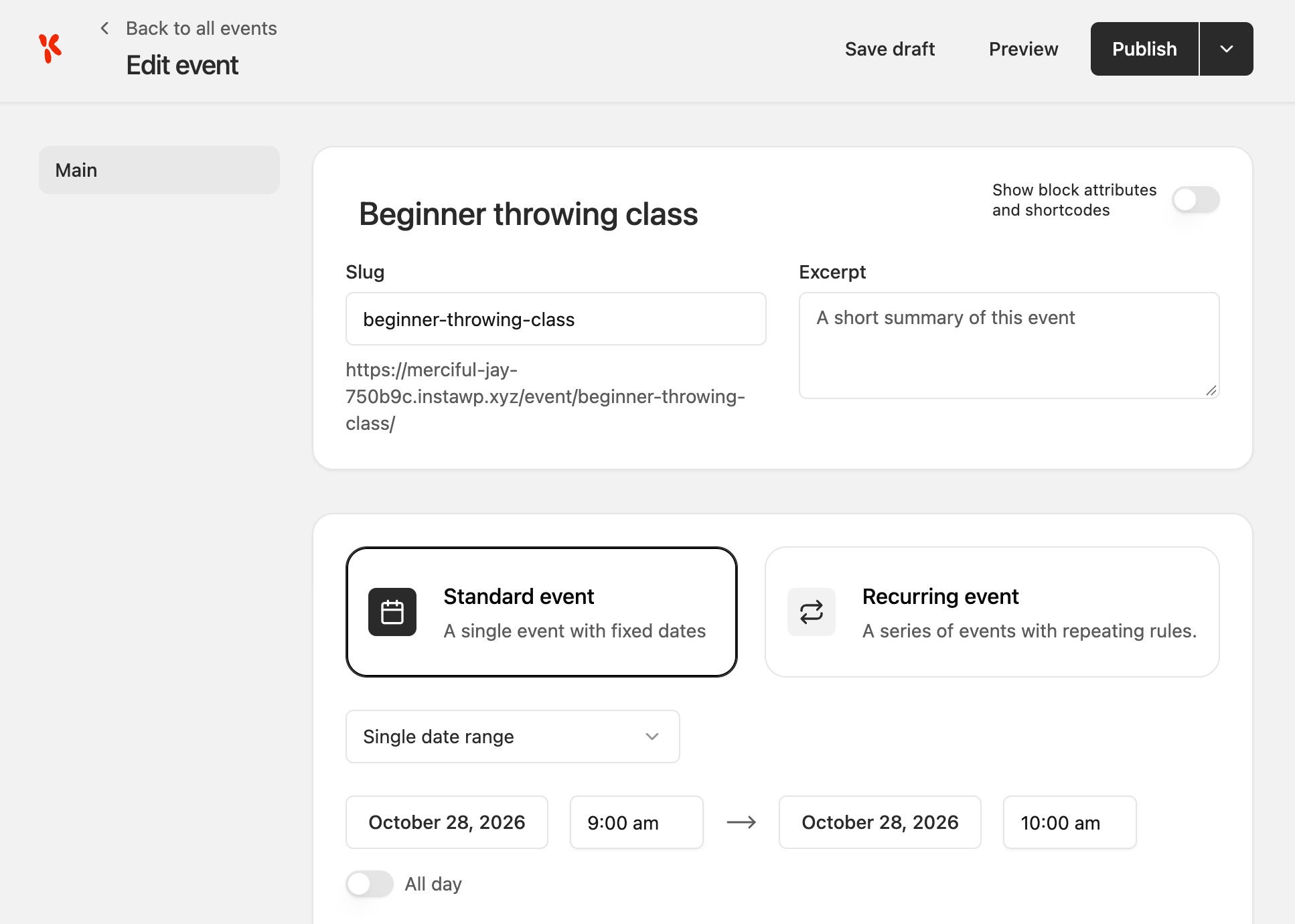
Since workshops are ad hoc, you can add them as a single event when necessary.
Filling out event details is a good place to use AI again. Ask Studio’s chat or your own assistant to draft each description from a few notes, then paste it in.
Step 7: Add tickets and connect checkout
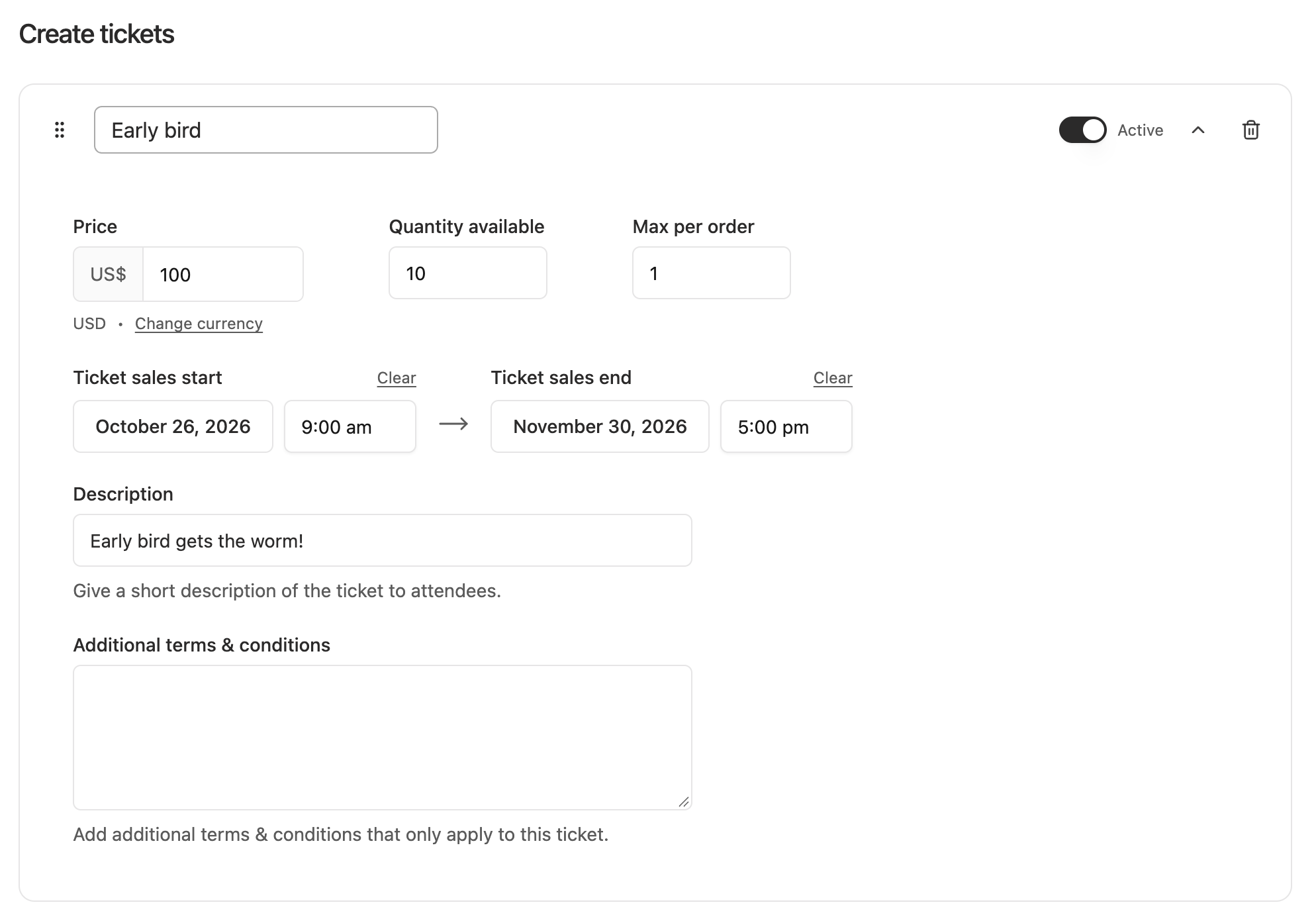
Set up ticket types (for example, Standard and Early Bird), cap capacity at the number of wheels, and open and close sales on set dates.
Then connect a payment method in EventKoi’s payment settings. Stripe sends buyers to Stripe’s hosted checkout page and keeps orders inside EventKoi. If your site already runs WooCommerce or SureCart, EventKoi can use either instead.
Step 8: Show the events on your pages
EventKoi gives every calendar a shortcode, such as [eventkoi_calendar id=5] for the Classes calendar in the screenshot above. The quickest route is to ask Studio’s chat to place them:
On the Classes page, put the shortcode [eventkoi_calendar id=5] under the “Upcoming dates” heading. Do the same on the Workshops page with [eventkoi_calendar id=4]. Keep the rest of the page as it is.
For a custom layout, such as event cards that match the rest of your design, ask Studio to build them from EventKoi’s event data. The [eventkoi] shortcode prints event fields by key, for example [eventkoi data="title,datetime,location"], and there are keys such as capacity_remaining, sold_out and price_from, so a card can show how many places are left. Name the keys in your prompt rather than leaving the AI to find them. In the test further down, an AI that had to work out EventKoi’s fields from the plugin’s code ran out of time.
Step 9: Test, then take tickets live
Put Stripe in test mode and buy a ticket yourself on the live site. Check that the order appears in EventKoi, the confirmation email arrives, and you show up on the attendee list.
When everything works, switch Stripe to live mode and take your tickets live.
Step 10: Run the event
On the day, scan the QR code on each ticket at the door to check people in, and add walk-ins to the attendee list manually. Afterwards, export the list to CSV to send a thank-you or an invite to the next session.
How much does an event website built this way cost?
Designing the site in InstaWP Studio is free. You start paying when the site goes live: InstaWP hosting at $5 a month on Starter (the cheapest plan with a CDN and your own domain), EventKoi Pro from $99 a year, a domain, and Stripe’s fee on each ticket sale. On a single site, hosting and EventKoi Pro come to about $159 in the first year, before the domain and payment fees.
Read it this way: the fixed costs are small and predictable, and the variable cost grows only when you sell tickets. Building the same ticketing features by prompting an AI has no predictable price, and you pay again every time something breaks. If you only need free events or RSVPs, EventKoi Lite and the cheapest hosting plan cover it.
Can you keep managing events with AI after the site is live?
Yes. Once the site is published on InstaWP, Studio’s chat keeps working on the live site, and you can also connect the site to Claude or ChatGPT through InstaMCP, the MCP server built into every InstaWP site. The catch is that a general AI assistant does not know how EventKoi stores an event, so give it written instructions first.
The InstaWP team tested this on 23 October 2026, on a fresh WordPress 7.1.3 site with EventKoi Lite 1.4.8.1 and InstaMCP 1.11.4, with Claude Sonnet 5 connected over MCP. The job was three events: a book club evening, a two-day craft fair with opening hours on each day, and an online briefing with a Zoom link. We ran it twice, once with no instructions and once with a one-page EventKoi skill saved on the site.
Read it this way: the same AI model went from zero usable events to three once it had instructions. A skill is a short playbook that InstaMCP stores on the site, so any AI tool you connect can read it. Ours listed the fields EventKoi’s own calendar importer writes. Two details mattered. The AI did not look for the skill on its own, so the prompt has to name it (“Use my site’s Create events in EventKoi skill”). And we checked the events in EventKoi’s calendar rather than trusting the AI’s summary.
Once the skill is in place, prompts like these work well for an event business:
- “List every class next month with the places left, and flag any with fewer than three.”
- “Draft a reminder email for Saturday’s workshop using the details on its event page.”
- “The studio has moved to 18 Station Road. Find every upcoming event at the old address and show me the list before changing anything.”
InstaWP’s guide to connecting AI assistants to your WordPress site using MCP covers the setup for each AI client. If you want to compare event plugins before you choose, see our roundup of WordPress event plugins and our guide to WordPress event ticketing plugins.
FAQs
Can AI build an event website on its own?
AI can build the pages, layout and copy. It cannot reliably manage dates, ticket limits, payments or attendee records, because it writes those as text. Pair an AI builder such as InstaWP Studio with an events plugin that stores them as structured data.
What is the best event calendar plugin?
EventKoi is a strong choice for small businesses that want to add good-looking events to their website without code. It also suits agencies that need flexibility in structuring and displaying event data: it has custom fields and taxonomies, and over 40 event data keys that can be displayed with shortcodes and dynamic tags.
How do I create an event website for free?
You can design the site in InstaWP Studio for free, and EventKoi has a free version, EventKoi Lite, which sells tickets through WooCommerce. You will still pay for hosting once the site is live ($5 a month per site on InstaWP Starter, the cheapest plan that takes your own domain), a domain, and payment processing fees.
Does WordPress support recurring events?
Not on its own. You need an events plugin with recurring schedules, such as EventKoi Pro.
Can I sell event tickets on WordPress without WooCommerce?
Yes. EventKoi Pro can take payment through Stripe hosted checkout or SureCart, as well as WooCommerce.
Can an AI assistant add events to EventKoi for me?
Yes, once it is connected to your site and has instructions for EventKoi fields. In an InstaWP test on 23 October 2026, Claude created 3 of 3 events correctly in 57 seconds with a one-page EventKoi skill saved on the site, and none without it.