Creating a Shopify store can be satisfying for both developers and users, depending on how it’s used.
For developers, it’s a way to help businesses sell products online.
For clients, it’s a way to digitize their products and reach more customers.
But how do you start building a Shopify store and craft the base for a successful eCommerce business? Let’s explain next.
Table of Contents
What Is Shopify?
Before we show you how to build a Shopify store, let us understand what Shopify is.
Shopify is an e-commerce site development platform. Shopify has the name implies empowers products and good owners to sell directly to customers from their personalized storefront website.
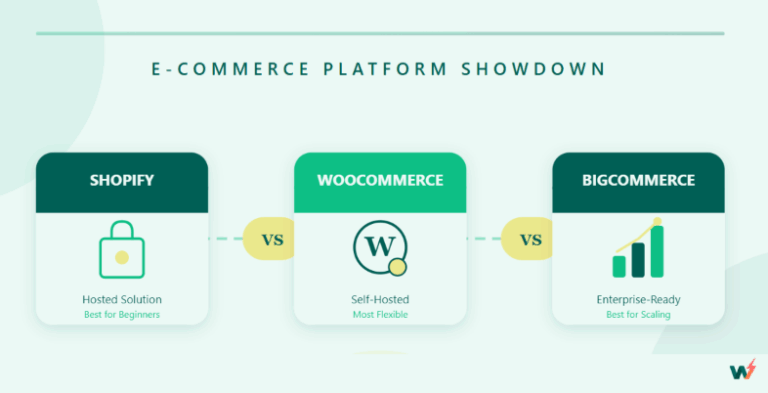
If you are from WordPress domain, it is a famous WooCommerce alternative you might want to know about.
How To Build A Shopify Store
Now let’s get to the business of this article by showing you how to build a Shopify theme store.
Create an Account
1. Head to the Shopify website and create an account.

2. Click on “Start free trial” to get started. You will be directed to answer a few questions about getting started in Shopify. You can go ahead and skip those stages.

3. Choose a country: This is where you choose which country your shopify store will be selling from.

4. Click on the “Next” button and you will be able to sign up with different options including your email. Worthy of mentioning is that you get instantly onboarded into the platform as soon as you provide your email.
Setting Up Your Store
Having successfully onboarded, you will be directed to your Shopify admin dashboard. In your Shopify dashboard, there are many options to choose from which can get confusing quickly. For this guide, however, we are going to get straight into building the Shopify store.

You could start customizing the default theme or choose an entirely different theme. Your choice, but for this article, we would “Add theme” and build our Shopify store.
1. Select the “Online Store” and select “Theme”. Shopify has great free and premium themes that you can quickly customize.
2. Click “Visit them store” button. This will open a new Shopify page where you can select a free or paid theme.

3. Select a theme from the Shopify theme store.

4. Add them to your Shopify dashboard. After adding the theme, go back to your Shopify dashboard and locate the theme you just added to your theme library. You can add more themes to play around with until you have the exact one that suits your need. You can also view the theme in a live demo. Viewing the theme in live demo will give you a firsthand feel of how the theme will look for end users.
Add Products To Store
Adding products to your Shopify store involves several detailed steps to ensure each product is displayed accurately and attractively.
1. Click on “Products” menu on the left side of your user dashboard.

2. Add your products manually by clicking the “Add product” button. Adding products this way is one out of the 3 options that Shopify provides. If you are adding products manually, this is what you would see.

3. Add Title and Description: Enter a clear and concise title for your product. Provide a detailed description of your product. Include key features, benefits, and any other relevant information. Use bullet points for easy readability.
4. Upload new media: Click ‘Upload new’ to upload high-quality images of your product.
Upload more media images then drag to reorder them. The first image will be the main product image.
5. Pricing: Enter the selling price of your product. If you’re offering a discount, enter the original price here. The new price will be displayed alongside the original price.
6. Select product category
7. Inventory: SKU (Stock Keeping Unit): Enter a unique SKU for the product. This helps in tracking inventory. If your product has a barcode, include it here.
8. Quantity: Enter the number of units you have in stock.
9. Shipping: Select a physical product if that is what you sell. If not leave the checkbox unchecked if your products are digital. Ensure you add the basic info for shipping, information like product weight
Customs Information like HS (Harmonized System) code If you’re shipping internationally and country of origin.
10. Variants: If your product has different variants (e.g., sizes, colors), click ‘Add variants’.
Enter the option name (e.g., Size, Color) and the option values (e.g., Small, Medium, Large).
Manage each variant’s details, including price, SKU, and inventory.
You can also add products by importing product catalog CSV files into your Shopify store or source for products and add them to your Shopify store as a third-party seller. This method is popularly known as dropshipping. Depending on the number of products, your dashboard product section should look like or similar to the image below.

Setup your Shopify Domain
Navigate to your Shopify dashboard, and click the “Setting” menu to the left. A whole setting page will open for you. Here you can edit all your store settings.
1. Buy New Domain: Click on the ‘Buy new domain’ button.

2. Search for a Domain: Enter the domain name you want to purchase in the search bar and click ‘Search’.
3. Select a Domain: Browse the available domains and select the one you want to purchase.
Click on the ‘Buy’ button next to the domain you choose.

4. Purchase Domain: Review the domain registration details, including the cost.
Enter your payment information and complete the purchase.
Shopify will automatically configure your new domain to be the primary domain for your store.
Connect an Existing Domain from a Third-Party Provider
It’s brilliant that Shopify provides alternatives that allow you to connect an existing domain. This option and flexibility are significant in that it saves you from being forced into buying something you already have. To connect your existing domain, follow these steps:
1. Click on ‘Domains’ and Connect Existing Domain: Click on the ‘Connect existing domain’ button.
2. Enter Domain Name: Type the existing domain name that you already own. Click ‘Next’.

3. Update DNS Settings: Log in to your domain provider’s account, find the DNS settings for your domain. Update the following DNS records:
A Record: Point your A record to Shopify’s IP address (23.227.38.65).
CNAME Record: Point your www CNAME record to shops.myshopify.com.
Save your changes.
4. Verify Connection: Return to the Shopify admin and click ‘Verify connection’.
It may take up to 48 hours for the DNS changes to propagate. Shopify will notify you once the domain is successfully connected.
5. Set Your Primary Domain: To set your primary domain go to Domain Setting from the Shopify admin dashboard and choose Primary Domain. Under the ‘Primary domain’ section, click on the drop-down menu. Select the domain you want to set as your primary domain.
Ensure you save your changes by clicking ‘Save’ to set the chosen domain as your store’s primary domain.
5. Redirect Traffic to Primary Domain: To redirect traffic to your primary domain, click “Enable Redirection” in the Domain. Ensure the ‘Redirect all traffic to this domain’ option is enabled. This ensures that all traffic to any of your domains will be redirected to your primary domain.
6. Edit store details: To edit store details, click on the “general” menu option and make the required adjustments to your store details

Customize Shopify Design
Shopify store design is customizable to the barebone. You can modify sections including the header, footer, and pages.
1. Header: Change the logo, navigation menu, and announcement bar.

2. Footer: Add links, contact information, and social media icons.

3. In the Homepage Customize banners, featured products, collections, and other elements.
4. In the theme editor, look for options to change the colors and fonts. This will help you match your store’s look to your brand identity. Here you can also customize the primary, and secondary colors, and typography for headings, body text, and buttons.
5. Next is to add new sections or remove existing ones depending on how you want it.
Click ‘Add section’ to insert new elements like image galleries, testimonials, and more.
Add Pages
From the Shopify admin dashboard, go to ‘Pages’.
Click ‘Add page’.

2. Enter a title and content for each page.
Use the rich text editor to format the content, add images, videos, and other media.
Click ‘Save’ to create the page.

Design Menus
Go to ‘Online Store’ and then ‘Navigation’ you’ll see two default menus: The main menu and the Footer menu. This is where you can add and edit both the Main menu and Footer menu

1. Add links to your key pages (Home, Shop, About Us, Contact Us, etc.) by clicking ‘Add menu item’.
2. Drag and drop menu items to reorder them.
Additionally, you can create dropdown menus by nesting items under a parent item.
Tips for Building a Great Shopify Store
Building a great Shopify store goes beyond just spinning up an e-commerce store and going live. It involves thorough planning and implementation of all development phases. Let’s examine some tips that will help you build a great Shopify store.
Setup Guide
Follow the initial setup guide. Shopify provides an initial setup guide that features step-by-step tutorials for the main tasks you need to complete before you start selling. This setup guide is there to ensure you don’t miss any steps critical to your Shopify store’s success.
Design Optimization
When selecting a theme for your website, prioritize mobile optimization by consulting with a Shopify Plus agency for expert guidance. Shopify offers a robust design tool with drag-and-drop functionality and URL structure setup. Since the majority of customers will access your site via mobile devices, ensuring a seamless mobile experience is crucial.
Integrations
Some exciting out-of-the-box integrations are available to make your Shopify store a great store. For example, the one-click run add button, social media share, and feed display on your product page.
Shopify Alternatives for eCommerce Development
There are bandied alternatives to Shopify all over the internet that have sought to compete with the e-commerce giant. None of them have been as successful an alternative to even be bigger than Shopify as Woo (formally WooCommerce).
WooCommerce is an open-source, flexible WordPress-based e-commerce platform that gives developers full customization control over their code.
Enhancing WooCommerce Development With InstaWP

InstaWP is the leading WordPress staging environment that will significantly enhance the development process for WooCommerce stores.
As a WordPress development agency building multiple WooCommerce stores for clients, you can create WooCommerce staging sites, test without affecting the live site, migrate them, and manage all your sites in one platform.
In fact, you can host the website using InstaWP hosting.
Conclusion
Building Shopify store can be fun when done right. Essentially, if you keep to the tips of choosing the right theme and building with mobile-first in mind. Alternatively, you can build a much more custom and cheaper e-commerce store with Woo by enhancing the development process using InstaWP staging environment.