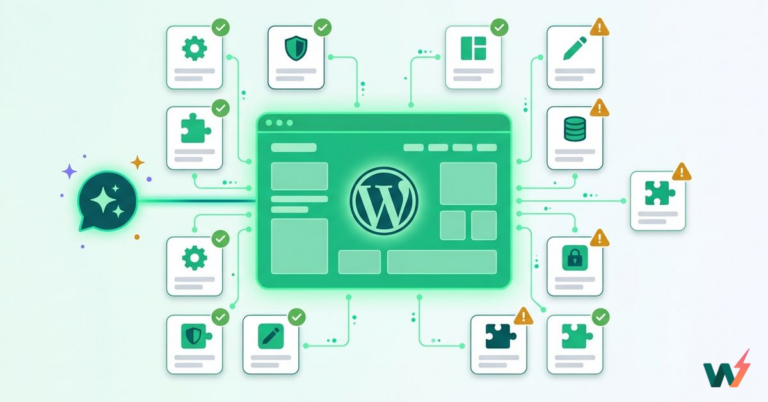
If you’ve ever managed a WordPress site with hundreds of posts, you know the pain of bulk updates. Whether you’re changing categories across 50 articles, updating outdated metadata, or switching post statuses for an entire content library, the traditional wp-admin interface wasn’t built for scale.
The WordPress MCP server changes this completely. By using the WordPress MCP server, you can update WordPress posts in bulk over a single command.
In this guide, you’ll learn how to bulk update WordPress posts using natural language commands.
Table of Contents
What is a WordPress MCP Server?
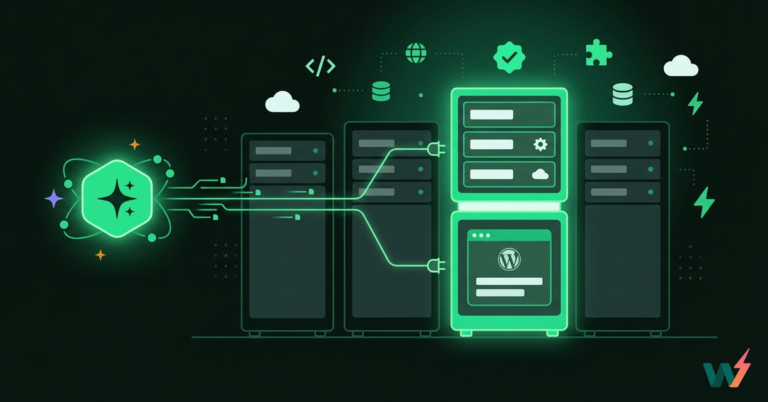
A WordPress MCP server is a backend service that acts as a translator between AI assistants and your WordPress site. It receives natural language prompts, converts them into structured WordPress REST API requests, and executes them securely.
Here’s how the flow works:

For developers, this means you can perform complex WordPress post update operations without writing custom scripts, navigating wp-admin bulk actions, or building one-off automation tools.
We have a detailed WordPress MCP server guide to help you understand what does it mean and its importance in today’s AI-driven world.
Why Use WordPress MCP for Bulk WordPress Updates
It’s 2026, and traditional WordPress development no longer cuts it. AI for WordPress isn’t a future trend; it’s the present reality. If you’re still managing content the old way, you’re leaving efficiency on the table.
The numbers tell the story:
- WordPress developers using AI complete tasks 40–60% faster than those relying on traditional methods.
- The top 40 AI-powered WordPress plugins attracted 315 million visits in just one year (December 2023–November 2024), proving that AI adoption in WordPress has gone mainstream.
- 93% of web designers have used AI tools in the last three months for web design-related tasks.
- The AI WordPress plugin market is valued at $500 million in 2025 and is projected to reach $2.7 billion by 2033; a 25% compound annual growth rate.
This isn’t hype. AI-powered WordPress management is how modern developers and agencies operate. And bulk content updates; one of the most time-consuming tasks in WordPress; are ripe for AI automation.
Traditional methods for bulk updating WordPress posts were designed for a different era. They work, but they don’t scale efficiently with modern workflows:
| Method | Limitation |
|---|---|
| WP-CLI | Powerful, but requires SSH access and command-line expertise. Not accessible for non-technical team members. |
| Direct database queries | Risky. Bypasses WordPress hooks, can break plugin functionality, and offers no undo option. |
| Bulk edit in wp-admin | Limited to basic fields (status, category, author). No support for custom logic or conditional updates. |
| Custom PHP scripts | Time-consuming to write, test, and maintain. Every new bulk operation requires new code. |
These approaches require either deep technical knowledge or significant time investment. In an era where AI can interpret your intent and execute complex operations in seconds, manually scripting bulk updates feels outdated.
The WordPress MCP server introduces a fifth option: conversational automation.
Instead of writing code or clicking through admin interfaces, you describe what you want in plain English:
- “Change all posts in the ‘News’ category to draft status”
- “Update the author of all posts published before 2024 to ‘admin'”
- “Add the tag ‘archived’ to all posts older than two years”
The MCP server interprets your prompt, translates it into WordPress REST API calls, and executes the operation; securely and instantly.
This approach is particularly valuable when:
- You’re managing multiple client sites and need repeatable bulk operations
- You want non-technical team members to perform safe content updates
- You need to iterate quickly without writing throwaway scripts
- You’re building AI-assisted workflows that combine content management with other tasks
With a WordPress MCP server, bulk WordPress updates become as simple as having a conversation. No SSH. No database queries. No custom code. Just natural language and instant results.
Bulk Update WordPress Posts Using MCP Servers: Step-by-step Guide
Before we dive into bulk updates, let’s address the setup question. You have two options for getting a WordPress MCP server running:
- Manual configuration using the official WordPress MCP server
- InstaWP’s built-in WordPress MCP server with one-click activation
If you want to take the leap and lead the AI for WordPress future, choosing InstaWP to built and host sites is the best option for WordPress AI development as you get built-in MCP server.
Here’s what you skip with InstaWP’s MCP server feature:
- Installing Node.js and npm dependencies
- Cloning the MCP repository
- Creating and configuring
.envfiles with WordPress credentials - Generating application passwords in WordPress
- Editing
claude_desktop_config.jsonwith correct paths - Troubleshooting SSL and authentication errors
Instead, you enable MCP from a toggle switch, copy a URL, and paste it into Claude Desktop. That’s the entire process.
Watch the video to see InstaWP’s WordPRess MCP server in action.
For teams already using InstaWP for WordPress development, WP staging, or client site management, the WordPress MCP integration adds immediate value with zero additional infrastructure.
| Feature | InstaWP Built-in MCP | Manual WordPress MCP Setup |
|---|---|---|
| Setup Time | Under 2 minutes | 30–60 minutes |
| Technical Requirements | None (browser only) | Node.js, npm, terminal access |
| Configuration Files | Auto-generated | Manual .env and claude_desktop_config.json editing |
| Authentication | Token-based, auto-configured | Application passwords, manual setup |
| WordPress Installation | Included (instant WordPress sites) | Requires existing WordPress site |
| SSL/HTTPS | Automatic | Must configure separately |
| Multi-Site Management | Dashboard for all sites | Separate config per site |
| Sandbox/Staging | Built-in disposable environments | Must set up separately |
| Updates & Maintenance | Managed by InstaWP | Self-maintained |
| Cost | Included in Sandbox plan and above | Free (but time-intensive) |
| Best For | Agencies, rapid prototyping, non-DevOps teams | Self-hosted, custom pipelines |
How to Activate WordPress MCP Server on InstaWP
Follow these steps to enable the WordPress MCP server on your InstaWP site. This process takes less than two minutes. We suppose that you already have an active InstaWP and LLM tool ( Claude, ChatGPT or Cursor) subcription supporting custom connectors.
Step 1: Create a WordPress Site on InstaWP
If you don’t already have a site:
- Log in to your InstaWP dashboard at instawp.com
- Click Create New Site
- Choose your WordPress configuration (theme, plugins, PHP version)
- Wait for the site to spin up (typically under 30 seconds)

Read our full guide on ‘Create a Site‘ to understand the entire process.
Step 2: Navigate to the MCP Settings
From your Sites page, click on the site name to open Site Details. In the left sidebar, click on MCP

Step 3: Enable MCP
In the MCP configuration panel, toggle Enable MCP to ON.

InstaWP will automatically install and configure the MCP plugin on your site.

Step 4: Copy the MCP Connection URL
Once enabled, you’ll see an MCP Connection URL. Click the copy button next to the URL.

Security Note: This URL contains a secure authentication token. Do not share it publicly. Anyone with this URL can access your site through AI assistants.
Step 5: Configure Your LLM Tool
Now that you’ve enabled MCP on your InstaWP site, it’s time to connect it with the LLM tool of your choice. The WordPress MCP server works with any MCP-compatible AI client, including:
- Claude Desktop (Anthropic)
- ChatGPT (OpenAI, via MCP connector)
- Cursor (AI-powered code editor)
- VS Code with MCP extensions
Important: Make sure the plan you’re using supports custom connectors or MCP integrations. Not all AI tool tiers include this capability. For example:
- Claude Desktop: Requires Pro or Team plan for MCP server connections
- ChatGPT: Requires Plus or Team plan with MCP connector support
- Cursor: MCP support available on Pro plans
Without a compatible plan, you won’t be able to add custom WordPress MCP server URLs to your AI assistant.
For Claude Desktop:
Open Claude Desktop on your computer and go to Settings → Connectors.

Add your WordPress MCP URL in Add Customer Connector section.

For ChatGPT:
If you wish to connect ChatGPT with WordPress, follow these steps:
Open ChatGPT and navigate to Settings. Go to Apps and click on ‘Add New‘. Paste your InstaWP MCP Connection URL.

Save and confirm the connection.
For Cursor:
Open Cursor and go to Settings → Tools & MCP and click Add Custom MCP Server.

Cursor doesn’t support MCP Connection URL. So, get the set-up from here: GitHub – InstaWP/mcp-wp: MCP Server for WordPress
Pro Tip: If you’re managing multiple WordPress sites on InstaWP, you can add multiple MCP servers to your LLM tool—one for each site. Name them clearly (e.g., “client-site-1”, “staging-blog”) to avoid confusion when issuing commands.
Step 7: Bulk WordPress Post Updates
With your WordPress MCP server connected, you can now execute bulk updates through conversational prompts. Below are step-by-step instructions for common bulk update scenarios.
We’ve taken the list of all the posts using Claude.

If you have 20 draft posts ready for publication, or you need to unpublish seasonal content. Open Claude Desktop with your MCP connection active.
Issue a natural language command:
Change all posts with status "draft" to "published"Claude will confirm the action and execute it via the WordPress REST API.

You can do bulk publishing of blogs remotely as well.

You can unpublish a specific or all the blog posts over a single command:
Unpublish all posts published on 09 Jan 2026
Possibilities are endless. You can also try commands such as:
- “Set all posts in the ‘Announcements’ category to draft”
- “Unpublish all posts older than January 2023”
- “Change posts tagged ‘seasonal’ to pending review”
- “Add the tag ‘legacy’ to all posts published before 2022”
- “Remove the category ‘Uncategorized’ from all posts”
- “Assign category ‘Tutorials’ to all posts with ‘how to’ in the title”
- “Set the publish date of all draft posts to next Monday at 9 AM”
- “Schedule all posts tagged ‘launch’ to publish on March 15, 2025”
Best Practices for Bulk WordPress Updates via MCP
- Always test in staging first. Use InstaWP’s WordPress sandbox environments to validate bulk operations before running them on production.
- Be specific with your commands. “Update all posts” is risky. “Update all posts in category X published after date Y” is safer.
- Verify before and after. Ask Claude to list affected posts before executing, then confirm changes after.
- Use categories and tags as filters. The more precisely you can define your target posts, the safer your bulk operations.
- Keep your MCP URL secure. Treat it like an API key. Regenerate it if compromised.
Conclusion
Bulk updating WordPress posts no longer requires database queries, custom scripts, or tedious wp-admin clicking. With a WordPress MCP server, you can execute complex content operations using natural language; turning hours of manual work into seconds of conversation.
InstaWP makes this even more accessible by providing a built-in WordPress MCP server that eliminates all manual configuration. Enable MCP from your dashboard, connect Claude Desktop, and start issuing commands immediately.
Whether you’re an agency managing dozens of client sites, a developer automating content workflows, or a site owner who wants more control without the complexity, the WordPress MCP server is a tool worth adding to your stack.
Ready to try it?
Create an InstaWP account, spin up a WordPress site, and enable MCP in under two minutes.
FAQs
What is a WordPress MCP server?
A WordPress MCP server is a backend service that connects AI assistants (like Claude) to your WordPress site using the Model Context Protocol. It translates natural language commands into WordPress REST API calls, enabling you to manage content, users, plugins, and settings through conversational prompts instead of manual dashboard navigation.
How do I bulk update WordPress posts without a plugin?
You can bulk update WordPress posts using a WordPress MCP server connected to an AI assistant. Issue commands like “Change all draft posts to published” or “Update the category of all posts tagged ‘news’ to ‘updates’.” The MCP server handles the REST API calls without requiring any WordPress plugin installation for the bulk operation itself.
Is it safe to use MCP for WordPress updates?
Yes, when configured properly. InstaWP’s MCP implementation uses secure, token-based authentication. The AI operates within WordPress’s existing permission system—it can only perform actions that your authenticated user role allows. Always test bulk operations in a staging environment first.
Can I use WordPress MCP with any AI assistant?
WordPress MCP works with any MCP-compatible client. Currently, Claude Desktop is the most common choice, but the protocol is open and supported by other AI tools and IDEs like Cursor and VS Code with MCP extensions.
What’s the difference between InstaWP’s MCP and the official WordPress MCP server?
The official WordPress MCP server requires manual installation via npm, configuration of environment variables, generation of application passwords, and editing of JSON config files. InstaWP’s built-in MCP provides the same functionality with one-click activation—no terminal, no configuration files, no manual setup.
Can I bulk update custom post types with WordPress MCP?
Yes. The WordPress MCP server supports all content types exposed through the REST API, including custom post types. Specify the post type in your command: “List all ‘portfolio’ posts” or “Update all ‘product’ posts with category ‘sale’ to featured.”