Are you familiar with this saying, “Never test the depth of a river with both feet”?
Let’s say you want to go across a flowing stream, but you can’t swim, or you are carrying something valuable that water could damage. The first thing to do is assess the water depth, right? You can pull out unscathed when you put one foot in but can’t touch the bottom of the river. But when you jump in with both feet, well, chances are you could drown or damage that item.
This concept applies to site development as well. Site changes could be implemented without any issues, just as much as they can cause problems. When you test site changes directly on a live site, you use both feet to test the water. If the site breaks, the extent of the damage can be so steep that it takes a great deal of time and resources to recover from.
But you are safe and can always recover when you first test those changes behind the scenes before applying them to live development. In WordPress, this is done by staging the live site.
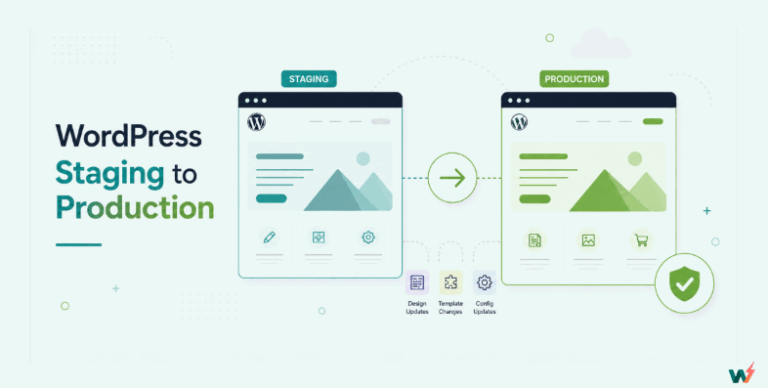
WordPress staging is the creation of a temporary replica of a live site to test the changes and see their effects firsthand, before implementing it on the live site. Using a staging environment WordPress site can be likened to testing the depth of a river with one foot. Your live site remains unscathed if you hit a snag while testing modifications.
Table of Contents
WordPress Staging in Cloud: What is it?
WordPress staging remains one of the best ways to safely test site changes without breaking them. Several things can go wrong before and after an update goes live. If not identified and managed in a staging environment, lousy code may get deployed in a production WordPress site, and the code’s behavior could cause unexpected complications.
Although WordPress staging is traditionally done on local computers or in the same hosting space as live sites, WordPress staging can now actually be done remotely on a cloud.
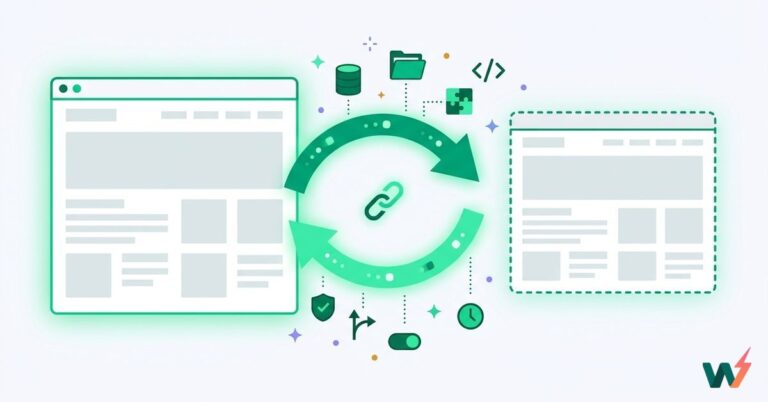
WordPress Staging in the Cloud simply refers to creating a separate replica of your WordPress site in an isolated environment on a cloud server where you can then go ahead and test and review changes, updates, and new solutions before applying them on your live site.
Staging in the cloud is a more reliable means of staging with better performance because the cloud utilizes many servers spread across the cloud network. If one server on the network fails, another server can fill in and still provide service.
This prevents data loss that may arise while staging due to poor connection speed, inconsistent network, and in the event of an emergency, such as hardware malfunction, harmful code, or even simple user error.
Staging environment WordPress on the cloud gives you enough room to conduct several tests and updates safely and away from your live site to eliminate performance problems and bugs before it goes live. This way, you safeguard the live site from issues, make updates seamlessly, and continue to keep your customers and users happy.
Local vs Staging in Cloud in WordPress
A local staging environment for WordPress is usually set up on your personal computer or a local server, and changes can only be tested on that particular computer. In contrast, a cloud staging environment for WordPress is hosted on a remote cloud server, usually accessible via the Internet.
In this section, we will look at the differences between Local and Staging in Cloud for WordPress.
1. Accessibility
Since local staging is usually set up on a personal computer or a local server, changes can only be tested individually on that particular computer where it is set up. This limitation discourages multi-tasking and collaboration among team members, leading to unhealthy competition among team members, slow turnovers, and missed deadlines.
On the other hand, cloud staging can be accessed from anywhere with an internet connection and multiple devices, allowing for easier access, multi-tasking, and collaboration among team members, even if they are located in different locations.
Staging on a cloud staging environment lets developers perform various tasks and testing on different WordPress projects simultaneously, saving time and resources and meeting deadlines.
2. Scalability
Because cloud hosting does not rely on a single server to store and deliver content, resource allocation can easily be scaled up or down to match your type of WordPress staging.
Cloud staging allows for easy scalability and resource allocation compared to local staging environments and provides greater flexibility for testing. Cloud staging environments also offer better performance and speed than local environments, especially for testing larger websites.
3. Flexibility
Cloud staging allows for performance testing in a real-world environment, which may not be accurately replicated in local staging.
With cloud staging, you can adjust WordPress and hosting configurations and testing parameters such as WordPress version, PHP version, etc, to identify the appropriate solution for site updates. Because of its flexibility, cloud staging environments can easily integrate with live hosting and other cloud services and tools, enhancing workflow efficiency.
On the other hand, local hosting is not flexible as it lacks room for such configuration parameters and only supports the PHP version of the software installed on the computer.
This limitation can affect creating staging sites successfully as you need to keep installing various software versions to test codes, plugins, and themes of different PHP versions. Also, successful changes in the local machine may execute conflicting code behavior when pushed to live and cause problems.
4. Cost
Local staging environments are typically more cost-effective, with you spending money usually at the initial stage of purchasing the computer. In contrast, cloud staging environments may incur additional costs, which are generally recurring. However, since cloud hosting often works on a pay-as-you-go model, costs can be scaled up or down depending on usage.
Setting up a local staging environment may be more cost-effective initially, but cloud staging can be more convenient and scalable in the long run.
5. Security
Cloud staging environments often come with built-in security measures and backups, offering enhanced protection for your testing environment. Cloud server security layers include firewalls, IAM, SSL for data transmission, and more, giving maximum security connection between the live site and staging site for syncing or pushing changes without fear of malicious attacks.
With cloud staging, you can safely and seamlessly stage a WordPress site, add and remove changes or resources when necessary, and push the changes back to the live site even faster.
In contrast, local machine security is password protected, and local software typically lacks security protocols. Therefore, site content and user private information can easily be compromised, corrupted, or stolen using another computer on the network or a flash drive.
6. Backup and Recovery
Cloud staging environments often come with built-in backup and recovery options, providing added security compared to local setups. This means you can revert bad changes and proceed from a safe point without starting all over from scratch, which is the case with local staging.
Best Practices for WordPress Staging in the Cloud
1. Use Fast WordPress Staging Environment
Utilize a staging environment WordPress on the cloud to swiftly create staging sites. For example, IntaWP’s staging environment for WordPress enables you to configure preferred WordPress, PHP, and Faker settings, facilitating quicker site deployment.
2. Secure Access
Before staging WordPress sites in the cloud, implement secure access controls to restrict unauthorized users from accessing the staging environment. Also, ensure that the WordPress site in your cloud staging environment is accessed only through secure connections (HTTPS) to protect sensitive data from hackers and malware attacks.
3. Test Thoroughly
Before launching updates on your WordPress site, extensively test them in the staging environment. Verify compatibility and security by updating WordPress, themes, and plugins. Also, ensure the staging site is responsive across devices and browsers for a seamless user experience.
4. Check Performance
While testing new changes and updates, keep an eye on the performance metrics of your cloud staging environment to identify any potential bottlenecks or issues. You can conduct performance tests in the cloud staging environment to identify and address any speed or loading issues before they get to the live WordPress site.
5. Collaborate Effectively
When working in teams, utilize collaboration tools and communication channels to ensure seamless coordination among team members working on staging projects. Ensure team members use workflows and maintain detailed documentation of all changes in the staging environment for future reference and troubleshooting.
InstaWP cloud staging environment WordPress is perfect for team collaboration as it comes with amazing management tools and a centralized site management dashboard to manage multiple sites.
It also has a 2-way sync feature that tracks and provides a visual record of only the changes made and pushed from staging to the live site and vice versa for easy monitoring of changes made by team members for auditing and accounting purposes.
6. Use Version Control
Deploy version control systems like Git to track changes and collaborate effectively with team members. InstaWP WordPress staging plugin 2-way sync feature has an event-based tracking system allowing real-time tracking and merging changes. InstaWP also supports Git integration, enabling you to easily connect Git repos to your InstaWP sites and templates for manual and automated QA.
WordPress Staging with InstaWP
Why use InstaWP for Staging?
InstaWP is a reliable cloud staging environment with amazing staging features to replicate your entire WordPress site and deploy site changes faster while saving hours in the process.
InstaWP is flexible and allows you to spin up WordPress staging sites, customizing the extent of the staging based on any of the following:
- Quick Staging: This staging environment won’t include your site’s media folder.
- Full Staging: Everything on your live website will be replicated and added to your staging site.
- Custom Staging: You can manually choose what to add and remove from the staging site.
When staging with InstaWP cloud, you can seamlessly test PHP or WordPress versions, plugin or theme updates, redo site design, and merge changes from staging to live or selectively through syncing.
How it works
To use InstaWP for staging, you must have a free or premium InstaWP account and the InstaWP Connect WordPress staging plugin activated on your live site. The plugin is free to install on any WordPress site of any size and connects live WordPress sites to the InstaWP cloud staging environment for quick staging with just a few clicks.
After connecting your site, you can create 1-click staging sites from within the WP admin panel.

After you select staging options, the plugin will automatically build a WordPress staging site for you in seconds.

You can access the staging site to make and test changes with the URL and login credentials provided or through your InstaWP dashboard.
What makes it unique
Unlike other staging, InstaWP comes with a 2-way sync feature that merges changes between staging and live without overwriting sites and logs every change you make in case you need to identify or undo anyone.
InstaWP’s Other Features that are Useful for you
Code and DB Editor: IntaWP editors allow you to modify your plugin or theme codes and database easily, and they keep logs of the changes and monitor site usage.
Configurations: The InstaWP tool allows you to create staging sites faster by saving PHP, WordPress, and WooCommerce presets to pre-configure various site spinups from scratch.
Templates: InstaWP allows you to convert your staging site to shareable templates, which can be used to create multiple copies with different InstaWP accounts.
Site Migration: InstaWP allows you to connect and migrate live sites from one hosting to another through staging and domain name linking.
WaaS: WaaS (website as a service) allows you to sell pre-made templates coupled with hosting.
Conclusion
Using a cloud staging environment for WordPress testing offers numerous advantages over local setups, including enhanced accessibility, scalability, collaboration, and security. You can optimize your WordPress staging process in the cloud by following best practices.
FAQs
1. How can I set up a WordPress staging environment on the cloud?
You can set up a WordPress staging environment on the cloud using tools like InstaWP Connect, which connects and clones your site and stores it on the cloud.
2. How can I sync changes made on the staging site in the cloud with the live site on WordPress?
You can use plugins like InstaWP Connect, which lets you sync and merge changes from the staging site to the live site while preventing data loss.
3. What are some common mistakes to avoid when working with a WordPress staging environment on the cloud?
Avoid making changes directly on the live site, neglecting to back up both the staging and live sites before syncing, and not testing thoroughly before deploying changes to the production site.