Running a WooCommerce store in 2026 demands both flexibility and speed, especially for WordPress agencies managing multiple clients. That’s where WooCommerce shortcodes shine.
These tiny snippets of code pack big power, letting you display products, categories, cart pages, and dynamic filters, all without touching PHP.
With over 6.5 million WooCommerce-powered stores globally, mastering shortcodes isn’t just helpful—it’s essential. Whether you’re customizing a landing page, building a promotional grid, or tweaking user flows, shortcodes offer instant control right from the block editor.
In this guide, we’ll walk you through the complete WooCommerce shortcodes list, show you how to use WooCommerce shortcodes effectively, and help you troubleshoot common issues like shortcodes not working—all from a developer’s lens.
Table of Contents
What Are WooCommerce Shortcodes and How Do They Work?
WooCommerce shortcodes are small snippets enclosed in square brackets—like [products]—that dynamically generate content on your WordPress site. Introduced in WordPress 2.5, shortcodes remove the need for manual PHP coding, allowing even non-developers to display product grids, shopping carts, category listings, and more with ease.
A basic WooCommerce shortcode looks like this:
[products limit=”4″ columns=”2″]
This tells WooCommerce to show four products in two columns. The word products is the shortcode body, while the parts like limit=”4″ and columns=”2″ are attributes used to customize output.
WooCommerce Shortcode Attributes Explained
Attributes work like configuration settings inside the shortcode. Here are the common types:
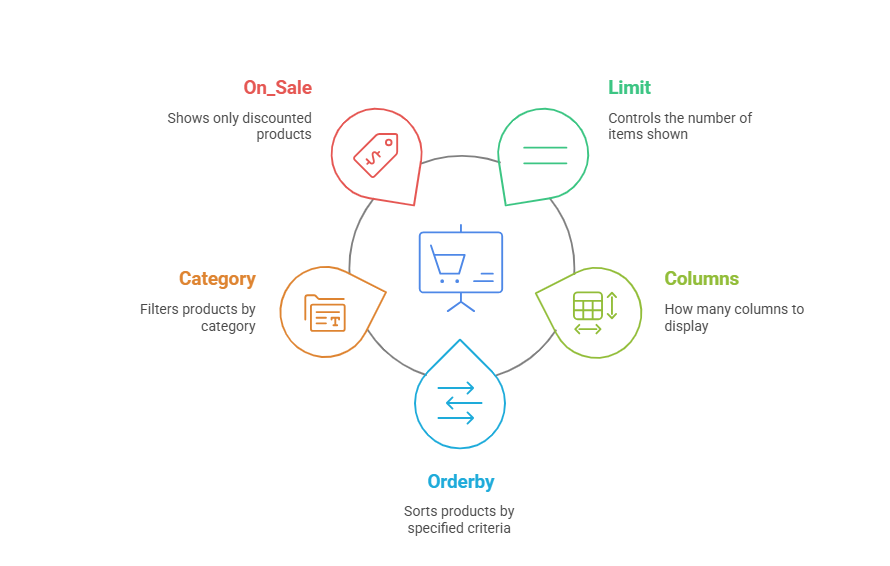
By combining attributes, you can create rich, flexible layouts within seconds.
For example:
[products category=”shoes” limit=”6″ columns=”3″ orderby=”popularity”]
This WooCommerce shortcode will show six popular shoes in a 3-column grid.
Where Can You Use WooCommerce Shortcodes?
You can place WooCommerce shortcodes in:
- Gutenberg (Block Editor) using the Shortcode Block
- Classic Editor, directly in the text area
- Widgets, via Text or Custom HTML widgets
- Page builders like Elementor, SeedProd, or Divi
- Reusable block patterns, especially if you prototype them in InstaWP for quick previews
These locations make WooCommerce shortcodes a developer’s dream, enabling fast layout control without writing or editing templates.
How to Use WooCommerce Shortcodes in WordPress
Using WooCommerce shortcodes doesn’t require custom development—you can insert them almost anywhere in the WordPress admin. But to avoid errors and ensure everything displays correctly, it’s essential to place them strategically using the right editor or block.
1. Using Shortcodes in Gutenberg (Block Editor)
If you’re using the default block-based editor:
- Navigate to Pages or Posts in your WordPress dashboard.
- Click Edit on the page/post where you want to add WooCommerce functionality.
- Click the + icon to add a block.
- Search for Shortcode and select it.
- Paste the WooCommerce shortcode (e.g., [products limit=”4″ columns=”2″]) into the block.
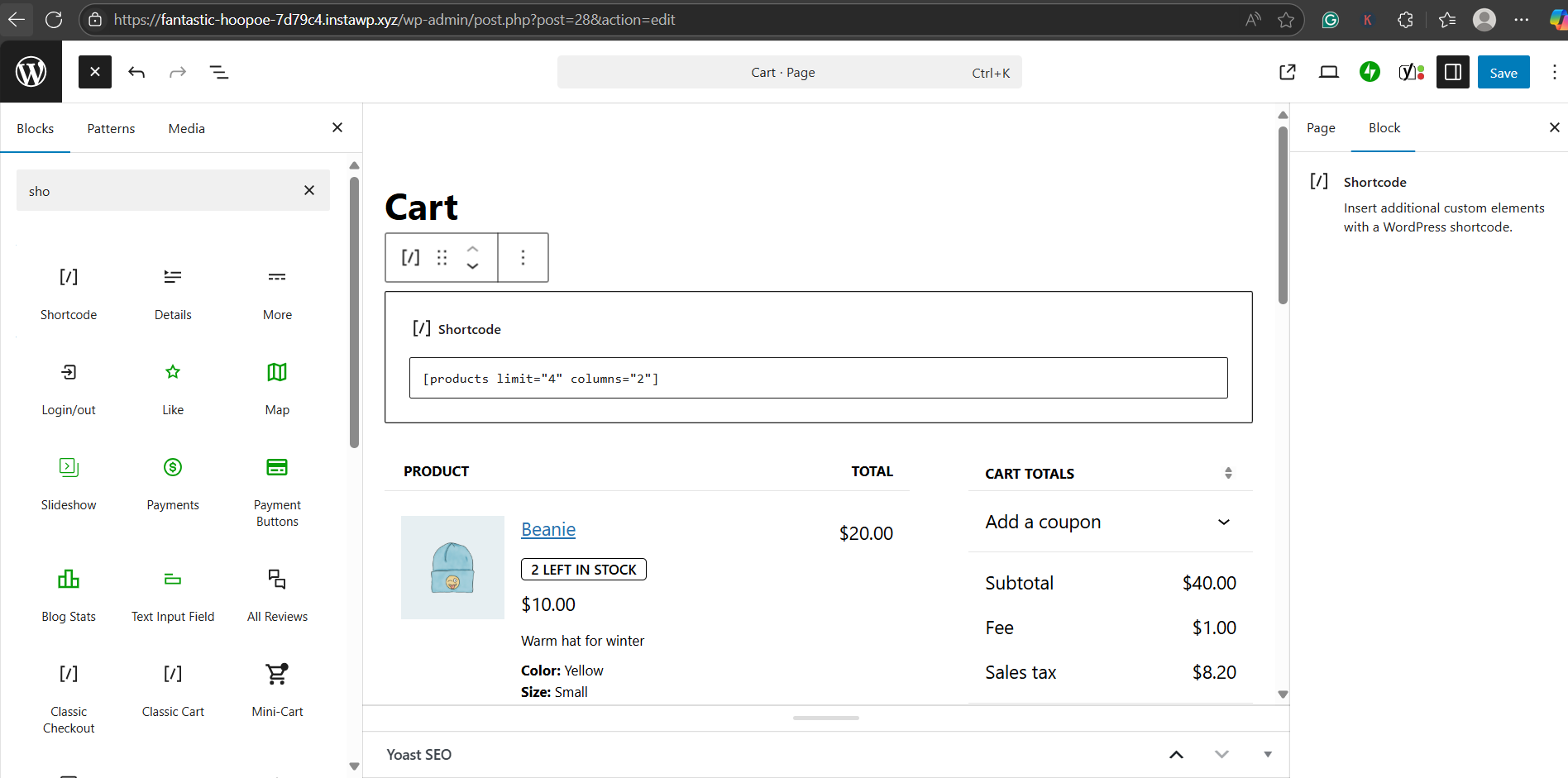
- Click Update or Publish to apply changes.
This method is perfect for building custom homepages, seasonal offers, or flash-sale sections.
2. Using Shortcodes in Classic Editor
If you’re still using the WordPress Classic Editor:
- Simply paste the shortcode into the Visual or Text tab.
- Make sure it’s placed on a new line for clarity.
- Avoid placing it inside other HTML tags unless you know the outcome.
WooCommerce shortcodes will render dynamically when the page loads.
3. Adding Shortcodes to Widgets and Sidebars
To enhance UX or add custom content to footers or sidebars:
- Go to Appearance → Widgets in your dashboard.
- Add a Text Widget to any available widget area (Sidebar, Footer, etc.).
- Paste the shortcode (e.g., [product_categories number=”6″ columns=”2″]) into the text area.
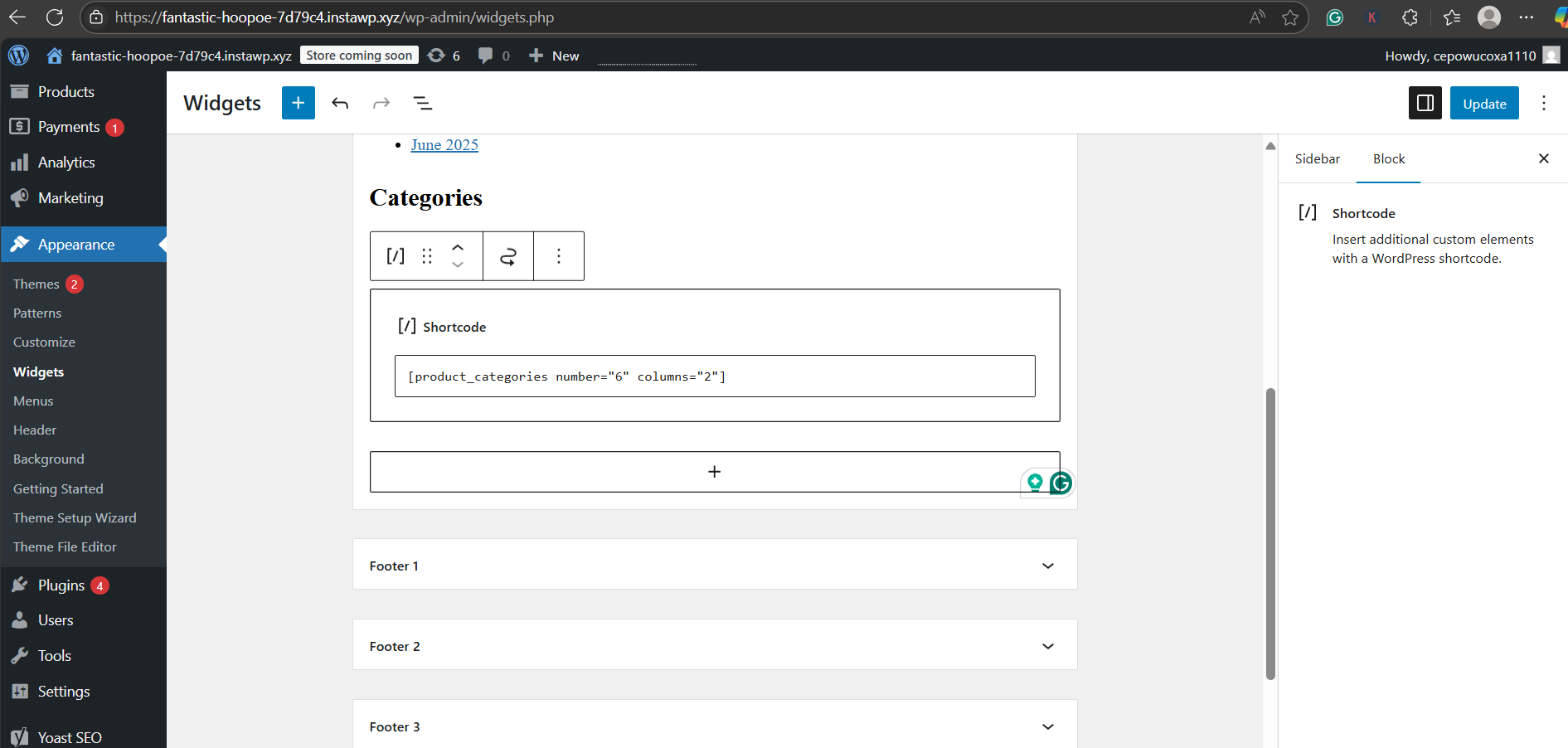
- Click Save.
Shortcodes in widgets are great for highlighting product categories, best sellers, or sale items throughout your site.
Pro Tip: Use a Sandbox to Preview Shortcodes
Before going live, it’s wise to test your shortcodes in a safe environment. Those who’re building an online store with InstaWP can:
- Instantly spin up a staging site
- Add WooCommerce and test shortcodes visually
- Experiment with themes and plugins without affecting your live site
This saves agencies hours of back-and-forth debugging, especially when building high-converting layouts for clients.
WooCommerce Shortcodes List: Essential Store Components
Whether you’re building a storefront from scratch or customizing a landing page for promotions, these foundational WooCommerce shortcodes are must-knows.
Each snippet enables a dynamic function without writing a line of PHP—ideal for WordPress agencies managing multiple clients.
Cart Page – [woocommerce_cart]
This WooCommerce shortcode renders the full cart page, including: Products added by the user, Quantity selectors, Coupon code input, Total pricing summary, and Proceed to Checkout button
Where to use:
Designated Cart Page or any custom landing page promoting cart-based offers.
[woocommerce_cart]
No attributes are required—just paste and publish.
Checkout Page – [woocommerce_checkout]
This displays the entire WooCommerce checkout process, including Billing and shipping fields, Shipping method selector, Payment gateway options, and Order review
Use Case: Create custom checkout experiences or test different funnel designs via InstaWP before deploying live.
My Account Page – [woocommerce_my_account]
This WooCommerce shortcode displays a user dashboard where customers can:
- View and track orders
- Download digital products
- Edit personal details
- Manage addresses
- Change passwords
If the user is logged out, it shows the login/register form instead.
? Tip for agencies: Use this WooCommerce shortcode to create white-labeled portals for recurring customers or memberships.
Order Tracking – [woocommerce_order_tracking]
Perfect for stores selling physical goods, this shortcode displays a form where users can check order status using:
- Order ID
- Email address
No login required.
[woocommerce_order_tracking]
It’s commonly used on help center pages or post-purchase email redirects.
WooCommerce Product Display Shortcodes
Displaying products dynamically is one of the most powerful use cases for WooCommerce shortcodes. These code snippets let you showcase individual items, entire product grids, or custom product lists—directly inside posts, pages, widgets, or templates—without relying on bulky plugins.
For WordPress developers and agencies, this means faster layout customization and better conversion-driven workflows.
Single Product Shortcode – [product id=””] / [product sku=””]
This WooCommerce product shortcode is perfect when you want to insert a single product’s details (title, image, price, and Add to Cart button) into a blog, email landing page, or custom layout.
[product id=”123″]
[product sku=”SKU123″]
Use this when creating curated content like “Editor’s Pick” or “Deal of the Week” using just shortcodes, without installing another plugin.
Full Product Page – [product_page id=””]
Need the full layout, including the product description, reviews, upsells, and related items? Use the [product_page] shortcode to display a complete WooCommerce product page anywhere on your site.
[product_page id=”123″]
This WooCommerce shortcode example is commonly used to build feature-rich landing pages, product highlights, or dynamic sales pages with page builders like Elementor or SeedProd.
Product Listings – [products] (Most Flexible WooCommerce Shortcode)
The [products] shortcode is the most powerful tool in the WooCommerce shortcodes list. It allows you to create fully customized product listings with rich filtering, category targeting, and visual layout control.
Here are some real use cases:
[products limit=”6″ columns=”3″]
[products category=”shoes” orderby=”popularity” on_sale=”true”]
[products ids=”12,35,88″]
Key Attributes You Can Use:
| Attribute | Description |
| limit | Number of products shown |
| columns | Number of columns (defaults to 4) |
| orderby | Sort by title, date, popularity, rating, rand |
| order | ASC or DESC |
| category | Use product slugs to filter (e.g., category=”shoes,sale”) |
| tag | Filter by tag slug |
| on_sale | Show only discounted products (true) |
| top_rated | Display only highly rated items (true) |
| best_selling | Highlight top-selling products (true) |
| paginate | Enable pagination (true or false) |
| cat_operator | Advanced control using AND, IN, or NOT IN |
Want to show all WooCommerce shortcodes for product types like featured, top-rated, or sale items? This shortcode is your best bet.
? Agency Tip: Before deploying these layouts to client sites, test them in a private InstaWP sandbox. It’s the fastest way to experiment with WooCommerce product shortcodes without risking a live store. Get a sandbox site plan.
Category & Tag-Based WooCommerce Shortcodes
For developers and agencies managing complex storefronts, organizing and showcasing content by product categories or tags is essential. Fortunately, WooCommerce provides shortcodes specifically designed for this purpose. These WooCommerce category shortcodes allow you to display entire collections, spotlight specific categories, or even exclude certain ones—all without modifying theme templates.
Show All Categories – [product_categories]
Use this WooCommerce shortcode to display a grid of all available WooCommerce product categories on any page or sidebar. It’s perfect for homepages, archive pages, or blog content promoting collections.
[product_categories number=”12″ columns=”4″ orderby=”name” order=”ASC”]
Key attributes:
- number – Total categories to show
- columns – Grid layout control
- orderby – Sort by name, id, slug, etc.
- order – Set to ASC or DESC
- hide_empty – Hide categories with no products
- include – Show specific categories by ID
Show Specific Category – [product_category category=””]
Unlike the previous WooCommerce shortcode, [product_category] focuses on displaying products from one specific WooCommerce category. This is especially helpful when designing promotional sections or building category landing pages.
[product_category category=”clothing” per_page=”8″ columns=”4″ orderby=”date”]
Common attributes:
- category – Slug of the desired category
- per_page – Number of products to display
- columns – Grid layout
- orderby – Sort method (e.g., by price, rating, or date)
- paginate – Add pagination if needed
? Use case: Create a branded landing page with WooCommerce shortcode examples for seasonal categories like “summer-collection” or “back-to-school.”
Multi-Category Control with cat_operator
Using the [products] shortcode with category and cat_operator lets you fine-tune which product categories appear.
Examples:
- Include only products in both “men” AND “accessories”:
[products category=”men,accessories” cat_operator=”AND”]
- Exclude products from the “sale” category:
[products category=”sale” cat_operator=”NOT IN”]
This advanced filtering lets developers create high-converting layouts using just WooCommerce shortcodes—no conditional PHP logic needed.
Pro Tip: Before pushing changes live, clone your client’s WooCommerce site into a staging sandbox using InstaWP. You can test every WooCommerce shortcode, preview how it looks with different themes, and troubleshoot shortcode errors without downtime.
Promotional WooCommerce Shortcodes
Promotions are a core part of any eCommerce strategy. With the right WooCommerce shortcodes, you can dynamically highlight trending, top-rated, or discounted products without manually curating them.
Whether you’re designing seasonal sales pages or boosting conversions on the homepage, these WooCommerce shortcode examples give you full control, right from the editor.
Recently Added Products – [recent_products]
This WooCommerce shortcode displays the most recently added products based on their publish date.
[recent_products limit=”5″ columns=”5″]
Perfect for showcasing “Just Launched” items or running new arrival sections on the homepage. You can customize:
- limit – Number of products to show
- columns – Number of columns in the layout
- orderby – Sorting order (e.g., date, rand)
Featured Products – [featured_products]
Want to spotlight hand-picked items? This shortcode shows products marked as “Featured” in WooCommerce.
[featured_products limit=”6″ columns=”3″]
This is a great example of how to use WooCommerce shortcodes to promote limited-time offers, flagship products, or brand collaborations. You can mark products as featured via the product admin panel.
Sale Products – [sale_products]
Use this shortcode to automatically display products with active sale prices. It’s your go-to tool for building a “Deals” or “On Sale” section—without maintaining it manually.
[sale_products limit=”8″ columns=”4″]
This WooCommerce shortcode updates automatically whenever products go on sale, making it a favorite among WordPress agencies managing WooCommerce stores at scale.
Top-Rated Products – [top_rated_products]
This WooCommerce product shortcode displays items with the highest average customer ratings.
[top_rated_products limit=”4″ columns=”2″]
Use it to build trust with new visitors by showcasing customer favorites. Combine this with a testimonial section to boost social proof.
Best Selling Products – [best_selling_products]
If your clients want to highlight high-converting items, this WoooCommerce shortcode surfaces the best-performing products based on sales volume.
[best_selling_products limit=”6″ columns=”3″]
This is particularly effective on category pages, homepages, or sidebars—especially when you’re building urgency and credibility.
Related Products – [related_products]
When placed on a product page, this WooCommerce shortcode displays other items from the same category or with similar tags.
[related_products posts_per_page=”3″ columns=”3″]
While WooCommerce can handle this by default, using this shortcode gives you more control over placement and layout, ideal for building custom templates.
? Quick Note on Compatibility
Some of these WooCommerce shortcodes depend on product settings (e.g., featured tag, reviews enabled, sale price). Always validate in a WP staging environment to avoid empty layouts or missing products. Learn how to create a staging site.
Add to Cart Button and Link Shortcodes in WooCommerce
Want to create a frictionless buying experience? These WooCommerce add to cart shortcodes let you place Add to Cart buttons or direct cart URLs anywhere, without needing to redirect users to a product page.
Whether you’re building landing pages, newsletter CTAs, or social commerce funnels, these WooCommerce shortcodes simplify conversions with just a few lines.
[add_to_cart] – Add Button Anywhere
This WooCommerce shortcode lets you generate an “Add to Cart” button for any product using its ID or SKU.
[add_to_cart id=”123″]
Optional Attributes:
- sku – Use this instead of id if preferred
- show_price=”true” – Show product price next to button
- quantity=”2″ – Set how many items to add
- class=”custom-button” – Add a CSS class for styling
- style=”” – Inline styles for layout control
Example with styling and price:
[add_to_cart id=”123″ show_price=”true” style=”display:block; text-align:center;”]
? This is a must-have for custom pricing tables or sales pages built with Elementor, Divi, or block patterns.
[add_to_cart_url] – Create a Direct Cart Link
Instead of a button, this WooCommerce shortcode gives you a direct URL that adds a product to the WooCommerce cart when clicked. It’s perfect for:
- Email campaigns
- QR code links
- Landing pages with multiple CTAs
[add_to_cart_url id=”123″]
You can wrap this link in any anchor tag:
<a href=”[add_to_cart_url id=’123′]”>Buy Now</a>
? This is one of the most underrated WooCommerce shortcode examples, especially for affiliate campaigns or upsells.
Developer Tip: If your client’s site uses dynamic pricing rules or role-based pricing, always test these shortcodes in a WP staging environment.
Search and Filter WooCommerce Shortcodes (Advanced)
If you’re building high-performance product discovery experiences, especially for stores with large catalogs, these WooCommerce shortcodes let you implement live search fields and layered filters—all without writing custom PHP or using heavyweight plugins.
While some of these features are part of premium extensions, they are incredibly useful for agencies building advanced UX flows.
Live Search Field – [woocommerce_product_search]
This WooCommerce shortcode adds a live product search field with real-time suggestions. As the user types, WooCommerce instantly displays matching items, including thumbnails, prices, and Add to Cart buttons.
[woocommerce_product_search]
This shortcode is typically part of the WooCommerce Product Search premium plugin, but it’s one of the most powerful ways to reduce bounce rates and improve navigation, especially on mobile.
Filter Extensions – [woocommerce_product_filter_*] Shortcodes
If you’re using the full filter suite, you can layer advanced filtering with individual shortcodes.
| Shortcode | What It Does |
| [woocommerce_product_filter] | Adds a keyword-based search box |
| [woocommerce_product_filter_category] | Filter by product categories |
| [woocommerce_product_filter_attribute] | Filter by product attributes (size, color, etc.) |
| [woocommerce_product_filter_price] | Price range slider |
| [woocommerce_product_filter_rating] | Filter by average customer rating |
| [woocommerce_product_filter_sale] | Filter to show only on-sale products |
| [woocommerce_product_filter_stock] | Filter by in-stock/backorder availability |
| [woocommerce_product_filter_tag] | Filter by product tags |
| [woocommerce_product_filter_reset] | Adds a Reset button for filters |
Used together, these WooCommerce shortcodes build a layered, Amazon-like filtering experience—perfect for improving product discovery on large stores.
Common Issues with WooCommerce Shortcodes
While WooCommerce shortcodes make site customization easier, they’re not immune to errors. From incorrect rendering to missing products, even a small mistake can disrupt your storefront’s layout or functionality. Here’s how to identify and resolve the most common problems, especially important for WordPress developers handling client sites.
1. WooCommerce Shortcodes Not Displaying
If your shortcode renders as plain text instead of functioning properly:
✅ Check formatting: Ensure you’re using straight double quotes (“) and not curly quotes (“ ”), which can break shortcode parsing.
✅ Use the right block: In Gutenberg, always use the Shortcode Block. Avoid pasting it inside a paragraph block.
✅ Update WooCommerce: Outdated versions may not support certain attributes or shortcodes.
✅ Avoid HTML wrappers: Shortcodes placed inside <p> or <div> tags in the Classic Editor may not work correctly.
2. WooCommerce Shortcodes Not Working on Custom Pages
Shortcodes sometimes fail to render on non-WooCommerce pages or custom templates. Try these fixes:
? Flush permalinks: Go to Settings → Permalinks and click Save to reset URL rules.
? Check page slugs: Ensure you’re not placing shortcodes on default WooCommerce pages like /shop, which may already be overridden by WooCommerce.
? Switch themes: Temporarily switch to a default theme like Twenty Twenty-Four to rule out theme conflicts.
3. Products Not Appearing in Product Shortcodes
If your [products] or [product_category] shortcodes are blank:
? Verify product visibility: Make sure the items are Published and Public. Drafts and private products won’t render.
?️ Check category/tag accuracy: The slug must match exactly (e.g., category=”mens-watches” not Mens Watches).
? Confirm product IDs: If using [product id=”123″], ensure that product ID exists and is not trashed.
These issues often arise when bulk-importing products or using third-party product sync tools.
Master Shortcodes, Master WooCommerce
Whether you’re launching a high-converting product page, customizing a homepage grid, or building a lightweight sales funnel, WooCommerce shortcodes are your agency’s secret weapon. They offer precision, speed, and flexibility—without relying on extra plugins or custom code.
From showcasing best sellers to adding WooCommerce add-to-cart shortcodes in blog posts, these snippets save hours of development time. When combined with staging tools like InstaWP, you can safely test, preview, and deploy layouts across multiple client sites with zero risk.
Ready to try this with zero risk?
? Launch a free WooCommerce sandbox on InstaWP today—test shortcodes, themes, and page layouts without touching your live store.
FAQs
1. How do I create a WooCommerce shortcode?
WooCommerce shortcodes come pre-built with the plugin, so you don’t need to code them manually. Just insert shortcodes like [products] or [add_to_cart id=”123″] into a Shortcode block or text area. For custom shortcodes, use add_shortcode() in your theme’s functions.php.
2. What is the best WooCommerce shortcode to display products?
The [products] shortcode is the most flexible. You can use attributes like limit, category, orderby, and on_sale to build dynamic product displays. It’s ideal for curated layouts, landing pages, and category grids.
3. Why is my WooCommerce shortcode not working?
If a WooCommerce shortcode is not working, check for curly quotes, wrong attributes, plugin conflicts, or theme overrides. Also, verify that your product visibility settings are correct and try flushing permalinks under Settings → Permalinks.
4. Can I use WooCommerce shortcodes in widgets or sidebars?
Yes, you can! Add a Text or Custom HTML widget to any widget area and paste your shortcode inside. Use shortcodes like [featured_products] or [product_categories] to display dynamic WooCommerce content in sidebars and footers.
5. Are WooCommerce blocks better than shortcodes?
WooCommerce blocks offer visual editing, but shortcodes provide more flexibility, especially for developers. If you’re working with complex product filters or building layouts in the Classic Editor or a page builder, shortcodes are more powerful and reusable.