Is your WordPress site really secure?
This might bother you when you plan to build a site with WordPress as cyber threats are lurking around every corner of the internet. Securing a WordPress site isn’t about stacking plugins; it starts with the platform. Choose hosting that gives you HTTPS by default, edge protection (WAF/rate limiting/DDoS mitigation), automated backups, and basic monitoring.
Then harden WordPress itself: keep core/plugins updated, lock down wp-admin with 2FA and least privilege, and scan for known vulnerabilities before deploying changes. This guide walks through a practical WordPress security checklist, hosting baseline first, then WordPress hardening and a simple recovery plan, so you can get to a “boring” security posture fast.
Table of Contents
Why To Secure a WordPress Site
Paying attention to WordPress secuirty isn’t a trend developers need to follow. It’s a crucial step to ensure the website, when it does live, remains operational by all means possible. Here are the reasons why security WordPress is non-negotiable.
- WordPress security protects user data, admin sessions, and checkout flows. A secure WordPress site reduces the risk of credential theft, malicious redirects, and injected scripts that turn a normal site into a distribution point for malware.
- Website security matters because most attacks are automated and constant. Credential stuffing and password attacks are a primary pressure point for WordPress sites, so you need defenses at the edge and at wp-admin, not just inside WordPress.
- Plugin and theme vulnerabilities are the biggest software risk in WordPress security. Wordfence reports that plugin vulnerabilities account for the overwhelming majority of disclosed WordPress ecosystem vulnerabilities, which is why “install less, update safely, scan regularly” is core WordPress security best practices.
- A hacked site rarely looks like “hacked” at first. Many compromises start as SEO spam pages, hidden admin users, or silent file changes, which can damage rankings and trust long before you notice. That is why monitoring, activity logs, and alerting are website security best practices for any secure website.
- Secure WordPress hosting reduces your blast radius. Hosting-level controls like WAF-grade filtering, DDoS defense, SSL, bot blocking, rate limiting, plus automated backups and versioning, make it much easier to keep a secure WordPress site online and recover fast if something breaks.
Secure WordPress in 2026: 11 Best Ways to Try
Wondering how to secure a WordPress site? Check out this section that breaks down 11 practical WordPress security best practices you can apply to secure a WordPress site.
Tip #1: Choose A Secure WordPress Hosting
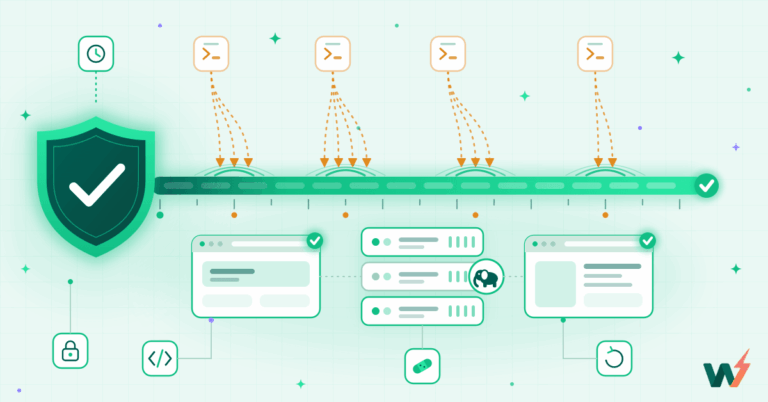
If you want a secure WordPress site, start with secure WordPress hosting. Hosting is the first security layer that every request hits, before WordPress loads, before plugins run, and before wp-admin even renders. That matters for WordPress security because most attacks are automated and noisy: bot traffic probing login endpoints, scraping, brute force, and layer 7 floods.
Good website security is not just what you install inside WordPress. It is what gets blocked at the edge, what gets logged, and how fast you can recover when something slips through.
When you evaluate secure WordPress hosting, look for website security best practices that reduce risk by default. You want HTTPS everywhere, upstream filtering that can stop bad traffic early, and reliable recovery. If your host cannot help you restore quickly, you do not have a secure website, you have a fragile one.
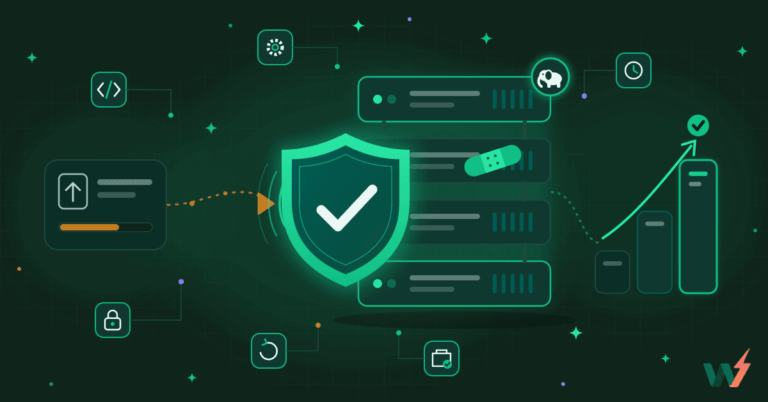
On InstaWP managed hosting, this baseline is packaged as InstaShield, which combines the core controls you actually want in place from day one:
- Automatic SSL so every site runs on HTTPS by default, which is foundational for secure WordPress sessions and logins.
- WAF-grade protection plus DDoS defense to filter common attack patterns and abusive traffic before WordPress is forced to process them.
- Bot blocking and rate limiting to reduce brute force attempts, credential stuffing, and scraping pressure that weakens WordPress security over time.
- Automated WordPress backups with versioning so you can roll back to a known good state quickly after a bad update, compromise, or accidental change.
- Monitoring, logs, and security tooling so you can see what is happening, investigate incidents, and shorten response time.
- A vulnerability scanner so you can catch known vulnerable components early and keep a secure WordPress site aligned with WordPress security best practices.

When you choose a secure WordPress hosting, secure a WordPress site becomes effortless. Most of the security issues are well taken care of without many efforts.
Tip #2. Keep WordPress Core, Themes, and Plugins Updated
Most WordPress security incidents trace back to outdated code. If core, plugins, or themes drift even a few versions behind, you are running known attack paths. Website security best practices here are simple: patch fast, remove what you do not use, and never test updates on production.
For a secure wordpress site, use an update workflow that is repeatable and low-risk.
- Update WordPress core on a schedule: Core updates include security fixes that directly improve WordPress security. Apply them consistently, and keep PHP and the server stack current as part of secure WordPress hosting hygiene.
- Update plugins and themes, then delete unused ones: Inactive plugins and old themes still add risk if they remain installed. Fewer moving parts makes a more secure website.
- Use staging for every meaningful update: The safest way to secure WordPress is to validate updates away from live traffic. Create a staging site, apply updates, run your functional checks, then push changes to production once you are confident.
- Add vulnerability checks before you deploy: WordPress security best practices include scanning for known vulnerable components, especially after installing a new plugin or doing a major update. This is where a vulnerability scanner fits naturally into website security.
Before updating, always backup your website. You can also test updates on a WordPress staging site to identify and resolve any issues before going live. Use proxies to protect your site during testing and consider proxies pricing to find the most cost-effective solution for your needs.
Changelogs of themes and plugins can show you what changes are being made. If you opt for MalCare, its UpdateLens feature assesses all of this information and tells you if an update is dangerous to make. It scores an update on its stability using an intelligent algorithm.

MalCare also has a visual regression feature that shows critical pages before and after an update.

With these safety nets in place, WordPress updates are less likely to damage your site’s functionality or crash it.
Tip #3: Lock Down Access to wp-admin
wp-admin is the control plane for your secure WordPress site. If an attacker gets an admin session, WordPress security controls inside the dashboard can be turned against you in minutes. Website security best practices here are consistent across agencies: minimize who can log in, make logins harder to abuse, and keep visibility on admin changes across every client site.
Start with these WordPress security best practices for wp-admin:
- First, enforce strong authentication. Use unique passwords for every user, remove shared admin accounts, and add 2FA for all administrators. This is basic secure WordPress hygiene, but it is where most secure website failures begin.
- Second, apply least privilege. Give clients Editor or custom roles, not Administrator. Reserve Administrator for the smallest possible set of agency operators.
- Third, reduce automated login abuse. Brute force and credential stuffing hit wp-login.php and wp-admin constantly. Secure WordPress hosting should help here with bot blocking and rate limiting at the edge so WordPress does not have to process abusive traffic.
- Fourth, keep an audit trail. You should be able to review access patterns and correlate suspicious events with changes like new admin users, plugin installs, or file edits.
If you are building with InstaWP, several WordPress security tasks that usually require jumping into wp-admin or server access become dashboard actions. That matters for agencies because the hardest part of website security is consistency across dozens of sites.
A real example is account cleanup. When you suspect compromised access, you can remove suspicious admin users directly from InstaWP, instead of logging into wp-admin and hunting through Users first.
For a secure wordpress site, wp-admin protection is not enough if old SFTP or SSH credentials still exist. InstaWP lets you reset those users as part of your incident response and offboarding process. This is one of those secure WordPress hosting fundamentals that directly supports WordPress security best practices.

For day to day hardening, you can also reduce exposure in the first place. Protect staging or client review sitesand then add edge controls via Cloudflare when you need stronger website security for bots, abuse traffic, or DDoS style pressure.

When you want deeper application level controls, the Wordfence integration makes securing WordPress easy.
Finally, treat detection and recovery as part of “secure WordPress”, not an afterthought. A built-in vulnerability scanner helps you catch known risk early.

Having so many WordPress security tools under one roof makes things so easy and manageable for agencies and developers handling multiple sites.
Tip #4: Reduce Your Attack Surface
A secure WordPress site is usually the simplest one. Every plugin, theme, integration, and extra login path increases the number of things that can break WordPress security. This is one of the most practical website security best practices because it does not depend on any single tool, it depends on discipline.
Start with plugin and theme hygiene. Delete plugins and themes you are not actively using. Inactive does not mean safe, because old code can still be discovered, re enabled, or abused in certain scenarios. Those who are building with secure WordPress hosting of InstaWP can enjoy the Bulk Edit feature. They can uninstall and update themes and plugins on multiple sites over a single click.
Watch the video below to learn more about managing 100+ sites from a single dashboard.
Then control high risk entry points. If you do not need XML RPC, disable it or protect it. If you do not need public access to a staging site, restrict it. If you are running temporary WordPress demo sites, enforce expiration and access controls so abandoned installs do not become long term liabilities.
Tip #5: Add Detection with Vulnerability Scanning, Monitoring, and Logs
Prevention is not enough for WordPress security. A secure WordPress site also needs detection, because compromises often start quietly. Website security best practices should include a way to spot risky components, unusual access patterns, and suspicious changes before they become downtime.
Vulnerability scanning answers a simple question is this site running anything with known security issues right now. That is critical after installing new plugins, after major updates, and during routine maintenance. Monitoring and logs answer the second question: what changed, when did it change, and who initiated it. That is the difference between guessing and responding.
If you are running sites on InstaWP, you can operationalize this without extra friction:
- Run the InstaWP vulnerability scanner workflow to identify known vulnerable components as part of your secure WordPress routine.
- Use InstaWP security overview as the hub for monitoring, response workflows, and integrations, including Cloudflare and Wordfence when you need extra layers.
Tip #6: Implement Login Security
There are a couple of ways to do this. Let’s start with 2FA. Two-factor authentication (2FA) adds an extra layer of security to your WordPress site. It requires users to provide two forms of verification: credentials and a time-bound secure code before gaining access.
The code is sent to you via email, text, authentication apps, etc. This makes it more challenging for unauthorized users to breach your site.
There are other similar protective measures as well.
For example, you can use password less logins that drop the passwords altogether. It uses another form of verification like a code sent via email to log in instead. This means that a hacker can’t even try to spam your login page for credentials.
Some WordPress security plugins also offer MFA or multi-factor authentication. This uses a password and two other forms of authentication at every login. reCAPTCHAs offer an alternative way that use puzzles that a user needs to solve.
Whatever method you choose, strike a balance between website security and user experience. Don’t make it impossible to log in.
Read more about 2 Factor Authentication →
Tip #7: Backup Your Website Regularly
Site backups are a critical component of maintaining a secure WordPress site. It acts as insurance that you can rely on, if things go awry. MalCare offers a seamless solution for creating and managing backups.
When choosing a WordPress backup solution, there are a few things you need to keep in mind. It needs to be automated, and a backup needs to be taken daily, if not hourly. Additionally, a backup needs to be taken in increments and stored offsite. You also need a tool that allows for easy restores.
With MalCare’s backup functionality, you can schedule automatic backups of your website. It also provides a user-friendly interface for managing backups and restores. The backups are also stored on their Amazon S3 servers.

Also, you can use the build-in back-up facility of InstaWP. Based upon the managed WordPress hosting plan you’re choosing, you can enjoy monthly, weekly, and daily backups.

Tip #8: Limit Login Attempts
Limiting failed login attempts are designed to protect your site from brute-force attacks. Brute-force attacks involve automated bots or tools trying to guess your username and password. Restricting the number of logins attempts temporarily locks bots out after failed logins.
One downside of this protective measure is that it comes with the risk of genuine users being locked out too. A user may get locked out because they forgot their passwords and were trying different ones.
Some of the best WordPress security plugins such as MalCare mitigates this inconvenience by allowing users to access the login page by solving a reCAPTCHA puzzle. A bot can’t solve the puzzle and remains locked out.

If you’re on InstaWP’s secure managed hosting, treat “limit logins” as a two-part workflow:
Enable Activity Logs to track logins, logouts, failed login attempts, registrations, profile updates, and deletions. This gives you an audit trail when something looks off.

Add an Alert Rule for “failed login attempts” (and optionally logins/logouts) so you don’t have to constantly watch logs—your team gets an email when brute-force behavior spikes.

Net result: you get built-in observability (logs + alerts) on Managed Sites, and you layer on proper rate-limiting/lockouts via a plugin—without guessing what’s happening on the login endpoint.
Tip# 9: Install a WordPress Security Plugin
A WordPress security plugin, paired with managed WordPress hosting, is a great weapon against malware attacks. These plugins offer a comprehensive set of security features.
There are a lot of plugins that can help you out but in our experience, MalCare is the best. First, you can use MalCare to scan your files and databases for malware. If it finds any, you can use the malware cleaner to remove them all.

It also has proactive security features. It immediately installs an advanced firewall that can block malicious traffic. The firewall is also regularly updated so it can block zero-day attacks. You can also implement geoblocking to block traffic from specific countries.

For brute force attacks MalCare will also limit failed login attempts. If a hacker uses bots to try to crack your credentials, this feature will lock them out after a few tries.

Finally, it regularly scans for vulnerabilities in your plugins and themes, so you can update them in time and prevent hacks. To avoid being blocked when web scraping, make sure to respect the robots.txt file of the website, use proxies, rotate user-agents, and manage your scraping speed to resemble human behavior.

Investing in a WordPress security plugin like MalCare can bolster your website’s defenses.
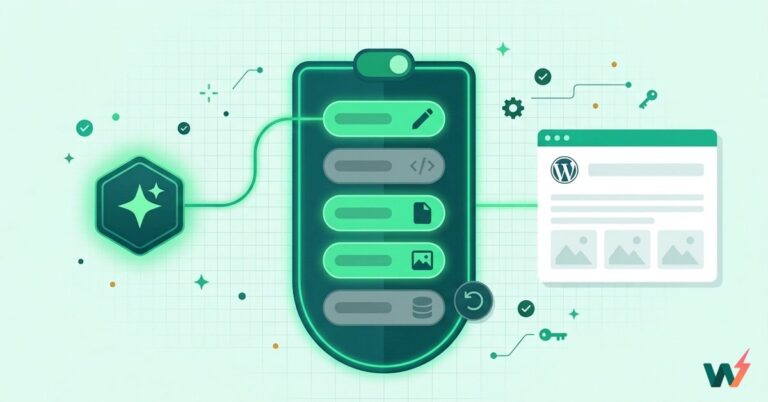
Tip #10: Disable File Editing
By default, administrators can edit theme and plugin files from the admin dashboard. This feature is convenient for making quick changes. But, it also poses a significant security risk. If a hacker gains access to your admin credentials, they could change critical files. They could inject malicious code and compromise your site’s security.
By disabling file editing, you prevent them from making changes to files. It is a simple way to protect your data, in case of a data breach.
With the best WordPress security plugin like MalCare, you can do this in just one click. Navigate to the hardening features section and you can disable file editing.

If you’re working on client sites with a team, credential sharing is one of the easiest ways admin access leaks. On InstaWP , you can use Magic Login to access wp-admin without handing out (or reusing) WordPress admin passwords. Pair that with disabling file editing (DISALLOW_FILE_EDIT) and you reduce both the likelihood of credential compromise and the blast radius if someone does get in.
Tip #11: Secure WordPress Database
Your WordPress database is where everything important lives: users, content, plugin/theme settings, orders, form entries, API keys stored in options, the lot. If an attacker gets database access (or can write to it indirectly via a vulnerable plugin), they can create admin users, inject malware, or quietly alter site behavior.
The basics of securing WordPress when database is involved are as mentioned below:
- Lock down DB credentials and privileges. Use a strong, unique database password and avoid reusing the same DB user across multiple sites. Give that user only the permissions it needs (least privilege), and rotate credentials when people/vendors change.
- Restrict database access. Don’t expose your database to the public internet. Keep DB connections on private networking / localhost where possible, and avoid leaving tools like database managers open unless you actively need them.
- Database security isn’t just “prevent”—it’s also “recover.” Have frequent database backups and make sure you can restore cleanly after corruption, a bad deployment, or a compromise.
- Keep WordPress core, themes, and plugins updated (most DB compromises start with a vulnerable component). Add a WAF layer where possible to reduce automated exploit traffic before it reaches WordPress.
Those who’re building and hosting with InstaWP will have a very smooth database security workflow.
For instance, the automatic backups include database backups on an hourly basis when changes are detected, plus restore/download options; so recovery from a bad change or incident is much less painful.
InstaWP’s 2-way sync is designed for content changes; direct file/database edits aren’t tracked by the plugin for syncing—so treat DB-level edits as deliberate operations you validate carefully.

InstaWP also includes a DB Editor (Database Manager) under Site Tools, and it’s something you enable from Remote Management settings; useful if you want DB access available only when needed.

You also get to enjoy Web Application Firewall (WAF), DDoS protection, and bad-bot blocking, helpful for cutting down automated attacks that frequently target vulnerable database-writing paths.
WordPress Site Gets Hacked: Immediate Response Checklist
A hacked WordPress site is a website security incident, not a “plugin issue.” Your first goal is containment, then regaining access, then restoring a known good state. Move fast, but keep changes deliberate so you do not destroy the evidence you need to understand what happened.
1) Contain the incident in minutes
Take the site out of public circulation. If you are on InstaWP, enable password protection with InstaWP Protect Site so only your team can access the site while you investigate.
Also, stop automated attack traffic at the edge. If you use Cloudflare, tighten protections immediately and block obvious abuse patterns. Do not keep “testing fixes” on production. Every extra change increases the chance of missing the real root cause and makes WordPress security cleanup harder.
2) Regain control of accounts and access
Identify and remove unauthorized admin users. Treat passwords as exposed until proven otherwise. So, reset the admin passwords. If an attacker has file level access, wp-admin fixes alone will not restore a secure website. Reset SFTP and SSH users for all your site.
To further investigate how the compromise might have occurred, you can also use a data breach scanner to see if your administrative emails were swept up in known external leaks.
3) Restore the site to a known good state
For secure WordPress hosting, reliable restore is part of website security best practices. If you are managing sites on InstaWP and have an up-to-date staging site, you can recover by promoting the clean site to live. Verify backups and restore points before you go public again.
4) Patch the root cause so it does not repeat
Update WordPress core, plugins, and themes immediately after restore. Most compromises persist because the vulnerable component remains. Apply WordPress security best practices by patching and removing anything you do not need.
Run a vulnerability scan after cleanup. This helps confirm you are not still running known vulnerable components that can re compromise the secure WordPress site.
Add an application firewall and malware scanning if your threat model requires it. For many sites, pairing secure WordPress hosting with an app layer security plugin is the right website security posture.
5) Before you re open the site
Recheck users, admin email, and permissions. Confirm only expected admins exist and privileges match least privilege. Keep tighter controls for 24 to 72 hours. Leave protections in place, monitor behavior, and only then relax restrictions once you are confident the secure website is stable.
Conclusion
Securing your WordPress site protects your data and maintains your online reputation. Implementing the recommended security measures can significantly enhance the security of your website.
A secure WordPress site comes from secure WordPress hosting fundamentals plus disciplined website security best practices inside WordPress. Start by putting the right baseline in place, then standardize updates, access control, monitoring, and recovery so security does not depend on heroics.
If you want to make this workflow repeatable for every site you build, use InstaWP to run staging-first updates, protect work in progress sites, scan for vulnerabilities, rotate access fast, and recover cleanly when something goes wrong. Start here:
FAQs
How do I secure a WordPress site quickly?
Start with secure WordPress hosting that gives you HTTPS, edge protection, backups, and monitoring. Then lock down wp-admin with strong passwords, 2FA, and least privilege, and update core, plugins, and themes on a schedule. If you need a simple staging workflow for safer updates, use a staging environment before pushing changes live.
Do I need a security plugin if I have secure WordPress hosting?
Secure WordPress hosting covers a lot of website security at the edge and infrastructure layer. A security plugin can still be useful for application-level controls like malware scanning, firewall rules, and login hardening. The best WordPress security posture is layered: hosting baseline plus focused plugin protections when needed.
What should I do first if my WordPress site is hacked?
Contain access, regain control, then restore a known good version. Protect the site so it is not publicly reachable, remove suspicious admins, reset passwords, rotate SFTP and SSH access, and restore from backups or a clean staging environment. This is the fastest path back to a secure website.
How do I remove suspicious admin users if I cannot safely log into wp-admin?
For WordPress security incidents, you want a path that does not require spending time inside wp-admin. InstaWP includes a workflow to remove suspicious admin users from the dashboard.
How often should I update WordPress core and plugins?
Apply security updates as soon as possible and schedule routine updates weekly for most sites. For a secure WordPress site, use staging for updates that can break functionality, especially ecommerce and membership sites. This is one of the most reliable WordPress security best practices.
What is a vulnerability scanner for WordPress, and when should I run it?
A vulnerability scanner checks whether your WordPress core, plugins, or themes match known vulnerable versions. Run it after installing anything new, after major updates, and as part of a monthly website security audit.
What backups do I need for a secure WordPress site?
At minimum, use automated daily backups with retention and an easy restore path. A secure website also tests restores periodically, because a backup that cannot be restored is not a backup.
How do I protect a staging site so it is not public?
Staging sites are often indexed or accessed by mistake, which is a preventable website security issue. Add access protection and keep staging separate from production workflows.
Should I connect Cloudflare for WordPress security?
Cloudflare can improve website security by adding edge protections like DDoS mitigation and WAF-style rules, depending on your configuration. If your site gets heavy bot traffic or abuse, an edge layer is often worth it.
What is the best way for agencies to keep client sites secure?
Agencies win by standardization. Use secure WordPress hosting, keep a hardened baseline, enforce access controls, run staging-first updates, scan for vulnerabilities, and document a recovery checklist.