WooCommerce powers over 5 million online stores globally, and its dominance continues to grow thanks to its flexibility, WordPress integration, and plugin-rich ecosystem. But while many agencies rely on pre-built WooCommerce themes to get stores live quickly, those templates often come with design limitations, bloat, and update conflicts.
That’s where WooCommerce custom theme development becomes a game-changer, especially for agencies that prioritize branding, performance, and tailored user experiences.
Whether you’re building from scratch or starting with a framework, a custom theme gives you total control over layout, checkout flow, performance, and SEO architecture.
And with tools like InstaWP, you can prototype, test, and iterate themes instantly, without setting up local environments or affecting live stores.
Table of Contents
Why WooCommerce Custom Theme Development Is Worth It
Many agencies ask: Why not just buy a $59 WooCommerce theme and customize it?
The answer lies in the long-term value of control. A custom WooCommerce theme isn’t just about visuals; it’s about performance, flexibility, and client-specific functionality. Here’s why investing time in WooCommerce custom theme development is a strategic advantage:
Brand-Centric Design
Prebuilt themes may look slick, but they’re often designed for the masses. When you build a WooCommerce theme from scratch or from a minimal starter, every detail—from product grids to mobile nav—is shaped around your client’s brand. This level of detail builds trust and improves conversions.
No Theme Bloat
Off-the-shelf themes often load dozens of scripts and CSS files, many of which your store never uses. A custom WooCommerce theme loads only what’s needed, meaning faster load times, better Core Web Vitals, and improved SEO.
Advanced Functional Customization
Need a custom upsell flow on the product page? Or a simplified checkout for B2B clients? These are hard to achieve with bloated templates. With a custom theme, you get granular control over every WooCommerce template and hook.
Easier Long-Term Maintenance
When you understand every line of your theme, debugging becomes faster. Updates don’t break layouts, and you’re not dependent on third-party vendors for fixes.
Better SEO and Accessibility
With a custom build, you ensure your WooCommerce theme follows semantic HTML5 structure, uses schema markup properly, and meets WCAG guidelines—features often missing in generic themes.
Understand the WooCommerce Theme Structure Before You Start
Before jumping into development, it’s critical to understand the WooCommerce theme structure. WooCommerce is built to integrate seamlessly with WordPress themes, but to build a high-performing store, you need to know which files to customize, how to override templates, and how WooCommerce interacts with your theme.
Core WooCommerce Template Files
WooCommerce uses a combination of its own template files and your active theme’s layout. Here are some key templates you’ll work with:
- archive-product.php: Controls the layout of product category and shop pages.
- single-product.php: Manages the individual product page layout.
- cart.php, checkout/form-checkout.php: Define cart and checkout structures.
- myaccount/, emails/, and other subfolders: Handle user and notification templates.
These files live inside:
/wp-content/plugins/woocommerce/templates/
To customize them, you never edit the core plugin. Instead:
- Create a /woocommerce/ folder inside your custom theme.
- Copy the file you want to override into this folder.
- Modify the file as needed. WooCommerce will automatically use your version.
This keeps your customizations up-to-date.
WordPress Theme Files You’ll Also Need
Your custom WooCommerce theme should include these WordPress basics:
- style.css: Theme info and global styles.
- functions.php: Where you enqueue assets and declare WooCommerce support.
- header.php & footer.php: Used across all templates.
- index.php, page.php, single.php: Default templates.
- Optional: woocommerce.php: Acts as a wrapper template for WooCommerce content.
Declaring WooCommerce support in functions.php is a must:
function mytheme_add_woocommerce_support() {
  add_theme_support('woocommerce');
}
add_action('after_setup_theme', 'mytheme_add_woocommerce_support');
Hooks & Template Hierarchy
WooCommerce uses action and filter hooks extensively. These let you inject or modify content without editing templates directly. For example:
add_action(‘woocommerce_before_single_product_summary’, ‘custom_content_here’);
Understanding hook points and template hierarchy helps you customize without rewriting everything from scratch.
Folder Organization for Custom Themes
Structure your theme folder like this:
/my-theme
/woocommerce
/single-product.php
/cart/cart.php
/css
/js
/images
functions.php
style.css
header.php
footer.php
This keeps everything modular and scalable, especially if you plan to reuse your WooCommerce custom theme across client projects.
How to Build a Custom WooCommerce Theme
Building a WooCommerce theme from scratch might seem complex, but it’s entirely manageable with the right approach—and even faster when using InstaWP.
This section walks you through the entire WooCommerce custom theme development process. Whether you’re building for a client, a productized service, or your agency’s starter theme library, this workflow ensures a fast, scalable, and testable setup.
Step 1: Launch a New WooCommerce Site
To begin your WooCommerce custom theme development, the first step is launching a WooCommerce-enabled WordPress site. Traditionally, this means installing WordPress locally using tools like XAMPP, MAMP, or Local by Flywheel, and then manually adding the WooCommerce plugin.
While this works, it often involves juggling database setups, PHP configurations, and server dependencies.
The smarter way? Use InstaWP.
With InstaWP, you don’t just spin up a WordPress install; you get a fully hosted environment with WooCommerce pre-installed if you choose the right site plan. Whether you’re building:
- A disposable sandbox for testing,
- A reusable staging site for live edits,
- Or a small dynamic WooCommerce store for client delivery,
InstaWP gives you the flexibility to choose from multiple site plans that match your development workflow. You also get versioning, backups, and instant sharing links—all without setting up local infrastructure.
To get started:
- Log in to InstaWP.
- Click “+ Create New Site”. You will get multiple options to create a site to choose from.
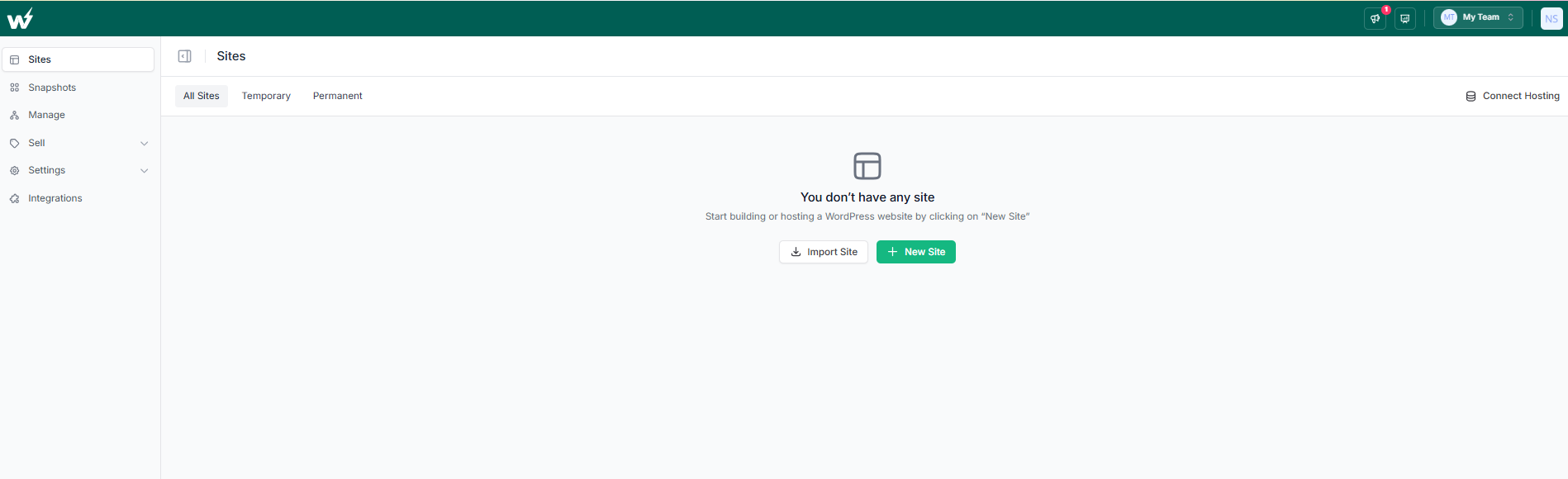
- You need to select the site plan of your choice.
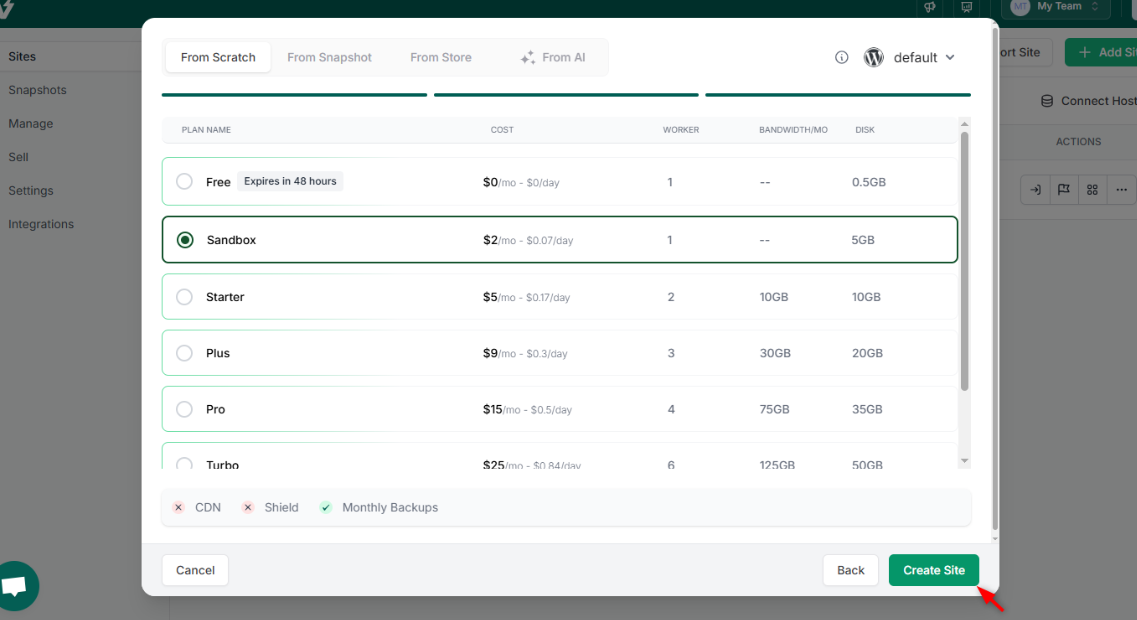
As you click on Create Site, your site will be created in no time.
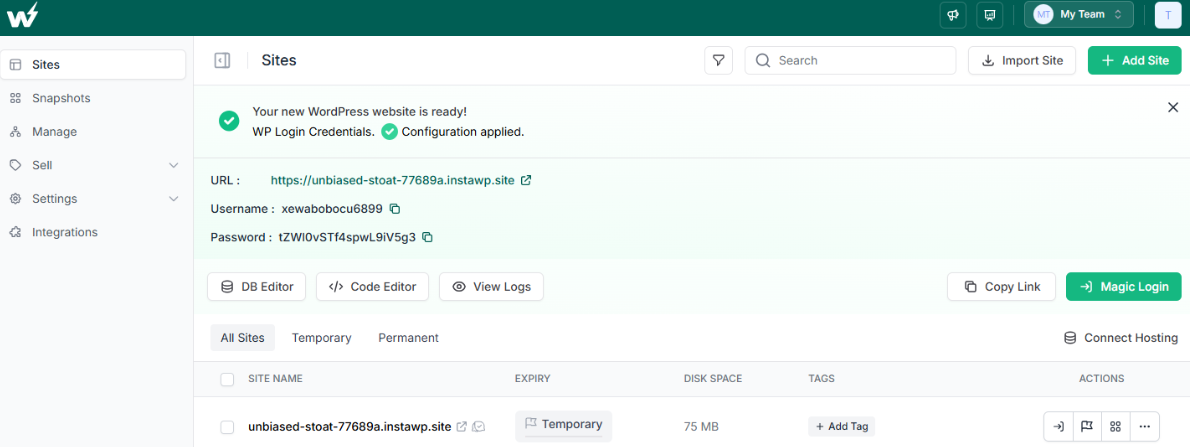
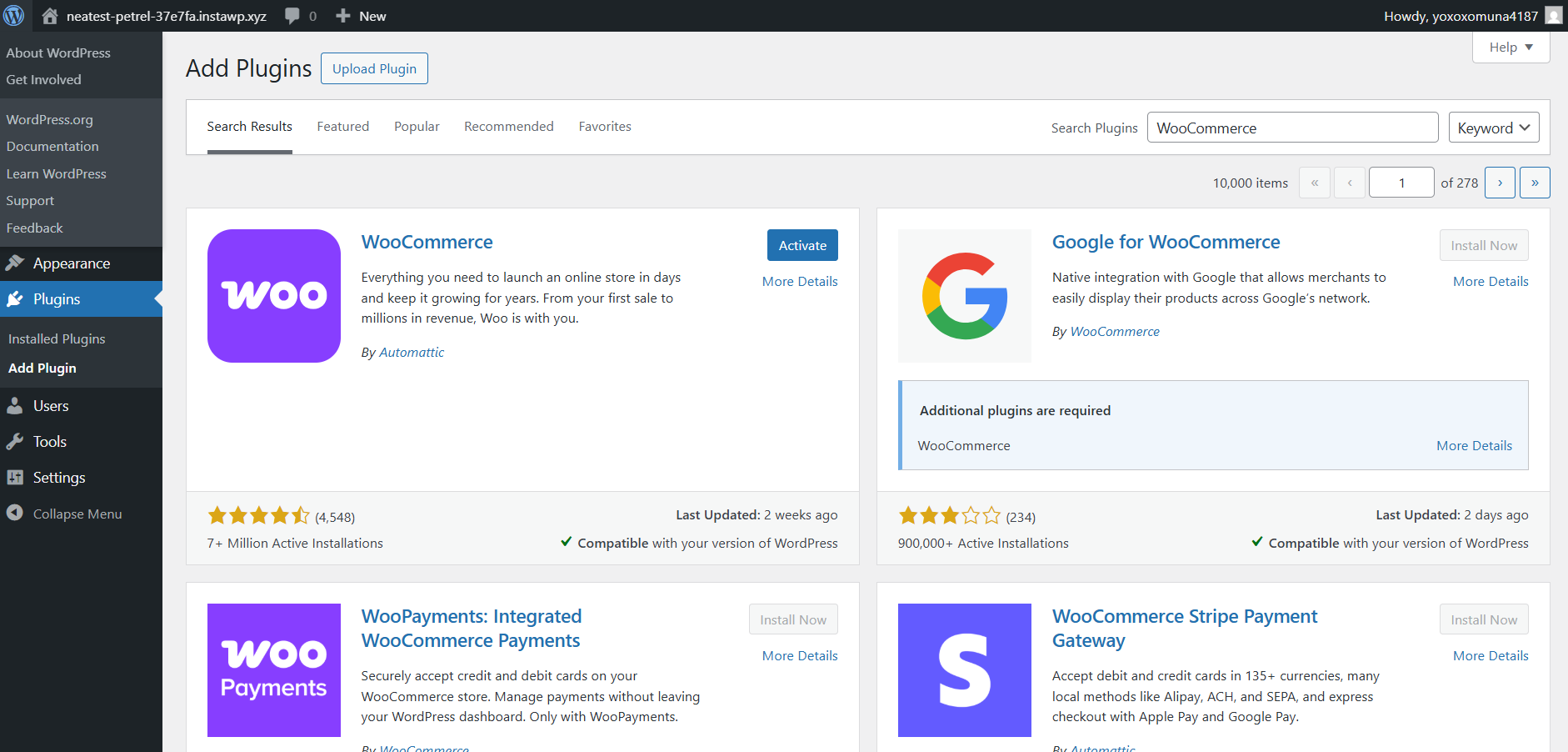
- Use the “Magic Login “ button to go to the WordPress dashboard. Go to Plugin > Add New and Install & Activate WooCommerce.
Step 2: Create Your Custom Theme Folder
Once your WooCommerce sandbox is live in InstaWP, it’s time to set up your custom theme.
Instead of relying on FTP or syncing a local editor, you can use InstaWP’s built-in Code Editor to create, edit, and manage your theme files right inside your browser.
Here’s how to do it:
- In your InstaWP dashboard, go to your WooCommerce site and click on the three-dot menu to access the Code Editor.
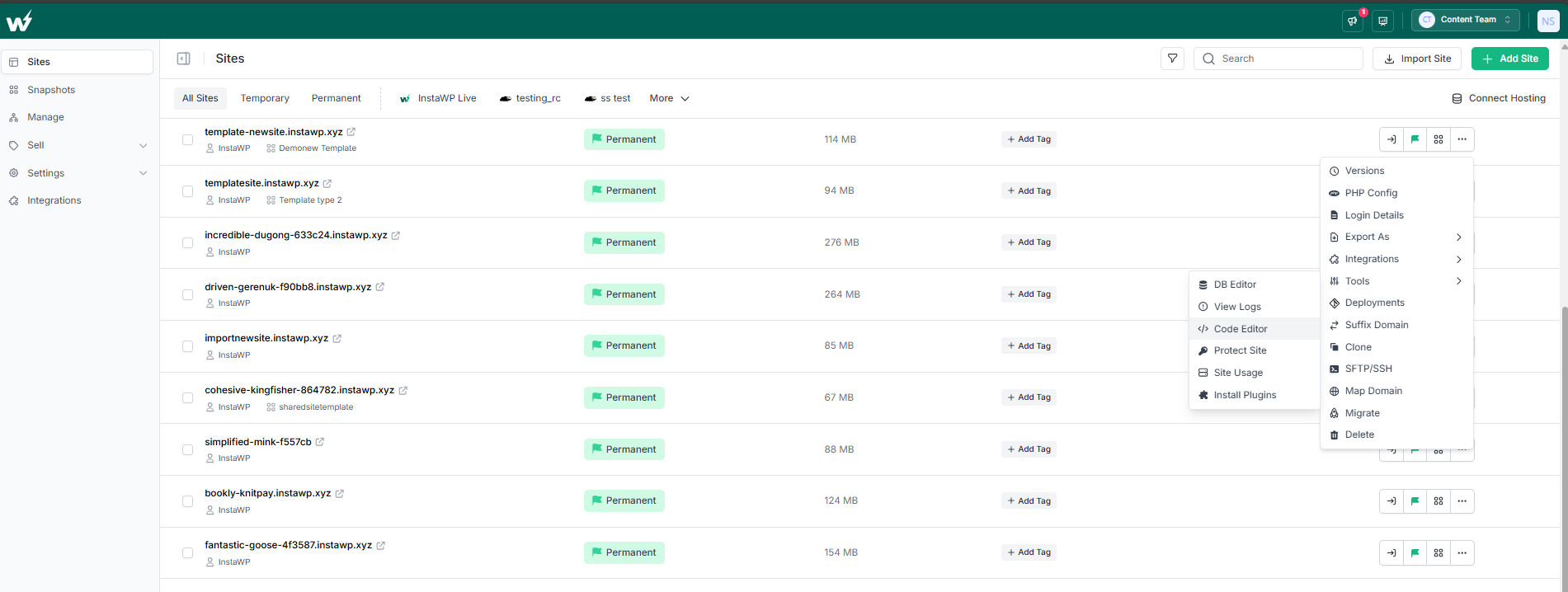
You will have two options to choose from:
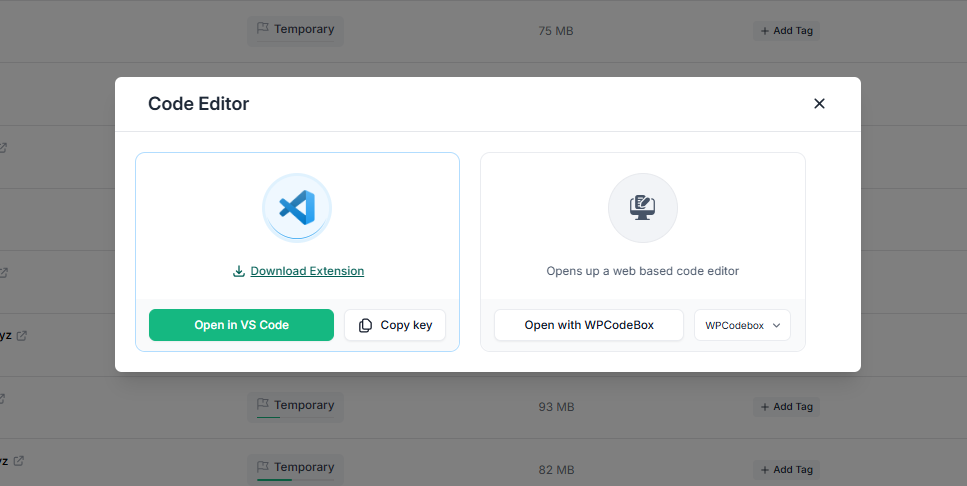
We’re selecting the browser-based code editor for this guide.
- You’ll have the entire code of your live theme in front of you. For your custom WooCommerce theme, you need to create a new folder under the /wp-content/themes/. Go to this folder and click on ‘ New Folder’.
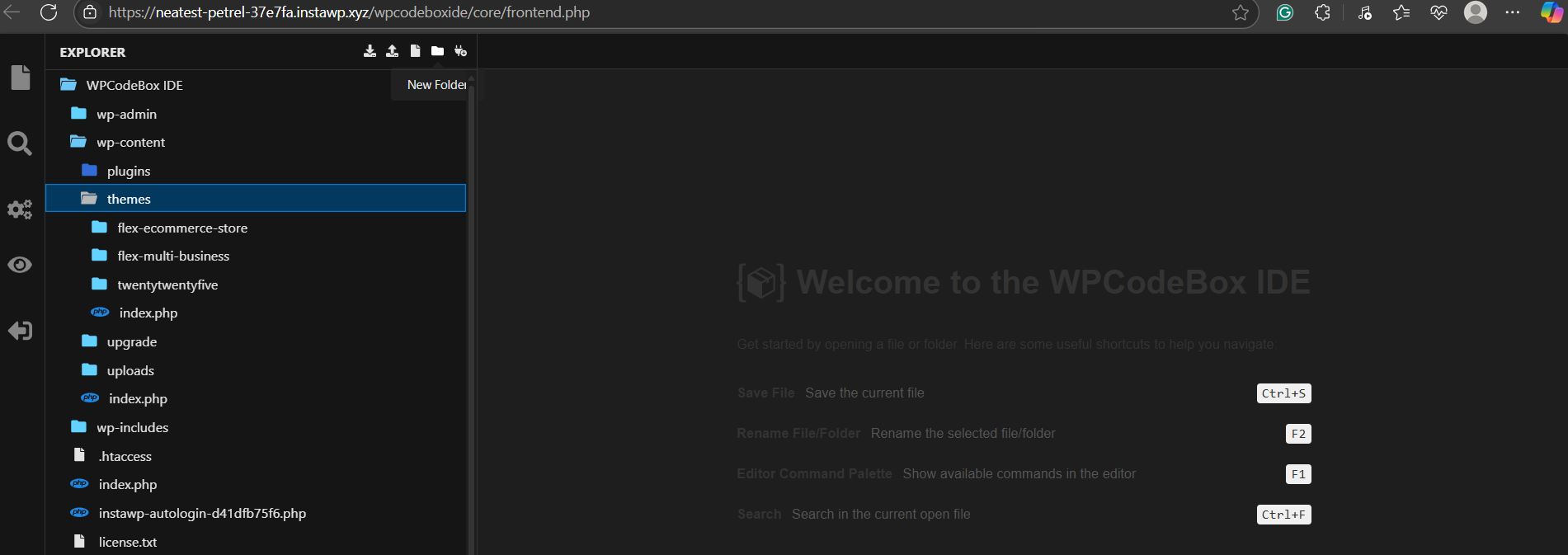
Name it something like: my-woocommerce-theme.
3. Inside this folder, create the following files by right-clicking and choosing “New File”:
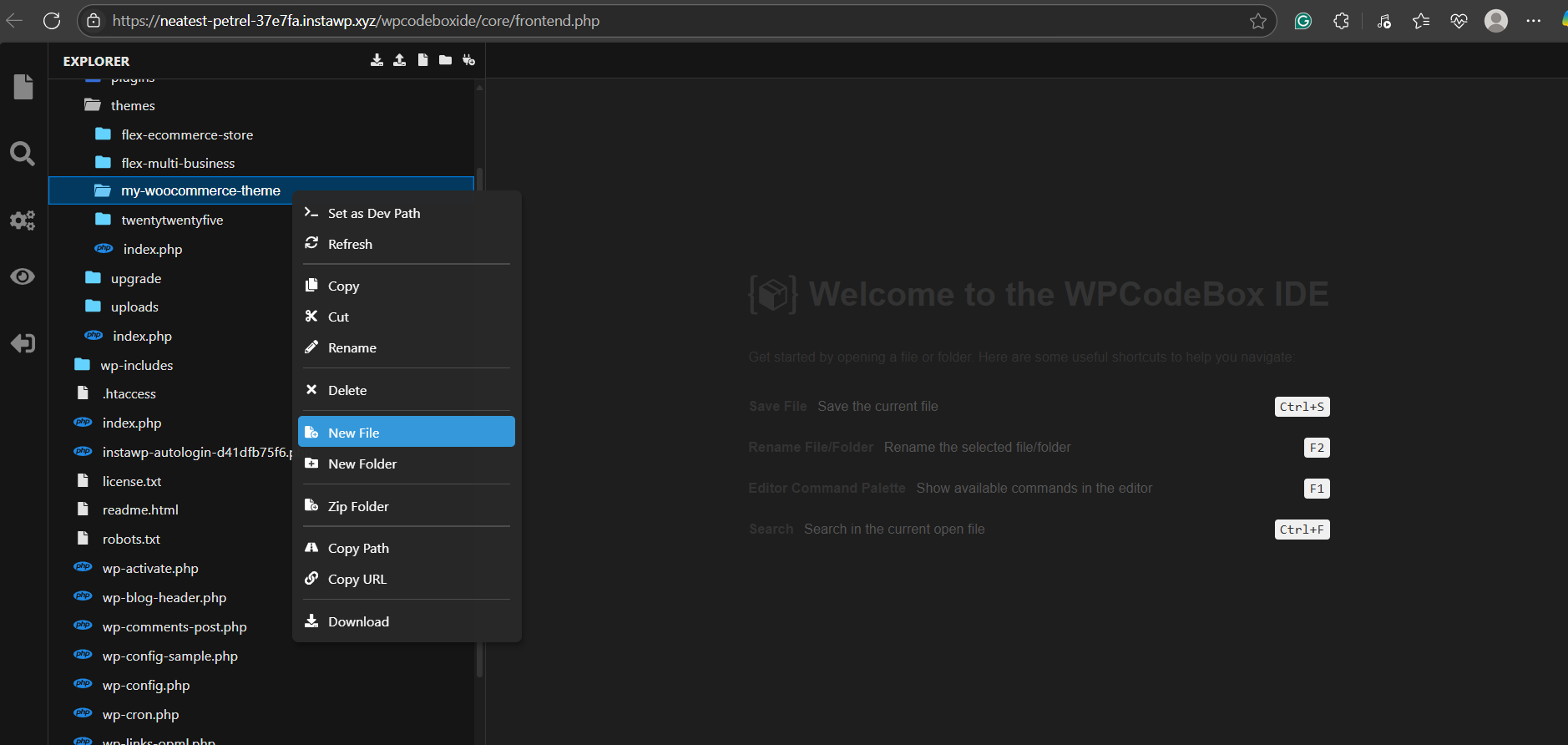
- style.css
- functions.php
- index.php
- header.php
- footer.php
You can also create a /woocommerce/ folder here if you plan to override WooCommerce template files later.
Step 3: Add Basic Theme Structure
Now that your custom WooCommerce theme is created and activated in InstaWP, it’s time to lay down the foundational files that power your site’s structure. This step ensures your theme can display content properly and serve as a wrapper for WooCommerce elements.
1. Open style.css and add this theme declaration:
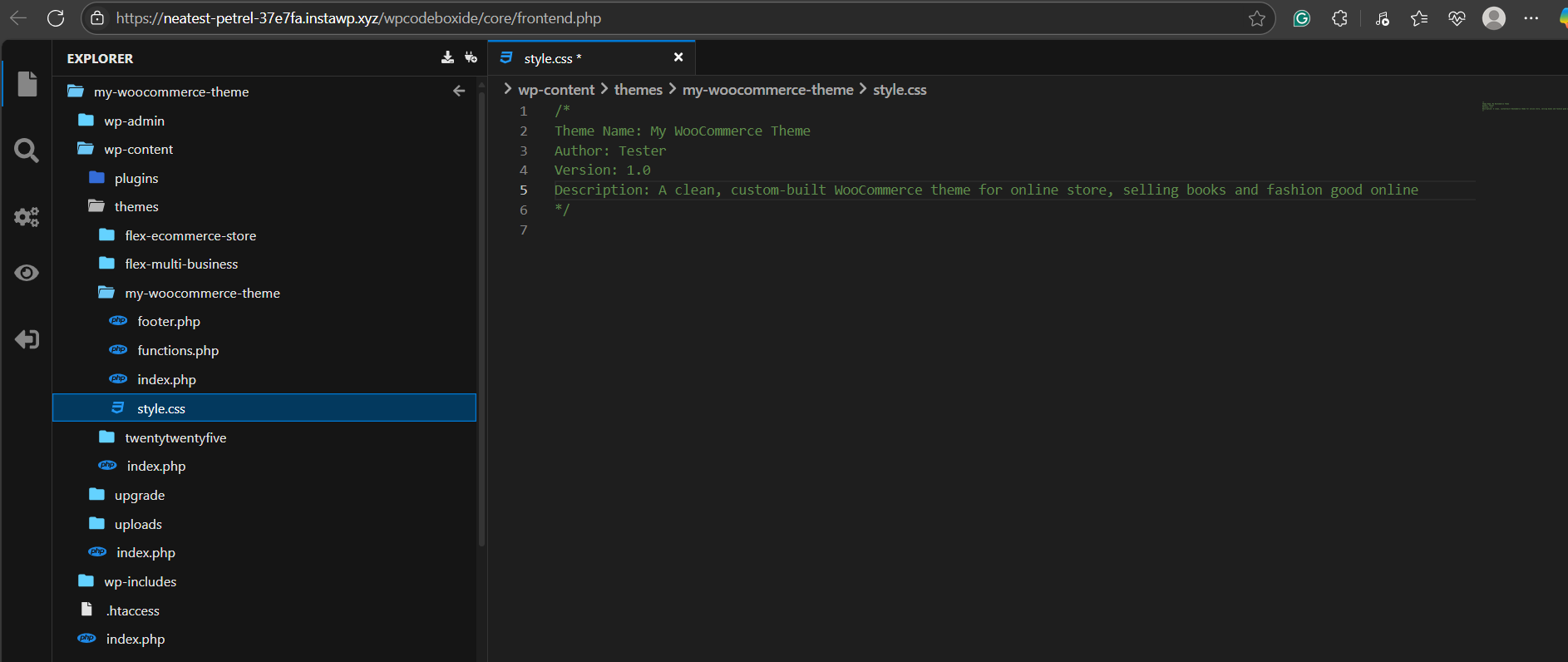
/*
Theme Name: My WooCommerce Theme
Author: Your Name
Version: 1.0
Description: A clean, custom-built WooCommerce theme.
*/
To style your theme, add code below:
body {
  font-family: Arial, sans-serif;
  line-height: 1.6;
  color: #333;
}
a {
  color: #0067ee;
  text-decoration: none;
}
.header-logo img {
  height: 50px;
}
You can customize the parameters as per your requirements.
2. Open header.php. This file contains everything from your <!DOCTYPE html> declaration to the opening of your <body> tag. Here’s a minimal but functional header:
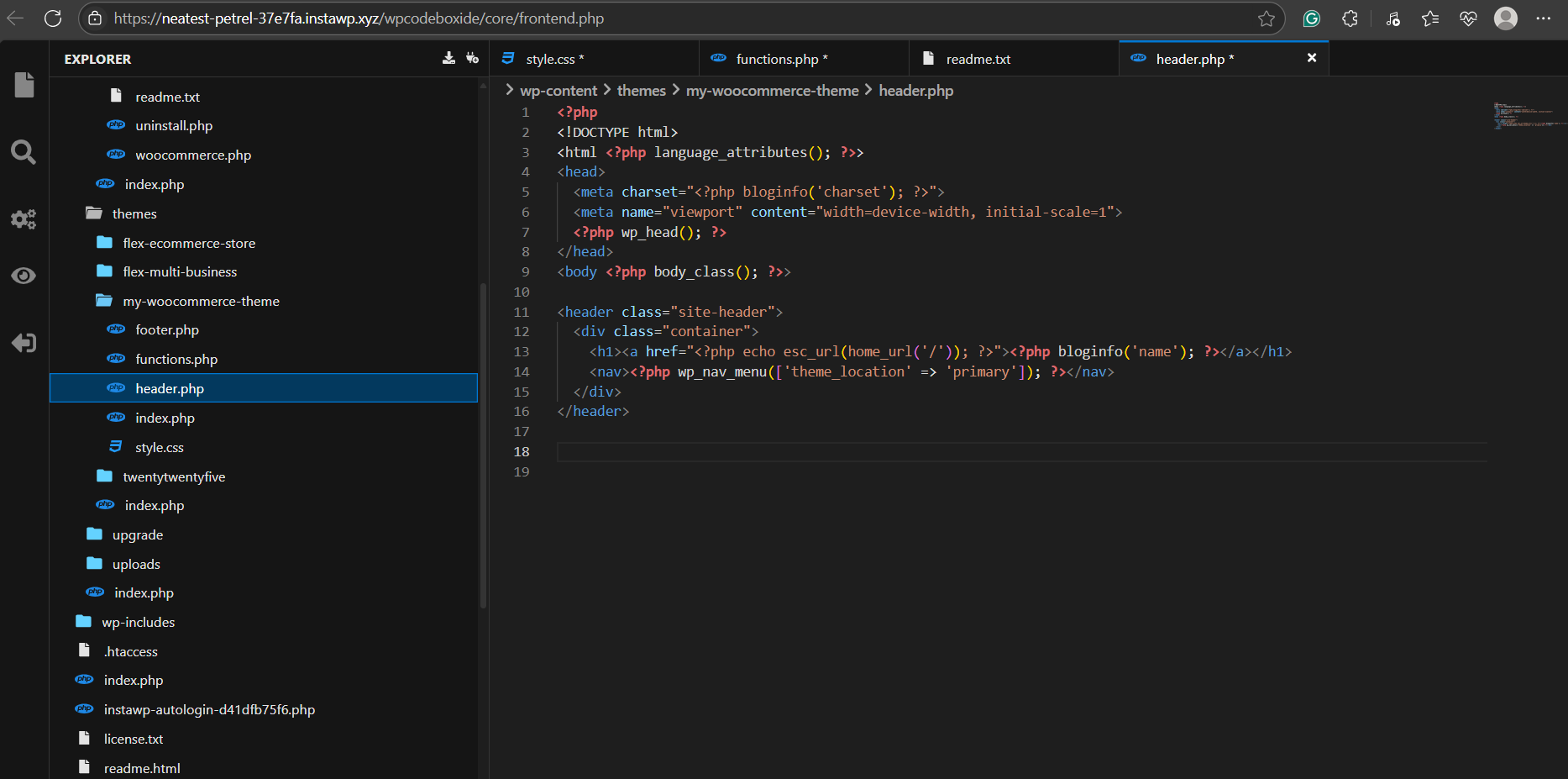
<!DOCTYPE html>
<html <?php language_attributes(); ?>>
<head>
  <meta charset="<?php bloginfo('charset'); ?>">
  <meta name="viewport" content="width=device-width, initial-scale=1">
  <?php wp_head(); ?>
</head>
<body <?php body_class(); ?>>
<header class="site-header">
  <div class="container">
    <h1><a href="<?php echo esc_url(home_url('/')); ?>"><?php bloginfo('name'); ?></a></h1>
    <nav><?php wp_nav_menu(['theme_location' => 'primary']); ?></nav>
  </div>
</header>
3. Open footer.php. This wraps up the page layout and includes your closing tags:
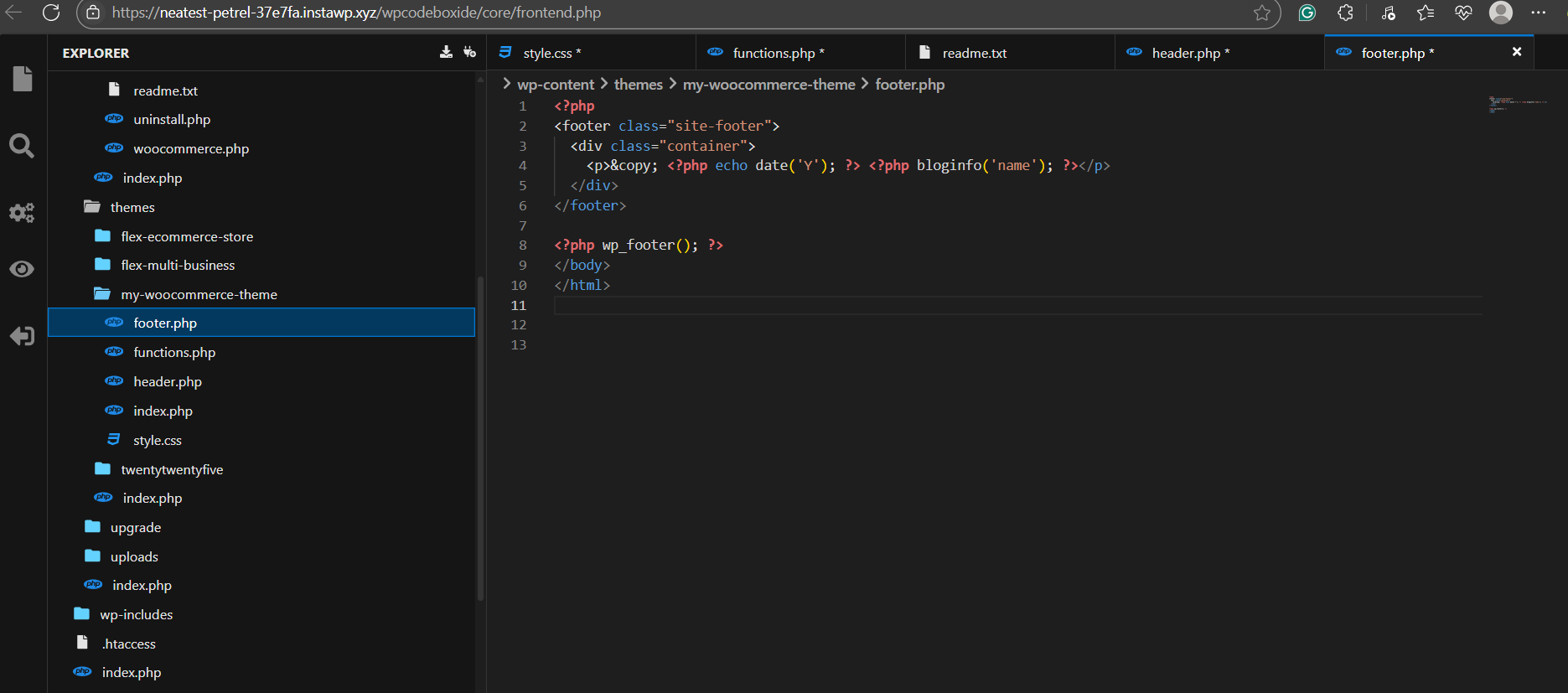
<footer class="site-footer">
<div class="container">
<p>© <?php echo date('Y'); ?> <?php bloginfo('name'); ?></p>
</div>
</footer>
<?php wp_footer(); ?>
</body>
</html>4. Open index.php. This is the default template that loads when no more specific template exists. For now, keep it simple:
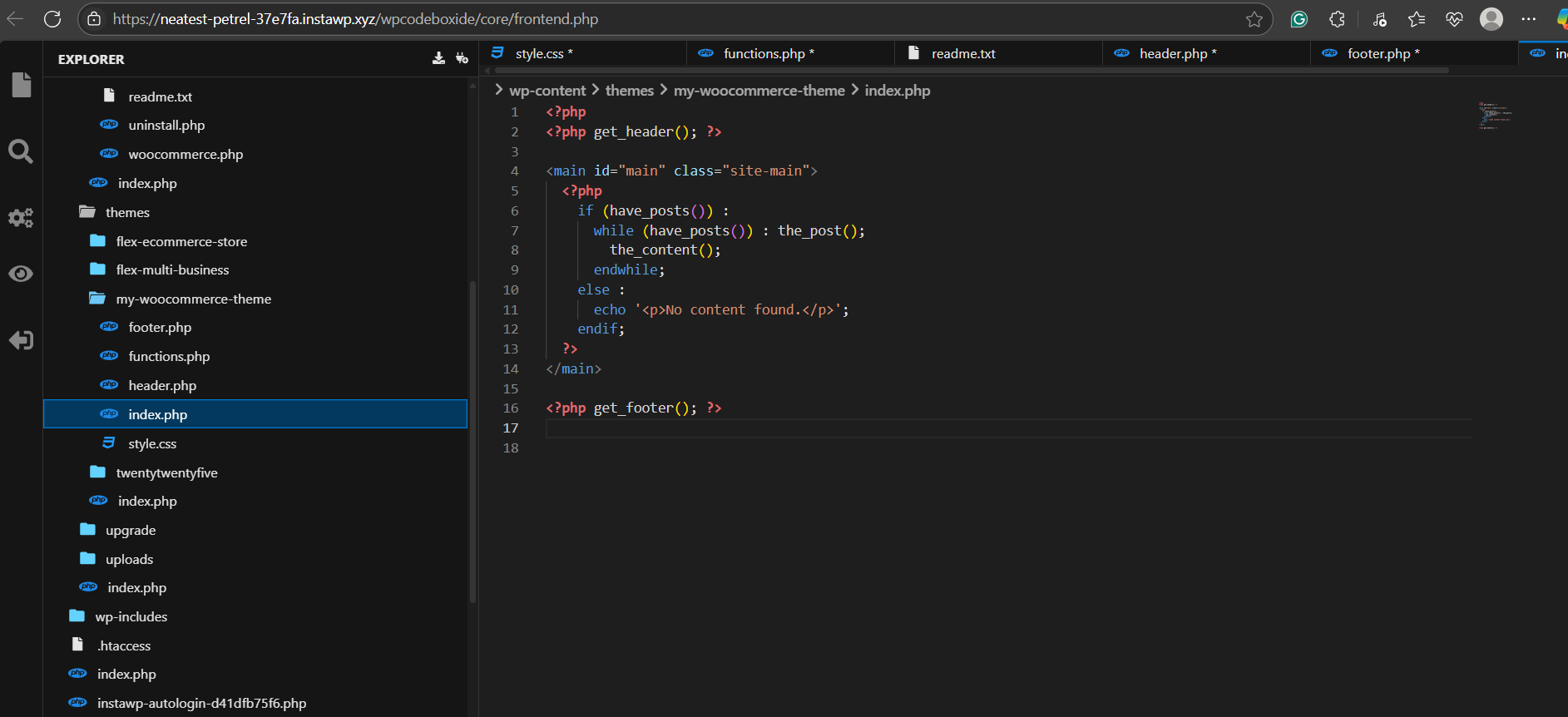
<?php get_header(); ?>
<main id="main" class="site-main">
  <?php
    if (have_posts()) :
      while (have_posts()) : the_post();
        the_content();
endwhile;
    else :
      echo '<p>No content found.</p>';
endif;
  ?>
</main>
<?php get_footer(); ?>
5. Next, open functions.php and enqueue your stylesheet:
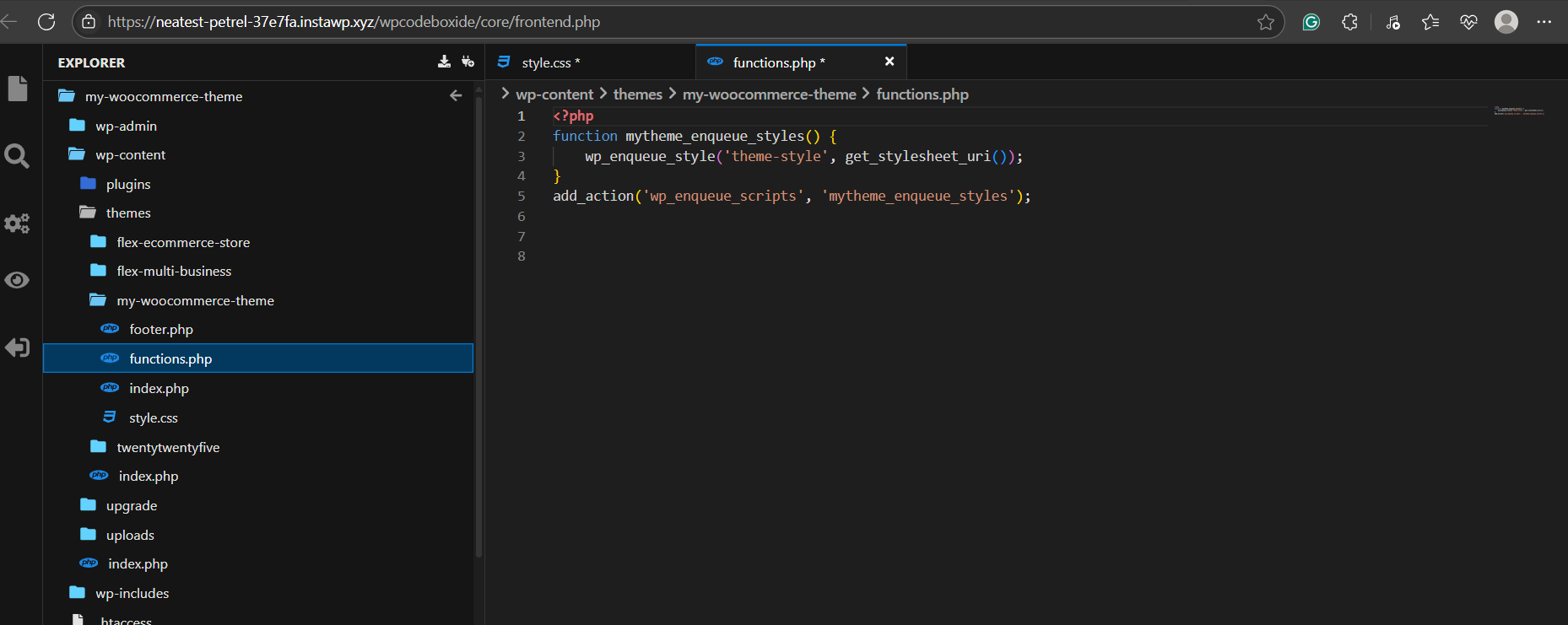
<?php
function mytheme_enqueue_styles() {
    wp_enqueue_style('theme-style', get_stylesheet_uri());
}
add_action('wp_enqueue_scripts', 'mytheme_enqueue_styles');
6. Then, add WooCommerce integration. Go to woocommerce.php and below code:
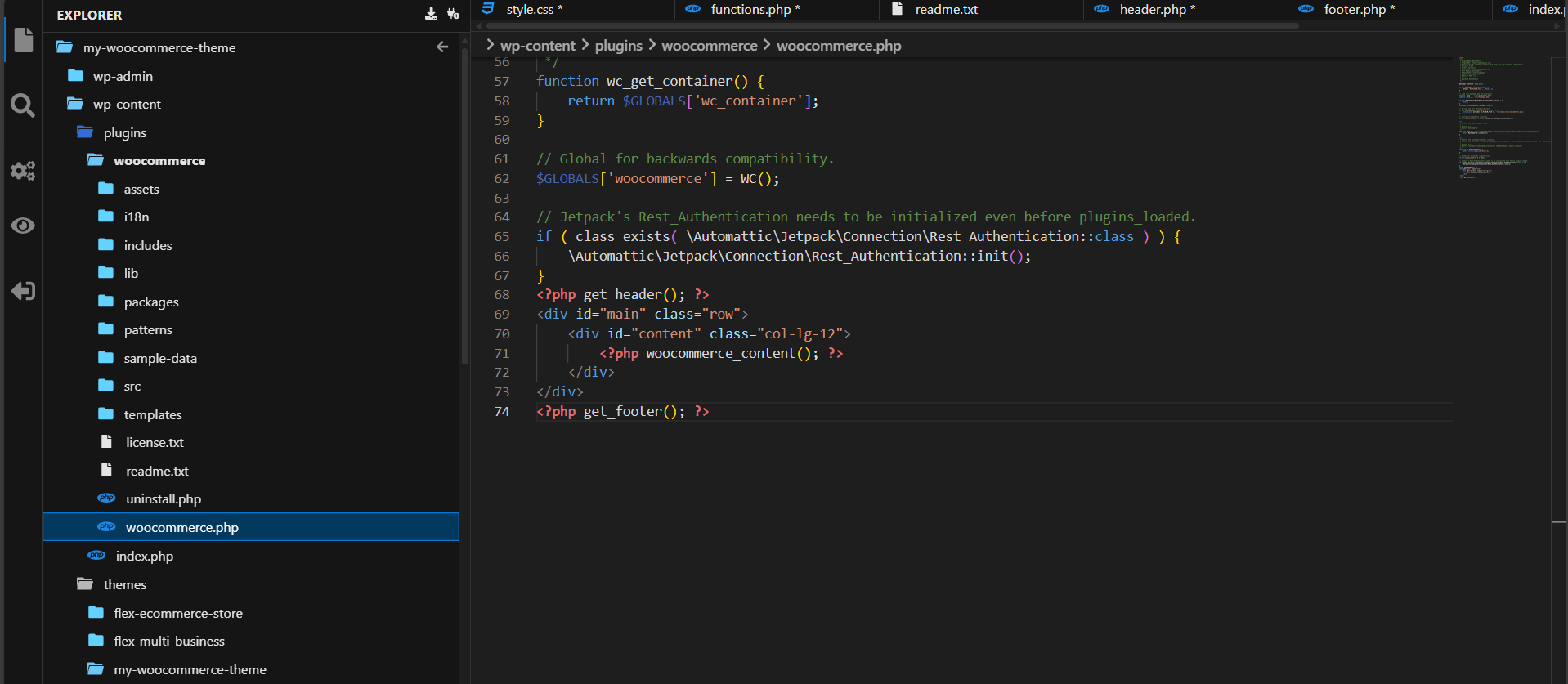
<?php get_header(); ?>
<div id="main" class="row">
    <div id="content" class="col-lg-12">
        <?php woocommerce_content(); ?>
    </div>
</div>
<?php get_footer(); ?>
Step 4: Override WooCommerce Templates and Pages
Now that your base theme structure is ready, the next step in WooCommerce custom theme development is taking control of how your store pages look. WooCommerce offers dozens of template files for product loops, single product pages, cart, checkout, and account sections.
To customize these layouts safely, you should override WooCommerce templates inside your theme, without touching the core plugin files.
Locate WooCommerce Templates
In your InstaWP code editor, go to:
/wp-content/plugins/woocommerce/templates/
This directory contains all default WooCommerce template files organized by function. For example:
- single-product.php – for individual product pages
- archive-product.php – for product listing/category pages
- cart/cart.php – for the cart layout
- checkout/form-checkout.php – for the checkout form
Create a /woocommerce Folder in Your Theme
Inside your custom theme (/wp-content/themes/my-woocommerce-theme/), create a new folder named woocommerce.
In InstaWP:
- Right-click your theme folder in the Code Editor.
- Select “New Folder”, and name it woocommerce.
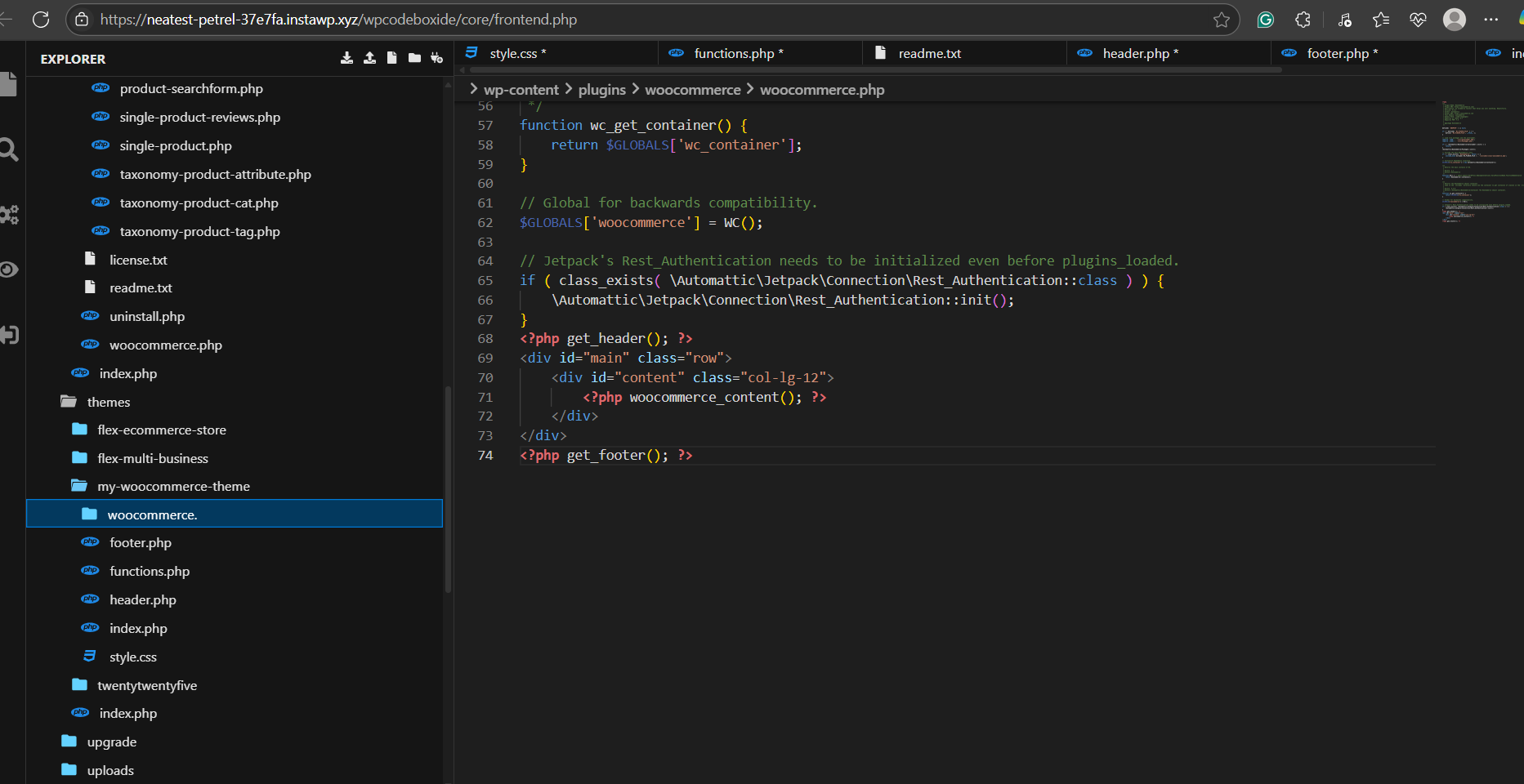
WooCommerce will now check this folder first before falling back to the plugin’s default templates.
Copy and Modify Templates
Let’s say you want to customize the product page layout:
Go to:
/wp-content/plugins/woocommerce/templates/single-product.php
Copy this file into:
/wp-content/themes/my-woocommerce-theme/woocommerce/single-product.php
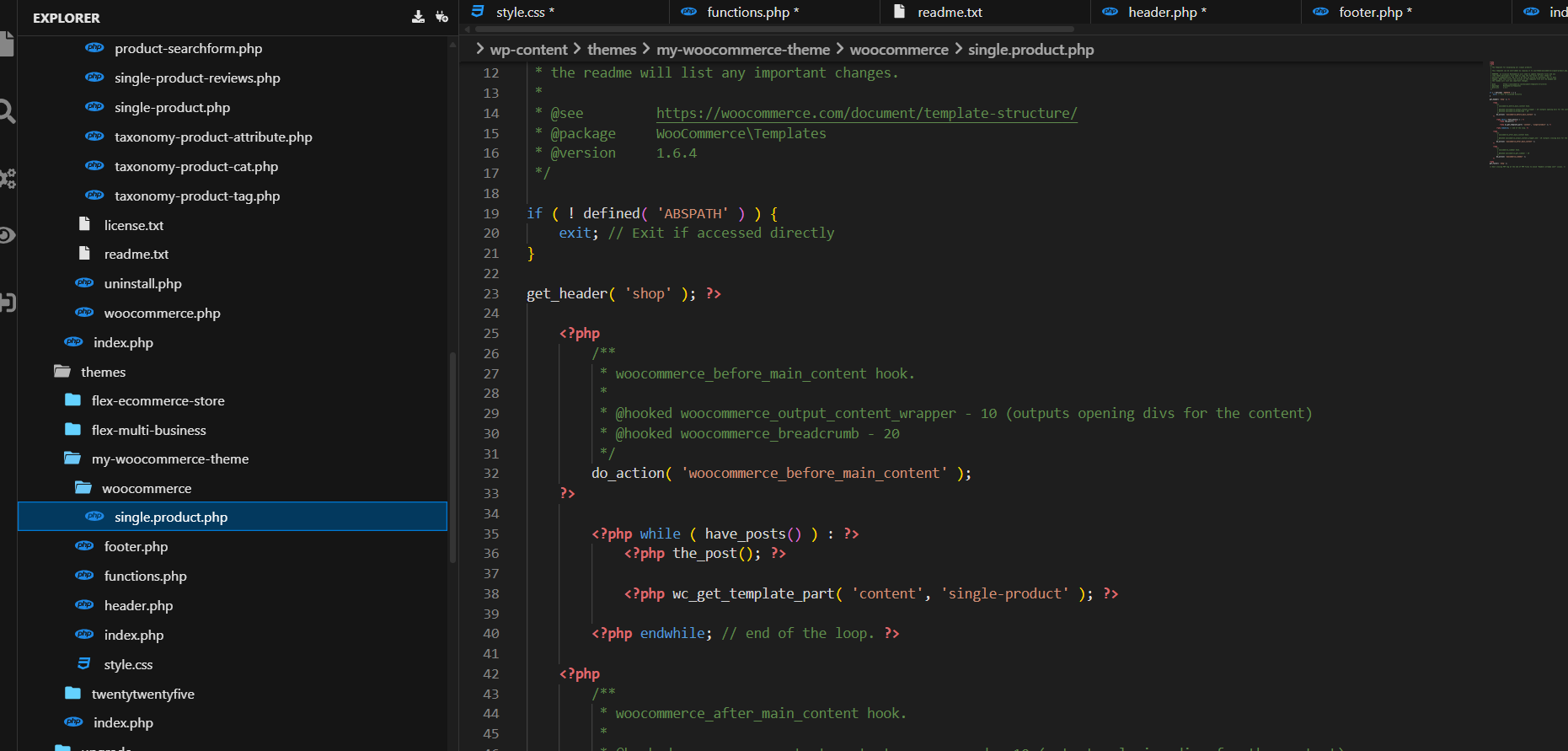
Now, begin customizing it. You might:
- Rearrange the order of product title, price, and description
- Remove sale badges
- Add trust seals, reviews, or videos
For example, to move the price below the description, modify the hooks like so:
remove_action('woocommerce_single_product_summary', 'woocommerce_template_single_price', 10);
add_action('woocommerce_single_product_summary', 'woocommerce_template_single_price', 25);
Use Template-Specific Subfolders
Some template files are organized into subdirectories like:
- cart/
- checkout/
- myaccount/
So if you’re overriding cart/cart.php, it must go inside:
/your-theme/woocommerce/cart/cart.php
Always preserve the same folder structure to ensure WooCommerce recognizes your override.
With these steps, you now have full control over WooCommerce’s front-end output—one of the most powerful parts of custom WooCommerce theme development.
Using Hooks and Filters to Extend WooCommerce Functionality
When you’re developing a custom WooCommerce theme, direct file overrides only get you so far. The real power lies in WooCommerce hooks and filters—these give you fine-grained control over what appears where, and when, without editing core templates directly.
If you’re building themes for multiple clients or using InstaWP to create reusable starter templates, mastering hooks will make your workflows leaner and more modular.
WooCommerce hooks fall into two categories:
- Action Hooks: Let you add custom code at specific points.
- Filter Hooks: Let you modify data before it’s rendered.
For example:
- Add a badge above product titles
- Rearrange content blocks
- Inject promotional banners in cart pages
- Modify the product price dynamically
These hooks are placed in template files and executed when WooCommerce reaches that point.
Example 1: Add a badge before the product summary
add_action('woocommerce_before_single_product_summary', 'custom_badge_above_summary', 5);
function custom_badge_above_summary() {
    echo '<div class="custom-badge">? Limited Stock</div>';
}
Example 2: Add a custom upsell notice after cart items
add_action('woocommerce_after_cart_table', 'custom_cart_upsell');
function custom_cart_upsell() {
    echo '<div class="upsell-box">Add a charger for just $5!</div>';
}
Commonly Used Filter Hooks
Filters allow you to modify default values—like prices, labels, or form fields.
Example: Change the product title on the fly
add_filter('the_title', 'custom_product_title', 10, 2);
function custom_product_title($title, $id) {
    if (is_product() && get_post_type($id) === 'product') {
        $title .= ' ✅';
    }
    return $title;
}
Example: Add “Only X left” to stock quantity
add_filter('woocommerce_get_availability_text', 'custom_stock_message', 10, 2);
function custom_stock_message($availability, $product) {
    if ($product->is_in_stock()) {
        $availability = 'Hurry! Only ' . $product->get_stock_quantity() . ' left in stock.';
    }
    return $availability;
}
You can place these hooks inside your theme’s functions.php file or split them into dedicated files for cleaner management (e.g., woo-hooks.php).
Inside functions.php:
require get_template_directory() . ‘/woo-hooks.php’;
This makes it easier to manage large projects with many hook-based customizations.
Optimize Your Theme for Speed, SEO, and Accessibility
Building a custom WooCommerce theme isn’t just about design or layout—it’s about delivering a fast, findable, and inclusive shopping experience. Whether you’re building for a small business or an enterprise client, optimization must be baked into your theme development workflow from the start.
This section walks you through practical ways to optimize WooCommerce themes for performance, search engine visibility, and accessibility, without relying solely on plugins.
Speed Optimization: Eliminate Bloat at the Source
A slow WooCommerce site kills conversions. Here’s how to keep things lean:
- Minimize HTTP requests: Avoid unnecessary fonts, icons, or libraries. Only enqueue the scripts you use.
- Defer or async JavaScript: Use wp_enqueue_script() wisely. Don’t load everything globally.
- Image optimization: Compress product and banner images using AVIF or WebP. You can convert them before uploading or use CDN-based compression.
- Avoid unnecessary WooCommerce assets: Remove styles and scripts from non-WooCommerce pages.
Example:
add_filter(‘woocommerce_enqueue_styles’, ‘__return_empty_array’);
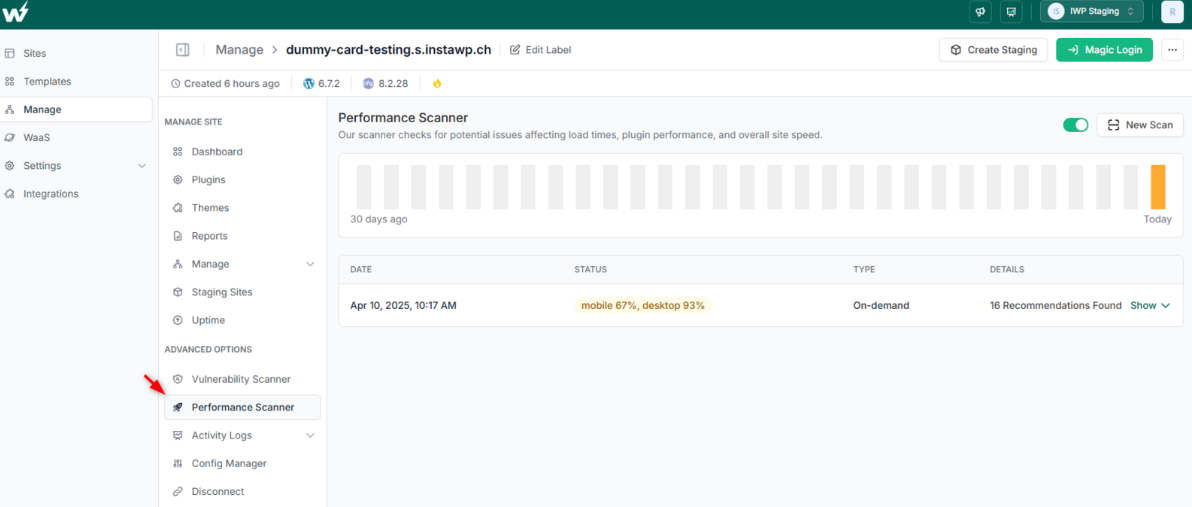
Inside your InstaWP Dashboard, run the Performance Scanner to identify slow-loading plugins, bloated assets, or PHP limits. This helps catch speed issues before deploying to staging or live.
SEO Optimization: Code With Search in Mind
Search engines still care deeply about clean, structured code. Here’s how to optimize:
- Use semantic HTML5: Wrap sections with <main>, <article>, <section>, and <nav>.
- Ensure proper heading hierarchy: Every product page should use one <h1>, followed by logically ordered <h2>s and <h3>s.
- Add schema markup: Use WooCommerce’s built-in schema or extend with custom attributes using filters.
- Enable SEO-friendly permalinks: /product/custom-name/ instead of /?product=123
- Test site speed and structure with Lighthouse in the browser or third-party SEO tools.
When using InstaWP, each sandbox can be audited for SEO without indexing it publicly—ideal for client previews and internal reviews.
Accessibility: Make It Work for Everyone
A11Y isn’t optional—it’s essential, especially for eCommerce. Here’s what to ensure:
- Sufficient color contrast: Use tools like WebAIM Contrast Checker.
- Keyboard navigability: Test all menus, buttons, and forms.
- Skip links and focus states: Make sure users can skip to content and see focus outlines.
- Use alt text for product images: This is not only good for screen readers but also helps with image SEO.
- ARIA attributes: Especially for dynamic content like modals or AJAX filters.
Run accessibility tests using browser plugins or use InstaWP to collaborate with your QA or accessibility reviewer in real time—no local setup required.
By focusing on these three pillars—speed, SEO, and accessibility—your custom WooCommerce theme becomes not only beautiful but also usable, discoverable, and conversion-ready.
Prepare Your WooCommerce Theme for Client Delivery or Distribution
Once your custom WooCommerce theme is built, styled, and optimized, the final step is packaging it for client delivery or public distribution. Whether you’re handing it off to an agency client or listing it on a marketplace, a well-documented and properly structured theme will reduce support requests and boost your credibility as a developer.
Organize Your Theme Files
Start by reviewing your folder structure inside /wp-content/themes/your-theme-name/. It should be clean, minimal, and logically organized:
/my-woocommerce-theme
├── style.css
├── functions.php
├── index.php
├── header.php
├── footer.php
├── woocommerce/
├── css/
├── js/
└── templates/
Remove:
- Unused template files
- Debug/test scripts
- Any plugin-specific logic (unless documented)
Add Licensing and Credits
If you plan to share or sell the theme:
- Include a LICENSE.txt file (usually GPL-compatible for WordPress).
- Add proper credits for third-party assets like fonts, icons, or frameworks.
Also, update your style.css header to reflect accurate metadata, including Author URI, Theme URI, and License.
Create a README File
Even for private clients, a README.txt or README.md improves clarity. Include:
- Theme description
- Installation instructions
- Required plugins (if any)
- Setup tips (menus, widgets, homepage settings)
- Contact/support details
Create a Live Demo with InstaWP (Highly Recommended)
Instead of sending clients a ZIP file they have to install and configure, create a working live demo site using InstaWP:
- Open your finished site.
- Use “Create Snapshot” to freeze the site state.
- Click “Generate Share Link” and copy the private URL.
- Paste this into your README or proposal.
This lets your client preview the theme, test it live, and approve changes without hosting setup, FTP, or database work.
This feature is especially useful for:
- Productized theme services
- Agencies offering pre-built templates
- Developers submitting themes to marketplaces
Your InstaWP demo can even serve as a base for staging, production, or multisite delivery via InstaWP Connect.
Prepare for Marketplace or Directory Submission (Optional)
If you’re submitting to the WordPress Theme Directory or other leading marketplaces. Follow the guidelines. These usually include:
- WP coding standards
- Accessibility checks
- Responsive design
- GPL license
- Screenshot (screenshot.png)
- Demo XML content
A polished delivery experience not only saves back-and-forth with clients but also positions your agency or freelance service as premium and reliable.
Building Smarter WooCommerce Themes in 2026
Custom WooCommerce theme development isn’t just a skill—it’s an edge. For agencies and developers, it’s the difference between delivering cookie-cutter sites and creating fully tailored, high-performance storefronts that reflect your client’s brand, boost conversions, and scale smoothly.
By understanding the WooCommerce theme structure, using hooks effectively, optimizing for speed, SEO, and accessibility, and wrapping it all in a clean file system, you future-proof your work.
And with InstaWP, you no longer need to waste time setting up local environments, battling plugin conflicts, or explaining how to install a theme zip file.
You can now:
- Spin up instant WooCommerce sandboxes for each project
- Build and preview live themes in real time
- Share working demos with clients instantly
- Package your theme with full site snapshots or direct migrations
Ready to Build and Ship WooCommerce Themes Faster?
Skip the local setup headaches and start developing in seconds. With InstaWP, you can create instant WooCommerce sandboxes, build custom themes, and share live previews with clients—all from your browser.
Start for free and launch your next theme project the smart way.
? Create your WooCommerce sandbox on InstaWP now
FAQs
1. What is the best way to develop a WooCommerce theme?
The best way to develop a WooCommerce theme is to start with a lightweight base theme or build from scratch, using the correct WooCommerce template structure and WordPress coding standards. Tools like InstaWP let you quickly create a sandbox to test and refine your theme before launching.
2. Can I use Elementor or other builders to create WooCommerce themes?
Yes, you can use builders like Elementor, Divi, or SeedProd to create WooCommerce themes without coding. However, for complete control over layout, performance, and SEO, custom-coded themes offer better long-term value, especially for agencies building reusable templates.
3. How do I override WooCommerce templates in my theme?
To override templates, copy the desired file from woocommerce/templates/ into your theme’s /woocommerce/ folder, preserving the folder structure. WooCommerce will automatically load your version instead of the default one.
4. What files are required in a custom WooCommerce theme?
At minimum, you need style.css, functions.php, index.php, header.php, and footer.php. To support WooCommerce, add a woocommerce/ folder with any overridden templates, and declare WooCommerce support in functions.php.
5. How do I make my WooCommerce theme mobile-friendly?
Use a responsive layout with CSS media queries or a mobile-first framework. Test your theme across different screen sizes. Tools like InstaWP let you preview your theme live on mobile and tablet viewports without deploying to a server.
6. Can I reuse my custom WooCommerce theme for multiple clients?
Absolutely. By organizing your code cleanly and modularizing hooks and functions, you can turn your theme into a reusable framework. With InstaWP, you can even clone your base theme into new sandboxes for each client instantly.


