A slow WooCommerce checkout is usually a server problem, not a theme problem. Cart and checkout are the only pages on your store that cannot be cached, so every click is built from scratch by PHP and your database while the shopper waits. This guide shows you how to tell whether the delay is coming from your host or your store, then works through 14 fixes, starting with the server layer that most checkout guides skip.
Key Takeaways
- Checkout is uncacheable by design. WooCommerce tells you to exclude Cart, Checkout and My Account from page caching because they show data specific to one shopper. Your page cache and CDN cannot help there.
- That makes checkout a direct measurement of your origin server. Every checkout click runs PHP and queries the database live.
- Add to cart is the same problem in miniature. It is an AJAX request that skips the cache, writes session data and recalculates totals.
- Concurrency, not raw speed, is what breaks during a sale. One PHP worker serves one checkout at a time. Run out of workers and shoppers queue.
- Faster cores are the part caching cannot replace. On our new-generation servers we measured server-side page generation up to 1.7 times faster on identical software, and the biggest gains landed on pages that are always built fresh.
- Half the fixes are yours, not your host’s. Fewer fields, guest checkout, express payments and a lean checkout template still matter. Diagnose first, then fix in order.
Why a Slow WooCommerce Checkout Costs You Orders
Most store owners spend their optimisation budget on product pages, homepage banners and sales funnels. Checkout gets the leftovers. That is backwards, because checkout is the only page on the store where every visitor already wants to give you money.
It is also the page where a delay is least forgivable. A shopper who waits three seconds for a product image will usually wait. A shopper who has entered a card number and is staring at a spinner starts to wonder whether the payment went through. If you want to speed up WooCommerce checkout, you are removing doubt at the exact moment doubt is most expensive.
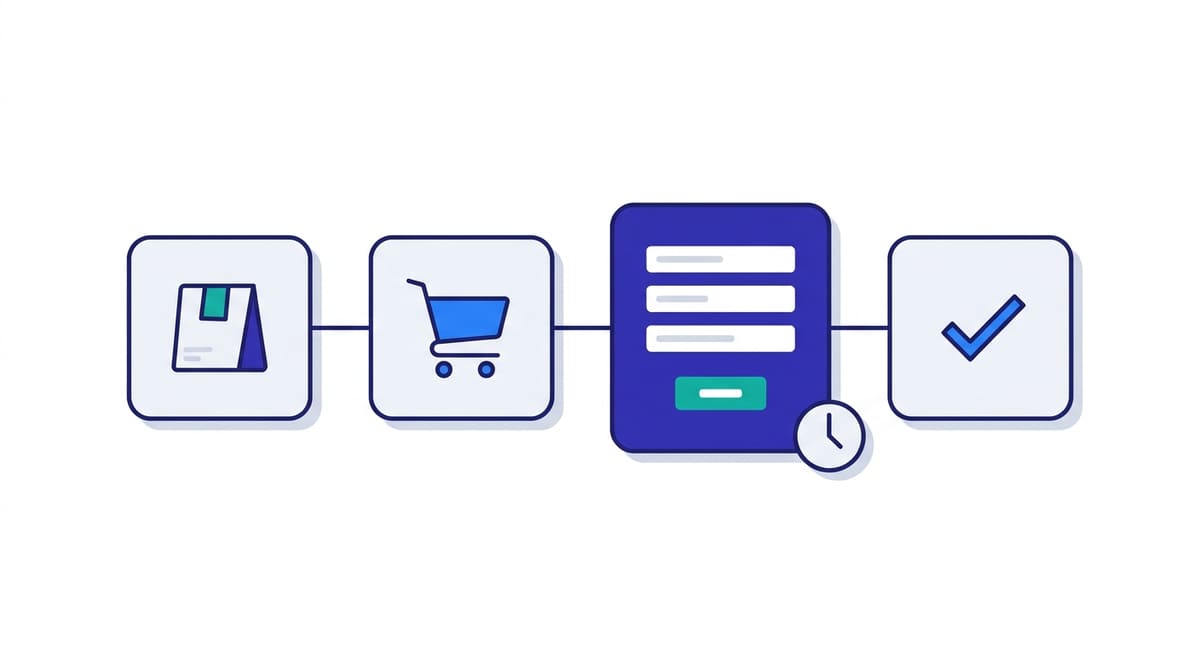
Baymard Institute, which aggregates 50 separate studies, puts the average documented cart abandonment rate at 70.22%. Filter out the shoppers who were only browsing and the top reasons look like this.
Why Shoppers Abandon Checkout
Some checkout problems are operational. Others can be fixed directly on your WooCommerce site.
| Reason for abandoning at checkout | Share of shoppers | Fixable on your side? |
|---|---|---|
| Extra costs too high (shipping, tax, fees) | 40% | Pricing and shipping policy |
| Delivery too slow | 20% | Fulfilment |
| Did not trust the site with card details | 19% | Trust signals, SSL, layout |
| Site made me create an account | 18% | Yes, one setting |
| Checkout was too long or complicated | 17% | Yes, fields and steps |
| Website had errors or crashed | 17% | Yes, hosting and plugins |
Source: Baymard Institute, cart abandonment research, last updated September 2025.
Look at the bottom three rows. Roughly one in six abandonments comes from a checkout that is too long, and another one in six from a site that errored or fell over. Those two are not marketing problems. One is a form design problem and one is an infrastructure problem, and this guide covers both.
Why WooCommerce Checkout Cannot Be Cached
This is the single most useful thing to understand about WooCommerce performance, and most checkout guides skip it.
A page cache works by storing one finished copy of a page and handing that same copy to everyone. That is safe for a product page, a blog post or a homepage, because every visitor should see the same thing. It is not safe for a cart, because your cart is not my cart. WooCommerce’s own documentation is explicit about this: Cart, My Account and Checkout must be excluded from caching because they “stay dynamic since they display information specific to the current customer and their cart”.
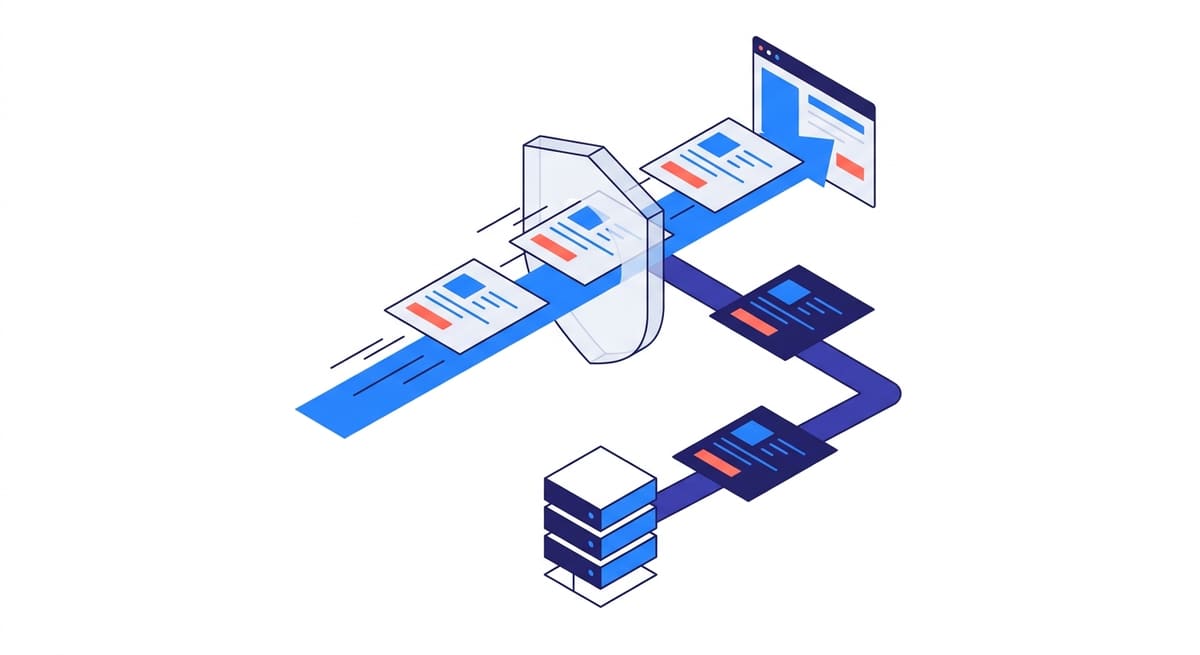
So your store runs on two different performance systems at once, and they have almost nothing to do with each other.
Three consequences follow, and they explain most of the confusion around WooCommerce slow checkout complaints.
- A great PageSpeed score on your homepage tells you nothing about checkout. The homepage is cached. Checkout is not. Test the checkout URL specifically, logged out and with an item in the cart.
- Adding a CDN will not fix a slow checkout. A CDN accelerates cacheable assets and cacheable HTML. Checkout is neither. It will speed up everything around checkout, which is worth having, but the checkout page itself still comes from your origin.
- Checkout speed is close to a pure measurement of your host. Strip out the cache and what is left is PHP execution speed, database speed, and how many requests your server can handle at once.
That is not an argument for ignoring the store-side fixes. Twelve of them are further down this page and several are worth more than any hardware change. It is an argument for knowing which half of the problem you are looking at before you start.
Is It Your Server or Your Store? A 60-Second Diagnosis
Run this before you install anything. Open your store in a private browser window, add one product to the cart, and load the checkout page. In your browser’s developer tools, Network tab, look at the first request for the checkout document and read two numbers: Waiting (TTFB) and Content Download.
Time to First Byte on an uncached checkout page is the clearest signal you have. It is the time your server spent thinking before it sent a single byte. Then match what you see against this table.
Is It Your Server or Your Store?
Match what you see in the Network tab against this table before you install anything.
| What you observe | Most likely cause | Where to fix it |
|---|---|---|
| Checkout TTFB above 800ms, homepage TTFB fine | Uncached page generation is slow: PHP, database or an overloaded shared server | Server layer |
| Everything is slow, including cached pages | Front-end weight: theme, images, third-party scripts | Store layer |
| Fast normally, unusable during a sale or campaign | PHP worker exhaustion. Requests are queuing, not running slowly | Server layer |
| Add to cart takes seconds, page loads are fine | AJAX round trip, cart fragments or a bloated session and options table | Both |
| Checkout is fine until you enter an address | A live shipping or tax rate API call blocking the request | Store layer |
| Checkout stalls only on the final Place Order click | Payment gateway round trip, or a synchronous email or CRM hook on order creation | Store layer |
| Random 502, 504 or connection reset at checkout | PHP timeout, memory limit hit, or the process manager killing workers | Server layer |
Highlighted rows point at the server layer. The rest are yours to fix inside the store.
Do this test on a copy, not on your live store
Diagnosing checkout means placing test orders, toggling plugins and changing settings. None of that belongs on a store taking real money. Pull a copy of your site into a disposable WooCommerce sandbox, break things there, then apply only what worked. If you already run staging, read our guide on how to sync staging to live without overwriting orders before you push anything back.
What Checkout Speed Should You Aim For?
“Fast” needs a number, and the number is not the same for the server and for the browser. Split your targets in two.
Server-side target
- Checkout TTFB under 600ms is a reasonable working target, and under 200ms is genuinely good. Because the page is uncacheable, this is almost entirely down to your host and your plugin load.
- Add to cart response under 500ms. This is an AJAX call, so the shopper sees a spinner for exactly this long.
Browser-side target: the current Core Web Vitals
Google’s Core Web Vitals have changed, and a lot of WooCommerce advice still quotes retired metrics. Time to Interactive is no longer a Core Web Vital, and Interaction to Next Paint replaced First Input Delay as a stable metric in 2024. These are the three that count today.
The Three Metrics That Count Today
A lot of WooCommerce advice still quotes retired metrics. These are the current Core Web Vitals.
| Metric | What it measures | Good |
|---|---|---|
| LCP (Largest Contentful Paint) | How fast the main content appears | Under 2.5 seconds |
| INP (Interaction to Next Paint) | How fast the page responds when a shopper taps or types | 200ms or less |
| CLS (Cumulative Layout Shift) | How much the layout jumps around | 0.1 or less |
Source: web.dev, Core Web Vitals. INP replaced FID in 2024, and Time to Interactive is no longer a Core Web Vital. INP is the one to watch at checkout.
INP is the one to watch at checkout. It measures the delay between a shopper typing in a field or hitting Place Order and the screen visibly responding, which is exactly where a heavy checkout page falls apart. Test with PageSpeed Insights, GTmetrix or Lighthouse, and always test the checkout URL itself rather than the homepage.
Why WooCommerce Add to Cart Is Slow
A slow add to cart button is the same problem as a slow checkout, just smaller and more visible. The shopper clicks, a spinner appears, and nothing happens for two or three seconds. It reads as broken even when the order eventually goes through.
Here is what is actually happening in those seconds. Add to cart is not a page load. It is an AJAX request that leaves the browser, skips your page cache entirely, and asks the server to do real work before it can answer.
Five pieces of work, every click, on the origin server. If any one of them is slow, the shopper sees the spinner. These are the causes worth checking, in the order they usually bite.
1. Cart fragments firing on every page
WooCommerce refreshes the mini-cart via an AJAX call so a cached header can still show the right item count. On a store with a heavy plugin stack that request can take longer than the add to cart itself, and on many themes it fires on every page, not just product pages. Check whether your theme actually uses a mini-cart. If it does not, that request is pure overhead and can be dequeued outside cart and checkout pages.
2. Session and transient bloat in the database
Every visitor who touches a cart gets a session row. On a busy store those accumulate, and expired transients pile up next to them. Both live in tables that WooCommerce reads on every cart operation. A store with a bloated wp_options table and hundreds of thousands of stale session rows will feel slow at add to cart and nowhere else, which is why it is so often misdiagnosed as a theme problem.
Two fixes: clear expired transients and old sessions on a schedule, and check your autoloaded options. Anything above roughly 1MB of autoloaded data is being read into memory on every single request, cart operations included.
3. Shipping calculated too early
If you use a live carrier rate plugin, adding an item can trigger a call to an external shipping API before the page can respond. Your server is now waiting on someone else’s server. Defer live rate lookups until the shopper has entered an address, and cache the responses.
4. No object cache behind the request
Page caching cannot help an AJAX request, but object caching can. An object cache keeps the results of repeated database queries in memory, so the second time WooCommerce asks for the same product data, tax rate or option value it does not go back to MySQL. This is the one caching layer that genuinely helps cart and checkout, and it is the reason we treat it as the headline win rather than an extra.
The Server Layer: What Actually Makes Checkout Fast
Everything above points the same way. Checkout is built fresh, on your server, for every shopper. So the four things below decide how fast it can possibly be, no matter how lean your checkout template is.
Single-core speed, not core count
WordPress builds a page in a single process, so what you feel is how fast one core can work, not how many there are. A 32-core server does not build your checkout page faster than an 8-core server with quicker cores. It just builds more pages at the same time. This distinction is why “more cores” on a hosting spec sheet often buys you nothing at checkout.
PHP workers are your concurrency ceiling
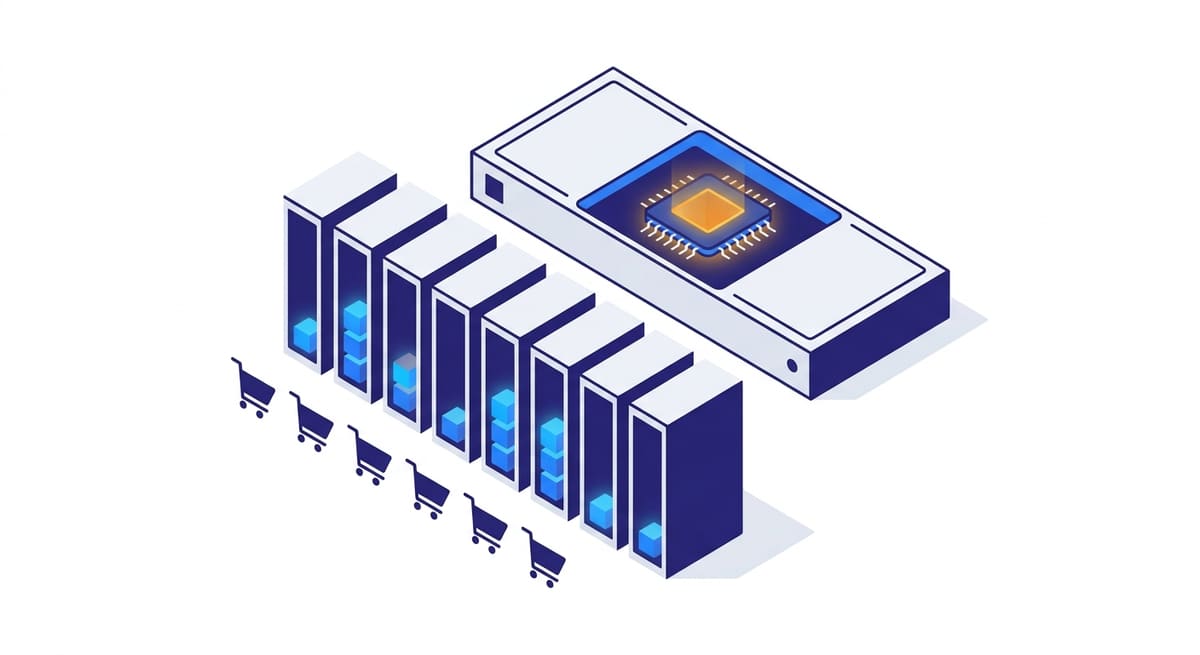
This is the one that explains the flash sale disaster. Your server runs a fixed number of PHP-FPM workers. Each worker handles one request at a time. Cached pages do not consume a worker, because they never reach PHP. Checkout requests always do.
So if you have four workers and five shoppers hit checkout in the same second, the fifth waits for a worker to free up before their request even starts. From the shopper’s side that is indistinguishable from a slow page. From the server’s side nothing is slow at all, it is just full. Add a marketing email or a Black Friday spike and the queue grows faster than it drains, which is when you start seeing 502 and 504 errors on checkout while the cached homepage stays perfectly fast.
Database speed and object cache
A checkout page runs a lot of queries: cart contents, product data, tax rates, shipping zones, coupon rules, customer records. An object cache holds the repeat results in memory so the database is asked once instead of ten times. On an uncacheable page this is the closest thing to a page cache you will ever get.
Who else is on your server
On commodity shared hosting, many sites share one PHP pool. Another store’s traffic spike becomes your checkout latency, and there is nothing you can change in WordPress to fix it. True per-site isolation, where your store has its own PHP process pool rather than sharing one, removes an entire category of unexplainable slowdowns.
How InstaWP handles the server layer
Managed hosting for WooCommerce on InstaWP is built around the parts of a store that cannot be cached. Every site gets its own Linux user, its own document root, its own database and its own PHP-FPM pool and socket, so no neighbour shares your worker pool. Every paid plan includes a 512MB PHP memory limit, which matters because WooCommerce with a page builder and a dozen extensions routinely exceeds the 128MB to 256MB that entry-level shared hosts still ship.
Redis-compatible object caching is enabled for you from the Plus plan upward, with no plugin to install or wire up. PHP runs 7.4 through 8.5 and you switch version per site from the dashboard without opening a ticket. Underneath, that is MariaDB 11.4 on Ubuntu 24.04 LTS, nginx at the edge, and NVMe storage.
PHP workers scale with the plan rather than being a hidden limit you discover during a sale:
What Each Plan Buys You at Checkout
More workers means more shoppers served at once. A single page is generated at the same speed on every tier.
| Plan | PHP workers | Object cache | Backups |
|---|---|---|---|
| Starter | 2 | Not included | Weekly, 4 retained |
| Plus | 3 | Included | Daily, 30 retained |
| Pro | 4 | Included | Daily, 30 retained |
| Turbo | 6 | Included | Daily, 30 retained |
| Elite | 10 | Included | Daily, 30 retained |
Object cache starts at Plus, which is the first tier where an uncacheable checkout gets real help. See current pricing for the full breakdown.
Worth being precise about that last point, because plenty of hosts are not: a higher plan does not make one checkout page render faster. It lets more shoppers check out simultaneously. If your problem is a slow single request, buy faster hardware or fix your plugins. If your problem only appears under traffic, buy workers.
What we measured on our new-generation servers
We are rolling out a new generation of servers across the fleet, chosen specifically for single-core speed rather than core count: 8-core AMD Zen 5, 64GB DDR5, NVMe SSD on ZFS. We benchmarked them against our previous generation and published the full method in our breakdown of InstaWP’s WordPress managed hosting infrastructure.
Same WordPress version, same plugins, same content, same software on both sides. Measured on the server itself, so no network distance is involved. Median of 25 requests after warm-up.
New-Generation Servers, Measured
Same WordPress version, same plugins, same content, same software on both sides. Measured on the server itself, so no network distance is involved. Median of 25 requests after warm-up.
| Page being generated | New generation | Previous generation |
|---|---|---|
| Homepage | 49ms | 83ms |
| Single post | 49ms | 81ms |
| Site search results | 46ms | 78ms |
| wp-admin dashboard | 39ms | 67ms |
| Posts list in admin | 40ms | 67ms |
| Block editor | 76ms | 127ms |
Server-side page generation, our own measurements on our own production hardware. Headline: up to 1.7 times faster on identical software. Site search is highlighted because it is the closest analogue to a checkout: uncacheable, database-heavy, built fresh every time.
Two things to be straight about. None of those rows is a checkout page. We benchmarked a standard WordPress install, not a WooCommerce store, and we are not going to present one as the other. What the table shows is the cost of building a page that cannot come from cache, which is the same class of work a checkout does. Site search is the closest analogue in the list: uncacheable, database-heavy, generated fresh every time. It came in at 46ms against 78ms.
Second, this is generation time on the server. What your visitor experiences also includes network distance, images and third-party scripts, so nobody should read “1.7 times faster page generation” as “your store loads 1.7 times faster”. And our previous-generation servers carry more live sites than the new ones, so part of that gap is neighbour load rather than silicon. We quote what a site actually experiences on production hardware rather than a lab number.
Check it yourself
You do not have to take our word for any of this. The free WP Benchmark plugin from the WordPress.org repository is the same third-party tool we used, and it is not ours. It scores the new generation 9.9 against 9.2 for the previous one. Install it on your current host and on a trial site, and compare the two numbers directly.
Test your checkout on our hardware before you move anything
Migration in is free and assisted. Your store is copied across and verified before DNS moves, so the live site keeps taking orders the whole time. Most migrations finish in well under an hour, typically around half an hour.
Explore managed hosting for WooCommerceTools You Need to Speed Up WooCommerce Checkout
To speed up WooCommerce checkout without guessing, you need three things: somewhere safe to test, a way to measure, and the plugins that do the actual work.
Built on InstaWP (the shortest path from day one)
Launching your WooCommerce store on InstaWP means starting on infrastructure that already handles the uncacheable half of the problem. You get managed hosting for WooCommerce with per-site PHP pools, an included CDN and WAF from the Starter plan, free automatic SSL, PHP 7.4 through 8.5 switchable per site, and Redis-compatible object caching from Plus upward. You also pick your region at creation across the United States, United Kingdom, Germany, Singapore and Australia, rather than being assigned one.
You can also start from a pre-built WooCommerce template that comes configured for a clean, fast checkout with no plugin archaeology required.
Already have a WooCommerce store?
Use the InstaWP Connect plugin to link your live store to your InstaWP dashboard, wherever it is hosted today. Once connected, you can:
- Manage plugins and themes centrally
- Apply speed-focused changes on a copy without touching live orders
- Find the bottlenecks with the built-in Performance Scanner
It is the sanest way to run multiple stores, or to test a change before it reaches a customer’s checkout.
Other tools worth having
- A caching plugin such as WP Rocket, configured to exclude cart and checkout. Our roundup of the best cache plugins for WooCommerce compares the options.
- Checkout Field Editor to remove or reorder unnecessary fields
- Query Monitor to see exactly which queries and hooks are running on the checkout page
- MonsterInsights to track checkout drop-offs with funnel reports
- Google PageSpeed Insights to measure load time and render delays on the checkout URL
- Stripe with Apple Pay and Google Pay to enable express checkout in one tap
- Google Maps Platform for address autocomplete, to cut typing friction
How to Speed Up WooCommerce Checkout: 12 Store-Side Fixes
With the server layer understood, these are the changes you make inside the store. They are ordered roughly by effort against payoff, so start at the top.
1. Remove Unnecessary Fields That Add Friction
Long, cluttered checkout forms are one of the main causes behind a WooCommerce slow checkout, and Baymard’s testing suggests most checkout flows could cut form elements by 20% to 60% and still work. Fields like company name, phone number or order notes look harmless, but each one is another decision on a phone screen.
Keep only the fields you need to process the order: name, email, billing address, payment details. Everything else is optional, and removing it reduces friction measurably. Fewer fields also means fewer scripts and less validation running client-side, so this helps INP as well as conversion.
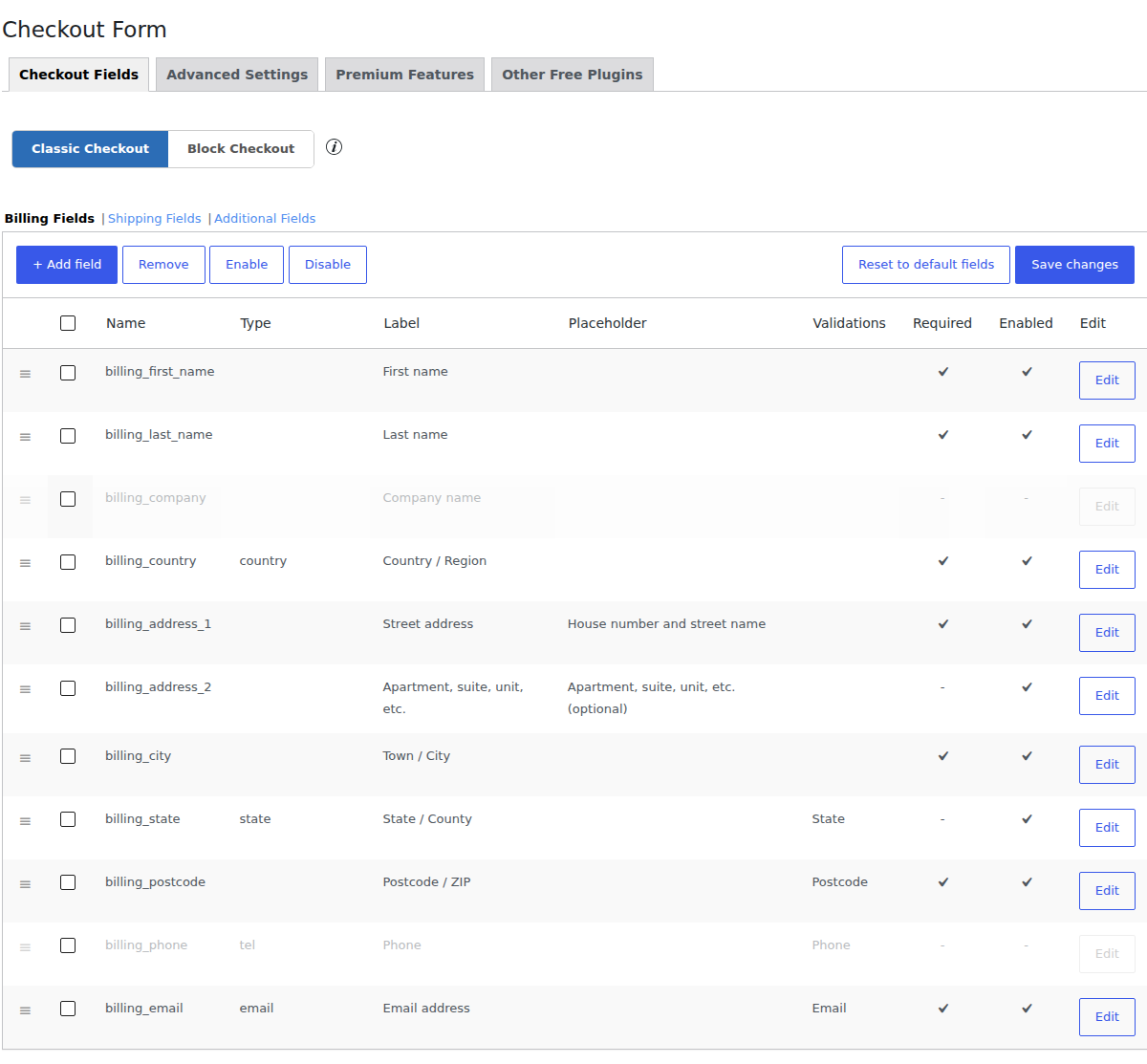
The standard route is WooCommerce Dashboard > Plugins > Add New > search for a field editor > Install > Activate. InstaWP users can skip the per-site login entirely and do it from one dashboard using a WP-CLI command, which is how you bulk-install across several stores at once.
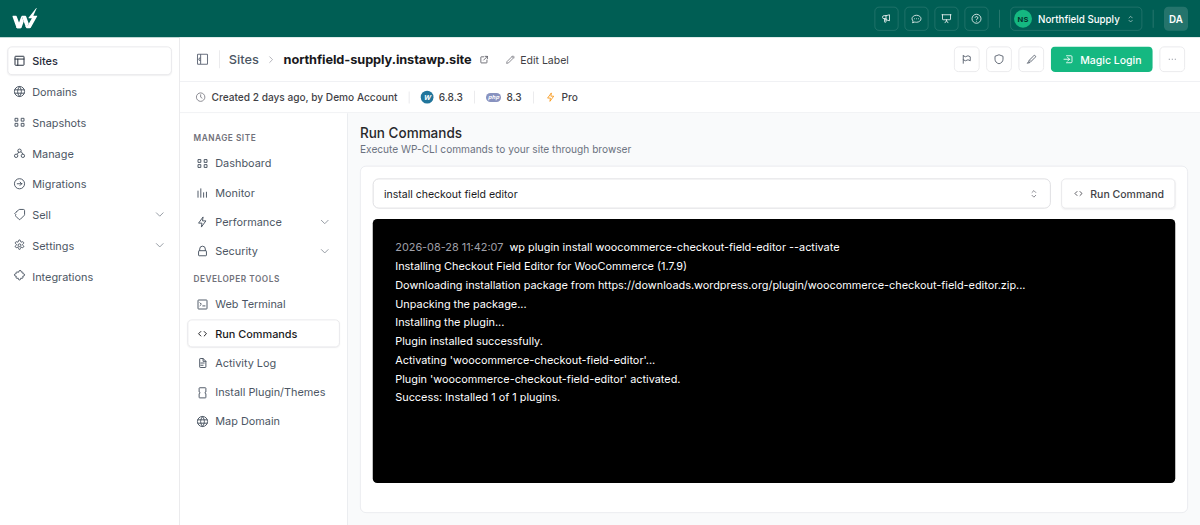
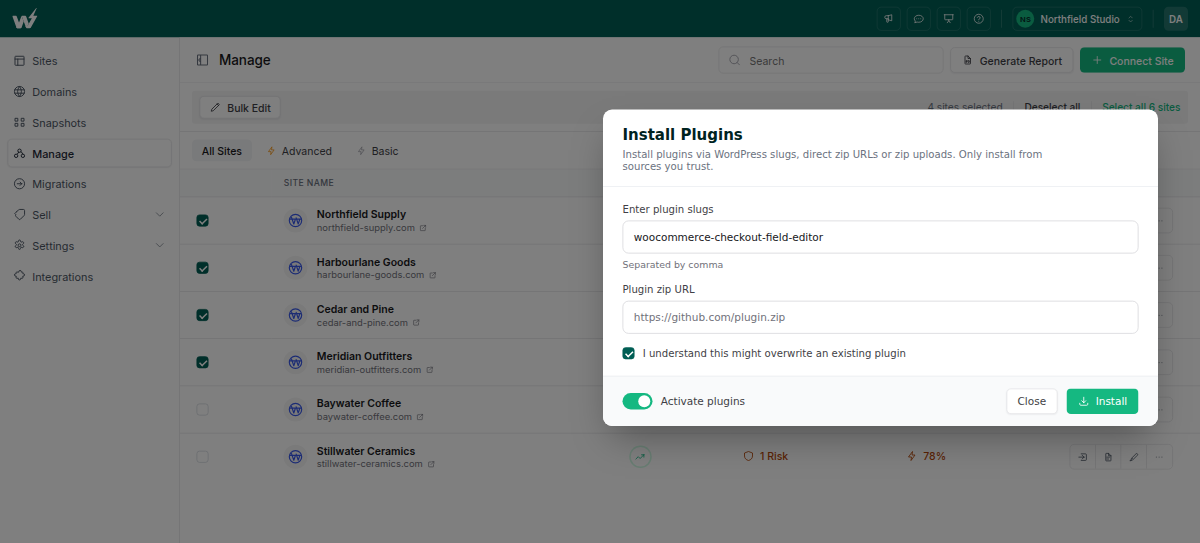
Agencies running several stores can use InstaWP’s site management panel to push the same command to every connected store, turning a long afternoon into one operation.
2. Enable Guest Checkout to Remove Login Barriers
Forcing account creation is the single most expensive setting in WooCommerce. Baymard puts it at 18% of abandonments, higher than a complicated checkout. First-time buyers want to place the order and leave.
Guest checkout lets them do exactly that, with no password to invent and no confirmation email to wait for.
To enable it, go to:
WooCommerce → Settings → Accounts & Privacy
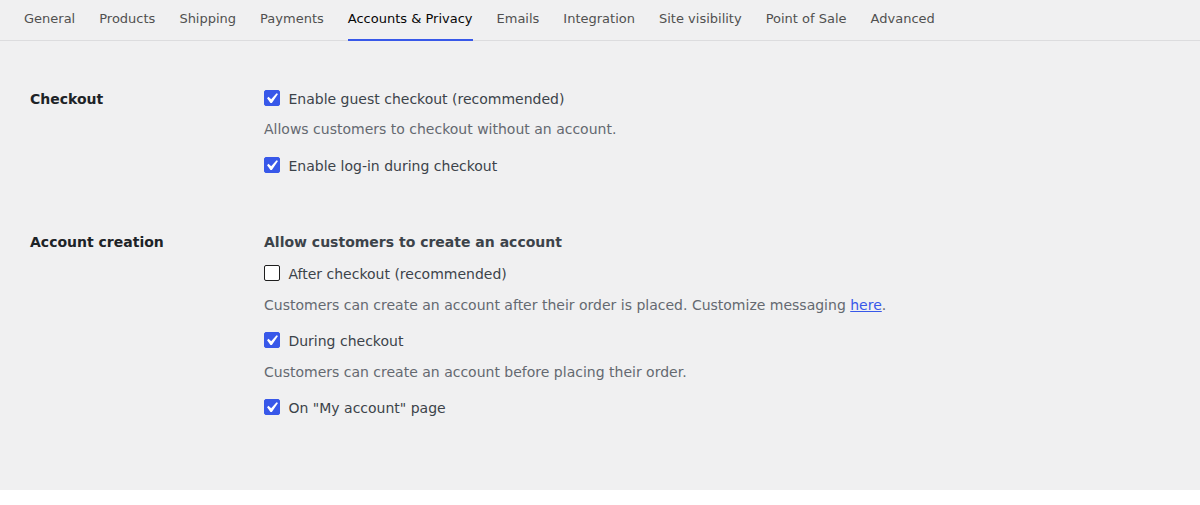
Tick “Enable guest checkout (recommended)”. No plugin required. You will see the impact fastest on traffic from ads and social, where intent is high and patience is low.
If you still want accounts, offer creation after the order is placed. WooCommerce supports this natively, and it keeps the account out of the critical path.
3. Add Express Checkout with Apple Pay, Google Pay or PayPal
Nothing improves checkout performance like letting a shopper skip the form entirely. Apple Pay, Google Pay and PayPal One Touch place the order in a few taps, with the address and card already stored on the device. No typing, no validation errors, no autofill fighting your field labels.
You will need to install and configure the right payment gateways. Stripe enables Apple Pay and Google Pay; PayPal Checkout covers both logged-in and guest shoppers.
Go to WooCommerce dashboard > Plugins > Add New > Search > Install > Activate > Configure payments. From InstaWP you can install the Stripe or PayPal plugin with WP-CLI without logging into each store, then configure them centrally.
Agencies managing several stores can bulk-install express payment plugins from Site Management > Bulk Plugin Install. One command and every store is ready.
4. Skip the Cart Page and Send Shoppers Straight to Checkout
By default WooCommerce sends shoppers to the cart page first, then to checkout. That is one extra uncacheable page load, one extra full round trip to your server, and one more chance to leave.
If your store does not lean on cross-sells or complex carts, cut the step:
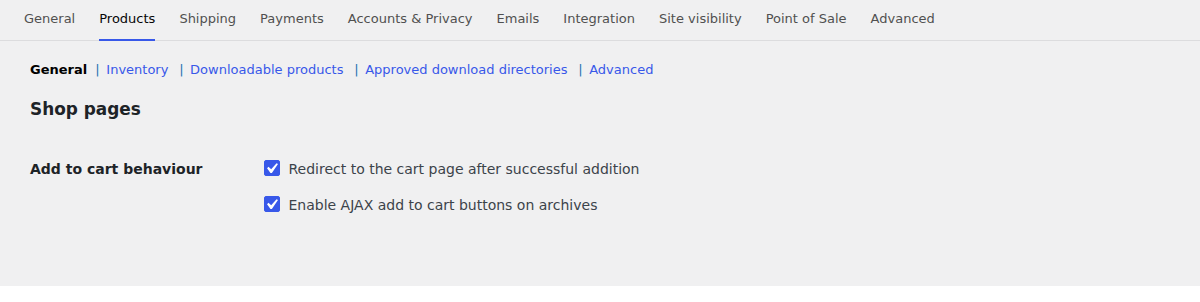
- Go to WooCommerce → Settings → Products → General
- Under “Add to cart behaviour”, enable “Redirect to the checkout page after successful addition.”
- Save changes
For finer control, or to remove the cart page entirely, a lightweight plugin like Direct Checkout for WooCommerce handles the redirect rules.
This one is especially effective if your analytics show shoppers viewing the cart and then leaving before the payment screen.
5. Use a One-Page Checkout Layout
Multi-step checkouts look tidy, but each step is another server round trip on a page that cannot be cached. A well-built one-page checkout keeps billing, shipping and payment on a single load.
The caveat: a one-page checkout that loads three payment gateways, a shipping calculator and a coupon validator all at once can be heavier than the multi-step version it replaced. Measure it, do not assume it.
Test both. If you build or host on InstaWP you can launch a new site in seconds, install a one-page and a multi-step plugin on separate copies, and compare real numbers before either one touches your live store.
6. Auto-Fill Address Fields with Google Autocomplete
Typing a full address on a phone is the slowest part of any checkout, and it is where typos generate failed deliveries. Address autocomplete fills country, city and postcode from a few keystrokes.
To implement it:
- Install a plugin such as Address Autocomplete with Google, or enable the Google Places API in your own form
- Create a Google API key and restrict it by referrer so it cannot be abused
- Apply autocomplete to both billing and shipping address fields
One thing to watch: the autocomplete script is third-party JavaScript on your checkout page. Load it only on checkout, never sitewide.
7. Disable Unused Scripts and Styles on the Checkout Page
WooCommerce and its plugins load assets on pages that never use them. A slider plugin, a review widget and a popup builder can all enqueue CSS and JavaScript on checkout for no reason at all.
Unloading them means fewer requests, less JavaScript to parse and a better INP score at exactly the moment the shopper is typing. Use Asset CleanUp or Perfmatters to switch assets off per page, no code required.
Be conservative on the checkout page specifically. Disable something a payment gateway needs and orders stop, silently. Test each change with a real test order before it goes live.
If you manage multiple WooCommerce stores, bulk-install the optimisation plugin from the InstaWP dashboard rather than logging into each site.
8. Optimise Fonts and Icons
Web fonts and icon packs are render-blocking. Font Awesome loaded sitewide for three icons in the footer costs you on every page, checkout included.
- Host fonts locally with OMGF to remove the external DNS lookup and connection
- Unload unused icon libraries on checkout with Asset CleanUp or Perfmatters
- Stick to one font family, or system fonts, and set
font-display: swap
Small changes, but they land directly on LCP and CLS, particularly for mobile and international shoppers.
9. Strip the Checkout Template Back
Banners, upsells, sidebar widgets, a full site footer and a newsletter popup all compete with the one action you want. They also add weight to a page that is already the most expensive one on your store to generate.
Remove sidebar widgets, cut the footer down, and switch off popups on checkout. Keep order summary, form fields and payment options. Nothing else.
Test layout variants on a copy rather than on live traffic. Launch a preview site, apply the changes, compare, then sync back what worked.
10. Use Heatmaps and Session Recordings
Sometimes the fastest way to fix checkout is to watch someone fail at it. Heatmaps and session recordings show clicks, scroll depth and rage clicks, which is friction your analytics will never surface.
If shoppers hover on one field for ten seconds, or abandon right after opening the shipping options, that is a specific, fixable problem rather than a general “checkout is slow” feeling.
- Microsoft Clarity, free and lightweight
- Hotjar, strong on form analytics
- Smartlook, session replay and funnel tracking
One warning that fits this article: every one of these tools is a third-party script. Run one, not three, and consider excluding it from the checkout page itself once you have your answers.
11. Disable the Coupon Field If You Are Not Using It
An empty coupon box is an invitation to leave and go looking for a code. Many shoppers do, and a good share never come back. It also adds an AJAX validation call to a page that already has too many.
If you are not running promotions, turn it off:
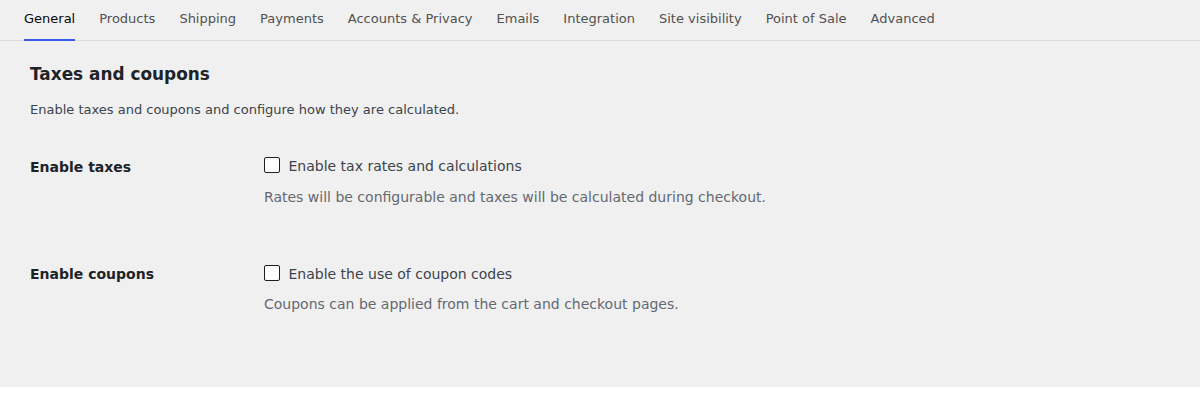
- Go to WooCommerce → Settings → General
- Untick “Enable the use of coupon codes.”
No plugin needed. If you do run promotions, keep the field but collapse it behind a link so it is not the first thing a shopper sees.
12. Add a Slide-In Side Cart
A side cart lets shoppers review items, change quantities and go to checkout without ever loading the cart page. That removes a whole uncacheable page load from the journey.
A good side cart plugin will:
- Slide open automatically when a product is added
- Update cart contents without reloading the page
- Include a direct checkout button in the overlay
- Match your theme without loading a second CSS framework
That last point matters. A side cart is still AJAX, so a badly built one makes the add to cart problem worse rather than better. Create a WooCommerce sandbox and time the add to cart response with the plugin on and off before you commit.
13 and 14. The Two Server-Side Fixes
For completeness, the two fixes from the server section that belong in any checkout speed checklist:
- Turn on object caching. It is the only caching layer that helps an uncacheable page, and on InstaWP it is enabled for you from the Plus plan with no plugin to configure.
- Give checkout enough PHP workers and memory. Two workers is fine for a quiet store and not fine during a campaign. 512MB of PHP memory is the floor for a real WooCommerce install, not a luxury.
How to Avoid Slow WooCommerce Checkout in the Future
Fixing checkout once is the easy part. Keeping it fixed is harder, because stores accumulate. A plugin here, a tracking script there, a few hundred thousand stale session rows, and eighteen months later you are back where you started without a single deliberate decision having caused it.
Build a maintenance rhythm instead of a rescue habit.
Run speed tests and health checks on a schedule
InstaWP includes a Performance Scanner that scores each site on mobile and desktop, then lists what to fix underneath. You can scan a site once every 24 hours.
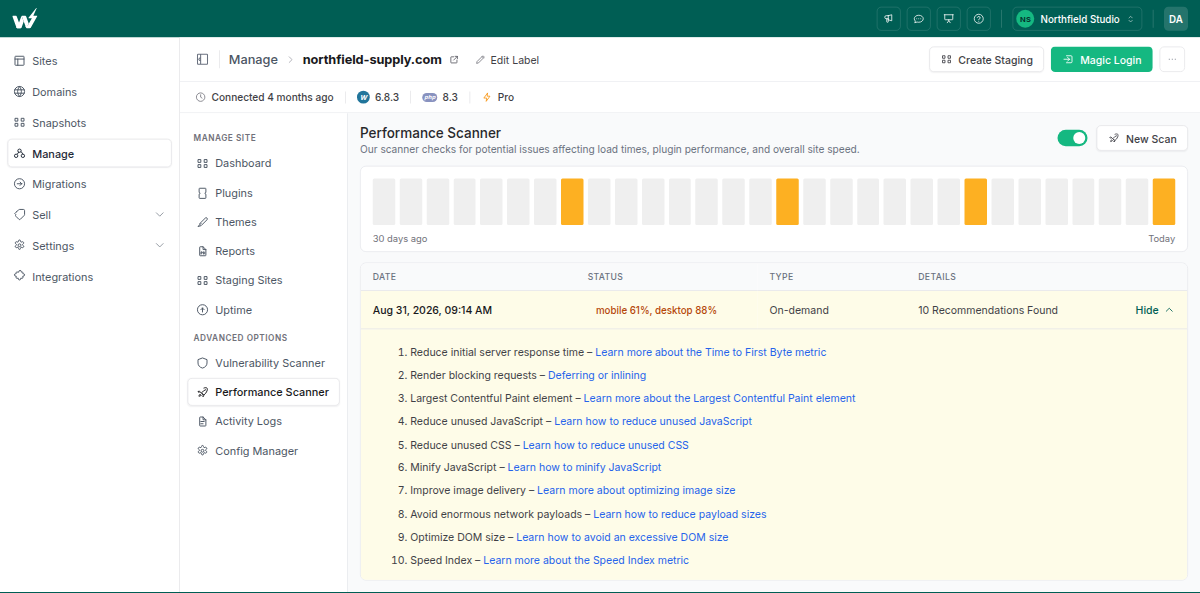
The scores are the headline, but the recommendations list is where the checkout work is. It reports Lighthouse audits in their own wording, and these are the four to read first:
- Reduce initial server response time, which is Time to First Byte, the number that matters most on an uncacheable checkout page
- Render blocking requests, usually fonts and stylesheets loading before anything paints
- Largest Contentful Paint element, which tells you what the browser treats as the main content
- Reduce unused JavaScript and Reduce unused CSS, which is the checkout bloat from section 7
If you want a metrics dashboard instead, with labelled Largest Contentful Paint, Time to First Byte and CLS cards, that is a different screen: Page Insight, under the site’s Performance tab.
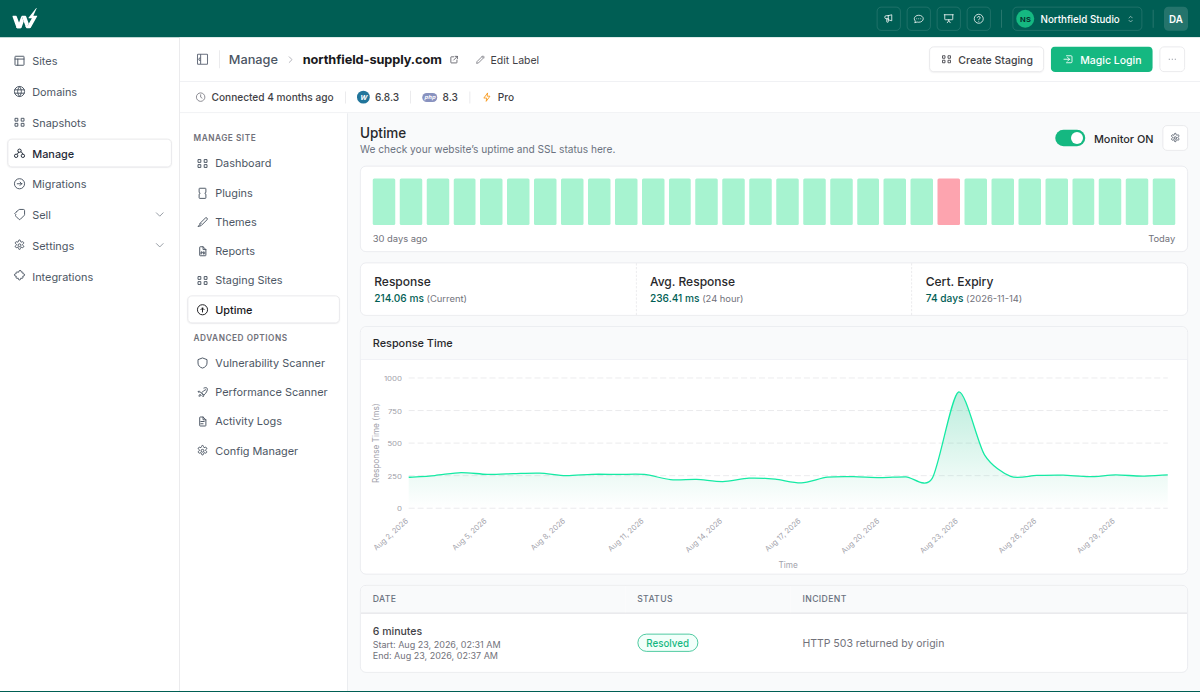
Alongside it, uptime and SSL monitoring runs multi-region checks with response-time history and email and Slack alerts. It is included with InstaWP site management rather than with a hosting plan, and it is what tells you a checkout page went down at 3am before a customer does.
Keep a staging copy, and actually use it
Nothing degrades checkout faster than plugin updates applied straight to production on a Friday. Keep a WordPress staging site, test updates there, and confirm a full test order still completes before anything ships. For stores that take orders continuously, our guide on how to test a WooCommerce site covers what to check each time.
Generate maintenance reports
Whether you are a solo founder or an agency, write it down. InstaWP can generate maintenance reports across one site or many at once. You pick the reporting period, then choose what goes in:
- Summary
- Performance
- Uptime history
- Security scan
- Activity logs
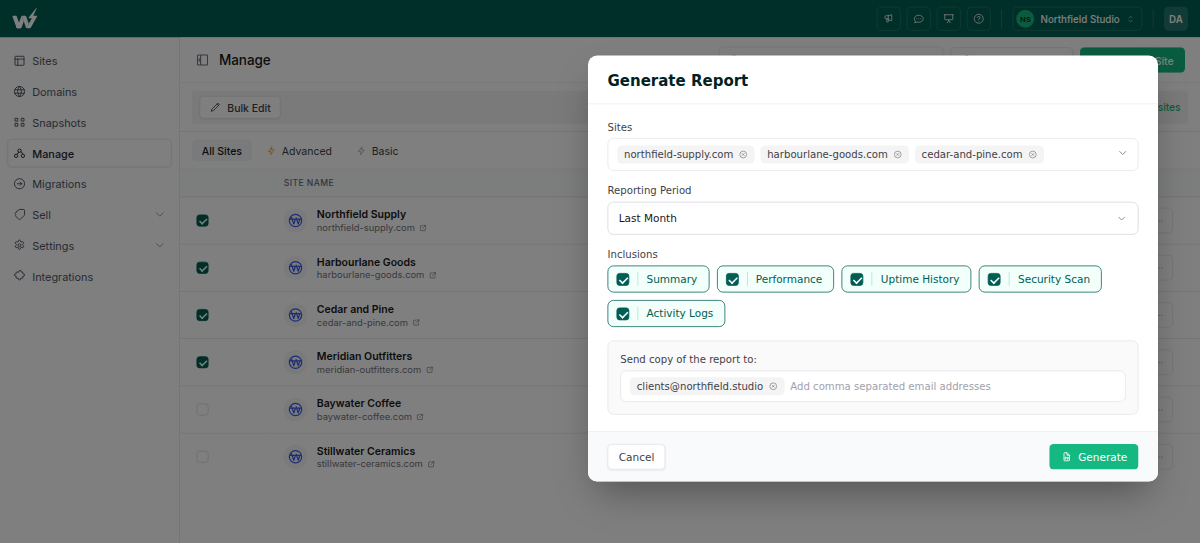
Use them to stay honest with yourself, or to show a client exactly what they are paying for.
Have a way back
The fastest fix for a checkout that broke after an update is restoring the version that worked. On InstaWP, backups run daily with 30-day retention from the Plus plan and weekly on Starter, stored off-server in object storage in your site’s own region, and you restore them yourself from the dashboard on every plan. You can download them too, which matters more than it sounds: a backup you cannot take with you is not really yours.
WooCommerce Checkout Speed Is Not Optional
Checkout is the one page on your store that cannot be cached, cannot be served from a CDN, and cannot be hidden behind a good PageSpeed score on your homepage. Every click there is a live request to your server, which makes it both the most fragile page you own and the most honest measurement of your hosting you will ever get.
So work in the right order. Diagnose whether the delay is server-side or store-side. Fix the form: fewer fields, guest checkout, express payments, no coupon box you are not using. Then fix the foundation: object caching, enough PHP workers, enough memory, and hardware chosen for the single-threaded work WordPress actually does.
Put your store on hosting built for the uncacheable half
Per-site PHP pools, 512MB PHP memory on every paid plan, Redis-compatible object caching from Plus, PHP 7.4 to 8.5, five regions you choose, and free assisted migration with no downtime on your live store. Billed per day for the days a site is live, from around $5 a month.
Ready to build? Start your store on InstaWP.
Running WooCommerce sites for clients? Join our agency program and manage them all from one dashboard.
Frequently Asked Questions
Why is my WooCommerce checkout so slow?
Almost always because checkout cannot be cached. WooCommerce excludes Cart, Checkout and My Account from page caching because they show data specific to one shopper, so every checkout click runs PHP and queries your database live on your origin server. That makes checkout speed a direct measurement of your host, your PHP version and memory, your database, and how many plugins load on that page. Test the checkout URL specifically, not your homepage, because the homepage is cached and will always look fine.
Why is my WooCommerce add to cart slow?
Add to cart is an AJAX request that bypasses your cache. In those few seconds the server loads WordPress and WooCommerce from scratch, reads and writes the shopper session, validates stock and price, recalculates cart totals, and often refreshes cart fragments for the mini-cart. The usual culprits are cart fragments firing on every page, a bloated options and session table, a live shipping rate API call, and no object cache behind the request.
Does a CDN speed up WooCommerce checkout?
Not the checkout page itself. A CDN caches and serves static assets and cacheable HTML from an edge location near the shopper, but cart and checkout are excluded from caching by design, so those requests still travel to your origin server every time. A CDN is still worth having because it speeds up everything around checkout, including product pages, images and scripts, which improves the journey that leads to checkout.
What is a good checkout page load time for WooCommerce?
Aim for Time to First Byte under 600 milliseconds on the checkout page, and under 200 milliseconds is genuinely good. On the browser side, target the current Core Web Vitals: Largest Contentful Paint under 2.5 seconds, Interaction to Next Paint at 200 milliseconds or less, and Cumulative Layout Shift at 0.1 or less. Note that Time to Interactive is no longer a Core Web Vital and Interaction to Next Paint replaced First Input Delay in 2024.
Why does my WooCommerce checkout fail or time out during a sale?
This is usually PHP worker exhaustion rather than slowness. Your server runs a fixed number of PHP-FPM workers and each one handles a single request at a time. Cached pages never reach PHP, but every checkout request does. When all workers are busy, new checkout requests queue and eventually time out, which is why you see 502 and 504 errors on checkout while your cached homepage stays fast. The fix is more workers, which is what higher hosting plans actually buy you.
Can plugins slow down WooCommerce checkout?
Yes, and more than on any other page, because checkout is generated fresh so every active plugin runs on every request. Poorly coded plugins enqueue scripts and styles on checkout that they never use, add database queries, or hook expensive work such as CRM syncing onto order creation. Use Query Monitor to see exactly what runs on the checkout page, and Asset CleanUp or Perfmatters to unload assets that are not needed there.
Does object caching help WooCommerce checkout?
Yes, and it is the only caching layer that does. Page caching cannot store a checkout page, but an object cache keeps the results of repeated database queries in memory, so WooCommerce fetches product data, tax rates and option values once instead of repeatedly hitting MySQL. On InstaWP, Redis-compatible object caching is enabled for you from the Plus plan upward with no plugin to install or configure.
Should I remove the coupon field from WooCommerce checkout?
If you are not running promotions, yes. An empty coupon box prompts shoppers to leave and search for a code, and many never return. It also adds an AJAX validation request to a page that already has too many. Turn it off under WooCommerce, Settings, General by unticking Enable the use of coupon codes. If you do run promotions, keep the field but collapse it behind a link.
How often should I test my WooCommerce checkout speed?
Test monthly as a baseline, and always after a plugin or theme update, a new payment gateway, or any change to the checkout template. Run a full test order each time, not just a page speed score, because a checkout can load quickly and still fail at the payment step. Automated performance scans and uptime monitoring catch the drift between manual checks.