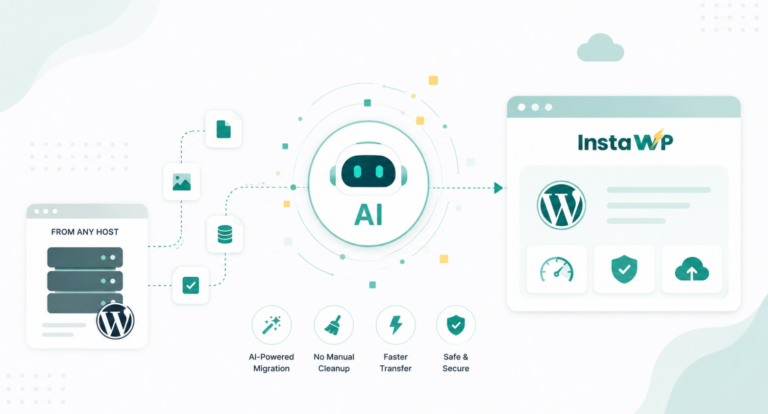
If you’re a WordPress agency managing multiple client websites, you’ve likely hit a wall with traditional migration tools. Perhaps it was a bloated backup plugin that timed out mid-transfer. Or perhaps a server timeout during a 5GB WooCommerce site migration left your team scrambling. Migrations are mission-critical, and when they go wrong, they can cost time, money, and client trust.
That’s where SSH-based WordPress migration stands out. SSH (Secure Shell) offers a reliable, scriptable, and secure pathway to move sites from one environment to another.
It’s favored by developers for its precision and speed. But historically, SSH migration has been reserved for technically advanced users—those comfortable with command-line tools, permission configurations, and database dumps.
In this blog, we’ll show you how to bridge that gap. You’ll learn everything you need to know about SSH migration in WordPress—from the concepts to execution—and more importantly, how InstaWP automates this entire process.
Table of Contents
What Is WordPress SSH Migration?
WordPress SSH migration is the process of transferring an entire website—files, database, configurations—from one server to another using secure command-line operations via the SSH protocol. Unlike plugin-based solutions, SSH migration bypasses browser limitations, eliminates PHP execution bottlenecks, and operates directly on the server.
Think of it this way: instead of packaging your site into a plugin-specific archive and uploading it manually to a new host, SSH lets you perform precise, low-level operations like compressing the entire htdocs directory, dumping the MySQL database, and securely copying those assets to another machine in minutes.
The process is not only faster but inherently more robust. It’s less likely to time out, supports large files with ease, and doesn’t rely on third-party plugins that may break across different hosting environments. SSH migration also gives you complete transparency—you control every step, from compression to deployment.
With tools like tar, gzip, mysqldump, and scp, SSH migration becomes a straightforward, repeatable procedure—if you know what you’re doing.
And if you’re using InstaWP, you don’t even need to know all that. InstaWP wraps all of this complexity into a simple, guided interface that generates safe, time-bound commands to execute in your terminal.
Why SSH Migration Is a Better Option for Agencies and Developers
Most agencies begin with plugin-based migrations, and that’s fine for small sites. But as your projects grow in size, complexity, and urgency, plugin limitations become liabilities.
They often:
- Fail during large transfers (e.g. >5GB)
- Require manual intervention with database rewrites
- Lack of transparency on what’s really happening in the background
- Are heavily dependent on PHP execution time and server config
For serious professionals, SSH-based WordPress migration is the gold standard as it is an entirely different tier of control/ as they migrate a site. It’s built for speed, scale, and reliability. Transfers are encrypted, commands can be automated via scripts, and database imports happen without the need for browser uploads or timeout-prone interfaces.
For development teams moving between staging, local, and production setups, SSH migration is indispensable.
More importantly, SSH migration reduces dependency on your hosting provider’s tools. You’re no longer constrained by the tools your client’s host offers. You can move freely across VPS, managed WordPress hosting, and cloud platforms like DigitalOcean or AWS—all using the same command-line workflow.
From a business perspective, it also reduces migration-related support requests. If your agency manages maintenance contracts or recurring website care plans, using SSH-based systems means fewer points of failure and faster resolution when something goes wrong. It’s not just about technology—it’s about trust and professionalism.
But SSH migration is not always a bed of roses. Here is a quick overview of its pros and cons.
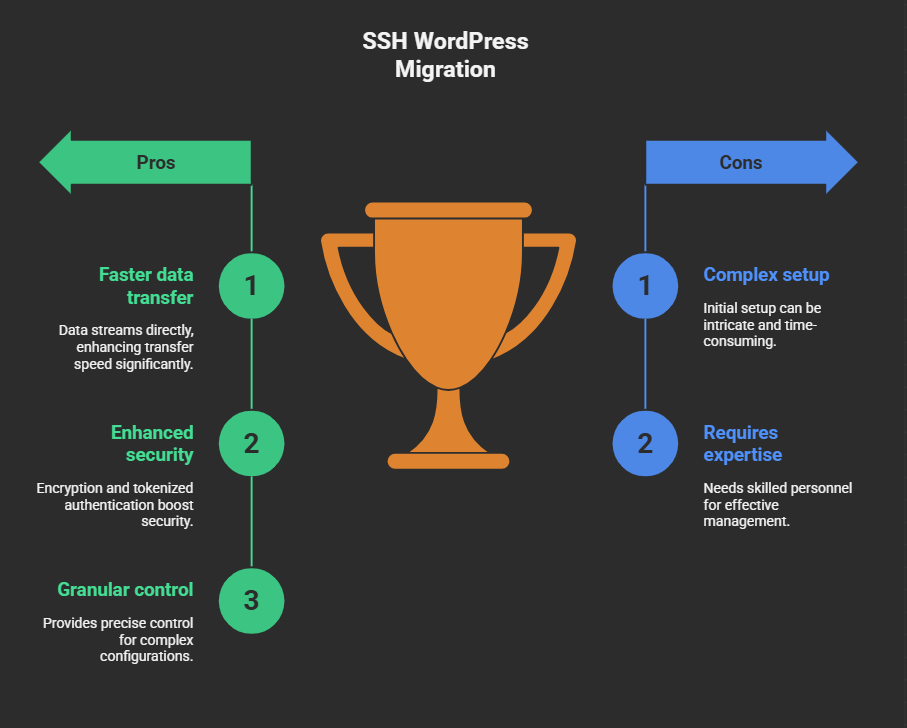
We just learned that the complex set-up of SSH can be a blocker, until you’re using InstaWP. With InstaWP, you don’t need to write a single SCP or rsync command manually. The entire process is command-ready and guided from your centralized dashboard.
For agencies and developers, InstaWP combines the power of SSH with the convenience of SaaS. You can even integrate it into your existing workflows—migrating from local environments, WP staging setups, or managed WordPress hosts—with full transparency and rollback safety via snapshots.
Pre-Migration Checklist: What You Need Before You Begin
Before initiating an SSH-based migration—whether manual or via InstaWP—you’ll need to confirm a few basic prerequisites. Here’s what you should have in place:
- SSH Access: Ensure both your source and destination environments allow SSH access. With InstaWP, this is pre-configured and securely sandboxed.
- InstaWP Accounts: Create or access both the source and destination sites inside your InstaWP dashboard. Don’t have an InstaWP account? Get started here.
- Terminal Access: You’ll need a terminal application to run the commands. macOS and most Linux distros have this by default; Windows users can install PuTTY or use Windows Terminal with OpenSSH.
- Admin-Level Permissions: Your InstaWP account should have the rights to initiate migrations and access the migration panel.
- Snapshots (Optional but recommended): Before starting the process, use InstaWP’s Snapshot feature to capture the current state of your site. This acts as a safety net in case you need to roll back.
Once these basics are set up, the actual migration process becomes incredibly streamlined. You’ll be copying two commands—one for the source site, one for the destination—and executing them in sequence. That’s it. No need to write scripts, no downtime risks, and no version mismatches.
How to Migrate a Site via SSH
Migrating a WordPress site using SSH may sound intimidating at first, but with InstaWP’s built-in SSH migration feature, the process becomes not just manageable, but seamless. Whether you’re moving a staging site to production or shifting a client project from one sandbox to another, the steps remain straightforward and repeatable.
In this section, we’ll walk through a real-world example, where we move a site from:
- Source Site: https://source.instawp.xyz
- Destination Site: https://destination.s.instawp.ch
Each command is generated for you. Your role is simply to copy, paste, and execute. No file archiving. No database exports. No permissions issues. Just a clean, secure pipeline between the two environments.
✅ Step 1: Log in to Your InstaWP Dashboard
To begin the migration, sign in to your InstaWP dashboard. From the top-right corner, click on your profile icon, then select “Migrate Website” from the dropdown menu.
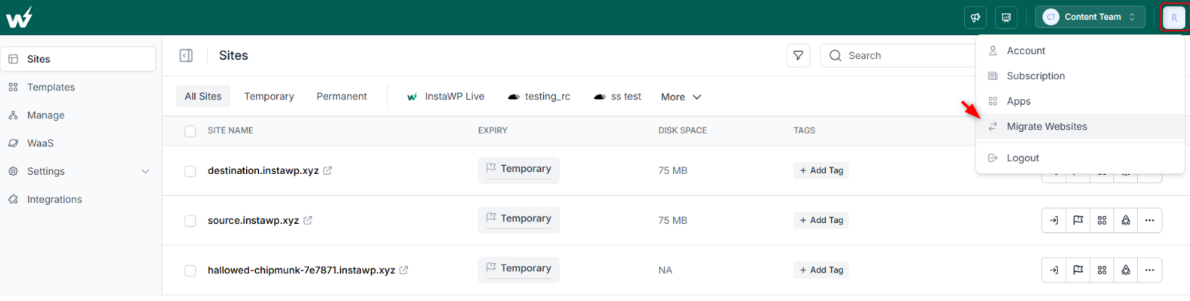
This is your migration control center, where you can:
- Initiate SSH-based migrations
- View previous migration history
- Generate one-click SSH commands
- Monitor migration status and logs
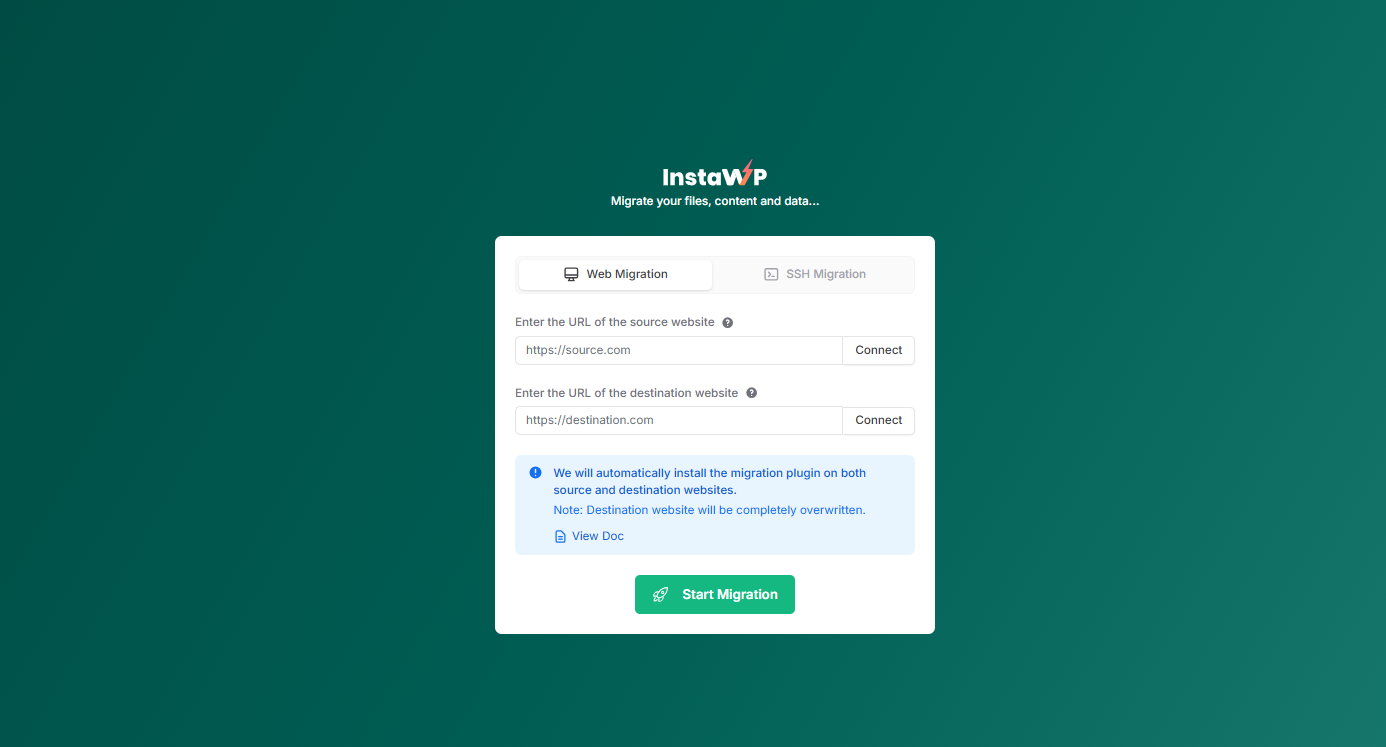
Once you’re in the migration panel, choose the SSH Migration tab.
✅ Step 2: Generate the SSH Command for the Source Site
In the SSH migration interface, choose the source site from your InstaWP projects. InstaWP will instantly generate a ready-to-use SSH command that performs the following actions:
- Archives your WordPress files
- Dumps the database
- Packages both together securely
- Prepares the backup for transfer
You don’t have to write or modify this command—it’s pre-filled with secure tokens and time-limited credentials.
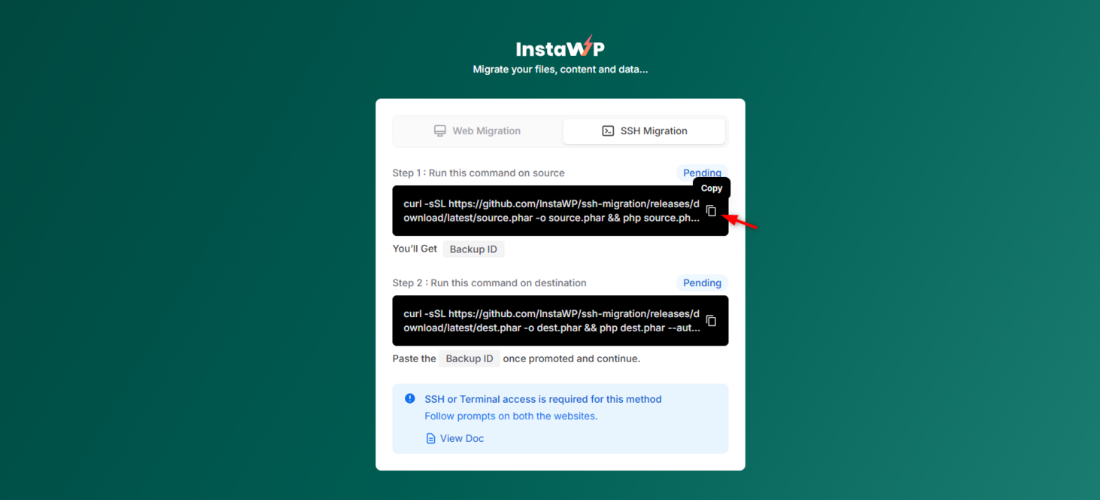
What to do:
- Copy the command by clicking the “Copy” button
- Open your local terminal (or PuTTY for Windows users)
- Paste the command
- Hit Enter
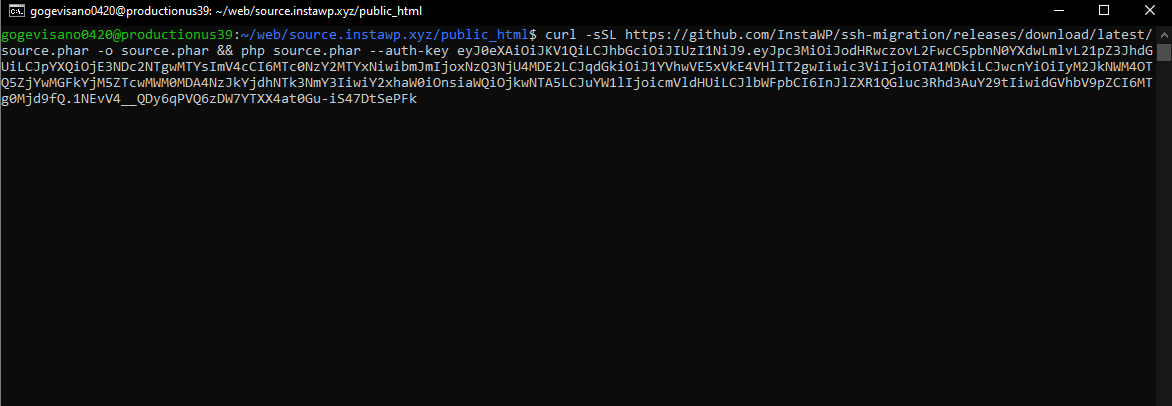
InstaWP will start the source-side migration process. It typically takes a few minutes, depending on your site size.
⚠️ Important: Do not proceed to the destination step until this process is complete. You’ll know it’s done when InstaWP shows a Backup ID in the migration window.
✅ Step 3: Generate and Run the Command for the Destination Site
After the source backup has been successfully created, you’ll now configure the destination site.
In the same migration window:
- Switch to the Destination tab
- Select the InstaWP destination site you want to migrate to
- InstaWP will generate a new SSH command, specific to that site and the recently created backup ID
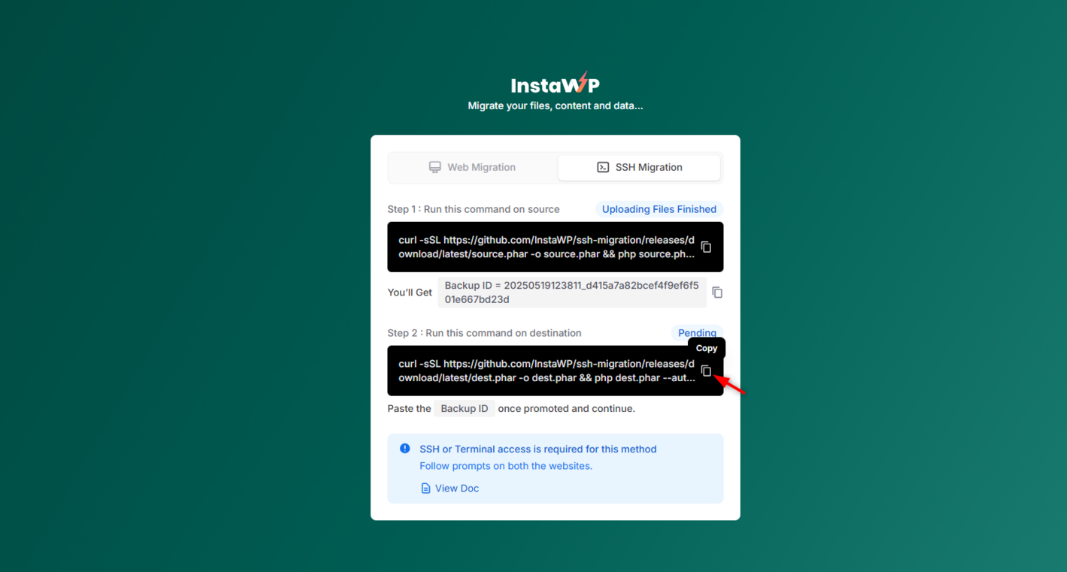
This command is designed to:
- Pull the backup from InstaWP’s secure storage
- Unpack the site archive and import the database
- Automatically apply necessary permissions
- Update your wp-config.php file with the correct database credentials
What to do:
- Copy the destination command
- Paste it into your terminal
- Hit Enter
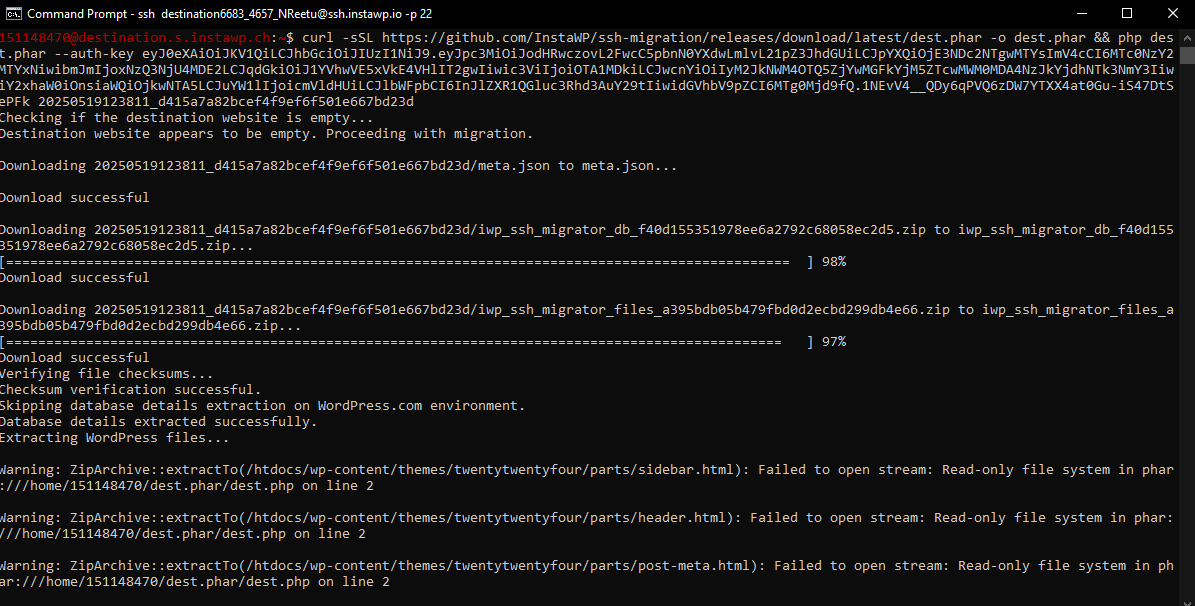
In just a few moments, the site will be restored on your destination instance, complete with plugins, themes, settings, content, and user roles—all exactly as they were.
✅ Step 4: Wait for Completion and Validate the Migration
Once the destination command finishes executing, you’ll receive a “Migration Successful” message in your terminal. You’ll also see the destination site live under its InstaWP URL.
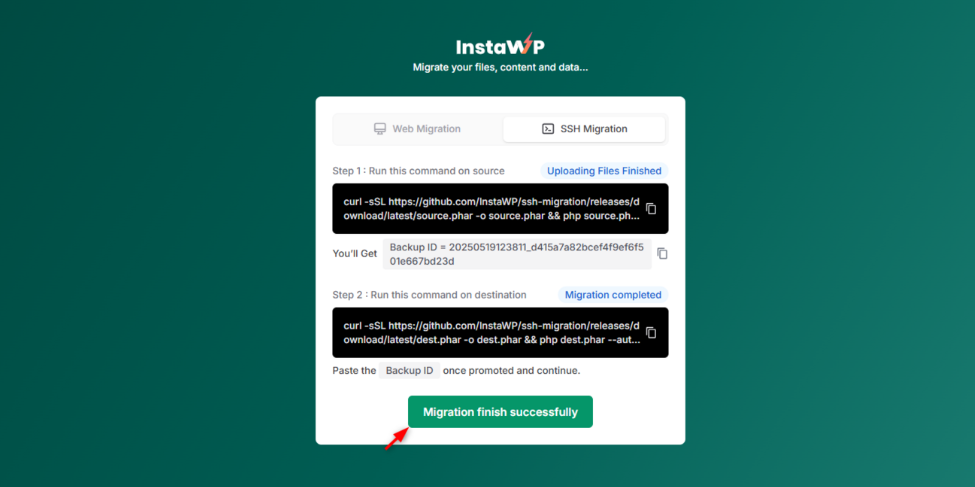
At this point, your job is to verify the integrity of the migrated site:
- Load the frontend – Check for broken layouts, 404s, or missing images
- Log in to wp-admin – Use InstaWP’s Magic Login to skip password hassles
- Test contact forms or interactive elements
- Open the Media Library – Confirm uploads were preserved
- Check plugin functionality – Especially anything tied to custom configurations
- Verify SSL – InstaWP automatically applies SSL
If all looks good, your SSH migration is complete.
✅ What Happens Behind the Scenes (So You Don’t Have To Worry)
While this process feels deceptively simple, a lot happens under the hood. Here’s what InstaWP automates for you:
✅ tar compression of all files and folders in the WordPress root directory
✅ wp db export or mysqldump to archive the full database
✅ Secure upload to InstaWP’s storage using tokenized endpoints
✅ Automatic extraction on the new site via gunzip and database import
✅ chown and chmod file permission resets based on standard Linux web server setups
✅ Auto-detection of database credentials and updates to wp-config.php
✅ Verification of domain bindings and HTTPS support
These are all steps that normally require a senior-level DevOps engineer—but with InstaWP, they’re executed safely in the background with a single command.
Alternate Approach: Manual WordPress SSH Migration (For Advanced Use Cases)
While InstaWP’s SSH migration process is ideal for most agencies, especially when moving between sandboxes, staging environments, or production servers within the InstaWP ecosystem, there are still situations where manual SSH migration might be necessary or preferred.
Manual SSH migration is most useful in the following scenarios:
- Migrating from a non-InstaWP server (e.g., AWS EC2, DigitalOcean, cPanel)
If the source server isn’t hosted in InstaWP and doesn’t support automated migration hooks, manual commands are necessary. - Customized folder structures or WordPress setups
Some advanced setups involve symlinked directories, custom database prefixes, or non-standard configurations that InstaWP’s automation may not accommodate. - Partial site transfers
You may only want to migrate plugins, media files, or a specific part of the database. - Server-level compliance or audit requirements
Some clients may require full CLI logs or step-by-step oversight due to internal IT policies. - Zero-dependency migrations
Developers who want full transparency and zero automation may still prefer the manual route for granular control.
Here is your crisp guide on manual SSH migration.
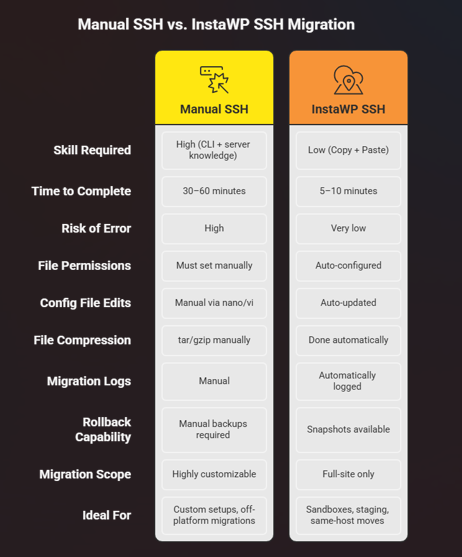
Below is a quick comparison of manual and automated SSH migration via InstaWP for your understanding.
Best Practices for a Secure and Reliable WordPress SSH Migration
Whether you’re using InstaWP’s automated SSH migration process or opting for a manual SSH route, following best practices is non-negotiable, especially when handling live sites or critical data.
Here are the key guidelines every WordPress agency should follow:
1. Always Take a Snapshot Before Migration
Before executing any migration, use InstaWP’s Snapshot feature. This acts as an instant rollback point in case something goes wrong mid-migration or if post-migration verification fails.
2. Never Run Source and Destination Commands Together
The entire process is sequential. Running both commands at the same time can corrupt the backup file or result in incomplete data transfer. Let the source command finish and confirm the Backup ID before starting the destination step.
3. Test Thoroughly in Staging First
Before applying any migration to a live production domain, test everything in a WP staging environment. InstaWP makes this easy by letting you spin up a fresh sandbox for each migration test—no need to overwrite anything live.
4. Watch File and DB Sizes
SSH migrations are great for large WordPress sites, but make sure your source site isn’t exceeding storage limits, especially if it contains lots of video, media, or WooCommerce order data. Clean up temporary files and unused media beforehand.
5. Update DNS Only After Confirming Migration Success
Don’t point your DNS records to the new server until you’ve validated:
- The SSL certificate is active
- Login works
- Contact forms, checkouts, and search features are functional
- The site loads consistently under the new domain/IP
6. Secure Your Backups and Logs
If you’re using manual SSH, delete .sql and .tar.gz files after restoration to prevent unauthorized access. InstaWP does this automatically post-migration.
Final Thoughts: The Smartest Way to Move WordPress Sites
In a world where time, uptime, and client satisfaction are everything, WordPress agencies can’t afford risky migrations. SSH migration offers the security and speed professionals need, and InstaWP elevates that experience by eliminating the complexity.
By combining the power of WP-CLI with the simplicity of one-click automation, InstaWP empowers agencies to migrate confidently, without worrying about database dumps, file permissions, or broken imports.
If you’re building, staging, or scaling WordPress projects for clients, mastering SSH migration with InstaWP isn’t just a smart move—it’s a competitive advantage.
? Ready to try this with zero risk?
Launch InstaWP today and migrate your next WordPress site using the power of SSH—automated, secure, and agency-ready.
Frequently Asked Questions (FAQs)
Q1: What is WordPress SSH migration?
SSH migration uses secure shell commands to move all site files and databases between two servers. It’s faster, safer, and more customizable than plugin-based migration methods.
Q2: Do I need to know Linux commands to use InstaWP SSH migration?
No. InstaWP generates secure, ready-to-run commands that require zero scripting. If you can copy and paste into a terminal, you’re good to go.
Q3: Can I use InstaWP SSH migration to move my site from localhost?
Yes. As long as your local environment has terminal access and can connect via SSH, you can run the source command from localhost and push the site to an InstaWP sandbox.
Q4: What if my site is too large for plugin-based migration tools?
That’s exactly where InstaWP SSH migration excels. Whether your site is 1GB or 10GB, the SSH pipeline handles large files efficiently without PHP timeouts.
Q5: What happens if the migration fails midway?
You can retry either the source or destination command. InstaWP logs each phase, and your pre-migration Snapshot ensures you can roll back safely without data loss.