Imagine this: A customer in Spain lands on your WooCommerce store. They love your product, but the site is only in English, prices are shown in U.S. dollars, and the checkout form doesn’t recognize their postal format. Within seconds, they’re gone.
That’s the hidden friction millions of WooCommerce stores face when trying to expand internationally.
A CSA Research study found that 76% of online shoppers prefer to buy from websites in their native language, and 40% will never buy from sites in other languages. For WordPress agencies and developers building WooCommerce stores, this is a huge missed opportunity.
To grow beyond borders, you need more than just global shipping—you need to localize WooCommerce from the ground up. And that means designing a shopping experience that feels natural, fast, and familiar, wherever your buyer is from.
Table of Contents
What is Localization in WooCommerce?
Localization in WooCommerce means adapting your store’s content, design, checkout, and payments to fit the language, currency, and expectations of different regional customers, going beyond basic translation to improve conversion and user experience.
To localize WooCommerce effectively, you’re adapting the entire shopping experience to align with regional expectations — from currency symbols to cultural visuals and even the order of form fields at checkout.
Unlike simple translation, WooCommerce localization includes:
- Product titles and descriptions in the shopper’s native language
- Local currencies and tax formats tailored to country-specific standards
- Region-specific shipping methods and form inputs like ZIP code formats
- Culturally appropriate images, colors, and even CTAs
- Language switchers that auto-detect the browser language or user location
Think of it like designing a storefront for each country that feels as if it was built specifically for that audience. A well-localized store helps eliminate the friction international shoppers often feel, increasing their trust and likelihood to buy.
Why Localization Matters for Global WooCommerce Success
Localizing your WooCommerce store isn’t just a nice-to-have feature — it’s a critical growth strategy. When your site speaks the customer’s language, shows familiar prices, and offers trusted payment methods, it removes hesitation and builds instant credibility.
Here’s why localization drives results for global WooCommerce stores:
- Improves conversions by making content easier to understand
- Builds trust with local currencies, tax formats, and payment gateways
- Reduces cart abandonment during the checkout phase
- Boosts brand reputation in local markets
- Unlocks new traffic through multilingual SEO and region-specific indexing
If you’re running an agency, these benefits compound across clients. A localized WooCommerce store can increase Average Order Value (AOV) and customer retention, and when done right, it requires minimal ongoing maintenance.
InstaWP tip: Use the Activity Log Viewer and Uptime Monitoring tools to track how localized versions perform under real user conditions in different regions. It’s the easiest way to benchmark performance without affecting live sites.
How to Translate a WooCommerce Store: Best Methods
Translating a WooCommerce store can be done in multiple ways, but not all are equally efficient, especially when speed, scalability, and SEO are priorities.
Let’s explore two core methods to translate WooCommerce content effectively
Method 1: Use a WooCommerce Multilingual Plugin (Recommended)
The fastest and most SEO-friendly way to create a multilingual WooCommerce store is by using a multilingual plugin like Weglot. It offers automatic machine translation with the option for manual edits, all while preserving your site’s SEO structure.
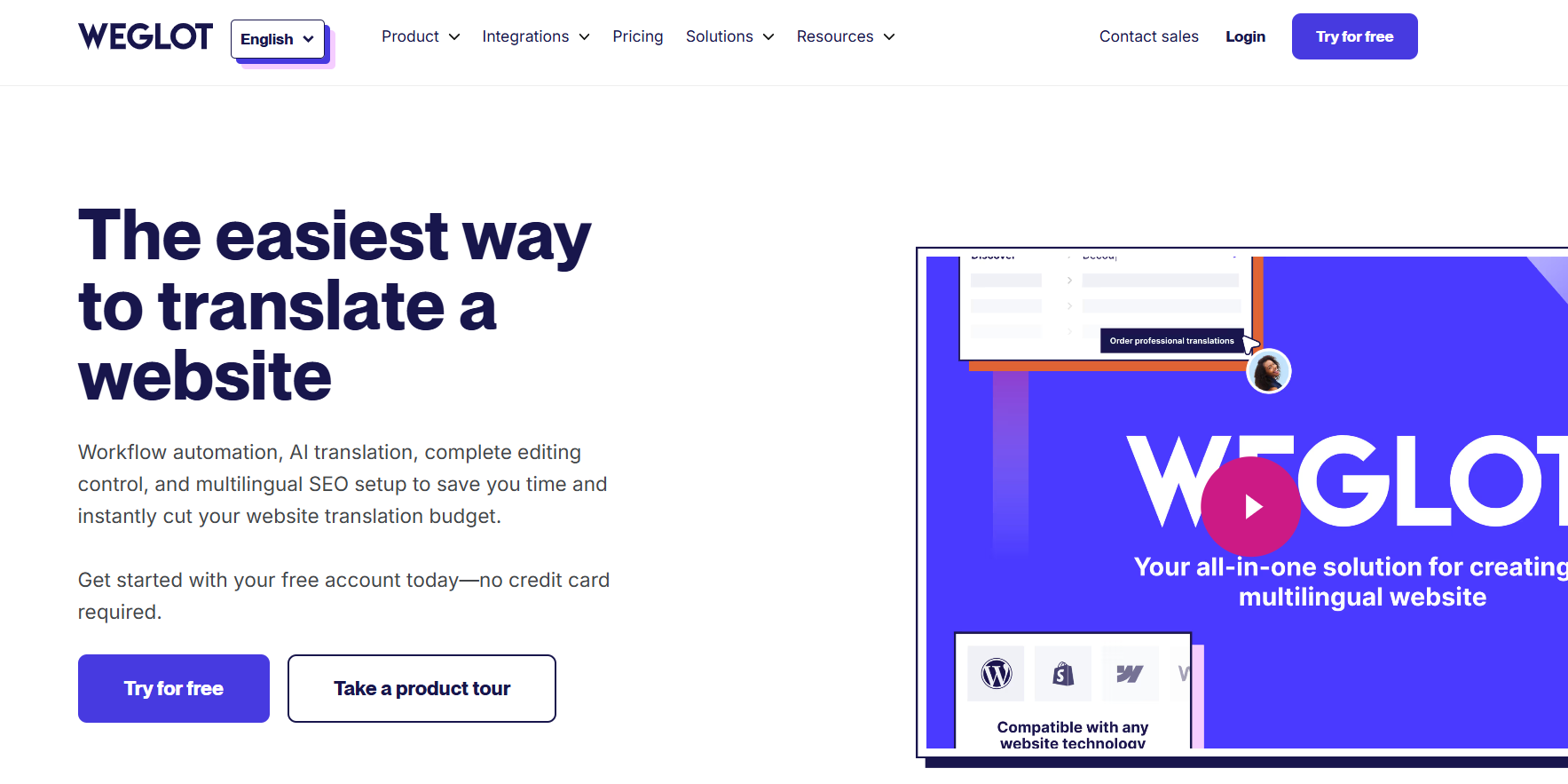
Here’s how to translate your WooCommerce store with Weglot:
1. Head to weglot.com and sign up for an account. You’ll receive an API key needed to activate your translations.
2. Log in to your WordPress dashboard
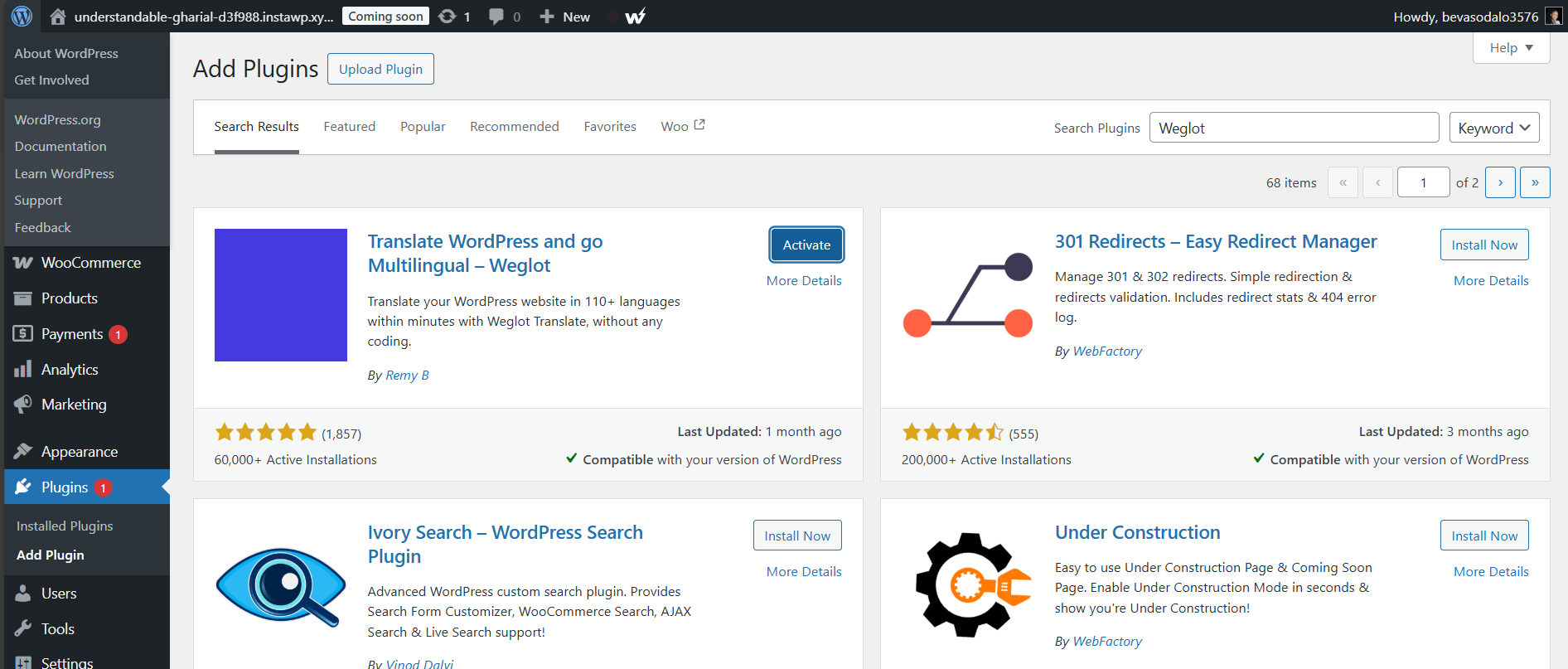
3. Go to Plugins > Add New
4. Search for Weglot, install it, and activate it.
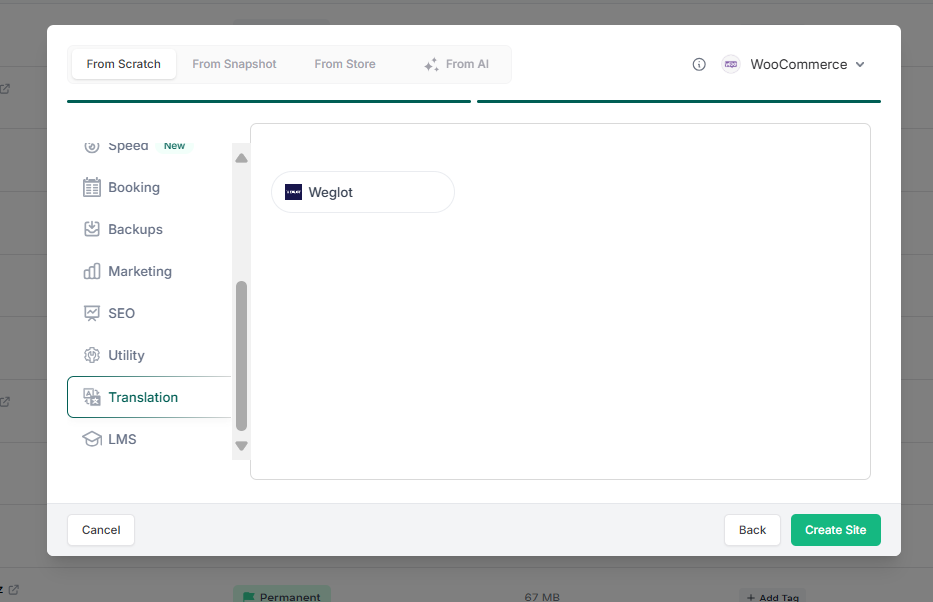
You can skip installation entirely if you’re building your first WooCommerce store with InstaWP. Just choose Weglot from the Translation category as you create a site. The plugin will already be pre-installed and configured.
5. Enter your API key, select your base and destination languages.
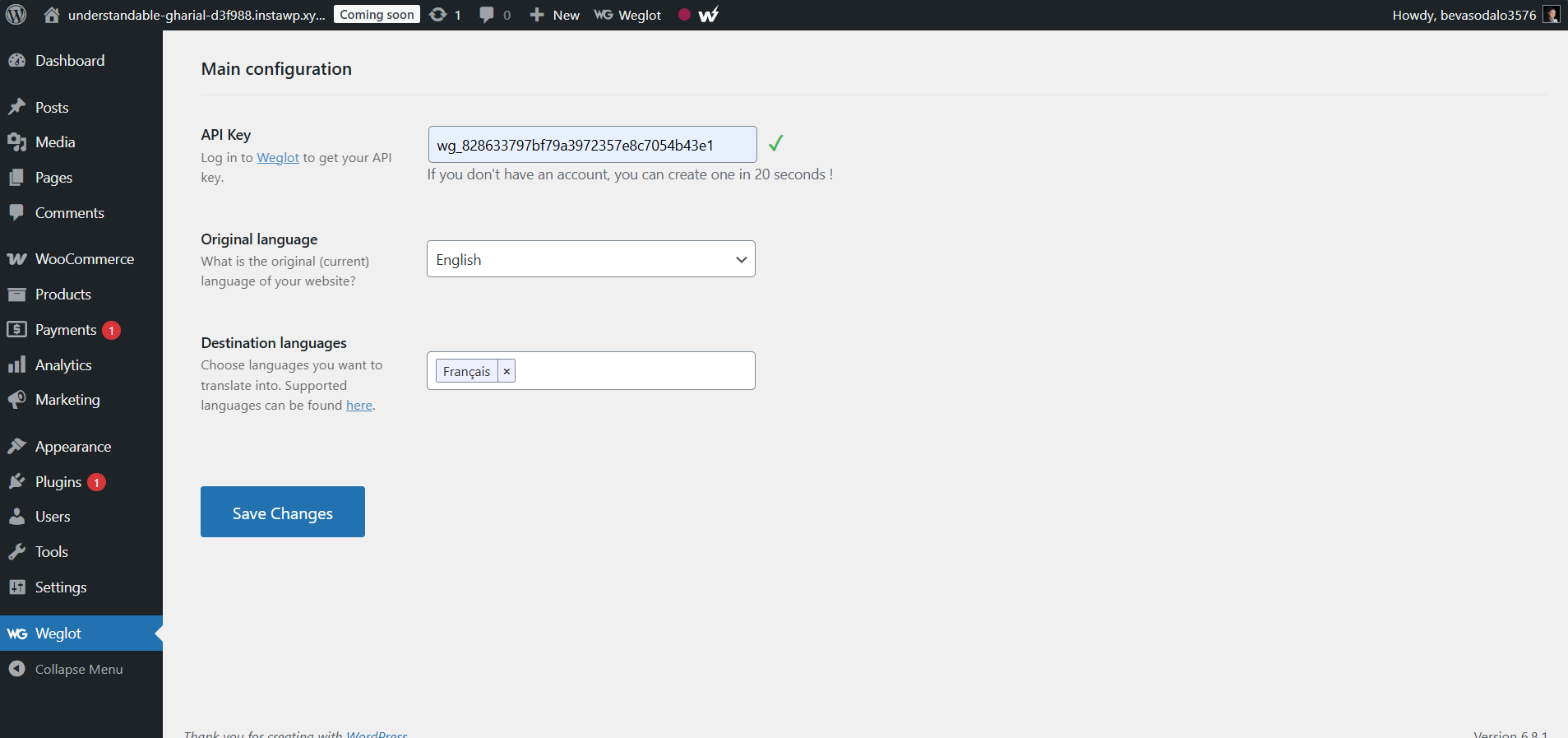
6. Save changes — your entire WooCommerce store is now multilingual, including products, checkout, and third-party content.
Weglot also auto-generates language switchers, supports subdirectories or subdomains, and handles technical SEO elements like hreflang tags without manual coding.
Method 2: Manual or Multisite Translation
You could create separate WordPress installations for each language, translating content manually per site. This is often referred to as the multisite approach.
However, this method involves:
- Managing multiple WordPress environments
- Duplicating themes, plugins, and WooCommerce configurations
- Complex SEO management across domains or subdomains
For most agencies and developers, this approach is time-intensive, error-prone, and difficult to maintain.
InstaWP tip: You can experiment with this approach using InstaWP’s Clone Site and Site Tagging features. But for scalability and SEO, multilingual plugins like Weglot are far more efficient.
Bonus: How to Add Currency, Tax, and Checkout Localization in WooCommerce
Translating your site content is just the beginning. To fully localize WooCommerce, you must also adapt core e-commerce functions such as pricing, tax calculation, and checkout fields. These small changes have a major impact on international user experience and conversion rates.
Here are the key elements to localize beyond language:
Enable Currency Switchers
Shoppers feel more confident when they see prices in their local currency. Using a currency switcher plugin or a multilingual plugin with multi-currency support can help.
Popular solutions like WPML with WooCommerce Multilingual
- Set different default currencies for different languages or countries
- Auto-detect user location based on IP and show relevant currency
- Customize rounding rules, currency symbol placement, and display formats
This enhances the experience for users browsing your WooCommerce international store and reduces checkout drop-offs caused by currency confusion.
Apply Regional Tax and Shipping Rules
Different countries have different tax rates, VAT structures, and shipping regulations. Make sure to:
- Set up automated tax calculations based on the user’s region
- Use WooCommerce Shipping Zones to define local delivery methods
- Customize tax labels, invoice layouts, and shipping options per region
Tools like WooCommerce Tax and TaxJar integrate well with multilingual setups.
Localize the Checkout Form Fields
To fully translate WooCommerce, you should also review the checkout form fields. For example:
- Update field labels to match the selected language
- Adjust address fields to suit local formats (e.g., postal codes, provinces)
- Enable phone number fields with international input formats
Weglot and WPML both detect and translate dynamic content like forms and cart notices.
Best Practices to Test WooCommerce Localization Before Going Live
Before launching your multilingual WooCommerce store, it’s essential to test every localized element thoroughly. This ensures your WooCommerce multilingual site performs well across all languages, currencies, and regional settings.
Here’s how WordPress agencies and developers can test effectively without risking the live environment:
1. Use InstaWP to Launch Localization Sandboxes
With InstaWP, you can create disposable sandbox sites to test different language and currency versions of your WooCommerce store.
Steps to follow:
- Spin up a site using the Weglot or WPML template on InstaWP
- Clone your existing store with the Clone Site tool
- Assign country or language-specific tags using the Site Tagging feature
- Invite clients or translators using Magic Login and assign custom roles
This allows you to preview a French, Spanish, or German version of your WooCommerce store without affecting production.
2. Review Translations on Frontend and Backend
Use visual editors like WPML’s translation dashboard to:
- Verify product titles and descriptions
- Confirm dynamic strings like cart notices and checkout labels
- Check forms, popups, and CTA buttons across languages
- Edit language switcher styling and placement
Don’t rely solely on machine translation. A quick manual review ensures accuracy and cultural sensitivity.
3. Test Technical Performance and Uptime
A localized store that loads slowly will lose users. With InstaWP, you can:
- Use the Performance Scanner to flag slow plugins or translation bloat
- Monitor site stability using Uptime Monitoring
- Track translation errors or 404s in the Activity Log Viewer
This helps you launch faster, more reliable multilingual stores that convert better and rank higher.
How InstaWP Makes WooCommerce Localization Easier for Agencies
For WordPress agencies managing multiple client stores, localization can quickly become complex. From plugin conflicts to multilingual QA, the challenges multiply with each language added. That’s where InstaWP becomes essential.
InstaWP provides an efficient environment to translate WooCommerce and localize WooCommerce stores without touching the live site. It streamlines development, testing, and client collaboration across multiple regions.
1. Prebuilt Starter Templates for Multilingual Plugins
Start a new WooCommerce project with Weglot or WPML pre-installed. You don’t need to install or configure plugins manually. Just launch the sandbox, enter your API key, and begin translating.
2. Clone and Customize by Region
Use Clone Site to create multiple versions of the same store for different locales. Apply Site Tags like en, fr, and es to organize projects by language or region.
3. Visual Demos for Clients
Assign language-specific roles using User Role Management. Use Magic Login to give clients direct access to preview and approve translations without needing credentials.
4. Monitor Translation Health and Site Stability
Use Activity Log Viewer to track changes made during localization. Run Performance Scans to ensure translated plugins or scripts do not slow down the site. Pair this with Uptime Monitoring to verify that all regional versions remain online.
5. Suffix Domain Tool for Multilingual Demos
Assign domain suffixes like store.instawp.io/es or store.instawp.io/de to create clean, region-specific demos. These links are ideal for showcasing localized stores to stakeholders or testing different SEO setups.
Common Challenges in WooCommerce Localization (and Fixes)
Even with the best tools, localization in WooCommerce comes with its share of hurdles. For WordPress agencies handling multilingual ecommerce, recognizing and solving these issues early can save hours of debugging and ensure a seamless launch.
Let’s explore the most common challenges in localizing WooCommerce and how to fix them efficiently.
1. Plugin Conflicts or Missing Translations
Some themes or third-party WooCommerce extensions may not be fully translation-ready. This results in untranslated strings or broken layouts.
Fix:
Use plugins like Weglot or WPML, which include string scanning and allow manual translation. Always check plugin compatibility before localization. With InstaWP, you can sandbox and test plugin behavior across languages without affecting the live site.
2. Language Switcher Not Displaying Correctly
A missing or broken language switcher can frustrate users and hurt conversions.
Fix:
Double-check that your multilingual plugin’s language switcher is enabled and styled properly. Most offer shortcode or widget options. In InstaWP, preview switcher behavior across desktop and mobile using real device emulation.
3. SEO Errors Across Languages
If your URLs, metadata, and content are not properly localized, your WooCommerce multilingual site may suffer in regional search rankings.
Fix:
Use Weglot or WPML to set up hreflang tags, localized URLs, and translated meta tags. Tools like InstaWP’s WP Config Editor can help you enable debugging and test SEO configurations before going live.
4. Checkout and Payment Incompatibilities
Localized users may abandon their carts if they encounter unknown payment methods or mismatched address formats.
Fix:
Install location-aware payment gateways like Stripe, PayPal, or country-specific options. Also, test your checkout with users from each target region using InstaWP’s Magic Login and assign them a Viewer role to collect feedback safely.
5. Slow Site Speed After Adding Languages
Adding translation layers can increase database queries and script loads.
Fix:
Use InstaWP’s Performance Scanner to detect slow plugins, scripts, or assets introduced during localization. Optimize images and lazy-load resources where possible.
Local SEO Tips for Multilingual WooCommerce Stores
Translating your WooCommerce store is not enough if you want to reach international buyers through search. You must also optimize for local SEO — the strategies that help your content rank in different regions and languages.
Whether you’re building a multilingual WooCommerce site for clients or scaling your own store, the following SEO practices are essential.
1. Use Hreflang Tags Correctly
Hreflang tags tell search engines which language and region each page version targets. This prevents duplicate content issues and ensures the correct version shows in local search results.
Fix:
Weglot and WPML automatically add hreflang tags based on your language settings. Confirm these are set by using Google’s Rich Results testing tool or Chrome DevTools.
2. Translate Metadata and URLs
To fully translate WooCommerce for SEO, don’t stop at product descriptions. Also translate:
- Page titles
- Meta descriptions
- Slugs (URL structure)
- Image alt text
WPML and Weglot both support metadata translation. On InstaWP, you can preview each language version and inspect how metadata changes across subdirectories or subdomains.
3. Submit Multilingual Sitemaps to Google Search Console
Each localized version of your store needs to be indexed properly.
Fix:
Generate a separate sitemap for each language. WPML and TranslatePress offer auto-generated sitemaps for multilingual content. Log in to Google Search Console and submit each sitemap under the correct domain or subdirectory.
4. Optimize Load Speed for Each Locale
Localized pages with extra fonts, scripts, or images may load more slowly. This can hurt both rankings and conversions.
Fix:
Run a Performance Scan on each translated version inside InstaWP. You can use the results to fine-tune your themes, remove heavy plugins, and optimize media per locale.
Ready to Localize Your WooCommerce Store Like a Pro?
Successfully expanding your store into global markets starts with one key decision: to localize WooCommerce beyond just language. When you combine language translation with region-specific currency, checkout flows, and SEO best practices, you don’t just reach international audiences — you convert them.
Whether you choose Weglot, WPML, or TranslatePress, the process becomes much smoother when paired with the right infrastructure. With InstaWP, you can spin up multilingual sandboxes, preview translated versions, monitor performance, and collaborate with clients — all without touching the live site.
Instead of waiting to figure things out mid-project, you can translate WooCommerce efficiently from day one using ready-to-go environments and preconfigured plugin stacks.
Start localizing smarter, not harder.
Launch your multilingual WooCommerce sandbox for free at InstaWP. No setup required. Just choose your plugin and start testing today.
FAQs
1. How do I translate my WooCommerce store into multiple languages?
Use a WooCommerce multilingual plugin like Weglot, WPML, or TranslatePress. These tools automatically detect content and translate your products, checkout pages, and metadata. Weglot also adds a language switcher and SEO-friendly structure without manual coding.
2. Can I localize WooCommerce without using multiple WordPress sites?
Yes. Plugins like Weglot and WPML let you localize WooCommerce within a single site by using subdirectories or subdomains. There’s no need to manage multiple WordPress installations or separate hosting environments.
3. How do I add a currency switcher to WooCommerce?
You can add a currency switcher using WPML’s Multicurrency module or standalone plugins like CURCY. These tools detect user location or browser settings and display product prices in the local currency, improving global checkout experiences.
4. Does localizing a WooCommerce site improve SEO?
Yes. Localization improves SEO by targeting region-specific keywords, translating metadata and URLs, and using hreflang tags. This helps your WooCommerce store rank higher in local search engines and attract more organic traffic.
5. How do I test a translated WooCommerce store before going live?
Use a staging environment like InstaWP. You can create sandbox versions for each language, install translation plugins, preview checkout flows, and test performance — all without impacting your live WooCommerce store.


