You’re troubleshooting a client’s WordPress site. The backend is slow. The checkout hangs during sales. Users complain about timeouts, but your CPU and RAM stats look perfectly normal.
The answer might be something most developers overlook: your site has run out of PHP workers.
These behind-the-scenes processes determine how many dynamic requests WordPress can handle at once. When they max out, your site slows down; not because the server is weak, but because it can’t process requests fast enough.
In this post, you’ll learn what PHP workers do, when and why you should increase them, and how to avoid the traditional headache of editing config files. We’ll also show you how to increase PHP workers in WordPress instantly.
Table of Contents
What Are PHP Workers and Why Do They Matter in WordPress
In WordPress, not every request can be served from cache. Logged-in users, checkout pages, AJAX calls, and dashboard actions often require real-time processing. That’s where PHP workers come in.
A PHP worker is a background process that handles these uncached requests. When a visitor performs an action that bypasses the cache, like submitting a form or placing an order, the request is handed off to a PHP worker. The worker processes the PHP code, queries the database, and generates the response.
Must Read: What Are PHP Workers in WordPress? A Complete Guide for Agencies
Each PHP worker can only handle one request at a time. So if your site has three workers and four users submit requests simultaneously, one of them will be placed in a queue. This delay is often what causes a slow checkout or admin lag, especially during high-traffic periods.
Here’s why this matters:
- A WooCommerce store with logged-in buyers needs more PHP workers than a static blog
- An LMS with concurrent learners accessing lessons creates a constant backend load
- A membership portal with AJAX-driven dashboards can easily overload the queue
In short, PHP workers WordPress performance, directly impacting how many users your site can serve at once. Too few workers means requests wait in line. Too many, without the right CPU support, can slow everything down. That’s why knowing your PHP worker allocation and scaling it when needed is essential to keeping your site fast and stable.
When Should You Increase PHP Workers in WordPress?
Not every WordPress site needs more PHP workers, but the ones that do often show clear signs. The challenge is recognizing those signals before your site starts dropping requests or frustrating users.
Here’s how to know when it’s time to increase PHP workers WordPress setup:
1. You’re Seeing 504 Gateway Timeout Errors
These errors usually happen when a request sits too long in the PHP worker queue. If your CPU load is low but timeouts still occur, it’s a strong sign your workers are saturated.
2. Checkout or Login Feels Delayed
In WooCommerce, the checkout process triggers uncached actions, like validating coupons, checking inventory, or processing payments. If even 5–10 users slow down your store, you may not have enough PHP workers to handle the load.
3. Logged-In User Dashboards Are Lagging
Whether it’s a membership site or LMS, logged-in activity almost always bypasses caching. If user dashboards are taking more than a second or two to load, workers could be the choke point.
4. AJAX and Background Processes Start to Fail
High usage of admin-ajax.php or background WordPress tasks (like form submissions, filtering, or autosave) can flood your workers. When too many of these stack up, performance drops fast.
5. Performance Tools Flag Worker Saturation
If you’re using tools like Query Monitor, New Relic, or InstaWP’s Performance Scanner, check for:
- High “wait time” before PHP starts processing
- Queue length metrics growing during traffic spikes
- Low CPU usage but poor TTFB (Time to First Byte)
Rule of Thumb
If your site regularly handles:
- More than 10 concurrent logged-in users
- Frequent checkouts or dashboard activity
- High uncached traffic (search, filtering, queries)
…then it’s likely time to increase your PHP workers, either by tuning PHP-FPM or choosing a hosting plan that allocates more.
How to Increase PHP Workers in WordPress
If you’re managing your own server or VPS, the common way to increase PHP workers in WordPress is by editing your PHP-FPM (FastCGI Process Manager) configuration. This means adjusting values that control how many PHP processes are allowed to run concurrently.
Here’s what that typically looks like:
In your server (usually under /etc/php/7.x/fpm/pool.d/www.conf), you’ll find these parameters:
- pm = dynamic
- pm.max_children = 4 ← . This is the actual PHP worker limit
- pm.start_servers = 2
- pm.min_spare_servers = 1
- pm.max_spare_servers = 3
To increase PHP workers, you raise pm.max_children. For example, setting it to 8 would allow 8 concurrent PHP processes.
While it sounds simple, adjusting PHP-FPM config comes with several risks, especially for agencies or developers working across client servers:
- Requires SSH and root access — not possible on most shared or managed WordPress hosting
- Risk of downtime — a misconfigured file can crash PHP-FPM and bring down the site
- Lack of visibility — you often don’t know how many CPU cores are available to handle increased workers
- Limited support — most managed hosts don’t allow or support custom worker tuning
- Zero flexibility — you can’t change it dynamically based on seasonal traffic or client campaigns
In short, increasing PHP workers the traditional way involves backend access, performance monitoring, and server experience. It’s powerful but not practical for most WordPress use cases, especially when you’re managing multiple sites or want to scale fast without friction.
That’s where you should look for a smart way to increase the PHP workers in WordPress.
And it is to choose a WordPress development environment where:
- You have clarity on how many PHP workers are allocated to each Live Hosting Plan
- Upgrading and downgrading plans are easy
- You don’t need to edit configuration files to increase PHP Workers
- There are no hidden costs in increasing the PHP workers.
Turns out InstaWP checks all these aspects. Unlike traditional hosting, where worker limits are hidden or hardcoded, InstaWP clearly defines how many PHP workers are allocated with each Live Hosting Plan. You don’t need to edit configuration files or worry about breaking anything; just choose a plan that matches your site’s workload.
For example:
- Plus offers 3 PHP workers
- Pro offers 4 PHP workers and so on.
Check the PHP workers limit for each here.
As your traffic grows or your site becomes more dynamic (think WooCommerce or LMS), you can upgrade to a higher plan and unlock more PHP processing power instantly.
How to Change Plans on InstaWP to Increase PHP Workers
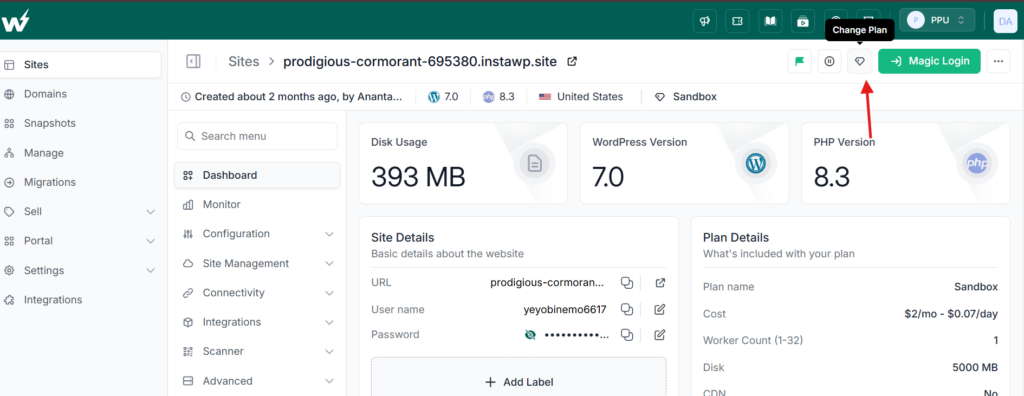
InstaWP lets you upgrade or downgrade your hosting plan directly from the dashboard.
- Go to the site for which you want to increase the PHP workers limit and click on the ‘Change Plan’ icon.
- Choose a higher-tier plan that matches your performance needs.
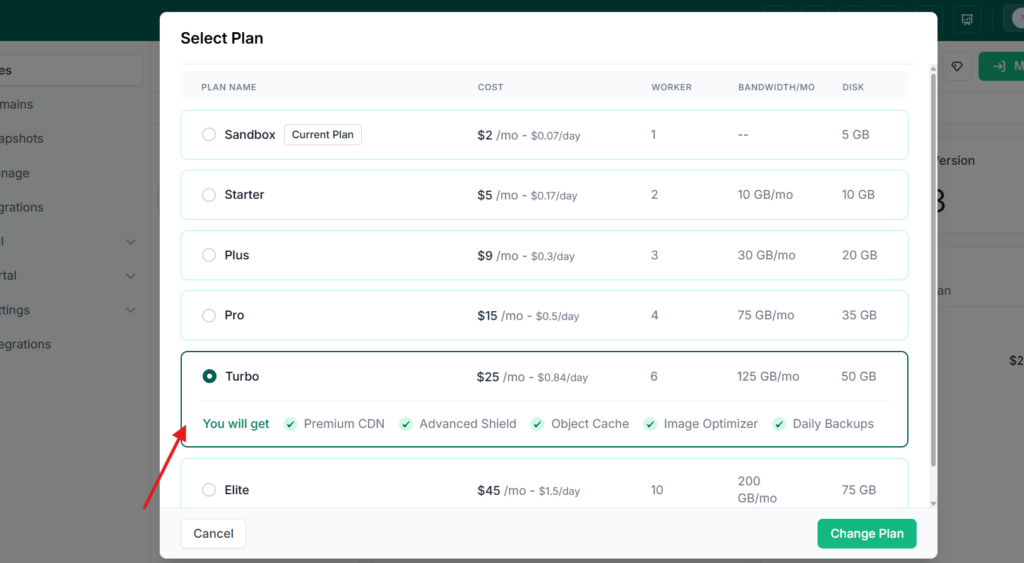
This eliminates the hassle of SSH access, server monitoring, and risky trial-and-error config edits. It’s built for agencies and developers who want speed and flexibility without backend complexity.
You can upgrade and downgrade your site plan anytime with the same ease, anytime, and with no added cost. And the best part? You don’t have to pay every month. You will be charged for the upgraded or downgraded site plan from the day you make the switch.
You get more PHP workers WordPress sites need, with cost efficiency that makes scaling smarter, not harder.
Why InstaWP’s PHP Worker Scaling Is a Game-Changer for WordPress Agencies
For agencies managing multiple WordPress sites — especially WooCommerce stores, membership platforms, and LMS projects — performance issues during peak traffic aren’t just technical problems. They’re support tickets, client complaints, and missed revenue opportunities.
Here’s how InstaWP’s approach to increasing PHP workers in WordPress solves that:
No Server-Side Configuration, Ever
Your team doesn’t need to log into a terminal, edit PHP-FPM files, or wait on hosting support. Just select a higher plan in the dashboard and your site gets more PHP workers instantly — no downtime, no errors.
Respond to Traffic Surges in Real Time
Got a client running a flash sale or launching a course? You can scale worker capacity in advance or adjust mid-campaign. Upgrades are instant, and there’s no disruption to frontend or backend operations.
Predictable Performance for Every Client
You no longer have to guess whether a site is under-provisioned. InstaWP’s managed hosting plans clearly show how much CPU (and by extension, how many PHP workers WordPress can run) you’re getting. That means you can align each plan to actual traffic behavior.
Scale Multiple Sites with Tiered Pricing
Managing 1 site? 5 sites? 10+? The more client sites you host on InstaWP, the less you pay per site. You can standardize hosting and support, without overspending on unnecessary resources.
Test First, Then Go Live
Before committing to an upgrade, spin up a sandbox and simulate traffic with InstaWP’s Performance Scanner. You’ll know exactly when and why to scale PHP workers, which helps you stay ahead of issues and impress your clients with proactive performance tuning.
InstaWP removes the operational headaches of server-level scaling. As a result, your agency spends less time firefighting and more time delivering reliable, high-performing WordPress experiences.
Scaling PHP Workers Shouldn’t Be This Hard; And Now It Isn’t
Traditionally, increasing PHP workers in WordPress meant digging into server configurations, requesting root access, or waiting on hosting support — all while your client’s site slowed down or timed out. For agencies and developers, that’s time lost and performance compromised.
With InstaWP, scaling PHP workers is as easy as switching plans. No risk. No downtime. Just predictable performance gains for WooCommerce, LMS, and high-traffic sites. Whether you’re building one site or managing dozens, you can now align PHP worker capacity with real-world demand, directly from your dashboard.
? Ready to Scale Without the Stress?
Launch a free site, simulate traffic, and see how different PHP worker plans perform.
FAQs
1. How do I increase PHP workers in WordPress?
Traditionally, you increase PHP workers by editing the pm.max_children setting in the PHP-FPM config file. However, in managed environments like InstaWP, you can simply upgrade your hosting plan. Each plan includes a fixed number of PHP workers WordPress sites can use, and you can scale them instantly via the dashboard.
2. How many PHP workers does my WordPress site need?
Most static or low-traffic sites perform well with 1–2 PHP workers. WooCommerce, LMS, and logged-in user portals typically need 4–10 workers depending on concurrent users. More workers mean better concurrency. You can scale this using InstaWP’s flexible Live Hosting plans based on your site’s performance needs.
3. Can I increase PHP workers without root access?
Yes. If you’re using a platform like InstaWP, you don’t need root or SSH access. PHP worker limits are plan-based. Simply change your Live Hosting plan through the dashboard to increase PHP workers — no technical configuration required.
4. Do more PHP workers make WordPress faster?
More PHP workers improve your site’s ability to handle multiple uncached requests at once. While they don’t speed up individual requests, they reduce queue time during peak usage. For high-concurrency WordPress sites, increasing workers improves overall responsiveness and reduces timeouts.
5. What happens if I have too few PHP workers?
When PHP workers are maxed out, new requests are placed in a queue. This leads to longer response times, 504 gateway errors, and poor user experience. You’ll often see this on WooCommerce checkouts or logged-in dashboards during traffic spikes.
6. How can I change PHP workers in InstaWP?
Log into InstaWP, go to the Live Hosting dashboard, select your site, then click Plan Addons → Update Plan. Choose a higher-tier plan, and your site will instantly be allocated more PHP workers WordPress needs, with no downtime or manual server edits.


