If you’re building or customizing a WordPress site, knowing how to edit WordPress files is a must-have skill. Whether you’re modifying a theme, fixing a plugin conflict, or adding custom PHP functions, direct file access gives you full control over your site’s behavior and performance.
There are two common ways to edit these files: working locally on your computer or editing them online through a browser-based interface. Both methods are widely used by developers and freelancers, but each comes with its own set of challenges.
In this guide, we’ll walk through both approaches so you can understand how they work, where they fall short, and what modern tools can help you move faster without breaking your site.
You’ll also discover a powerful new workflow that combines the best of both worlds.
Table of Contents
What Types of WordPress Files You Can Edit (And What Each One Does)
If you’re trying to figure out how to edit WordPress files, it’s helpful to first understand what kinds of files make up a WordPress site. WordPress runs on a mix of PHP, CSS, HTML, and JavaScript files, and depending on what you’re building or troubleshooting, you’ll be working with different parts of that structure.
Below are the most common file types developers edit in WordPress, along with what they’re used for and why editing them is often necessary.
1. Theme Files
Theme files define how your WordPress site looks on the front end. These include:
- style.css: Controls layout, colors, spacing, and visual appearance.
- header.php, footer.php, page.php, single.php: Handle the structural layout of different types of content.
- functions.php: A special theme file where you can add custom PHP code to change site behavior.
If you’re wondering how to edit theme files in WordPress, this is where you’ll start. Customizing these files lets you control everything from how post metadata appears to how your navigation works.
2. Plugin Files
Plugins add features and functionality that don’t come with WordPress by default. Plugin files are usually located in wp-content/plugins/plugin-name/. These are mostly PHP files, and editing them gives you the power to:
- Add or remove functionality
- Debug plugin conflicts
- Customize plugin behavior when settings don’t offer enough control
While it’s generally better to override functionality using hooks or custom plugins, developers still sometimes edit WordPress files inside a plugin directly, especially for quick fixes or prototyping.
3. Core Configuration Files
Files like wp-config.php and .htaccess control WordPress settings and server behavior.
- wp-config.php: Manages database connection, debugging mode, memory limits, and other global settings.
- .htaccess: A server configuration file used mostly for permalinks and redirects (on Apache servers).
Editing these files lets you tweak low-level functionality or enable advanced features like multisite or custom database prefixes. If you’re asking how to edit PHP files in WordPress, wp-config.php is often the first place developers go.
4. JavaScript and CSS Files
While many styling changes can be made using customizer tools or plugins, advanced developers often prefer editing raw JavaScript and CSS files for precision and performance.
- JavaScript files enhance front-end interactivity
- CSS files control styles across pages and templates
These files are usually part of your theme or plugin folder and are crucial if you’re optimizing user experience or building from scratch.
5. Template Parts and Block Templates (FSE)
With the rise of Full Site Editing (FSE), block themes now include editable HTML and block-based templates, such as header.html, footer.html, or home.html. These control the structure of your site when you’re using the Site Editor, and they’re stored in the block-templates folder of a block theme.
If you’re building custom themes or adapting an existing one, learning how to edit WordPress files in block-based environments is key.
How to Edit WordPress Files: 3 Methods Explained
There are three main ways to edit WordPress files. We’ll cover each method in detail and will also help you understand which methods work best.
Method 1: Use InstaWP
If you’re looking for a way to edit WordPress files where you don’t have to get into the complexity of local setups and the risks of online editors, you should start building your WordPress sites with InstaWP.
This modern all-in-one cloud WordPress development platform gives you a fast, flexible way to edit WordPress files, whether you prefer working in the browser or in your local code editor.
We already know that InstaWP lets you build, host, and manage WordPress sites in seconds. But do you know that it simplifies file editing for developers as well?
When it comes to editing WordPress PHP, theme, or core files, you get two powerful options built right in:
1. Built-In Online Code Editors
Every InstaWP site includes lightweight but powerful browser-based code editors. You can either get the VS Code Editor via extension or use online code editors such as WPCodebox.
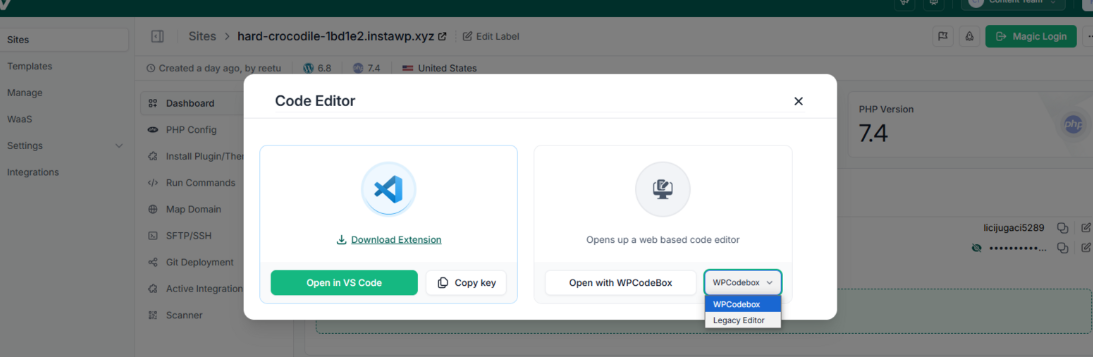
You can open any theme or plugin file, edit your code, and save changes, all from a clean, developer-friendly interface.
All you need to do is:
Log in to your InstaWP dashboard.
Go to the site you want to edit and click the three-dot menu.
Go to Site Tools > Code Editor
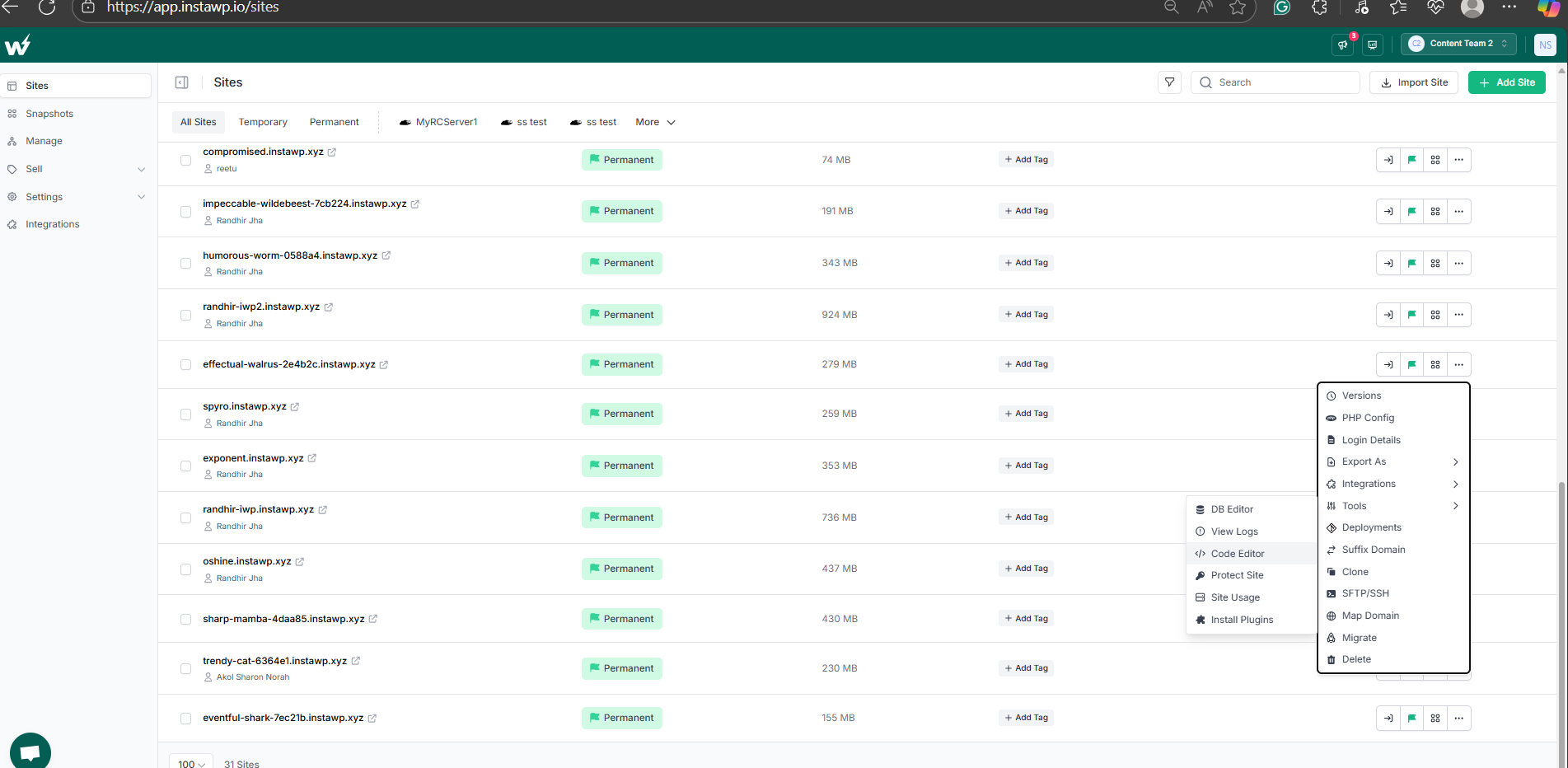
Choose the option that you want to use to edit WordPress files
In the blink of an eye, you will enter the WordPress core files. We have opened our test site’s function.pho file in InstaWP’s browser-based code editor.
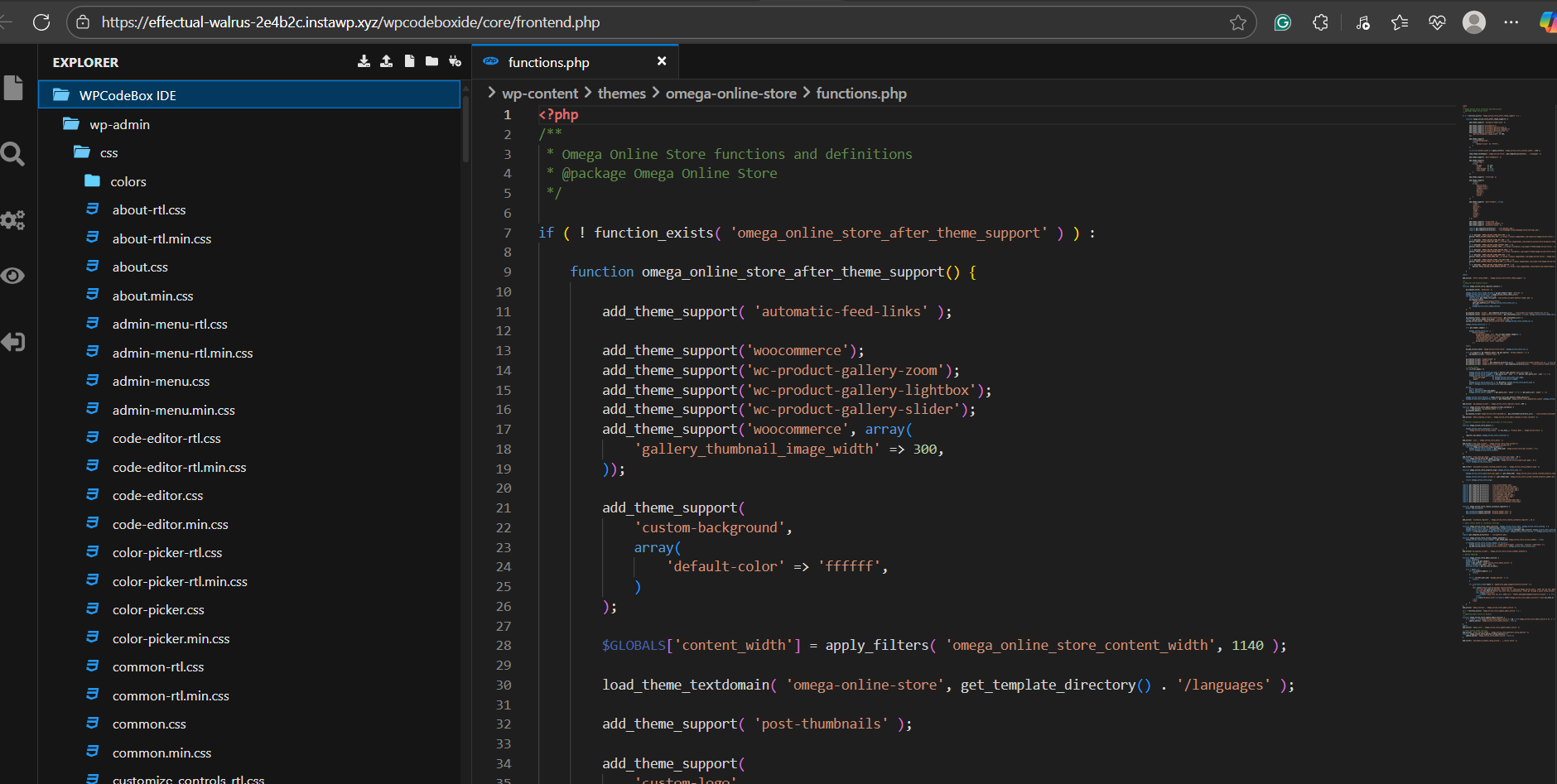
From here, we can go to any file, make desired changes, and enjoy seamless WordPress site editing.
Unlike basic WordPress file editors, InstaWP gives you line numbers, syntax highlighting, and a safer way to preview changes without editing a live production site. It’s perfect for small edits, bug fixes, or exploring how a site works.
2. Local Mount
For deeper work, InstaWP gives you a feature that few other platforms offer: Local Mount.
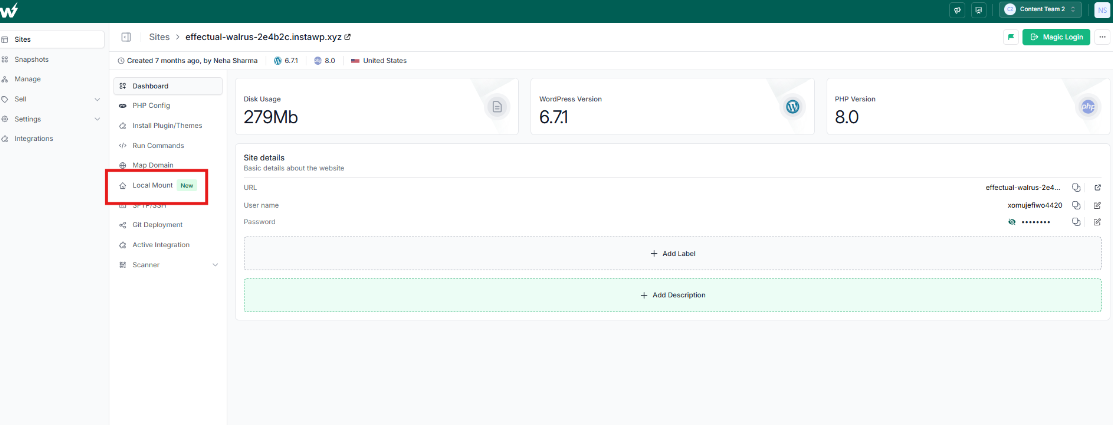
This lets you connect your InstaWP site to your own computer and open the file structure in any code editor, just like a local project.
Just enable the Local Mount feature for the respective site to prepare your online site to be available locally.
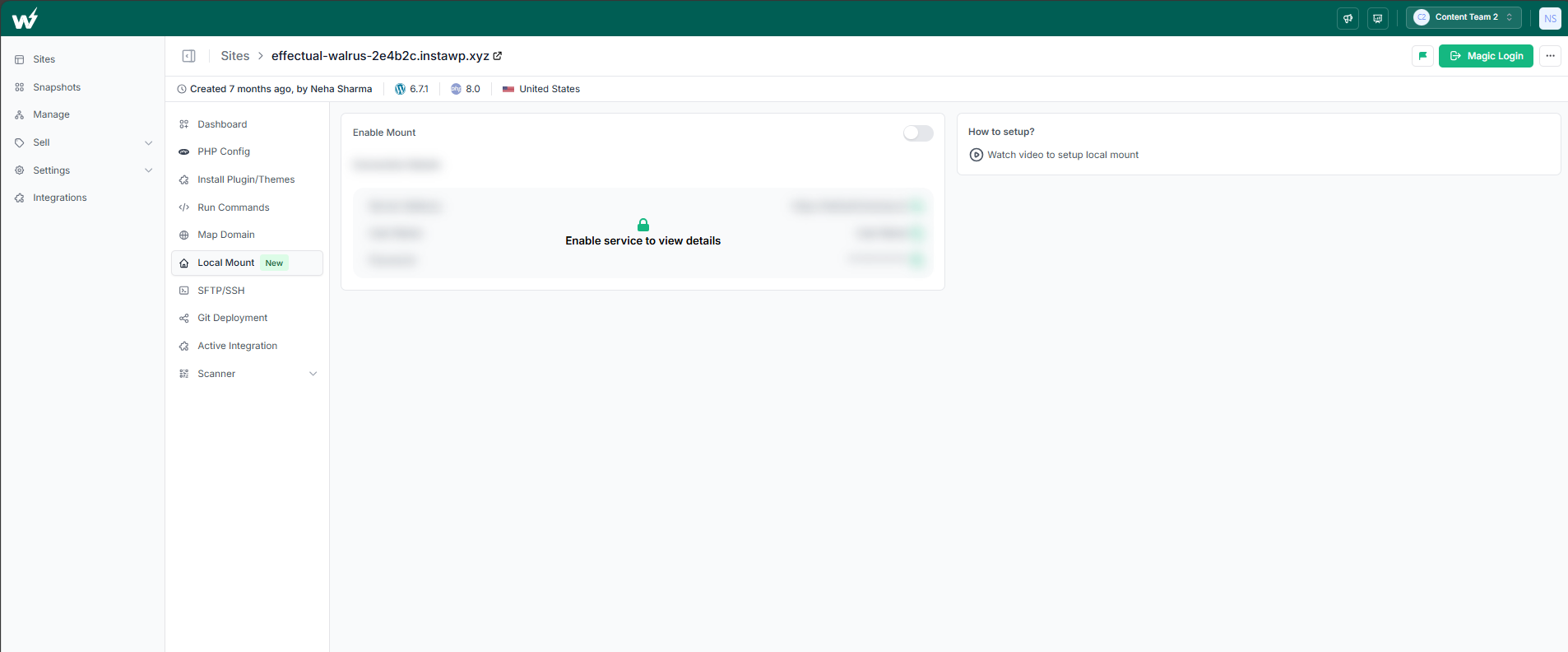
This feature works for devices running on Windows, Mac, and Linux OS. Based on the OS your device is running on, you have to follow different steps to get the WordPress site locally.
If you’ve been wondering how to edit PHP files in WordPress or customize themes using your preferred tools like VS Code, this is the ideal setup. You get real-time sync with a live, cloud-hosted site while still enjoying the speed and familiarity of a local editing environment.
Whether you’re editing a function, fixing a layout issue, or building a custom template, you can now do it your way, safely, quickly, and without the limitations of FTP or old-school local stacks.
In the next section, let’s explore the benefits this hybrid workflow unlocks for modern developers.
When you combine InstaWP’s built-in code editor with the Local Mount feature, you unlock a workflow that’s faster, safer, and more flexible than traditional methods. Whether you’re editing theme templates, customizing plugins, or adjusting PHP logic, InstaWP gives you the environment you need, without the setup headaches.
Method 2: Editing WordPress Files Using Online File Editors
The second most common method developers use to edit WordPress files is through online file editors. These are browser-based interfaces that give you direct access to your site’s code; no local server required.
Most web hosting providers offer a file manager in their control panel. You can use this tool to browse your site’s directories, open PHP files, and make edits right from your browser. Some developers also use the Theme File Editor or Plugin File Editor built into WordPress itself. These can be accessed from the WordPress admin panel under Appearance or Plugins.
This method is appealing because it’s fast and doesn’t require any setup. You can log in, open a file like functions.php, make a quick change, and save it. If you’ve ever searched how to edit PHP files in WordPress or how to edit theme files in WordPress, you’ve probably seen this method recommended for small changes.
However, there are serious limitations.
1. No Safe Testing Environment
When you use the built-in WordPress editors or your host’s file manager, you’re editing live code. There’s no preview mode, staging buffer, or safety net. A single misplaced character in a PHP file can break your entire site and lock you out of the admin area.
2. Limited Features for Real Development
Online editors are not designed for professional coding. You won’t get features like autocompletion, error highlighting, or Git integration. If you’re used to working in a proper IDE, you’ll quickly notice how limited these tools feel.
3. No Version Control or Undo
There’s no built-in version history. If you make a mistake, there’s no quick rollback. You’re left fixing things manually, which is risky and time-consuming, especially on live production sites.
Method 3: Editing WordPress Files Locally
One of the most common ways developers learn how to edit WordPress files is by setting up a local development environment on their own computer. This means running a WordPress site offline, with full access to every file — from theme templates to plugin code and configuration files.
To do this, developers typically use tools like XAMPP, MAMP, or LocalWP. These platforms simulate a web server environment by installing PHP, MySQL, and Apache or Nginx on your system. Once set up, you can download a copy of your WordPress site, place it inside the htdocs or www folder, and open it in a browser via localhost.
Once your site is running, you can open any part of it in your code editor, whether that’s a CSS file for styling or a PHP file inside a plugin. This method gives you full control. You can easily experiment, debug, or build new features without risking changes on the live site.
This is also where many developers learn how to edit PHP files in WordPress or how to safely customize things like functions.php, single.php, or style.css before moving them to production.
Working locally has some strong benefits:
- Fast performance since everything runs on your own machine
- Full access to the file structure and database
- Ability to work offline, with no internet connection needed
- Safe space for testing new code before pushing live
But while local development is powerful, it does have limitations, especially for modern workflows and team projects.
Let’s look at those next.
1. Initial Setup is Time-Consuming
To get started, you need to install a local server stack like XAMPP or MAMP, configure databases, and manually install WordPress locally. It’s not difficult, but it can be tedious, particularly if you’re setting up multiple environments for different projects.
2. Changes Are Stuck on Your Machine
When you edit WordPress files locally, those changes live only on your computer. You’ll need to manually upload them via FTP or a deployment script to your live site. This slows down development and increases the risk of overwriting live changes.
3. No Built-In Collaboration
If you’re working with a team, everyone has to replicate the same local setup. There’s no centralized environment to share progress or preview changes in real time. This becomes a bottleneck, especially for agencies or remote teams.
4. Mismatch Between Local and Live Environments
Your local stack might behave differently from your production server. You may be running different PHP versions, server rules, or plugin configurations. As a result, code that works locally might break when pushed live.
5. No Real-Time Cloud Preview
Local development doesn’t offer a way to see how your code looks or functions on a live server while you’re writing it. This forces you into a build-then-deploy loop, rather than a real-time edit-and-preview flow.
These issues often lead developers to look for browser-based alternatives. Let’s explore that next.
What’s the Best Way to Edit WordPress Files Today?
With so many ways to work with code in WordPress, developers often ask: What’s the best way to edit WordPress files today, locally, online, or using a modern hybrid approach?
Let’s compare them side by side.

InstaWP combines the flexibility of local development with the speed of cloud infrastructure. It eliminates the downsides of both older methods while offering a streamlined way to edit WordPress files, whether you’re building from scratch or maintaining client sites.
Here are the key benefits of using InstaWP to edit WordPress files:
1. Zero Setup, Instant Access
You don’t need to install WordPress locally or configure a server. Just launch a site and start working. This is ideal for developers who want to jump straight into editing files without wasting time on technical setup.
2. Edit Files Locally or Online
You can use the online editor for quick changes or mount the site locally to work inside your preferred IDE. Either way, you have full control over how you work and where you edit. If you’re searching for how to edit theme files in WordPress or customize plugin code, this workflow handles both scenarios seamlessly.
3. Real-Time Sync With a Live Site
With Local Mount, your file edits are instantly reflected on your cloud-hosted WordPress site. There’s no need to upload ZIPs or transfer files manually. You get the speed of local development with the visibility of a live environment.
4. Safe Previewing and Testing
Because your site is hosted in a secure sandbox, you can experiment with changes without touching your production site. This makes it safe to test new functions, update PHP files, or adjust styles, even if you’re not sure what the result will look like.
5. Works With Version Control and Team Tools
Your locally mounted site can be connected to Git, as InstaWP comes with WordPress Git integration. Also, it will be easily synced with version control systems and even shared with team members using InstaWP’s Site Cloning and Snapshot features. It’s a future-proof workflow for agencies, freelance developers, and product teams.
If you’ve been wondering how to edit WordPress files without relying on FTP or setting up complicated environments, this is the modern way to do it.
Final Thoughts: Edit WordPress Files the Smarter Way
If you’re still relying on outdated methods to edit WordPress files, you’re working harder than you need to. Local setups are slow to configure. Online editors are risky and limited. Neither gives you the speed, safety, or flexibility required for modern WordPress development.
InstaWP offers a better way.
With its instant site launches, built-in code editor, and Local Mount feature, you get a complete development workflow without setting up servers, uploading files, or dealing with sync issues. Whether you’re learning how to edit PHP files in WordPress or building production-ready themes, this hybrid model puts you in control.
Try it yourself:
Spin up a WordPress site in seconds.
Edit code right in the browser or your local IDE.
Preview changes instantly in the cloud.
? Launch your first InstaWP site, free, fast, and file-ready
FAQs
1. What is the best way to edit WordPress files as a developer?
The best method is to use a cloud-powered workflow like InstaWP. You can access files instantly through a browser-based editor or mount them locally to work in your favorite IDE. This combines the flexibility of local development with the convenience of live previews.
2. How do I edit PHP files in WordPress without breaking my site?
Avoid editing PHP files directly on a live site. Use a safe development environment like InstaWP, where you can clone your site, test changes in a sandbox, and make edits without affecting production.
3. Can I use VS Code to edit WordPress files from InstaWP?
Yes. With InstaWP’s Local Mount feature, you can connect your cloud site to your local file system. This allows you to open and edit your WordPress files in VS Code or any other editor, with real-time sync to the cloud.
4. Is it safe to use the WordPress Theme or Plugin Editor to edit files?
Editing files through the built-in WordPress editor can be risky. There’s no version control or preview, and one small error can bring down your site. It’s safer to use tools like InstaWP that offer secure editing environments.
5. Do I need to install WordPress locally to edit files?
Not anymore. With tools like InstaWP, you don’t need to manually install WordPress or configure a local server. You can launch a site in seconds, edit files online or locally, and skip the heavy setup process entirely.