Developing a WooCommerce website isn’t a walk in the park. Every tweak, plugin update, or theme modification can have effects on your live store, and that’s a risk no developer wants to take. That’s what makes sandboxing important.
WordPress sandbox is an isolated environment where developers can test, experiment, and troubleshoot without fear of breaking something important. Whether you’re a WooCommerce pro or just getting started, sandboxing is a must.
In the world of WooCommerce development, sandboxing gives you the confidence to innovate, knowing that your live store remains untouched. In this guide, we’ll explore the what, why, and how of sandboxing. Let’s explore!
Table of Contents
Importance of a Safe Testing Environment
A safe testing environment, like a WordPress sandbox, is really important for developers. It lets you experiment, test new features and ideas, and troubleshoot without the risk of affecting your live website.
By isolating changes, sandboxing ensures that any potential issues, like broken code or errors, won’t impact the experience of site visitors or cause any downtime. It’s like having a playground where you can break things and fix them without any real consequences.
How Sandboxing Enhances Development Efficiency
- No Risk to Live Site: Test new features without affecting the real website.
- Fix Issues Faster: Identify issues in a controlled environment.
- Efficient Iteration: Make multiple changes quickly and easily.
- Bug-Free Updates: Ensure everything works perfectly before going live.
In short, sandboxing speeds up development and gives you peace of mind while testing.
Why Sandboxing Matters for WooCommerce Developers
When you’re working on a WooCommerce store, the last thing you want is to break the shopping experience for your customers. Sandboxing provides a safe space to test themes, plugins, or updates without putting your live store at risk.
For example, nearly 50% of online store owners experience issues related to plugins or updates affecting their sales or site functionality. These issues can lead to lost revenue, with downtime costing businesses an average of $5,600 per minute.
With a sandbox environment, you can test payment gateways, shipping options, product pages, and checkout processes to ensure everything works seamlessly before going live.
WooCommerce alone powers over 25% of online stores globally, making it critical for developers to iron out issues in a controlled environment first. It’s the difference between launching confidently and hoping nothing goes wrong. Plus, it’s a huge time-saver, as you can find and fix issues prior to making it live.
Sandboxing isn’t just a nice to have; it’s essential for smooth, efficient WooCommerce development.
Tools for WooCommerce Sandboxing
Below are some of the best tools you might want to explore:
InstaWP

For WooCommerce developers, InstaWP is a lifesaver.
With InstaWP Connect, you can instantly create fresh WooCommerce sandboxes right from your WordPress dashboard.
Here’s how it works: link your site to InstaWP, and within seconds, you have a brand-new environment with WooCommerce pre-installed and ready to go. No complicated setups or server headaches, just a couple of clicks, and you’re all set.
Once your sandbox is live, you can test plugins, payment gateways, shipping methods, checkout flows, or WooCommerce updates. Since everything is isolated, your live store remains completely safe, no matter what you try. Finished testing? Just reset or delete the sandbox and start fresh again.
InstaWP makes the whole process so seamless that it’s hard to imagine going back to traditional setups. It’s fast, reliable, and perfect for WooCommerce developers who need to test often and with confidence.
Manual Woocommerce Configuration
You can create a sandbox manually using WooCommerce’s configuration options. For example, you could set up a staging site and clone your live WooCommerce store to it.
From there, you can tweak payment gateways, shipping zones, or product variations and test them thoroughly. This approach works well if you want a more controlled environment with your live store’s exact settings, but it takes more effort than InstaWP’s quick-start method.
Other Local or Cloud-Based Sandboxing Solutions for Developers
- Local by Flywheel: Local is another excellent choice for creating local WooCommerce sandboxes. It lets developers create isolated environments for testing purposes. With features like one-click site cloning, live link sharing, and database management, it’s a great option for WooCommerce developers working on their local machine before moving to production.
- DevKinsta: DevKinsta is a free local development suite designed specifically for WordPress. It includes features like a one-click WordPress setup and built-in tools for testing WooCommerce configurations. It’s perfect for testing themes, plugins, and product features locally before pushing them to a live site.
- WP Sandbox: WP Sandbox is a cloud-based tool that lets you quickly create fresh WordPress environments with WooCommerce pre-installed. It allows you to test different WooCommerce setups, including new plugins or configurations, and reset your environment with one click, making it incredibly easy to get back to a clean slate.
- XAMPP/WAMP: For developers who prefer a more traditional local development environment, XAMPP or WAMP can be used to set up a local server. By installing WordPress and WooCommerce locally, developers can build and test without needing a live server. These solutions are more hands-on but give full control over the environment.
These tools make it easier to safely experiment with your WooCommerce store, ensuring you can work efficiently without putting your live site at risk.
How to Set Up a Sandbox for WooCommerce Websites
Nobody can afford to risk their live site. You put your sweat and blood into building something, and how could you be comfortable seeing them slipping from your hand when you do not need to? Here, setting up a sandbox for your WooCommerce website is essential. Let’s explore the most effective methods to set up a sandbox that fits your needs.
Using InstaWP to Launch a WooCommerce Sandbox
If you’re looking for the fastest way to set up a WooCommerce sandbox, InstaWP is your go-to tool.
- Sign Up or Log In to InstaWP: Log in to your InstaWP account, and if you are using it for the first time, start by creating an account.

- Create a New Site: Once logged in, click the “+ create staging Site” button.

- Basic Configuration: Now select your preferred WordPress version and click next.

- You can enable WooCommerce to be pre-installed.

- Install InstaWP Connect Plugin: For a seamless workflow, install and activate the InstaWP Connect plugin on your WordPress dashboard. This allows you to launch sandboxes directly from your site.

- Launch Your Sandbox: With InstaWP Connect, you can quickly spin up a staging environment that mirrors your live WooCommerce site or creates a fresh WooCommerce install.

- Connect with InstaWP: You just need to approve, and the connection will be established.

- Start Testing: Once your sandbox is live, you can safely test plugins, themes, checkout flows, or major WooCommerce updates.
With InstaWP, the process is incredibly smooth; you can reset or delete the sandbox when you’re done and spin up a fresh one anytime. To get a detailed understanding of how to set up a WordPress sandbox for testing, you must read this blog.
Cloning an Existing WooCommerce Store for Testing
For more complex testing scenarios, you want your sandbox to be an exact replica of your live store. Cloning is the way to go, and InstaWP simplifies the process.
- Set Up a Staging Environment: Use hosting providers that offer staging sites or install a plugin like InstaWP Connect.
- Duplicate Your Live Site: InstaWP automatically pulls everything from your WooCommerce site, but if you are using any other hosting or plugin, copy your entire WooCommerce store, including themes, plugins, and database.
- Test Freely: With the cloned sandbox, you can replicate customer journeys, test updates, or troubleshoot issues under real conditions. Now, start testing new updates, configurations, or customizations without affecting the original store.
- Push Changes Safely: After testing, push successful changes from the staging site to the live store.
Compared to traditional cloning methods, InstaWP eliminates manual steps and reduces the risk of misconfiguration.
Customizing the Sandbox Environment for Specific Use Cases
Every WooCommerce store is unique, so customizing your sandbox for specific needs is often necessary.
- Payment Gateway Testing: Use WooCommerce’s test credentials for gateways like PayPal and Stripe within your InstaWP sandbox. Simulate transactions to ensure smooth payment processing.
- Shipping Zones and Methods: Set up various shipping rules to see how they behave for different locations. This helps you fine-tune settings for international customers.
- High-Traffic Scenarios: Use plugins or tools to simulate heavy traffic and test your store’s performance during peak times.
- Product Page Optimization: Test new product listings, variations, or bulk imports safely within the environment before applying changes live.
- Checkout Experience: Fine-tune your checkout process to improve user experience by testing various configurations, such as taxes or coupons, without affecting live orders.
Using Local Tools to Build a WooCommerce Sandbox
If you prefer working locally, tools like Local by Flywheel or DevKinsta can help you create a WooCommerce sandbox on your computer.
- Download and Install the Tool: Decide a local development tool like Local by Flywheel or DevKinsta.
- Create a New Site: Use the tool’s interface to set up a WordPress environment and manually install WooCommerce.
- Test Locally: This method is perfect for testing without internet dependency, but you’ll need to move changes to the live site manually.
For developers who frequently switch between projects or need quick iterations, InstaWP is the perfect solution.
What to Test in a WooCommerce Sandbox
A WooCommerce sandbox offers a risk-free environment to test. But what exactly should you test? Let’s find the answer:
Plugin Updates and Compatibility
WooCommerce relies on plugins for added functionality, but updating them directly on a live site can cause conflicts. In a sandbox, you can:
- Test new plugin updates for compatibility with your theme and other plugins.
- Identify potential conflicts or errors caused by outdated code.
- Safely experiment with new plugins before adding them to your live store.
Theme Modifications and UI Testing
Customizing your WooCommerce theme is really helpful in creating a unique shopping experience, but changes can sometimes break your design.
- Preview theme modifications like layout changes, color schemes, and font updates.
- Ensure your store is dynamic, mobile-friendly, and responsive across devices.
- Test the impact of third-party themes on your WooCommerce pages.
Performance Under High Traffic
Your store’s performance during high-traffic events, such as flash sales or seasonal campaigns, is critical.
- Simulate high traffic loads to check for server slowdowns or crashes.
- Optimize database queries and caching mechanisms to improve speed.
- Identify bottlenecks in performance under stress.
Testing load limits ensure your site remains stable when it matters most.
Checkout Flow and Payment Gateways
The checkout process is the backbone of any WooCommerce store.
- Test every step of the checkout flow to ensure it’s seamless for users.
- Verify payment gateway integrations (e.g., Stripe, PayPal) with test credentials.
- Troubleshoot errors like payment failures or incorrect tax/shipping calculations.
Who enjoys hassle? A well-tested checkout process reduces cart abandonment and builds customer trust.
Shipping Rules and Tax Calculations
Accurate shipping and tax settings are vital for customer satisfaction. In a sandbox, you can:
- Test shipping methods for various zones and product weights.
- Verify tax calculations based on customer location.
- Experiment with free shipping offers or flat rates.
Testing these settings ensures transparency for your customers and avoids pricing errors.
Product Pages and Inventory Management
Product pages are the pillar of your WooCommerce store.
- Test new product listings, variations, and dynamic pricing.
- Experiment with bulk imports or updates without risking live inventory data.
- Verify accurate stock levels and alerts for out-of-stock items.
SEO and Schema Markup Testing
Your WooCommerce store’s visibility depends on SEO optimization. In the sandbox, you can:
- Test SEO plugins like Yoast or Rank Math for proper configuration.
- Experiment with schema markup for product listings, reviews, and FAQs.
- Verify that search engines correctly index your test pages.
Email Notifications and Automation
WooCommerce emails are vital for customer communication. One miscommunication can cause financial loss.
- Test automated emails for orders, shipping, and cancellations.
- Ensure branding consistency in email templates (logos, colors, etc.).
- Troubleshoot delivery issues or spam filters.
Third-Party Integrations
If your WooCommerce store integrates with CRMs, marketing platforms, or analytics tools, the sandbox is the perfect place to test new integrations or API connections, verify data syncing with third-party tools, and ensure they don’t slow down your store or cause errors.
Advanced Sandboxing Techniques
Once you’ve got the basics down, it’s time to level up your WooCommerce sandboxing game.
Conducting A/B Testing in a Sandbox
Want to know which version of a product page converts better?
- Run A/B tests on layouts, checkout flows, or offers.
- Compare results and pick the winning option without touching your live store.
Tools like Google Optimize pair nicely with your sandbox to make data-driven decisions easy.
Simulating Edge Cases and Rare Scenarios
Every WooCommerce store has oddball situations, like massive cart sizes or unusual payment methods.
- Testing what happens when customers order 500+ items.
- Simulating failed payments or partial refunds.
- Experimenting with lesser-used features like subscription renewals or custom user roles.
Staging for Multi-Site WooCommerce
Managing multiple stores?
- Test updates on one site without messing up the others.
- Roll out shared plugins or themes confidently across the network.
InstaWP is your go-to tool for multi-site setups; it’s fast and reliable.
Debugging Complex WooCommerce Customizations
Building custom functionality using hooks, filters, or APIs?
- Test advanced custom code or experimental features.
- Catch bugs before they show up on your live site.
With InstaWP, you can spin up a new environment to test customizations without delays.
Running Security Checks
Keep your store safe!
- Test for vulnerabilities like SQL injections or XSS.
- Trial advanced security plugins without risking live data.
These techniques ensure you’re testing smarter, not harder, with InstaWP and other tools by your side.
Best Practices for WooCommerce Sandboxing
Using a sandbox effectively isn’t just about testing—it’s about testing smart. Here’s how to make the most of it.
Regularly Resetting the Environment
Over time, sandboxes can accumulate outdated plugins, experimental code, or unnecessary clutter, which might interfere with new tests. Don’t let your sandbox turn into a junk drawer. Reset it regularly to avoid inherited bugs or cluttered setups.
Keeping a Log of Changes for Future Implementation
Found the perfect fix or killer setup? Write it down! Keeping a log of what works ensures you can replicate it when it’s time to go live. A quick note-taking tool or spreadsheet can save hours of guesswork later.
Collaborate with Teams Using Shared Sandboxes
Why test solo when you can collaborate? Share your sandbox with teammates or clients for real-time feedback and smoother workflows. InstaWP’s shareable links make collaboration effortless.
Maintain Separate Sandboxes for Different Purposes
Don’t try to do everything in one environment. Create separate sandboxes for plugin tests, UI tweaks, and performance experiments. Staying focused makes testing faster and more effective.
Implement Version Control in Sandboxes
Treat your sandbox like a live project—track changes with tools like Git. Roll back to previous versions when things go sideways and keep experiments organized.
Set Up Automated Testing Pipelines
Testing automation can streamline repetitive tasks like plugin updates, theme installations, or checkout flow tests. By integrating tools such as WP CLI or automation pipelines, you can run routine tests without manual intervention.
Test Across Different Configurations
Test your store like your customers would use it. Experiment with different themes, devices, and configurations to make sure everything looks great and works perfectly for everyone.
By following these practices, you can turn your WooCommerce sandbox into a powerhouse for innovation and problem-solving, ensuring a streamlined development process and a robust, customer-friendly store.
Using InstaWP as a WooCommerce Developer
InstaWP is more than a sandboxing tool—it’s an all-in-one platform tailored for WooCommerce developers. Its features go beyond testing, helping you streamline development, collaboration, and deployment.
2-Way Sync

Push updates from the sandbox to the live site or pull live data into the sandbox for testing. The 2-way sync feature eliminates manual file transfers and keeps development aligned with real-world conditions.
Pre-Built Templates

Skip repetitive setups with InstaWP’s customizable templates. Save your go-to configurations as templates. For instance, you could create a template with your preferred WooCommerce theme, product import tools, and payment gateway plugins pre-installed.
Integrated Hosting
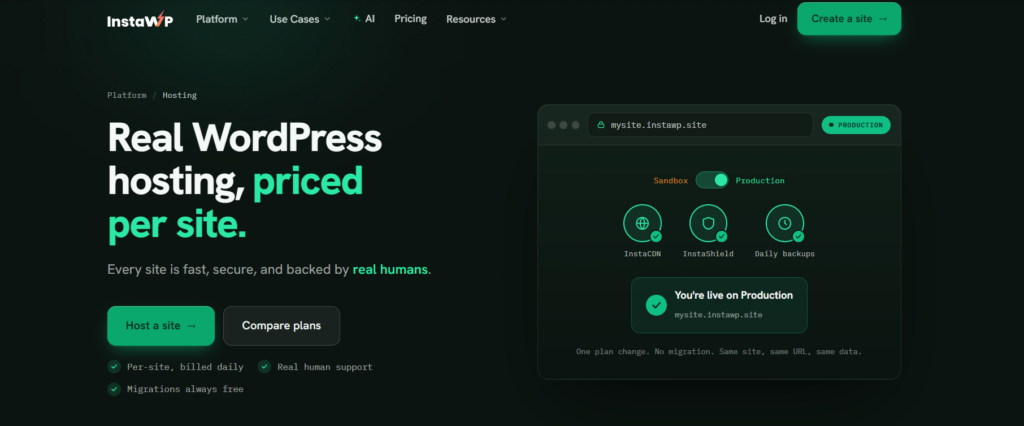
InstaWP also simplifies hosting for WooCommerce projects. You can use it as a temporary staging ground for client reviews or as a quick hosting solution to launch WooCommerce stores without the usual technical overhead. For developers managing multiple projects, this hosting option provides an easy way to organize and present work.
Git Integration for Version Control

InstaWP integrates with Git, giving you complete version control over your sandbox projects. You can track code changes, experiment safely, and roll back to previous versions whenever necessary.
Real-Time Client Collaboration
Share your sandbox with clients via a simple link, allowing them to view progress, explore updates, and provide instant feedback without accessing your dev tools.
Centralized Project Management

InstaWP’s dashboard keeps all your sandboxes, projects, and templates in one place, making it easy to manage multiple sites.
Easy Migration

Moving from one host to another or from staging to live has never been easier. InstaWP’s migration tools allow you to transfer entire WooCommerce sites with just a few clicks. Whether it’s a sandbox, staging site, or live store, migrations are fast, secure, and reliable.
InstaWP isn’t just a tool for sandboxing; it’s a complete development partner that makes every stage of WooCommerce development faster, smarter, and more efficient.
FAQs
What’s the Difference Between Sandboxing and Staging?
While both sandboxing and staging act as testing environments, they have different purposes. A sandbox is a completely isolated space for experimenting, commonly used during development to test features without affecting live sites. Staging, on the other hand, is closer to the production environment and is meant for final testing before deploying changes live.
Can Sandboxes Be Automated for Routine Tasks?
Yes, sandboxes can definitely be automated for repetitive tasks. Tools like InstaWP allow you to create pre-configured templates and automate the setup of sandboxes. Developers generally use scripts or integrations to populate sandboxes with sample data or connect them with CI/CD pipelines for testing code changes.
How Secure Are Sandbox Environments?
Sandbox environments are typically very secure because they are isolated from the live site and external threats. InstaWP, for instance, uses secure hosting and encryption to ensure your data and tests remain private.
Is It Possible to Test Real-Life Scenarios in a Sandbox?
Yes, sandboxes are highly adaptable for simulating real-life scenarios. You can test high-traffic loads, various payment gateway integrations, or user interactions to see how your WooCommerce store performs.
Conclusion
A WordPress sandbox isn’t just a tool; it’s your secret weapon for WooCommerce development. It helps you tackle updates, troubleshoot issues, and innovate with confidence. With tools like InstaWP, you can set up, manage, and even migrate sandboxes effortlessly, making your development process smoother than ever.Imagine building your WooCommerce store without the stress of breaking something live.
That’s the power of sandboxing. Ready to elevate your workflow? Dive into the world of InstaWP and experience seamless development firsthand. Get started with InstaWP today!